[Quokka.js plugin](https://quokkajs.com/) to enable browser-like environment via [`jsdom`](https://github.com/tmpvar/jsdom).
## Install
```
npm install jsdom-quokka-plugin
```
Note that you may install the plugin to the [Quokka config folder](https://quokkajs.com/docs/configuration.html#global-config-file) instead of installing it to your local project.
## Configuration
Specify the plugin in Quokka [configuration settings](https://quokkajs.com/docs/configuration.html):
```
{
"plugins": ["jsdom-quokka-plugin"]
}
```
If you need to, you may pass additional configuration options to the plugin:
```
{
"plugins": ["jsdom-quokka-plugin"],
"jsdom": {
"file": "/html/file/path"
"html": "...",
"userAgent": "...",
"config": {...}
}
}
```
The `jsdom.file` setting allows to specify a path to any HTML file.
The `jsdom.html` setting allows to specify any HTML as a string.
The `jsdom.config` setting is [the `jsdom` options setting](https://github.com/jsdom/jsdom#customizing-jsdom).
## Web Canvas API
If you want to use `HTMLCanvasElement` objects with Quokka and `jsdom` then you must also install the `canvas` package in the same
location as `jsdom-quokka-plugin`:
## Example 1
Specify inline Quokka configuration to use the `jsdom-quokka-plugin` setting `html` from config:
```javascript
({
plugins: ['jsdom-quokka-plugin'],
jsdom: {html: `Hello
`}
})
const testDiv = document.getElementById('test');
console.log(testDiv.innerHTML);
```
displays
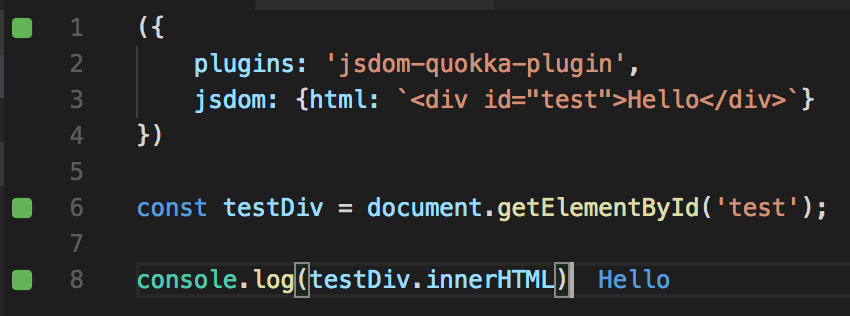 In this example, inline Quokka config is used. You may also place the [config into the global Quokka config file or into your `package.json`](https://quokkajs.com/docs/configuration.html).
## Example 2
Create a new project that loads config from project configuration and sets html from a `file`:
1. Create a new folder for your scratch project.
2. Using terminal in the new folder, run `npm init` (accept all defaults).
3. Using terminal in the new folder, Install jsdom-quokka-plugin with `npm install jsdom-quokka-plugin –save-dev`.
4. In the root of the new folder, create a file `test.html` with the contents:
```html
This is my sample page.
In this example, inline Quokka config is used. You may also place the [config into the global Quokka config file or into your `package.json`](https://quokkajs.com/docs/configuration.html).
## Example 2
Create a new project that loads config from project configuration and sets html from a `file`:
1. Create a new folder for your scratch project.
2. Using terminal in the new folder, run `npm init` (accept all defaults).
3. Using terminal in the new folder, Install jsdom-quokka-plugin with `npm install jsdom-quokka-plugin –save-dev`.
4. In the root of the new folder, create a file `test.html` with the contents:
```html
This is my sample page.
Hello World
```
5. In the root of the new folder, create a file `test.js` with the contents:
```javascript
const testDiv = document.getElementById('testDiv');
testDiv.textContent //?
```
6. In the root of the new folder, create a file `.quokka` with the contents:
```json
{
"plugins": ["jsdom-quokka-plugin"],
"jsdom": {"file": "test.html"}
}
```
6. Start Quokka on `test.js`. You should now see editor output and Quokka console output of `Hello World`.