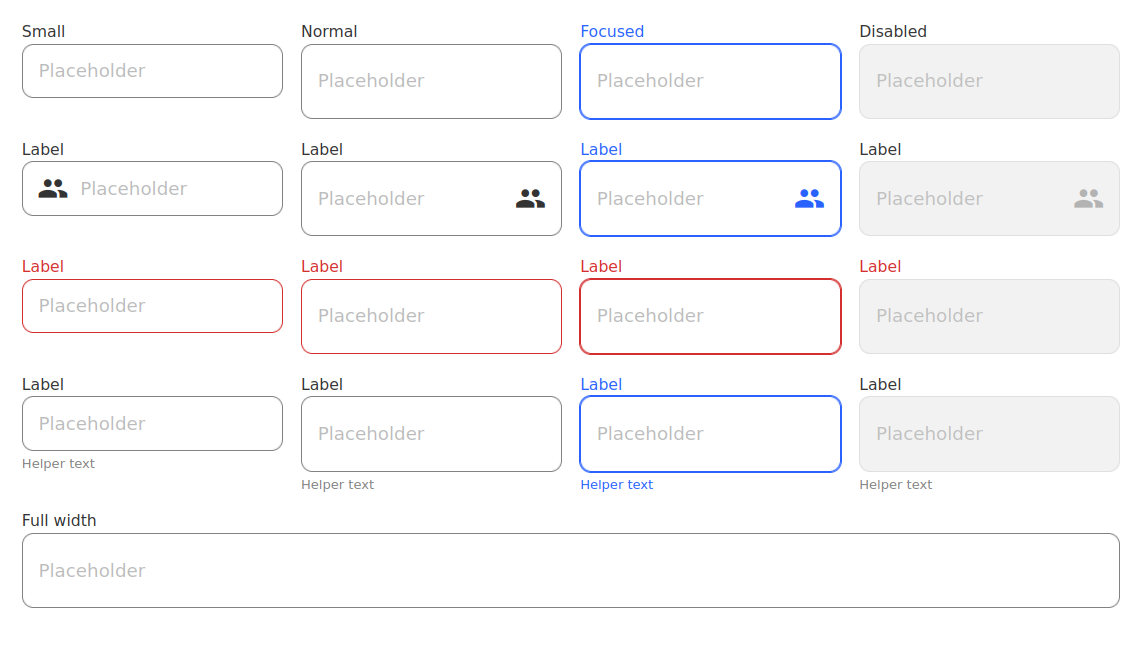
Simple input component for your React app
## Installation
```bash
npm install @hdoc/react-input
```
### Icons
If you intend to use icons, install the following packages:
```bash
npm install @hdoc/react-material-icons @material-design-icons/font
```
Then import `@material-design-icons/font` in your entry file (example: src/main.jsx in Vite):
```js
import "@material-design-icons/font";
```
> :information_source: Check [@material-design-icons/font docs](https://www.npmjs.com/package/@material-design-icons/font#usage) for more info.
## Usage
In your `App.jsx` or another file:
```js
import { Input } from "@hdoc/react-input";
function App() {
return (
<>
...
);
}
```
## Props
All props are optional unless otherwise specified.
Additionally it can receive all attribues of an `input` element.
`size`
Size variant of the input.
Type: `'small'`
---
`error`
Whether the input has an error.
Type: `boolean`
---
`fullWidth`
Whether the input is full width, i.e., it takes up the full width of the parent.
Type: `boolean`
---
`iconStart`
The name of the icon to display on the left.
Type: `string`
---
`iconEnd`
The name of the icon to display on the right.
Type: `string`
---
`iconVariant`
The variant of the icon.
Type: `'filled' | 'outlined' | 'sharp' | 'two-tone'`
---
`className`
Additional class names for extending styles.
Type: `string`
---
`label`
The label of the input.
Type: `string`
---
`labelClassName`
Additional class names for extending styles of the label.
Type: `string`
---
`helperText`
The helper text of the input.
Type: `string`
## Customization
You can customize the color of the input by using the following CSS custom properties:
```css
/* YOU CAN USE ANY SELECTOR YOU WANT */
:root,
[data-theme="my-custom-theme"],
body.dark,
.any-parent-of-input,
.class-to-extend-styles {
/* NORMAL INPUT */
--input-bg: #ffffff;
--input-bg-disabled: #aaa;
--input-border-color: #888;
/* auto-setted by --label-text */
--input-border-color-hover: #444;
/* auto-setted by --label-text-focus */
--input-border-color-focus: lightblue;
--input-border-color-disabled: rgba(0, 0, 0, 0.26);
--input-text: #000;
--input-helper-text: #828282;
--placeholder-color: #636363;
--placeholder-disabled: #434343;
--label-text: #828282;
--label-text-hover: #000;
--label-text-focus: lightblue;
/* ERROR VARIANT */
/* auto-used by input, label and helper text */
--error: #f44336;
}
```
## CSS classes
`.input`
The base styles for the input
---
`.input--error`
The error styles for the input
---
`.input-with-icon-start`
The styles for the input with an icon on the left
---
`.input-with-icon-end`
The styles for the input with an icon on the right
---
`.input--small`
The small styles for the input
---
`.input-fullwidth`
The full width styles for the input
---
`.input-label`
The styles for the label of the input
---
`.input-label--error`
The error styles for the label of the input
---
`.input-label--fullwidth`
The full width styles for the label of the input
---
`.input-helper-text`
The styles for the helper text of the input
---
`.input-icon`
The styles for the icon of the input
---
`.input-icon--start`
The styles for the icon of the input on the left
---
`.input-icon--end`
The styles for the icon of the input on the right


