# Angular13
This project was generated with [Angular CLI](https://github.com/angular/angular-cli) version 13.1.3.
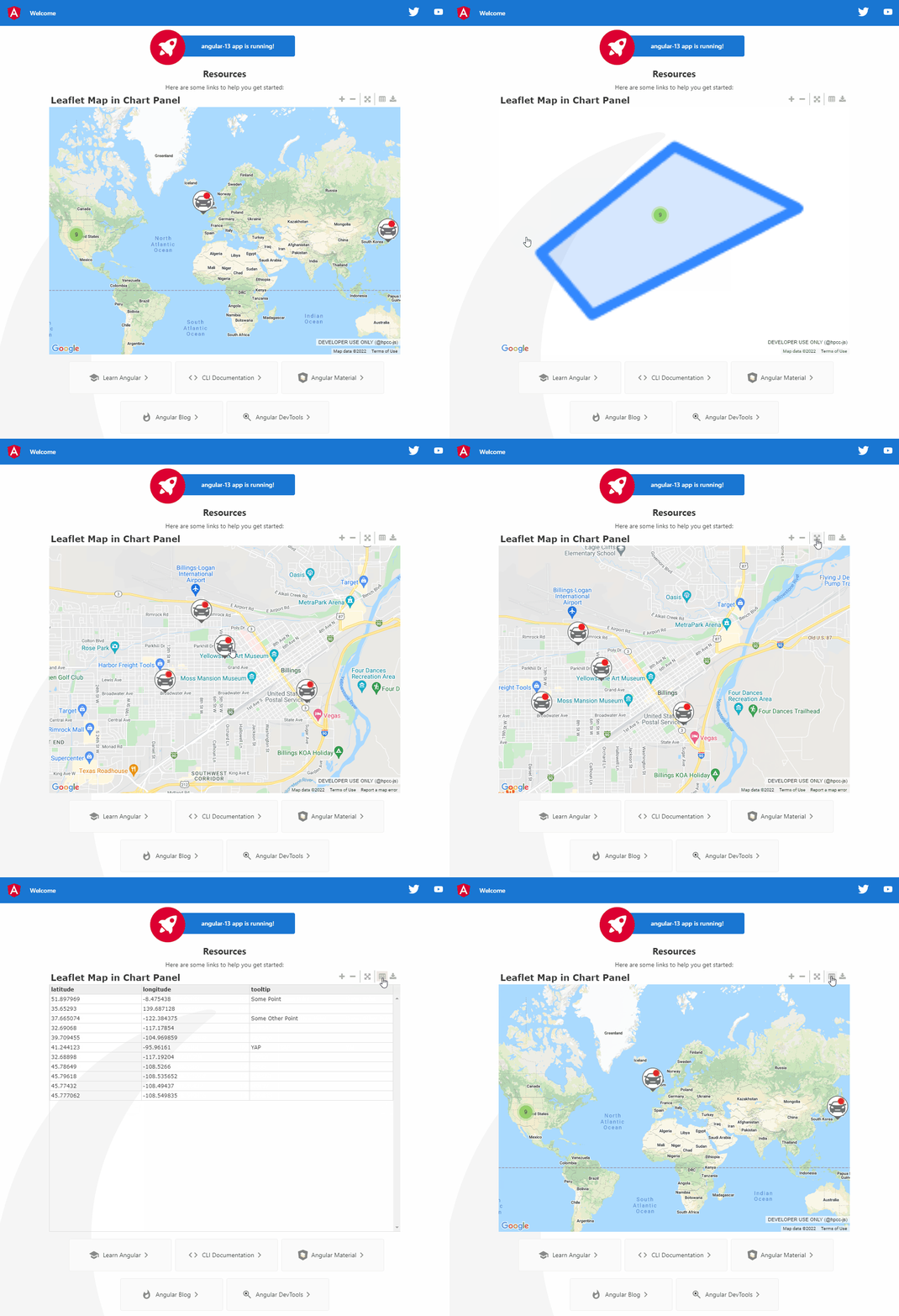
## Compatibility Note
With the exception of the following, all visualizations should "just work".
Exceptions (see below for workaround):
* `@hpcc-js/dgrid` - replace with `@hpcc-js/dgrid2`
* `@hpcc-js/eclwatch` - still has dependency on `@hpcc-js/dgrid` (specifically for nested child datasets)
* `@hpcc-js/marshaller` - still has dependency on `@hpcc-js/dgrid` (primarily for Dashy and nested child datasets)
## Development server
Run `ng serve` for a dev server. Navigate to `http://localhost:4200/`. The app will automatically reload if you change any of the source files.
## Code scaffolding
Run `ng generate component component-name` to generate a new component. You can also use `ng generate directive|pipe|service|class|guard|interface|enum|module`.
## Build
Run `ng build` to build the project. The build artifacts will be stored in the `dist/` directory.
## Running unit tests
Run `ng test` to execute the unit tests via [Karma](https://karma-runner.github.io).
## Running end-to-end tests
Run `ng e2e` to execute the end-to-end tests via a platform of your choice. To use this command, you need to first add a package that implements end-to-end testing capabilities.
## Further help
To get more help on the Angular CLI use `ng help` or go check out the [Angular CLI Overview and Command Reference](https://angular.io/cli) page.
## Workaround for `@hpcc-js/dgrid`
Unfortunately "@hpcc-js/dgrid" package is incompatible with the "use strict" JavaScript rules and now that Angular 13 has upgraded to use "module" based packages (which implicitly enable "use strict") the `@hpcc-js/dgrid` can not be used directly within Angular 13.
The workaround is to load dgrid (and its dependencies) via traditional means:
1. Include the scripts to the `` of the `index.html` file (only dgrid and its dependencies are needed):
```html
```
2. Tell webpack to treat those three packages as "external". This is bit of pain in Angular as their mantra is to not expose any of the webpack settings or allow manual configuration. However there is a custom Angular builder which can assist with this "@angular-builders/custom-webpack":
```sh
npm install -D @angular-builders/custom-webpack
```
**Note**: This builder re-uses the default `@angular-devkit/build-angular` builder, but allows for extending and tweaking the default webpack configuration.
3. Update the angular.json file to use this custom builder instead of the default one. Open your angular.json and replace all instances of `@angular-devkit/build-angular` with `@angular-builders/custom-webpack`.
4. Add the following `customWebpackConfig` to your angular.json:
```json
"architect": {
...
"build": {
"builder": "@angular-builders/custom-webpack:browser",
"options": {
// Add the following customWebPackConfig to your angular.json file.
"customWebpackConfig": {
"path": "./webpack-append.config.js",
"mergeRules": {
"externals": "append"
}
},
...
},
...
}
```
5. Finally create the `webpack-append.config.js` file in the root folder:
```js
/* eslint-disable no-undef */
module.exports = {
externals: {
"@hpcc-js/util": "hpcc_util",
"@hpcc-js/common": "hpcc_common",
"@hpcc-js/dgrid": "hpcc_dgrid"
},
};
```