# ☰ HamburgerMenu ☰
_A responsive CSS solution_
[](https://github.com/center-key/hamburger-menu/blob/main/LICENSE.txt)
[](https://www.npmjs.com/package/hamburger-menu)
[](https://www.jsdelivr.com/package/npm/hamburger-menu)
[](https://github.com/center-key/hamburger-menu/actions/workflows/run-spec-on-push.yaml)
[](https://github.com/center-key/hamburger-menu/actions/workflows/publish-website.yaml)
Hamburger button menus should be used with caution as they can impair user interaction.
As they say, *"Out of sight, out of mind"*.
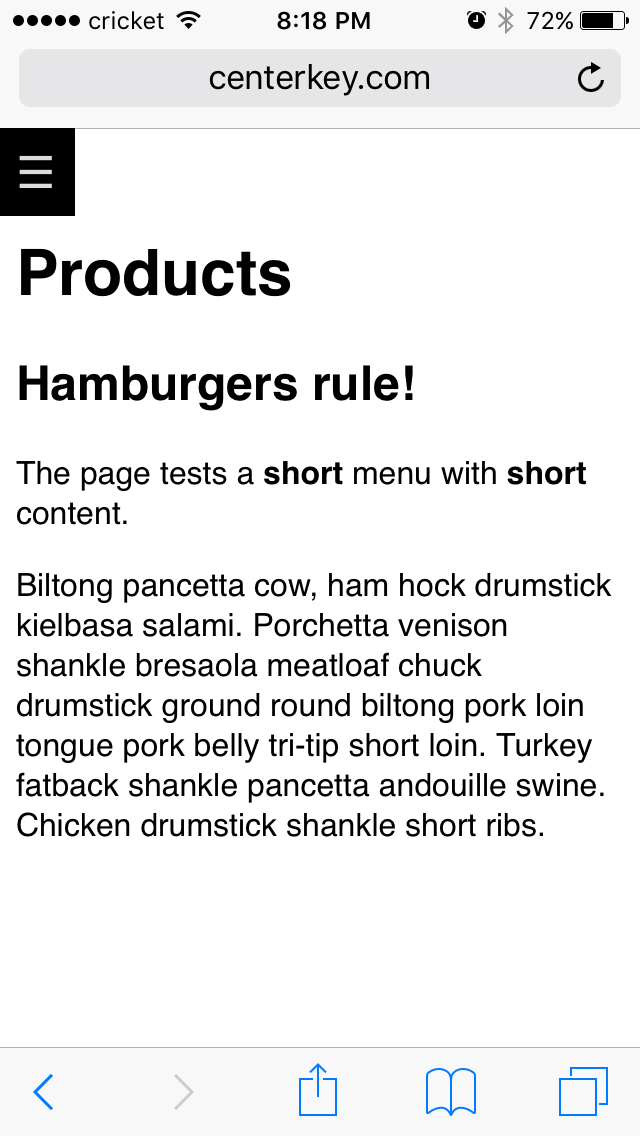
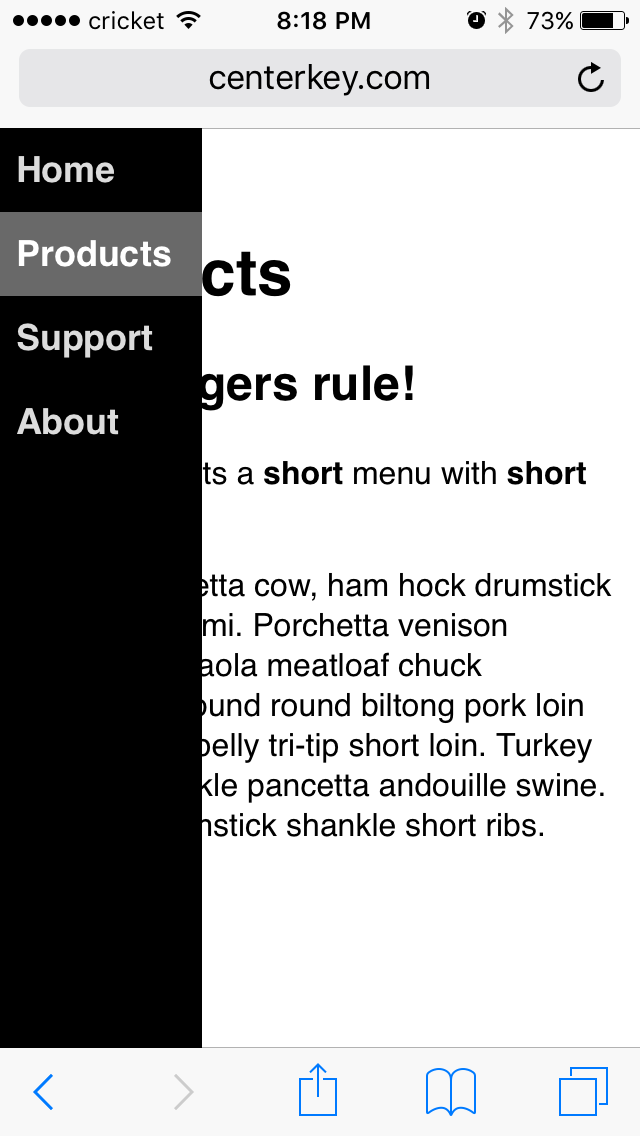
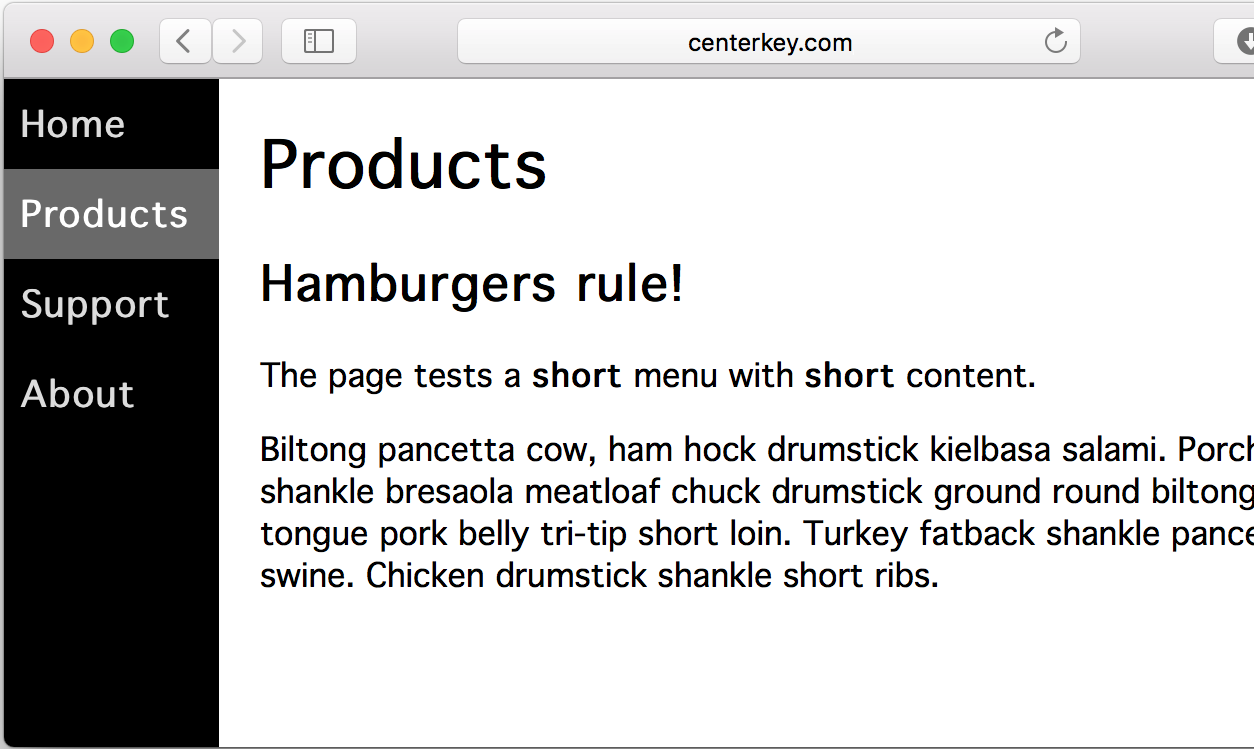
When you do need a hamburger button menu, this solution uses CSS to replace the navigation menu
with a tappable hamburger icon on mobile devices or any browser with a sufficiently narrow screen.
Tapping the hamburger reveals the navigation menu with smooth CSS animation.
## A) Try It Out
Interactive example:
https://hamburger-menu.js.org
## B) Setup
Include the **HamburgerMenu** CSS and JavaScript:
```html
...
...
...
```
...or from the [jsDelivr CDN](https://www.jsdelivr.com/package/npm/hamburger-menu):
```html
...
...
...
```
...the **HamburgerMenu** files can be installed using **npm**:
```terminal
$ npm install hamburger-menu
```
## C) Usage
See the
[**x3000.html**](https://github.com/center-key/hamburger-menu/blob/main/spec/multipage/products/x3000.html)
test page for an example or follow the instructions below.
Insert the following HTML into your web page and modify the menu items (`
`) as appropriate
for your website:
```html
```
## D) Customize
Change the width and colors by adding the CSS below into your website and modifying it:
```css
/* HamburgerMenu ☰ Custom width and colors */
body {
padding-right: 50px; /* gutter on left and right sides of page */
padding-left: 200px; /* set to "padding-right" + "width"(aside) */
}
nav.hamburger-menu aside {
width: 150px; /* menu width */
}
nav.hamburger-menu {
color: gainsboro; /* menu font color */
background-color: teal; /* menu background color */
}
nav.hamburger-menu aside menu li.current {
border-color: white; /* border color for selected menu item */
}
nav.hamburger-menu aside menu li.current >span,
nav.hamburger-menu aside menu li.current >a,
nav.hamburger-menu aside menu li >span:hover,
nav.hamburger-menu aside menu li >a:hover {
color: white; /* menu font highlight color */
background-color: darkcyan; /* menu background highlight color */
}
```
## E) Highlight Menu Item for Current Page
**HamburgerMenu** automatically highlights the selected menu item.
Turn off automatic highlighting by *either*:
1. Not loading the `hamburger-menu.js` file
1. Adding the class `disable-auto-highlight` to the `
 ## B) Setup
Include the **HamburgerMenu** CSS and JavaScript:
```html
...
...
...
```
...or from the [jsDelivr CDN](https://www.jsdelivr.com/package/npm/hamburger-menu):
```html
...
...
...
```
...the **HamburgerMenu** files can be installed using **npm**:
```terminal
$ npm install hamburger-menu
```
## C) Usage
See the
[**x3000.html**](https://github.com/center-key/hamburger-menu/blob/main/spec/multipage/products/x3000.html)
test page for an example or follow the instructions below.
Insert the following HTML into your web page and modify the menu items (`
## B) Setup
Include the **HamburgerMenu** CSS and JavaScript:
```html
...
...
...
```
...or from the [jsDelivr CDN](https://www.jsdelivr.com/package/npm/hamburger-menu):
```html
...
...
...
```
...the **HamburgerMenu** files can be installed using **npm**:
```terminal
$ npm install hamburger-menu
```
## C) Usage
See the
[**x3000.html**](https://github.com/center-key/hamburger-menu/blob/main/spec/multipage/products/x3000.html)
test page for an example or follow the instructions below.
Insert the following HTML into your web page and modify the menu items (`