# Easy Vue Camera
This vue component is powered by easy-js-camera library.
## How it works
This component has two sub-components. One is called FullscreenViewCamera and the other is StandardViewCamera.
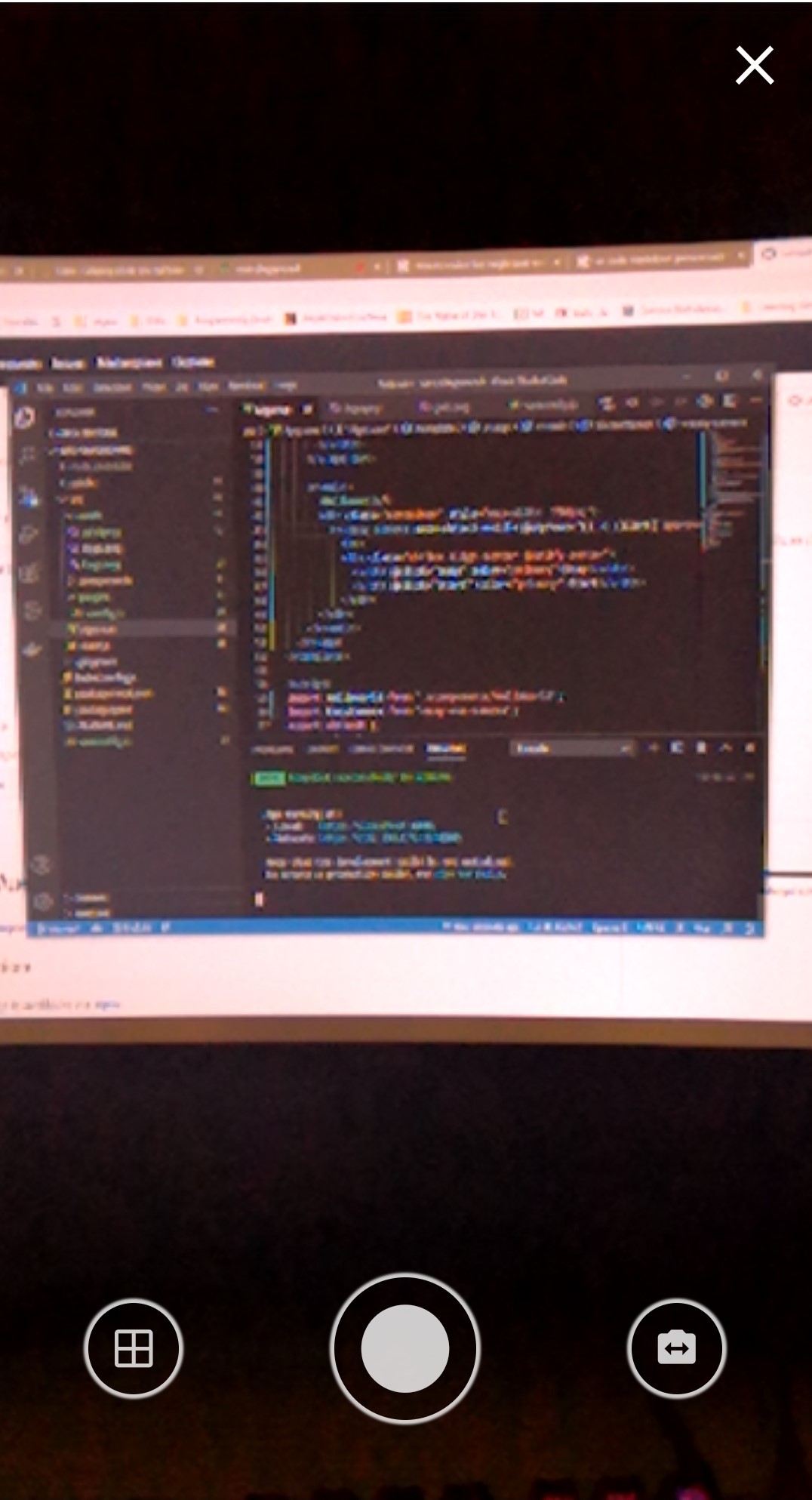
* **FullscreenViewCamera:** This component provides a native app like look for the camera and the only part which is customizable is the `Header`. The picture below shows how it looks like.
 * **StandardViewCamera:** This component does not provide any UI actions and just renders the Video element along with a canvas to show the snapped picture in. *This component is controllable via reference*.
**Note:** If you enable the `auto-detect-mobile` property the `mother` component will automatically will decide which of the sub-components should be rendered. If this property is off you can toggle between the two, by toggling `fullscreen` property.
## Installation
The package is available via npm. For using this package you also need to install `easy-js-camera`.
```
npm install easy-js-camera easy-vue-camera
```
After the installation is complete you can add the component with the following code.
```
import EasyCamera from 'easy-vue-camera';
Vue.use(EasyCamera);
```
or
```
import EasyCamera from 'easy-vue-camera';
//inside your vue options api
export default {
components: {
...
'v-easy-camera': EasyCamera
...
}
}
```
## Usage
After adding the EasyCamera component to your vue components you can use it like below.
```
```
### Properties
* **autoDetectMobile:** This property will let the component to decide if it is loading on a touch screen device or not. `default: true`
* **fullscreen:** This option will make the component fullscreen. `default: false`
* **mustApprove:** Setting this option to true will make the component no to immediately send back the tooken picture to your v-model and will show a confirmation button first. **This property is only effective in fullscreen mode, in standard mode you should handle it with your own code.** `default: false`
* **output:** Here you can set the `output` image that you expect from the component. You can set this to `dataUrl` or `blob`. `default: dataUrl`
* **overlayMask:** This option will set an overlay mask on the video. You can have a grid so your user can see how you excpect the picture to be taken. It accepts string and the value is the path to your `mask image`.
* **startOnMounted:** The component will grant the persmission on mounted anyway but you can decide to run the camera on mounted or not by setting this property. `default: true`
### Functions
You can access the functions inside the component by referencing the component.
* **close:** This function will stop the camera if any exists and will emit `close` event.
* **snap:** This function will take a picture and if the `mustApprove` property is not set then it will emit `input` and will send the picture back.
* **start:** This function will start the camera and emits `loading` event on beging and end of the function. *loading event has a value of true or false*
* ***stop:** This function will let you to stop the camera. The camera will be turned off with this function.
* **switchCamera:** This function will try to switch the camera if any other camera than the main one exists.
* **toggleMask:** This function is only effective when the component is in `StandardView` and will let you to toggle the overlayMask. On `FullscreenView` the mask is controlled by the component's UI actions.
### Events
* **loading:** Whenever the component is waiting or done with waiting it will $emit the `loading` event with the value of `true/false`.
* **close:** Happens when either the `FullscreenView` or the `StandardView` finished a close request.
* **approve:** This event only happens when the component is in `FullscreenView`. From the inside the component it already sends an `input` event to update you `v-model` value but it also emits this event to let you know that this new update is because of user approval. (This only occurs if `must-approve` property is on).
### Slots
* **header:** This slot if only used in `FullscreenView` and will let you to set a header. Please notice that setting `custom` header will replace the default close button.
## Desktop version
Please note that on desktop just the video is adjusted and no `actions` are shown. On desktop it is better that the actions are placed manually than using the component actions. *The actions are available in fullscreen mode*
* **StandardViewCamera:** This component does not provide any UI actions and just renders the Video element along with a canvas to show the snapped picture in. *This component is controllable via reference*.
**Note:** If you enable the `auto-detect-mobile` property the `mother` component will automatically will decide which of the sub-components should be rendered. If this property is off you can toggle between the two, by toggling `fullscreen` property.
## Installation
The package is available via npm. For using this package you also need to install `easy-js-camera`.
```
npm install easy-js-camera easy-vue-camera
```
After the installation is complete you can add the component with the following code.
```
import EasyCamera from 'easy-vue-camera';
Vue.use(EasyCamera);
```
or
```
import EasyCamera from 'easy-vue-camera';
//inside your vue options api
export default {
components: {
...
'v-easy-camera': EasyCamera
...
}
}
```
## Usage
After adding the EasyCamera component to your vue components you can use it like below.
```
```
### Properties
* **autoDetectMobile:** This property will let the component to decide if it is loading on a touch screen device or not. `default: true`
* **fullscreen:** This option will make the component fullscreen. `default: false`
* **mustApprove:** Setting this option to true will make the component no to immediately send back the tooken picture to your v-model and will show a confirmation button first. **This property is only effective in fullscreen mode, in standard mode you should handle it with your own code.** `default: false`
* **output:** Here you can set the `output` image that you expect from the component. You can set this to `dataUrl` or `blob`. `default: dataUrl`
* **overlayMask:** This option will set an overlay mask on the video. You can have a grid so your user can see how you excpect the picture to be taken. It accepts string and the value is the path to your `mask image`.
* **startOnMounted:** The component will grant the persmission on mounted anyway but you can decide to run the camera on mounted or not by setting this property. `default: true`
### Functions
You can access the functions inside the component by referencing the component.
* **close:** This function will stop the camera if any exists and will emit `close` event.
* **snap:** This function will take a picture and if the `mustApprove` property is not set then it will emit `input` and will send the picture back.
* **start:** This function will start the camera and emits `loading` event on beging and end of the function. *loading event has a value of true or false*
* ***stop:** This function will let you to stop the camera. The camera will be turned off with this function.
* **switchCamera:** This function will try to switch the camera if any other camera than the main one exists.
* **toggleMask:** This function is only effective when the component is in `StandardView` and will let you to toggle the overlayMask. On `FullscreenView` the mask is controlled by the component's UI actions.
### Events
* **loading:** Whenever the component is waiting or done with waiting it will $emit the `loading` event with the value of `true/false`.
* **close:** Happens when either the `FullscreenView` or the `StandardView` finished a close request.
* **approve:** This event only happens when the component is in `FullscreenView`. From the inside the component it already sends an `input` event to update you `v-model` value but it also emits this event to let you know that this new update is because of user approval. (This only occurs if `must-approve` property is on).
### Slots
* **header:** This slot if only used in `FullscreenView` and will let you to set a header. Please notice that setting `custom` header will replace the default close button.
## Desktop version
Please note that on desktop just the video is adjusted and no `actions` are shown. On desktop it is better that the actions are placed manually than using the component actions. *The actions are available in fullscreen mode*