# dsh-niao-quick-open
[English](README.en.md) | [中文](README.md)
> UI enhancement suite for DeepSeek Harness: one-click workspace open, auto-discovered editors, a DeepSeek-web-style user-message nav rail, session to-do marks, flat-list polish, and hard restart.
A productivity plugin built for the [DeepSeek Harness](https://github.com/deepseek-ai/deepseek-harness) Web UI. It puts the operations you use most — opening folders, switching views, jumping to questions, restarting the service — right at your fingertips, without leaving the page.
## ✨ Feature Overview
| Feature | Description |
| --- | --- |
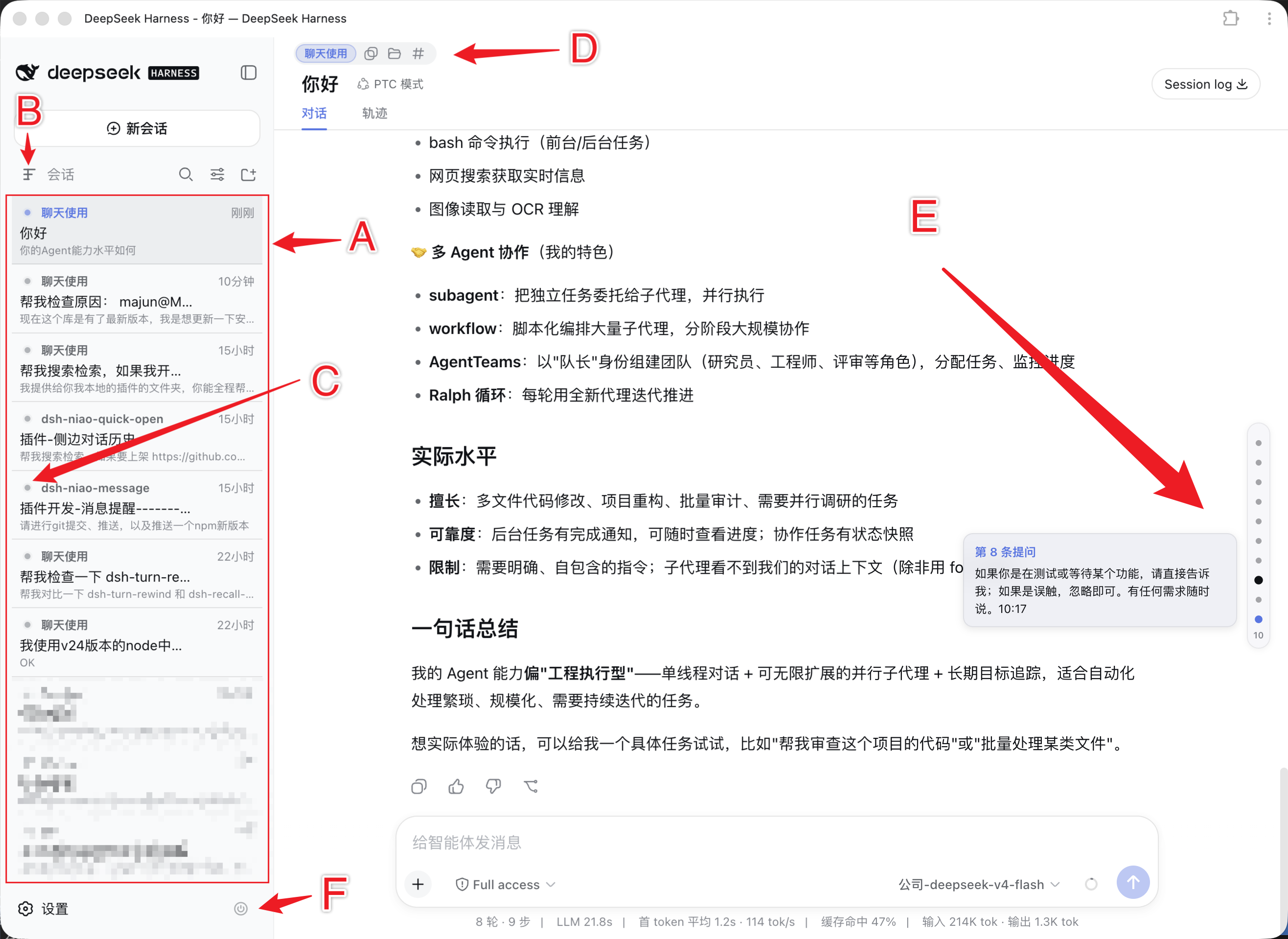
| 🚀 **Session-header quick buttons** | Workspace folder name + three icon buttons at the top of the session area: copy absolute path, reveal in file manager, open in default editor |
| 📁 **Workspace menu quick actions** | A row of quick buttons (copy path / reveal / open in editor) at the bottom of each workspace's **⋯** menu |
| 🧭 **User-message nav rail** | DeepSeek-web-style: a floating rail on the right of the chat marks every user question — hover for a summary, click to jump, current reading position highlighted |
| ✅ **Session to-do marks** | A clickable dot before idle sessions to mark them as done |
| 📄 **Flat-list polish** | Session cards in the flat-list view upgraded to a three-line layout (workspace name / last prompt preview / aligned status icons) |
| 🔀 **Header view switch** | A quick icon in the session-list header to switch between workspace-grouped and flat-list views |
| 🔄 **Hard restart** | One-click DSH restart from the bottom-left corner, with confirmation, a waiting overlay, and auto page reload |
| ⚙️ **Grouped settings panel** | Settings → UI Features: grouped by Sidebar / Session area / System tools, applied instantly |
The image below marks every area of the DSH interface that this plugin enhances or modifies once enabled, for quick reference:
 ## 🚀 Install
```sh
dsh plugin --profile web add dsh-niao-quick-open
```
Or add the package to your profile's `package.json` `dependencies` and `dsh.profile.bundles`, then restart `dsh web`.
## 📖 Features in Detail
### Session header
The top-left of the session area becomes two rows:
- **Row 1** — the current workspace folder name (small highlighted label) plus three icon buttons, tooltips shown below each icon:
- 📋 **Copy absolute path**
- 📁 **Reveal in file manager** (Finder on macOS / Explorer on Windows / file manager on Linux)
- `` **Open in default editor**
- **Row 2** — the current session name, enlarged.
### User-message nav rail (right of the chat)
Recreates the DeepSeek web interaction: once the current session has **≥ 2 user messages** and the transcript overflows one screen, a vertical pill floats on the right side of the conversation area (just left of the scrollbar), with one marker per user message:
- **Hover a marker** — a summary card appears ("Question #N" title + truncated message text);
- **Click a marker** — the transcript smooth-scrolls to that message;
- The marker for the message you are currently reading is highlighted in the brand color — when you scroll between two questions, the previous one stays highlighted until the next question appears;
- A badge at the bottom of the pill shows the total number of user messages;
- The pill is **always visible** (no hover reveal/hide); scrolling / streaming only repositions markers and highlights without flicker.
Controlled by the **User message nav rail** toggle under Settings → **UI Features** (enabled by default).
### Workspace **⋯** menu quick actions
When enabled, each workspace's **⋯** menu gets an extra row of quick buttons: copy path, reveal in file manager, open in default editor.
### Session to-do marks
Idle sessions show a clickable dot: click to mark as done (turns green), click again to unmark; switching away from a session auto-clears its to-do. Marks are stored in the browser, not in the service config.
### Flat-list polish
When enabled, the flat-list view (Grouping → Flat list) renders session rows in a three-line layout:
- Line 1: native status icon + workspace folder name + relative time of the last user message;
- Line 2: session title;
- Line 3: a muted one-line preview of the user's last prompt.
### Header view switch
Adds a quick "switch grouping" icon to the session-list header (the row with search / grouping / sorting), letting you toggle between workspace-grouped and flat-list views with one click, with a tooltip.
### Hard restart button (bottom-left)
A **restart** icon sits to the right of the Settings button in the bottom-left corner (grey semi-transparent by default, turns red on hover). Clicking it asks for confirmation; once confirmed:
- The host spawns a detached replacement process with the exact same command that started this one (waiting for the old process to exit and the port to free), then exits the current process completely;
- The page shows a "Restarting DeepSeek Harness…" overlay, probes the service every 700 ms and **auto-reloads once it is back**; if it does not come back within 30 s, it prompts you to refresh manually.
## ⚙️ Settings: UI Features
A **UI Features** page is registered in the DSH Settings panel, grouped by functional area; each option shows a one-line summary plus an expandable detailed description:
## 🚀 Install
```sh
dsh plugin --profile web add dsh-niao-quick-open
```
Or add the package to your profile's `package.json` `dependencies` and `dsh.profile.bundles`, then restart `dsh web`.
## 📖 Features in Detail
### Session header
The top-left of the session area becomes two rows:
- **Row 1** — the current workspace folder name (small highlighted label) plus three icon buttons, tooltips shown below each icon:
- 📋 **Copy absolute path**
- 📁 **Reveal in file manager** (Finder on macOS / Explorer on Windows / file manager on Linux)
- `` **Open in default editor**
- **Row 2** — the current session name, enlarged.
### User-message nav rail (right of the chat)
Recreates the DeepSeek web interaction: once the current session has **≥ 2 user messages** and the transcript overflows one screen, a vertical pill floats on the right side of the conversation area (just left of the scrollbar), with one marker per user message:
- **Hover a marker** — a summary card appears ("Question #N" title + truncated message text);
- **Click a marker** — the transcript smooth-scrolls to that message;
- The marker for the message you are currently reading is highlighted in the brand color — when you scroll between two questions, the previous one stays highlighted until the next question appears;
- A badge at the bottom of the pill shows the total number of user messages;
- The pill is **always visible** (no hover reveal/hide); scrolling / streaming only repositions markers and highlights without flicker.
Controlled by the **User message nav rail** toggle under Settings → **UI Features** (enabled by default).
### Workspace **⋯** menu quick actions
When enabled, each workspace's **⋯** menu gets an extra row of quick buttons: copy path, reveal in file manager, open in default editor.
### Session to-do marks
Idle sessions show a clickable dot: click to mark as done (turns green), click again to unmark; switching away from a session auto-clears its to-do. Marks are stored in the browser, not in the service config.
### Flat-list polish
When enabled, the flat-list view (Grouping → Flat list) renders session rows in a three-line layout:
- Line 1: native status icon + workspace folder name + relative time of the last user message;
- Line 2: session title;
- Line 3: a muted one-line preview of the user's last prompt.
### Header view switch
Adds a quick "switch grouping" icon to the session-list header (the row with search / grouping / sorting), letting you toggle between workspace-grouped and flat-list views with one click, with a tooltip.
### Hard restart button (bottom-left)
A **restart** icon sits to the right of the Settings button in the bottom-left corner (grey semi-transparent by default, turns red on hover). Clicking it asks for confirmation; once confirmed:
- The host spawns a detached replacement process with the exact same command that started this one (waiting for the old process to exit and the port to free), then exits the current process completely;
- The page shows a "Restarting DeepSeek Harness…" overlay, probes the service every 700 ms and **auto-reloads once it is back**; if it does not come back within 30 s, it prompts you to refresh manually.
## ⚙️ Settings: UI Features
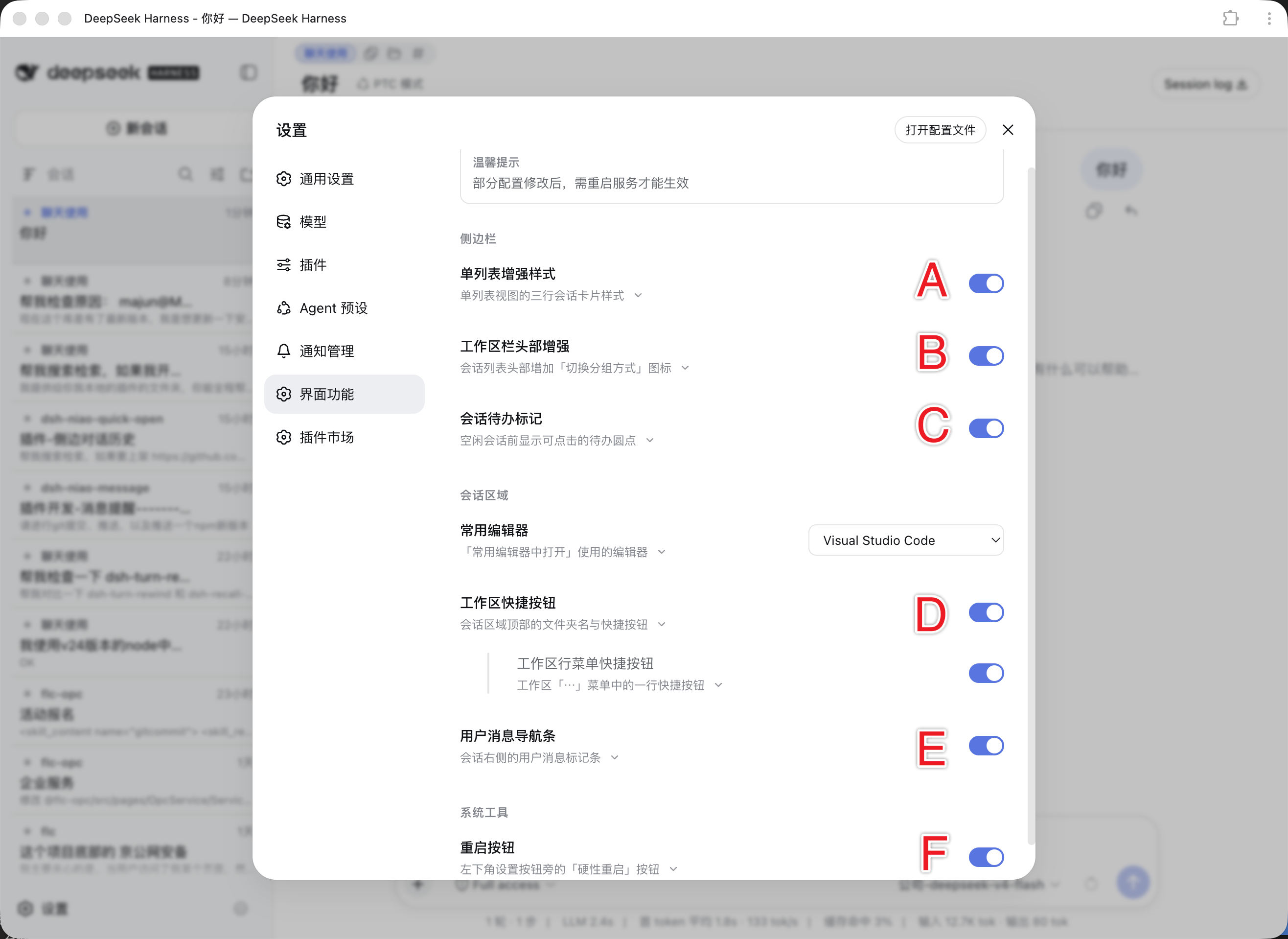
A **UI Features** page is registered in the DSH Settings panel, grouped by functional area; each option shows a one-line summary plus an expandable detailed description:
 ### Sidebar
- **Flat-list polish** (enabled by default): three-line session cards in the flat-list view;
- **Header view switch** (disabled by default): quick grouping-toggle icon in the session-list header;
- **Session to-do marks** (disabled by default): clickable to-do dots before idle sessions.
### Session area
- **Default editor** (independent): the editor used by **Open in default editor**; applied instantly;
- **Workspace quick buttons** (enabled by default): the folder name and quick buttons at the top of the session area;
- Child **Workspace menu quick actions** (disabled by default): a quick-button row in the workspace **⋯** menu;
- **User message nav rail** (enabled by default): the message marker rail on the right of the chat.
### System tools
- **Restart button** (enabled by default): the hard-restart button next to the bottom-left Settings button.
Config saves instantly (no Save button) and persists to `~/.dsh/dsh-niao-quick-open.config.json`. After changing a config that needs a restart to take effect, a "restart to apply" banner appears at the top of the page.
## 🔍 Editor discovery
Editors are scanned on the host:
- **Known brands** — Visual Studio Code, Cursor, Trae, Windsurf, Zed, Sublime Text, HBuilderX, the JetBrains family, Vim/Neovim CLI, … (brand icon shown);
- **Dynamic scan** — macOS scans `/Applications` + `/System/Applications`, Windows scans the Program Files / LocalAppData program directories, Linux probes common editor CLIs; any app matching editor keywords is offered with a letter icon.
Every listed editor is guaranteed to have a working open command for the workspace folder.
## 💡 Usage Tips
1. Open any workspace session: the session header's first row shows the workspace folder name and three icon buttons: 📋 copy path, 📁 reveal in file manager, `` open in default editor;
2. The second row shows the current session name, enlarged;
3. In DSH Settings → **UI Features**, toggle features and choose the **Default editor**;
4. Use the **restart** icon next to the bottom-left Settings button to hard-restart the service (confirmation required; the page reloads automatically);
5. Use the user-message nav rail on the right of the chat: hover a marker to preview a question, click to jump to it.
## 🛠 Development
```sh
npm install
npm run build # build the browser bundle into lib/client.js
npm run check # syntax-check host + build script
```
## 📄 License
[MIT](LICENSE)
### Sidebar
- **Flat-list polish** (enabled by default): three-line session cards in the flat-list view;
- **Header view switch** (disabled by default): quick grouping-toggle icon in the session-list header;
- **Session to-do marks** (disabled by default): clickable to-do dots before idle sessions.
### Session area
- **Default editor** (independent): the editor used by **Open in default editor**; applied instantly;
- **Workspace quick buttons** (enabled by default): the folder name and quick buttons at the top of the session area;
- Child **Workspace menu quick actions** (disabled by default): a quick-button row in the workspace **⋯** menu;
- **User message nav rail** (enabled by default): the message marker rail on the right of the chat.
### System tools
- **Restart button** (enabled by default): the hard-restart button next to the bottom-left Settings button.
Config saves instantly (no Save button) and persists to `~/.dsh/dsh-niao-quick-open.config.json`. After changing a config that needs a restart to take effect, a "restart to apply" banner appears at the top of the page.
## 🔍 Editor discovery
Editors are scanned on the host:
- **Known brands** — Visual Studio Code, Cursor, Trae, Windsurf, Zed, Sublime Text, HBuilderX, the JetBrains family, Vim/Neovim CLI, … (brand icon shown);
- **Dynamic scan** — macOS scans `/Applications` + `/System/Applications`, Windows scans the Program Files / LocalAppData program directories, Linux probes common editor CLIs; any app matching editor keywords is offered with a letter icon.
Every listed editor is guaranteed to have a working open command for the workspace folder.
## 💡 Usage Tips
1. Open any workspace session: the session header's first row shows the workspace folder name and three icon buttons: 📋 copy path, 📁 reveal in file manager, `` open in default editor;
2. The second row shows the current session name, enlarged;
3. In DSH Settings → **UI Features**, toggle features and choose the **Default editor**;
4. Use the **restart** icon next to the bottom-left Settings button to hard-restart the service (confirmation required; the page reloads automatically);
5. Use the user-message nav rail on the right of the chat: hover a marker to preview a question, click to jump to it.
## 🛠 Development
```sh
npm install
npm run build # build the browser bundle into lib/client.js
npm run check # syntax-check host + build script
```
## 📄 License
[MIT](LICENSE)