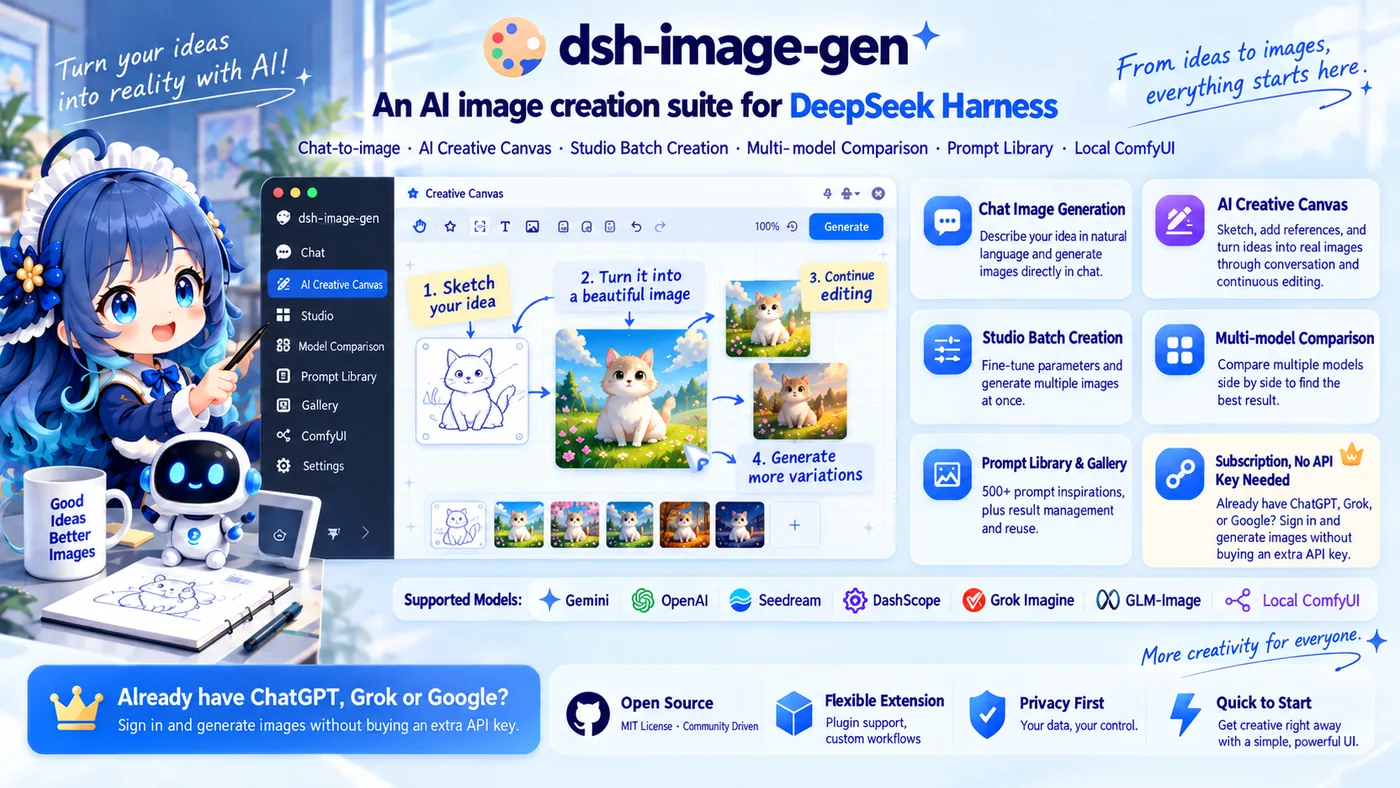
**A complete AI image creation workflow for DeepSeek Harness.**
`dsh-image-gen` goes far beyond basic in-chat image generation. It brings **in-chat generation with continuous editing**, an **AI creative canvas**, **Studio batch creation**, **side-by-side multi-model comparison**, a **prompt inspiration library**, and **local ComfyUI** workflows into DSH.
It supports mainstream cloud image models and private local workflows, works with BYOK (bring your own key) or subscription accounts, and can isolate generated assets by workspace.
> **Already paying for ChatGPT, Grok, or Google? Just sign in and start generating—no separate API key purchase needed.**
Supports: Gemini · OpenAI / Compatible · Seedream · DashScope · Grok Imagine · GLM-Image · Local ComfyUI
```bash
pnpm dsh plugin --profile web add dsh-image-gen@latest
```
> **Update notice:** This release includes major changes. Existing users should update to the latest version.
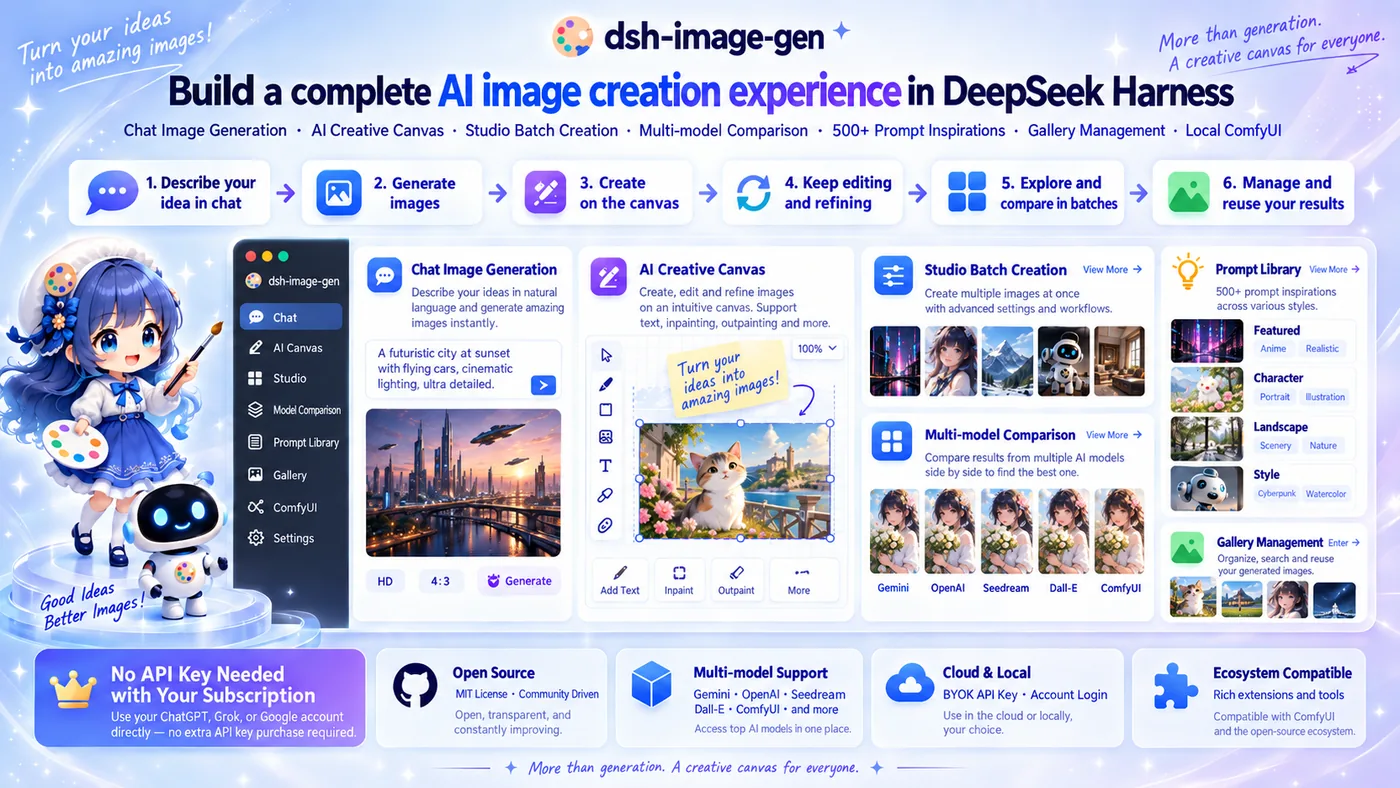 ---
## One plugin, the complete AI image creation workflow
| Entry | Best for | What you can do |
| :--- | :--- | :--- |
| 💬 **Chat** | Expressing ideas quickly | Text-to-image, image-to-image, continuous editing, and revision iteration |
| ✏️ **Canvas** | Expressing visual creativity | Sketch-to-image, reference composition, spatial creation, and continuous refinement |
| 🎛️ **Studio** | Fine-grained control over creation parameters | Batch generation, multi-image reference, and advanced parameter tuning |
| ✨ **Inspiration** | Finding creative direction | Prompt examples, style exploration, and one-click reuse |
| 🖼️ **Gallery** | Managing generated results | Search, favorite, download, and reuse |
---
## Quick Start
### 1. Install the plugin
Requirements: DeepSeek Harness stable version, Node.js `^22.19.0` or `>= 24.0.0`.
Run this command from your DeepSeek Harness project root:
```bash
pnpm dsh plugin --profile web add dsh-image-gen@latest
```
> 💬 **Power-user tip:** You can also send this directly to the Agent in a DSH chat:
> `Install the image generation plugin by running this command in the terminal: pnpm dsh plugin --profile web add dsh-image-gen@latest`
Alternative installation methods (global / GitHub / local development)
```bash
# If dsh is installed globally:
dsh plugin --profile web add dsh-image-gen@latest
# Install the latest source directly from GitHub:
pnpm dsh plugin --profile web add git+https://github.com/shanliuling/dsh-image-gen.git
# Clone the repository and install it for local development:
git clone https://github.com/shanliuling/dsh-image-gen.git
pnpm dsh plugin --profile web add ./dsh-image-gen
```
### 2. Configure a Provider
After restarting DSH, click the **Plugins** icon in the left sidebar, then click **dsh-image-gen** under **Installed** — the Image Generation settings form lives on the plugin's detail page:
**Plugins panel → Installed → dsh-image-gen**
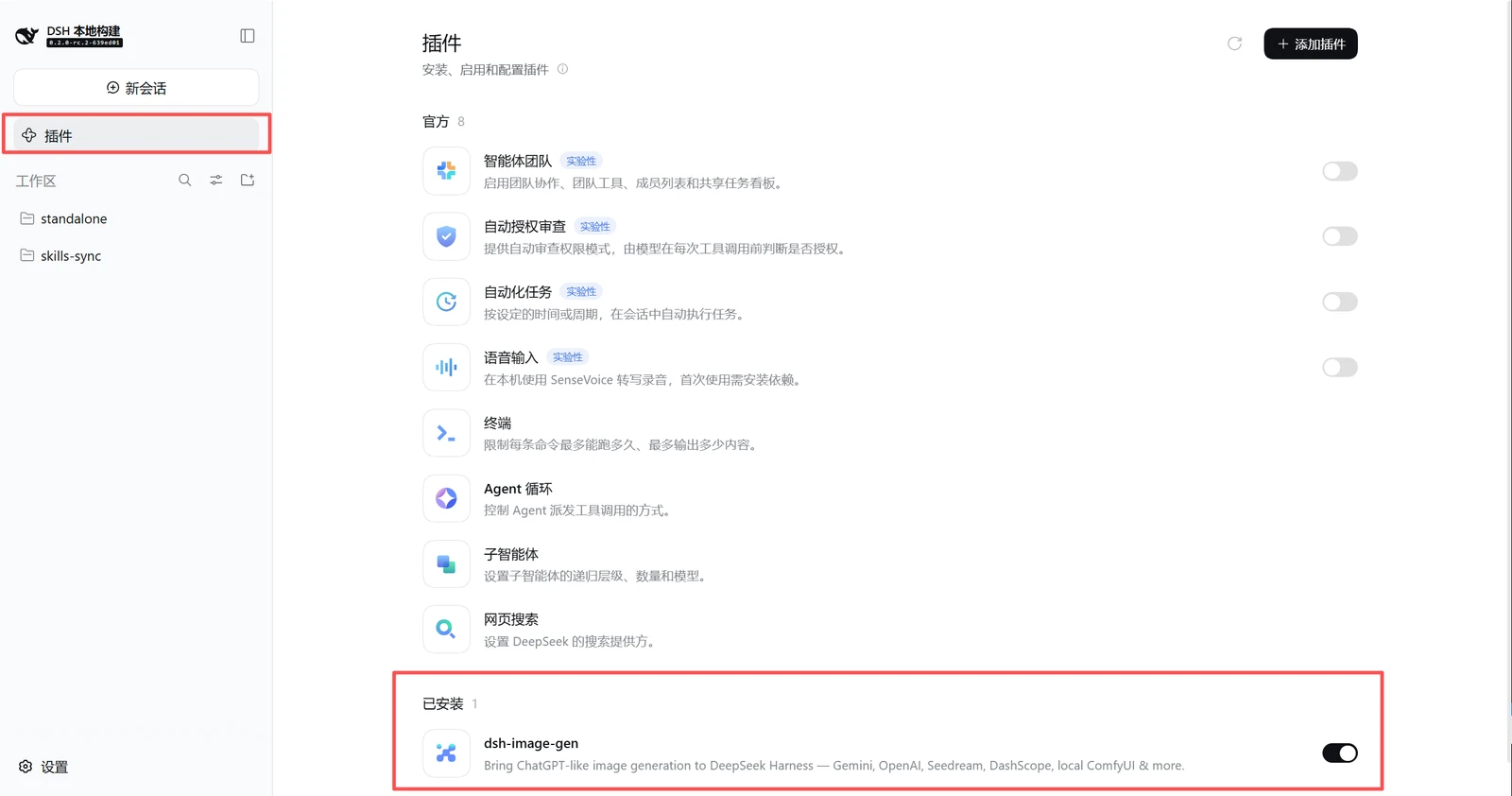 Click the Plugins icon in the left sidebar, then dsh-image-gen under Installed to open its detail page.
> DSH 0.1.5 and earlier have no Plugins panel; the entry there is **Settings → Plugins → Plugin Configuration → Image Generation**. The same plugin build supports both.
Choose a Provider, enter your API key, and adjust the model, Endpoint / Base URL, and workspace-save options as needed. Once the key is stored, click **Test connection** to verify it, or **Fetch models** to pull every image-capable model the provider offers—no manual lookups needed. For ComfyUI, enter an address reachable by the DSH Host and import an **API Format Workflow JSON** file.
Already paying for ChatGPT, Grok, or Google? No API key needed: expand the matching subscription Provider row, click **Sign in** and complete the authorization in your browser, then start generating (and editing) right away.
### 3. Start creating
Describe the image you want directly in chat:
```text
Create a cinematic cyberpunk cat on a neon street at night, 16:9.
```
You can also upload a reference image directly for style transfer or editing:
```text
Keep the character and composition unchanged, then add black sunglasses to the cat.
```
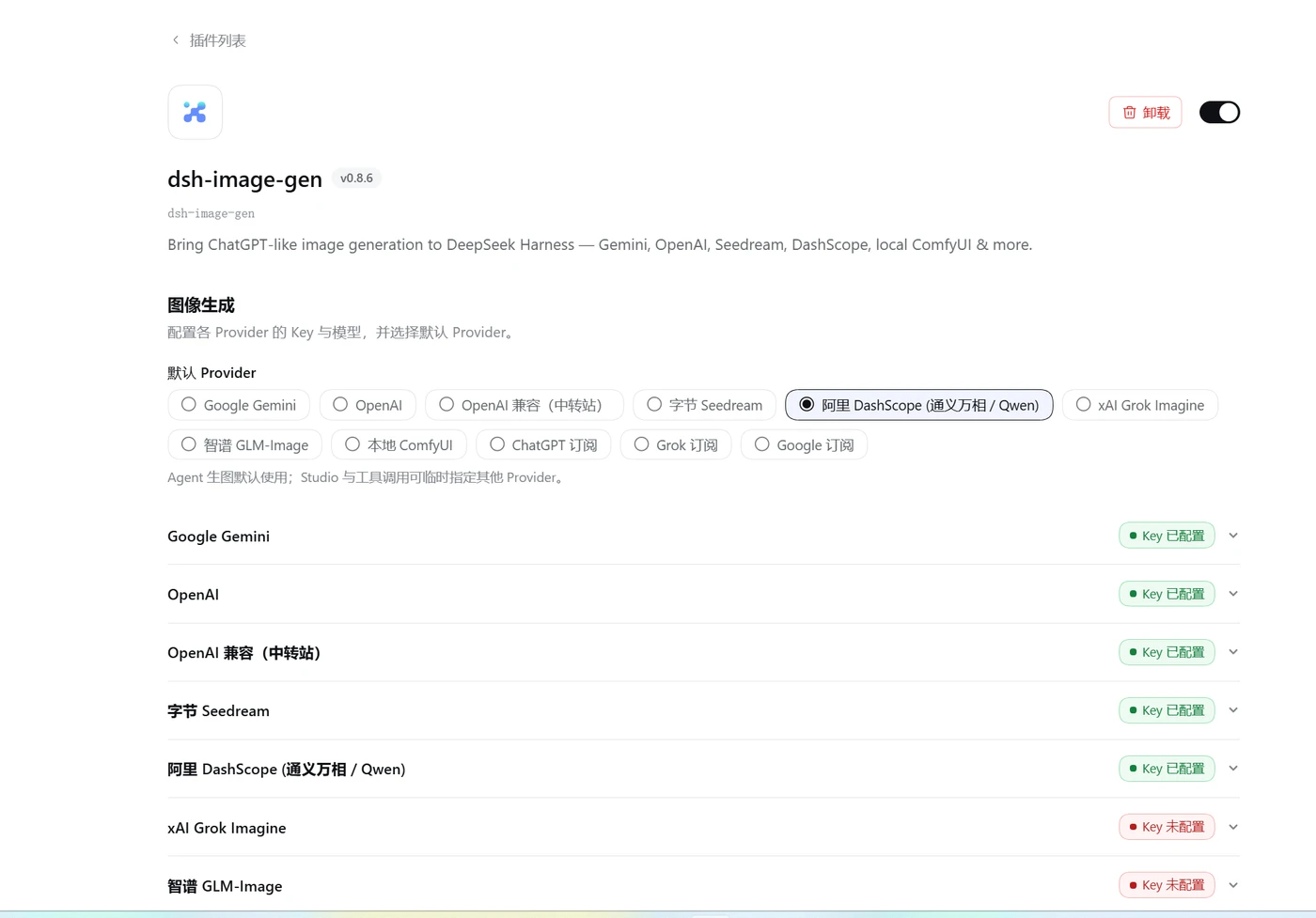
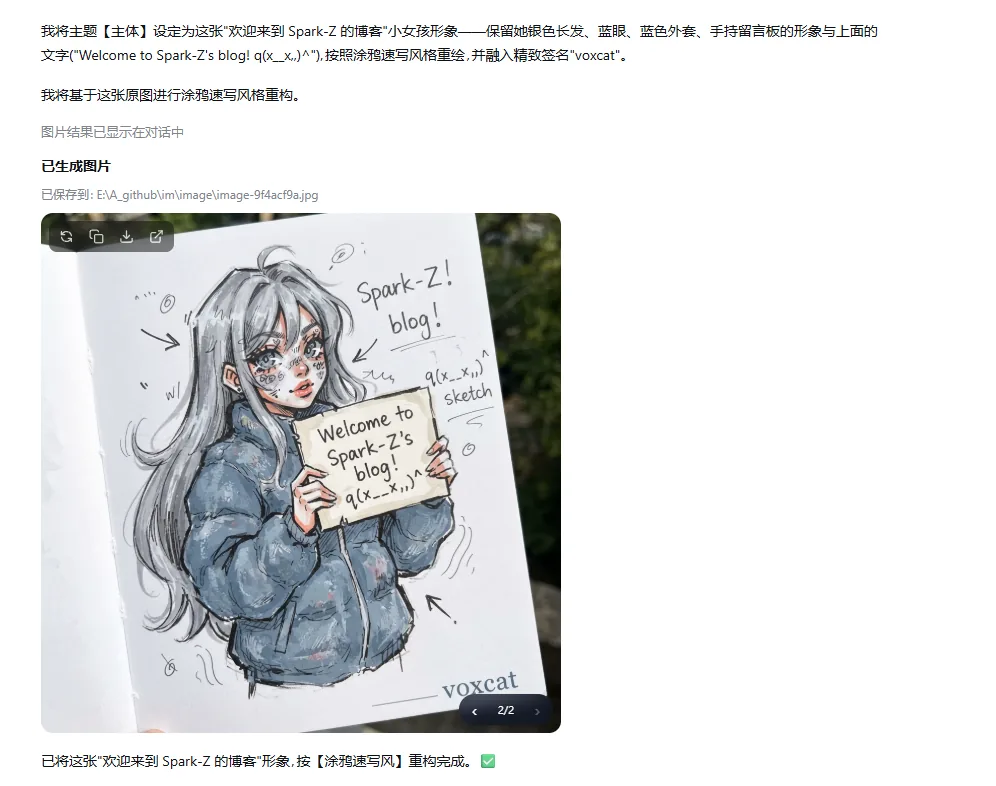 Left: Provider settings on the plugin detail page · Right: In-chat generation, editing, and continuous refinement.
For more precise parameter control, open **Gallery** from the conversation header, then switch between **Gallery / Studio / Inspiration / Favorites**.
---
## Core Capabilities
### 💬 In-chat generation, editing, and revision switching
- Use natural language for text-to-image, image-to-image, multi-image reference, and style transfer.
- Edit the original prompt to regenerate, then switch between revisions on the same image card.
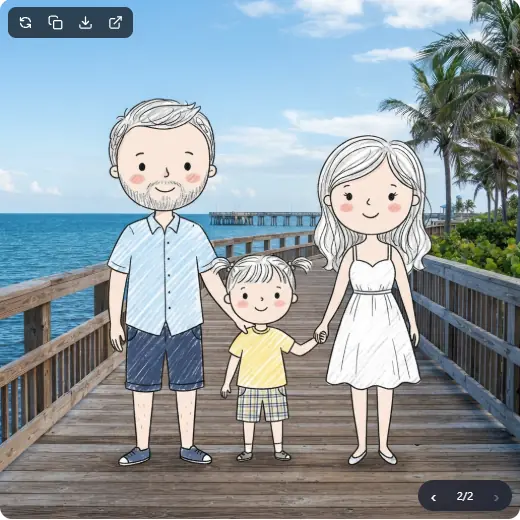 Regenerate in place after editing the prompt, then switch between previous results on the same image card.
### ✏️ From sketch to image: AI creative canvas
Express your ideas on an infinite canvas and turn drafts, compositions, and thoughts into real images through conversation.
- Freely sketch, add reference materials, and organize your ideas on the canvas.
- Drag images from Recent generations or the Gallery onto the canvas, or click Send to canvas on a thumbnail. Open the infinite canvas and wait for the image to load first; repeated imports of the same history item are deduplicated.
- Talk to the AI in natural language to turn a draft into a finished piece.
- Keep editing, refining, and exploring new directions from existing results—your creative process is preserved so every exploration stays iterable.
 Left: Sketch and place reference images on the canvas, then generate through conversation. · Right: Keep iterating on existing results through conversation.
### 🎛️ Studio batch creation
- Support multiple reference images, and generate multiple candidates at a time.
- Control the Provider, model, aspect ratio, and quality, then save only the results you want.
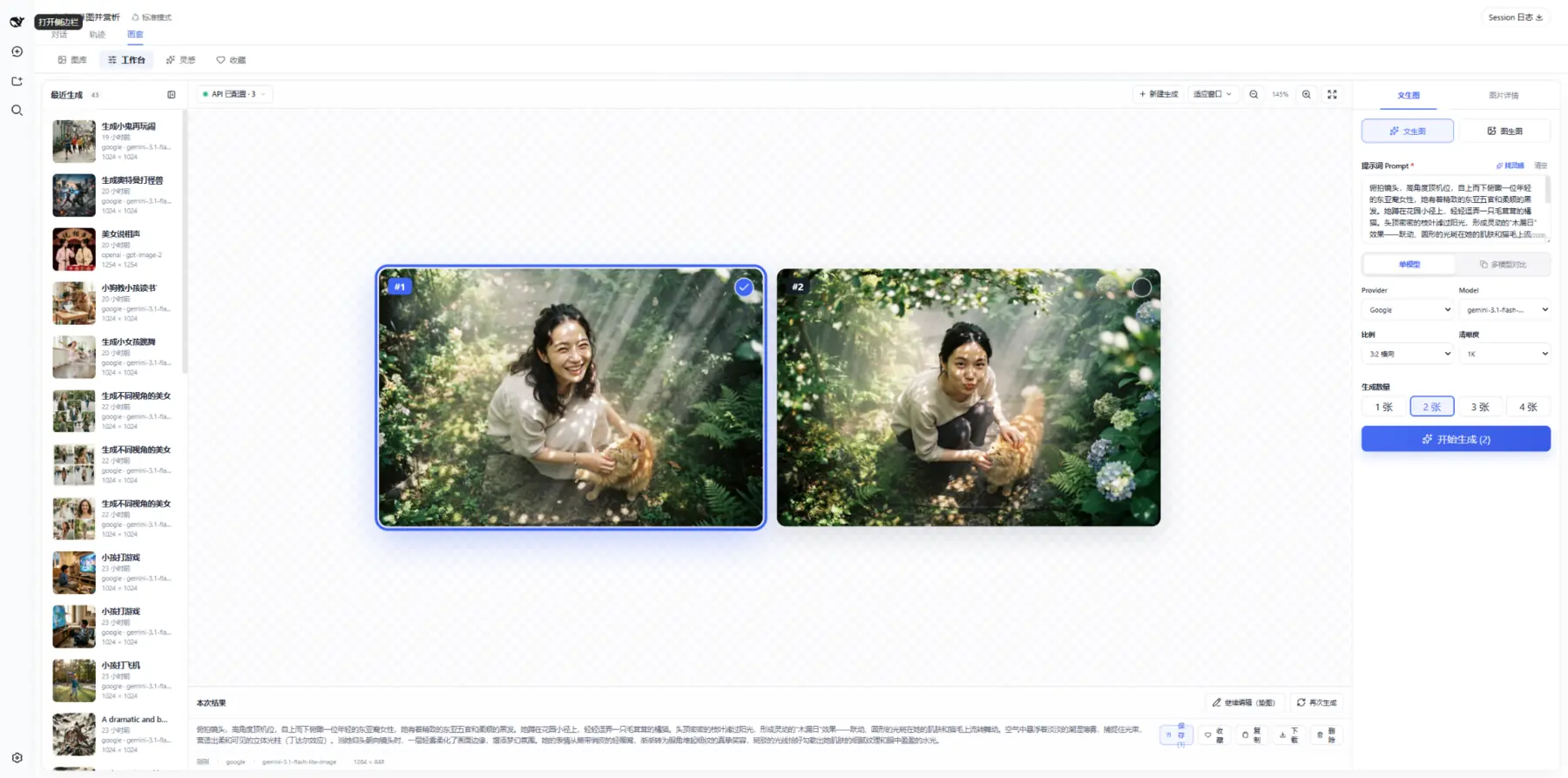 Import references, control parameters, generate batches, select results, and save—all within one Studio.
### ⚖️ Side-by-side multi-model comparison
Run the same prompt and reference images across multiple models, then compare and save the results on one canvas.
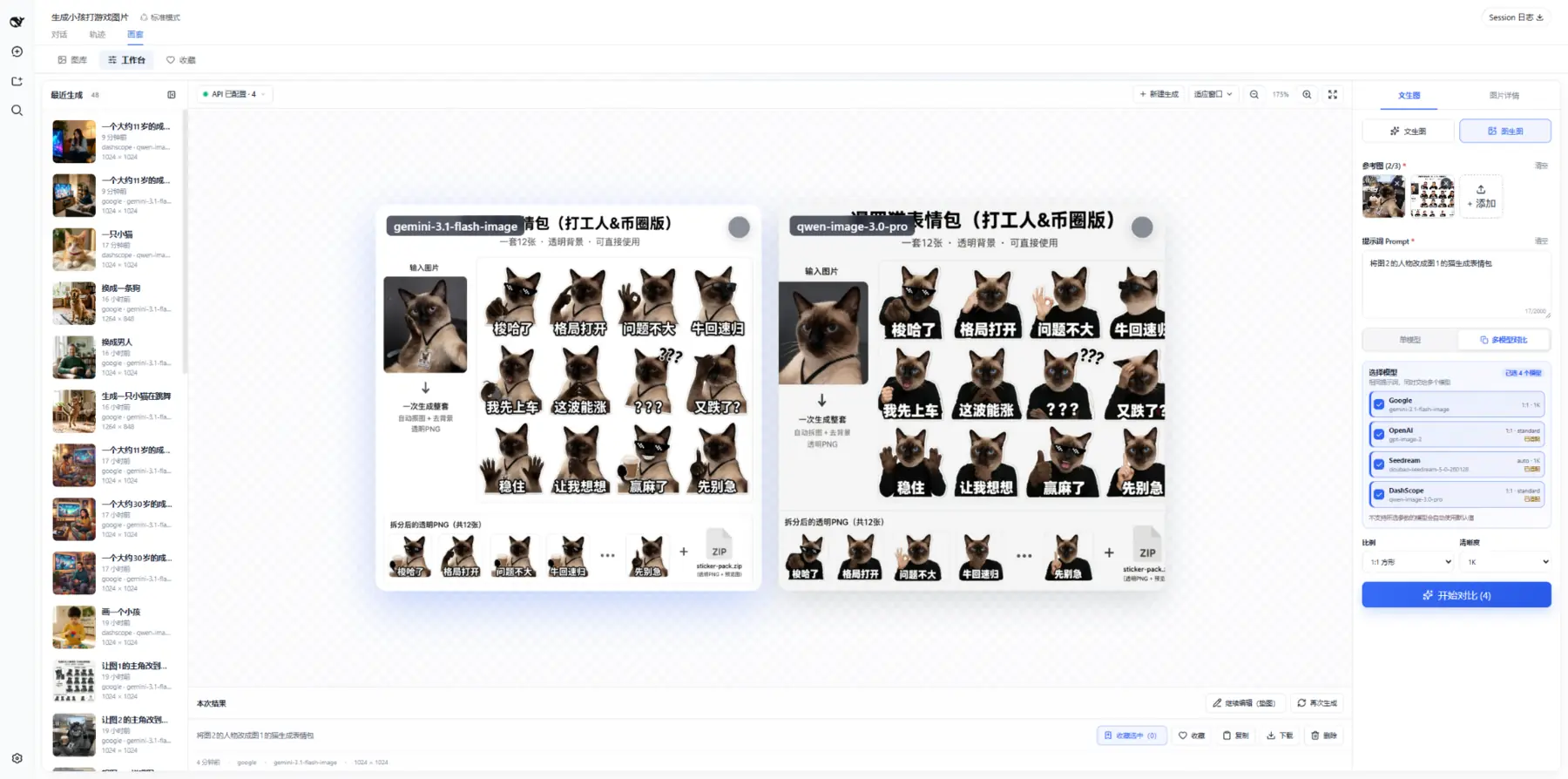 Compare results from different models on one canvas, then save the images you prefer in a batch.
### ✨ 500+ prompt inspiration examples
- Browse and filter **500+ prompt examples**, then favorite, copy, or send them directly to Studio.
- Images are cached locally, so browsing and learning consume no tokens or generation quota.
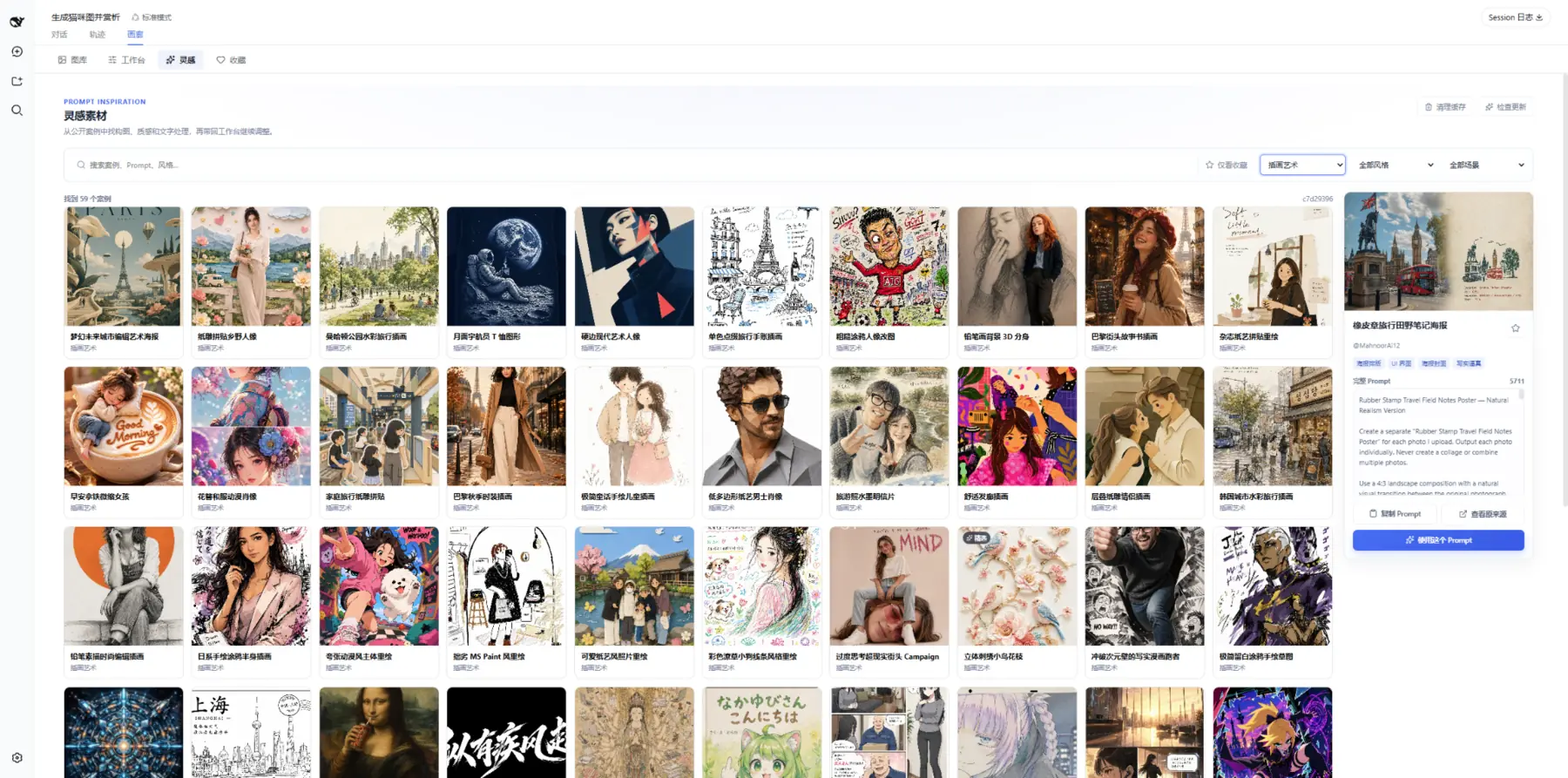 Find inspiration first, then send a prompt to Studio. Browsing and copying from the local cache consume no generation quota.
### 🖼️ Gallery, favorites, and batch management
- Manage images saved from chat and Studio in one place, isolated by workspace.
- Search, filter, favorite, download, continue editing, regenerate, and batch-manage results.
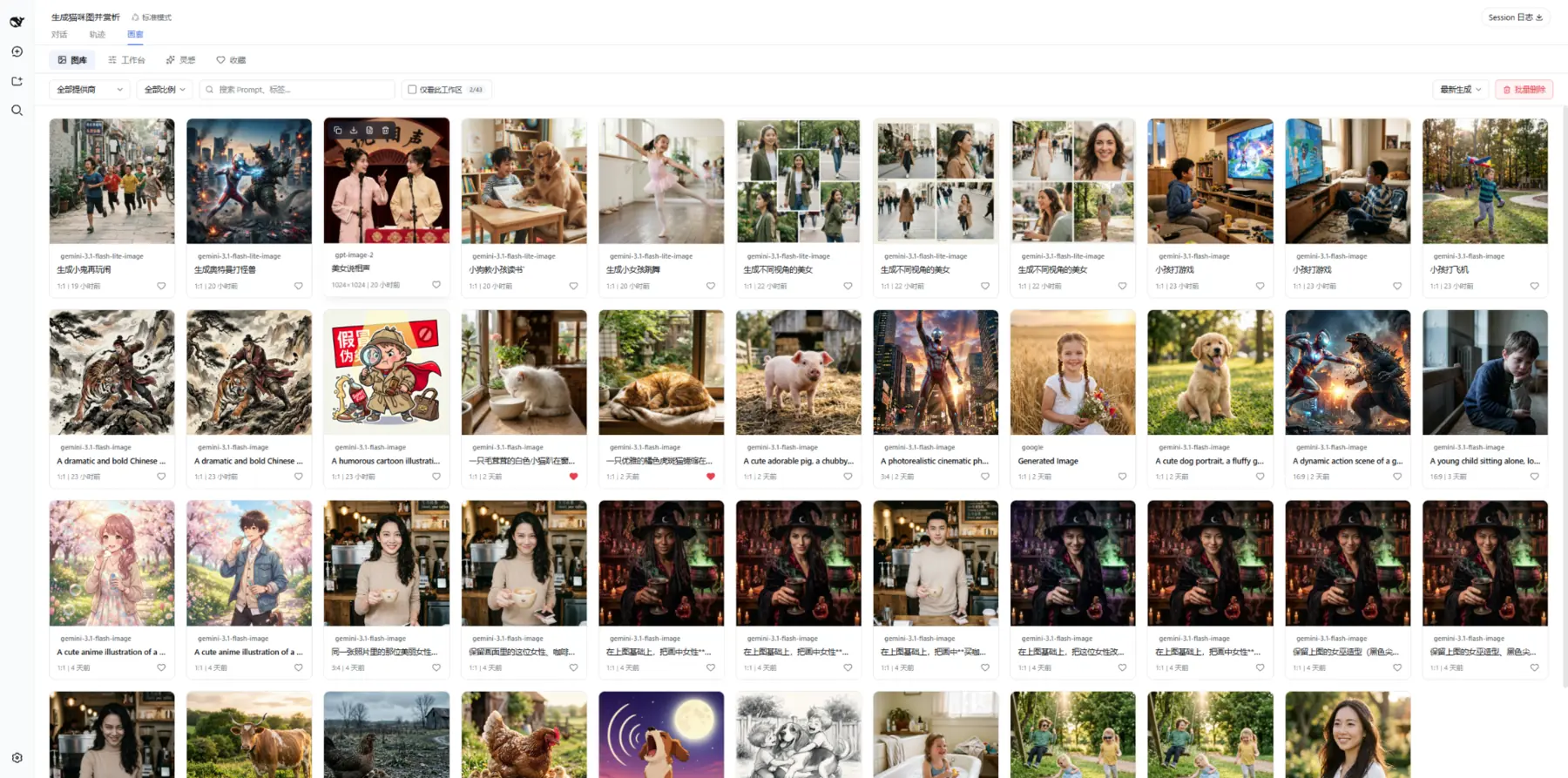 Filter, favorite, and batch-manage gallery items while keeping data isolated by workspace.
### 🧩 Multiple local ComfyUI workflows
Bring private image generation on your local GPU directly into Agent conversations.
- Import and manage multiple named workflows with prompt presets and common placeholders.
- Let the Agent select a workflow by name for text-to-image or image-to-image generation in chat.
> ComfyUI is not yet integrated into Studio or multi-model comparison.
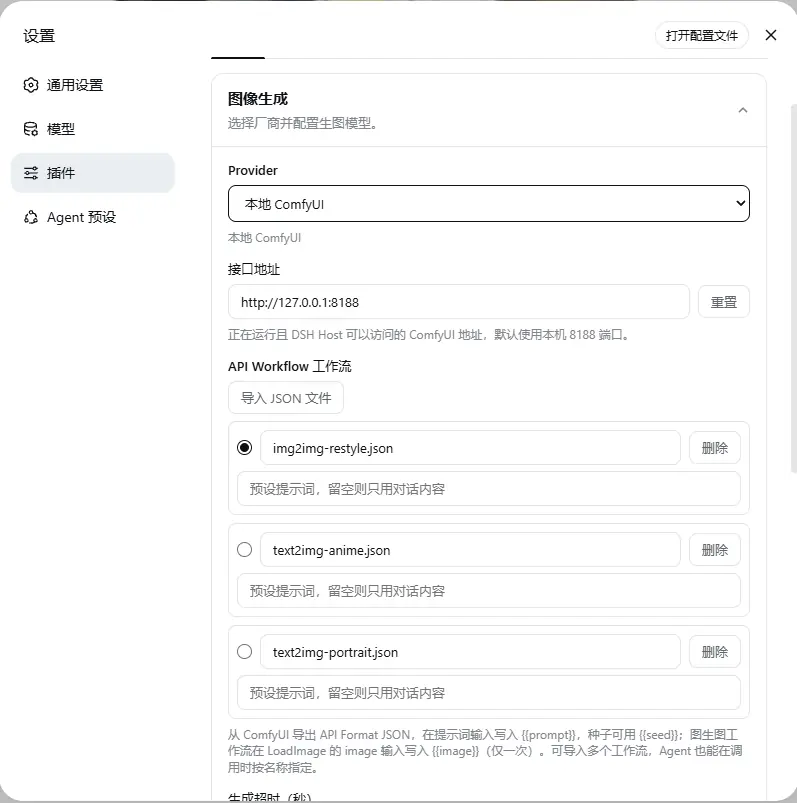 Maintain independent workflows for different tasks and let the Agent select them precisely by name.
---
## Provider Support
| Provider | Chat generation | Chat editing | Studio | Multi-model comparison |
| :--- | :---: | :---: | :---: | :---: |
| **Google Gemini** | ✅ | ✅ Multiple | ✅ | ✅ |
| **OpenAI Images** | ✅ | ✅ Multiple | ✅ | ✅ |
| **OpenAI Compatible (relay)** | ✅ | ✅ Multiple | ✅ | ✅ |
| **ByteDance Seedream / Volcengine Ark** | ✅ | ✅ Multiple | ✅ | ✅ |
| **Aliyun DashScope / Qwen Image** | ✅ | ✅ Multiple | ✅ | ✅ |
| **xAI Grok Imagine** | ✅ | ⚠️ Limited | ✅ | ✅ |
| **Zhipu GLM-Image** | ✅ | — | ✅ | ✅ |
| **Local ComfyUI** | ✅ | ✅ Single | — | — |
| **ChatGPT subscription (key-free)** | ✅ | ✅ Multiple | ✅ | ✅ |
| **Grok subscription (key-free)** | ✅ | ✅ Multiple | ✅ | ✅ |
| **Google subscription (key-free)** | ✅ | ✅ Multiple | ✅ | ✅ |
> Studio and multi-model comparison currently support cloud Providers only (subscription channels included). Multi-model comparison uses the model configured for each Provider in Settings.
> Zhipu GLM-Image does not support image-to-image upstream. xAI image editing goes through the OpenAI-compatible protocol (multipart); some gateways may need further adaptation.
> Subscription channels work through account sign-in (no API key). They support in-chat text-to-image / image-to-image, Studio batch generation, and multi-model comparison; edits ride each channel's edit endpoint (up to 5 reference images), with aspect ratio and quality selectable directly in Studio.
Current default models and endpoints (all configurable)
| Provider | Default model | Default Endpoint / Base URL |
| :--- | :--- | :--- |
| Google Gemini | `gemini-3.1-flash-image` | `https://generativelanguage.googleapis.com/v1beta/interactions` |
| OpenAI Images | `gpt-image-2` | `https://api.openai.com/v1` |
| OpenAI Compatible | Custom | Custom Base URL |
| ByteDance Seedream | `doubao-seedream-5-0-260128` | `https://ark.cn-beijing.volces.com/api/v3` |
| Aliyun DashScope | `qwen-image-3.0` | `https://dashscope.aliyuncs.com/api/v1` |
| xAI Grok Imagine | `grok-imagine-image` | `https://api.x.ai/v1` |
| Zhipu GLM-Image | `glm-image` | `https://open.bigmodel.cn/api/paas/v4` |
| Local ComfyUI | Imported API Workflow | `http://127.0.0.1:8188` |
| ChatGPT subscription | `gpt-image-2.5-flare` (channel-fixed) | Account sign-in, no configuration |
| Grok subscription | `grok-imagine-image-2.0` (channel-fixed) | Account sign-in, no configuration |
| Google subscription | `gemini-3.1-flash-image` (channel-fixed) | Account sign-in, no configuration |
Aspect ratios and quality tiers per Provider
| Provider | Aspect ratios | Quality tiers |
| :--- | :--- | :--- |
| Google Gemini | 1:1 · 3:2 · 2:3 · 4:3 · 3:4 · 4:5 · 5:4 · 16:9 · 9:16 · 21:9 | 1K / 2K / 4K |
| OpenAI Images | gpt-image-2 family: 1:1 · 3:2 · 2:3 · 4:3 · 3:4 · 16:9 · 9:16 | Resolution: 1K / 2K (also 4K for landscape/portrait widescreen); separate quality: auto / low / medium / high |
| OpenAI Compatible | Driven by `openaiCompatSizes` (default 1:1 · 3:2 · 2:3) | Resolution from the size table; separate configurable quality, omitted by default |
| ByteDance Seedream | auto · 1:1 · 3:2 · 2:3 · 4:3 · 3:4 · 16:9 · 9:16 · 21:9 | 2K / 3K / 4K |
| Aliyun DashScope | 1:1 · 3:2 · 2:3 · 4:3 · 3:4 · 16:9 · 9:16 | standard |
| xAI Grok Imagine | auto · 1:1 · 3:2 · 2:3 · 4:3 · 3:4 · 16:9 · 9:16 · 21:9 | 1K / 2K |
| Zhipu GLM-Image | 1:1 · 3:2 · 2:3 · 4:3 · 3:4 · 16:9 · 9:16 | hd |
| ChatGPT subscription | auto · 1:1 · 3:2 · 2:3 · 4:3 · 3:4 · 16:9 · 9:16 | auto / low / medium / high / xhigh / max |
| Grok subscription | auto · 1:1 · 3:2 · 2:3 · 4:3 · 3:4 · 16:9 · 9:16 · 21:9 | 1K / 2K |
| Google subscription | auto · 1:1 · 3:2 · 2:3 · 4:3 · 3:4 · 4:5 · 5:4 · 16:9 · 9:16 · 21:9 | standard / HD (4K) |
> An `auto` ratio lets the model pick the framing from the prompt; tiers the upstream dropped (e.g. Seedream 5.0's 1K) are never exposed.
> Google subscription discovers account projects with valid platform enums and includes the ordinary daily endpoint as a compatibility fallback. When discovery returns no project with `UNSUPPORTED_CLIENT`, it retries using the Antigravity client identity without automatically onboarding the account. If discovery still returns no project, the legacy compatibility project is still tried but is not cached as an actual account project. Generation failures retain redacted discovery, eligibility, and per-endpoint diagnostics instead of only the last 429. The subscription “Test connection” checks stored sign-in status; successful generation verifies image access for that account. A Code Assist `UNSUPPORTED_CLIENT` response alone does not establish that image generation is unavailable.
> Studio exposes separate aspect ratio, resolution, and generation quality controls for OpenAI and compatible providers. Resolution labels show pixel dimensions. Comparison and regeneration preserve these separate parameters.
> Official OpenAI size presets can be customized with `openaiSizes`, shaped as ratio → tier → pixels, e.g. `{ "16:9": { "2K": "2048x1152", "4K": "3840x2160" } }`. For the gpt-image-2 family, dimensions must be multiples of 16, the longest edge at most 3840, aspect ratio within 1:3–3:1, and total pixels within 655360–8294400. Outputs above 3686400 pixels have experimental upstream support. See the [official API reference](https://developers.openai.com/api/reference/resources/images/methods/generate). Older GPT Image models retain their three standard sizes.
> Compatible providers use `openaiCompatSizes` in the same format; an empty table retains the legacy sizes. `openaiCompatQuality` sets the default generation quality (empty means omitted), and `openaiCompatQualityOptions` sets Studio choices. Choosing “Provider default (omit)” omits quality for that request. Conversation tools also accept independent `size` and `quality` parameters.
> “Generation extra fields” maps to `openaiCompatExtraBody`, e.g. `{ "watermark": false }`. These fields apply only to generation, merge after standard fields, and can override matching keys; `false` and nested objects are preserved. Editing continues to use `openaiCompatEditExtra`. For JSON image URL array edits, `openaiCompatEditSizeMode` defaults to `auto`; set it to `selected` to send the selected dimensions. EditExtra can still override size.
> Compatible channels can set a separate editing model with `openaiCompatEditModel`; empty reuses the generation model, and an explicit conversation-tool `model` still overrides one edit. Official SiliconFlow `/v1` endpoints automatically use `siliconflowJson`; relays implementing the same contract can select it manually. Edits post an `image` string to `/images/generations`. `Qwen/Qwen-Image-Edit` supports one reference; `Qwen/Qwen-Image-Edit-2509` supports up to three using `image`, `image2`, and `image3` in order. Generic size and quality fields are omitted; `size`, `image_size`, or `quality` in editing extras produce an actionable error, and the plugin fills reference fields. See the [SiliconFlow API reference](https://docs.siliconflow.cn/docs/api/images-generations-post).
> Ordinary conversation requests should omit provider and model to use the saved default. The model receives live default-provider and parameter instructions. Omit unused optional fields; blank dimensions are treated as absent, while two nonempty `size` / `aspect_ratio` values still conflict. ChatGPT subscription does not accept `image_size`; use `size` or `aspect_ratio` rather than a tier such as `1K`.
> The workbench shows “Visible watermark: Channel default / Off / On” beside ratio and resolution, checking generation and editing separately. Seedream, native DashScope Qwen Image, and recognized official SenseNova and Qwen compatible endpoints enable it automatically; recognized compatible endpoints also select their JSON edit contracts automatically. SenseNova matches `https://token.sensenova.cn/v1` and `sensenova-u1.5-lite`; Qwen matches official workspace hosts under `/compatible-mode/v1` with Qwen Image 3.0/3.0 Pro or 2.1 Pro/Turbo. Other compatible channels can bind a boolean `watermark`, `watermark_enabled`, or `parameters.watermark` through the matching operation's extra fields; editing requires a JSON format. Unknown channels and Zhipu display a disabled “Support unconfirmed” control; interfaces without a confirmed switch also show an explanation. A model name alone does not identify an unknown relay. Channel default preserves configured fields or omits the parameter; an explicit choice overrides only the watermark field and is retained for batches, comparison models supporting the operation, and regeneration.
---
## Data and Privacy
- **BYOK:** API keys are stored through the DSH Credentials service and are never displayed in plaintext on the settings page.
- **Subscription sign-in:** Subscription tokens are saved in DSH Credentials after your authorized sign-in, fully isolated from API keys; the browser side never touches a token.
- **Cloud requests:** The prompt and reference images used for a request are sent to the selected Provider. Follow that Provider's terms of service.
- **Local ComfyUI:** Requests are sent to the configured ComfyUI address.
- **Workspace files:** When workspace saving is enabled, chat results are written to disk; Studio saves only the candidates you select.
- **Gallery and favorites:** Gallery metadata and favorite state are stored in the current browser's local storage.
- **Inspiration cache:** Example metadata ships with the plugin. Images load on demand and are cached locally, and the cache can be cleared at any time.
## FAQ
What should I do if “Image Generation” is missing after installation?
The settings entry depends on the DSH version: 0.1.6 and newer place it on the plugin's detail page (click **Plugins** in the left sidebar, then dsh-image-gen under **Installed**), while 0.1.5 and earlier place it at **Settings → Plugins → Plugin Configuration → Image Generation**.
If it is missing in both places, fully restart the current DSH Profile, then inspect the plugin configuration:
```bash
dsh --profile web --dump-config
```
If `dsh-image-gen` is absent from the output, run the installation command again. When filing an issue, include the DSH version, plugin version, and relevant error logs, but never include your API key.
Where are generated images saved?
When “Save to workspace” is enabled, chat results are saved to the `dsh-image-gen/` subdirectory of the current workspace by default. You can change this directory in Settings. Studio candidates remain on the temporary canvas until you select which results should enter the gallery and be saved.
How do I use a Gemini relay that only supports generateContent?
In Google Gemini settings, select “Native generateContent” under “Request protocol”, enter the relay's API base URL (for example, `https://your-relay.example/v1beta`), and save. This applies to conversation generation, editing, and Studio. An existing full Interactions URL can also be kept; the plugin builds the native endpoint using the selected model.
The configuration field is `googleNative: true`. It defaults to `false`, keeping existing users on the Interactions protocol.
Why is ComfyUI not available in Studio?
Studio and multi-model comparison currently support cloud Providers only; ComfyUI is not yet integrated. ComfyUI supports text-to-image, single-image editing, and multiple named workflows through Agent chat.
Does deleting an item from the gallery remove its chat message?
No. Deleting a gallery record does not modify the original chat message. You may separately choose to remove the corresponding local image file from the workspace. File deletion is normally irreversible, so confirm carefully.
How do I upgrade?
```bash
pnpm dsh plugin --profile web add dsh-image-gen@latest
```
Restart the corresponding DSH Profile after upgrading.
---
## Local Development
```bash
git clone https://github.com/shanliuling/dsh-image-gen.git
cd dsh-image-gen
pnpm install
pnpm run typecheck
pnpm test
pnpm run build
pnpm run pack:check
pnpm run test:package
```
Saving settings on modern DSH requires the actually loaded `@deepseek-ai/schemastery >=3.18.4 <4`. The card distinguishes loading, missing host forms, remote connections that cannot persist, and incompatible schemas. Legacy DSH settings interfaces are retained. Check the dependencies resolved in the plugin profile when updating, as well as those in the source checkout.
`test:package` requires network access. It installs the current build's tarball and pinned published DSH 0.2 settings services in a temporary directory, then uses real React rendering to verify card state, the bundled save handler, profile file persistence, a fresh form, host restart, and actionable refusal with old schemastery. Image APIs, browser DOM, and RPC transport are outside this test. CI runs it on Windows and Linux.
Feedback is welcome through [Issues](https://github.com/shanliuling/dsh-image-gen/issues). Read [CONTRIBUTING.md](CONTRIBUTING.md) before opening a Pull Request.
## Acknowledgements
- [AtomGit](https://atomgit.com/shanliuling/dsh-image-gen): Hosts a copy of the project for users in China to browse and download the source code.
## License
This project is open source under the [Apache License 2.0](LICENSE).
If `dsh-image-gen` improves your workflow, consider giving the project a ⭐ **Star** to support continued maintenance.
**[View Releases](https://github.com/shanliuling/dsh-image-gen/releases) · [Open an Issue](https://github.com/shanliuling/dsh-image-gen/issues) · [Contribute](CONTRIBUTING.md)**