# AsideNote · 旁边记

Keep your ideas beside the conversation

[中文](README.md) | English

> Product name: **AsideNote** (Chinese name **旁边记**, “keep your ideas beside the conversation”); the package, plugin id and repository are all `dsh-aside-note`.

Jot it down · Open as needed · Tuck it away

AsideNote is a lightweight session notes plugin for DeepSeek Harness (DSH). Keep passing thoughts and follow-ups beside the conversation, bring them back to the chat input when needed, then tuck the panel away and carry on.

## Preview and entry

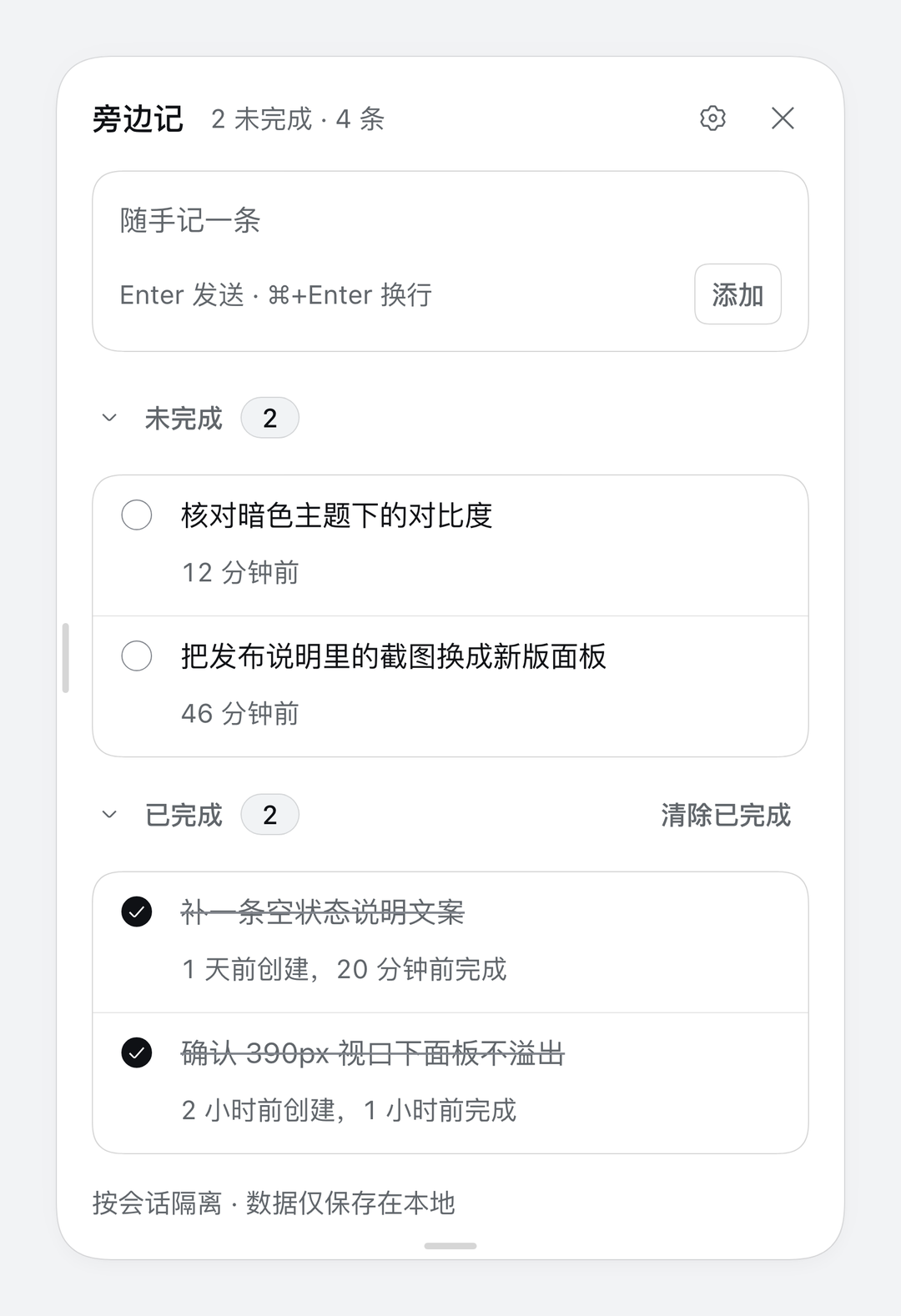
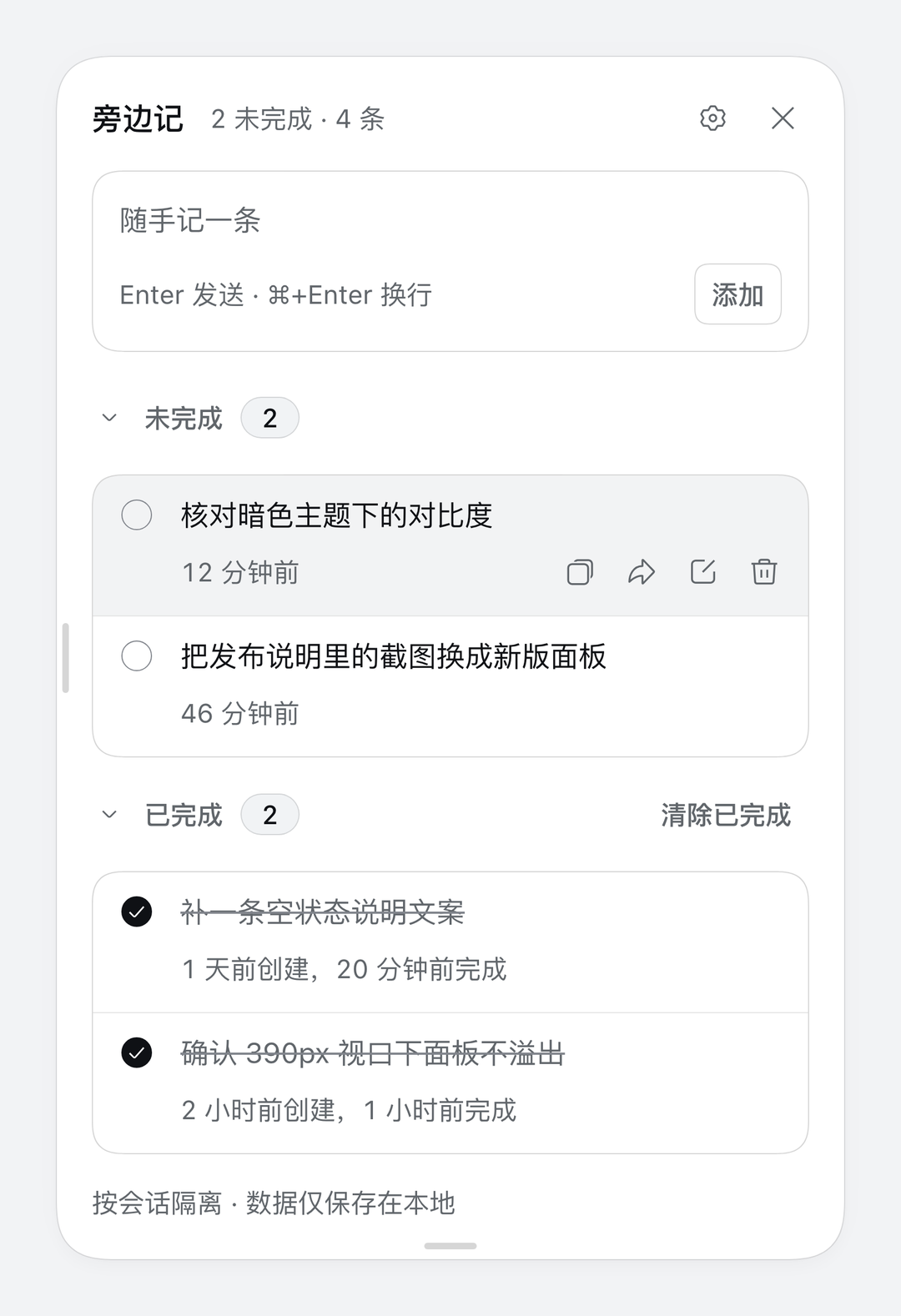
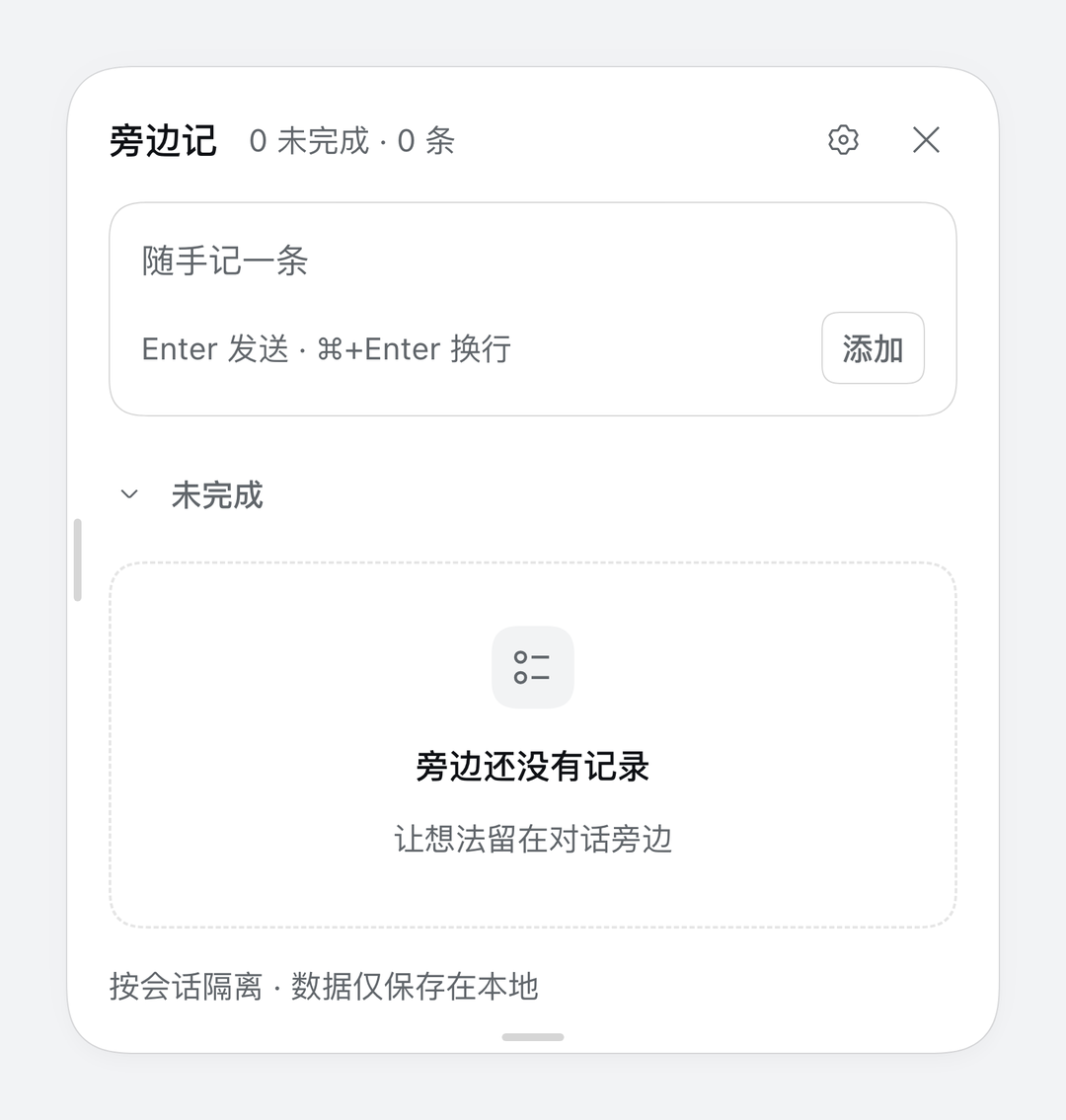
![AsideNote right-side panel](./docs/assets/preview-right.png)

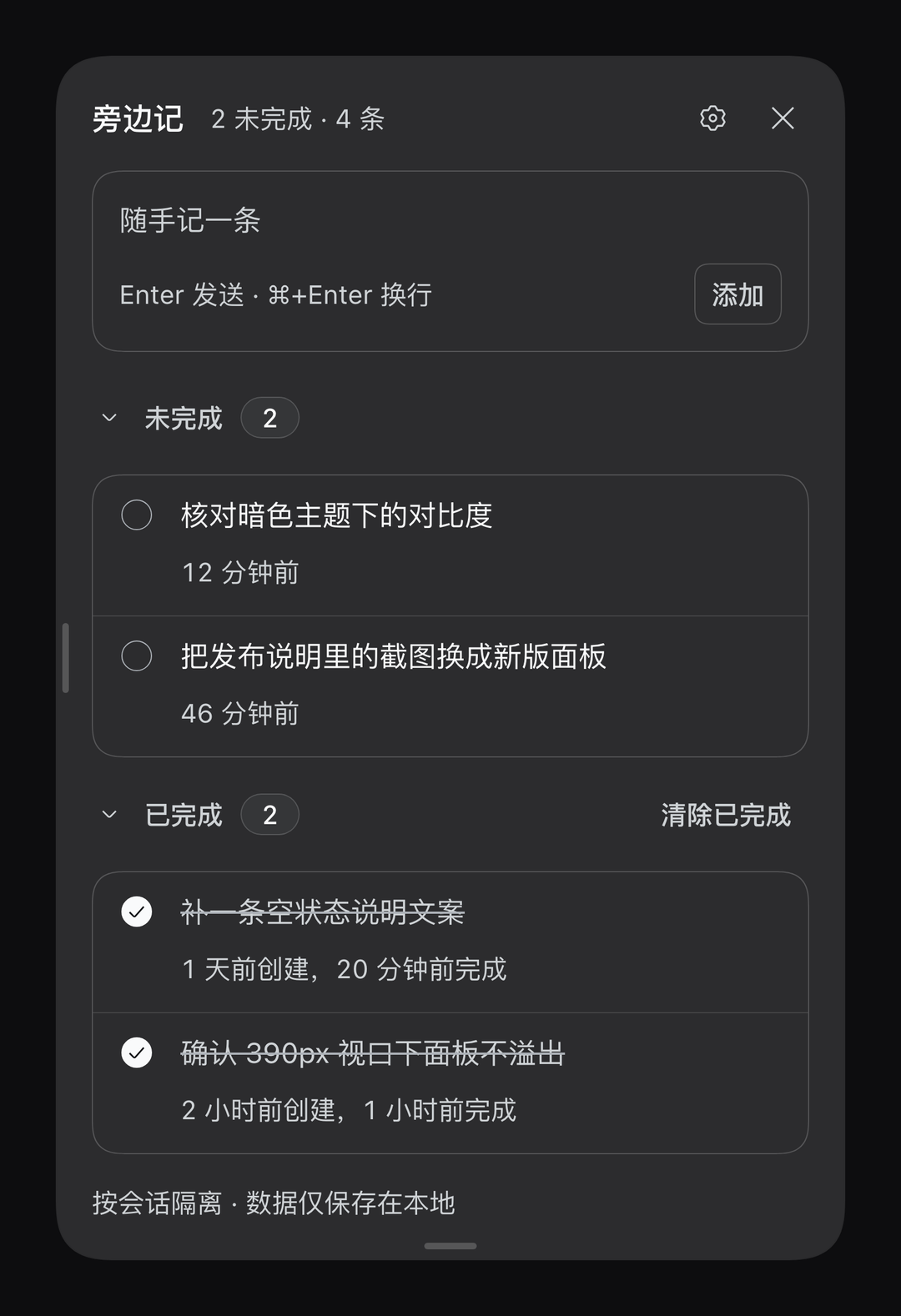
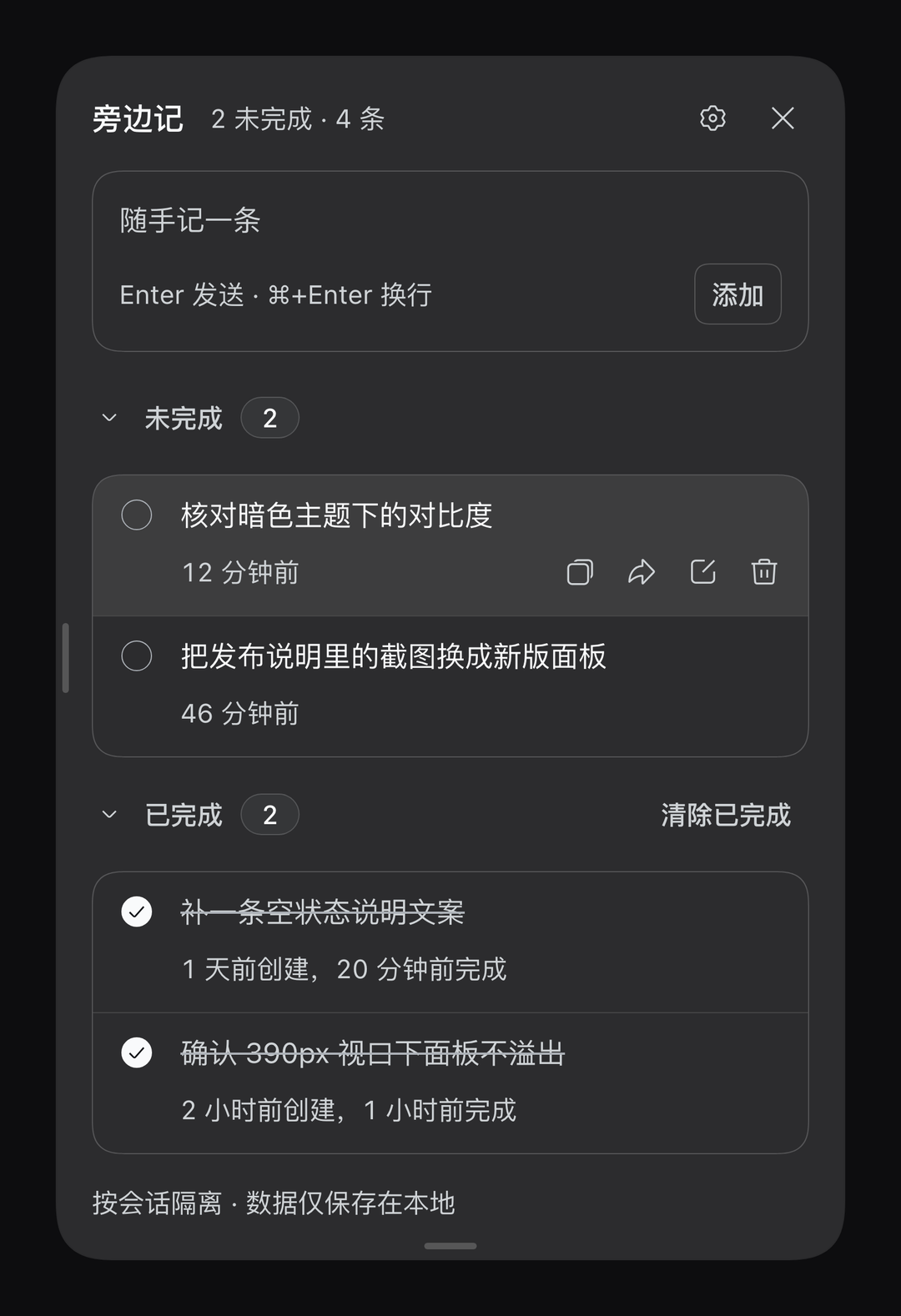
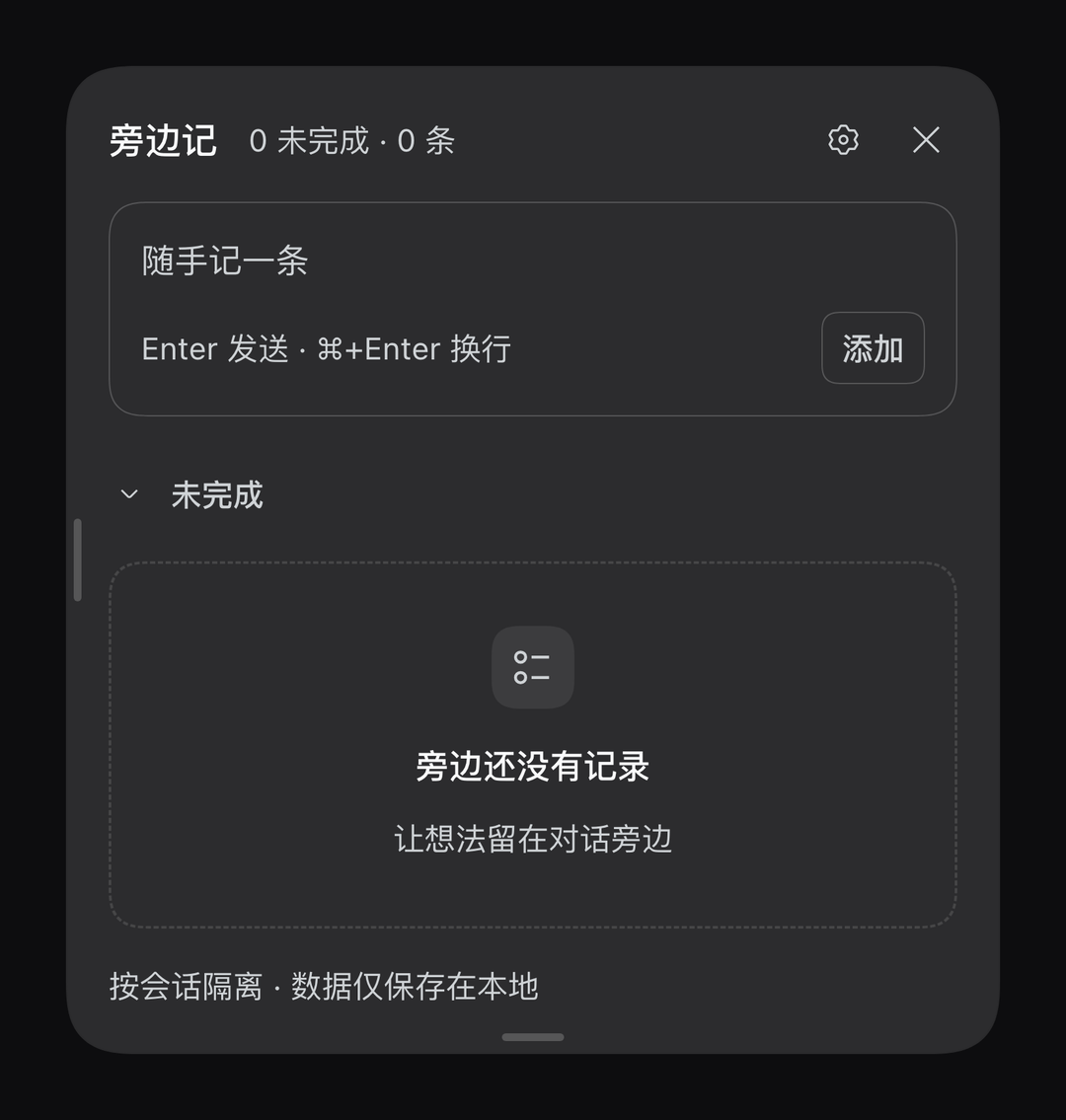
The same panel in the dark theme; every colour comes from DSH theme tokens:

![AsideNote right-side panel, dark](./docs/assets/preview-right-dark.png)

An **AsideNote** button at the top right of the conversation, with the open count:

<img src="./docs/assets/preview-badge.png" width="460" alt="AsideNote button at the top right">

The same button in the dark theme:

<img src="./docs/assets/preview-badge-dark.png" width="460" alt="AsideNote button at the top right, dark">

Clicking the entry opens a fixed panel on the right.

## Quick install

AsideNote installs into a DSH profile as the npm package `dsh-aside-note`. Pick one: hand the prompt to an agent, or run a single command.

### Install with an agent

Give your agent this block:

```text
Install the DSH plugin AsideNote by running: npx -y dsh-aside-note install
No DSH restart is needed afterwards: the 旁边记 entry is at the top right of the conversation.
If it is missing, tell me to refresh the Plugins page and switch the plugin off and on once.
If it says DSH or a profile cannot be found, tell me to install and start the DeepSeek Harness
client first and retry; do not clone the repo, hand-assemble dependencies, or restart DSH.
```

### Install from the command line

```bash
npx dsh-aside-note install
```

The installer pulls this package from npm, finds the DSH profile (it honours `DSH_PROFILE_DIR`, otherwise `~/.dsh/profiles/desktop`), backs up `package.json` and `pnpm-lock.yaml` into `.local-backup/`, adds the dependency, appends `dsh-aside-note` to `dsh.profile.bundles`, runs `pnpm install` **through the node and pnpm DeepSeek Harness ships** (falling back to the pnpm on PATH, and `DSH_RUNTIME_DIR` pins a runtime) and finally verifies the installed `client/client.js`. The host's own toolchain keeps the profile's pnpm store in step with the host — a profile written by another pnpm major answers `ERR_PNPM_UNEXPECTED_STORE` on the host's next install.

```bash
npx dsh-aside-note install --profile work    # pick a profile
npx dsh-aside-note install --dry-run         # print the plan, write nothing
npx dsh-aside-note install --version 1.0.0   # pin the version instead of ^1.0.0
```

It is safe to re-run. No restart is needed: DSH re-composes the profile within about a second, and the 旁边记 entry appears at the top right of the conversation. If it does not, refresh the sidebar **Plugins** page and toggle the plugin off and on once — the running host recomposes and the entry appears.

To uninstall, drop `dsh-aside-note` from `dsh.profile.bundles`, run `pnpm remove dsh-aside-note` in the profile directory, and no restart is needed: the entry disappears right away, and if the **Plugins** page still lists it, refresh that page.

## Why AsideNote

Working with AI often brings up things you want to revisit: a detail to change later, a result to double-check, or an idea to explore next.

Sending them straight into the conversation can interrupt the task at hand. Writing them somewhere else means finding them again later. AsideNote keeps them beside the conversation so you can jot them down and carry on.

A few small tasks should not need a whole management system. Capture a thought, look back when you need it, and let it go when you are done. Open the panel on your terms and tuck it away afterward, with little interruption to the work at hand.

## From a quick note to the next step

### Capture it and keep going

Click the **AsideNote** button at the top right of the conversation to open the right-side panel. Record tasks, ideas, and details to revisit. The button shows the unfinished count; check off each item as you finish it.

### Keep it in the workspace and pick it up later

Sessions in one workspace share a single list by default: whichever session you open, you see the same tasks. The panel header also switches between **Workspace** and **Session** — workspace covers the whole workspace, session covers only the current conversation. Sessions outside a workspace have no workspace scope and always stay per-session. On first open, notes already recorded in member sessions are folded into the workspace list once, so nothing is lost.

### Bring it back when you are ready

Click a note's forward button to append it to the current chat input as a list item. Add to or edit it, then send when you are ready. You can customize the prefix prompt, which is added only when the input is empty. Forwarding never sends the message automatically or marks the note as completed.

### Small details for everyday use

- **Saved drafts**: close the panel and pick up where you left off when you reopen it.
- **Completed history**: separate open and completed sections, with creation and completion times.
- **Adjustable panel**: resize the width and height, with your preferences remembered.
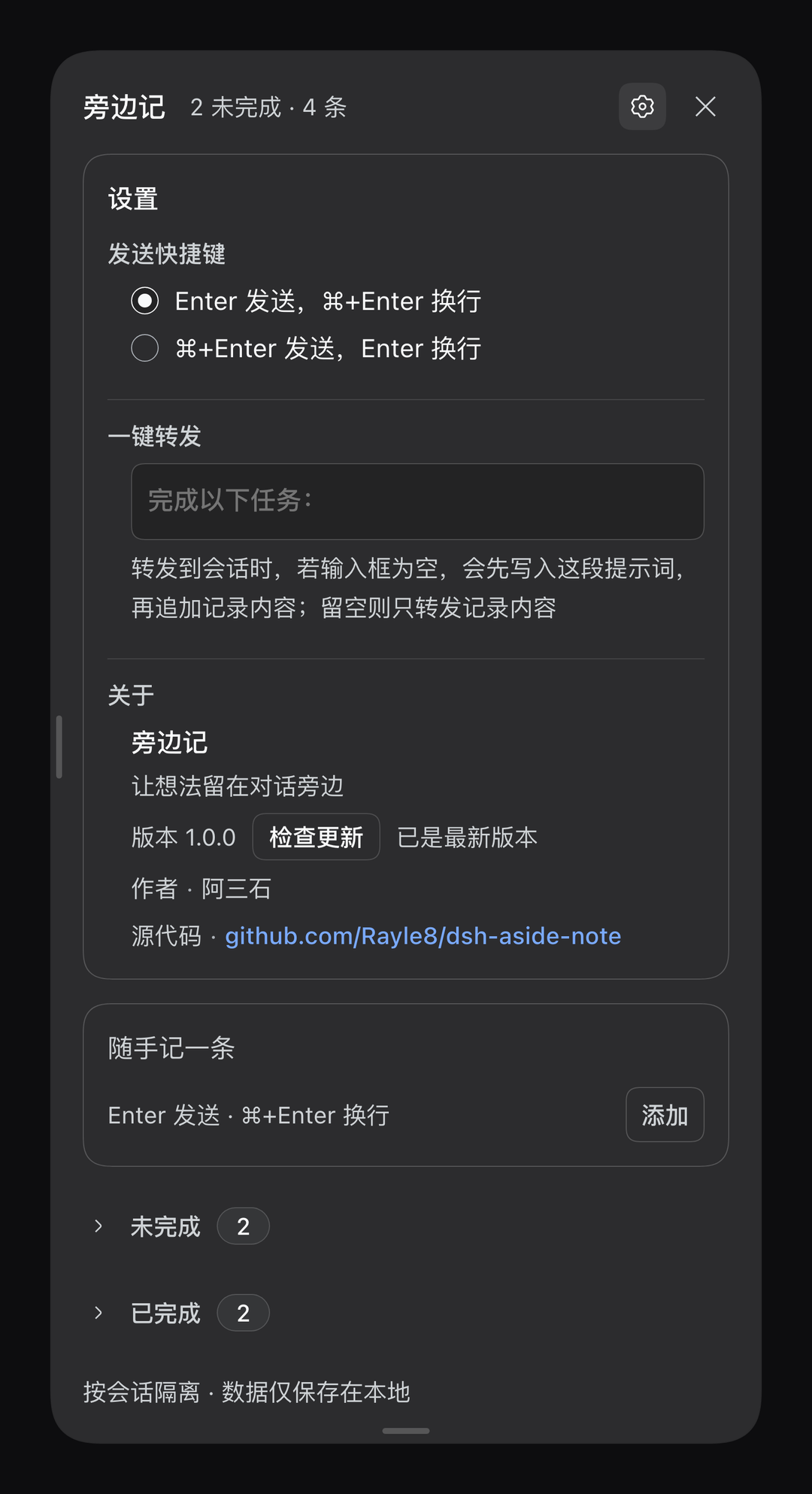
- **Fits into DSH**: follows the light/dark theme and Chinese/English language settings.
- **Browser-local persistence**: records survive page refreshes and DSH restarts, with updates synced across tabs in the same browser.

> Notes are stored in the current browser and do not sync across devices or browsers. Clearing site data removes them. See [Where data lives](#where-data-lives).

[Quick install](#quick-install) · [Feedback and issues](https://github.com/Rayle8/dsh-aside-note/issues)

## Features

- **Workspace-level notes**: one list is shared by every session in a workspace by default, so switching conversations keeps it in view; the panel header switches between **Workspace** and **Session**, and sessions outside a workspace only have the session scope. Tabs in the same browser stay in sync.
- **Entry and panel**: an icon button at the top right badges the open count; clicking it opens a fixed panel aligned to the entry, which shifts left of the DSH right sidebar and closes when you switch sessions.
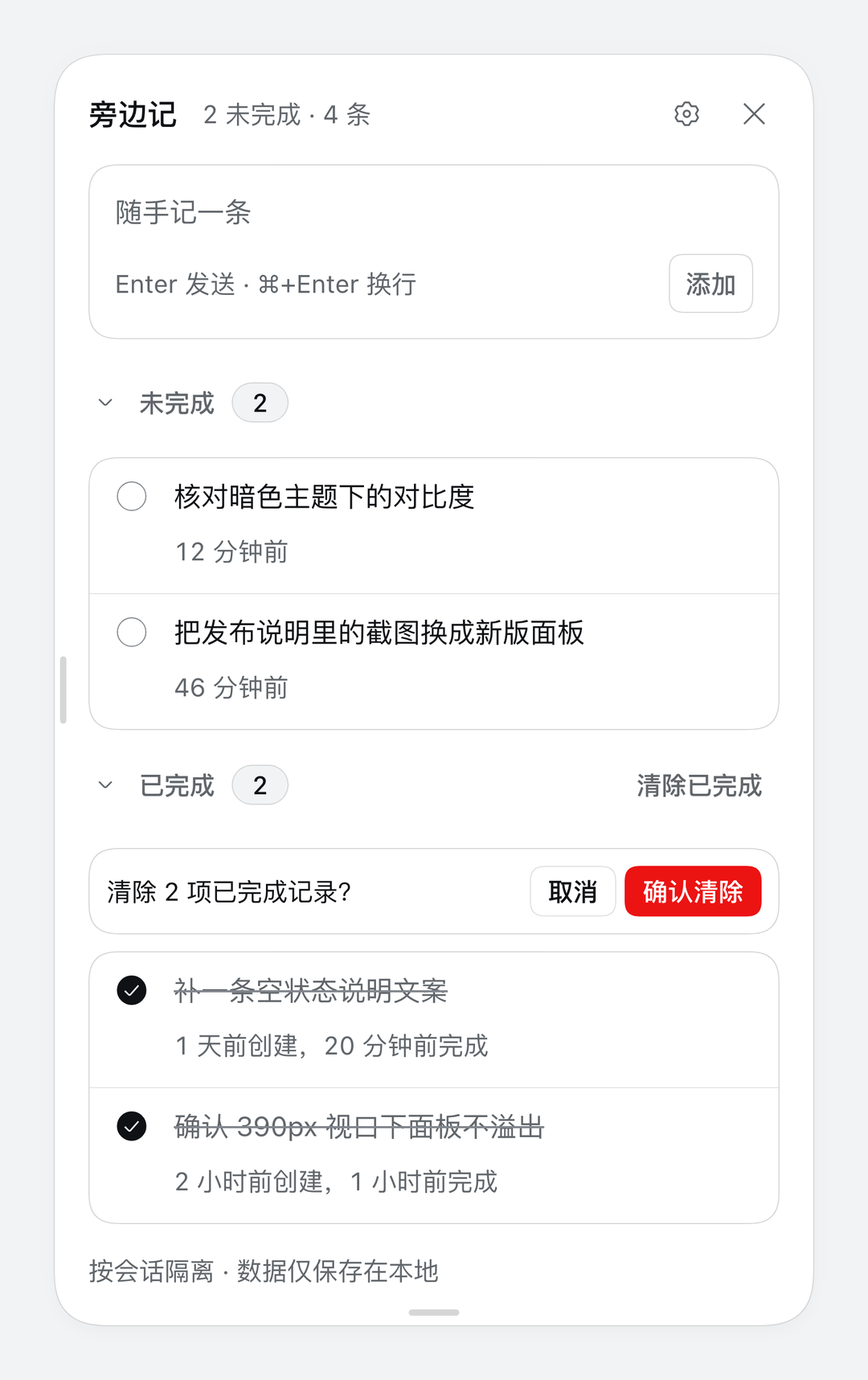
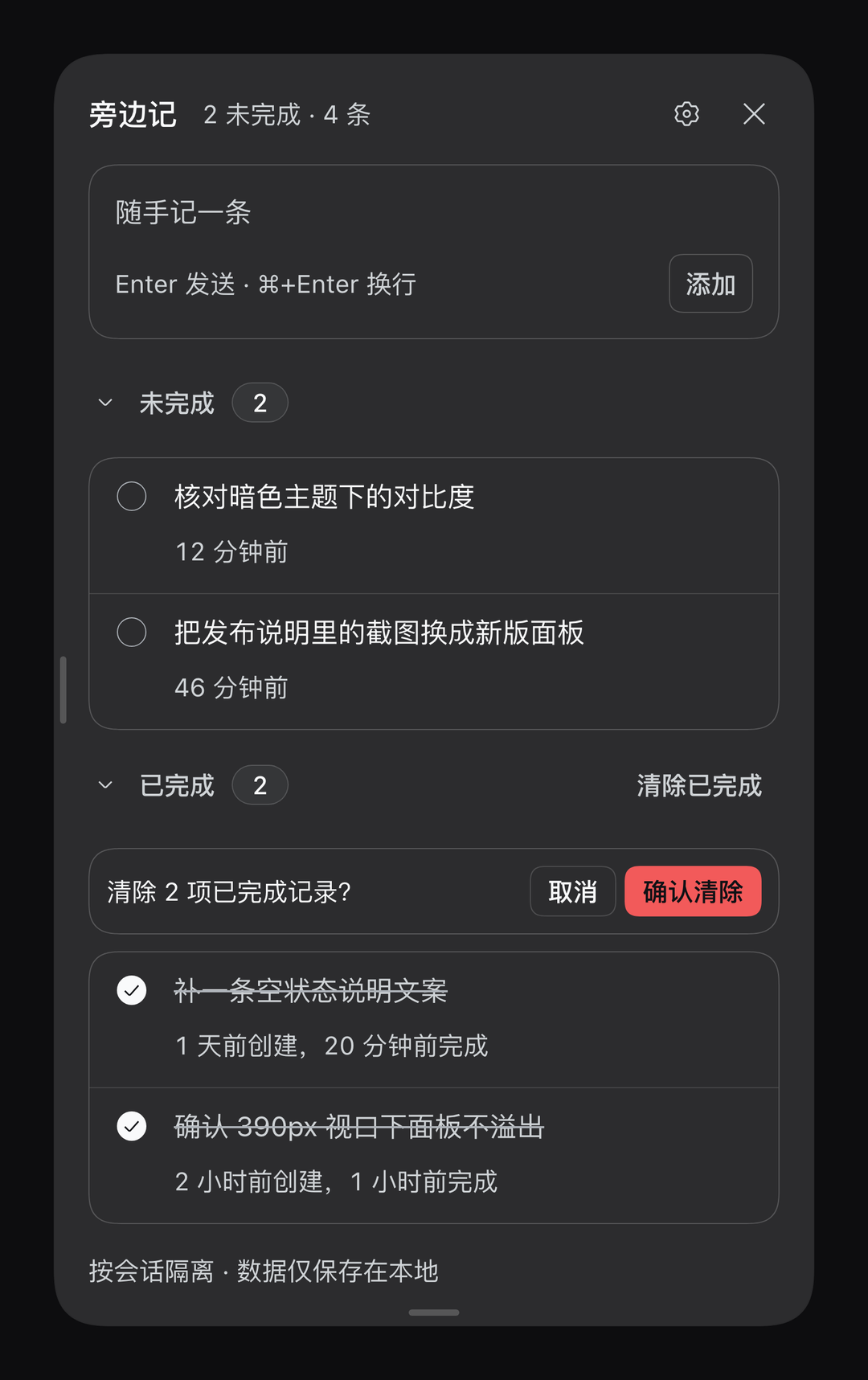
- **Note actions**: add, complete, copy, edit by double-click or pencil, and delete; clearing completed notes asks for confirmation, and completed notes expand for review.
- **One-click forward**: each note is appended to the **currently open conversation's** composer as a `-` item, with the customizable prefix written only when the composer is empty — nothing is sent automatically. The forward button gains a check per list, and clicking it again removes the mark.
- **Remembered state**: add and edit drafts are saved per session and restored when the panel reopens; the open/completed expand state and the Workspace/Session scope choice are remembered too.
- **Panel size**: drag the left edge for width and the bottom handle for height, double-click either to reset; both persist in the browser.
- **List regions**: **Open** and **Completed** each keep a sticky header and its own scroll, and expanding completed never compresses open; completed notes show creation and completion times, newest completion first.
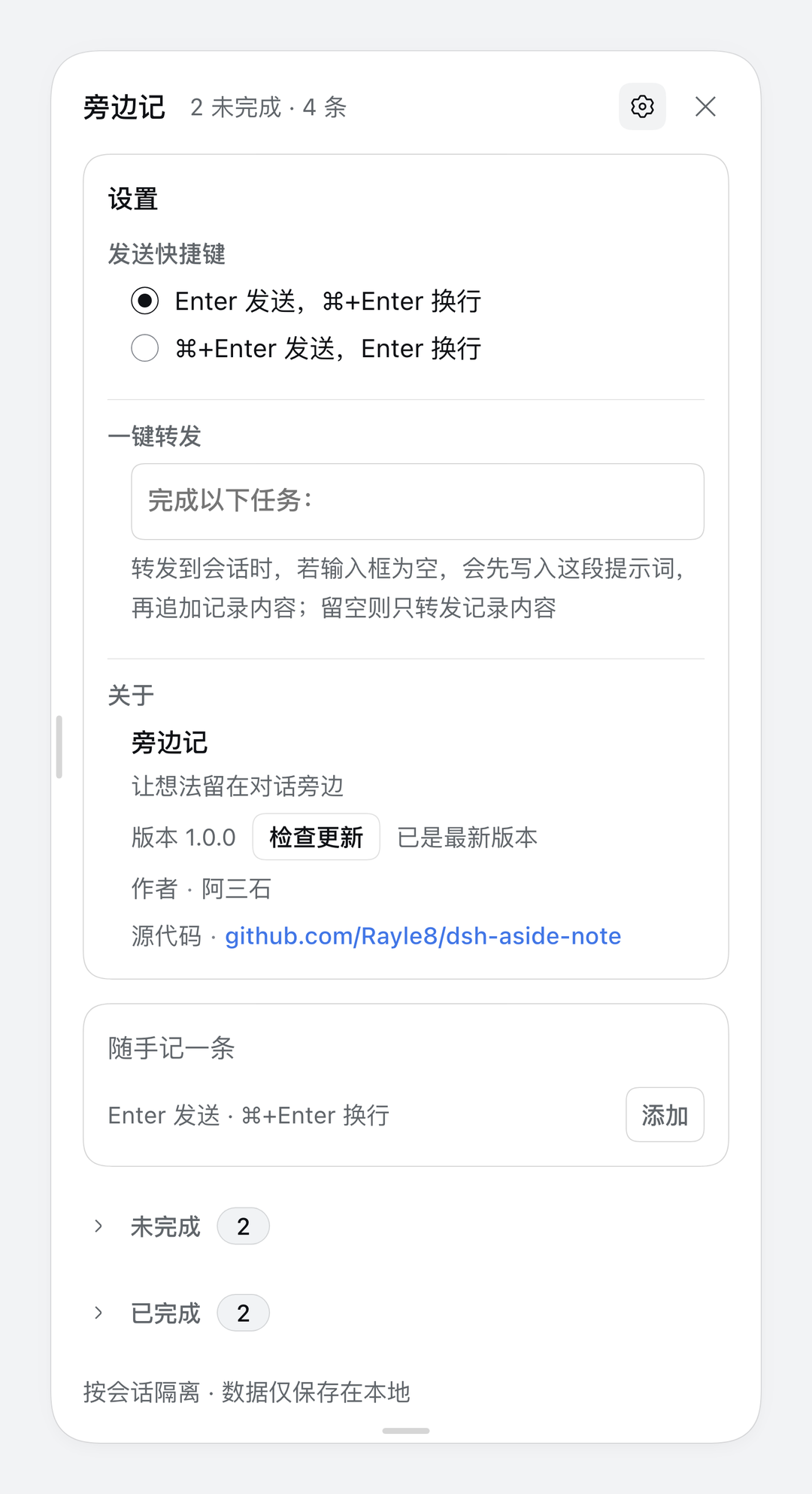
- **Settings**: send shortcut (Enter or ⌘/Ctrl+Enter), forward prefix, and About (version, check, author, source), saved automatically.
- **Update notice**: a newer release puts a dot on the settings button, and Settings › About shows the notes and the update action; see [Update notice](#update-notice).
- **Native look**: colours, radii, elevation and scrollbars all reuse DSH design tokens, following light/dark and the DSH locale; see [Design tokens](#design-tokens).

## Feature screenshots

Five states shot from the same session and the same set of notes, in both themes:

<table>
  <tr>
    <th width="130">Feature</th>
    <th>Light</th>
    <th>Dark</th>
  </tr>
  <tr>
    <td>Panel overview<br>open / completed sections</td>
    <td><img src="./docs/assets/features/panel.png" width="300" alt="Panel overview"></td>
    <td><img src="./docs/assets/features/panel-dark.png" width="300" alt="Panel overview, dark"></td>
  </tr>
  <tr>
    <td>Settings<br>send shortcut, forward prefix, about</td>
    <td><img src="./docs/assets/features/settings.png" width="300" alt="Settings"></td>
    <td><img src="./docs/assets/features/settings-dark.png" width="300" alt="Settings, dark"></td>
  </tr>
  <tr>
    <td>Row actions<br>copy / forward / edit / delete on hover</td>
    <td><img src="./docs/assets/features/actions.png" width="300" alt="Row actions"></td>
    <td><img src="./docs/assets/features/actions-dark.png" width="300" alt="Row actions, dark"></td>
  </tr>
  <tr>
    <td>Clear completed<br>a second confirmation guards the delete</td>
    <td><img src="./docs/assets/features/clear.png" width="300" alt="Clear completed confirmation"></td>
    <td><img src="./docs/assets/features/clear-dark.png" width="300" alt="Clear completed confirmation, dark"></td>
  </tr>
  <tr>
    <td>Empty state<br>guidance when a session has no notes</td>
    <td><img src="./docs/assets/features/empty.png" width="300" alt="Empty state"></td>
    <td><img src="./docs/assets/features/empty-dark.png" width="300" alt="Empty state, dark"></td>
  </tr>
</table>

## Design tokens

The panel and the entry button read from one token block in `src/client/styles/panel.css`:

| Axis | Token | Values |
| --- | --- | --- |
| Colour | `--dsw-alias-*` | DSH semantic aliases only (ink, hover, border, state, settings card); no local ramp |
| Type | `--an-fs-caption/row/title` | 12 / 13 / 14, all on a 20px line height |
| Weight | 400 / 500 | 500 is the cap; hierarchy comes from size and ink |
| Spacing | `--an-space-1 … -6` | 4 / 8 / 12 / 16 / 24 / 32 |
| Radius | `--dsw-radius-sm/md/lg/panel` + 999 | 8 (compact controls) / 16 (groups and fields) / 28 (floating panel) / pills paired with `corner-shape:round` |
| Shadow | `--dsw-elevation-panel` | the panel is `border:0`; the 0.5px hairline is the shadow's first layer |
| Material | `--dsh-an-panelSurface` (`--dsw-alias-bg-layer-2`) | opaque panel surface shared with the pinned header |
| Motion | `--ds-transition-duration*`, `--ds-ease-in-out` | 100 / 200ms, opacity and transform only |
| Scrollbar | shared theme skin | the panel rebinds `--dsh-scrollbar-*` to l2 and gives the list a 9px rail with a 2px inset |

Feedback reuses product surfaces too: copy, forward, delete, clear-completed, and failed writes all report through a `shell.overlay` toast that outlives the panel, and icon buttons use the `ui-primitives` `Tooltip`.

## Usage

1. Click the **AsideNote** button at the top right of the conversation to open the right-side panel. Its badge shows the unfinished count when there are open notes; the **Workspace / Session** switch in the panel header moves between the whole workspace and the current conversation.
2. Write one concrete follow-up in the panel and use your configured add shortcut or click **Add**.
3. When you are ready to continue, click the note's forward button to append it to the chat input, then review and send it yourself.
4. Click the circle to mark it complete; expand **Completed** to look back.
5. Click outside the panel or press Esc to close.

## Where data lives

Session notes live in the browser's `localStorage` under `dsh.aside-note`, in the original v1 shape:

```json
{
  "version": 1,
  "sessions": {
    "session-…": {
      "sessionId": "session-…",
      "updatedAt": 0,
      "items": []
    }
  }
}
```

The list shared by one workspace lives separately under `dsh.aside-note.workspaces`:

```json
{
  "version": 1,
  "workspaces": {
    "workspace-…": {
      "workspaceId": "workspace-…",
      "updatedAt": 0,
      "items": [],
      "seededSessionIds": ["session-…"]
    }
  }
}
```

`workspaces` holds the list shared by one workspace; `seededSessionIds` remembers which member sessions were already folded in, so notes are merged once and never resurrect after a delete. Session data stays under the original `dsh.aside-note` key and workspace data is never written back into it; sessions without a workspace only use their `sessions` record. The panel header's scope choice lives separately under `dsh.aside-note.scope-mode` (`workspace` or `session`, default `workspace`).

Therefore:

- Refreshing, restarting DSH, or switching sessions keeps the records.
- Nothing is written into the project or synced to another machine/browser.
- Clearing site data clears the notes.
- Reading old data never rewrites the shape of `dsh.aside-note`; workspace lists are read from `dsh.aside-note.workspaces`, and the first visit to a workspace folds its member-session notes in once. Keys like `dsh.aside-notes.*` from earlier builds are not read. If your data still sits under the old `dsh.aside-notes.*.v2` keys, rename them to the matching `dsh.aside-note.*` keys and reload.

## Update notice

When the panel opens, the plugin quietly checks the latest published version (npm, falling back to npmmirror and then the latest GitHub Release) and caches the answer for an hour. When a newer version exists, the settings button gains a dot and Settings › About shows the update card:

- **Check for updates** re-reads the registry immediately, bypassing that hourly cache, and reports “checking”, “up to date” or a failure underneath.
- **Notes show by default:** an available update immediately lists the release notes from the GitHub Release body — no disclosure to open. The notes are the block between its `app-update-notes:en` / `app-update-notes:zh` markers, flattened to plain text — no HTML is executed or injected.
- **Across several versions:** when the published release is several versions ahead, the notes list every release in the gap, newest first. The newest stays open and each older version expands on its own. Drafts and prereleases are skipped, at most six releases are listed, and a link points at the releases page when more were left out.
- **Full release notes** sits to the right of the update button and opens the matching GitHub Release page in a new tab.
- **Update now** queues the upgrade through the plugin market's public update API when dshmarket is present, reports live progress, and offers a page refresh or DSH restart when it finishes. A market busy with another operation is waited out first.
- **Manual fallback:** when the market is absent, or still busy after waiting, the card stops saying “try again later” and states the command (`npx -y dsh-aside-note install`, or the Plugins page) with **Copy update prompt** — one click to copy a ready-to-paste instruction for an agent.

Updating is always an explicit click: the panel only checks, explains and queues — it never runs a command itself, and your notes are never touched. The check only reads public version numbers and release bodies.

Release notes are composed by `tools/release/notes.mjs` from `CHANGELOG.md` — English and Chinese blocks with `app-update-notes` markers, install links and a Full Changelog link — and the tag-triggered workflow creates the Release (with the tarball attached) from it. See [release and versioning](./docs/release.md).

## Development

The browser half lives in `src/client/` and tsdown bundles it into a single `client/client.js`:

```bash
npm install
npm run check     # lint + typecheck + tests + build
npm run build     # regenerate client/client.js only
```

To run the checkout inside DSH, link it into a profile (replace `<path-to-repo>`) and run `pnpm install` in the profile directory:

```json
{
  "dependencies": {
    "dsh-aside-note": "link:<path-to-repo>"
  },
  "dsh": {
    "profile": {
      "bundles": ["dsh-aside-note"]
    }
  }
}
```

After adding the bundle row, toggle it off/on in the sidebar **Plugins** page to recompose a running Host without a restart.

The entry is `src/client/index.ts`, which exports `apply(ctx)`; tsdown wraps it in DSH's loader shell:

```js
window.__ModuleLoader__.load({ id: 'dsh-aside-note', factory: (require) => { … } })
```

The artifact is committed: CI rebuilds it and fails when `client/` does not match, so do not edit `client/client.js` by hand.

`index.js` is the empty Host half; `cordis.patch.yml` inserts the package into the profile composition. The UI depends on two services, `slots` and `locale`:

- `conversation.composer.dock`: used only to capture the active session ID; it renders no visible entry.
- The top-right entry is injected into the host header with a MutationObserver, because the host's re-render reclaims a React portal there.

The panel mounts as its own `react-dom/client` root on `document.body` and follows the trigger with fixed positioning. All styles use DSH's `--dsw-alias-*` theme variables, so light and dark themes work.

Run `npm run build` after source changes; the dev client HMR swaps the new bundle, otherwise refresh or restart DSH.

The screenshot and preview pipeline lives in the [screenshot SOP](./docs/screenshot-sop.md): one command re-shoots both themes from an isolated profile, and credentials are not copied unless `COPY_CREDENTIALS=1`.

Code structure, data model and build conventions: [architecture](./docs/architecture.md).

Branching, versioning and the release checklist: [release and versioning](./docs/release.md) (Chinese).

## Verification

Loaded in an isolated DSH profile and driven through headless Chrome:

- the **AsideNote** button appears at the top right, with the open count on its badge;
- clicking it opens the panel on the right, aligned with the entry;
- adding updates both the badge and the panel count;
- complete, edit, copy, forward, delete, and clear-completed work in the panel;
- records survive a refresh, and the panel header switches between the workspace list and the current session's list;
- the npmjs → npmmirror → GitHub Release fallback, the one-hour cache, and the version comparison are covered by the contract tests, and the jsdom test drives the visible update notice; the live notice needs a published npm package or a GitHub Release.

`npm run check` passes: lint, typecheck, build, and 95 tests, including jsdom integration tests that drive the whole panel, expand the release notes, run an update through a mocked market, and check the busy/no-market fallback.