A macOS like dockbar component made with Web Components
that can be used in any framework.
---
## Install
- **NPM**
```bash
npm install dockbar --save
```
- **CDN**
ESM([Example](./examples/esm/index.html))
```html
```
IIFE([Example](./examples/iife/index.html))
```html
```
Go to [Codepen](https://codepen.io/catsjuice/pen/GRwQdza) for a quick try.
## Usage
### Basic usage
```html
1234
```
It is recommended to use a custom element inside `dock-item`, so that you can customize the content of `dock-item`.
```html
```
Set `width` on an individual `dock-item` when that item should be wider than the shared `size`.
```html
1Search3
```
Reactive `width` and `height` changes animate by default. Configure that per item with
`resize-duration`, `resize-exit-duration`, and `resize-ease`:
```html
Search
```
Durations are expressed in milliseconds. Set either duration to `0` to make that direction immediate.
Use `dock-separator` to split a dock into blocks. The separator occupies layout space and follows the wrapper direction, but it is not included in the hover scale effect.
```html
FinderSafariTrash
```
You may need to look at docs if you are using a framework like Vue.js or React.
- [Using Custom Elements in Vue](https://vuejs.org/guide/extras/web-components.html#using-custom-elements-in-vue)
- [Custom HTML Elements in React](https://react.dev/reference/react-dom/components#custom-html-elements)
### Custom Style
Apply `class` to `dock-wrapper` and `dock-item` and customize your own style.
Use the named `indicator` slot for badges, running dots, or other decorations that should follow an item's layout position without inheriting its magnification:
```html
```
The indicator layer fills the current `dock-item` footprint and is exposed as `::part(indicator)`. Its slotted content is not placed inside the scaled visual container, so a `4px` indicator remains `4px` while the icon grows.
For more, see [Configuration](#configuration).
### Sortable dock
Set `sortable` to enable drag reordering. Set `allow-drag-delete` if dropping an item outside the dock should emit a delete event instead of snapping back.
When a sortable dock contains `dock-separator`, each separator creates a block. Items can only be dragged within their original block; dragging across a separator is treated as an invalid drop and snaps back.
```html
LaunchpadMailMusic
```
### Minimized windows
The optional `dockbar/minimize` entry adds a managed macOS-style minimized-window area. It snapshots any mounted element, animates it through a document-level Genie canvas, and restores it when its Dock thumbnail is clicked.
```ts
import 'dockbar'
import 'dockbar/minimize'
```
Declare the separator explicitly so the minimized area can be placed wherever your Dock design needs it.
```html
FinderMail
```
Registering a window returns a persistent handle. The source may be an element or a getter when a framework owns the ref.
```ts
const area = document.querySelector('dock-minimize-area')
if (!area)
throw new Error('Missing dock-minimize-area')
const mail = area.registerWindow({
id: 'mail',
label: 'Mail',
source: () => document.querySelector('#mail-window'),
})
minimizeButton.addEventListener('pointerenter', () => mail.prepare())
minimizeButton.addEventListener('pointerleave', () => mail.cancelPrepare())
minimizeButton.addEventListener('click', () => mail.minimize())
// The thumbnail restores automatically when clicked. Application icons can
// restore the same window explicitly.
mailIcon.addEventListener('click', () => area.restore('mail'))
```
`DockMinimizeArea` is still an `HTMLElement`: importing `dockbar/minimize` defines that custom-element subclass and augments `HTMLElementTagNameMap`, so TypeScript knows that a `dock-minimize-area` query has methods such as `registerWindow()`. If you query by an ID-only selector, annotate it explicitly:
```ts
import type { DockMinimizeArea } from 'dockbar/minimize'
const area = document.querySelector('#windows')
```
`prepare()` starts a reusable snapshot before the click so capture latency does not delay the animation. Calling `minimize()` without preparing is also supported.
For a one-off integration, the area exposes the same operation directly and retains the resulting handle by `id`:
```ts
await area.minimize({
id: 'notes',
label: 'Notes',
source: notesWindow,
})
await area.restore('notes')
```
The area keeps registrations until `unregisterWindow(id)` or `handle.dispose()` is called. `getWindow(id)` returns an existing handle. Handle state is one of `idle`, `minimizing`, `minimized`, `restoring`, or `disposed`; repeated calls for the current stable state are safe.
The default visibility adapter keeps the source mounted and temporarily applies `visibility: hidden`, `pointer-events: none`, `inert`, and `aria-hidden`, restoring the exact previous inline state afterward. Framework integrations that own visibility may provide an asynchronous adapter:
```ts
const handle = area.registerWindow({
id: 'editor',
source: () => editorElement.value,
visibility: {
async setHidden(hidden, { source }) {
await updateFrameworkState(hidden)
source.dataset.minimized = String(hidden)
},
},
})
```
Do not unmount the source while it is minimized. Call `invalidatePreparedSnapshot()` after content changes that should invalidate a prepared capture; geometry and scroll changes are detected automatically.
Use `data-dock-snapshot-ignore` to exclude video, iframe, private, or otherwise uncapturable descendants. Per-window `capture.filter` and `capture.onCloneNode` hooks are also available for custom snapshot handling.
The add-on respects `prefers-reduced-motion`, supports all four Dock positions, and permits multiple minimized windows. Thumbnails initially follow minimize order. When the parent `dock-wrapper` is `sortable`, they can be reordered inside the minimize area, but cannot cross its explicit separator. Thumbnail reorders stay internal and do not emit the wrapper's `on-sort` or `on-delete` events.
Generated previews expose `::part(item)`, `::part(button)`, and `::part(thumbnail)`. Their button cursor defaults to `default`; consumers can opt into `pointer`, `grab`, or another cursor through `dock-minimize-area::part(button)`.
CDN users should load the core bundle first and the add-on second:
```html
```
## Problems
There are some problems yet to be solved:
- [ ] SSR compatibility
It does not work will in SSR framework like Nuxt.js. For now you have to render it inside `ClientOnly`, and import component asynchronously.
- [ ] Style asynchronous loading causes a flash on init
If you are not using by `iife`, it may cause a flash on init, because the style is loaded asynchronously. For now you could resolve this by applying a style:
```html
#dock {
visibility: hidden;
}
#dock:defined {
visibility: visible;
}
```
## Configuration
| Property | Type | Default | Description |
| -------- | ---- | ------- | ----------- |
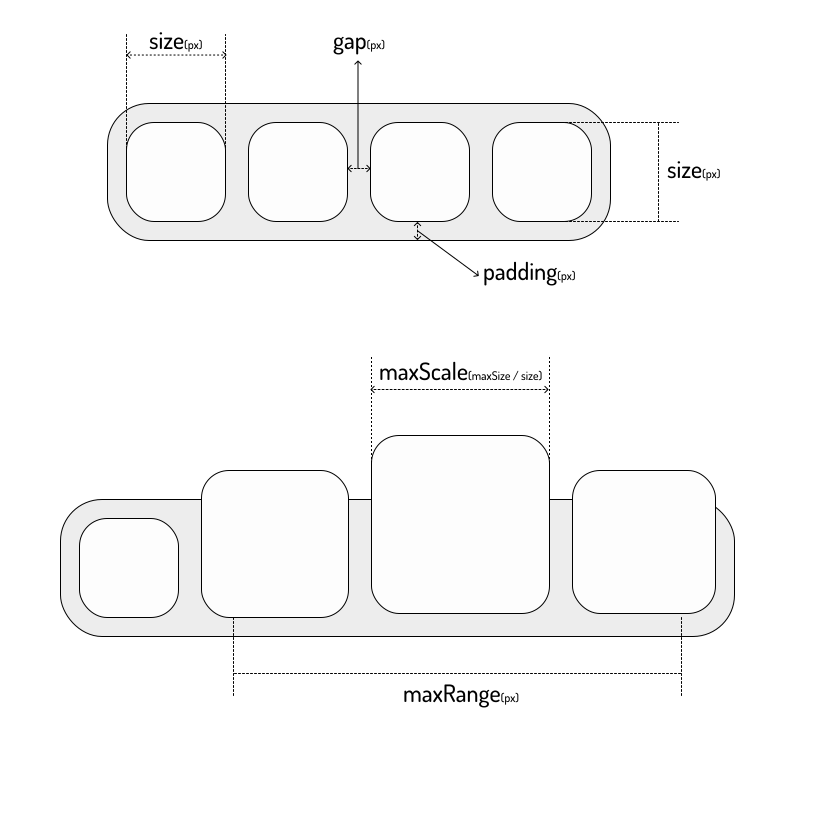
| `size` | `number` | `40` | The base height of `dock-item` and fallback width in `px`, see [Sizes](#sizes) |
| `width` | `number` | `size` | Optional per-`dock-item` base width in `px` |
| `height` | `number` | `size` | Optional per-`dock-item` base height in `px` |
| `resize-duration` | `number` | `200` | Per-`dock-item` base-size expansion duration in milliseconds |
| `resize-exit-duration` | `number` | `160` | Per-`dock-item` base-size contraction duration in milliseconds |
| `resize-ease` | `string` | `cubic-bezier(0.22, 1, 0.36, 1)` | Per-`dock-item` easing used by base width and height transitions |
| `padding` | `number` | `8` | The padding of `dock-wrapper` in `px`, see [Sizes](#sizes) |
| `gap` | `number` | `8` | The gap between `dock-item`s in `px`, see [Sizes](#sizes) |
| `maxScale` | `number` | `2` | The max scale of `dock-item`, see [Sizes](#sizes) |
| `maxRange` | `number` | `200` | The hover radius in `px` for the cosine-shaped scale effect |
| `disabled` | `boolean` | `false` | Disable the hover scale effect |
| `direction` | `horizontal` \| `vertical` | `horizontal` | The layout direction of `dock-item`s |
| `position` | `top` \| `bottom` \| `left` \| `right` | `bottom` | The dock position, which affects the scale origin |
| `easing` | `string` | `cubic-bezier(0, 0.55, 0.45, 1)` | The easing used by dock-item scale animation |
| `sortable` | `boolean` | `false` | Enable drag reordering for dock items |
| `allow-drag-delete` | `boolean` | `false` | When `sortable` is enabled, allow dropping an item outside the dock to emit a delete event |
| `will-change` | `boolean` | `false` | Apply `will-change` hints to dock items for width and height |
### `dock-separator`
| Property | Type | Default | Description |
| -------- | ---- | ------- | ----------- |
| `thickness` | `number` | `1` | The separator thickness in `px` along the dock's main axis |
`dock-wrapper` automatically provides `size` and `direction` to each `dock-separator`, so separators match the current dock orientation.
## Events
### `on-sort`
Emitted after a sortable drag ends with a changed order.
```ts
interface DockSortDetail {
item: HTMLElement
oldIndex: number
newIndex: number
}
```
### `on-delete`
Emitted when `allow-drag-delete` is enabled and an item is released outside the dock.
```ts
interface DockDeleteDetail {
item: HTMLElement
index: number
}
```
The component only emits the event. Removing the item from your application state is the responsibility of the parent app.
### `on-window-state-change`
Emitted by `dock-minimize-area` whenever a registered handle changes state.
```ts
interface DockWindowStateChangeDetail {
area: DockMinimizeArea
id: string
handle: DockWindowHandle
previousState: DockWindowState
state: DockWindowState
}
```
### `on-window-error`
Emitted by `dock-minimize-area` when capture or a transition fails. Calls made through the imperative API also reject their returned promise.
```ts
interface DockWindowErrorDetail {
area: DockMinimizeArea
error: unknown
handle: DockWindowHandle
id: string
operation: 'prepare' | 'minimize' | 'restore' | 'dispose'
}
```
### Sizes