
Create a new chayns® development project in one command.

## Overview
- [Get Started](#get-started)
- [Developing a Custom Page](#developing-a-custom-page)
- [Developing a Pagemaker Plugin](#developing-a-pagemaker-plugin)
- [FAQ](#faq)
- [What is the difference between an Pagemaker plugin and a complete page?](#what-is-the-difference-between-an-pagemaker-plugin-and-a-complete-page)
- [How can I deploy the application so it will be permanently available to all users of my Site?](#how-can-i-deploy-the-application-so-it-will-be-permanently-available-to-all-users-of-my-site)
## Get Started
To bootstrap a new chayns® project, simply run
```bash
npx create-chayns-app@latest
```
or
```bash
yarn create chayns-app
```
This will start an interactive wizard to guide you through the creation of your
project.
> A folder will be created in the current working directory of your terminal
> with the name of your project.
Depending on wether you choose to create a complete page or a pagemaker plugin,
continue with the ["Developing a Custom Page"](#developing-a-custom-page) or the
["Developing a Pagemaker Plugin"](#developing-a-pagemaker-plugin) guides
respectively.
> Don't know what to choose? Check out the
> [FAQ](#what-is-the-difference-between-an-pagemaker-plugin-and-a-complete-page).
### Developing a Custom Page
Since you chose the `A complete page` option for your project, we will be
creating a custom page. You can start a local development server by running
```bash
npm run dev
```
or
```bash
yarn dev
```
You need to develop the project in a chayns-environment for all features to work
properly. You have to create a Page on a chayns-Site you can manage, if you do
not have one yet, create one [here](https://chayns.site/).
After finishing the setup of your site, head to **Administration > Content >
Pages** and choose the "Add Page" option via the floating button in the bottom right corner.

Choose the "External website" option and enter a name you like (e.g. "Local
Development"). Set the source to `http://localhost:1234/`, the address at which
your local development server operates.

Your freshly created page should appear in the menu. Navigate to the page by
clicking it.
**Congrats!** You are now ready to develop your custom page! Start making
changes to your code and you should see them reflected on your Page in
real-time.
### Developing a Pagemaker Plugin
Since you chose the `A pagemaker plugin` option, we will be creating a plugin
for the Pagemaker, the powerful website editing tool included in chayns.
First you should start the local development server of your project by running
```bash
npm run dev
```
or
```bash
yarn dev
```
You need to develop the project in a chayns-environment for all features to work
properly. You have to create a Page on a chayns-Site you can manage, if you do
not have one yet, create one [here](https://chayns.net/).
After finishing the setup of your site, head to **Administration > Content >
Pages** and choose the "Add Page" option via the floating button in the bottom right corner.

Enter a name you like (e.g. "Local
Development"). Click the "Add" button to create the Page.

Your freshly created page should appear in the menu. Navigate to the page by
clicking it. There we want to enter _"admin-mode"_ by activating the switch in
the main menu, next to the name of your Site.

A floating button with a big plus sign should appear in the bottom right corner.
Click it and choose **Plugins > Iframe** in the flyout-menu to add an iframe
to your Page.

Hover over your newly created iframe and activate the chayns-API by clicking on
the code-symbol and confirming your choice in the dialog.
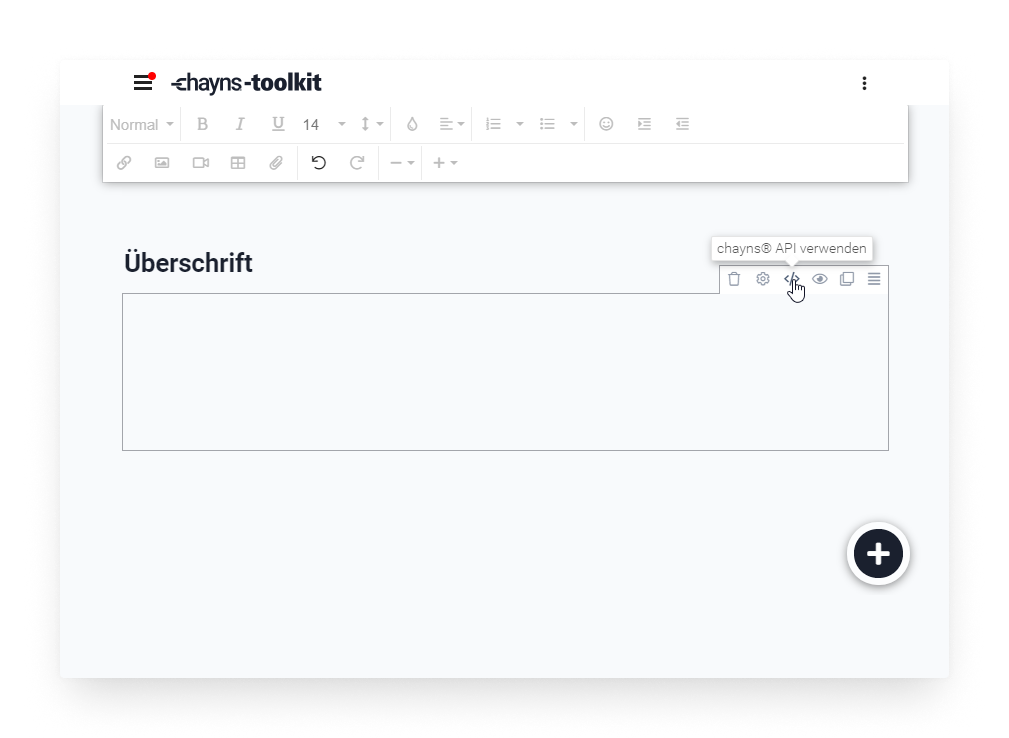
Now we have to set the iframe source (_"Quelle"_) to the address of your local
development server by tapping on the gear-icon and entering
`http://localhost:1234/` in the second input field.

**Congrats!** You are now ready to develop your Pagemaker plugin! Start making
changes to your code and you should see them reflected on your Page in
real-time.
## FAQ
### What is the difference between an Pagemaker plugin and a complete page?
A Pagemaker plugin only takes up a slice of your Page and you can add regular
Pagemaker elements like text, videos, graphics or other interactive elements
above and below your Plugin, that can be easily edited with the MS Word-like
interface of the Pagemaker, by anyone, including non-developers.
When developing a complete page, your application will take up all the space on
one page. On one hand you will have slightly more space to work with, but on the
other had this means that you cannot easily add content to this page with the
Pagemaker. Of course you can still add headings (`


