# Conditional Field
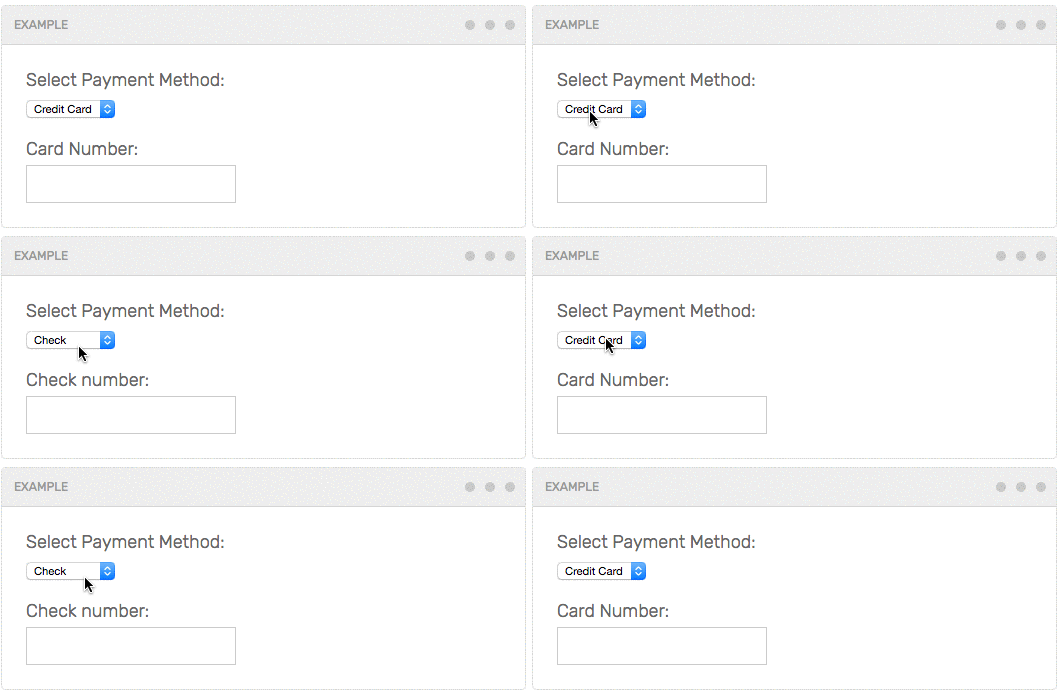
A Javascript component that shows / hides DOM elements based on form values.
Examples and docs: [https://stevenwanderski.github.io/conditional-field](https://stevenwanderski.github.io/conditional-field)
## Installation
This plugin requires jQuery. In the HTML page, first include `jQuery`, then `Conditional Field`.
Be sure to place the `
```
### Using NPM
Run `npm install --save conditional-field`. Then load `jQuery` and `ConditionalField` on the HTML page:
```html
```
### From local file directory
Download `dist/conditional-field.min.js` and place it in your project directory. Then load `jQuery` and `ConditionField` on the HTML page:
```html
```
## Usage
### Select
HTML:
```html
```
Javascript:
```javascript
new ConditionalField({
control: '.spiders-checkbox',
visibility: {
'off': '.zappa',
'on': '.bowie'
}
});
```
## Arguments
* `control`
- string (query selector)
- the form control that visibility is based on
* `visibility`
- JSON object
- for each `key` and `value`, when the `control` has a value of `key`, the DOM element with the selector of `value` will be shown, conversely the other `key`s will be hidden.
## Methods
### `destroy`
Removes the event listeners. Example:
```javascript
cf = new ConditionalField({
control: '.spiders-checkbox',
visibility: {
'off': '.zappa',
'on': '.bowie'
}
});
cf.destroy();
```
## Tests
The test suite is built using Mocha and Chai. Download / clone the project locally and run a local web server (my fave: [local-web-server](https://www.npmjs.com/package/local-web-server)). Then navigate to `http://localhost:8080/test`. The localhost port will need to change based on local setup.
## Development
* Download / clone the project locally
* Run `npm install`
* Run `gulp`
---
Coded with ♥ in Chicago by Steven Wanderski