# comics2video
Converts Comic Book files to videos, to be watched on TV/Video players.
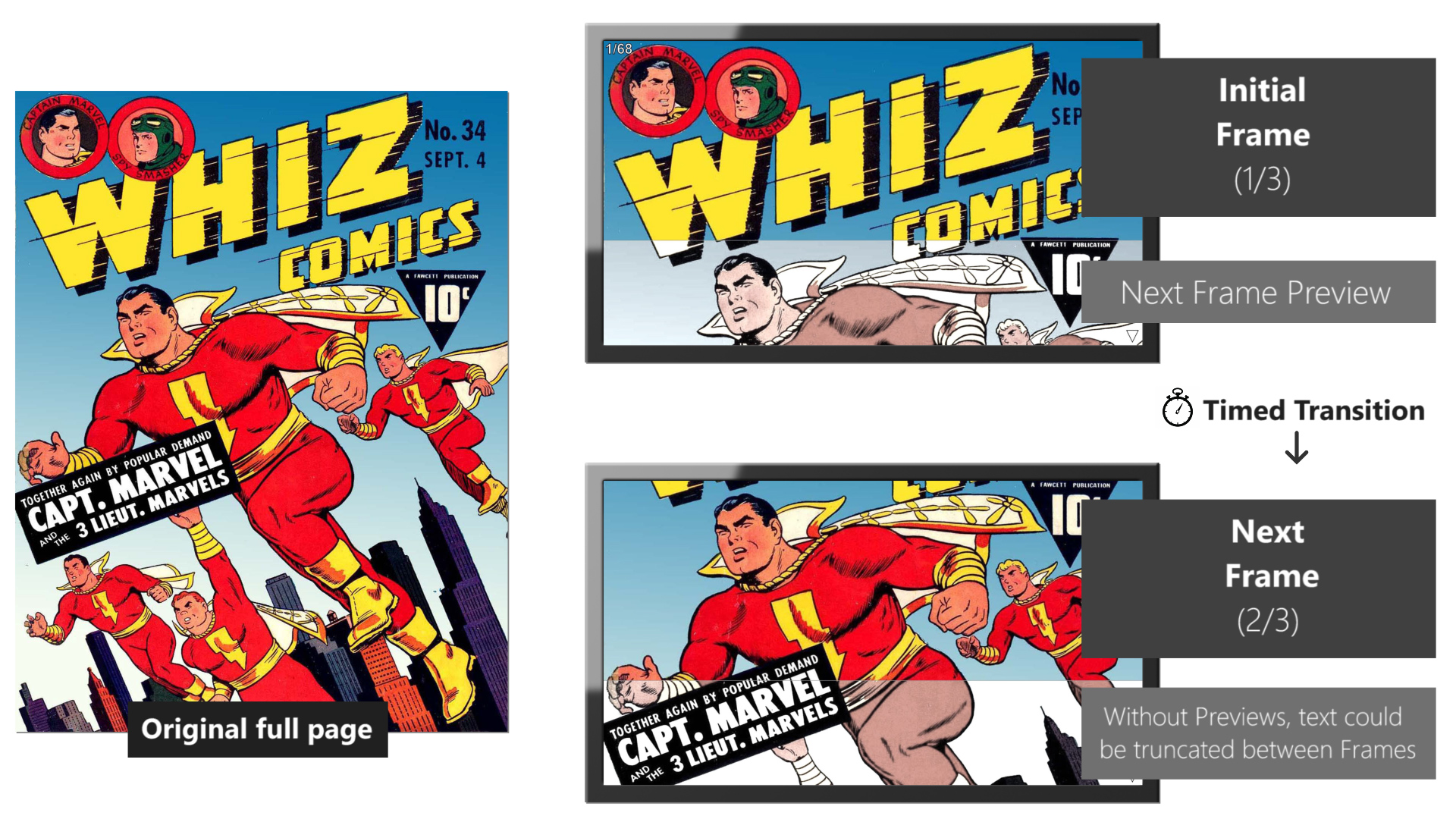
The possibility of reading a Comic Book by watching a video allows the user to be **hands-free** (no need to hold a phone or press a button/screen to change the pages) and also allow the reading by **people with disabilities/paralysis**.
> Documentation language:   [English](https://github.com/MauricioPinguim/comics2video#readme) |  [Português - Brasil](https://github.com/MauricioPinguim/comics2video/blob/master/README.pt.md)
### How it works
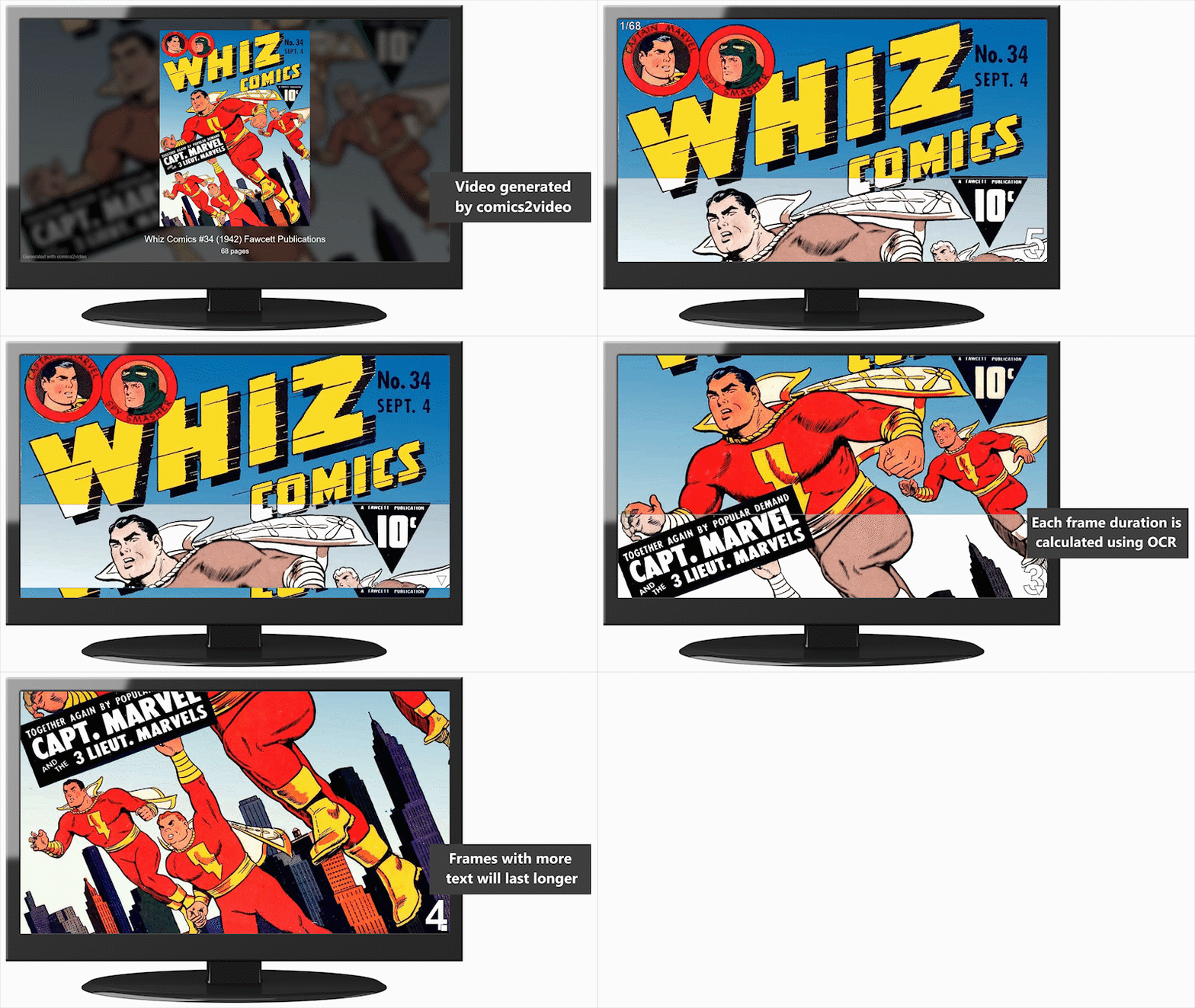
Example using Whiz Comics #34 (1942) - Fawcett Publications (Public Domain)
Video generated by comics2video:
## Recommended usage: Ready-to-use executable
### In Windows:
1. Download the package file:
- [comics2video 2.2.0 for Windows](https://github.com/MauricioPinguim/comics2video/releases/latest/download/comics2video_windows_latest.zip)
2. Extract the downloaded file and open the executable:

### In macOS:
> Since the file is downloaded from GitHub instead of Apple Store, follow all steps below before running comics2video for the first time
1. Download the package file:
- [comics2video 2.2.0 for macOS](https://github.com/MauricioPinguim/comics2video/releases/latest/download/comics2video_macOS_latest.zip)
2. Extract the downloaded file
3. Right-click the file **comics2video_Prepare_First_Execution** and choose "Open" in the submenu
4. Confirm that you want to open the file. A script will be executed and show a "Done" message
5. From now on, open comics2video using the app file:

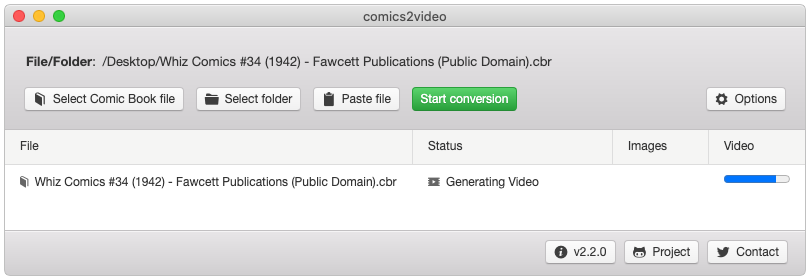
### comics2video main screen
Use the buttons to select a Comic Book file (or folder) in your file system and start the conversion
## Developer usage
### Node.js source-code
Git clone the project files, then run:
```sh
npm install
```
In Windows or macOS, start the Graphical User Interface using:
```sh
npm start
```
In Linux, start the Terminal Interface using:
```sh
node comics2video ./path/yourComicBookFile.cbr
```
If the parameter is a folder, all valid files will be processed.
### Using as a NPM module
Add comics2video to your own Node.js project using:
```sh
npm install comics2video
```
Then use:
```javascript
const Comics2video = require('comics2video');
const source = './path/myComicBook.cbr'; // File or Folder
const userParameters = { } // Parameters listed in next section
const comicsConversion = new Comics2video(source, userParameters);
// Event triggered on each status change
comicsConversion.on('progressUpdated', (data) => {
// toString() combines all fields in 'data' object in a single string
console.log(data.toString());
});
// Event triggered only once at the end of conversion
comicsConversion.on('processCompleted', (data) => {
console.log(`(${data.resultType}) ${data.resultMessage}`);
});
( async () => {
await comicsConversion.start();
})();
```
User Parameters fields (all optional):
| Name | How to set | Default | Description |
| --- | --- | --- | --- |
| generateVideo | *boolean* | true | If false, only the image frames will be generated |
| contentProfile | *string:*
'simple',
'complex' | 'complex' | Changes how OCR calculates each frame duration:
• 'simple' : Ideal for Comics for kids, art with few details
• 'complex' : For Superhero or Comics with detailed art |
| readingSpeed | *string:*
'slow',
'normal',
'fast' | 'normal' | Also changes how OCR calculates duration:
• 'slow' : Ideal for Kids or reading in foreign language
• 'normal' : Normal reading speed
• 'fast' : For speed reading |
| coverPageProcessing | *string:*
'thumbnailPage',
'normalPage',
'thumbnailAndNormalPage' | 'thumbnailPage' | Process Cover Page as:
• 'thumbnailPage' : Cover Page as a single thumbnail
• 'normalPage' : Cover Page as a normal page
• 'thumbnailAndNormalPage' : Thumbnail and normal page |
| messageLanguage | *string:*
'en',
'pt' | 'en' | Language for the Graphical User Interface and elements:
• 'en' : English
• 'pt' : Portuguese (Brazil) |
## Using the generated files
For each comic book processed, a folder with the same name will be created, containing:
- The video file in .MP4 format
- Just open it in the TV/Video player of your choice, like a regular video. Pages will be changed automatically (pages with more text will last longer)
- A subfolder named 'Images' with all the frames in .JPG format
- That can also be opened in modern TVs, advance each frame/page manually using the remote control
## Project comics2video
### Dependencies
Extraction from CBR/RAR files: [unrar-promise](https://www.npmjs.com/package/unrar-promise), CBZ/ZIP files: [win-7zip](https://www.npmjs.com/package/win-7zip)+[cross-zip](https://www.npmjs.com/package/cross-unzip), PDF files (Windows): [node-poppler](https://www.npmjs.com/package/node-poppler), Image processing: [sharp](https://www.npmjs.com/package/sharp), OCR: [tesseract.js](https://www.npmjs.com/package/tesseract.js), Video generation: [ffmpeg-static](https://www.npmjs.com/package/ffmpeg-static), Graphical User Interface: [electron](https://www.npmjs.com/package/electron)+[photonkit](https://www.npmjs.com/package/photonkit)
### Next steps
- Help needed: Translate the Graphical User Interface and documentation to **Spanish** and other languages (besides English and Portuguese)
- Any good suggestions you have :wink:
### Contact
:penguin: Maurício Antunes Oliveira: [mauricio_pinguim@hotmail.com](mailto:mauricio_pinguim@hotmail.com?subject=comics2video)