---
sidebar_position: 1
---
# Embedded Viewer
The quickest and easiest way to get the OHIF Viewer up and running is to embed
it into an existing web application. It allows us to forego a "build step", and
add a powerful medical imaging viewer to an existing web page using only a few
include tags. Here's how it works:
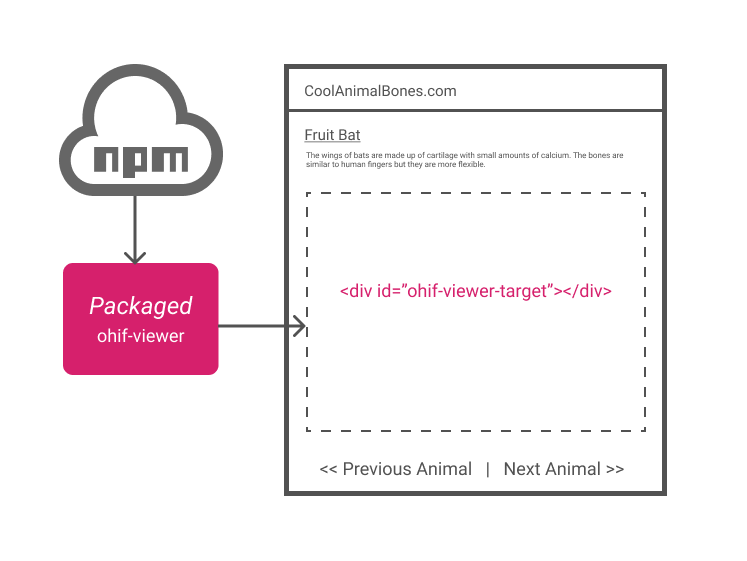
1. Create a new web page or template that includes the following external
dependencies:
- Create a JS Object or Function to hold the OHIF Viewer's configuration. Here are some
example values that would allow the viewer to hit our public PACS:
```js
// Set before importing `ohif-viewer` (JS Object)
window.config = {
// default: '/'
routerBasename: '/',
servers: {
dicomWeb: [
{
name: 'DCM4CHEE',
wadoUriRoot: 'https://server.dcmjs.org/dcm4chee-arc/aets/DCM4CHEE/wado',
qidoRoot: 'https://server.dcmjs.org/dcm4chee-arc/aets/DCM4CHEE/rs',
wadoRoot: 'https://server.dcmjs.org/dcm4chee-arc/aets/DCM4CHEE/rs',
qidoSupportsIncludeField: true,
imageRendering: 'wadors',
thumbnailRendering: 'wadors',
},
],
},
};
```
To learn more about how you can configure the OHIF Viewer, check out our
[Configuration Guide](../../configuring/index.md).
-
Render the viewer in the web page's target
div
```js
// Made available by the `@ohif/viewer` script included in step 1
var containerId = 'id-of-div-to-render-component-to';
var componentRenderedOrUpdatedCallback = function() {
console.log('OHIF Viewer rendered/updated');
};
window.OHIFViewer.installViewer(
window.config,
containerId,
componentRenderedOrUpdatedCallback
);
```
You can see a live example of this recipe in [this CodeSandbox][code-sandbox].
## Add Extensions
The UMD build of the OHIF Viewer is a "light weight" build that only contains
the core extensions required for basic 2D image viewing. It's possible to add
other extensions at runtime.
This only requires us to include a single script tag, and add it using the
`extensions` key to our config. In this practical example, we register our
popular whole slide microscopy extension:
```html
```
You can see an example of a slide microscopy study in the viewer [with the
extension enabled here][whole-slide-ext-demo] ([source code][ext-code-sandbox])
and [without it here][whole-slide-base-demo] ([source code][code-sandbox]).
You can read more about extensions and how to create your own in our
[extensions guide](/extensions/index.md).
#### FAQ
> I'm having trouble getting this to work. Where can I go for help?
First, check out this fully functional [CodeSandbox][code-sandbox] example. If
you're still having trouble, feel free to search or GitHub issues. Can't find
anything related your problem? Create a new one.
> My application's styles are impacting the OHIF Viewer's look and feel. What
> can I do?
When you include stylesheets and scripts, they are added globally. This has the
potential of causing conflicts with other scripts and styles on the page. To
prevent this, `embed` the viewer in a new/empty web page. Have that working?
Good. Now `embed` that new page using an
[`