---
title: Spatial Navigation
---
import { Badge } from '@astrojs/starlight/components'
import IMExample from '@components/IMExample.astro';
A JavaScript-based implementation for Spatial Navigation with gamepad support
:::note
By default the `d-pad` on a playstation controller is used for navigation.
:::
## Basic implementation
```ts
spatialNavigation.init(['.square']);
```
Click on an element and move the focus with your keyboard arrow keys:
If you add a `disabled` property to a navigable element it will skip it when moving the focus
## API
### init(navigableElements, overlap)
Initializes the spatial navigation.
```ts
type NavigableArea = {
area: string,
elements: (string | HTMLElement)[]
};
type NavigationInput = (string | HTMLElement)[] | NavigableArea[];
spatialNavigation.init(navigableElements: NavigationInput = [], overlap?: number);
```
#### navigableElement
The `navigableElement` can be:
##### 1. A string selector:
```ts
spatialNavigation.init(['.square']);
```
##### 2. An HTMLElement reference
```ts
const element = document.getElementById('myElement');
spatialNavigation.init([element]);
```
##### 3. A navigableArea object:
```ts
spatialNavigation.init([
{ area: 'square-1', elements: ['.square1'] },
{ area: 'square-2', elements: ['.square2'] },
]);
```
This will create different areas to separate the navigation. If you pass only selectors or HTMLElements directly, they will be saved to the default area.
#### Overlap (optional)
The `init` method takes an optional second argument, `overlap`, which accepts a value between 0.01 and 1. The default value is 0.5 (50%). It specifies the percentage of acceptable overlap between the current element and the next potential element for navigation.
If you want the elements to overlap perfectly (without any offset) in order to navigate between them, set the overlap value to 1 (100%).
```ts
spatialNavigation.init(['.square'], 1);
```
**If you set a value less than 0 or greater than 1, the default value (0.5) will be used**
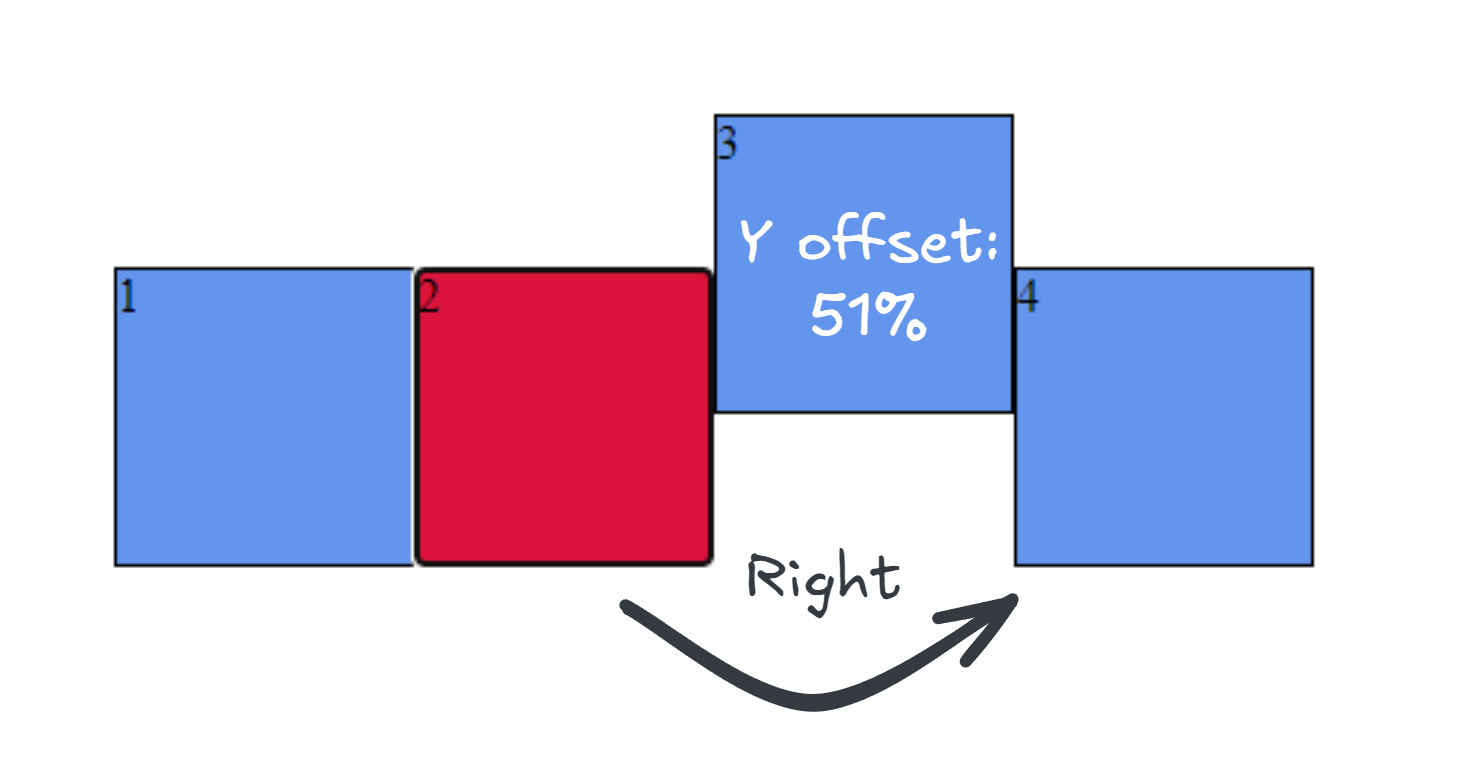
In the following example, when navigating to the right, `square 3` will be skipped because it has a Y-offset of `51%`, and the overlap parameter was not specified when calling the `init` method (defaulting to 0.5, or 50%). By specifying an overlap value of `0.55`, `square 3` will be considered a valid target, and moving right will focus on `square 3`.
```ts
spatialNavigation.init(['.square'], 0.55);
```
##### area
Type:
```ts
type area = string
```
The name of the area you want to be navigable
##### elements
Type:
```ts
type elements = (string | HTMLElement)[]
```
An array of element selectors (strings) or HTMLElement references that will be navigable in this area. You can mix both types in the same array.
### deinit()
Removes the spatial navigation, listeners and actions.
```ts
spatialNavigation.deinit();
```
### add(navigableElements)
The same as `.init()` but only adds elements to areas and new areas. Use it after initialization.
Supports the same formats as `init()`: selector strings, HTMLElement references, or navigableArea objects with mixed types.
```ts
// Add selectors to default area
spatialNavigation.add(['.new-element']);
// Add HTMLElement references to default area
const newEl = document.getElementById('newItem');
spatialNavigation.add([newEl]);
// Add to named area with mixed types
const element = document.getElementById('sidebar-item');
spatialNavigation.add([
{ area: 'area-1', elements: ['.element', element] }
]);
```
### remove(area)
`default='default'`
Remove all of the elements from an area. It uses the area name as an argument, if you don't pass any arguments it will remove the elements from the default area.
```ts
spatialNavigation.remove(area: string = 'default');
```
```ts
spatialNavigation.remove('area-1');
```
### focusFirst(area)
`default='default'`
Focuses on the first element of an area.
```ts
spatialNavigation.focusFirst(area: string = 'default');
```
### focusLast(area)
`default='default'`
Focuses on the last element of an area.
```ts
spatialNavigation.focusLast(area: string = 'default');
```
### getLastFocused(area) :badge[3.0.0]{variant="success"}
Returns the last focused element from a specific area. If no element has been focused yet in that area, or if the provided area name does not exist, it returns `undefined`.
```ts
spatialNavigation.getLastFocused(area: string = 'default'): HTMLElement | undefined;
```
### switchArea(area) :badge[Breaking Change]{variant="danger"}
Switches focus to the specified area.
It will attempt to focus the last focused element in that area. If no element was previously focused in that area, or if that element has been removed from the DOM, or is unavailable (disabled), it falls back to `focusFirst()`.
```ts
spatialNavigation.switchArea(area: string);
```
:::caution[Breaking Change]
**Previous behavior:** `switchArea` used to simply call `focusFirst()` every time it was invoked, always focusing the first item in the new area.
**New behavior:** It now remembers and restores the `lastFocusedElement` for that specific area. If your UI relied on always starting at the first item when switching back to an area, you should now explicitly call `focusFirst(area)` instead of `switchArea(area)`.
:::
### clearFocus()
Unfocuses the currently focused element in a navigable area.
```ts
spatialNavigation.clearFocus();
```
### changeKeys(customDirections, options)
```ts
type Direction = 'down' | 'up' | 'left' | 'right';
type CustomKeysInput = Partial>;
spatialNavigation.changeKeys(customDirections: CustomKeysInput, options = { clearCurrentActiveKeys: false });
```
```ts
spatialNavigation.changeKeys({ up: 'W', down: 's', left: 'a', right: 'd' }, { clearCurrentActiveKeys: true });
```
The method accepts an optional options object as a last argument. The available options are:
* `clearCurrentActiveKeys` - Boolean. Defaults to `false`. If `true`, it clears all other keys except the provided ones. If `false` оr not specified the provided keys will just be added to the registered keys collection.
### resetKeys()
Resets the navigation keys to their default settings, restoring the key bindings to the standard navigation keys (arrow_up, arrow_down, arrow_left, arrow_right).
```ts
spatialNavigation.resetKeys();
```
### pause()
Pauses the spatial navigation functionality. When paused, navigation keys will not move focus between elements. This is useful when you need to temporarily disable navigation, such as during modal dialogs or text input.
```ts
spatialNavigation.pause();
```
### resume()
Resumes the spatial navigation functionality after it has been paused. Navigation keys will work normally again.
```ts
spatialNavigation.resume();
```
**Example usage:**
```ts
// Pause navigation when opening a modal
openModal();
spatialNavigation.pause();
// Resume navigation when closing the modal
closeModal();
spatialNavigation.resume();
```
## Properties
### enabled
Type: `boolean`
Returns `true` if the spatial navigation is enabled, otherwise `false`.
### lastFocusedElement
Type: `HTMLElement | null | undefined`
Returns the last focused element.
### paused
Type: `boolean`
Returns `true` if the spatial navigation is paused, otherwise `false`.
### areas
Type: `Record`
Returns an object with all the registered areas.
## Actions
The spatial-navigation registers actions that move the focus. You can use these from your code directly with
```ts
action.execute('move-focus-down'); // moves the focus down
action.execute('move-focus-up'); // moves the focus up
action.execute('move-focus-left'); // moves the focus left
action.execute('move-focus-right'); // moves the focus right
```