---
id: message-customization
sidebar_position: 2
title: Customize Message UI
---

## Overview

Channel component accepts following props, for which you can provide your own components:

### Message

This is a higher order component, that wraps the UI component (MessageSimple) for message bubble. This component provides underlying UI component with all the handlers necessary.

:::note

**Mostly you shouldn't need to customize this component, unless you want to write your own handlers for message actions, gesture etc.** Using the [Message Component](https://github.com/GetStream/stream-chat-react-native/blob/master/package/src/components/Message/Message.tsx) as an example can be helpful to understand what props and hooks provide different information to the component. It is also suggested you optimize the component for rendering using memoization as is the standard suggested practice for `FlatList` items.

:::

```tsx
<OverlayProvider
  bottomInset={bottom}
  i18nInstance={streami18n}
>
  <Chat client={chatClient} i18nInstance={streami18n}>
    <Channel
      channel={channel}
      keyboardVerticalOffset={headerHeight}
      Message={CustomMessageComponent}
    >
      <View style={{ flex: 1 }}>
        <MessageList />
        <MessageInput />
      </View>
    </Channel>
  </Chat>
</OverlayProvider>
```

### MessageSimple

This is the actual UI component for message bubble. You can still get access to all the handlers defined in [Message](#message) HOC via `useMessageContext`

```tsx
import {
  OverlayProvider,
  Chat,
  Channel,
  MessageList,
  MessageInput,
  useChannelContext,
  useMessagesContext,
  useMessageContext,
} from 'stream-chat-react-native';

const CustomMessageUIComponent = () => {
  const { channel, members, watchers, error, loading } = useChannelContext();
  const { handleDeleteMessage, handleResendMessage, message, reactions } = useMessageContext();

  /** Custom implementation */
}

<OverlayProvider
  bottomInset={bottom}
  i18nInstance={streami18n}
>
  <Chat client={chatClient} i18nInstance={streami18n}>
    <Channel
      channel={channel}
      keyboardVerticalOffset={headerHeight}
      MessageSimple={CustomMessageUIComponent}
    >
      <View style={{ flex: 1 }}>
        <MessageList />
        <MessageInput />
      </View>
    </Channel>
  </Chat>
</OverlayProvider>
```


If you want to customize only a specific part of `MessageSimple` component, you can add your own custom UI components, by providing following props on Channel component:

- [MessageHeader](../core-components/channel.mdx#messageheader)
- [MessageFooter](../core-components/channel.mdx#messagefooter)
- [MessageAvatar](../core-components/channel.mdx#messageavatar)
- [MessageStatus](../core-components/channel.mdx#messagestatus)
- [MessageText](../core-components/channel.mdx#messagetext)
- [MessageSystem](../core-components/channel.mdx#messagesystem)
- [MessageContent](../core-components/channel.mdx#messagecontent)
- [Attachment](../core-components/channel.mdx#attachment)
- [Giphy](../core-components/channel.mdx#giphy)
- [Card](../core-components/channel.mdx#card)
- [FileAttachmentGroup](../core-components/channel.mdx#fileattachmentgroup)
- [FileAttachment](../core-components/channel.mdx#fileattachment)
- [Gallery](../core-components/channel.mdx#gallery)
- [UrlPreview](../core-components/channel.mdx#urlpreview)

```tsx
<Channel
  channel={channel}
  keyboardVerticalOffset={headerHeight}
  MessageAvatar={CustomAvatarComponent}
  MessageText={CustomTextComponent}
>
```

## Message bubble with custom text styles & fonts

We use `react-native-simple-markdown` library internally in the `Message` component to render markdown content of the text. Thus styling text in the `Message` component requires a slightly different approach than styling just a single standard `Text` component in React Native.

In the theme there are multiple text types such as replies and emoji-only messages that have the associated type `MarkdownStyle`, for the main message text this falls in `messageSimple -> content -> markdown` within `theme`. To modify the style of the markdown, text styles can be provided for each of the markdown sub-components that are applied based on text parsing.

```jsx
const themeStyle = {
  messageSimple: {
    content: {
      markdown: {
        heading1: {
          color: 'pink',
        },
        inlineCode: {
          fontSize: 10
        }
      },
    },
  },
};

<Chat style={themeStyle}>
  ...
</Chat>
```

Following markdown keys are available for styling:

```typescript
export type MarkdownStyle = Partial<{
  autolink: TextStyle;
  blockQuoteBar: ViewStyle;
  blockQuoteSection: ViewStyle;
  blockQuoteSectionBar: ViewStyle;
  blockQuoteText: TextStyle | ViewStyle;
  br: TextStyle;
  codeBlock: TextStyle;
  del: TextStyle;
  em: TextStyle;
  heading: TextStyle;
  heading1: TextStyle;
  heading2: TextStyle;
  heading3: TextStyle;
  heading4: TextStyle;
  heading5: TextStyle;
  heading6: TextStyle;
  hr: ViewStyle;
  image: ImageStyle;
  inlineCode: TextStyle;
  list: ViewStyle;
  listItem: ViewStyle;
  listItemBullet: TextStyle;
  listItemNumber: TextStyle;
  listItemText: TextStyle;
  listRow: ViewStyle;
  mailTo: TextStyle;
  mentions: TextStyle;
  newline: TextStyle;
  noMargin: TextStyle;
  paragraph: TextStyle;
  paragraphCenter: TextStyle;
  paragraphWithImage: ViewStyle;
  strong: TextStyle;
  sublist: ViewStyle;
  table: ViewStyle;
  tableHeader: ViewStyle;
  tableHeaderCell: TextStyle;
  tableRow: ViewStyle;
  tableRowCell: ViewStyle;
  tableRowLast: ViewStyle;
  text: TextStyle;
  u: TextStyle;
  view: ViewStyle;
}>;
```

## Message bubble with full width 

Because of richness of default message bubble (reactions, attachments, etc), we didn't want to add support this feature OOTB for the simplicity of maintainance. This is something that needs to themed on app level. Here is how you can implement full width message:

```jsx

import { vw } from 'stream-chat-react-native';

const maxWidth = vw(100) - 72;
const themeStyle = {
  messageSimple: {
    card: {
      container: {
        width: maxWidth,
      },
    },
    content: {
      container: {
        width: maxWidth,
      },
      textContainer: {
        width: maxWidth,
        maxWidth: maxWidth,
      },
      wrapper: { width: maxWidth },
    },
    gallery: {
      // -2 because of the 2px border
      width: maxWidth - 2,
    },
    giphy: {
      container: {
        width: maxWidth,
      },
    },
  },
  // Override reply so the reuse of message style does not overflow text in the message input
  reply: {
    textContainer: {
      maxWidth: undefined,
      width: undefined,
    },
  },
};

<Chat style={themeStyle}>
  ...
</Chat>
```

## Message bubble without border

Simple style customization using theme object, does the trick:

```jsx
const themeStyle = {
  messageSimple: {
      content: {
        container: {
          borderWidth: 0,
        },
        containerInner: {
          borderWidth: 0,
        },
        deletedContainerInner: {
          borderWidth: 0,
        },
        textContainer: {
          borderWidth: 0,
        },
      }
  }
};

<Chat style={themeStyle}>
  ...
</Chat>
```

## Message with custom reactions

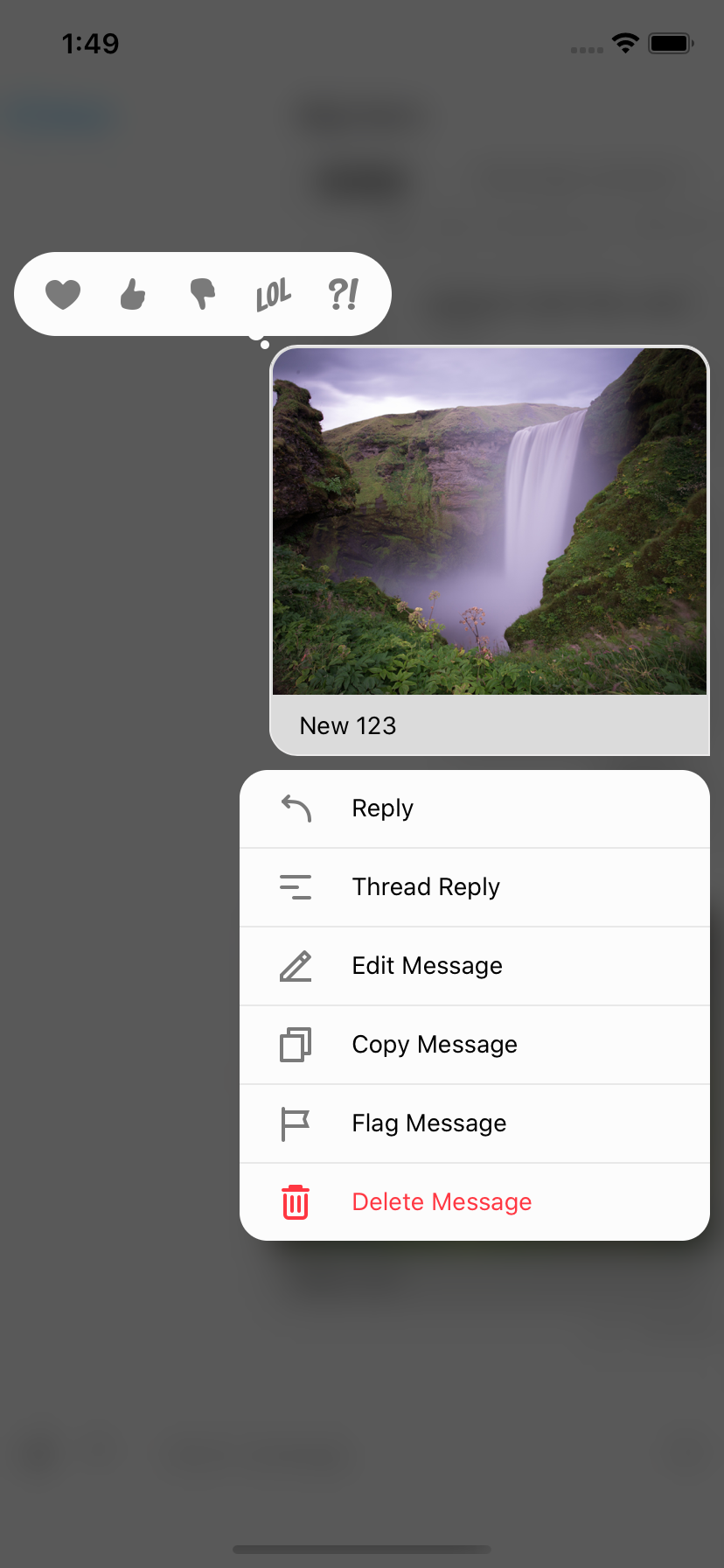
To add custom reactions you need to use the `supportedReactions` prop on `Channel`. `supportedReactions` is an array of `ReactionData`. The default `supportedReactions` array contains 5 reactions.

```tsx
export const reactionData: ReactionData[] = [
  {
    Icon: LoveReaction,
    type: 'love',
  },
  {
    Icon: ThumbsUpReaction,
    type: 'like',
  },
  {
    Icon: ThumbsDownReaction,
    type: 'sad',
  },
  {
    Icon: LOLReaction,
    type: 'haha',
  },
  {
    Icon: WutReaction,
    type: 'wow',
  },
];
```

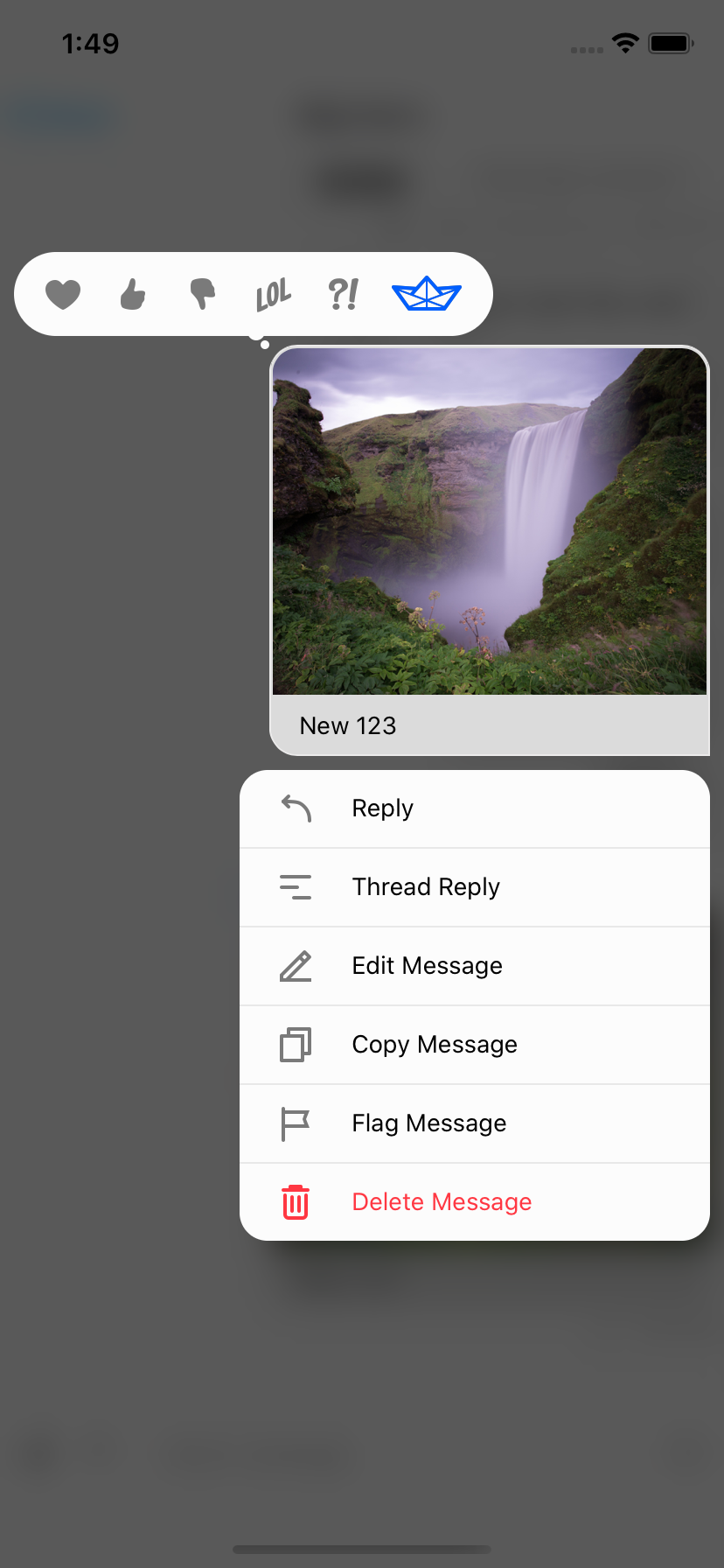
To create your own reaction you need both a `type` and `Icon`. The `Icon` is a component with `IconProps` it is suggested you take advantage of [`react-native-svg`](https://github.com/react-native-svg/react-native-svg) for scaling purposes. It is suggested you look at the default icons for examples of how to create your own that is able to properly use the theme and sizing that are provided via props. Using exported type from `stream-chat-react-native` a custom reaction can be created and added.

```tsx
export const StreamReaction: React.FC<IconProps> = (props) => (
  <RootSvg height={21} width={42} {...props} viewBox='0 0 42 21'>
    <RootPath
      d='M26.1491984,6.42806971 L38.9522984,5.52046971 C39.7973984,5.46056971 40.3294984,6.41296971 39.8353984,7.10116971 L30.8790984,19.5763697 C30.6912984,19.8379697 30.3888984,19.9931697 30.0667984,19.9931697 L9.98229842,19.9931697 C9.66069842,19.9931697 9.35869842,19.8384697 9.17069842,19.5773697 L0.190598415,7.10216971 C-0.304701585,6.41406971 0.227398415,5.46036971 1.07319842,5.52046971 L13.8372984,6.42816971 L19.2889984,0.333269706 C19.6884984,-0.113330294 20.3884984,-0.110730294 20.7846984,0.338969706 L26.1491984,6.42806971 Z M28.8303984,18.0152734 L20.5212984,14.9099734 L20.5212984,18.0152734 L28.8303984,18.0152734 Z M19.5212984,18.0152734 L19.5212984,14.9099734 L11.2121984,18.0152734 L19.5212984,18.0152734 Z M18.5624984,14.1681697 L10.0729984,17.3371697 L3.82739842,8.65556971 L18.5624984,14.1681697 Z M21.4627984,14.1681697 L29.9522984,17.3371697 L36.1978984,8.65556971 L21.4627984,14.1681697 Z M19.5292984,13.4435697 L19.5292984,2.99476971 L12.5878984,10.8305697 L19.5292984,13.4435697 Z M20.5212984,13.4435697 L20.5212984,2.99606971 L27.4627984,10.8305697 L20.5212984,13.4435697 Z M10.5522984,10.1082697 L12.1493984,8.31366971 L4.34669842,7.75446971 L10.5522984,10.1082697 Z M29.4148984,10.1082697 L27.8178984,8.31366971 L35.6205984,7.75446971 L29.4148984,10.1082697 Z'
      {...props}
    />
  </RootSvg>
);

const newReactionData = [...reactionData, { type: 'stream', Icon: StreamReaction }];
```

Both the resulting reaction picker and reaction result can then utilize this additional option.

<table>
  <tr>
    <td align='center' width="33%"><img src='https://raw.githubusercontent.com/GetStream/stream-chat-react-native/master/screenshots/cookbook/StandardReactions.png'/></td>
    <td align='center' width="33%"><img src='https://raw.githubusercontent.com/GetStream/stream-chat-react-native/master/screenshots/cookbook/ModifiedReactions.png'/></td>
    <td align='center' width="33%"><img src='https://raw.githubusercontent.com/GetStream/stream-chat-react-native/master/screenshots/cookbook/ModifiedReaction.png'/></td>
  </tr>
  <tr></tr>
  <tr>
    <td align='center'>Standard Reactions</td>
    <td align='center'>Modified Reactions</td>
    <td align='center'>Modified Reaction</td>
  </tr>
</table>

## Instagram style double-tap reaction

`stream-chat-react-native` uses a combination of `react-native-gesture-handler` and standard `react-native` touchables to provide animations to the UI. Because of this there are conditions in which multiple interactions are taking place at once.

**e.g.** If you press on a message it begins to depress and after a long hold will present the context menu for the message. But release sooner and if you are pressing on an image, the image viewer will appear.

Therefore to allow for something like double-tap reactions three props are required, `onPressInMessage`, `onLongPressMessage`, and `onDoubleTapMessage`. The first is used to prevent the `onPress` of inner `react-native` touchable components from firing while waiting for the double press to be evaluated by `react-native-gesture-handler`. Using a timeout the original `onPress` can be called if a second press has not ocurred in the expected time for the double tap to fire.

To prevent this event from firing when a long press occurs `onLongPressMessage` should be set to a function that cancels the timeout.

The `onDoubleTapMessage` prop can then be used to add a reaction as it is a function that is provided the message for which it is double tapped. This uses `react-native-gesture-handler` to track double taps. For convenience, as this is a common design pattern, the function is also is passed the `handleReactionDoubleTap` function. If defined (this is `undefined` when there is an error message or the `status` of the message is `failed`), this function can be passed a `string` of the reaction `type` to add or remove a reaction.

To complete the Instagram feel, setting the `OverlayReactionList` component to an empty component and limiting the `supportedReactions` as shown allows only 1 type of reaction and limits the UI to double-tap only to add or remove it.

```tsx
const lastTap = React.useRef<number | null>(null);
const timeOut = React.useRef<NodeJS.Timeout | null>(null);

const handleDoubleTap = ({
  defaultHandler,
}) => {
  const now = Date.now();
  console.log(now, lastTap.current)
  if (lastTap.current && now - lastTap.current < 510) {
    if (timeOut.current) {
      clearTimeout(timeOut.current);
    }
  } else {
    lastTap.current = now;
    timeOut.current = setTimeout(() => {
      if (defaultHandler) {
        defaultHandler();
      }
    }, 510);
  }
};

const onDoubleTapMessage = ({
  actionHandlers
}) => {
  actionHandlers?.toggleReaction('love')
};

const onLongPressMessage = ({
  defaultHandler,
}) => {
  console.log('onLongPress')
  if (timeOut.current) {
    clearTimeout(timeOut.current);
    defaultHandler()
  }
};

<Channel
  channel={channel}
  keyboardVerticalOffset={headerHeight}
  onDoubleTapMessage={onDoubleTapMessage}
  onPressInMessage={handleDoubleTap}
  onLongPressMessage={onLongPressMessage}
  OverlayReactionList={() => null}
  thread={thread}
>
```

## Slack style messages all on the left side

By default, received messages are shown on left side of the `MessageList` and sent messages are shown on right side of the `MessageList`.

You can change this at the `Message` level via the prop `forceAlignMessages` or set the alignment for the entire `Channel` using the same `forceAlignMessages` prop.

```tsx
<Channel
  channel={channel}
  forceAlignMessages='left'
  keyboardVerticalOffset={headerHeight}
  thread={thread}
>
```

## Message bubble with name of sender

In group messaging it's important to show the name of the sender associated message bubble - similar to Slack or WhatsApp. By default this is done in the `MessageFooter` component. This component is fully replaceable via props on `Channel` and is provided a set of props itself, `MessageFooterProps`, that can be used for rendering. Any additional data for rendering a custom footer can be pulled from contexts such as the `MessageContext` via the `useMessageContext` hook.

If you wanted to move the information about the sender to the top of the message you can provide a `MessageHeader` component to `Channel` which is provided the same props, `MessageHeaderProps`, as the footer, `MessageFooterProps`, and again can utilize the contexts as needed.

```tsx
<Channel
  channel={channel}
  keyboardVerticalOffset={headerHeight}
  MessageHeader={(props) =>
    props.message?.user?.id !== chatClient.userID ? (
      <View
        style={{ flexDirection: 'row' }}
      >
        {Object.keys(props.members).length > 2 &&
          props.message.user?.name ? (
            <Text style={[{ color: grey, marginRight: 8 }]}>
              {props.message.user.name}
            </Text>
          ) : null}
        <Text style={[{ color: grey, textAlign: props.alignment }]}>
          {props.formattedDate}
        </Text>
      </View>
    ) : null
  }
  MessageFooter={() => null}
  thread={thread}
>
```

<table>
  <tr>
    <td align='center' width="33%"><img src='https://raw.githubusercontent.com/GetStream/stream-chat-react-native/master/screenshots/cookbook/StandardFooter.png'/></td>
    <td align='center' width="33%"><img src='https://raw.githubusercontent.com/GetStream/stream-chat-react-native/master/screenshots/cookbook/NoFooter.png'/></td>
    <td align='center' width="33%"><img src='https://raw.githubusercontent.com/GetStream/stream-chat-react-native/master/screenshots/cookbook/HeaderAdded.png'/></td>
  </tr>
  <tr></tr>
  <tr>
    <td align='center'>Standard Footer</td>
    <td align='center'>No Footer</td>
    <td align='center'>Header Added</td>
  </tr>
</table>

## Swipe message left to delete and right to reply

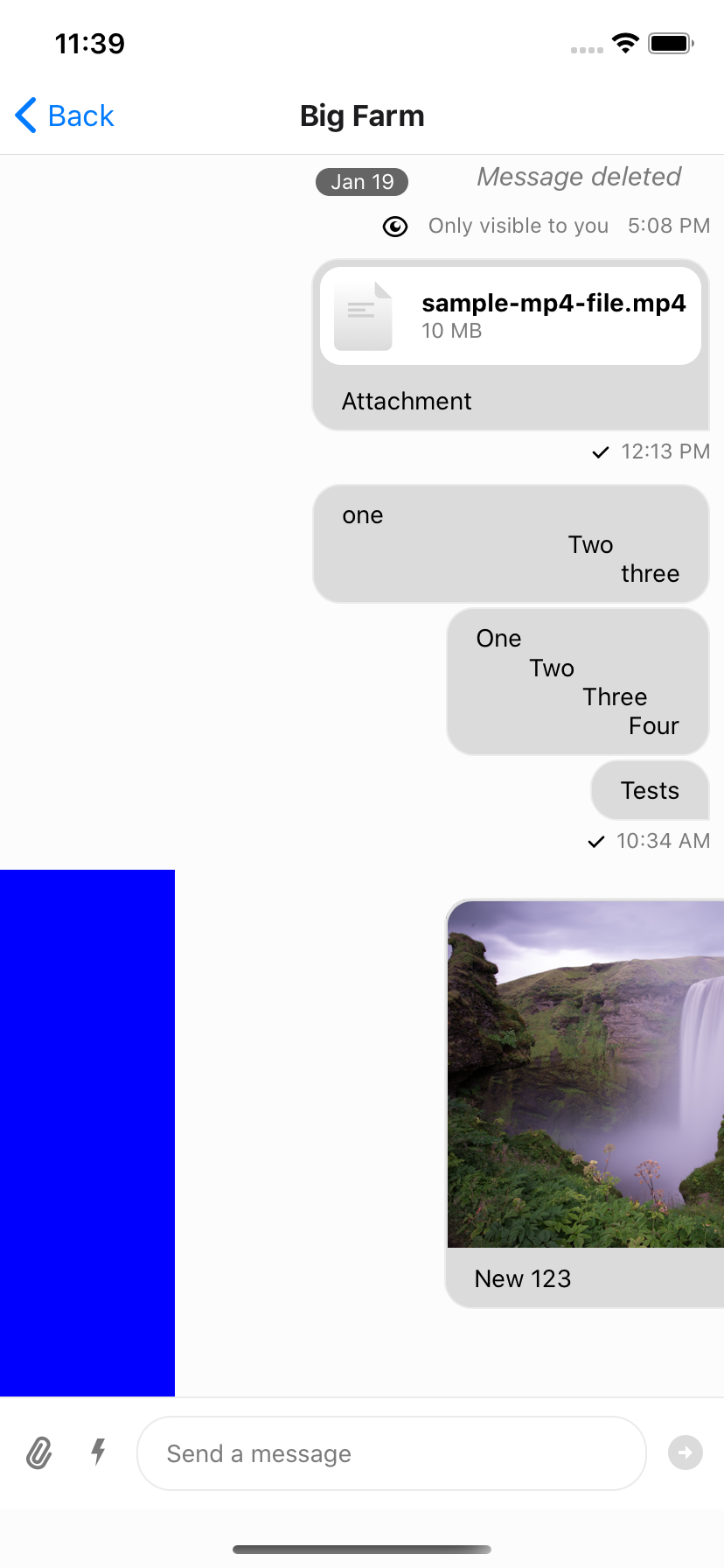
To add swipe controls to your messages it is suggested that you create a custom `Message` component to replace the default one. An easy solution is to wrap the standard exported message component from `stream-chat-react-native` in a `Swipeable` from `react-native-gesture-handler/Swipeable`. You can then use the functions provided by `Swipeable` to fine tune to functionality to your liking.

You can add reply functionality by calling `setQuotedMessageState`, available from the `useMessagesContext` hook. Or you can delete the message using a combination of `client.deleteMessage` and `updateMessage`, the latter of which is also available from the `useMessagesContext` hook. You can find the internal implementation of these functions in the `Message` component; or you can add any other functionality you like. It is suggested to add custom logic when implementing swipeable messages to ensure you only can swipe appropriate messages, **i.e.**  you can only swipe to delete messages you have the ability to delete and have not yet been deleted. Using `Message` props and contexts this is easily achievable.

```tsx
const SwipeableMessage = (
  props: MessageProps<
    AttachmentType,
    ChannelType,
    CommandType,
    EventType,
    MessageType,
    ResponseType,
    UserType
  >,
) => {
  return (
    <Swipeable
      onSwipeableLeftOpen={reply(props.message)}
      onSwipeableRightOpen={delete(props.message)}
      overshootLeft={false}
      overshootRight={false}
      renderLeftActions={(progress) => (
        <Animated.View
          style={{
            backgroundColor: 'blue',
            transform: [
              {
                translateX: progress.interpolate({
                  inputRange: [0, 1],
                  outputRange: [-100, 0],
                }),
              },
            ],
            width: 100,
          }}
        />
      )}
      renderRightActions={(progress) => (
        <Animated.View
          style={{
            justifyContent: 'center',
            opacity: progress.interpolate({
              inputRange: [0, 1],
              outputRange: [0, 1],
            }),
          }}
        >
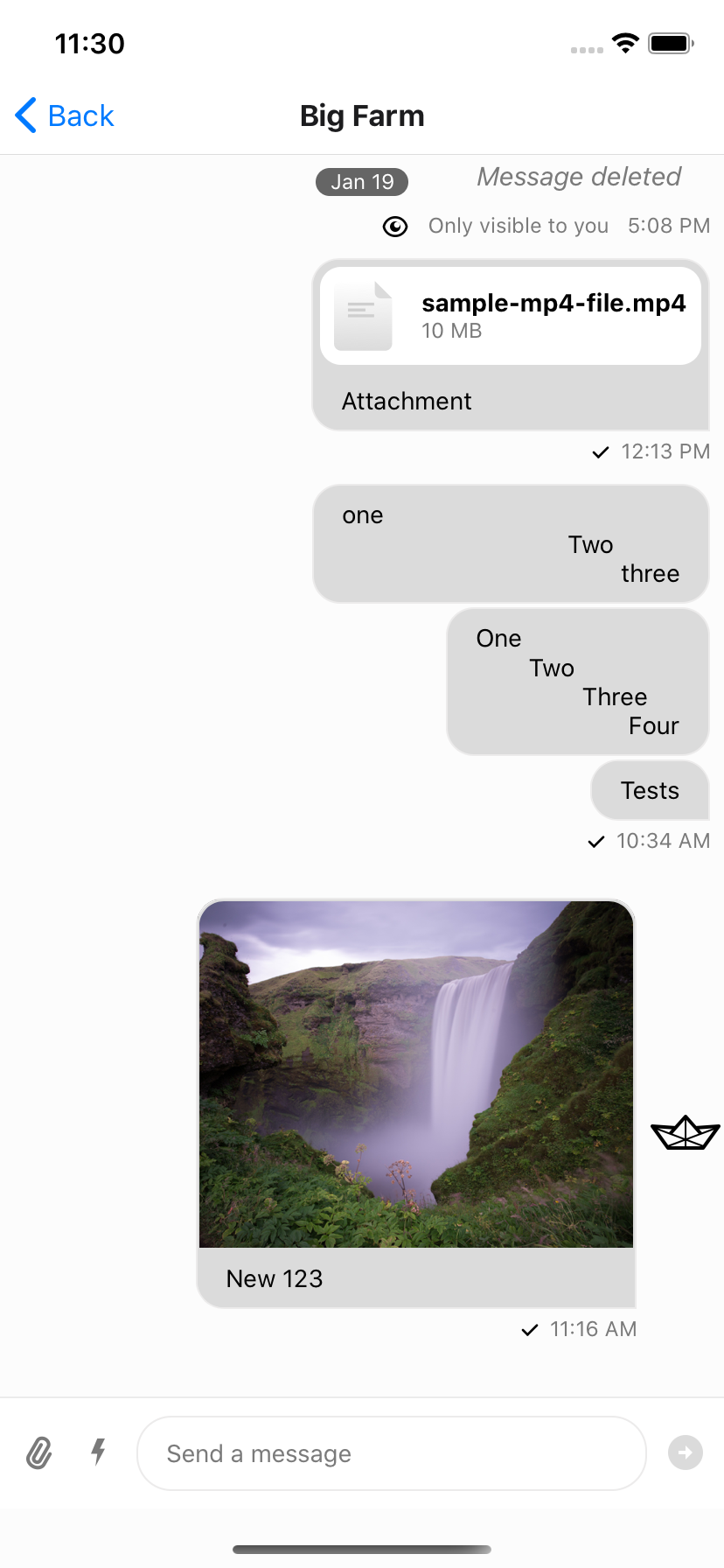
          <StreamReaction />
        </Animated.View>
      )}
    >
      <Message {...props} />
    </Swipeable>
  );
};
```

<table>
  <tr>
    <td align='center' width="33%"><img src='https://raw.githubusercontent.com/GetStream/stream-chat-react-native/master/screenshots/cookbook/SwipingOpacity.png'/></td>
    <td align='center' width="33%"><img src='https://raw.githubusercontent.com/GetStream/stream-chat-react-native/master/screenshots/cookbook/SwipingOpen.png'/></td>
    <td align='center' width="33%"><img src='https://raw.githubusercontent.com/GetStream/stream-chat-react-native/master/screenshots/cookbook/SwipingTranslateX.png'/></td>
  </tr>
  <tr></tr>
  <tr>
    <td align='center'>Swiping partially open (opacity partial)</td>
    <td align='center'>Swiping all the way open</td>
    <td align='center'>Swiping using transform -> translateX</td>
  </tr>
</table>