Operation Manual
Installing the Gatekeeper package
Setting Gatekeeper as system service
Setting Gatekeeper as regular app
The name of the Gatekeeper - can also be set by CLI in OS shell
Instructions can be found at beame-gatekeeper npm page as well
See this video on how to install Beame Gatekeeper on Kali Linux
Npm 6.4.1 or newer, Nodejs 8.X
Windows (find detailed Windows requirements here):
Ensure that you run installation as administrator
Install Node.js from https://nodejs.org/en/download/
Linux (may require “sudo”):
apt-get install npm
apt-get install nodejs
To install specific version:
curl -sL https://deb.nodesource.com/setup_8.x | sudo bash -
Mac OS (installation video):
brew install npm
To update:
brew update
brew upgrade node
Install the Gatekeeper application from npm package (requires root access, so use “sudo” if needed):
Raspbian: npm install beame-gatekeeper -g --unsafe-perm
Others: npm install -g beame-gatekeeper
Note: unsafe-perm switch sometimes may be required even when running as root
Use command from registration email (don’t forget “sudo” if needed)
MacOS: beame-gatekeeper-install-launchd <token>
Linux: beame-gatekeeper-install-systemd <token>
The advantages are:
This is the only available Gatekeeper configuration for Windows in current release
Use token from registration email, you’ll need root privileges if you installed npm package with “-g” option.
Any OS: beame-gatekeeper creds getCreds --regToken <token>
To run is as regular application: beame-gatekeeper server start
To open Gatekeeper admin console for the first time, ensure that your Gatekeeper is running and use the token, that was printed at the end of installation, or generate a new one:
beame-gatekeeper-ctl admin
OR
beame-gatekeeper creds admin
Copy-paste the token to your web-browser address bar and press enter.
Be aware, verified browsers are: Firefox, Chrome, Opera, Edge
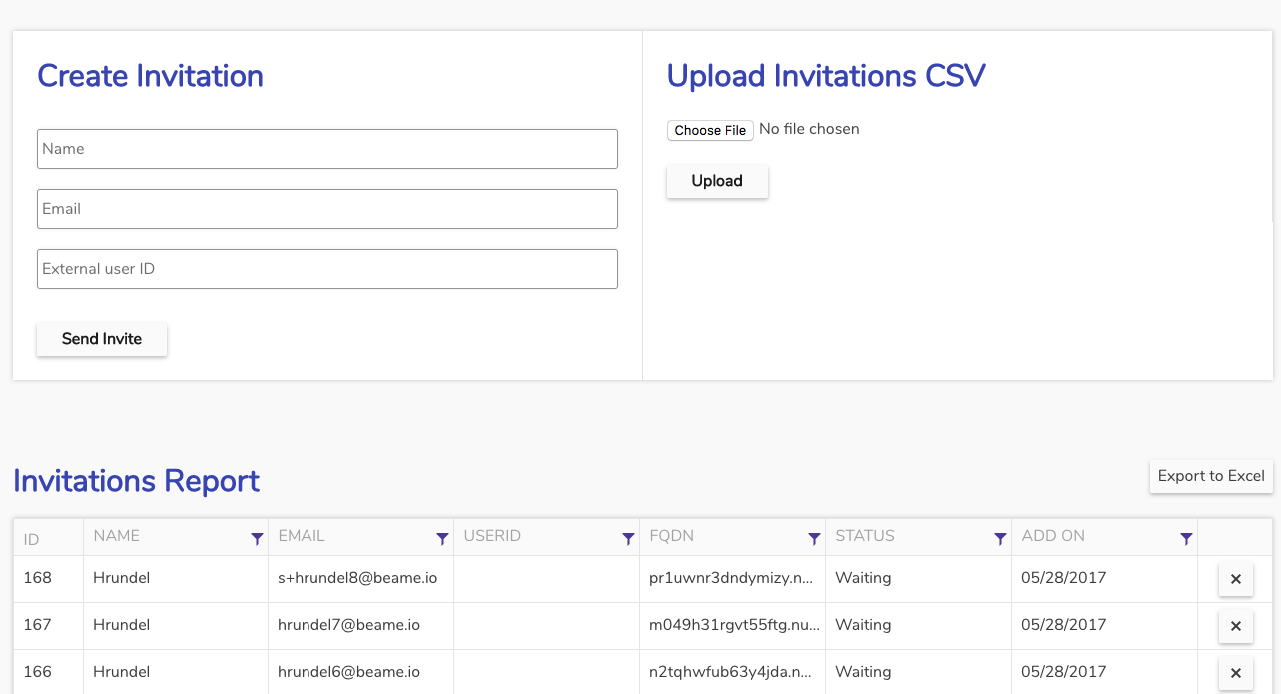
Used to create registration invitations, to allow a User to get a credential to access Gatekeeper’s services/applications. The invitation is to be opened on mobile device with Beame Authenticator app installed
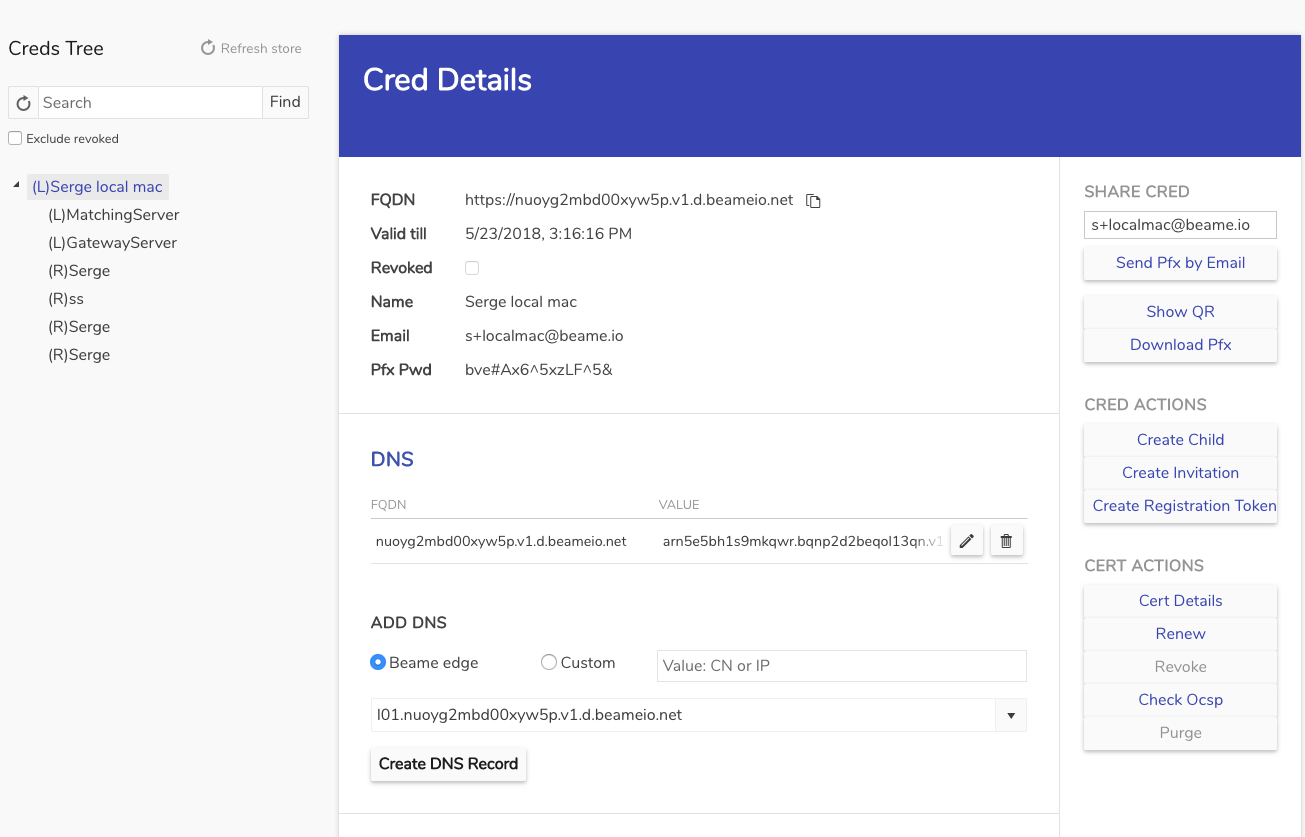
Tools to manage certificates. Create new creds, build and manage groups & trees. Register a hostname in DNS.
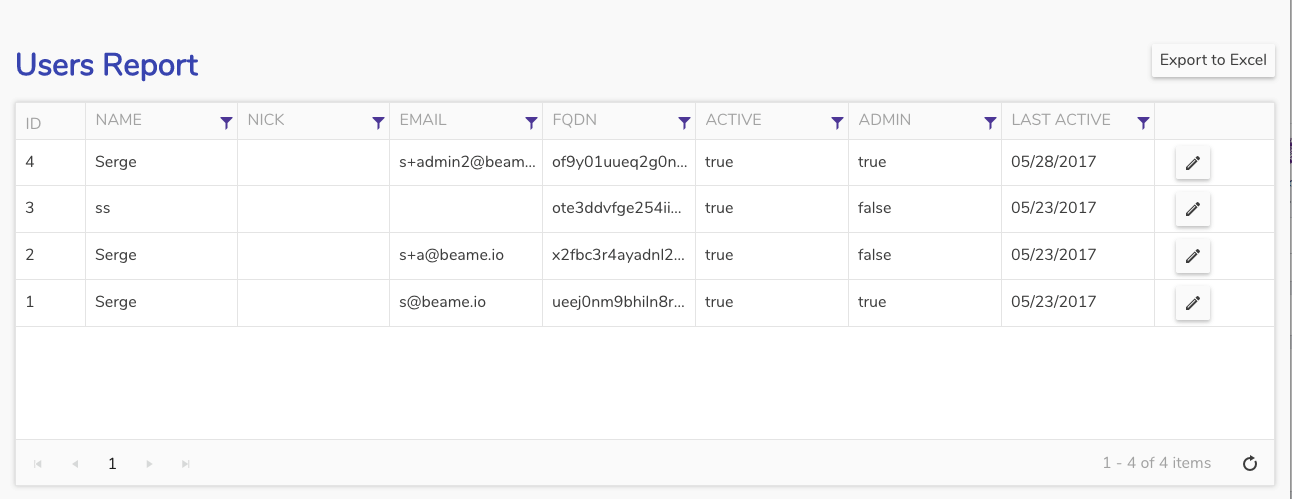
Manage Users of your Gatekeeper.
Make any User a Admin.
Make a User Active/Inactive by setting corresponding value in ACTIVE field
Export a User list
Status and data of all registrations in your Gatekeeper.
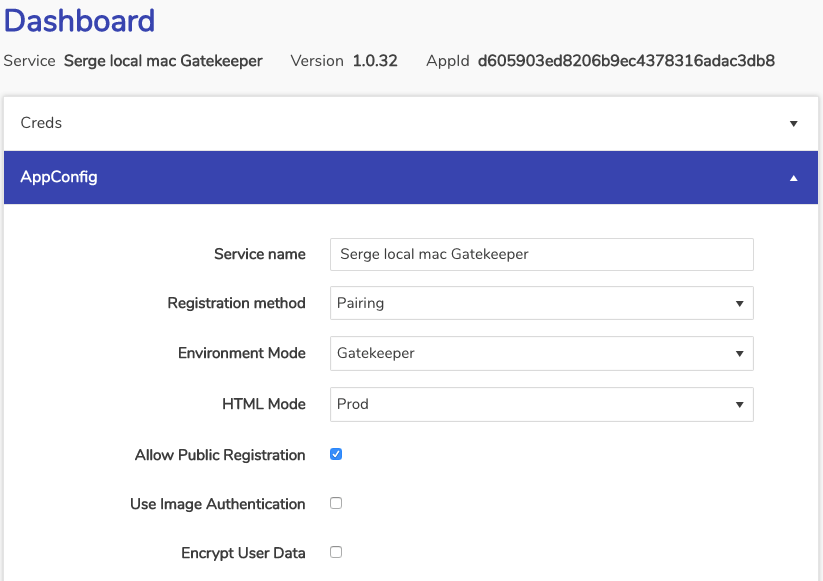
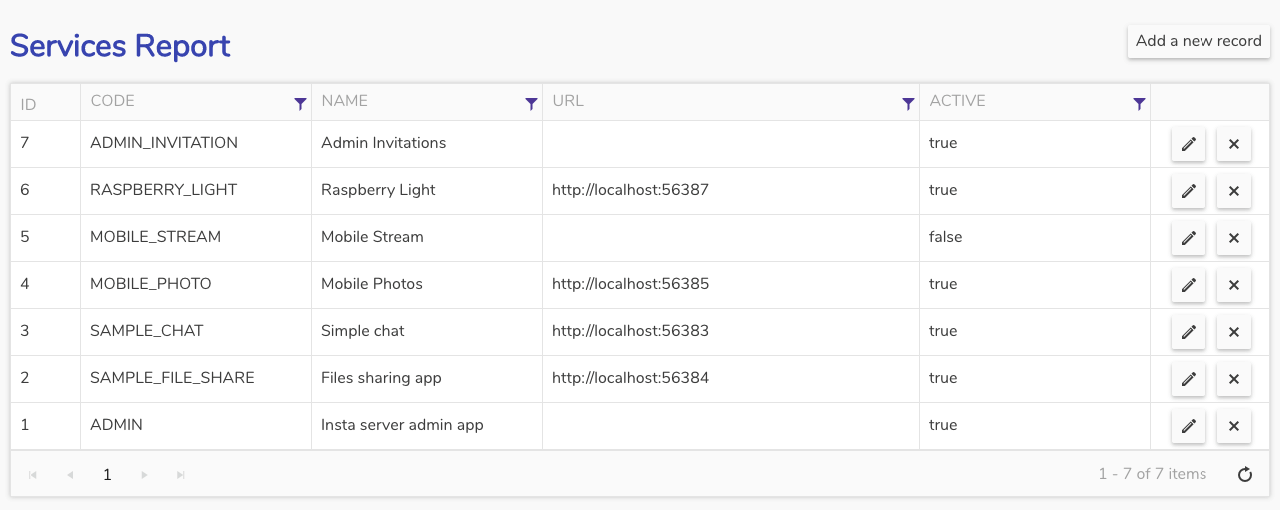
Define applications and services that your Gatekeeper provides to authenticated Users. See how it is easily done in this “Hello World” video
Code - any unique string, there are several stored names, that are processed by the Gatekeeper in a different manner
Name - meaningful name, to be displayed to a User
URL - where the application/service is running
Active - turn the application availability on/off
Beame Gatekeeper supports StrongSwan VPN. Create mobile VPN profile and scan the QR with any scanner of your mobile device. Import the profile and credential to your mobile. See this guide for detailed instructions
Use if the Gatekeeper installed as a system service
Check that the process has started | beame-gatekeeper-ctl status |
restart/start/stop beame-gatekeeper | beame-gatekeeper-ctl restart/start/stop |
Get basic info | beame-gatekeeper-ctl info |
Get admin token (copy-paste to your Browser) | beame-gatekeeper-ctl admin |
Rename your Gatekeeper | beame-gatekeeper-ctl name <some-name> |
Use if the Gatekeeper installed as a regular app
beame-gatekeeper creds getCreds [--regToken regToken] [--fqdn fqdn]- create new Cred with regToken
beame-gatekeeper creds list [--regex regex] [--format {text|json}] - list Creds that are found on local machine
beame-gatekeeper creds listVpnCreds --fqdn fqdn --vpnId vpnId [--format {text|json}]- list Creds related to vpnId
beame-gatekeeper creds createServersCredentials - initial Gatekeeper creds acquisition
beame-gatekeeper creds webToken --type {config|admin|app} [--appId appId] [--format {text|json}] - get link with token, copy-paste to a browser
beame-gatekeeper creds admin [--format {text|json}]- shortcut to get admin link with token
beame-gatekeeper config init - validate Gatekeeper configuration
beame-gatekeeper config setName --name name - rename the Gatekeeper
beame-gatekeeper server start