# Architwin Library
ArchiTwin Library
## Table of Contents
---------------------
- [Architwin Library](#architwin-library)
- [Table of Contents](#table-of-contents)
- [Installation](#installation)
- [Install Using NPM](#install-using-npm)
- [Getting Started](#getting-started)
- [Prerequisites](#prerequisites)
- [Define an iFrame as target for the Showcase](#define-an-iframe-as-target-for-the-showcase)
- [Import the library](#import-the-library)
- [Setup your proxy](#setup-your-proxy)
- [Connect to a Space](#connect-to-a-space)
- [Executing methods on specific App Phases](#executing-methods-on-specific-app-phases)
- [Space Overview](#space-overview)
- [Subscribing to Space Events](#subscribing-to-space-events)
- [Subscribing a method to an event](#subscribing-a-method-to-an-event)
- [Subscribing multiple methods to an event](#subscribing-multiple-methods-to-an-event)
- [Unsubscribing a method from an event](#unsubscribing-a-method-from-an-event)
- [Creating Custom Events](#creating-custom-events)
- [Points of Interest](#points-of-interest)
- [Adding, removing and customizing Tags](#adding-removing-and-customizing-tags)
- [Accessing List of Rendered Objects and Object Structure](#accessing-list-of-rendered-objects-and-object-structure)
- [Transforming Objects](#transforming-objects)
- [Transforming Object by clicking it](#transforming-object-by-clicking-it)
- [Programmatically transforming objects](#programmatically-transforming-objects)
- [Undoing and Redoing Transformation Changes](#undoing-and-redoing-transformation-changes)
- [Adding Objects To Your Space](#adding-objects-to-your-space)
- [Creating a Customizable Media Screen](#creating-a-customizable-media-screen)
- [Adding a Media Screen](#adding-a-media-screen)
- [Media Screen Parameter Reference](#media-screen-parameter-reference)
- [Attaching an image or video to a Media Screen](#attaching-an-image-or-video-to-a-media-screen)
- [Hiding expand/dock buttons of Media Screens](#hiding-expanddock-buttons-of-media-screens)
- [Setting Video Playback in the Space](#setting-video-playback-in-the-space)
- [Setting Animation Control in the Space](#setting-animation-control-in-the-space)
- [Copying object To Your Space](#copying-object-to-your-space)
- [Navigate to Object](#navigate-to-object)
- [Deleting Object To Your Space](#deleting-object-to-your-space)
- [Replacing Object To Your Space](#replacing-object-to-your-space)
- [Creating Text Markup Screen in the space](#creating-text-markup-screen-in-the-space)
- [Setting Content to Text Markup Screen](#setting-content-to-text-markup-screen)
- [Typescript Interface Reference](#typescript-interface-reference)
- [Tag Interfaces](#tag-interfaces)
- [Object Interfaces](#object-interfaces)
- [Meeting Interfaces](#meeting-interfaces)
- [Meeting UI Guide](#meeting-ui-guide)
- [Enable Meeting Sidebar](#enable-meeting-sidebar)
- [Create Meeting](#create-meeting)
- [Pre-Meeting Setup](#pre-meeting-setup)
- [Join Meeting](#jpin-meeting)
- [In-Meeting](#in-meeting)
- [Function Reference](#function-reference)
- [Space](#space)
- [connectSpace()](#connectspace)
- [Config Options](#config-options)
- [Minimap Config](#minimap-config)
- [Toolbar Config](#toolbar-config)
- [App Config](#app-config)
- [Restriction Config](#restriction-config)
- [Debug Config](#debug-config)
- [disconnectSpace()](#disconnectspace)
- [Tags](#tags)
- [getTags()](#gettags)
- [gotoTag()](#gototag)
- [renderTag()](#rendertag)
- [getMpTags()](#getmptags)
- [getMpTag()](#getmptag)
- [showTags()](#showtags)
- [disposeTags()](#disposetags)
- [disposeTag()](#disposetag)
- [attachTagMedia()](#attachtagmedia)
- [detachTagMedia()](#detachtagmedia)
- [moveTag()](#movetag)
- [editTagLabel()](#edittaglabel)
- [editTagDescription()](#edittagdescription)
- [editTagIcon()](#edittagicon)
- [editTagStem()](#edittagstem)
- [editTagColor()](#edittagcolor)
- [Sweeps](#sweeps)
- [getSweeps()](#getsweeps)
- [moveToSweep()](#movetosweep)
- [getNearbySweeps()](#getnearbysweeps)
- [getCurrentSweep()](#getcurrentsweep)
- [getCurrentSweepPosition()](#getcurrentsweepposition)
- [getAllSweeps()](#getallsweeps)
- [disableSweeps()](#disableSweeps)
- [Video](#video)
- [playVideo()](#playvideo)
- [pauseVideo()](#pausevideo)
- [setVideoPlayback()](#setvideoplayback)
- [Navigation](#navigation)
- [moveInDirection()](#moveindirection)
- [Camera](#camera)
- [getCurrentCameraPose()](#getcurrentcamerapose)
- [getCameraPosition()](#getcameraposition)
- [cameraPan()](#camerapan)
- [cameraRotate()](#camerarotate)
- [getViewMode()](#getviewmode)
- [setViewMode()](#setviewmode)
- [cameraLookAt()](#cameralookat)
- [captureSpaceScreenshot()](#capturespacescreenshot)
- [captureScreenshotAndCameraDetails()](#capturescreenshotandcameradetails)
- [Objects](#objects)
- [getNearbyObjects()](#getnearbyobjects)
- [addMediaScreen()](#addmediascreen)
- [setTransformMode()](#settransformmode)
- [revertTransform()](#reverttransform)
- [removeTransformControls()](#removetransformcontrols)
- [setAnimationState()](#setanimationstate)
- [showObjectDimensions()](#showobjectdimensions)
- [copyObject()](#copyobject)
- [deleteObject()](#deleteobject)
- [deleteObjectFromSpace()](#deleteobjectfromspace)
- [replaceObject()](#replaceobject)
- [addTextMarkupScreen()](#addtextmarkupscreen)
- [setTextMarkupScreenContent()](#settextmarkupscreencontent)
- [getNearestSweepFromObject()](#getnearestsweepfromobject)
- [setSelectedObject()](#setselectedobject)
- [getSelectedObject()](#getselectedobject)
- [clearSelectedObject()](#clearselectedobject)
- [goToModel()](#gotomodel)
- [get3DXObjects()](#get3dxobjects)
- [setLibrary()](#setlibrary)
- [getLibrary()](#getlibrary)
- [disposeModel()](#disposemodel)
- [Virtual Meeting](#virtual-meeting)
- [createMeeting()](#createmeeting)
- [joinMeeting()](#joinmeeting)
- [leaveMeeting()](#leavemeeting)
- [startVideo()](#startvideo)
- [stopVideo()](#stopvideo)
- [startLocalVideo()](#startlocalvideo)
- [stopLocalVideo()](#stoplocalvideo)
- [startAudio()](#startaudio)
- [stopAudio()](#stopaudio)
- [muteAudio()](#muteaudio)
- [unMuteAudio()](#unmuteaudio)
- [muteLocalAudio()](#mutelocalaudio)
- [unMuteLocalAudio()](#unmutelocalaudio)
- [getDevices()](#getdevices)
- [switchMicrophone()](#switchmicrophone)
- [switchSpeaker()](#switchspeaker)
- [switchCamera()](#switchcamera)
- [getMicList()](#getmiclist)
- [getSpeakerList()](#getspeakerlist)
- [getCameraList()](#getcameralist)
- [createLocalVideoTrack()](#createlocalvideotrack)
- [createLocalAudioTrack()](#createlocalaudiotrack)
- [initializeHTMLElements()](#initializehtmlelements)
- [setupMeetingSession()](#setupMeetingSession)
- [sendCommand()](#sendCommand)
- [attachParticipantVideo()](#attachParticipantVideo)
- [setAvatarMeetingImage()](#setAvatarMeetingImage)
- [Viewpoint](#viewpoint)
- [renderViewpointMarker()](#renderViewpointMarker)
- [toggleViewpointVisibility()](#toggleViewpointVisibility)
## Installation
### Install Using NPM
To install the latest ArchiTwin package:
````bash
npm i architwin
````
## Getting Started
#### Prerequisites
Before you start coding your architwin powered app, there are a few things you need to have ready to ensure that you are able to run the app properly without interruptions. For a seamless development experience, make sure to have the following ready:
- **appKey:** your appKey is used to authenticate your connection when loading the 3D showcase. For security purposes, the appKey can only be used by a domain (e.g. awesomesite.com) it is associated with. This key is important especially when you launch your app in production and utilize your own site domain. Please contact us to request your appKey
- **apiKey:** not to be confused with the appKey, the apiKey is used to authenticate all API requests sent to our servers including user authentication and fetching object data connected to a showcase. Please contact us to request your apiKey
- **apiURL:** an optional key in the [auth object](#connection-parameters) which if set, will point all internal API calls to the api endpoint or base URL you assign. If this is not set, all api calls will be directed to the proxy address set in the `vite.config.ts` file during **local development**. Example: `apiURL: "apps.awesomesite.com/api"` will resolve internally to `apps.awesomesite.com/api/cas/tickets?someparams` or `apps.awesomesite.com/api/v1/showcase/id/1`. It is important to add `/api` to the base url of your custom apiURL to ensure the api requests are properly sent. There is no need to add a forward slash at the end of our custom apiURL. Please take note that you *may* have to setup a proxy server to bypass CORS issues when you deploy your application on your production servers
- **Username and password:** User credentials used to authenticate the user. Please contact us to request your username and password
#### Define an iFrame as target for the Showcase
This example uses Vue's ref attribute to reference the target iFrame. Please consult the official documentation of your preferred framework of choice on how to reference a target component.
````html
````
#### Import the library
````typescript
````
#### Setup your proxy
In your `vite.config.ts`, add the followig block of code. This will allow your app in your development environment to send API request to our servers and circumvent CORS issues. If you are not using vite as your build tool, please refer on the official documentation of your build tool of choice on how to setup the proxy.
You may have to change the VITE_PROXY value if you intend to direct your api requests on another server during development.
During production deployment you may need to setup proxy settings using your web or proxy server (ie: nginx, apache).
````typescript
import { fileURLToPath, URL } from "node:url";
import { defineConfig, loadEnv } from "vite";
import vue from "@vitejs/plugin-vue"; //for Vue projects
import { svelte } from '@sveltejs/vite-plugin-svelte' //for Svelte projects
import react from '@vitejs/plugin-react' //for React projects
import dotenv from "dotenv";
// https://vitejs.dev/config/
export default defineConfig(({ command, mode }) => {
const env = loadEnv(mode, process.cwd(), "");
console.log("=== env ===", mode, JSON.stringify(env));
const VITE_PROXY = "https://basic-dev.rev-kitten.com";
return {
env: env,
plugins: [
vue(), //for vue projects,
svelte(), //for svelte projects,
react(), //for react projects
],
server: {
host: true,
port: 5173,
proxy: {
"/api": {
target: VITE_PROXY,
secure: false,
changeOrigin: true,
},
"/admin": { target: VITE_PROXY, secure: false, changeOrigin: true },
"/default": { target: VITE_PROXY, secure: false, changeOrigin: true },
},
},
devServer: {
host: true,
port: 5173,
proxy: {
"/api": { target: VITE_PROXY, secure: false, changeOrigin: true},
"/admin": { target: VITE_PROXY, secure: false,
changeOrigin: true },
"/default": { target: VITE_PROXY, true: false, changeOrigin: true },
},
},
resolve: {
alias: {
"@": fileURLToPath(new URL("./src", import.meta.url)),
},
},
//@ts-ignore
test: {
globals: true,
environment: "jsdom",
}
};
});
````
#### Connect to a Space
In order to connect to space you may use [connectSpace()](#connectspace) method.
````typescript
````
Once connected, the interactive Space will be rendered in the target iFrame.
A Space generally contains Tags, 3D objects, Video Screens , Slideshow Screens and Sweeps.
You should be able to move around the Space using keyboard and mouse.
Or programmatically using methods defined in this library.
## Executing methods on specific App Phases
**WARNING:** This feature is deprecated, subscribe using [Space Events](#subscribing-to-space-events) instead
Your application may need to execute certain methods during the initialization of your 3D space. For example, you may want to use`addObjectToSpace()` method to render a model to your 3D space the moment the 3D space becomes interactive. While you can always just invoke the function after the `connectSpace()` method there may be times where this will cause an error as the `connectSpace()` method which is an async method, may have not finished initializing the necessary internal variables that allow other methods to work properly. When you invoke the `connectSpace()` method, the library does some internal validation and then goes to several phases to render your 3D space and make it interactive. These phases are the following:
**ARCHTWIN APP PHASES**
- **LOADING:** Initial fetch request to matterport. This is where the bundle downloads the 3D space from matterport and starts rendering it
- **STARTING:** Matterport begins the transition to the start location
- **PLAYING** The 3D space is now ready for user interaction
You can also view the technical diagram of how this work below:
 To invoke a function from your application during one of the phases. Simply pass the function name as a parameter in the `connectSpace()` method. Make sure to not add a parenthesis to your function name when you pass it as a parameter to avoid invoking the function prematurely.
*Example:*
```typescript
//Your application side function
async function runThisOnPlayState(){
const tags = await axios.get('my-custom-endpoint')
//Keep in mind that you should map the data from your endpoint into an object structure that the library supports
await atwin.showTags(tags)
}
await atwin.connectSpace(spaceUrl, auth, config,{onPlay:runThisOnPlayState})
```
In this example, the method named `runThisOnPlayState` is passed as a value to the `onPlay` key of an object. This will invoke the function during the PLAYING phase of the library. To invoke your function in a different phase, simply pass it to a different key in the object. You can pass your functions to onLoad,onStart, and onPlay. Async and synchronous functions are valid. Refer to the table below for more information
| parameter | type | required | default | values |
| :----: | :----: | :---: | :---: | :---: |
| onLoad | Function | no | none | async or non-async function|
| onStart | Function | no | none | async or non-async function|
| onPlay | Function | no | none | async or non-async function|
## Space Overview
**Space** - Space is an immersive and realistic Digital Twin model of a physical space, with virtual custom objects like animated 3D objects, Video Screens, Slideshow Screens and Tags, co-existing and enhancing the real objects.
A user should be able to navigate around using PC or devices (keyboard and mouse), measure real object dimensions and interact with the virtual objects as if you are actually visiting the physical space.
**Sweeps** - Space have static sweep markers (white circles on floor) which serves as primary navigation points. Users can go to sweeps (or click), stand and look around.
**Tags** - Space also have tags which are virtual markers attached to Objects or Locations in space. Tags can be clicked which will render and display relevant contents like
web pages, videos, images or text descriptions. It is possible to go directly to any specifig tag ([gotoTag](#gototag)) from anywhere in Space.
It can be used as quick way to navigate around the space.
**3D Objects** - Space usually contains 3D objects or three-dimentional models. Some 3D objects may have some simple animations.
**Video Screens** - Another interesting objects that can be found inside the space are Video Screens. They practially look like TV
screens placed at selected locations. The Video screens will automatically play when a User is nearby (2 meters). And automatically turns off when the User leaves.
**Slideshow Screens** - Space can also contain Image Slideshow Screens. This is similar to the Video Screen, but uses static images.
Clicking on the right section of the current slide image will display the next slide.
Clicking on the the left section will display the previous slide.
The slideshow can be auto played in whole by clicking the lower-right corner.
**Note**: We use the word Space and Showcase interchangeably.
## Subscribing to Space Events
Your 3D space allows your users to move around and interact with objects loaded into that space. Interactions such as clicking and dragging 3D objects in a space are events that your app may need to listen to and subsequently trigger the appropriate function for such an event.
You can subscribe to a particular event and pass callback method or methods to trigger when a subscribed event is fired using the `subscribeSpaceEvent()` method.
The method accepts the following as its parameters:
| parameter | type | required | default | values |
| :----: | :----: | :---: | :---: | :---: |
| eventType | SPACE_EVENTS or string | yes | none | valid event type |
| callback | Function or Array of Functions | yes | none | function or async function |
### Subscribing a method to an event
To subscribe to an event, simpley call the `subscribeSpaceEvent()` and pass the event you want to subscribe to and the method you want to trigger. Subscribing to an event will also return to you the data of an object if you are interacting with one. Said object data will implement the `IShowcaseObject` interface.
*Example:*
```typescript
function myFunction(objectData){
console.log("I will run during a DRAG_END event",objectData)
}
atwin.subscribeSpaceEvent('DRAG_END',myFunction)
```
You can subscribe your method to more than one event. Currently, we support subscribing only the following events but we are working to add more events in the future.
**SUPPORTED EVENTS**
- CLICK
- HOVER
- DRAG
- DRAG_BEGIN
- DRAG_END
- LOADING_PHASE
- STARTING_PHASE
- PLAYING_PHASE
- PLACED_TAG
- TAG_SAVED
- TAG_DISPOSED
- MEDIASCREEN_EXPANDED
- MEDIASCREEN_MINIMIZED
- MEDIA_PLAY
- MEDIA_PAUSE
- MEDIA_MUTE
- MEDIA_UNMUTE
- MEDIA_ENDED
- CURRENT_USER_LOADED
- CURRENT_USER_CHANGED
- PARTICIPANT_CHANGED
- PARTICIPANT_ADDED
- PARTICIPANT_REMOVED
- PARTICIPANT_VIDEO_ON
- PARTICIPANT_VIDEO_OFF
- PARTICIPANT_AUDIO_STATE
- MEETING_ENDED
- MEETING_CLOSED
- SELECTED_TAG
- MODEL_RENDERED
- MODEL_DISPOSED
- TAG_MESSAGE_OPENED
- TAG_MESSAGE_SENT
- TAG_MESSAGE_RETRIEVED
- TAG_RECEPIENT_CHANGED
- TAG_LINK_COPIED
- TAG_LINK_GENERATED
- SET_TAG_ICON
- VIEW_TAG_MESSAGE
- TOOLBAR_LOADED
- SWEEP_COLLECTION_UPDATED
- MINIMAP_SWEEP_CLICK
- MINIMAP_SWEEPS_RENDERED
- SCREENSHOT_CAPTURED
- ON_MOVE_SWEEP
- ON_CAMERA_MOVE
- USER_VIEW_POINT
- TAGPLACER_CREATED
- ROOM_CHANGED
- ARRIVED_ON_SWEEP
- CAMERA_ROTATE_START
- CAMERA_ROTATE_END
- CURRENT_CAMERA_POSE
- CURRENT_CAMERA_ZOOM
For more information regarding the loading,starting, and playing phase events. Please refer to [this section](#executing-methods-on-specific-app-phases)
### Subscribing multiple methods to an event
If you wish to subscribe multiple methods to an event. You can use the folliwing methods listed below
**Method 1:**
Subscribing each method one at a time
```typescript
function myFunction(objectData){
console.log("Function 1")
}
function myFunction2(objectData){
console.log("Function 2")
}
atwin.subscribeSpaceEvent('DRAG_END',myFunction)
atwin.subscribeSpaceEvent('DRAG_END',myFunction2)
```
**Method 2:**
Placing multiple methods in a parent method and passing it to the `subscribeSpaceEvent` method
```typescript
function myFunction(){
console.log("Function 1")
}
function myFunction2(){
console.log("Function 2")
}
function parentFunction(objectData) {
myFunction()
myFunction2()
}
atwin.subscribeSpaceEvent('DRAG_END',parentFunction)
```
**Method 3:**
Inserting multiple methods into an array and passing it to the `subscribeSpaceEvent` method.
```typescript
function myFunction(){
console.log("Function 1")
}
function myFunction2(){
console.log("Function 2")
}
const functionArray = [myFunction,myFunction2]
atwin.subscribeSpaceEvent('DRAG_END',functionArray)
```
Keep in mind that the library's event system utilizes an FIFO algorithm. Your functions will always be executed in chronological order meaning functions that were subscribed first will be executed first.
### Unsubscribing a method from an event
If you wish to unsubscribe your method from a subscribed event, simply call the `unsubscribeSpaceEvent()` method to so. The method accepts the following parameters:
The method accepts the following as its parameters:
| parameter | type | required | default | values |
| :----: | :----: | :---: | :---: | :---: |
| eventType | SPACE_EVENTS or string | yes | none | valid event type |
| callback | Function or Array of Functions | yes | none | function or async function |
*Example:*
```typescript
function myFunction(){
console.log("I will be unsubscribed and no longer trigger during the next DRAG_END event")
}
atwin.unsubscribeSpaceEvent('DRAG_END',myFunction)
```
If you used **Method 3** in subscribing multiple methods. You can pass the same array to the `unsubscribeSpaceEvent()` method and they will all be unsubscribed from the event.
```typescript
const functionArray = [myFunction,myFunction2]
atwin.unsubscribeSpaceEvent('DRAG_END',functionArray)
```
### Creating Custom Events
The library has a list of default event types you can subscribe to but you may at times need to create your own event type to use for a specific task. You can easily create and subscribe to your own custom event by using `registerCustomSpaceEvent()` and `subscribeSpaceEvent()` respectively. Here is how to do it.
**IMPORTANT:** Your custom event type name must **not** be the same as an existing custom event type or a default event type. Doing so will return an error and the registration will fail.
**STEP 1:**
Register your event type name. As a convention, the name of your event type should be in uppercase and use snake_case (e.g. FOO_BAR). It is important to register you custom event type first before subscribing a method to it. You can register one or multiple events using the method.
```typescript
//Register one custom event type
atwin.registerCustomSpaceEvent('MY_EVENT')
//Register multiple custom events
const newEvents = ['FOO','BAR','MY_EVENT']
atwin.registerCustomSpaceEvent(newEvents)
```
**STEP 2:**
Subscribe to your custom event
```typescript
function myFunction(objectData){
console.log("Function 1")
}
atwin.subscribeSpaceEvent('MY_EVENT',myFunction)
```
To trigger your custom event, you can use the `dispatchSpaceEvent()` in your app. You can also optionally pass a data payload with said event. Just make sure that you have done steps 1 and 2 before doing so.
The `dispatchSpaceEvent()` method accepts the following as its parameters:
| parameter | type | required | default | values |
| :----: | :----: | :---: | :---: | :---: |
| eventType | SPACE_EVENTS or string | yes | none | valid event type |
| payload | any | no | none | any |
```typescript
const someData = {
//some data here
}
atwin.dispatchSpaceEvent('MY_EVENT',someData)
```
## Points of Interest
Tags are primarily use to mark locations or objects in space for quick and direct navigation.
Tags usually contain additional content that will be rendered when hovered. Contents can be web pages,
text descriptions, videos, or images.
You may use the [getTags()](#gettags) method in order to get a list of Tags found in the space.
You may use the [goToTag()](#gototag) method in order to navigate to specific Tag
You may use the [getSweeps()](#getsweeps) method in order get a list of Sweeps found in the Space.
You may use the [moveToSweep()](#movetosweep) method in order to move to a specific Sweep
| parameter | type | required | default | values |
| :----: | :----: | :---: | :---: | :---: |
| sweepId | string | yes | | Id of the sweep |
````typescript
import * as atwin from 'architwin';
...
const spaceUrl = "https://basic-dev.rev-kitten.com/showcase/model3d_public/1?token=e707880f-0fc5-48a6-b3f6-643a19f81464"
const ispace = {
id: 1;
name: "mySpace";
space_url: spaceUrl;
tagpin_image: null;
} as ISpace
const tagId = "5"
const sweepId = "10"
// returns a list of Tags found in the Space
await atwin.getTags(ispace)
// to navigate to specific Tag and accepts a Tag's ID
await atwin.goToTag(tagId)
// returns a list of Sweeps found in the Space
await atwin.getSweeps()
// to move to a specific Sweep
await atwin.moveToSweep(sweepId)
...
````
**More Examples:**
````typescript
import * as atwin from 'architwin';
...
// get current sweep data
await atwin.getCurrentSweep()
...
````
### Adding, removing and customizing Tags
Tags are interactive elements that can be added to a 3D Space. Tags are essentially clickable anotations or markers that can be placed within the 3D model of a space, typically linking to additional information or media. They enhance the user experience by providing context and additional details about specific features or objects within the Space.
To render a tag in the Space, you can use [renderTag()](#rendertag) method. The [renderTag()](#rendertag) method accepts payload input.
*Example:*
```typescript
import * as atwin from 'architwin'
const payload = {
tag: { /* Define your tag descriptor here */ },
relocate: true,
attachments: ['attachment1.png', 'attachment2.png'],
icon: 'icon.png'
};
try {
const renderedTag = await atwin.renderTag(payload);
console.log('Rendered Tag:', renderedTag);
} catch (error) {
console.error('Error rendering tag:', error);
}
```
You can define your tag descriptor like this:
```typescript
const tag = {
id?: string;
anchorPosition: Vector3;
stemVector: Vector3;
stemVisible?: boolean;
label?: string;
description?: string;
color?: Color;
opacity?: number;
iconId?: string;
attachments?: string[];
};
```
To remove a tag in the Space, you can use [disposeTags()](#disposetags). The [disposeTags()](#disposetags) has no parameter.
*Example:*
```typescript
import * as atwin from 'architwin'
// Example usage of the disposeTags function
async function removeTagsFromSpace() {
try {
console.log("Removing Mattertags from space...");
await atwin.disposeTags();
console.log("Mattertags removed successfully.");
} catch (error) {
console.error("Error removing Mattertags:", error);
}
}
// Call the function to remove Mattertags from the space
removeTagsFromSpace();
```
Removing a specific tag in the Space, the [disposeTag](#disposetag) is the right method to use.
*Example:*
```typescript
import * as atwin from 'architwin'
const payload = {
tagId: '123456789', // Replace with the actual tag ID
};
try {
await atwin.disposeTag(payload);
console.log('Tag disposed successfully.');
} catch (error) {
console.error('Error disposing the tag:', error);
}
```
Tags are customizables, you customize tag labels, description, stem, icon and its color.
[editTagLabel()](#edittaglabel) is the right method to change or edit the label of a specific tag.
*Example:*
```typescript
import * as atwin from 'architwin'
const payload = {
tagId: '123456789', // Replace with the actual tag ID
label: 'New Label' // Specify the new label for the tag
};
try {
await atwin.editTagLabel(payload);
console.log('Tag label edited successfully.');
} catch (error) {
console.error('Error editing the tag label:', error);
}
```
To edit or change the description of a tag, the [editTagDescription()](#edittagdescription) is the method you can use.
*Example:*
```typescript
import * as atwin from 'architwin'
const payload = {
tagId: '123456789', // Replace with the actual tag ID
description: 'New Description' // Specify the new description for the tag
};
try {
await atwin.editTagDescription(payload);
console.log('Tag description edited successfully.');
} catch (error) {
console.error('Error editing the tag description:', error);
}
```
You can also choose not show or hide the tag stem by invoking [editTagStem()](#edittagstem).
*Example:*
```typescript
import * as atwin from 'architwin'
const payload = {
tagId: '123456789', // Replace with the actual tag ID
stemVisible: true // Specify the new stem visibility value
};
try {
await atwin.editTagStem(payload);
console.log('Tag stem visibility edited successfully.');
} catch (error) {
console.error('Error editing the tag stem visibility:', error);
}
```
Tag icon also editable, you can utilize the [editTagIcon()](#edittagicon) method for this.
*Example:*
```typescript
import * as atwin from 'architwin'
const payload = {
tagId: '123456789', // Replace with the actual tag ID
icon: 'new-icon.png', // Specify the new icon file path or reference (optional)
color: 'blue' // Specify the new color for the tag
};
try {
await atwin.editTagIcon(payload);
console.log('Tag icon and color edited successfully.');
} catch (error) {
console.error('Error editing the tag icon and color:', error);
}
```
You can also change the color of the tag itself, just use the [editTagColor()](#edittagcolor) method.
*Example:*
```typescript
import * as atwin from 'architwin'
const payload = {
tagId: '123456789', // Replace with the actual tag ID
color: { r: 255, g: 0, b: 0 } // Specify the new color (RGB format)
};
try {
await atwin.editTagColor(payload);
console.log('Tag color edited successfully.');
} catch (error) {
console.error('Error editing the tag color:', error);
}
```
Ataching media to a tag is also possible, you can utilize the [attachTagMedia()](#attachtagmedia) method.
*Example:*
```typescript
import * as atwin from 'architwin'
const payload = {
tagId: '123456789', // Replace with the actual tag ID
attachments: ['media1.jpg', 'media2.jpg'] // Specify the media file paths
};
try {
await atwin.attachTagMedia(payload);
console.log('Media attached to the tag successfully.');
} catch (error) {
console.error('Error attaching media to the tag:', error);
}
```
You can also remove the attached media, just call the [detachTagMedia()](#detachtagmedia) method.
*Example:*
```typescript
import * as atwin from 'architwin'
const payload = {
tagId: '123456789', // Replace with the actual tag ID
attachmentIds: ['attachment1', 'attachment2'] // Specify the attachment IDs to detach
};
try {
await atwin.detachTagMedia(payload);
console.log('Media detached from the tag successfully.');
} catch (error) {
console.error('Error detaching media from the tag:', error);
}
```
Please explore the [Tags](#tags) related function to learn more what you can do with tags.
### Accessing List of Rendered Objects and Object Structure
Objects that have been loaded and **rendered** into the 3D space are stored in an array called _3DXObjects which you can access by doing calling it this way
```typescript
atwin._3DXObjects
```
All the elements in this array implement the `IObjectData` interface. Each element in the array contains all the data you would need manipulate the object.
*interface used* (TS)
```typescript
interface IObjectData {
collider?: any
object: IShowcaseObject
component: Scene.IComponent
node: Scene.INode
type?: string
}
```
Each object element inside `atwin._3DXObjects` contains the value keys:
**collider** - Collider components define the shape of an 3D/2D object for the purposes of physical collisions. A collider, which is invisible, does not need to be the exact same shape as the GameObject’s mesh.
**object** - The object key is an object that implements the `IShowcaseObject` interface. This is one of the most important values as the object contains all the information about an object such as its id,name,position,rotation,scale,amazon_uri link, and etc. You can look at the interface below to view the full makeup of the object key.
*interface used* (TS)
```typescript
export interface IShowcaseObject {
id: number;
showcase_id: number;
object_id: number;
user_id: number;
object_position: {
x: number;
y: number;
z: number;
};
object_rotation: {
x: number;
y: number;
z: number;
};
object_scale: {
x: number;
y: number;
z: number;
};
autoplay: boolean;
autoplay_distance: number;
offset_position: number;
offset_rotation: number;
position_unit: string;
showcase_object_name: string;
is_deleted: boolean;
is_read: boolean;
is_new: boolean;
object_data: I3DObject;
}
```
**component:** This objects contains functions and variables responsible for intializing, updating, and destroying a rendered objects mesh, texture, etc. This object also contains the three.js instance. Since the 3D space is rendered with Three.js under the hood. You can use this instance to invoke methods made available by three.js. This gives you a lot of flexibility and control provided you know how to use it. This documentation will not cover Three.js specific methods. Visit their [official website](https://threejs.org/) if you want to learn more about it.
**node:** The node is responsible for managing the lifecycle of a 3D/2D objects. The node can be used to `start()` and `stop()` a rendered model. Invoking `start()` will render the model into the scene while `stop()` will destroy it and remove it from the scene.
**type:** A string that states the file or object type of a 3D/2D object. The file type could be any of the following
**Valid Types**
| type | context | description |
| :----: | :----: | :---: |
| GLB | 3D model | A 3D model with or without animation |
| FBX | 3D model | A 3D model with or without animation |
| FRAME | Media Screen | A customizable [media screen](#creating-a-customizable-media-screen) |
| ZIP | slideshow | A zip file rendered as a image slideshow |
The `atwin.selectedObject` variable is an example of a variable that implements this interfacea and contains this data.
### Transforming Objects
Transformation such as translate, scale, and rotate are actions used to manipulate objects in a 3D space. These transformations allow you to change an object's position, size, and orientation respectively.
**NOTE:** Please be aware that transform controls are disabled when viewMode in the [config object](#config-options) you pass into [connectSpace](###connectSpace) is undefined or is set to public. To enable transform controls in your 3D space. Make sure to set viewMode to 'interactive'.
**Translate** - Translation refers to moving an object from one position to another in space. It involves shifting the object's entire coordinate system without altering its orientation.
**Scale** - Scaling is the process of changing the size of an object by uniformly increasing or decreasing its dimensions along each axis. It can make an object larger (scaling up) or smaller (scaling down).
**Rotate** - Rotation involves changing the orientation or angle of an object around a specified point or axis. It rotates the object clockwise or counterclockwise by a certain angle.
There are several methods that allows you to transform an object. Let's go through each one
#### Transforming Object by clicking it
Clicking on any object in the space will attach the axis controls to it. By default, clicking on an object will show axis controls for translating the object. You can then use your mouse cursor to click and drag the object to modify its position,rotation, and scale in however way that pleases you. See screenshot for reference
To invoke a function from your application during one of the phases. Simply pass the function name as a parameter in the `connectSpace()` method. Make sure to not add a parenthesis to your function name when you pass it as a parameter to avoid invoking the function prematurely.
*Example:*
```typescript
//Your application side function
async function runThisOnPlayState(){
const tags = await axios.get('my-custom-endpoint')
//Keep in mind that you should map the data from your endpoint into an object structure that the library supports
await atwin.showTags(tags)
}
await atwin.connectSpace(spaceUrl, auth, config,{onPlay:runThisOnPlayState})
```
In this example, the method named `runThisOnPlayState` is passed as a value to the `onPlay` key of an object. This will invoke the function during the PLAYING phase of the library. To invoke your function in a different phase, simply pass it to a different key in the object. You can pass your functions to onLoad,onStart, and onPlay. Async and synchronous functions are valid. Refer to the table below for more information
| parameter | type | required | default | values |
| :----: | :----: | :---: | :---: | :---: |
| onLoad | Function | no | none | async or non-async function|
| onStart | Function | no | none | async or non-async function|
| onPlay | Function | no | none | async or non-async function|
## Space Overview
**Space** - Space is an immersive and realistic Digital Twin model of a physical space, with virtual custom objects like animated 3D objects, Video Screens, Slideshow Screens and Tags, co-existing and enhancing the real objects.
A user should be able to navigate around using PC or devices (keyboard and mouse), measure real object dimensions and interact with the virtual objects as if you are actually visiting the physical space.
**Sweeps** - Space have static sweep markers (white circles on floor) which serves as primary navigation points. Users can go to sweeps (or click), stand and look around.
**Tags** - Space also have tags which are virtual markers attached to Objects or Locations in space. Tags can be clicked which will render and display relevant contents like
web pages, videos, images or text descriptions. It is possible to go directly to any specifig tag ([gotoTag](#gototag)) from anywhere in Space.
It can be used as quick way to navigate around the space.
**3D Objects** - Space usually contains 3D objects or three-dimentional models. Some 3D objects may have some simple animations.
**Video Screens** - Another interesting objects that can be found inside the space are Video Screens. They practially look like TV
screens placed at selected locations. The Video screens will automatically play when a User is nearby (2 meters). And automatically turns off when the User leaves.
**Slideshow Screens** - Space can also contain Image Slideshow Screens. This is similar to the Video Screen, but uses static images.
Clicking on the right section of the current slide image will display the next slide.
Clicking on the the left section will display the previous slide.
The slideshow can be auto played in whole by clicking the lower-right corner.
**Note**: We use the word Space and Showcase interchangeably.
## Subscribing to Space Events
Your 3D space allows your users to move around and interact with objects loaded into that space. Interactions such as clicking and dragging 3D objects in a space are events that your app may need to listen to and subsequently trigger the appropriate function for such an event.
You can subscribe to a particular event and pass callback method or methods to trigger when a subscribed event is fired using the `subscribeSpaceEvent()` method.
The method accepts the following as its parameters:
| parameter | type | required | default | values |
| :----: | :----: | :---: | :---: | :---: |
| eventType | SPACE_EVENTS or string | yes | none | valid event type |
| callback | Function or Array of Functions | yes | none | function or async function |
### Subscribing a method to an event
To subscribe to an event, simpley call the `subscribeSpaceEvent()` and pass the event you want to subscribe to and the method you want to trigger. Subscribing to an event will also return to you the data of an object if you are interacting with one. Said object data will implement the `IShowcaseObject` interface.
*Example:*
```typescript
function myFunction(objectData){
console.log("I will run during a DRAG_END event",objectData)
}
atwin.subscribeSpaceEvent('DRAG_END',myFunction)
```
You can subscribe your method to more than one event. Currently, we support subscribing only the following events but we are working to add more events in the future.
**SUPPORTED EVENTS**
- CLICK
- HOVER
- DRAG
- DRAG_BEGIN
- DRAG_END
- LOADING_PHASE
- STARTING_PHASE
- PLAYING_PHASE
- PLACED_TAG
- TAG_SAVED
- TAG_DISPOSED
- MEDIASCREEN_EXPANDED
- MEDIASCREEN_MINIMIZED
- MEDIA_PLAY
- MEDIA_PAUSE
- MEDIA_MUTE
- MEDIA_UNMUTE
- MEDIA_ENDED
- CURRENT_USER_LOADED
- CURRENT_USER_CHANGED
- PARTICIPANT_CHANGED
- PARTICIPANT_ADDED
- PARTICIPANT_REMOVED
- PARTICIPANT_VIDEO_ON
- PARTICIPANT_VIDEO_OFF
- PARTICIPANT_AUDIO_STATE
- MEETING_ENDED
- MEETING_CLOSED
- SELECTED_TAG
- MODEL_RENDERED
- MODEL_DISPOSED
- TAG_MESSAGE_OPENED
- TAG_MESSAGE_SENT
- TAG_MESSAGE_RETRIEVED
- TAG_RECEPIENT_CHANGED
- TAG_LINK_COPIED
- TAG_LINK_GENERATED
- SET_TAG_ICON
- VIEW_TAG_MESSAGE
- TOOLBAR_LOADED
- SWEEP_COLLECTION_UPDATED
- MINIMAP_SWEEP_CLICK
- MINIMAP_SWEEPS_RENDERED
- SCREENSHOT_CAPTURED
- ON_MOVE_SWEEP
- ON_CAMERA_MOVE
- USER_VIEW_POINT
- TAGPLACER_CREATED
- ROOM_CHANGED
- ARRIVED_ON_SWEEP
- CAMERA_ROTATE_START
- CAMERA_ROTATE_END
- CURRENT_CAMERA_POSE
- CURRENT_CAMERA_ZOOM
For more information regarding the loading,starting, and playing phase events. Please refer to [this section](#executing-methods-on-specific-app-phases)
### Subscribing multiple methods to an event
If you wish to subscribe multiple methods to an event. You can use the folliwing methods listed below
**Method 1:**
Subscribing each method one at a time
```typescript
function myFunction(objectData){
console.log("Function 1")
}
function myFunction2(objectData){
console.log("Function 2")
}
atwin.subscribeSpaceEvent('DRAG_END',myFunction)
atwin.subscribeSpaceEvent('DRAG_END',myFunction2)
```
**Method 2:**
Placing multiple methods in a parent method and passing it to the `subscribeSpaceEvent` method
```typescript
function myFunction(){
console.log("Function 1")
}
function myFunction2(){
console.log("Function 2")
}
function parentFunction(objectData) {
myFunction()
myFunction2()
}
atwin.subscribeSpaceEvent('DRAG_END',parentFunction)
```
**Method 3:**
Inserting multiple methods into an array and passing it to the `subscribeSpaceEvent` method.
```typescript
function myFunction(){
console.log("Function 1")
}
function myFunction2(){
console.log("Function 2")
}
const functionArray = [myFunction,myFunction2]
atwin.subscribeSpaceEvent('DRAG_END',functionArray)
```
Keep in mind that the library's event system utilizes an FIFO algorithm. Your functions will always be executed in chronological order meaning functions that were subscribed first will be executed first.
### Unsubscribing a method from an event
If you wish to unsubscribe your method from a subscribed event, simply call the `unsubscribeSpaceEvent()` method to so. The method accepts the following parameters:
The method accepts the following as its parameters:
| parameter | type | required | default | values |
| :----: | :----: | :---: | :---: | :---: |
| eventType | SPACE_EVENTS or string | yes | none | valid event type |
| callback | Function or Array of Functions | yes | none | function or async function |
*Example:*
```typescript
function myFunction(){
console.log("I will be unsubscribed and no longer trigger during the next DRAG_END event")
}
atwin.unsubscribeSpaceEvent('DRAG_END',myFunction)
```
If you used **Method 3** in subscribing multiple methods. You can pass the same array to the `unsubscribeSpaceEvent()` method and they will all be unsubscribed from the event.
```typescript
const functionArray = [myFunction,myFunction2]
atwin.unsubscribeSpaceEvent('DRAG_END',functionArray)
```
### Creating Custom Events
The library has a list of default event types you can subscribe to but you may at times need to create your own event type to use for a specific task. You can easily create and subscribe to your own custom event by using `registerCustomSpaceEvent()` and `subscribeSpaceEvent()` respectively. Here is how to do it.
**IMPORTANT:** Your custom event type name must **not** be the same as an existing custom event type or a default event type. Doing so will return an error and the registration will fail.
**STEP 1:**
Register your event type name. As a convention, the name of your event type should be in uppercase and use snake_case (e.g. FOO_BAR). It is important to register you custom event type first before subscribing a method to it. You can register one or multiple events using the method.
```typescript
//Register one custom event type
atwin.registerCustomSpaceEvent('MY_EVENT')
//Register multiple custom events
const newEvents = ['FOO','BAR','MY_EVENT']
atwin.registerCustomSpaceEvent(newEvents)
```
**STEP 2:**
Subscribe to your custom event
```typescript
function myFunction(objectData){
console.log("Function 1")
}
atwin.subscribeSpaceEvent('MY_EVENT',myFunction)
```
To trigger your custom event, you can use the `dispatchSpaceEvent()` in your app. You can also optionally pass a data payload with said event. Just make sure that you have done steps 1 and 2 before doing so.
The `dispatchSpaceEvent()` method accepts the following as its parameters:
| parameter | type | required | default | values |
| :----: | :----: | :---: | :---: | :---: |
| eventType | SPACE_EVENTS or string | yes | none | valid event type |
| payload | any | no | none | any |
```typescript
const someData = {
//some data here
}
atwin.dispatchSpaceEvent('MY_EVENT',someData)
```
## Points of Interest
Tags are primarily use to mark locations or objects in space for quick and direct navigation.
Tags usually contain additional content that will be rendered when hovered. Contents can be web pages,
text descriptions, videos, or images.
You may use the [getTags()](#gettags) method in order to get a list of Tags found in the space.
You may use the [goToTag()](#gototag) method in order to navigate to specific Tag
You may use the [getSweeps()](#getsweeps) method in order get a list of Sweeps found in the Space.
You may use the [moveToSweep()](#movetosweep) method in order to move to a specific Sweep
| parameter | type | required | default | values |
| :----: | :----: | :---: | :---: | :---: |
| sweepId | string | yes | | Id of the sweep |
````typescript
import * as atwin from 'architwin';
...
const spaceUrl = "https://basic-dev.rev-kitten.com/showcase/model3d_public/1?token=e707880f-0fc5-48a6-b3f6-643a19f81464"
const ispace = {
id: 1;
name: "mySpace";
space_url: spaceUrl;
tagpin_image: null;
} as ISpace
const tagId = "5"
const sweepId = "10"
// returns a list of Tags found in the Space
await atwin.getTags(ispace)
// to navigate to specific Tag and accepts a Tag's ID
await atwin.goToTag(tagId)
// returns a list of Sweeps found in the Space
await atwin.getSweeps()
// to move to a specific Sweep
await atwin.moveToSweep(sweepId)
...
````
**More Examples:**
````typescript
import * as atwin from 'architwin';
...
// get current sweep data
await atwin.getCurrentSweep()
...
````
### Adding, removing and customizing Tags
Tags are interactive elements that can be added to a 3D Space. Tags are essentially clickable anotations or markers that can be placed within the 3D model of a space, typically linking to additional information or media. They enhance the user experience by providing context and additional details about specific features or objects within the Space.
To render a tag in the Space, you can use [renderTag()](#rendertag) method. The [renderTag()](#rendertag) method accepts payload input.
*Example:*
```typescript
import * as atwin from 'architwin'
const payload = {
tag: { /* Define your tag descriptor here */ },
relocate: true,
attachments: ['attachment1.png', 'attachment2.png'],
icon: 'icon.png'
};
try {
const renderedTag = await atwin.renderTag(payload);
console.log('Rendered Tag:', renderedTag);
} catch (error) {
console.error('Error rendering tag:', error);
}
```
You can define your tag descriptor like this:
```typescript
const tag = {
id?: string;
anchorPosition: Vector3;
stemVector: Vector3;
stemVisible?: boolean;
label?: string;
description?: string;
color?: Color;
opacity?: number;
iconId?: string;
attachments?: string[];
};
```
To remove a tag in the Space, you can use [disposeTags()](#disposetags). The [disposeTags()](#disposetags) has no parameter.
*Example:*
```typescript
import * as atwin from 'architwin'
// Example usage of the disposeTags function
async function removeTagsFromSpace() {
try {
console.log("Removing Mattertags from space...");
await atwin.disposeTags();
console.log("Mattertags removed successfully.");
} catch (error) {
console.error("Error removing Mattertags:", error);
}
}
// Call the function to remove Mattertags from the space
removeTagsFromSpace();
```
Removing a specific tag in the Space, the [disposeTag](#disposetag) is the right method to use.
*Example:*
```typescript
import * as atwin from 'architwin'
const payload = {
tagId: '123456789', // Replace with the actual tag ID
};
try {
await atwin.disposeTag(payload);
console.log('Tag disposed successfully.');
} catch (error) {
console.error('Error disposing the tag:', error);
}
```
Tags are customizables, you customize tag labels, description, stem, icon and its color.
[editTagLabel()](#edittaglabel) is the right method to change or edit the label of a specific tag.
*Example:*
```typescript
import * as atwin from 'architwin'
const payload = {
tagId: '123456789', // Replace with the actual tag ID
label: 'New Label' // Specify the new label for the tag
};
try {
await atwin.editTagLabel(payload);
console.log('Tag label edited successfully.');
} catch (error) {
console.error('Error editing the tag label:', error);
}
```
To edit or change the description of a tag, the [editTagDescription()](#edittagdescription) is the method you can use.
*Example:*
```typescript
import * as atwin from 'architwin'
const payload = {
tagId: '123456789', // Replace with the actual tag ID
description: 'New Description' // Specify the new description for the tag
};
try {
await atwin.editTagDescription(payload);
console.log('Tag description edited successfully.');
} catch (error) {
console.error('Error editing the tag description:', error);
}
```
You can also choose not show or hide the tag stem by invoking [editTagStem()](#edittagstem).
*Example:*
```typescript
import * as atwin from 'architwin'
const payload = {
tagId: '123456789', // Replace with the actual tag ID
stemVisible: true // Specify the new stem visibility value
};
try {
await atwin.editTagStem(payload);
console.log('Tag stem visibility edited successfully.');
} catch (error) {
console.error('Error editing the tag stem visibility:', error);
}
```
Tag icon also editable, you can utilize the [editTagIcon()](#edittagicon) method for this.
*Example:*
```typescript
import * as atwin from 'architwin'
const payload = {
tagId: '123456789', // Replace with the actual tag ID
icon: 'new-icon.png', // Specify the new icon file path or reference (optional)
color: 'blue' // Specify the new color for the tag
};
try {
await atwin.editTagIcon(payload);
console.log('Tag icon and color edited successfully.');
} catch (error) {
console.error('Error editing the tag icon and color:', error);
}
```
You can also change the color of the tag itself, just use the [editTagColor()](#edittagcolor) method.
*Example:*
```typescript
import * as atwin from 'architwin'
const payload = {
tagId: '123456789', // Replace with the actual tag ID
color: { r: 255, g: 0, b: 0 } // Specify the new color (RGB format)
};
try {
await atwin.editTagColor(payload);
console.log('Tag color edited successfully.');
} catch (error) {
console.error('Error editing the tag color:', error);
}
```
Ataching media to a tag is also possible, you can utilize the [attachTagMedia()](#attachtagmedia) method.
*Example:*
```typescript
import * as atwin from 'architwin'
const payload = {
tagId: '123456789', // Replace with the actual tag ID
attachments: ['media1.jpg', 'media2.jpg'] // Specify the media file paths
};
try {
await atwin.attachTagMedia(payload);
console.log('Media attached to the tag successfully.');
} catch (error) {
console.error('Error attaching media to the tag:', error);
}
```
You can also remove the attached media, just call the [detachTagMedia()](#detachtagmedia) method.
*Example:*
```typescript
import * as atwin from 'architwin'
const payload = {
tagId: '123456789', // Replace with the actual tag ID
attachmentIds: ['attachment1', 'attachment2'] // Specify the attachment IDs to detach
};
try {
await atwin.detachTagMedia(payload);
console.log('Media detached from the tag successfully.');
} catch (error) {
console.error('Error detaching media from the tag:', error);
}
```
Please explore the [Tags](#tags) related function to learn more what you can do with tags.
### Accessing List of Rendered Objects and Object Structure
Objects that have been loaded and **rendered** into the 3D space are stored in an array called _3DXObjects which you can access by doing calling it this way
```typescript
atwin._3DXObjects
```
All the elements in this array implement the `IObjectData` interface. Each element in the array contains all the data you would need manipulate the object.
*interface used* (TS)
```typescript
interface IObjectData {
collider?: any
object: IShowcaseObject
component: Scene.IComponent
node: Scene.INode
type?: string
}
```
Each object element inside `atwin._3DXObjects` contains the value keys:
**collider** - Collider components define the shape of an 3D/2D object for the purposes of physical collisions. A collider, which is invisible, does not need to be the exact same shape as the GameObject’s mesh.
**object** - The object key is an object that implements the `IShowcaseObject` interface. This is one of the most important values as the object contains all the information about an object such as its id,name,position,rotation,scale,amazon_uri link, and etc. You can look at the interface below to view the full makeup of the object key.
*interface used* (TS)
```typescript
export interface IShowcaseObject {
id: number;
showcase_id: number;
object_id: number;
user_id: number;
object_position: {
x: number;
y: number;
z: number;
};
object_rotation: {
x: number;
y: number;
z: number;
};
object_scale: {
x: number;
y: number;
z: number;
};
autoplay: boolean;
autoplay_distance: number;
offset_position: number;
offset_rotation: number;
position_unit: string;
showcase_object_name: string;
is_deleted: boolean;
is_read: boolean;
is_new: boolean;
object_data: I3DObject;
}
```
**component:** This objects contains functions and variables responsible for intializing, updating, and destroying a rendered objects mesh, texture, etc. This object also contains the three.js instance. Since the 3D space is rendered with Three.js under the hood. You can use this instance to invoke methods made available by three.js. This gives you a lot of flexibility and control provided you know how to use it. This documentation will not cover Three.js specific methods. Visit their [official website](https://threejs.org/) if you want to learn more about it.
**node:** The node is responsible for managing the lifecycle of a 3D/2D objects. The node can be used to `start()` and `stop()` a rendered model. Invoking `start()` will render the model into the scene while `stop()` will destroy it and remove it from the scene.
**type:** A string that states the file or object type of a 3D/2D object. The file type could be any of the following
**Valid Types**
| type | context | description |
| :----: | :----: | :---: |
| GLB | 3D model | A 3D model with or without animation |
| FBX | 3D model | A 3D model with or without animation |
| FRAME | Media Screen | A customizable [media screen](#creating-a-customizable-media-screen) |
| ZIP | slideshow | A zip file rendered as a image slideshow |
The `atwin.selectedObject` variable is an example of a variable that implements this interfacea and contains this data.
### Transforming Objects
Transformation such as translate, scale, and rotate are actions used to manipulate objects in a 3D space. These transformations allow you to change an object's position, size, and orientation respectively.
**NOTE:** Please be aware that transform controls are disabled when viewMode in the [config object](#config-options) you pass into [connectSpace](###connectSpace) is undefined or is set to public. To enable transform controls in your 3D space. Make sure to set viewMode to 'interactive'.
**Translate** - Translation refers to moving an object from one position to another in space. It involves shifting the object's entire coordinate system without altering its orientation.
**Scale** - Scaling is the process of changing the size of an object by uniformly increasing or decreasing its dimensions along each axis. It can make an object larger (scaling up) or smaller (scaling down).
**Rotate** - Rotation involves changing the orientation or angle of an object around a specified point or axis. It rotates the object clockwise or counterclockwise by a certain angle.
There are several methods that allows you to transform an object. Let's go through each one
#### Transforming Object by clicking it
Clicking on any object in the space will attach the axis controls to it. By default, clicking on an object will show axis controls for translating the object. You can then use your mouse cursor to click and drag the object to modify its position,rotation, and scale in however way that pleases you. See screenshot for reference
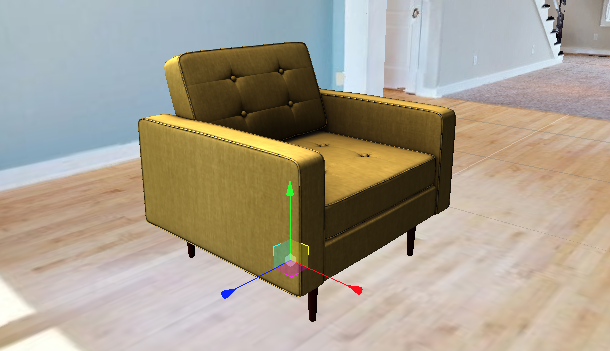 You can switch the transform mode on the currently selected object by using the [setTransformMode()](#settransformmode) method.
Please take note that transform controls can only be attached to one object at a time. Clicking on another object will remove the transform controls in the previous object and add it the currently selected object. It is impractical to attach multiple transform controls on more than one object. If you wish to programmatically transform multiple methods, then the next method offers a solution.
If you wish the to access the object data of the object that has been clicked on. You can do so by calling the `atwin.selectedObject` variable which returns an object implementing the `IObjectData` interface containing all the necessary data you need. Know more about the structure of an object by going to this section
```typescript
import * as atwin from 'architwin';
...
console.log("Selected object data", atwin.selectedObject)
...
```
**Switching Transform Modes**
If you wish switch transformation mode, you can pass either 'translate' or 'scale' or 'rotate' as parameters to the [setTransformMode()](#settransformmode) method. This will switch the transform controls on the currently selected object
| parameter | type | required | default | values |
| :----: | :----: | :---: | :---: | :---: |
| mode | string | yes | | 'translate' or 'scale' or 'rotate' |
```typescript
import * as atwin from 'architwin';
...
// set the transform mode into translate
atwin.setTransformMode('translate')
// set the transform mode into scale
atwin.setTransformMode('scale')
// set the transform mode into rotate
atwin.setTransformMode('rotate')
...
```
#### Programmatically transforming objects
If you need to transform the position,rotation, and scale of one or more objects without having to use the mouse then the
`setObjectTransformation()` method will allow you to do so. The method accepts the following parameters
| parameter | type | required | default | values |
| :----: | :----: | :---: | :---: | :---: |
| node | Scene.INode | yes | none | The node of the object|
| transform | Object3DPosition | yes | | Object containing object position,rotation,scale. More information below|
The **transform** object contains the following key-value pairs. These values when set will be applied to your target object
| parameter | type | required | default | values |
| :----: | :----: | :---: | :---: | :---: |
| object_position | Vector3 | yes | none | Valid x,y,z coordinates|
| object_rotation | Vector3 | yes | none | Valid x,y,z coordinates|
| object_scale | Vector3 | yes | none | Valid x,y,z coordinates|
In this example, we will get a random 3D model from the array of rendered objects stored in `atwin._3DXObjects` and manipulate it using the method. The object we will be manipulating in this example is a 3D model with a file type of GLB (You can also transform other object types such as a media screen). This will return a javascript object that contains the rendered object's data which implement the `IObjectData` interface. You can know more about that by going to this section
```typescript
import * as atwin from 'architwin';
...
const targetObject = atwin._3DXObjects.find(obj => obj.object.object_data.object_type == 'GLB')
const transform = {
object_position: {
x: 12.345435,
y: 0,
z: 4.54754732
},
object_rotation: {x:0,y:12,z:8},
object_scale: {x:2,y:2,z:2}
}
atwin.setObjectTransformation(targetObject.node,transform)
...
```
**NOTE**: You can also mirror an object by knowing the center position first then add and subtract (depending whether you want to mirror it to the left or to the right) values on either x, y, or z in the object_position.
```typescript
import * as atwin from 'architwin';
...
const centerPosition:Vector3 = {x:6, y:6,z:6}
// add 5 values in either x, y, or z in the object_position to the mediaScreen to be positioned in the left
const mediaScreen = ArrayOfMediaScreen.value[0]
const newObjectPosition = {
object_position: {x:centerPosition.x+5, y:centerPosition.y, z:centerPosition.z},
object_rotation: {x:0, y:0, z:0},
object_scale: {x:4, y:4, z:1}
} as Object3DPosition;
atwin.setObjectTransformation(mediaScreen.node, newObjectPosition)
// subtract 5 values in either x, y, or z in the object_position to the mediaScreen to be positioned in the right
const mirrorMediaScreen = ArrayOfMediaScreen.value[1]
const mirrorObjectPosition = {
object_position: {x:centerPosition.x-5, y:centerPosition.y, z:centerPosition.z},
object_rotation: {x:0, y:0, z:0},
object_scale: {x:4, y:4, z:1}
} as Object3DPosition;
atwin.setObjectTransformation(mirrorMediaScreen.node, mirrorObjectPosition)
...
```
If done correctly, you should see your target object(s) display or reposition to your intended position, rotation, and scale. Please take note that the transform controls UI will not be attached to the object if you use this method
### Undoing and Redoing Transformation Changes
Redo and undo are actions that allow you to revert or replay previous transformations performed on an object. They provide a way to navigate through the history of transformations and make adjustments or restore previous states.
Assuming that you have already selected an object and already performed different transformation actions. You can use the methods in the library to redo and undo the changes.
In order to do this, you may use the [revertTransform()](#reverttransform) method to revert changes. By default, the action is set to 'undo'.
```typescript
import * as atwin from 'architwin';
...
atwin.revertTransform()
...
```
If you want to redo a tranformation, change the parameter to 'redo'.
```typescript
import * as atwin from 'architwin';
...
atwin.revertTransform('redo')
...
```
### Adding Objects To Your Space
Adding an object to your space refers to the process of incorporating a pre-existing 2D or 3D object from the database into the 3D space. It allows for the creation of visualizations, simulations, and interactive experiences in your space.
In order to add an object, you may use the [addObjectToSpace()](#addobjecttospace) method.
| parameter | type | required | default |values |
| :----: | :----: | :---: | :---: | :---: |
| objectUrl | string | yes | none | valid url to media/object |
| objectType | string | yes | none | valid supported file type (GLB,FBX) |
| config | ObjectConfig | yes | | valid config object |
There are two ways you can use the [addObjectToSpace()](#addobjecttospace) method. We will go through each one
**Method 1: Adding Programmatically**
If you wish to add new object to your space to a pre-defined position, you can use the [addObjectToSpace()](#addobjecttospace) method and pass the `objectConfig` along.
```typescript
import * as atwin from 'architwin';
...
let objectUrl:string = "https://example.s3.amazonaws.com/filename.GLB";
let objectType:string = "GLB"
const yourTargetPosition = {
x: 12.345435,
y: 0,
z: 4.54754732
}
const objScale = {x:1,y:1,z:1}
const objRotation = {x:0,y:0,z:0}
let objectConfig = {
position: yourTargetPosition,
scale: objScale,
rotation: objRotation,
} as ObjectConfig;
atwin.addObjectToSpace(objectUrl,objectType, objectConfig)
...
```
**Method 2: Adding with click method using getTargetPosition**
The library has several helper methods that provide a range of commmon functionalities to help you achieve certain actions easier. If for example, you do not have your intended position coordinates stored in the database or in a local area and wish to click a specific area of the 3D space and get that the coordinates of the area you clicked, you may do some by using the `getTargetPosition()` helper method in tangent with the [addObjectToSpace()](#addobjecttospace) method to do so. You can [click here](#getting-the-coordinates-of-a-clicked-area-in-the-3d-space) to know more about the `getTargetPosition()` method
Here is an example of how you can use the two methods together. This is just one example, it is up to you on how you wish to combine different methods provided by the library
```typescript
import * as atwin from 'architwin';
...
function myCallbackFunction(clickedPosition){
let objectUrl:string = "https://example.s3.amazonaws.com/filename.GLB";
let objectType:string = "GLB"
const objRotation = {x:0,y:0,z:0}
const objScale = {x:1,y:1,z:1}
let objectConfig = {
position: clickedPosition,
scale: objScale,
rotation: objRotation,
} as ObjectConfig;
await atwin.addObjectToSpace(objectUrl,objectType, objectConfig)
}
atwin.getTargetPosition(myCallbackFunction)
...
```
### Creating a Customizable Media Screen
A Media Screen is a customizable 2D object whose content can be used to display either an image or a video in the 3D space. You may for example use it in your 3D space and allow your users to interact with it and change its content.
#### Adding a Media Screen
In order to add a media screen, you may use the [addMediaScreen()](#addmediascreen) method. The [addMediaScreen()](#addmediascreen) method accepts the following parameters:
#### Media Screen Parameter Reference
| parameter | type | required | default | values |
| :----: | :----: | :---: | :---: | :---: |
| mediaUrl | string | no | empty string | valid public url to an image|
| transform | {Vector3,Vector3,Vector3} | yes | | Refer to information below**|
| readonly | boolean | no |false | true or false|
| autoplay | boolean | no |false | true or false|
The **transform** object is an object that contains the following key-value pairs
| parameter | type | required | default | values |
| :----: | :----: | :---: | :---: | :---: |
| position | Vector3 | yes | no default | valid numeric x,y,z values|
| scale | Vector3 | no | {x:1,y:1,z:1} | valid numeric x,y,z values|
| rotation | Vector3 | no | {x:0,y:0,z:0} | valid numeric x,y,z values|
By default, your media screen will show a blank white canvas if you set the mediaUrl parameter of the [addMediaScreen()](#addmediascreen) method as an empty string or `undefined`.
**IMPORTANT:** The link to your media you provide to the mediaUrl **MUST** be publicly accessible and have the appropriate CORS headers, otherwise, your media will not load into the media screen.
There are many ways you can use this method to add a media screen to your 3D space. Let's go through each one.
**NOTE:** The following examples utilize typescript and will utilize the TypeScript (TS) interfaces the library provides. While you can use just plain JavaScript (JS) for your project and copy the following code snippets (minus the TS interfaces) to your plain JS project, we **highly** recommend that you use TypeScript instead for your Architwin powered projects to take advantage of the type-safety and the custom interfaces provided by the library
**Method 1: Adding Programmatically**
To create a media screen on a pre-defined position, you can create an object that contains the position,rotation,and scale.
```typescript
import * as atwin from 'architwin';
...
const yourTargetPosition = {
x: 12.345435,
y: 0,
z: 4.54754732
}
const objRotation = {x:0,y:0,z:0}
const objScale = {x:1,y:1,z:1}
const transform = {
position: yourTargetPosition,
rotation: objRotation,
scale: objScale
}
await atwin.addMediaScreen('',transform)
...
```
If done correctly, you should be able to see your media screen in your intended position. This method is useful if you already have the position, rotation, and scale values stored in a database or possibly in a local array
**Method 2: Adding with click method using getTargetPosition**
The library has several helper methods that provide a range of commmon functionalities to help you achieve certain actions easier. If for example, you do not have your intended position coordinates stored in the database or in a local area and wish to click a specific area of the 3D space and get that the coordinates of the area you clicked, you may do some by using the `getTargetPosition()` helper method in tangent with the [addMediaScreen()](#addmediascreen) method to do so. You can [click here](#getting-the-coordinates-of-a-clicked-area-in-the-3d-space) to know more about the `getTargetPosition()` method
Here is an example of how you can use the two methods together. This is just one example, it is up to you on how you wish to combine different methods provided by the library
```typescript
import * as atwin from 'architwin';
...
function myCallbackFunction(clickedPosition){
const objRotation = {x:0,y:0,z:0}
const objScale = {x:1,y:1,z:1}
const transform = {
position: clickedPosition,
rotation: objRotation,
scale: objScale
}
atwin.addMediaScreen('',transform)
return coords
}
await atwin.getTargetPosition(myCallbackFunction)
...
```
#### Attaching an image or video to a Media Screen
**Attach Media Screen Parameters**
| parameter | type | required | default | values |
| :----: | :----: | :---: | :---: | :---: |
| mediaScreenId | number | yes | none | id of object |
| mediaUrl | string | yes | none | valid public url to the media|
| mediaType | string | no | image | 'image' or 'video' |
**IMPORTANT:** The link to your media you provide to the mediaUrl **MUST** be publicly accessible and have the appropriate CORS headers, otherwise, your media will not load into the media screen.
In this example, we are using a link pointing to the media stored in an s3 bucket as the mediaUrl and a random media screen id. You will have to substitute the id with an actual id of a rendered media screen.
*Example with image:*
```typescript
import * as atwin from 'architwin';
...
const targetMediaScreenId = 12
const validUrl = 'https://stg-feelpet.s3.ap-northeast-1.amazonaws.com/0CB45E51-EC48-4727-906A-4CD8A13C0770.jpg'
atwin.attachMediaScreenContent(targetMediaScreenId, validUrl, 'image')
...
```
*Example with video:*
```typescript
import * as atwin from 'architwin';
...
const targetMediaScreenId = 12
const validUrl = 'https://stg-feelpet.s3.ap-northeast-1.amazonaws.com/VID_20230203_165202.mp4'
await atwin.attachMediaScreenContent(targetMediaScreenId, validUrl, 'video')
...
```
When setting a video as the media screen content. You can use the [setVideoPlayback()](#setvideoplayback) method to programmatically play,pause,mute,and unmute a video. You can navigate to the [playback controls section](#setting-video-playback-in-the-space) to learn more about the method. Here is an example on how to use it.
In this example, we are getting a random media screen from the `atwin._3DXObject` array which contains all the objects rendered in the space. Media screens whose media type is a video will have a variable called `planeElement` inside the object's `component` which contains an HTML video element that we can manipulate using the [setVideoPlayback()](#setvideoplayback) method. Please take note that this variable is not acessible if the media type of the media screen content is an image.
*Interface used*
```typescript
export interface IObjectData {
collider?: any
object: IShowcaseObject
component: Scene.IComponent
node: Scene.INode
type?: string
}
```
*Example:*
```typescript
import * as atwin from 'architwin';
...
const randomMediaScreen:IObjectData = atwin._3DXObject.find(obj => obj.object.object_data.object_type == 'FRAME')
// plays the video
atwin.setVideoPlayback('play', randomMediaScreen.component.planeElement)
...
```
You can use the [transform controls](#transforming-objects) to change the position, scale, and rotation of the media screen using the mouse cursor.
#### Hiding expand/dock buttons of Media Screens
Media screens by default will display a dock button on each corner of the displayed media that allows you to dock the media screen in the 4 corners of your FOV inside a space. To hide these buttons, you may add the following in your config object.
```typescript
const config = {
//other configs
mediaScreenConfig: {
showExpandButton: false
}
}
```
### Setting Video Playback in the Space
Setting video playback refers to the act of adjusting various controls associated with the playback of a video in the space. It involves manipulating controls such as pause, play, mute, and unmute to modify the playback behavior according to user's preferences.
**Pause** - Pausing a video temporarily allows user to freeze the video at a specific moment.
**Play** - Playing a video resumes its playback from paused state, allowing the user to watch the video in real-time .
**Mute** - Muting a video disables the audio playback, suppressing any sound embedded within the video.
**Unmute** - Unmuting a video enables the audio playback, restoring any sound embedded within the video.
Assuming that you have already selected a video, you can now set the playback of the video.
Inorder to set the playback of a video, you may use the [setVideoPlayback()](#setvideoplayback) method.
| parameter | type | required | default | values |
| :----: | :----: | :---: | :---: | :---: |
| action | string | yes | none | 'play' or 'pause' or 'mute' or 'unmute' |
| element | HTMLVideoElement | yes | none | supported html video element |
If you wish to change the action of the playback, add a parameter such as 'play','pause', 'mute', 'unmute' depending on your preference.
*Example:*
```typescript
import * as atwin from 'architwin';
...
const randomMediaScreen:IObjectData = atwin._3DXObject.find(obj => obj.object.object_data.object_type == 'FRAME')
// plays the video
atwin.setVideoPlayback('play', targetVideoElement)
// pauses the video
atwin.setVideoPlayback('pause', targetVideoElement)
// mutes the video
atwin.setVideoPlayback('mute', targetVideoElement)
// unmutes the video
atwin.setVideoPlayback('unmute', targetVideoElement)
...
```
**NOTE:** Please take note that this variable is not acessible if the media type of the media screen content is an image.
### Setting Animation Control in the Space
Setting animation control refers to the process of manipulating the playback of animations applied to 3D objects in the space. It involves utilizing controls such as play and pause to control the the animation.
Assuming that you have already selected an animated 3D object, you can now control the setting of the animation.
In order to set the animation control of a 3D object, you may use the [setAnimationState()](#setanimationstate) method. By default the action is set to 'play'.
**NOTE:** Please take note that the 3D object MUST be fully rendered first in the space before you can manipuate its animation state. This method will have no affect on 3D objects that do not have any animations in them.
| parameter | type | required | default | values |
| :----: | :----: | :---: | :---: | :---: |
| action | string | yes | play | 'play' or 'pause' |
| modelId | number | yes | none | showcase id of the 3D model |
```typescript
import * as atwin from 'architwin';
...
const modelID = 17
atwin.setAnimationState('play', modelID)
...
```
If you wish to pause the Animation of the 3D object, change the parameter to 'pause'.
```typescript
import * as atwin from 'architwin';
...
const modelID = 17
atwin.setAnimationState('pause', modelID)
...
```
### Copying object To Your Space
Copying an object refers to creating a duplicate or clone of an object. When an object is copied in the space, it means that the object's data is duplicated.
Assuming that you have already selected an object to be copied, you may now copy the object by calling [copyObject()](#copyobject) method. You may also specify a custom offset position and rotation of the object to be cloned.
| parameter | type | required | default | values |
| :----: | :----: | :---: | :---: | :---: |
| payload | IShowcaseObject | yes | | object payload |
| position_offset | Vector3 | no | +0.5 | |
| rotation_offset | Vector3 | no | +0.5 | |
```typescript
import * as atwin from 'architwin';
...
let offsetPos:Vector3 = {x:0,y:0,z:0}
let offsetRot:Vector3 = {x:0,y:0,z:0}
if (atwin.selectedObject.object) {
await atwin.copyObject(atwin.selectedObject.object, offsetPos, offsetRot)
}
...
```
**NOTE:** rotation_offset can be manipulated in order to mirror the object
### Navigate to Object
Navigating to an object in space refers to the process of moving the camera's location near to the object.
Assuming that you have already selected an object to navigate to, you may now navigate to the object by using [goToModel()](#goToModel) method.
| parameter | type | required | default | values |
| :----: | :----: | :---: | :---: | :---: |
| objectId | number | yes | | |
```typescript
import * as atwin from 'architwin';
....
await atwin.goToModel(objectId)
....
```
### Deleting Object To Your Space
Deleting an object in space refers to the process of removing a pre-existing 2D or 3D object from the 3D environment or space. This action results in the elimination of the visual representation and physical presence of the object within the virtual space. By removing the object, users can maintain control over the composition and contents of their space, allowing for more dynamic and tailored virtual experiences.
Assuming that you have already selected an object to be deleted, you may now delete the object by using [deleteObjectFromSpace()](#deleteobjectfromspace) method.
| parameter | type | required | default | values |
| :----: | :----: | :---: | :---: | :---: |
| selected | IObjectData | yes | | |
```typescript
import * as atwin from 'architwin';
...
// this function handles the object to be deleted from space
async function handleDeleteObjectFromSpace() {
await atwin.deleteObjectFromSpace(atwin.selectedObject)
}
...
```
**NOTE:** This is only deleting the object from the space and not from the database.
### Replacing Object To Your Space
Replacing an object in space refers to the process of substituting a pre-existing 2D or 3D object within a 3D environment or space with another object. This action involves removing the original object and introducing a new one in its place, while maintaining the object's location and any associated properties or attributes.
Assuming that you have already selected an object to be replaced, you may now replace the object by using [replaceObject()](#replaceobject) method.
| parameter | type | required | default | values |
| :----: | :----: | :---: | :---: | :---: |
| payload | I3DObject | yes | | |
| target | IObjectData | yes | | |
| options | Object | no | null | |
```typescript
import * as atwin from 'architwin';
...
// id of the object
const objectId:number = 5
// object that will replace
const objectData = await atwin.getObject(objectId)
// object to be replaced
const objectDataToBeReplaced = atwin.selectedObject
// this function handles the replaceObject() method
async function handleReplaceObject() {
await atwin.replaceObject(objectData, objectDataToBeReplaced)
}
...
```
### Creating Text Markup Screen in the space
A text markup screen is a graphical user interface objecet that allows users to input and display formatted text in the 3D space. The method internally generates elements and programmatically applies CSS styling. You can use this method to display text messages to the 3D screen.
In order to add a text markup screen in your space, you may use the [addTextMarkupScreen()](#addtextmarkupscreen) method.
| parameter | type | required | default | values |
| :----: | :----: | :---: | :---: | :---: |
| title | string | no | empty string | title of message |
| message | string | yes | none | message content |
| textScreenName | string | yes | none | name of text frame |
| transform | {Vector3, Vector3, Vector3} | yes | none | numeric value for x, y, z |
| textColor | string | no | black | valid color value |
| backgroundColor | string | no | '#fffff' | valid color value |
```typescript
import * as atwin from 'architwin';
...
const title:string = 'My Text Markup Screen'
const message:string = 'This is my message'
const position = {
x: 12.345435,
y: 0,
z: 4.54754732
}
const scale = {x:0, y:0, z:0}
const rotation = {x:0, y:0, z:0}
const transform = {
position: position,
scale: scale,
rotation: rotation
}
atwin.addTextMarkupScreen(title, message, transform)
...
```
#### Setting Content to Text Markup Screen
If you wish to update the style and content for the text frame, you may use the [setTextMarkupScreenContent()](#settextmarkupscreencontent) method. You can customize the text content as well as the foreground and background color of the target text markup screen.
| parameter | type | required | default | values |
| :----: | :----: | :---: | :---: | :---: |
| showcase_id | number | yes | none | id of target object |
| title | string | no | empty string | title of the content |
| text | string | no | empty string | body of the content |
| textColor | string | no | black | valid color value |
| backgroundColor | string | no | '#fffff' | valid color value |
```typescript
import * as atwin from 'architwin';
...
const id = 10
const title = 'My title'
const text = 'This is the content of the body'
const textColor = 'white'
const backgroundColor = '#00000'
atwin.setTextMarkupScreenContent(id, title, text, textColor, backgroundColor)
...
```
## Typescript Interface Reference
We encourage that you use typescript for any new project you intend to use the library with. With typescript, you can take advantage of the type interfaces provided by the library. This helps you catch errors more easily on your IDE instead of seeing it on production. If you do intend to just use vanilla JS for your project, you can still use this section as reference on how how to structure the javascript objects in yours project
You can use the library's type interfaces by importing it using the following import path
```typescript
import type {IShowcaseObject} from 'architwin/lib/types'
const spaceObject:IShowcaseObject = {}
```
The library also exports a couple enums that you can use in your project too. Here are a few ways of importing enums
```typescript
//Method 1: Import interface and enums in one line
import {type IShowcaseObject,SPACE_EVENTS} from 'architwin/lib/types'
//Method 2: Import interface and enums separately
import type {IShowcaseObject} from 'archtwin/lib/types'
import {SPACE_EVENTS} from 'architwin/lib/types'
const spaceObject:IShowcaseObject = {}
```
As a convention, interfaces provided by the library are written in PascalCase while enums are written in an uppercase SNAKE_CASE. We recommend that you follow this convention for your own interfaces for uniformity.
### Tag Interfaces
```typescript
interface ITag {
id: number,
tag_name: string, // required
showcase_id: number, // required
floor_id: number, // required
color_id: number, // required
details?: string,
remarks?: string,
json_data: MpSdk.Tag.TagData, // required (mp tag data)
tag_type_id?: number,
sid: string,
bid?: string,
filename?: string,
tag_image?: string,
tag_url?: string,
tag_order?: number,
label: number, // required
}
```
```typescript
interface ITagPublic {
id: string;
name: string;
}
```
### Object Interfaces
```typescript
interface IShowcaseObject {
id: number;
showcase_id: number;
object_id: number;
user_id: number;
uuid?: string;
space_uuid?: string;
object_uuid?: string;
object_position: {
x: number;
y: number;
z: number;
};
object_rotation: {
x: number;
y: number;
z: number;
};
object_scale: {
x: number;
y: number;
z: number;
};
autoplay: boolean;
autoplay_distance: number;
offset_position: number;
offset_rotation: number;
position_unit: string;
showcase_object_name: string;
is_deleted: boolean;
is_read: boolean;
is_new: boolean;
object_data: I3DObject;
}
```
```typescript
interface I3DObject {
id: number;
uuid?: string;
upload_file: string;
upload_filename: string;
filename: string;
user_id: number;
name: string;
description: string;
object_type: string;
object_key: string;
amazon_uri: string;
object_thumbnail?: string;
thumbnail_key?: string;
thumbnail_type?: string;
}
```
```typescript
interface IObjectData {
collider?: any
object: IShowcaseObject
component: Scene.IComponent
node: Scene.INode
type?: string
}
```
```typescript
interface NearbyObjects {
x3d: Array
videos: Array
slideshows: Array
}
```
```typescript
interface ObjectConfig {
options?: {
name?: string | undefined
title?: string | undefined
type?: string | undefined
url?: string | undefined
iframeId?: string | undefined
wrapperId?: string | undefined
textColor?: string | undefined
backgroundColor?: string | undefined
visible?: boolean | undefined
aspectRatio?: number | undefined
text?: string | undefined
fontSize?: number | undefined
background?: boolean | undefined
centered?: boolean | undefined
height?: number | undefined
curveSegments?: number | undefined
bevelEnabled?: boolean | undefined
bevelThickness?: number | undefined
bevelSize?: number | undefined
bevelOffset?: number | undefined
bevelSegments?: number | undefined
}
position?: Vector3
scale?: Vector3
rotation?: Vector3
}
```
```typescript
interface MediaScreenConfig {
mediaUrl?: string
mediaType?:string
transform?: VectorCoords
readonly?: boolean
autoplay?:boolean
}
```
```typescript
export interface VectorCoords {
object_position: Vector3
object_rotation: Vector3
object_scale:Vector3
}
```
### Meeting Interfaces
```typescript
interface MeetingInfo {
space_id: string;
meeting_id?: string;
host_name?: string;
title?: string;
meeting_start?: Date;
meeting_status?: MeetingStatus;
duration?: number;
password?: string;
}
```
```typescript
interface MeetingConfig {
customColors?: MeetingCustomColors;
customAvatars?: Avatar[];
deviceControl?: MeetingDeviceControl;
meetingBarPosition?: MeetingBarPosition;
}
```
```typescript
interface MeetingDeviceControl {
videoInput: boolean;
audioInput: boolean;
audioOutput: boolean;
}
```
```typescript
interface Avatar {
model: string;
thumbnail: string;
}
```
```typescript
interface MeetingConfig {
customColors?: MeetingCustomColors;
customAvatars?: Avatar[];
deviceControl?: MeetingDeviceControl;
meetingBarPosition?: MeetingBarPosition;
}
```
```typescript
interface MeetingDeviceControl {
videoInput: boolean;
audioInput: boolean;
audioOutput: boolean;
}
```
```typescript
interface IParticipant {
id?: string;
name?: string;
type?: IParticipantType;
color?: string;
avatar?: Avatar;
shapeNum?: number;
}
```
```typescript
interface IMpParticipant{
avatar: {
model: string,
thumbnail: string,
},
avatarConfig: {
height: number,
scale: number,
laserOrigin: {x: number, y: number, z: number}
},
id: string,
name: string,
color?: string,
shape?: PShapes,
position: {x: number, y: number, z: number},
rotation: {x: number, y: number, z: number},
}
```
## Meeting UI Guide
Hosting Live Virtual Meetings inside 3D Space using Video SDK
This meeting feature utilizes the Video SDK to host virtual conferences within a 3D Space View. It includes a custom-designed meeting UI displayed as a sidebar on the left side of the screen. This allows the user to create, share, and join meetings using a meeting link provided by the host.
The next few sections will explain how you can get started in creating or hosting your own virtual meeting inside your 3D Spaces.
### Enable Meeting Sidebar
Before you can start hosting or joining meetings, make sure that meeting sidebar is enabled in [toolbar Config](#toolbar-config).
*Example:*
```typescript
const config = {
//Other config values...
toolbarConfig: {
active: isAtwinSideBarEnabled.value,
lang: lang.value,
menuItems: {
meeting: true
}
},
} as IMPConfig;
```
### Create Meeting
Once the meeting sidebar is enabled, click the video icon in the toolbar, and the first screen that appears will be the create meeting screen.
The following data are required to proceed from the create meeting screen:
- **Meeting Topic** : string - The name or topic of the meeting.
- **Fullname** : string - The name of the participant.
You can switch the transform mode on the currently selected object by using the [setTransformMode()](#settransformmode) method.
Please take note that transform controls can only be attached to one object at a time. Clicking on another object will remove the transform controls in the previous object and add it the currently selected object. It is impractical to attach multiple transform controls on more than one object. If you wish to programmatically transform multiple methods, then the next method offers a solution.
If you wish the to access the object data of the object that has been clicked on. You can do so by calling the `atwin.selectedObject` variable which returns an object implementing the `IObjectData` interface containing all the necessary data you need. Know more about the structure of an object by going to this section
```typescript
import * as atwin from 'architwin';
...
console.log("Selected object data", atwin.selectedObject)
...
```
**Switching Transform Modes**
If you wish switch transformation mode, you can pass either 'translate' or 'scale' or 'rotate' as parameters to the [setTransformMode()](#settransformmode) method. This will switch the transform controls on the currently selected object
| parameter | type | required | default | values |
| :----: | :----: | :---: | :---: | :---: |
| mode | string | yes | | 'translate' or 'scale' or 'rotate' |
```typescript
import * as atwin from 'architwin';
...
// set the transform mode into translate
atwin.setTransformMode('translate')
// set the transform mode into scale
atwin.setTransformMode('scale')
// set the transform mode into rotate
atwin.setTransformMode('rotate')
...
```
#### Programmatically transforming objects
If you need to transform the position,rotation, and scale of one or more objects without having to use the mouse then the
`setObjectTransformation()` method will allow you to do so. The method accepts the following parameters
| parameter | type | required | default | values |
| :----: | :----: | :---: | :---: | :---: |
| node | Scene.INode | yes | none | The node of the object|
| transform | Object3DPosition | yes | | Object containing object position,rotation,scale. More information below|
The **transform** object contains the following key-value pairs. These values when set will be applied to your target object
| parameter | type | required | default | values |
| :----: | :----: | :---: | :---: | :---: |
| object_position | Vector3 | yes | none | Valid x,y,z coordinates|
| object_rotation | Vector3 | yes | none | Valid x,y,z coordinates|
| object_scale | Vector3 | yes | none | Valid x,y,z coordinates|
In this example, we will get a random 3D model from the array of rendered objects stored in `atwin._3DXObjects` and manipulate it using the method. The object we will be manipulating in this example is a 3D model with a file type of GLB (You can also transform other object types such as a media screen). This will return a javascript object that contains the rendered object's data which implement the `IObjectData` interface. You can know more about that by going to this section
```typescript
import * as atwin from 'architwin';
...
const targetObject = atwin._3DXObjects.find(obj => obj.object.object_data.object_type == 'GLB')
const transform = {
object_position: {
x: 12.345435,
y: 0,
z: 4.54754732
},
object_rotation: {x:0,y:12,z:8},
object_scale: {x:2,y:2,z:2}
}
atwin.setObjectTransformation(targetObject.node,transform)
...
```
**NOTE**: You can also mirror an object by knowing the center position first then add and subtract (depending whether you want to mirror it to the left or to the right) values on either x, y, or z in the object_position.
```typescript
import * as atwin from 'architwin';
...
const centerPosition:Vector3 = {x:6, y:6,z:6}
// add 5 values in either x, y, or z in the object_position to the mediaScreen to be positioned in the left
const mediaScreen = ArrayOfMediaScreen.value[0]
const newObjectPosition = {
object_position: {x:centerPosition.x+5, y:centerPosition.y, z:centerPosition.z},
object_rotation: {x:0, y:0, z:0},
object_scale: {x:4, y:4, z:1}
} as Object3DPosition;
atwin.setObjectTransformation(mediaScreen.node, newObjectPosition)
// subtract 5 values in either x, y, or z in the object_position to the mediaScreen to be positioned in the right
const mirrorMediaScreen = ArrayOfMediaScreen.value[1]
const mirrorObjectPosition = {
object_position: {x:centerPosition.x-5, y:centerPosition.y, z:centerPosition.z},
object_rotation: {x:0, y:0, z:0},
object_scale: {x:4, y:4, z:1}
} as Object3DPosition;
atwin.setObjectTransformation(mirrorMediaScreen.node, mirrorObjectPosition)
...
```
If done correctly, you should see your target object(s) display or reposition to your intended position, rotation, and scale. Please take note that the transform controls UI will not be attached to the object if you use this method
### Undoing and Redoing Transformation Changes
Redo and undo are actions that allow you to revert or replay previous transformations performed on an object. They provide a way to navigate through the history of transformations and make adjustments or restore previous states.
Assuming that you have already selected an object and already performed different transformation actions. You can use the methods in the library to redo and undo the changes.
In order to do this, you may use the [revertTransform()](#reverttransform) method to revert changes. By default, the action is set to 'undo'.
```typescript
import * as atwin from 'architwin';
...
atwin.revertTransform()
...
```
If you want to redo a tranformation, change the parameter to 'redo'.
```typescript
import * as atwin from 'architwin';
...
atwin.revertTransform('redo')
...
```
### Adding Objects To Your Space
Adding an object to your space refers to the process of incorporating a pre-existing 2D or 3D object from the database into the 3D space. It allows for the creation of visualizations, simulations, and interactive experiences in your space.
In order to add an object, you may use the [addObjectToSpace()](#addobjecttospace) method.
| parameter | type | required | default |values |
| :----: | :----: | :---: | :---: | :---: |
| objectUrl | string | yes | none | valid url to media/object |
| objectType | string | yes | none | valid supported file type (GLB,FBX) |
| config | ObjectConfig | yes | | valid config object |
There are two ways you can use the [addObjectToSpace()](#addobjecttospace) method. We will go through each one
**Method 1: Adding Programmatically**
If you wish to add new object to your space to a pre-defined position, you can use the [addObjectToSpace()](#addobjecttospace) method and pass the `objectConfig` along.
```typescript
import * as atwin from 'architwin';
...
let objectUrl:string = "https://example.s3.amazonaws.com/filename.GLB";
let objectType:string = "GLB"
const yourTargetPosition = {
x: 12.345435,
y: 0,
z: 4.54754732
}
const objScale = {x:1,y:1,z:1}
const objRotation = {x:0,y:0,z:0}
let objectConfig = {
position: yourTargetPosition,
scale: objScale,
rotation: objRotation,
} as ObjectConfig;
atwin.addObjectToSpace(objectUrl,objectType, objectConfig)
...
```
**Method 2: Adding with click method using getTargetPosition**
The library has several helper methods that provide a range of commmon functionalities to help you achieve certain actions easier. If for example, you do not have your intended position coordinates stored in the database or in a local area and wish to click a specific area of the 3D space and get that the coordinates of the area you clicked, you may do some by using the `getTargetPosition()` helper method in tangent with the [addObjectToSpace()](#addobjecttospace) method to do so. You can [click here](#getting-the-coordinates-of-a-clicked-area-in-the-3d-space) to know more about the `getTargetPosition()` method
Here is an example of how you can use the two methods together. This is just one example, it is up to you on how you wish to combine different methods provided by the library
```typescript
import * as atwin from 'architwin';
...
function myCallbackFunction(clickedPosition){
let objectUrl:string = "https://example.s3.amazonaws.com/filename.GLB";
let objectType:string = "GLB"
const objRotation = {x:0,y:0,z:0}
const objScale = {x:1,y:1,z:1}
let objectConfig = {
position: clickedPosition,
scale: objScale,
rotation: objRotation,
} as ObjectConfig;
await atwin.addObjectToSpace(objectUrl,objectType, objectConfig)
}
atwin.getTargetPosition(myCallbackFunction)
...
```
### Creating a Customizable Media Screen
A Media Screen is a customizable 2D object whose content can be used to display either an image or a video in the 3D space. You may for example use it in your 3D space and allow your users to interact with it and change its content.
#### Adding a Media Screen
In order to add a media screen, you may use the [addMediaScreen()](#addmediascreen) method. The [addMediaScreen()](#addmediascreen) method accepts the following parameters:
#### Media Screen Parameter Reference
| parameter | type | required | default | values |
| :----: | :----: | :---: | :---: | :---: |
| mediaUrl | string | no | empty string | valid public url to an image|
| transform | {Vector3,Vector3,Vector3} | yes | | Refer to information below**|
| readonly | boolean | no |false | true or false|
| autoplay | boolean | no |false | true or false|
The **transform** object is an object that contains the following key-value pairs
| parameter | type | required | default | values |
| :----: | :----: | :---: | :---: | :---: |
| position | Vector3 | yes | no default | valid numeric x,y,z values|
| scale | Vector3 | no | {x:1,y:1,z:1} | valid numeric x,y,z values|
| rotation | Vector3 | no | {x:0,y:0,z:0} | valid numeric x,y,z values|
By default, your media screen will show a blank white canvas if you set the mediaUrl parameter of the [addMediaScreen()](#addmediascreen) method as an empty string or `undefined`.
**IMPORTANT:** The link to your media you provide to the mediaUrl **MUST** be publicly accessible and have the appropriate CORS headers, otherwise, your media will not load into the media screen.
There are many ways you can use this method to add a media screen to your 3D space. Let's go through each one.
**NOTE:** The following examples utilize typescript and will utilize the TypeScript (TS) interfaces the library provides. While you can use just plain JavaScript (JS) for your project and copy the following code snippets (minus the TS interfaces) to your plain JS project, we **highly** recommend that you use TypeScript instead for your Architwin powered projects to take advantage of the type-safety and the custom interfaces provided by the library
**Method 1: Adding Programmatically**
To create a media screen on a pre-defined position, you can create an object that contains the position,rotation,and scale.
```typescript
import * as atwin from 'architwin';
...
const yourTargetPosition = {
x: 12.345435,
y: 0,
z: 4.54754732
}
const objRotation = {x:0,y:0,z:0}
const objScale = {x:1,y:1,z:1}
const transform = {
position: yourTargetPosition,
rotation: objRotation,
scale: objScale
}
await atwin.addMediaScreen('',transform)
...
```
If done correctly, you should be able to see your media screen in your intended position. This method is useful if you already have the position, rotation, and scale values stored in a database or possibly in a local array
**Method 2: Adding with click method using getTargetPosition**
The library has several helper methods that provide a range of commmon functionalities to help you achieve certain actions easier. If for example, you do not have your intended position coordinates stored in the database or in a local area and wish to click a specific area of the 3D space and get that the coordinates of the area you clicked, you may do some by using the `getTargetPosition()` helper method in tangent with the [addMediaScreen()](#addmediascreen) method to do so. You can [click here](#getting-the-coordinates-of-a-clicked-area-in-the-3d-space) to know more about the `getTargetPosition()` method
Here is an example of how you can use the two methods together. This is just one example, it is up to you on how you wish to combine different methods provided by the library
```typescript
import * as atwin from 'architwin';
...
function myCallbackFunction(clickedPosition){
const objRotation = {x:0,y:0,z:0}
const objScale = {x:1,y:1,z:1}
const transform = {
position: clickedPosition,
rotation: objRotation,
scale: objScale
}
atwin.addMediaScreen('',transform)
return coords
}
await atwin.getTargetPosition(myCallbackFunction)
...
```
#### Attaching an image or video to a Media Screen
**Attach Media Screen Parameters**
| parameter | type | required | default | values |
| :----: | :----: | :---: | :---: | :---: |
| mediaScreenId | number | yes | none | id of object |
| mediaUrl | string | yes | none | valid public url to the media|
| mediaType | string | no | image | 'image' or 'video' |
**IMPORTANT:** The link to your media you provide to the mediaUrl **MUST** be publicly accessible and have the appropriate CORS headers, otherwise, your media will not load into the media screen.
In this example, we are using a link pointing to the media stored in an s3 bucket as the mediaUrl and a random media screen id. You will have to substitute the id with an actual id of a rendered media screen.
*Example with image:*
```typescript
import * as atwin from 'architwin';
...
const targetMediaScreenId = 12
const validUrl = 'https://stg-feelpet.s3.ap-northeast-1.amazonaws.com/0CB45E51-EC48-4727-906A-4CD8A13C0770.jpg'
atwin.attachMediaScreenContent(targetMediaScreenId, validUrl, 'image')
...
```
*Example with video:*
```typescript
import * as atwin from 'architwin';
...
const targetMediaScreenId = 12
const validUrl = 'https://stg-feelpet.s3.ap-northeast-1.amazonaws.com/VID_20230203_165202.mp4'
await atwin.attachMediaScreenContent(targetMediaScreenId, validUrl, 'video')
...
```
When setting a video as the media screen content. You can use the [setVideoPlayback()](#setvideoplayback) method to programmatically play,pause,mute,and unmute a video. You can navigate to the [playback controls section](#setting-video-playback-in-the-space) to learn more about the method. Here is an example on how to use it.
In this example, we are getting a random media screen from the `atwin._3DXObject` array which contains all the objects rendered in the space. Media screens whose media type is a video will have a variable called `planeElement` inside the object's `component` which contains an HTML video element that we can manipulate using the [setVideoPlayback()](#setvideoplayback) method. Please take note that this variable is not acessible if the media type of the media screen content is an image.
*Interface used*
```typescript
export interface IObjectData {
collider?: any
object: IShowcaseObject
component: Scene.IComponent
node: Scene.INode
type?: string
}
```
*Example:*
```typescript
import * as atwin from 'architwin';
...
const randomMediaScreen:IObjectData = atwin._3DXObject.find(obj => obj.object.object_data.object_type == 'FRAME')
// plays the video
atwin.setVideoPlayback('play', randomMediaScreen.component.planeElement)
...
```
You can use the [transform controls](#transforming-objects) to change the position, scale, and rotation of the media screen using the mouse cursor.
#### Hiding expand/dock buttons of Media Screens
Media screens by default will display a dock button on each corner of the displayed media that allows you to dock the media screen in the 4 corners of your FOV inside a space. To hide these buttons, you may add the following in your config object.
```typescript
const config = {
//other configs
mediaScreenConfig: {
showExpandButton: false
}
}
```
### Setting Video Playback in the Space
Setting video playback refers to the act of adjusting various controls associated with the playback of a video in the space. It involves manipulating controls such as pause, play, mute, and unmute to modify the playback behavior according to user's preferences.
**Pause** - Pausing a video temporarily allows user to freeze the video at a specific moment.
**Play** - Playing a video resumes its playback from paused state, allowing the user to watch the video in real-time .
**Mute** - Muting a video disables the audio playback, suppressing any sound embedded within the video.
**Unmute** - Unmuting a video enables the audio playback, restoring any sound embedded within the video.
Assuming that you have already selected a video, you can now set the playback of the video.
Inorder to set the playback of a video, you may use the [setVideoPlayback()](#setvideoplayback) method.
| parameter | type | required | default | values |
| :----: | :----: | :---: | :---: | :---: |
| action | string | yes | none | 'play' or 'pause' or 'mute' or 'unmute' |
| element | HTMLVideoElement | yes | none | supported html video element |
If you wish to change the action of the playback, add a parameter such as 'play','pause', 'mute', 'unmute' depending on your preference.
*Example:*
```typescript
import * as atwin from 'architwin';
...
const randomMediaScreen:IObjectData = atwin._3DXObject.find(obj => obj.object.object_data.object_type == 'FRAME')
// plays the video
atwin.setVideoPlayback('play', targetVideoElement)
// pauses the video
atwin.setVideoPlayback('pause', targetVideoElement)
// mutes the video
atwin.setVideoPlayback('mute', targetVideoElement)
// unmutes the video
atwin.setVideoPlayback('unmute', targetVideoElement)
...
```
**NOTE:** Please take note that this variable is not acessible if the media type of the media screen content is an image.
### Setting Animation Control in the Space
Setting animation control refers to the process of manipulating the playback of animations applied to 3D objects in the space. It involves utilizing controls such as play and pause to control the the animation.
Assuming that you have already selected an animated 3D object, you can now control the setting of the animation.
In order to set the animation control of a 3D object, you may use the [setAnimationState()](#setanimationstate) method. By default the action is set to 'play'.
**NOTE:** Please take note that the 3D object MUST be fully rendered first in the space before you can manipuate its animation state. This method will have no affect on 3D objects that do not have any animations in them.
| parameter | type | required | default | values |
| :----: | :----: | :---: | :---: | :---: |
| action | string | yes | play | 'play' or 'pause' |
| modelId | number | yes | none | showcase id of the 3D model |
```typescript
import * as atwin from 'architwin';
...
const modelID = 17
atwin.setAnimationState('play', modelID)
...
```
If you wish to pause the Animation of the 3D object, change the parameter to 'pause'.
```typescript
import * as atwin from 'architwin';
...
const modelID = 17
atwin.setAnimationState('pause', modelID)
...
```
### Copying object To Your Space
Copying an object refers to creating a duplicate or clone of an object. When an object is copied in the space, it means that the object's data is duplicated.
Assuming that you have already selected an object to be copied, you may now copy the object by calling [copyObject()](#copyobject) method. You may also specify a custom offset position and rotation of the object to be cloned.
| parameter | type | required | default | values |
| :----: | :----: | :---: | :---: | :---: |
| payload | IShowcaseObject | yes | | object payload |
| position_offset | Vector3 | no | +0.5 | |
| rotation_offset | Vector3 | no | +0.5 | |
```typescript
import * as atwin from 'architwin';
...
let offsetPos:Vector3 = {x:0,y:0,z:0}
let offsetRot:Vector3 = {x:0,y:0,z:0}
if (atwin.selectedObject.object) {
await atwin.copyObject(atwin.selectedObject.object, offsetPos, offsetRot)
}
...
```
**NOTE:** rotation_offset can be manipulated in order to mirror the object
### Navigate to Object
Navigating to an object in space refers to the process of moving the camera's location near to the object.
Assuming that you have already selected an object to navigate to, you may now navigate to the object by using [goToModel()](#goToModel) method.
| parameter | type | required | default | values |
| :----: | :----: | :---: | :---: | :---: |
| objectId | number | yes | | |
```typescript
import * as atwin from 'architwin';
....
await atwin.goToModel(objectId)
....
```
### Deleting Object To Your Space
Deleting an object in space refers to the process of removing a pre-existing 2D or 3D object from the 3D environment or space. This action results in the elimination of the visual representation and physical presence of the object within the virtual space. By removing the object, users can maintain control over the composition and contents of their space, allowing for more dynamic and tailored virtual experiences.
Assuming that you have already selected an object to be deleted, you may now delete the object by using [deleteObjectFromSpace()](#deleteobjectfromspace) method.
| parameter | type | required | default | values |
| :----: | :----: | :---: | :---: | :---: |
| selected | IObjectData | yes | | |
```typescript
import * as atwin from 'architwin';
...
// this function handles the object to be deleted from space
async function handleDeleteObjectFromSpace() {
await atwin.deleteObjectFromSpace(atwin.selectedObject)
}
...
```
**NOTE:** This is only deleting the object from the space and not from the database.
### Replacing Object To Your Space
Replacing an object in space refers to the process of substituting a pre-existing 2D or 3D object within a 3D environment or space with another object. This action involves removing the original object and introducing a new one in its place, while maintaining the object's location and any associated properties or attributes.
Assuming that you have already selected an object to be replaced, you may now replace the object by using [replaceObject()](#replaceobject) method.
| parameter | type | required | default | values |
| :----: | :----: | :---: | :---: | :---: |
| payload | I3DObject | yes | | |
| target | IObjectData | yes | | |
| options | Object | no | null | |
```typescript
import * as atwin from 'architwin';
...
// id of the object
const objectId:number = 5
// object that will replace
const objectData = await atwin.getObject(objectId)
// object to be replaced
const objectDataToBeReplaced = atwin.selectedObject
// this function handles the replaceObject() method
async function handleReplaceObject() {
await atwin.replaceObject(objectData, objectDataToBeReplaced)
}
...
```
### Creating Text Markup Screen in the space
A text markup screen is a graphical user interface objecet that allows users to input and display formatted text in the 3D space. The method internally generates elements and programmatically applies CSS styling. You can use this method to display text messages to the 3D screen.
In order to add a text markup screen in your space, you may use the [addTextMarkupScreen()](#addtextmarkupscreen) method.
| parameter | type | required | default | values |
| :----: | :----: | :---: | :---: | :---: |
| title | string | no | empty string | title of message |
| message | string | yes | none | message content |
| textScreenName | string | yes | none | name of text frame |
| transform | {Vector3, Vector3, Vector3} | yes | none | numeric value for x, y, z |
| textColor | string | no | black | valid color value |
| backgroundColor | string | no | '#fffff' | valid color value |
```typescript
import * as atwin from 'architwin';
...
const title:string = 'My Text Markup Screen'
const message:string = 'This is my message'
const position = {
x: 12.345435,
y: 0,
z: 4.54754732
}
const scale = {x:0, y:0, z:0}
const rotation = {x:0, y:0, z:0}
const transform = {
position: position,
scale: scale,
rotation: rotation
}
atwin.addTextMarkupScreen(title, message, transform)
...
```
#### Setting Content to Text Markup Screen
If you wish to update the style and content for the text frame, you may use the [setTextMarkupScreenContent()](#settextmarkupscreencontent) method. You can customize the text content as well as the foreground and background color of the target text markup screen.
| parameter | type | required | default | values |
| :----: | :----: | :---: | :---: | :---: |
| showcase_id | number | yes | none | id of target object |
| title | string | no | empty string | title of the content |
| text | string | no | empty string | body of the content |
| textColor | string | no | black | valid color value |
| backgroundColor | string | no | '#fffff' | valid color value |
```typescript
import * as atwin from 'architwin';
...
const id = 10
const title = 'My title'
const text = 'This is the content of the body'
const textColor = 'white'
const backgroundColor = '#00000'
atwin.setTextMarkupScreenContent(id, title, text, textColor, backgroundColor)
...
```
## Typescript Interface Reference
We encourage that you use typescript for any new project you intend to use the library with. With typescript, you can take advantage of the type interfaces provided by the library. This helps you catch errors more easily on your IDE instead of seeing it on production. If you do intend to just use vanilla JS for your project, you can still use this section as reference on how how to structure the javascript objects in yours project
You can use the library's type interfaces by importing it using the following import path
```typescript
import type {IShowcaseObject} from 'architwin/lib/types'
const spaceObject:IShowcaseObject = {}
```
The library also exports a couple enums that you can use in your project too. Here are a few ways of importing enums
```typescript
//Method 1: Import interface and enums in one line
import {type IShowcaseObject,SPACE_EVENTS} from 'architwin/lib/types'
//Method 2: Import interface and enums separately
import type {IShowcaseObject} from 'archtwin/lib/types'
import {SPACE_EVENTS} from 'architwin/lib/types'
const spaceObject:IShowcaseObject = {}
```
As a convention, interfaces provided by the library are written in PascalCase while enums are written in an uppercase SNAKE_CASE. We recommend that you follow this convention for your own interfaces for uniformity.
### Tag Interfaces
```typescript
interface ITag {
id: number,
tag_name: string, // required
showcase_id: number, // required
floor_id: number, // required
color_id: number, // required
details?: string,
remarks?: string,
json_data: MpSdk.Tag.TagData, // required (mp tag data)
tag_type_id?: number,
sid: string,
bid?: string,
filename?: string,
tag_image?: string,
tag_url?: string,
tag_order?: number,
label: number, // required
}
```
```typescript
interface ITagPublic {
id: string;
name: string;
}
```
### Object Interfaces
```typescript
interface IShowcaseObject {
id: number;
showcase_id: number;
object_id: number;
user_id: number;
uuid?: string;
space_uuid?: string;
object_uuid?: string;
object_position: {
x: number;
y: number;
z: number;
};
object_rotation: {
x: number;
y: number;
z: number;
};
object_scale: {
x: number;
y: number;
z: number;
};
autoplay: boolean;
autoplay_distance: number;
offset_position: number;
offset_rotation: number;
position_unit: string;
showcase_object_name: string;
is_deleted: boolean;
is_read: boolean;
is_new: boolean;
object_data: I3DObject;
}
```
```typescript
interface I3DObject {
id: number;
uuid?: string;
upload_file: string;
upload_filename: string;
filename: string;
user_id: number;
name: string;
description: string;
object_type: string;
object_key: string;
amazon_uri: string;
object_thumbnail?: string;
thumbnail_key?: string;
thumbnail_type?: string;
}
```
```typescript
interface IObjectData {
collider?: any
object: IShowcaseObject
component: Scene.IComponent
node: Scene.INode
type?: string
}
```
```typescript
interface NearbyObjects {
x3d: Array
videos: Array
slideshows: Array
}
```
```typescript
interface ObjectConfig {
options?: {
name?: string | undefined
title?: string | undefined
type?: string | undefined
url?: string | undefined
iframeId?: string | undefined
wrapperId?: string | undefined
textColor?: string | undefined
backgroundColor?: string | undefined
visible?: boolean | undefined
aspectRatio?: number | undefined
text?: string | undefined
fontSize?: number | undefined
background?: boolean | undefined
centered?: boolean | undefined
height?: number | undefined
curveSegments?: number | undefined
bevelEnabled?: boolean | undefined
bevelThickness?: number | undefined
bevelSize?: number | undefined
bevelOffset?: number | undefined
bevelSegments?: number | undefined
}
position?: Vector3
scale?: Vector3
rotation?: Vector3
}
```
```typescript
interface MediaScreenConfig {
mediaUrl?: string
mediaType?:string
transform?: VectorCoords
readonly?: boolean
autoplay?:boolean
}
```
```typescript
export interface VectorCoords {
object_position: Vector3
object_rotation: Vector3
object_scale:Vector3
}
```
### Meeting Interfaces
```typescript
interface MeetingInfo {
space_id: string;
meeting_id?: string;
host_name?: string;
title?: string;
meeting_start?: Date;
meeting_status?: MeetingStatus;
duration?: number;
password?: string;
}
```
```typescript
interface MeetingConfig {
customColors?: MeetingCustomColors;
customAvatars?: Avatar[];
deviceControl?: MeetingDeviceControl;
meetingBarPosition?: MeetingBarPosition;
}
```
```typescript
interface MeetingDeviceControl {
videoInput: boolean;
audioInput: boolean;
audioOutput: boolean;
}
```
```typescript
interface Avatar {
model: string;
thumbnail: string;
}
```
```typescript
interface MeetingConfig {
customColors?: MeetingCustomColors;
customAvatars?: Avatar[];
deviceControl?: MeetingDeviceControl;
meetingBarPosition?: MeetingBarPosition;
}
```
```typescript
interface MeetingDeviceControl {
videoInput: boolean;
audioInput: boolean;
audioOutput: boolean;
}
```
```typescript
interface IParticipant {
id?: string;
name?: string;
type?: IParticipantType;
color?: string;
avatar?: Avatar;
shapeNum?: number;
}
```
```typescript
interface IMpParticipant{
avatar: {
model: string,
thumbnail: string,
},
avatarConfig: {
height: number,
scale: number,
laserOrigin: {x: number, y: number, z: number}
},
id: string,
name: string,
color?: string,
shape?: PShapes,
position: {x: number, y: number, z: number},
rotation: {x: number, y: number, z: number},
}
```
## Meeting UI Guide
Hosting Live Virtual Meetings inside 3D Space using Video SDK
This meeting feature utilizes the Video SDK to host virtual conferences within a 3D Space View. It includes a custom-designed meeting UI displayed as a sidebar on the left side of the screen. This allows the user to create, share, and join meetings using a meeting link provided by the host.
The next few sections will explain how you can get started in creating or hosting your own virtual meeting inside your 3D Spaces.
### Enable Meeting Sidebar
Before you can start hosting or joining meetings, make sure that meeting sidebar is enabled in [toolbar Config](#toolbar-config).
*Example:*
```typescript
const config = {
//Other config values...
toolbarConfig: {
active: isAtwinSideBarEnabled.value,
lang: lang.value,
menuItems: {
meeting: true
}
},
} as IMPConfig;
```
### Create Meeting
Once the meeting sidebar is enabled, click the video icon in the toolbar, and the first screen that appears will be the create meeting screen.
The following data are required to proceed from the create meeting screen:
- **Meeting Topic** : string - The name or topic of the meeting.
- **Fullname** : string - The name of the participant.
 ### Pre-Meeting Setup
This screen will allow users to set up their audio, speakers, and camera settings before entering the virtual conference.
#### Features
- **Audio**: Users can mute/unmute audio before joining the meeting.
- **Camera**: Users can disable/enable camera view before joining the meeting.
- **Choose Avatar**: Users can select an avatar and set as their profile during the meeting.
##### Select video and audio device
- **Video**: Users can select any connected camera device they wish to use.
- **Speaker**: Users can select any connected speaker device they wish to use.
- **Microphone**: Users can select any connected microphone device they wish to use.
### Pre-Meeting Setup
This screen will allow users to set up their audio, speakers, and camera settings before entering the virtual conference.
#### Features
- **Audio**: Users can mute/unmute audio before joining the meeting.
- **Camera**: Users can disable/enable camera view before joining the meeting.
- **Choose Avatar**: Users can select an avatar and set as their profile during the meeting.
##### Select video and audio device
- **Video**: Users can select any connected camera device they wish to use.
- **Speaker**: Users can select any connected speaker device they wish to use.
- **Microphone**: Users can select any connected microphone device they wish to use.
 ### Join Meeting
Once a user visits the meeting link provided by the host, they will be automatically directed to the 3D Space view specific to that meeting. At the same time, the `join meeting` screen will be displayed, allowing users to enter the meeting. To proceed, users are required to input their name in the "Fullname" field before joining the meeting.
### Join Meeting
Once a user visits the meeting link provided by the host, they will be automatically directed to the 3D Space view specific to that meeting. At the same time, the `join meeting` screen will be displayed, allowing users to enter the meeting. To proceed, users are required to input their name in the "Fullname" field before joining the meeting.
 ### In-Meeting
This screen is where the virtual conference will take place. Both the host and participants can see and interact with each other through visual and audio communication.
#### Features
- **Meeting Controls**: The list of meeting controls includes settings, screen sharing, and toggles for video and audio.
- **Settings**: This three-dots represents the settings of the sidebar. This is where users can view the list of participants, can follow a participant inside space view, and copy the meeting link.
- **Share screen**: This screen button will allow users to share their screen to other participants within the meeting.
- **Video**: This video icon button toggles the user's camera on or off.
- **Audio**: This audio icon button toggles the user's microphone on or off.
### In-Meeting
This screen is where the virtual conference will take place. Both the host and participants can see and interact with each other through visual and audio communication.
#### Features
- **Meeting Controls**: The list of meeting controls includes settings, screen sharing, and toggles for video and audio.
- **Settings**: This three-dots represents the settings of the sidebar. This is where users can view the list of participants, can follow a participant inside space view, and copy the meeting link.
- **Share screen**: This screen button will allow users to share their screen to other participants within the meeting.
- **Video**: This video icon button toggles the user's camera on or off.
- **Audio**: This audio icon button toggles the user's microphone on or off.
 ## Function Reference
Some Functions are **async**; when invoking them, Use keyword **await** or **.then** syntax
_______
### Space
#### connectSpace()
Connect and load a 3D space into an HTML iframe asynchronously using this function. It initializes various configuration settings and view modes based on the provided parameters.
```typescript
async function connectSpace(
url: string,
auth: { apiURL?: string; apiKey: string; user: IUser } | null,
config: IMPConfig,
callbacks: { onLoad: Function; onStart: Function; onPlay: Function } | undefined = undefined
): Promise
```
| parameter | type | required | default | values |
| :----: | :----: | :---: | :---: | :---: |
| url | string | yes | | valid space URL |
| auth | { string; string; IUser } | yes | | |
| config | IMPConfig | yes | | |
**url** - the URL of the space you wish to connect to.
- The [connectSpace](#connectSpace) method can also accomodate the following URL parameters:
- "tagId" : ID of the tag
* In cases where the 'tag' is included in the URL with an assigned value, the camera location will swiftly adjust to the specified tag within the 3D space once the loading is complete. The particular tag to focus on will be determined by the value of the 'tag' parameter.
- "sweepId" : ID of the sweep
* If the 'sweep' is present in the URL with a value, the camera location will immediately navigate to the specific sweep within the 3D space after loading. This specific sweep will be identified using the value of the 'sweep' parameter.
- "brand" : 0 | 1
* 0 : Remove the 'Presented By' information upon model launch. Additionally, hide contact details within the "About" panel located in the upper-left corner of the 3D Showcase interface.
* 1 (Default) : Show all branding-related information within the "About" panel positioned at the top-left corner of the 3D Showcase interface.
- "hr" : 0 | 1
* 0 : Hide the highlight reel located at the bottom of the 3D Showcase user interface.
* 1 (Default) : Dispaly highlight reel
- "tour" : 0 | 1 | 2 | 3
* 0 : Tour controls and highlight reel will not be visible.
* 1 (Default) : The saved tour mode within the model is used.
* 2 : Story mode tour is used.
* 3: Highlight reel mode tour is used.
- "dh" : 0 | 1
* 0 : Hide the Dollhouse View during the introductory fly-in. Additionally, hide the Dollhouse Button located in the bottom left corner of the 3D Showcase user interface. Moreover, remove the snapshots of the Dollhouse and Floorplan views from the highlight reel.
* 1 (Default) : Display Dollhouse View
- "tagNav" : 0 | 1
* 0 : Removes the < and > buttons from Tags and disables navigation through Tags using the "," and "." keys.
* 1 (Default): Displays the < and > buttons for Tags and permits navigation through Tags using the "," and "." keys.
- "mt" : 0 | 1
* 0 : Conceal Mattertags and "Mattertag™ Content" toggle in the "About" panel.
* 1 (Default) : Display Mattertag™ Posts
- "mls": 0 | 1 | 2
* 0 (Default) : Show branding information, links in Mattertag™ Posts, and VR.
* 1 : Show the MLS-friendly version of the Matterport model. This hides branding, hides links in Mattertag™ Posts, and hides VR.
* 2 : Same behavior as &mls=1 but also hides the "About" panel in the top-left corner after loading.
- "f" : 0 | 1
* 0 : Hide the option to switch floors. This treats the Matterport model as "all one floor".
* 1 (Default) : Allow the user navigate the 3D model floor by floor.
- "fp" : 0 | 1
* 0 : Hide the floor plan view button from the bottom-left corner of the 3D Showcase UI.
* 1 (Default) : Display the floor plan view button in the bottom-left corner of the 3D Showcase UI.
- "search" : 0 | 1
* 0 : Hide the magnifying glass (search) icon from the upper-left corner of the 3D Showcase UI.
* 1 (Default) : Display the magnifying glass (search) icon in the upper-left corner of the 3D Showcase UI. If Space Search is disabled at the account level, this parameter has no effect.
- "title" : 0 | 1
* 0 : The space title is not being shown, and the top-left about panel is also not visible.
* 1 (Default) : "The space title is being shown. The top-left about panel is visible."
- "vr" : 0 | 1
* 0 : Remove the VR button.
* 1 (Default) : Display the VR button.
If the parameters 'objectId,' 'tag,' and 'sweep' are present in the URL with values, the first parameter among the three will be accommodated based on the URL structure.
**auth** - an authentication object with the apiKey and user credentials. Default user credentials will be provided by ArchiTwin for testing which you can change anytime to your own user credentials. The auth object passed to the `connectSpace` method may consist of the following keys:
- apiURL: (string) an optional key which if set, will point all internal API calls to the api endpoint or base URL you assign. If this is not set, all api calls will be directed to the proxy address set in the `vite.config.ts` file during **local development**. Example: `apiURL: "apps.awesomesite.com/api"` will resolve internally to `apps.awesomesite.com/api/cas/tickets?someparams` or `apps.awesomesite.com/api/v1/showcase/id/1`. It is important to add `/api` to the base url of your custom apiURL to ensure the api requests are properly sent. There is no need to add a forward slash at the end of our custom apiURL. Please take note that you *may* have to setup a proxy server to bypass CORS issues when you deploy your application on your production servers
- apiKey: (string) sets the required apiKey that is inserted into the authorization headers of each API request
- user: (IUser | Object) an object that contains the `email` and `password` of the user.
**config** - a config object to set some default space behavior. You can learn more about the config object below.
##### Config Options
```typescript
export interface IMPConfig {
iframeId: string;
appKey?: string;
bundlePath?: string;
mapId?: string;
meetingApiKey?: string,
showOriginalTags?: boolean,
// Launching 3D Showcase
help?: 0 | 1 | 2;
nt?: 0 | 1;
play?: 0 | 1;
qs?: 0 | 1;
// Visibility
brand?: 0 | 1;
dh?: 0 | 1;
tour?: 0 | 1 | 2 | 3;
gt?: 0 | 1;
hr?: 0 | 1;
mls?: 0 | 1 | 2;
mt?: 0 | 1;
tagNav?: 0 | 1;
pin?: 0 | 1;
portal?: 0 | 1;
// User Interface
f?: 0 | 1;
fp?: 0 | 1;
// LOCALIZATION
lang?: MP_LANG;
// GUIDED TOURS
kb?: 0 | 1;
lp?: 0 | 1;
st?: Number; // Number of milliseconds to wait at each highlight during a Guided Tour. Default is 3500 ms.
title?: 0 | 1 | 2;
tourcta?: 0 | 1 | 2;
// Transition speed (meters per second) when moving between highlights. Recommend speed is in range of 1 to 3, default of 2. Your highlight reel must be set to "Walkthrough" mode (not slideshow)
wts?: Number;
// Set this parameter to start the tour automatically and define the number of seconds after initial fly-in before the Guided Tour automatically starts. Help is not shown. Set to a negative number to not start the Guided Tour.
ts?: Number;
hl?: 0 | 1 | 2;
vr?: 0 | 1;
//OTHERS,
nozoom?: 0 | 1;
search?: 0 | 1;
wh?: 0 | 1;
prod?: boolean; //sets appropriate file path of showcase based on value
viewMode?: VIEW_MODE | string //determines if viewer of space can utilize features like transform controls
fetchObjectsOnLoad?: {
active?:boolean
apiEndpoint?:string //Custom api endpoint to fetch space/showcase objects from. Supports azusa and open_at endpoint. Default points to open_at endpoint
}
mapConfig?: IMapConfig
mediaScreenConfig?: ISharedScreen
toolbarConfig?: IToolbarConfig
// avatartwinConfig?: {
// avatartwinKey: string
// }
meetConfig?: {
sdkKey: string
secretKey: string
}
appConfigKeys?:{
mpKey: string //required
embedlyKey: string //for rendering attachments
meetSdkKey?: string //zoom sdk key
meetSecretKey?: string //zoom secret key
// avatartwinKey?: string //superviz key
appName?: string // app name / title
}
debug?: {
//If debug valu is not defined, Only error logs are shown by default
//Valid log levels are trace,warn,error,info,trace,silent
logLevel: string
},
restrictionConfig?:{
isTagReadOnly?: boolean
}
}
```
**iframeId:** string: The `id` of the target iframe where the 3D space will be loaded into.
**appKey:** your appKey is used to authenticate your connection when loading the 3D showcase. For security purposes, the appKey can only be used by a domain (e.g. awesomesite.com) it is associated with. This key is important especially when you launch your app in production and utilize your own site domain. Please contact us to request your appKey
**bundlePath?:** string: bundlePath is an optional key that can be set for projects whose project structure requires a custom path to the bundle SDK provided by matterport. If not set, the package will by default set the bundle path to the bundle SDK found inside the architwin package in node_modules.
**viewMode** string: viewMode is an optional key that enables and disables [transform controls](#transforming-objects) in your 3D space. If the value of viewMode is not set, it will default to setting the viewMode to 'public' which disables transform controls. To enable the ability to transform objects using the transform control axis UI, you must set viewMode to 'interactive'
*Example:*
`bundlePath: "assets/customBundleName"`
This will resolve internally to `"assets/customBundleName/showcase.html?someparams"`
**play?:** 0 | 1, default = 0
- 0 Shows a Play button ▶️️ on the iframe. The user must press the Play button ▶️️ to open the Matterport model.
- 1 Automatically opens the Matterport model when the iframe loads on the page. If the 3D Showcase is opened via a link (not embedded in an iframe), this option is chosen automatically. When embedding Showcase within an iframe, play=1 will only work if the iframe is large enough on the user’s screen to provide a good user experience. Specifically, on mobile devices, the iframe has to cover at least 60% of the screen.
**qs?:** 0 | 1, default = 0
- 0 Disable Quickstart (when the Matterport model first opens, zoom in from Dollhouse View).
- 1 Enable Quickstart (when the Matterport model first opens, go straight into Inside View). Learn more. Only works if Start Position is Inside View.
**tour?:** 0 | 1 | 2 | 3, default = 1
- 0 No tour controls or highlight reel appear.
- 1 The tour mode saved in the model is used.
- 2 Story mode tour is used.
- 3 Highlight reel mode tour is used.
**vr?:** 0 | 1, default = 1
- 0 Hide the VR button.
- 1 Default Show the VR button.
*Example:*
```javascript
import * as atwin from 'architwin'
// public URL for the space, you will be provided an API Endpoint for the list of public spaces
const spaceUrl = "https://basic-dev.rev-kitten.com/showcase/model3d_public/1?token=e707880f-0fc5-48a6-b3f6-643a19f81464"
const auth = {
apiURL: "YOUR-API-URL", //Set the url to make api requests to
apiKey: "YOUR-API-KEY", //xxxxxxxx-xxxx-xxxx-xxxx-xxxxxxxxxxxx
user: {
email: 'su@email.com',
password: 'su123'
}
}
const config = {
iframeId: "mp-showcase", // this is required
// ... other config options.
}
await atwin.connectSpace(url, auth, config)
```
##### Minimap Config
You can enable a minimap display of your 3D space by setting the following key-values in your config object that you pass into the `connectSpace` method
```typescript
const config = {
//Other config values...
mapConfig: {
mapId: 'at-map', //required
position: 'topLeft',
}
} as IMPConfig;
```
To ensure that you will not encounter any errors. Make sure to follow the prescribed markup structure under the [defining an iFrame section](#define-an-iframe-as-target-for-the-showcase). All CSS classes or ids used internally by the library will have an `at_` prefix for classes and an `at-` for ids. The classes and ids are named this way to avoid any naming conflicts with your apps own CSS classes or ids.
You can technically forego the at_showcase_container class of the parent div with your own class. Just make sure it has the `position` attribute set to `relative` otherwise things may not position correctly.
**mapConfig Options**
- **mapId** - The id attribute value of the div element that will hold the map.
- **position** - (optional) Specify where to place the minimap. Valid positions are topLeft, topRight, bottomRight, bottomLeft. By default, the map is placed at the topRight corner if this value is not set.
- **fixedSized** - (optional) Specify a fixed width of the minimap. By default, the minimap has width of 100px and expands to 250px upon mouse hover. Please take note that setting a fixed width of your minimap will disable the hover-to-expand animation. Any numberic value you provide will be translated into pixel units
*Example:*
```typescript
const config = {
//Other config values...
mapConfig: {
mapId: 'at-map', //required
position: 'topLeft',
fixedSized:{
width: 300
}
}
} as IMPConfig;
```
- **sweepMarker** - (optional) Specify the backgroundColor, activeColor, hoverColor, opacity and if the sweep markers should be displayed on hover or all the time. For opacity, we recommend you set it between 0.5 to 0.8 to not obscure the minimap and or make your markers too transparent. Any valid CSS color value can be used for backgroundColor,activeColor, and hoverColor. You can display the sweep markers at all times by setting showOnHover value to false.
```typescript
const config = {
//Other config values...
sweepMarker: {
showOnHover: false,
backgroundColor: '#fc9f5b',
activeColor: '#FBD1A2',
hoverColor: '#7DCFB6',
opacity: 0.8
}
} as IMPConfig;
```
- **zIndex** - (optional) Set the z-index of the map. In cases where you have UI elements that coincide with the position of the minimap. You set the z-index value of the minimap to determine what order the minimap should be rendered.
**Customizing Individual Minimap Sweep Buttons**
You may use the `setSweepMarkerColor` method if you need to customize the individual colors of the sweep buttons in the minimap. The method accepts either an object that contains the sweepId of the sweep button and the new background color or an array of said object
| parameter | type | required | default | values |
| :----: | :----: | :---: | :---: | :---: |
| payload | SweepColor or Array of SweepColor | yes | |
*Example:*
```typescript
import * as atwin from 'architwin'
const newSweepColor = {
sweepId: 'validSweepId',
backgroundColor: '#353535'
} as SweepColor
atwin.minimap.setSweepMarkerColor(newSweepColor)
```
If you want to change the color of multiple sweep buttons when the minimap
sweep buttons are rendered, you may subscribe to the `MINIMAP_SWEEPS_RENDERED` event using the `subscribeSpaceEvent` method.
*Example:*
```typescript
import * as atwin from 'architwin'
const newSweepColors = [
{
sweepId: 'validSweepId',
backgroundColor: '#353535'
},
//other objects
]
atwin.subscribeSpaceEvent('MINIMAP_SWEEPS_RENDERED', atwin.minimap.setSweepMarkerColor(newSweepColors))
```
**Displaying the minimap outside the iFrame**
There may be instances where you need to display the provided minimap outside of the 3D space displayed by your iFrame. In such cases, you may access the ``setMap`` method of the `minimap` object to display the minimap elsewhere. Do take note that there can only be **one instance** of the minimap displayed at a time. Which means that you should not pass minimapConfig to the connectSpace method when displaying the minimap outside the space. We may add the ability to display multiple minimaps at the same time in future releases.
The setMap method requires the following parameters
*Parameter Table*
| parameter | type | required | default | values |
| :----: | :----: | :---: | :---: | :---: |
| mpSdk | MpSdk | yes | none |Matterport SDK instance |
| appKey | string | yes | none |Your matterport app key|
| mapId | string | yes | none |id of the element that will hold the map|
**NOTE:** You can get the instance of mpSdk by using the `getAtwinSdk` method
Here's an example on how to do it.
**Step 1: Create an element and give it the id of at-map**
```html
```
**Step 2: Run the setMap method and pass the required parameters**
```typescript
import * as atwin from 'architwin'
const sdk = getAtwinSdk()
atwin.minimap.setMap(sdk,'YOUR-APP-KEY','at-map')
```
##### Toolbar Config
To activate a toolbar display within your 3D Space, you can set the following key-value pairs in your configuration object.
*Example:*
```typescript
const config = {
//Other config values...
toolbarConfig: {
active: true,
lang: 'en', // Supported language: en and ja,
themeConfig: {
customizations: {
toolbarOffset: {
top: 55,
},
},
}
},
} as IMPConfig;
```
**Toolbar Config Options**
This setup will define and showcase the active menu items within the toolbar. These items consist of the tag list, object list, minimap, screenshot, and theme picker. Apart from the tag list menu, other items can be optional.
- **menuItems** - (optional) By default, all items are active. With this configuration, you can specify menu items that you wish to disable in the toolbar.
- **meeting:** Allows virtual meetings.
- **screenshot:** Enables capturing a screenshot of the space.
- **models:** Allows adding of objects (3D, images, etc.) inside 3D Space.
- **minimap:** Displays a minimap of your 3D Space.
*Example:*
```typescript
const config = {
//Other config values...
toolbarConfig: {
active: isAtwinSideBarEnabled.value,
lang: lang.value,
menuItems: {
meeting: false
}
},
} as IMPConfig;
```
- **Screenshot config**
An optional object for screenshot settings in IMPConfig.
- **visible:** An optional boolean indicating if the screenshot functionality is visible. Defaults to `true`.
- **withCameraData:** An optional boolean specifying if camera data should be included with the screenshot. Defaults to `false`.
*Example:*
```typescript
const config = {
//Other config values...
toolbarConfig: {
active: isAtwinSideBarEnabled.value,
lang: lang.value,
menuItems: {
screenshot: {
visible: true,
withCameraData: true,
}
}
},
} as IMPConfig;
```
**Toolbar Theme Config Options**
This configuration enables customization of the toolbar display within the 3D space.
- **customizations** - (optional) Specify the color theme, and position of the toolbar.
- **toolbarOffset:** Determines the toolbar's position (top, right, bottom, left).
*Example:*
```typescript
const config = {
//Other config values...
toolbarConfig: {
active: true,
lang: 'en',
themeConfig: {
customizations: {
toolbarOffset: {
top: 55,
},
},
}
},
} as IMPConfig;
```
##### App Config
(Optional) This configuration unifies the management of secret keys utilized within the application.
*Example:*
```typescript
const config = {
//Other config values...
appConfigKeys:{
embedlyKey: "embedly_key_here"
meetSdkKey?: "zoom_sdk_key_here"
meetSecretKey?: "zoom_secret_key_here"
},
} as IMPConfig;
```
**App Key Config Options**
- **embedlyKey** - This key is for rendering media attachments in tags.
- **meetSdkKey** - This is the video sdk key.
- **meetSecretKey** - This is the video sdk secret key.
##### Restriction Config
(Optional) This configuration allows the app to disable certain features inside the Space View. Currently, the configuration supports restricting the tag feature to make tags read-only.
*Example:*
```typescript
const config = {
//Other config values...
restrictionConfig: {
isTagReadOnly: false
},
} as IMPConfig;
...
// set to true if restriction is needed
config.restrictionConfig!.isTagReadOnly = true
```
##### Debug Config
(Optional) This configuration determines the log levels displayed in the app's console log. If the debug value is not defined, only error logs are shown by default. Valid log levels include trace, warn, error, info, and silent.
*Example:*
```typescript
const config = {
//Other config values...
debug:{
logLevel: 'trace'
},
} as IMPConfig;
```
##### Toolbar Config
To activate a toolbar display within your 3D Space, you can set the following key-value pairs in your configuration object.
*Example:*
```typescript
const config = {
//Other config values...
toolbarConfig: {
active: true,
lang: 'en', // Supported language: en and ja,
themeConfig: {
customizations: {
toolbarOffset: {
top: 55,
},
},
}
},
} as IMPConfig;
```
**Toolbar Config Options**
This setup will define and showcase the active menu items within the toolbar. These items consist of the tag list, object list, minimap, screenshot, and theme picker. Apart from the tag list menu, other items can be optional.
- **menuItems** - (optional) By default, all items are active. With this configuration, you can specify menu items that you wish to disable in the toolbar.
- **meeting:** Allows virtual meetings.
- **models:** Allows adding of objects (3D, images, etc.) inside 3D Space.
- **minimap:** Displays a minimap of your 3D Space.
*Example:*
```typescript
const config = {
//Other config values...
toolbarConfig: {
active: isAtwinSideBarEnabled.value,
lang: lang.value,
menuItems: {
meeting: false
}
},
} as IMPConfig;
```
**Toolbar Theme Config Options**
This configuration enables customization of the toolbar display within the 3D space.
- **customizations** - (optional) Specify the color theme, and position of the toolbar.
- **toolbarOffset:** Determines the toolbar's position (top, right, bottom, left).
*Example:*
```typescript
const config = {
//Other config values...
toolbarConfig: {
active: true,
lang: 'en',
themeConfig: {
customizations: {
toolbarOffset: {
top: 55,
},
},
}
},
} as IMPConfig;
```
**Displaying the minimap outside the iFrame**
There may be instances where you need to display the provided minimap outside of the 3D space displayed by your iFrame. In such cases, you may access the ``setMap`` method of the `minimap` object to display the minimap elsewhere. Do take note that there can only be one instance of the minimap displayed at a time. We may add the ability to display multiple minimaps at the same time in future releases.
The setMap method requires the following parameters
*Parameter Table*
| parameter | type | required | default | values |
| :----: | :----: | :---: | :---: | :---: |
| mpSdk | MpSdk | yes | none |Matterport SDK instance |
| appKey | string | yes | none |Your matterport app key|
| mapId | string | yes | none |id of the element that will hold the map|
**NOTE:** You can get the instance of mpSdk by using the `getAtwinSdk` method
Here's an example on how to do it.
**Step 1: Create an element and give it the id of at-map**
```html
```
**Step 2: Run the setMap method and pass the required parameters**
```typescript
import * as atwin from 'architwin'
const sdk = getAtwinSdk()
atwin.minimap.setMap(sdk,'YOUR-APP-KEY','at-map')
```
#### disconnectSpace()
Utilize this asynchronous function for disconnecting and efficiently cleaning up resources linked to the connected 3D space. It stops any playing videos, disposes of tags, clears objects and states, and ultimately disconnects while clearing the currently displayed Space.
*Function Signature*
```typescript
async function disconnectSpace(): Promise
```
*Example:*
````typescript
import * as atwin from 'architwin'
atwin.disconnectSpace();
````
-----
### Tags
#### getTags()
This method returns an array of `ITag` containing information of all tags in the space.
*Function Signature*
```typescript
async function getTags(space: ISpace): Promise;
```
*Parameter Table*
| parameter | type | required | default | values |
| :----: | :----: | :---: | :---: | :---: |
| space | ISpace | yes | | |
*Example:*
```typescript
import * as atwin from 'architwin'
const space = /* specify the space object */;
const tags = await atwin.getTags(space);
if (tags) {
console.log('Tags:', tags);
} else {
console.log('No tags found or an error occurred.');
}
```
#### gotoTag()
This method enables direct navigation to the tag within the space, identified by a specific ID.
*Function Signature*
```typescript
async function gotoTag(tagId: string): Promise
```
*Parameter Table*
| parameter | type | required | default | values |
| :----: | :---: | :---: | :---: | :---: |
| tagId | string | yes | | any string |
*Example:*
```typescript
import * as atwin from 'architwin'
const tagId = /* specify the tag ID */;
await atwin.gotoTag(tagId);
```
### renderTag()
The [renderTag()](#rendertag) is used for rendering a tag in the space based on the provided payload.
*Function Signature*
```typescript
async function renderTag(payload:
{ tag: MpSdk.Tag.Descriptor },
addTo_tags: boolean = true
): Promise
```
*Parameter Table*
| parameter | type | required | default | values |
| :----: | :---: | :---: | :---: | :---: |
| payload | { } | yes | | |
| addTo_tags | boolean | no | true | true/false |
**Setting of addTo_tags:**
- **true**: Insert the rendered tag into an array that contains all the rendered tags.
- **false**: Renders the tag but does not insert it into the array containing all the rendered tags.
*Example:*
```typescript
import * as atwin from 'architwin'
const payload = {
tag: { /* Define your tag descriptor here */ }
};
try {
const renderedTag = await atwin.renderTag(payload);
console.log('Rendered Tag:', renderedTag);
} catch (error) {
console.error('Error rendering tag:', error);
}
```
### getMpTags()
This function retrieves all tags in the space.
*Function Signature*
```typescript
function getMpTags(): ITag[]
```
*Example:*
```typescript
import * as atwin from 'architwin'
const tags = atwin.getMpTags();
console.log('Tags:', tags);
// Iterate through the tags and access their properties
tags.forEach(tag => {
console.log('Tag ID:', tag.id);
console.log('Tag Label:', tag.label);
// Add more properties as needed
});
```
### getMpTag()
This function is a synchronous function that takes a tagId as its parameter and returns an ITag object with the corresponding ID.
*Function Signature*
```typescript
function getMpTag(tagId: string): ITag | undefined
```
*Parameter Table*
| parameter | type | required | default | values |
| :----: | :---: | :---: | :---: | :---: |
| tagId | string | yes | | valid tag ID |
*Example:*
```typescript
import * as atwin from 'architwin'
const tagIdToRetrieve = '123456789'; // Replace with the actual tag ID
const tag = atwin.getMpTag(tagIdToRetrieve);
if (tag) {
console.log('Tag:', tag);
// Access tag properties as needed
console.log('Tag Label:', tag.label);
console.log('Tag Description:', tag.description);
} else {
console.error('Tag not found.');
}
```
### showTags()
The showTags function is an asynchronous function that takes an array of ITag objects (tags) as its parameter. It processes each tag in the array, performs various operations related to displaying the tags in a specific context. These operations include adding tags, attaching media, and potentially editing tag icons.
Also, this function provides the option to display tags along with tag icons, if desired.
*Function Signature*
```typescript
async function showTags(
tags: ITag[],
_withIcon: boolean = false
): Promise
```
*Parameter Table*
| parameter | type | required | default | values |
| :----: | :---: | :---: | :---: | :---: |
| tags | array | yes | | array of ITag |
| _withIcon | boolean | no | false | true/false |
*Example:*
```typescript
import * as atwin from 'architwin'
const tagsToDisplay = [
// An array of ITag objects, each representing a tag
// Replace this with your actual tag data
// Example: { json_data: { /* tag data */ } },
// ...
];
// If no tag icon display
try {
await atwin.showTags(tagsToDisplay);
} catch (error) {
console.error('Error displaying tags:', error);
}
// If with tag icon display
try {
await atwin.showTags(tagsToDisplay, true);
} catch (error) {
console.error('Error displaying tags:', error);
}
```
### disposeTags()
This method is designed to remove tags from a space. Tags are typically used for annotating or adding information to a 3D space, and this function helps remove those annotations.
*Function Signature*
```typescript
async function disposeTags(): Promise
```
*Example:*
```typescript
import * as atwin from 'architwin'
// Example usage of the disposeTags function
async function removeTagsFromSpace() {
try {
console.log("Removing Mattertags from space...");
await atwin.disposeTags();
console.log("Mattertags removed successfully.");
} catch (error) {
console.error("Error removing Mattertags:", error);
}
}
// Call the function to remove Mattertags from the space
removeTagsFromSpace();
```
### disposeTag()
Removing a specific tag in the space can be achieved by invoking the disposeTag() method. The disposeTag() method takes a payload as its parameter, which must include a tagId property with a value.
*Function Signature*
```typescript
async function disposeTag(payload: { tagId: string }): Promise
```
*Parameter Table*
| parameter | type | required | default | values |
| :----: | :---: | :---: | :---: | :---: |
| payload | { } | yes | | |
*Example:*
```typescript
import * as atwin from 'architwin'
const payload = {
tagId: '123456789', // Replace with the actual tag ID
};
try {
await atwin.disposeTag(payload);
console.log('Tag disposed successfully.');
} catch (error) {
console.error('Error disposing the tag:', error);
}
```
### attachTagMedia()
The `attachTagMedia` function operates asynchronously, accepting an object payload as its input parameter. Its primary purpose is to link media files to a particular tag identified by its tagId. To achieve this, it retrieves the tag through the getMpTag function and subsequently associates the designated media files.
*Function Signature*
```typescript
async function attachTagMedia(payload: {
tagId: string,
attachments: string[]
}): Promise
```
*Parameter Table*
| parameter | type | required | default | values |
| :----: | :---: | :---: | :---: | :---: |
| payload | { }| yes | | |
*Example:*
```typescript
import * as atwin from 'architwin'
const payload = {
tagId: '123456789', // Replace with the actual tag ID
attachments: ['media1.jpg', 'media2.jpg'] // Specify the media file paths
};
try {
await atwin.attachTagMedia(payload);
console.log('Media attached to the tag successfully.');
} catch (error) {
console.error('Error attaching media to the tag:', error);
}
```
### detachTagMedia()
In contrary of [attachTagMedia()](#attachtagmedia), this asynchronous function available for detaching media attachments from a particular tag, identified by its tagId, using an object payload as its input. The process involves retrieving the tag and subsequently separating the specified media attachments.
*Function Signature*
```typescript
async function detachTagMedia(payload: {
tagId: string,
attachmentIds: string[]
}): Promise
```
*Parameter Table*
| parameter | type | required | default | values |
| :----: | :---: | :---: | :---: | :---: |
| payload | { } | yes | | |
*Example:*
```typescript
import * as atwin from 'architwin'
const payload = {
tagId: '123456789', // Replace with the actual tag ID
attachmentIds: ['attachment1', 'attachment2'] // Specify the attachment IDs to detach
};
try {
await atwin.detachTagMedia(payload);
console.log('Media detached from the tag successfully.');
} catch (error) {
console.error('Error detaching media from the tag:', error);
}
```
### moveTag()
An asynchronous operation is provided for relocating a specific tag identified by its tagId, with the tagId as its input parameter.
*Function Signature*
```typescript
async function moveTag(tagId: string, callback?: Function): Promise
```
*Parameter Table*
| parameter | type | required | default | values |
| :----: | :---: | :---: | :---: | :---: |
| tagId | string | yes | | valid tag ID |
*Example:*
```typescript
import * as atwin from 'architwin'
const tagIdToMove = '123456789'; // Replace with the actual tag ID
try {
await atwin.moveTag(tagIdToMove);
console.log('Tag moved successfully.');
} catch (error) {
console.error('Error moving the tag:', error);
}
```
### editTagLabel()
This asynchronous function is provided to modify the label of a particular tag, identified by its tagId, using an object payload as its parameter.
*Function Signature*
```typescript
async function editTagLabel(payload: {
tagId: string,
label: string
})
```
*Parameter Table*
| parameter | type | required | default | values |
| :----: | :---: | :---: | :---: | :---: |
| payload | { } | yes | | |
*Example:*
```typescript
import * as atwin from 'architwin'
const payload = {
tagId: '123456789', // Replace with the actual tag ID
label: 'New Label' // Specify the new label for the tag
};
try {
await atwin.editTagLabel(payload);
console.log('Tag label edited successfully.');
} catch (error) {
console.error('Error editing the tag label:', error);
}
```
### editTagDescription()
This asynchronous function is available for modifying the description of a designated tag identified by its tagId, with an object payload as its parameter.
*Function Signature*
```typescript
async function editTagDescription(payload: {
tagId: string,
description: string
})
```
*Parameter Table*
| parameter | type | required | default | values |
| :----: | :---: | :---: | :---: | :---: |
| payload | { } | yes | | |
*Example:*
```typescript
import * as atwin from 'architwin'
const payload = {
tagId: '123456789', // Replace with the actual tag ID
description: 'New Description' // Specify the new description for the tag
};
try {
await atwin.editTagDescription(payload);
console.log('Tag description edited successfully.');
} catch (error) {
console.error('Error editing the tag description:', error);
}
```
### editTagIcon()
This function is at your disposal to modify both the icon and color of a particular tag identified by its tagId, using an object payload as its parameter.
*Function Signature*
```typescript
async function editTagIcon(payload: {
tagId: string,
icon?: string,
color: MpSdk.Color | string
})
```
*Parameter Table*
| parameter | type | required | default | values |
| :----: | :---: | :---: | :---: | :---: |
| payload | { } | yes | | |
*Example:*
```typescript
import * as atwin from 'architwin'
const payload = {
tagId: '123456789', // Replace with the actual tag ID
icon: 'new-icon.png', // Specify the new icon file path or reference (optional)
color: 'blue' // Specify the new color for the tag
};
try {
await atwin.editTagIcon(payload);
console.log('Tag icon and color edited successfully.');
} catch (error) {
console.error('Error editing the tag icon and color:', error);
}
```
### editTagStem()
The `editTagStem()` asynchronous function is available for adjusting the visibility of the stem of a specific tag, identified by its tagId, using an object payload as its parameter.
*Function Signature*
```typescript
async function editTagStem(payload: {
tagId: string,
stemVisible: boolean
})
```
*Parameter Table*
| parameter | type | required | default | values |
| :----: | :---: | :---: | :---: | :---: |
| payload | { } | yes | | |
*Example:*
```typescript
import * as atwin from 'architwin'
const payload = {
tagId: '123456789', // Replace with the actual tag ID
stemVisible: true // Specify the new stem visibility value
};
try {
await atwin.editTagStem(payload);
console.log('Tag stem visibility edited successfully.');
} catch (error) {
console.error('Error editing the tag stem visibility:', error);
}
```
### editTagColor()
This `editTagColor` asynchronous function is provided for modifying the color of a particular tag, identified by its tagId, using an object payload as its parameter.
*Function Signature*
```typescript
async function editTagColor(payload: {
tagId: string,
color: MpSdk.Color
})
```
*Parameter Table*
| parameter | type | required | default | values |
| :----: | :---: | :---: | :---: | :---: |
| payload | { } | yes | | |
*Example:*
```typescript
import * as atwin from 'architwin'
const payload = {
tagId: '123456789', // Replace with the actual tag ID
color: { r: 255, g: 0, b: 0 } // Specify the new color (RGB format)
};
try {
await atwin.editTagColor(payload);
console.log('Tag color edited successfully.');
} catch (error) {
console.error('Error editing the tag color:', error);
}
```
-----
### Sweeps
#### getSweeps()
Retrieve information about the sweeps (viewpoints) within the loaded 3D space using this asynchronous method.
*Function Signature*
```typescript
async function getSweeps(): Promise
```
*Example:*
```typescript
import * as atwin from 'architwin'
const sweeps = await atwin.getSweeps();
if (sweeps) {
console.log('Sweeps:', sweeps);
} else {
console.log('No sweeps found in the loaded space.');
}
```
#### moveToSweep()
This asynchronous function moves the camera location to a specific sweep (viewpoint) within the loaded 3D space.
*Function Signature*
```typescript
async function moveToSweep(sweepId: string, rotation?: Vector2): Promise
```
*Parameter Table*
| parameter | type | required | default | values |
| :----: | :----: | :---: | :---: | :---: |
| sweepId | string | yes | | Id of the sweep |
| sweepId | Vector2 | optional | | {x,y} |
*Example:*
```typescript
import * as atwin from 'architwin'
const sweepId = /* specify the sweep ID */;
await atwin.moveToSweep(sweepId);
console.log('Camera view moved to sweep ' + sweepId);
```
#### getNearbySweeps()
Retrieve information about nearby sweeps (viewpoints) for a given sweep within the loaded 3D space using this asynchronous function.
*Function Signature*
```typescript
async function getNearbySweeps(sweepId: string): Promise
```
*Parameter Table*
| parameter | type | required | default | values |
| :----: | :----: | :---: | :---: | :---: |
| sweepId | string | yes | | Id of the sweep |
*Example:*
```typescript
import * as atwin from 'architwin'
const sweepId = /* specify the sweep ID */;
const nearbySweeps = await atwin.getNearbySweeps(sweepId);
console.log('Nearby Sweeps:', nearbySweeps);
```
#### getCurrentSweep()
Obtain information about the current sweep that the camera view is focused on within the loaded 3D space using this function.
*Function Signature*
```typescript
function getCurrentSweep(): ISweep
```
*Example:*
```typescript
import * as atwin from 'architwin'
const currentSweep = atwin.getCurrentSweep();
console.log('Current Sweep:', currentSweep);
```
#### getCurrentSweepPosition()
Retrieve information about the exact location of the current sweep's position. This function will return sweep's (x,y,z) coordinates.
*Function Signature*
```typescript
function getCurrentSweepPosition(): MpSdk.Vector3
```
*Example:*
```typescript
import * as atwin from 'architwin'
const currentSweepPosition = atwin.getCurrentSweepPosition();
console.log('Current Sweep Position:', currentSweepPosition);
```
#### getAllSweeps()
This function retrieves all sweep data within the currently loaded space. It will return an array of objects, each containing information about a sweep. Each object includes properties such as id, position, and neighbors.
*Function Signature*
```typescript
function getAllSweeps(): {
id: string;
position: Vector3;
neighbors: string[];
}[]
```
**Where:**
- **id:** ID of the sweep
- **position:** Position of the sweep (Vector3 coordinates)
- **neighbors:** Array of IDs of the neighboring sweeps
*Example:*
```typescript
import * as atwin from 'architwin'
const allSweeps = atwin.getAllSweeps();
console.log('All Sweeps:', allSweeps);
```
#### disableSweeps()
This function disables all Sweeps when the iframeId is passed.
*Function Signature*
```typescript
function disableSweeps(iframeId: string)
```
*Example:*
```typescript
import * as atwin from 'architwin'const
iframeId = "mp-showcase";
const disableSweeps = atwin.disableSweeps(iframeId) (edited)
```
#### disableSweep()
Disables the current sweep or multiple sweeps by passing an array of sweep ids. If no parameter is passed the current sweep will be disabled using the current SDK instance
*Function Signature*
```typescript
function disableSweep(sweepIds:string[], iframeId?: string)
```
*Example:*
```typescript
import * as atwin from 'architwin'
const iframeId = "mp-showcase";
const disableSweeps = atwin.disableSweep(['sweep1','sweep2'],iframeId)
```
#### enableSweep()
Enables the current sweep or multiple sweeps by passing an array of sweep ids. If no parameter is passed the current sweep will be enabled using the current SDK instance
*Function Signature*
```typescript
function enableSweep(sweepIds:string[], iframeId?: string)
```
*Example:*
```typescript
import * as atwin from 'architwin'
const iframeId = "mp-showcase";
const disableSweeps = atwin.enableSweep(['sweep1','sweep2'],iframeId)
```
#### Using custom sweep pucks
Custom sweep pucks allow you to place a 2D circle or 3D torus as an additional visual indicator in your sweeps. Do take note that the sweep pucks do not replace the existing sweep markers on the space. To add custom sweep pucks to your space simply add the following to your config object that you pass to `connectSpace`
```typescript
const config = {
//other configs
sweepPuckConfig: {
shape: 'torus', //either circle or torus. Default is circle
color: '#F7572B' //any valid CSS color value
}
} as IMPConfig
atwin.connectSpace(url,config)
```
You should be able to see your custom sweep pucks once your space has fully loaded. Do take note that large spaces with numerous sweeps will take time to load all the sweep pucks. Additionally, if you need to have custom colors for each sweep puck then you can pass an array of objects that follows the `SweepColor` interface to the color key instead of a string.
*Example*
```typescript
const sweepPuckColors = [
{
sweepId: 'jkwbfisbqwr',
backgroundColor: '#000000'
}
//other elements
]
const config = {
//other configs
sweepPuckConfig: {
shape: 'torus', //either circle or torus. Default is circle
color: sweepPuckColors
}
} as IMPConfig
atwin.connectSpace(url,config)
```
-----
### Video
#### playVideo()
Initiate playback of a video object with a specified ID in the loaded 3D space using this function. It fetches the video object using the provided video ID and starts playback.
*Function Signature*
```typescript
function playVideo(videoId: number): void
```
*Parameter Table*
| parameter | type | required | default | values |
| :----: | :----: | :---: | :---: | :---: |
| videoId | number | yes | | Id of the video |
*Example:*
```typescript
import * as atwin from 'architwin'
const videoId = /* specify the video ID */;
atwin.playVideo(videoId);
```
#### pauseVideo()
Pause playback of a video object with a specified ID in the loaded 3D space using this function. It retrieves the video object using the provided video ID and halts its playback.
*Function Signature*
```typescript
function pauseVideo(videoId: number): void;
```
*Parameter Table*
| parameter | type | required | default | values |
| :----: | :----: | :---: | :---: | :---: |
| videoId | number | yes | | Id of the video |
*Example:*
```typescript
import * as atwin from 'architwin'
const videoId = /* specify the video ID */;
atwin.pauseVideo(videoId);
```
#### setVideoPlayback()
This function enables you to control the playback and mute state of an HTML video element by specifying an action. Supported actions include "play," "pause", "mute," and "unmute." The function modifies the playback and mute settings of the provided video element based on the action.
*Function Signature*
```typescript
function setVideoPlayback(action: string, element: HTMLVideoElement): void;
```
*Parameter Table*
| parameter | type | required | default | values |
| :----: | :----: | :---: | :---: | :---: |
| action | string | yes | | 'play' or 'pause' or 'mute' or 'unmute' |
| element | HTMLVideoElement | yes | | HTML video element |
*Example:*
```typescript
import * as atwin from 'architwin'
const action = "play"; // Specify the desired action
const videoElement = /* Specify the HTML video element */;
atwin.setVideoPlayback(action, videoElement);
```
-----
### Navigation
#### moveInDirection()
Move the camera within the space in a specified direction using this asynchronous function. Supported directions comprise 'LEFT,' 'RIGHT,' 'UP,' 'DOWN,' 'FORWARD,' and 'BACK'.
*Function Signature*
```typescript
async function moveInDirection(direction: string): Promise;
```
*Parameter Table*
| parameter | type | required | default | values |
| :----: | :----: | :---: | :---: | :---: |
| direction | string | yes | | "FORWARD" or "BACK" or "LEFT" or "RIGHT" |
*Example*
```typescript
import * as atwin from 'architwin'
const desiredDirection = "LEFT"; // Specify the desired direction
atwin.moveInDirection(desiredDirection)
.then(() => {
console.log("Camera moved successfully!");
})
.catch(() => {
console.error("Error occurred while moving the camera.");
});
```
-----
### Camera
#### getCurrentCameraPose()
Retrieve the current camera pose, including the details about the camera's spatial orientation and position within the space. The camera pose provides details about the camera's spatial location and orientation, allowing you to understand its position in the virtual environment.
*Function Signature*
```typescript
function getCurrentCameraPose(): MpSdk.Camera.Pose
```
*Example:*
```typescript
import * as atwin from 'architwin'
const cameraPose = atwin.getCurrentCameraPose();
console.log("Current Camera Pose:", cameraPose);
```
#### getCurrentCameraPose()
Retrieve the current camera zoom data specifically camera zoom level.
*Function Signature*
```typescript
function getCurrentCameraZoom(): MpSdk.Camera.ZoomData
```
*Example:*
```typescript
import * as atwin from 'architwin'
const cameraZoomData = atwin.getCurrentCameraZoom();
console.log("Current Camera Pose:", cameraZoomData);
```
#### getCameraPosition()
Retrieve the present camera position within the 3D space using this function. The function provides the coordinates (x, y, z) that signify the camera's placement in the 3D space.
*Function Signature*
```typescript
function getCameraPosition(): MpSdk.Vector3
```
*Example:*
```typescript
import * as atwin from 'architwin'
const cameraPosition = atwin.getCameraPosition();
console.log("Current Camera Position:", cameraPosition);
```
#### cameraPan()
Pan the camera view adjustments by specifying rotation angles along both the horizontal and vertical axes using this function. The panning action simulates looking sideways left and right (horizontal) and looking up and down (vertical).
*Function Signature*
```typescript
async function cameraPan(x: number, z: number): Promise;
```
*Parameter Table*
| parameter | type | required | default | values |
| :----: | :----: | :---: | :---: | :---: |
| x | number | yes | | number of degrees will pan the camera to the right |
| y | number | yes | | number of degrees will tilt the camera upward |
*Example:*
```typescript
import * as atwin from 'architwin'
// Pan the camera by 30 degrees to the right and tilt by 10 degrees upward
atwin.cameraPan(30, 10)
.then(() => {
console.log("Camera pan success");
})
.catch((error) => {
console.error("Camera pan error:", error);
});
```
#### cameraRotate()
This function allows you to rotate the camera's view by specifying rotation angles along the horizontal and vertical axes. The rotation action simulates changing the direction the camera is facing.
*Function Signature*
```typescript
async function cameraRotate(x: number, y: number, speed: number): Promise;
```
*Parameter Table*
| parameter | type | required | default | values |
| :----: | :----: | :---: | :---: | :---: |
| x | number | yes | | number of degrees will pan the camera to the right |
| y | number | yes | | number of degrees will tilt the camera upward |
| speed | number | yes | | number of second will camera animate to specified angle ( x , y) |
*Example:*
```typescript
import * as atwin from 'architwin'
// Rotate the camera by 45 degrees horizontally and 15 degrees vertically at a speed of 0.5
cameraRotate(45, 15, 0.5)
.then(() => {
console.log("Camera rotate success");
})
.catch((error) => {
console.error("Camera rotate error:", error);
});
```
#### cameraSetRotation()
This function allows you to rotate the camera's view by specifying rotation angles along the horizontal and vertical axes. It sets the orientation of the camera (user’s viewpoint) while in Panorama View.
*Function Signature*
```typescript
async function cameraSetRotation(x: number, y: number, speed: number = 30);
```
*Parameter Table*
| parameter | type | required | default | values |
| :----: | :----: | :---: | :---: | :---: |
| x | number | yes | | number of degrees will pan the camera to the right |
| y | number | yes | | number of degrees will tilt the camera upward |
| speed | number | no | 30 | number of rotation speed in degrees per second. |
*Example:*
```typescript
import * as atwin from 'architwin'
// Rotate the camera by 45 degrees horizontally and 15 degrees vertically at a speed of 0.5
cameraSetRotation(45, 15, 0.5)
.then(() => {
console.log("Set camera rotate success");
})
.catch((error) => {
console.error("Set camera rotate error:", error);
});
```
#### getViewMode()
Obtain the existing view mode of the Matterport scene using this function. The view mode illustrates the manner in which the scene is presented, which includes 3D walkthrough mode, dollhouse mode, or floor plan mode.
*Function Signature*
```typescript
function getViewMode(): MpSdk.Mode.Mode
```
*Example:*
```typescript
import * as atwin from 'architwin'
const currentViewMode = atwin.getViewMode();
console.log("Current view mode:", currentViewMode);
```
#### setViewMode()
Change the current view mode of the 3D space scene to the designated mode using this function. The chosen view mode dictates the presentation style of the space, including options like 3D walkthrough mode, dollhouse mode, or floor plan mode.
*Function Signature*
```typescript
async function setViewMode(mode: string): Promise;
```
*Parameter Table*
| parameter | type | required | default | values |
| :----: | :----: | :---: | :---: | :---: |
| mode | string | yes | | "dollhouse" or "floorplan" or "inside" or "outside" or "transitioning" |
*Example:*
```typescript
import * as atwin from 'architwin'
async function changeToDollhouseMode() {
await atwin.setViewMode("dollhouse");
console.log("Changed to Dollhouse mode");
}
```
#### cameraLookAt()
This function adjusts the camera's view to focus on a specific point in the Matterport scene. The point is defined in screen coordinates, where x and y represent the pixel coordinates from the upper-left corner of the screen.
*Function Signature*
```typescript
async function cameraLookAt(x: number, y: number): Promise
```
*Parameter Table*
| parameter | type | required | default | values |
| :----: | :----: | :---: | :---: | :---: |
| x | number | yes | | Horizontal position, in pixels. Starting from the canvas' top left corner. |
| y | number | yes | | Vertical position, in pixels. Starting from the canvas' top left corner.|
*Example*
```typescript
import * as atwin from 'architwin'
async function focusOnPoint(x, y) {
await atwin.cameraLookAt(x, y);
console.log("Camera focused on point", x, y);
}
```
#### captureSpaceScreenshot()
This function takes a screenshot (JPEG) of the user’s current space view. It creates a temporary download link for the screenshot image with the filename 'image.png', and then triggers the download.
*Function Signature*
```typescript
async function captureSpaceScreenshot(callback?: Function | null, resolution?: Renderer.Resolution, visibility?: Renderer.Visibility): Promise
```
*Parameter Table*
| parameter | type | required | default | values |
| :----: | :----: | :---: | :---: | :---: |
| resolution | Renderer.Resolution | optional | { width : 1920, height : 1080 } | { width : 600, height : 800 } or any values exceed to 4096 |
| visibility | Renderer.Visbility | optional | { mattertags : false, measurements : false, sweeps: false, views : false } | {mattertags : true, measurements : false, sweeps: false, views : true} |
| callback | Function | optional | | |
*Example:*
```typescript
import * as atwin from 'architwin'
async function captureSpace() {
// The desired resolution for the screenshot. For example: {width: 1920, height: 1080} If no resolution is specified, then the resolution of the size of Showcase (the current window or the iframe embed) is used. Maximum 4096 x 4096.
const resolution = {
width : 1920,
height : 1080
}
// Toggles certain scene objects such as Mattertag Posts and sweep markers. If no visibility object is specified, then all scene objects are hidden.
const visibility = {
mattertags : true,
measurements : false,
sweeps: true,
views : false
}
// With Parameters:
await atwin.captureSpaceScreenshot(resolution, visibility);
// Without Parameters
await atwin.captureSpaceScreenshot();
}
```
#### captureScreenshotAndCameraDetails()
This function captures a screenshot of a virtual space and retrieves details about the camera's position and rotation at the time of the capture. It is designed to provide an easy way to get both a visual snapshot and the camera's state.
*Function Signature*
```typescript
function captureScreenshotAndCameraDetails(callback?: Function | null, resolution?: Renderer.Resolution, visibility?: Renderer.Visibility, iframeId?: string): Promise<{
base64Screenshot: string;
cameraPose: MpSdk.Camera.Pose;
}>
```
*Parameter Table*
| parameter | type | required | default | values |
| :----: | :----: | :---: | :---: | :---: |
| callback | Function | optional | | |
| resolution | Renderer.Resolution | optional | { width : 1920, height : 1080 } | { width : 600, height : 800 } or any values exceed to 4096 |
| visibility | Renderer.Visbility | optional | { mattertags : false, measurements : false, sweeps: false, views : false } | {mattertags : true, measurements : false, sweeps: false, views : true} |
| iframeId | string | optional | | |
*Example:*
```typescript
import * as atwin from 'architwin'
async function captureScreenshotAndCameraDetails() {
// The desired resolution for the screenshot. For example: {width: 1920, height: 1080} If no resolution is specified, then the resolution of the size of Showcase (the current window or the iframe embed) is used. Maximum 4096 x 4096.
const resolution = {
width : 1920,
height : 1080
}
// Toggles certain scene objects such as Mattertag Posts and sweep markers. If no visibility object is specified, then all scene objects are hidden.
const visibility = {
mattertags : true,
measurements : false,
sweeps: true,
views : false
}
// With Parameters:
const screenshotDetails = await atwin.captureScreenshotAndCameraDetails(resolution, visibility);
log.info("Screenshot Details: ", screenshotDetails)
// Without Parameters
const screenshotDetails = await atwin.captureScreenshotAndCameraDetails();
log.info("Screenshot Details: ", screenshotDetails)
// With iframe id
const screenshotDetails = await atwin.captureScreenshotAndCameraDetails(iframeId: 'iframe-id');
log.info("Screenshot Details: ", screenshotDetails)
}
```
-----
### Objects
#### getNearbyObjects()
The [getNearbyObjects()](#getnearbyobjects) method retrieves nearby rendered objects based on a given payload containing type and distance parameters. It calculates the distance between the camera position and the objects' positions and returns a categorized list of nearby objects.
*Function Signature*
```typescript
function getNearbyObjects(payload: NearbyPayload): NearbyObjects
```
*Parameter Table*
| parameter | type | required | default | values |
| :----: | :----: | :---: | :---: | :---: |
| payload | NearbyPayload | yes | none | '3DX' or 'SLIDESHOW' or 'VIDEO' |
*Example:*
```typescript
import * as atwin from 'architwin'
...
const payload = {
type: "ALL",
distance: 10
} as NearbyPayload
// gets ALL object types within a 10 meter range
const nearByObjects:NearbyObjects = atwin.getNearbyObjects(payload)
...
```
#### addMediaScreen()
The [addMediaScreen()](#addmediascreen) method is asynchronous function allows you to add a media screen to the space. The media screen displays a media content specified by the mediaUrl parameter. You can customize the media screen's position, scale, and rotation using the transform parameter. Additional options such as readonly mode and autoplay can also be configured. This function logs information about the provided parameters and performs media handling.
*Function Signature*
```typescript
async function addMediaScreen(
mediaUrl?: string,
transform?: { position: Vector3, scale: Vector3, rotation: Vector3 },
readonly?: boolean,
autoplay?: boolean
): Promise
```
*Parameter Table*
| parameter | type | required | default | values |
| :----: | :----: | :---: | :---: | :---: |
| mediaUrl | string | no | | |
| transform | { position: Vector3, scale: Vector3, rotation: Vector3 } | no | |
| readonly | boolean | no | | |
| autoplay | boolean | no | | |
*Example:*
```typescript
import * as atwin from 'architwin'
const mediaUrl = 'https://example.com/media/sample.mp4';
const transform = {
position: new Vector3(0, 0, 0),
scale: new Vector3(1, 1, 1),
rotation: new Vector3(0, 0, 0)
};
const readonly = true;
const autoplay = false;
awtwin.addMediaScreen(mediaUrl, transform, readonly, autoplay)
.then(showcaseObject => {
console.log('Media screen added:', showcaseObject);
})
.catch(error => {
console.error('Error adding media screen:', error);
});
```
#### setTransformMode()
The [setTransformMode()](#settransformmode) asynchronous void function sets the transform mode for a specific type of transformation. The mode parameter defines the transformation mode, which can be translation, rotation, or scaling.
*Function Signature*
```typescript
async function setTransformMode(mode: TRANSFORM_TYPE | string): Promise
```
*Parameter Table*
| parameter | type | required | default | values |
| :----: | :----: | :---: | :---: | :---: |
| mode | TRANSFORM_TYPE or string | yes | none |'translate' or 'scale' or 'rotate' |
*Example:*
```typescript
import * as atwin from 'architwin'
const desiredMode = TRANSFORM_TYPE.ROTATE;
atwin.setTransformMode(desiredMode)
.then(() => {
console.log('Transform mode set successfully:', desiredMode);
})
.catch(error => {
console.error('Error setting transform mode:', error);
});
```
#### revertTransform()
The [revertTransform()](#reverttransform) function allows you to revert transformations applied to a selected object. The function retrieves previous or next transformation data from the history, applies it to the selected object, and updates the internal state.
*Function Signature*
```typescript
function revertTransform(action: string = 'undo'): boolean
```
*Parameter Table*
| parameter | type | required | default | values |
| :----: | :----: | :---: | :---: | :---: |
| action | string | yes | none |'undo' or 'redo'|
*Example:*
```typescript
import * as atwin from 'architwin'
// Revert to the previous state
if (awtwin.revertTransform('undo')) {
console.log('Reverted to previous state.');
} else {
console.log('No further undo actions available.');
}
// Reapply a reverted state
if (atwin.revertTransform('redo')) {
console.log('Reapplied a reverted state.');
} else {
console.log('No further redo actions available.');
}
```
#### removeTransformControls()
Use this function to remove transformation controls and associated components from the scene. It stops the transformation control node and potentially cancels any input control component, if available. The function ensures that the transformation controls are properly removed to maintain the integrity of the scene.
*Function Signature*
```typescript
function removeTransformControls(): void
```
*Parameter Table*
| parameter | type | required | default | values |
| :----: | :----: | :---: | :---: | :---: |
| none | none | none | none |none|
*Example:*
```typescript
import * as atwin from 'architwin'
atwin.removeTransformControls();
```
#### setAnimationState()
This function is used to set the animation state of a specific model object in the scene. It allows you to play or stop the animation associated with the specified model using the provided action parameter. The function locates the animation state path corresponding to the given modelId and updates it accordingly.
*Function Signature*
```typescript
function setAnimationState(action: string, modelId: number): void
```
*Parameter Table*
| parameter | type | required | default | values |
| :----: | :----: | :---: | :---: | :---: |
| action | string | yes | none |'play' or 'stop'|
| modelId | number | yes | none |ID of the model|
*Example:*
```typescript
import * as atwin from 'architwin'
const action = 'play';
const modelId = 123;
setAnimationState(action, modelId);
```
#### showObjectDimensions()
Use this function to display the dimensions of a chosen object within a 3D space. The function computes the object's width, height, and depth through its bounding box and showcases this data as 3D text labels strategically positioned around the object.
*Function Signature*
```typescript
function showObjectDimensions(selected: IObjectData): void
```
*Parameter Table*
| parameter | type | required | default | values |
| :----: | :----: | :---: | :---: | :---: |
| selected | IObjectData | yes | | |
*Example:*
```typescript
import * as atwin from 'architwin'
atwin.showObjectDimensions(selectedObject)
```
#### copyObject()
Generate a duplicate of a showcase object asynchronously, with the option to include positional and rotational offsets. The function generates a fresh ID for the duplicated object, applies provided positional and rotational adjustments, and integrates the object into the scene.
*Function Signature*
```typescript
async function copyObject(
payload: IShowcaseObject,
position_offset: Vector3 = undefined,
rotation_offset: Vector3 = undefined
): Promise
```
*Parameter Table*
| parameter | type | required | default | values |
| :----: | :----: | :---: | :---: | :---: |
| payload | IShowcaseObject | yes | | |
| position_offset | Vector3 | yes | undefined | |
| rotation_offset | Vector3 | yes | undefined | |
*Example:*
```typescript
import * as atwin from 'architwin'
const objectToCopy = /* the object to be copied */;
const positionOffset = new Vector3(1, 0, 1);
const rotationOffset = new Vector3(0, Math.PI / 2, 0);
atwin.copyObject(objectToCopy, positionOffset, rotationOffset)
.then(copiedObject => {
console.log('Object copied:', copiedObject);
})
.catch(error => {
console.error('Error copying object:', error);
});
```
#### deleteObject()
Use asynchronous function to delete an existing 3D object. The deletion target is determined by the `id` parameter value.
*Function Signature*
```typescript
async function deleteObject(id: number): Promise
```
*Parameter Table*
| parameter | type | required | default | values |
| :----: | :----: | :---: | :---: | :---: |
| id | number | yes | | |
*Example:*
```typescript
import * as atwin from 'architwin'
const objectId = /* specify the object's ID */;
atwin.deleteObject(objectId)
.then(() => {
console.log('Object deleted successfully.');
})
.catch(error => {
console.error('Error deleting object:', error);
});
```
#### deleteObjectFromSpace()
To remove a designated object from a 3D space use [deleteObjectFromSpace()](#deleteobjectfromspace). Provide an `IObjectData` object as input, and the function will eliminate the object from the scene. Additionally, it undertakes essential cleanup tasks like halting animations and removing linked markup elements.
*Function Signature*
```typescript
async function deleteObjectFromSpace(target: IObjectData): Promise
```
*Parameter Table*
| parameter | type | required | default | values |
| :----: | :----: | :---: | :---: | :---: |
| target | IObjectData | yes | | |
*Example:*
```typescript
import * as atwin from 'architwin'
const targetObject = /* specify the target object */;
atwin.deleteObjectFromSpace(targetObject)
.then(deletedObjectId => {
console.log(`Object with ID ${deletedObjectId} deleted from the space.`);
})
.catch(error => {
console.error('Error deleting object:', error);
});
```
#### replaceObject()
To replace a particular object within a 3D space with a fresh one use [replaceObject()](#replaceobject) method. Provide an `I3DObject` payload for the new object, an IObjectData target for the object to be replaced, and optional configuration choices. The function eliminates the target object from the scene and introduces the new object in its designated position.
*Function Signature*
```typescript
async function replaceObject(payload: I3DObject, target: IObjectData, options: Object = null): Promise
```
*Parameter Table*
| parameter | type | required | default | values |
| :----: | :----: | :---: | :---: | :---: |
| payload | I3DObject | yes | | |
| target | IObjectData | yes | | |
| options | Object | yes | null | |
*Example:*
```typescript
import * as atwin from 'architwin'
const newObjectPayload = /* specify the new object's payload */;
const targetObject = /* specify the target object to be replaced */;
const replacementOptions = /* specify optional replacement options */;
atwin.replaceObject(newObjectPayload, targetObject, replacementOptions)
.then(replacedObject => {
console.log('Object replaced:', replacedObject);
})
.catch(error => {
console.error('Error replacing object:', error);
});
```
#### addTextMarkupScreen()
To introduce a text markup screen into the 3D space use the [addTextMarkupScreen()](#addtextmarkupscreen) method. The function generates a 3D object based on the supplied title and message. The screen's placement, scaling, and rotation align with the designated transformation parameters.
*Function Signature*
```typescript
async function addTextMarkupScreen(
title: string = '',
message: string,
textScreenName: string,
transform: { position: Vector3, scale: Vector3, rotation: Vector3 },
textColor: string = 'black',
backgroundColor: string = '#fff'
): Promise
```
*Parameter Table*
| parameter | type | required | default | values |
| :----: | :----: | :---: | :---: | :---: |
| title | string | yes | ' ' | |
| message | string | yes | | |
| textScreenName | string | yes | | |
| transform | { position: Vector3, scale: Vector3, rotation: Vector3 } | yes | | |
| textColor | string | yes | 'black' | |
| backgroundColor | string | yes | '#fff' | |
*Example:*
```typescript
import * as atwin from 'architwin'
```
#### setTextMarkupScreenContent()
To set the content of a text markup screen within a 3D space use the [setTextMarkupScreenContent()](#settextmarkupscreencontent). The function modifies multiple properties of the screen, including its title, text content, text color, and background color.
*Function Signature*
```typescript
function setTextMarkupScreenContent(
showcase_id: number,
title: string = '',
text: string = '',
textColor: string = '',
backgroundColor: string = ''
): void
```
*Parameter Table*
| parameter | type | required | default | values |
| :----: | :----: | :---: | :---: | :---: |
| showcase_id | number | yes | ' ' | |
| title | string | yes | ' ' | |
| text | string | yes | ' ' | |
| textColor | string | yes | ' ' | |
| backgroundColor | string | yes | ' ' | |
*Example:*
```typescript
import * as atwin from 'architwin'
const showcaseId = /* specify the showcase ID */;
const newTitle = 'New Title';
const newText = 'Updated content.';
const newTextColor = 'blue';
const newBackgroundColor = 'white';
atwin.setTextMarkupScreenContent(showcaseId, newTitle, newText, newTextColor, newBackgroundColor);
```
### getNearestSweepFromObject()
The getNearestSweepFromObject method will calculates the distance between the object's position and each sweep's position and returns the ID and index of the closest sweep.
*Function Signature*
```typescript
function getNearestSweepFromObject(objectId: number): { sweepId: string, index: number } | undefined
```
*Parameter Table*
| parameter | type | required | default | values |
| :----: | :----: | :---: | :---: | :---: |
| objectId | number | yes | | |
*Example:*
```typescript
import * as atwin from 'architwin'
const objectIdToFind = 123; // Replace with the actual object ID
const nearestSweep = atwin.getNearestSweepFromObject(objectIdToFind);
if (nearestSweep) {
console.log('Nearest Sweep ID:', nearestSweep.sweepId);
console.log('Nearest Sweep Index:', nearestSweep.index);
} else {
console.error('No nearest sweeps found for the object.');
}
```
### setSelectedObject()
Stores the selected object captured by the ClickSpy class attached to the object upon creation in show3dObjects() function. ClickSpy is not attached if viewMode is set to public. Please take note that you cannot set an object as selected if it has not been rendered into the 3D space.
*Function Signature*
```typescript
function setSelectedObject(data: IShowcaseObject, node: Scene.INode, component: Scene.IComponent, type: string): void
```
*Parameter Table*
| parameter | type | required | default | values |
| :----: | :----: | :---: | :---: | :---: |
| data | IShowcaseObject | yes | | The data of the showcase object |
| node | Scene.INode | yes | | The node of the object |
| component | Scene.IComponent | yes | | The component of the object |
| type | string | yes | | The type of the object |
*Example:*
```typescript
import * as atwin from 'architwin'
const spaceObject: IShowcaseObject = {id: 123, showcase_id: 123,...}; // Replace with the actual showcase object data
const selectedObjectPayload = atwin.get3DXObjects().find((obj) => obj.object.id == spaceObject.id)
if (selectedObjectPayload && selectedObjectPayload.type) {
atwin.setSelectedObject(selectedObjectPayload.object, selectedObjectPayload.node, selectedObjectPayload.component, selectedObjectPayload.type)
}
```
### getSelectedObject()
Returns information about the selected object.
*Function Signature*
```typescript
function getSelectedObject(): IObjectData
```
*Example:*
```typescript
import * as atwin from 'architwin'
const selectedObj = atwin.getSelectedObject()
console.log("Selected object: ", selectedObj)
```
### clearSelectedObject()
This function clears the current selected object and sets it to null.
*Function Signature*
```typescript
function clearSelectedObject(): void
```
*Example:*
```typescript
import * as atwin from 'architwin'
atwin.clearSelectedObject()
```
### goToModel()
This function will navigate and move to the object's position.
*Function Signature*
```typescript
function goToModel(objectId: number): Promise
```
*Parameter Table*
| parameter | type | required | default | values |
| :----: | :----: | :---: | :---: | :---: |
| objectId | numer | yes | | ID of the object |
*Example:*
```typescript
import * as atwin from 'architwin'
const objectId = 123 // Replace with the actual object id
await atwin.goToModel(objectId)
```
-----
### get3DXObjects()
Returns array of objects, each conforming to the IObjectData data type.
*Function Signature*
```typescript
function get3DXObjects(): Array
```
*Example:*
```typescript
import * as atwin from 'architwin'
const objects = atwin.get3DXObjects();
// Now 'objects' contains an array of 3D objects
```
### setLibrary()
This function will set or update a library of 3D models asynchronously.
*Function Signature*
```typescript
function setLibrary(libraryModels: Array): Promise>
```
*Parameter Table*
| parameter | type | required | values |
| :----: | :----: | :---: | :---: |
| libraryModels | Array | yes | |
*Example:*
```typescript
import * as atwin from 'architwin'
const libraryModels = [{ // Replace with actual data
id: '123',
upload_file: 'PNG',
upload_filename: 'test'
}];
await atwin.setLibrary(libraryModels)
.then(updatedLibrary => {
// Handle the updated library of 3D objects
})
.catch(error => {
// Handle any errors that occurred during the asynchronous operation
});
```
### getLibrary()
This function serves the purpose of retrieving a library of 3D objects, possibly with the option to refetch the library if needed. Returns array of objects, each conforming to the IObjectData data type.
*Function Signature*
```typescript
function getLibrary(refetch?: boolean): Promise>
```
*Parameter Table*
| parameter | type | required | values |
| :----: | :----: | :---: | :---: |
| refetch |boolean | optional | true or false |
*Example:*
```typescript
import * as atwin from 'architwin'
// Refetch is not needed
await atwin.getLibrary()
// Refetch is needed
await atwin.getLibrary(true)
.then(library => {
// Handle the retrieved library of 3D objects
})
.catch(error => {
// Handle any errors that occurred during the asynchronous operation
});
```
### disposeModel()
This function handles the disposal or cleanup of a specific 3D object asynchronously.It returns a promise that resolves to the object ID of the disposed target.
*Function Signature*
```typescript
function disposeModel(target: IObjectData): Promise
```
*Parameter Table*
| parameter | type | required | values |
| :----: | :----: | :---: | :---: |
| target |IObjectData | yes | |
*Example:*
```typescript
import * as atwin from 'architwin'
await atwin.disposeModel(target)
.then(objectID => {
// Handle the disposal process completion, possibly based on the returned object ID
})
.catch(error => {
// Handle any errors that occurred during the disposal process
});
```
## Virtual Meeting
### createMeeting()
Facilitates the creation of a virtual meeting within the specified 3D space. It allows the host to provide details such as the meeting topic, and participant name. Meeting password is auto-generated upon creation.
*Function Signature*
```typescript
function createMeeting(topic: string, base_url: string): Promise
```
*Parameter Table*
| parameter | type | required | default | values |
| :----: | :----: | :---: | :---: | :---: |
| topic | string | yes | | The name or topic of the meeting |
| base_url | string | yes | | The base URL of the application |
*Example:*
````typescript
import * as atwin from 'architwin'
// create meeting
const topic = "Space Introduction"
const baseUrl = window.location.href
await atwin.meet.createMeeting(topic, baseUrl)
````
### joinMeeting()
A method by which a participant gains access to an existing virtual conference. This involves receiving a meeting link from the host and using it to enter the virtual conference environment.
*Function Signature*
```typescript
function joinMeeting(payload: IMeetingPayload): Promise
```
*Parameter Table*
| parameter | type | required | default | values |
| :----: | :----: | :---: | :---: | :---: |
| payload | IMeetingPayload | yes | | |
**IMeetingPayload** has data of:
- **topic** : string - The topic of the meeting.
- **password** : string - Password of the meeting.
- **role** : string - Participant's role: HOST or GUEST.
- **participant_fullname** : string - Participant's name.
*Example:*
````typescript
import * as atwin from 'architwin'
// Replace with actual meeting payload data
const meetingPayload: IMeetingPayload = {
topic: 'Space Introduction',
password: '1234',
role: 'HOST',
participant_fullname: 'Adam'
}
// join meeting
await atwin.meet.joinMeeting(meetingPayload);
````
### leaveMeeting()
This method allows participants to exit an ongoing virtual meeting. This functionality ensures that users can gracefully disconnect from a meeting without disrupting other participants.
*Function Signature*
```typescript
function leaveMeeting(): Promise
```
*Example:*
````typescript
import * as atwin from 'architwin'
await atwin.meet.leaveMeeting();
````
### startVideo()
This method is used to activate a participant's video feed, allowing others in the meeting to see them.
*Function Signature*
```typescript
function startVideo(): Promise
```
*Example:*
````typescript
import * as atwin from 'architwin'
await atwin.meet.startVideo();
````
### stopVideo()
This method deactivates the participant's camera, halting the transmission of their video feed to other meeting participants.
*Function Signature*
```typescript
function stopVideo(): Promise
```
*Example:*
````typescript
import * as atwin from 'architwin'
await atwin.meet.stopVideo();
````
### startLocalVideo()
This method is used to activate a participant's local camera feed, capturing video from the participant's device's built-in camera.
*Function Signature*
```typescript
function startLocalVideo(VideoElement?: HTMLVideoElement | null): Promise
```
*Parameter Table*
| parameter | type | required | default | values |
| :----: | :----: | :---: | :---: | :---: |
| VideoElement | HTMLVideoElement | optional | | HTMLVideoElement of local video canvas |
*Example:*
````typescript
import * as atwin from 'architwin'
// With Video Element
// Replace with actual video element
let premeetVideo: HTMLVideoElement;
premeetVideo = document.getElementById("at-premeet-video") as HTMLVideoElement;
await atwin.meet.startLocalVideo(premeetVideo);
// Without Video Element
await atwin.meet.startLocalVideo();
````
### stopLocalVideo()
This method is used to deactivate or pause the transmission of a participant's video feed captured from their local camera.
*Function Signature*
```typescript
function stopLocalVideo(): Promise
```
*Example:*
````typescript
import * as atwin from 'architwin'
await atwin.meet.stopLocalVideo();
````
### startAudio()
This method activates the microphone of the participant.
*Function Signature*
```typescript
function startAudio(): Promise
```
*Example:*
````typescript
import * as atwin from 'architwin'
await atwin.meet.startAudio();
````
### stopAudio()
This method deactivates the microphone of the participant.
*Function Signature*
```typescript
function stopAudio(): Promise
```
*Example:*
````typescript
import * as atwin from 'architwin'
await atwin.meet.stopAudio();
````
### muteAudio()
This method allows participants to temporarily disable their microphone, preventing their audio from transmitting to other participants in the meeting.
*Function Signature*
```typescript
function muteAudio(): Promise
```
*Example:*
````typescript
import * as atwin from 'architwin'
await atwin.meet.muteAudio();
````
### unMuteAudio()
This method allows participants to enable their microphone after muting it, thereby restoring the transmission of their audio to other participants in the meeting.
*Function Signature*
```typescript
function unMuteAudio(): Promise
```
*Example:*
````typescript
import * as atwin from 'architwin'
await atwin.meet.unMuteAudio();
````
### muteLocalAudio()
This method allows a participant to disable their microphone locally on their device. Unlike muting audio universally, which affects all participants, muting local audio only affects the participant who initiates it.
*Function Signature*
```typescript
function muteLocalAudio(): Promise
```
*Example:*
````typescript
import * as atwin from 'architwin'
await atwin.meet.muteLocalAudio();
````
### unMuteLocalAudio()
This method reactivates the participant's microphone on their local device.
*Function Signature*
```typescript
function unMuteLocalAudio(): Promise
```
*Example:*
````typescript
import * as atwin from 'architwin'
await atwin.meet.unMuteLocalAudio();
````
### getDevices()
This method retrieves information about the audio and video devices available on your computer. This includes listing all connected microphones, speakers, and cameras.
*Function Signature*
```typescript
function getDevices(): Promise<{
mics: MediaDevice[];
speakers: MediaDevice[];
cameras: MediaDevice[];
}>
```
*Example:*
````typescript
import * as atwin from 'architwin'
let mountedDevices: {
mics: MediaDevice[];
speakers: MediaDevice[];
cameras: MediaDevice[];
}
let activeMic: MediaDevice
let activeCamera: MediaDevice
let activeSpeaker: MediaDevice
try {
// get mounted devices
mountedDevices = await atwin.meet.getDevices();
// get active devices
activeMic = mountedDevices.mics[0];
activeCamera = mountedDevices.cameras[0];
activeSpeaker = mountedDevices.speakers[0];
} catch (error) {
console.error("getMountedDevices error: ", error);
}
````
### switchMicrophone()
This method allows participants to change the microphone input source on their device during a meeting.
*Function Signature*
```typescript
function switchMicrophone(deviceId: string): Promise
```
*Example:*
````typescript
import * as atwin from 'architwin'
let mountedDevices: {
mics: MediaDevice[];
speakers: MediaDevice[];
cameras: MediaDevice[];
}
// get mounted devices
mountedDevices = await atwin.meet.getDevices();
let activeMic: MediaDevice
// Assume selectedAudio value is an item from mountedDevices mics list
for (let item in mountedDevices.mics) {
if(mountedDevices.mics[item].deviceId == selectedAudio){
activeMic = mountedDevices.mics[item];
await atwin.meet.switchMicrophone(activeMic.deviceId)
}
}
````
### switchSpeaker()
Thnis method allows participants to change the output audio device, typically speakers or headphones, during a meeting.
*Function Signature*
```typescript
function switchSpeaker(deviceId: string): Promise
```
*Example:*
````typescript
import * as atwin from 'architwin'
let mountedDevices: {
mics: MediaDevice[];
speakers: MediaDevice[];
cameras: MediaDevice[];
}
// get mounted devices
mountedDevices = await atwin.meet.getDevices();
let activeSpeaker: MediaDevice
// Assume selectedSpeaker value is an item from mountedDevices speakers list
for (let item in mountedDevices.speakers) {
if(mountedDevices.speakers[item].deviceId == selectedSpeaker){
activeSpeaker = mountedDevices.speakers[item];
await atwin.meet.switchSpeaker(activeSpeaker.deviceId)
}
}
````
### switchCamera()
This method allows users to change their video input source during a meeting. This feature lets users switch between different cameras connected to their device, such as built-in webcams, external USB cameras, or other video input devices.
*Function Signature*
```typescript
function switchCamera(deviceId: string): Promise
```
*Example:*
````typescript
import * as atwin from 'architwin'
let mountedDevices: {
mics: MediaDevice[];
speakers: MediaDevice[];
cameras: MediaDevice[];
}
// get mounted devices
mountedDevices = await atwin.meet.getDevices();
let activeCamera: MediaDevice
// Assume selectedCamera value is an item from mountedDevices cameras list
for (let item in mountedDevices.cameras) {
if(mountedDevices.cameras[item].deviceId == selectedCamera){
activeCamera = mountedDevices.cameras[item];
await atwin.meet.switchCamera(activeCamera.deviceId)
}
}
````
### getMicList()
This method retrieves a list of all available microphones connected to the user's device.
*Function Signature*
```typescript
function getMicList(): Promise
```
*Example:*
````typescript
import * as atwin from 'architwin'
let mountedDevices: {
mics: MediaDevice[];
speakers: MediaDevice[];
cameras: MediaDevice[];
}
mountedDevices.mics = await atwin.meet.getMicList();
````
### getSpeakerList()
This method retrieves a list of all available audio output devices, such as speakers and headphones, connected to the user's device.
*Function Signature*
```typescript
function getSpeakerList(): Promise
```
*Example:*
````typescript
import * as atwin from 'architwin'
let mountedDevices: {
mics: MediaDevice[];
speakers: MediaDevice[];
cameras: MediaDevice[];
}
mountedDevices.speakers = await atwin.meet.getSpeakerList();
````
### getCameraList()
This method retrieves a list of all available cameras connected to the user's device.
*Function Signature*
```typescript
function getCameraList(): Promise
```
*Example:*
````typescript
import * as atwin from 'architwin'
let mountedDevices: {
mics: MediaDevice[];
speakers: MediaDevice[];
cameras: MediaDevice[];
}
mountedDevices.cameras = await atwin.meet.getCameraList();
````
### createLocalVideoTrack()
This method initializes and creates a video track from the user's local camera. If no deviceId is provided, it defaults to the primary camera. This function returns a promise that resolves to an object containing the created `localVideoTrack` and a boolean `isVideoOn` indicating the status of the video.
*Function Signature*
```typescript
function createLocalVideoTrack(deviceId?: string): Promise<{
localVideoTrack: LocalVideoTrack;
isVideoOn: boolean;
}>
```
*Parameter Table*
| parameter | type | required | default | values |
| :----: | :----: | :---: | :---: | :---: |
| deviceId | string | optional | | ID of the device |
*Example:*
````typescript
import * as atwin from 'architwin'
// Variables
let activeCamera: MediaDevice
let mountedDevices: {
mics: MediaDevice[];
speakers: MediaDevice[];
cameras: MediaDevice[];
}
let localVideo: {
localVideoTrack: LocalVideoTrack;
isVideoOn: boolean;
}
// get devices
mountedDevices = await atwin.meet.getDevices();
// set active camera
activeCamera = mountedDevices.cameras[0];
// create local video track
localVideo = await atwin.meet.createLocalVideoTrack(activeCamera.deviceId);
````
### createLocalAudioTrack()
This method initializes and creates an audio track from the user's local microphone. If no deviceId or deviceType is provided, it defaults to the primary microphone. It returns a promise that resolves to an object containing the `localAudioTrack` and a boolean `isMuted` indicating if the audio is muted.
*Function Signature*
```typescript
function createLocalAudioTrack(deviceId?: string, deviceType?: string): Promise<{
localAudioTrack: LocalAudioTrack;
isMuted: boolean;
}>
```
*Parameter Table*
| parameter | type | required | default | values |
| :----: | :----: | :---: | :---: | :---: |
| deviceId | string | optional | | ID of the device |
| deviceType | string | optional | | Type of audio device |
*Example:*
````typescript
import * as atwin from 'architwin'
// Variables
let activeMic: MediaDevice
let mountedDevices: {
mics: MediaDevice[];
speakers: MediaDevice[];
cameras: MediaDevice[];
}
let localAudio: {
localAudioTrack: LocalAudioTrack;
isMuted: boolean;
}
// get devices
mountedDevices = await atwin.meet.getDevices();
// set active camera
activeMic = mountedDevices.mics[0];
// create local video track
localAudio = await atwin.meet.createLocalAudioTrack(activeMic.deviceId);
````
### initializeHTMLElements()
This method reactivates the participant's microphone on their local device.
*Function Signature*
```typescript
function initializeHTMLElements(
videoElement: HTMLVideoElement | null,
canvasElement: HTMLCanvasElement | null,
paticipantCanvas: HTMLCanvasElement | null): Promise
```
*Parameter Table*
| parameter | type | required | default | values |
| :----: | :----: | :---: | :---: | :---: |
| videoElement | HTMLVideoElement | yes | null | (self) Local video element |
| canvasElement | HTMLCanvasElement | yes | null | (self) Local canvas element |
| paticipantCanvas | HTMLCanvasElement | yes | null | (remote) Participant canvas element |
*Example:*
````typescript
import * as atwin from 'architwin'
// Replace with actual HTML elements
const videoElement = document.getElementById("at-self-video") as HTMLVideoElement;
const canvasElement = document.getElementById("at-self-canvas") as HTMLCanvasElement;
const participantCanvas = document.getElementById("at-participant-canvas") as HTMLCanvasElement;
await atwin.meet.initializeHTMLElements(videoElement, canvasElement, participantCanvas);
````
### setupMeetingSession()
This method sets up the Meeting Session
*Function Signature*
```typescript
async function setupMeetingSession(): Promise
```
*Example:*
````typescript
import * as atwin from 'architwin'
await atwin.meet.setupMeetingSession();
````
### sendCommand()
This function will send a command to given userId
*Function Signature*
```typescript
async function sendCommand(
command: ZOOM_COMMAND,
userId?: number
): Promise
```
*Parameter Table*
| parameter | type | required | default | values |
| :----: | :----: | :---: | :---: | :---: |
| command | ZOOM_COMMAND | yes | null | string from ZOOM_COMMAND enum |
| userId | number | optional | null | Participant userId |
*Example:*
````typescript
import * as atwin from 'architwin'
await atwin.meet.sendCommand(command, userId);
````
### attachParticipantVideo()
This function will send a command to given userId
*Function Signature*
```typescript
async function attachParticipantVideo(userId: number): Promise
```
*Parameter Table*
| parameter | type | required | default | values |
| :----: | :----: | :---: | :---: | :---: |
| userId | number | optional | null | Participant userId |
*Example:*
````typescript
import * as atwin from 'architwin'
await atwin.meet.attachParticipantVideo(userId)
````
### setAvatarMeetingImage()
This function will set the avatar image source link to the current user
*Function Signature*
```typescript
async function setAvatarMeetingImage(avatarSrc: string): Promise
```
*Parameter Table*
| parameter | type | required | default | values |
| :----: | :----: | :---: | :---: | :---: |
| avatarSrc | string | yes | null | Avatar image source link |
*Example:*
````typescript
import * as atwin from 'architwin'
await atwin.meet.setAvatarMeetingImage(avatarSrc)
````
## Viewpoint
Viewpoints are pointers composed of a 2 dimensional line and a 2D marker at the opposite that can be used to act as markers of where a user or object is looking at. This can be especially useful for if you plan on implementing multiplayer functionalities in your space. The next few sections will explain how you can render, customize, and manipulate viewpoints.
### renderViewpointMarker()
Function that renders an object with an eye icon that serves as a visual representation of a user's line of sight.
*Function Signature*
```typescript
async function renderViewpointMarker(transform:{position:Vector3,rotation?:Vector3},options?:ComponentOptions)
```
*Parameter Table*
| parameter | type | required | default | values |
| :----: | :----: | :---: | :---: | :---: |
| position | Vector3 | required | null | x,y,z position of the anchor of the marker |
| rotation | Vector3 | optional | null | x,y,z rotation of the anchor |
*Example:*
````typescript
import * as atwin from 'architwin'
await atwin.renderViewpointMarker(position, rotation)
````
### toggleViewpointVisibility()
Toggle the visibility of a single, group, or all viewpoints. This method requires the object id of the viewpoint
*Function Signature*
```typescript
function toggleViewpointVisibility(viewpointIds?:number|Array):void
```
*Parameter Table*
| parameter | type | required | default | values |
| :----: | :----: | :---: | :---: | :---: |
| viewpointIds | number | optional | null | number|Array |
*Example:*
````typescript
import * as atwin from 'architwin'
// without array[]
await atwin.toggleViewpointVisibility()
// with array[]
// Replace with actual viewpoint ids
const ids = [012345, 6789,]
await atwin.toggleViewpointVisibility(ids)
````
## Function Reference
Some Functions are **async**; when invoking them, Use keyword **await** or **.then** syntax
_______
### Space
#### connectSpace()
Connect and load a 3D space into an HTML iframe asynchronously using this function. It initializes various configuration settings and view modes based on the provided parameters.
```typescript
async function connectSpace(
url: string,
auth: { apiURL?: string; apiKey: string; user: IUser } | null,
config: IMPConfig,
callbacks: { onLoad: Function; onStart: Function; onPlay: Function } | undefined = undefined
): Promise
```
| parameter | type | required | default | values |
| :----: | :----: | :---: | :---: | :---: |
| url | string | yes | | valid space URL |
| auth | { string; string; IUser } | yes | | |
| config | IMPConfig | yes | | |
**url** - the URL of the space you wish to connect to.
- The [connectSpace](#connectSpace) method can also accomodate the following URL parameters:
- "tagId" : ID of the tag
* In cases where the 'tag' is included in the URL with an assigned value, the camera location will swiftly adjust to the specified tag within the 3D space once the loading is complete. The particular tag to focus on will be determined by the value of the 'tag' parameter.
- "sweepId" : ID of the sweep
* If the 'sweep' is present in the URL with a value, the camera location will immediately navigate to the specific sweep within the 3D space after loading. This specific sweep will be identified using the value of the 'sweep' parameter.
- "brand" : 0 | 1
* 0 : Remove the 'Presented By' information upon model launch. Additionally, hide contact details within the "About" panel located in the upper-left corner of the 3D Showcase interface.
* 1 (Default) : Show all branding-related information within the "About" panel positioned at the top-left corner of the 3D Showcase interface.
- "hr" : 0 | 1
* 0 : Hide the highlight reel located at the bottom of the 3D Showcase user interface.
* 1 (Default) : Dispaly highlight reel
- "tour" : 0 | 1 | 2 | 3
* 0 : Tour controls and highlight reel will not be visible.
* 1 (Default) : The saved tour mode within the model is used.
* 2 : Story mode tour is used.
* 3: Highlight reel mode tour is used.
- "dh" : 0 | 1
* 0 : Hide the Dollhouse View during the introductory fly-in. Additionally, hide the Dollhouse Button located in the bottom left corner of the 3D Showcase user interface. Moreover, remove the snapshots of the Dollhouse and Floorplan views from the highlight reel.
* 1 (Default) : Display Dollhouse View
- "tagNav" : 0 | 1
* 0 : Removes the < and > buttons from Tags and disables navigation through Tags using the "," and "." keys.
* 1 (Default): Displays the < and > buttons for Tags and permits navigation through Tags using the "," and "." keys.
- "mt" : 0 | 1
* 0 : Conceal Mattertags and "Mattertag™ Content" toggle in the "About" panel.
* 1 (Default) : Display Mattertag™ Posts
- "mls": 0 | 1 | 2
* 0 (Default) : Show branding information, links in Mattertag™ Posts, and VR.
* 1 : Show the MLS-friendly version of the Matterport model. This hides branding, hides links in Mattertag™ Posts, and hides VR.
* 2 : Same behavior as &mls=1 but also hides the "About" panel in the top-left corner after loading.
- "f" : 0 | 1
* 0 : Hide the option to switch floors. This treats the Matterport model as "all one floor".
* 1 (Default) : Allow the user navigate the 3D model floor by floor.
- "fp" : 0 | 1
* 0 : Hide the floor plan view button from the bottom-left corner of the 3D Showcase UI.
* 1 (Default) : Display the floor plan view button in the bottom-left corner of the 3D Showcase UI.
- "search" : 0 | 1
* 0 : Hide the magnifying glass (search) icon from the upper-left corner of the 3D Showcase UI.
* 1 (Default) : Display the magnifying glass (search) icon in the upper-left corner of the 3D Showcase UI. If Space Search is disabled at the account level, this parameter has no effect.
- "title" : 0 | 1
* 0 : The space title is not being shown, and the top-left about panel is also not visible.
* 1 (Default) : "The space title is being shown. The top-left about panel is visible."
- "vr" : 0 | 1
* 0 : Remove the VR button.
* 1 (Default) : Display the VR button.
If the parameters 'objectId,' 'tag,' and 'sweep' are present in the URL with values, the first parameter among the three will be accommodated based on the URL structure.
**auth** - an authentication object with the apiKey and user credentials. Default user credentials will be provided by ArchiTwin for testing which you can change anytime to your own user credentials. The auth object passed to the `connectSpace` method may consist of the following keys:
- apiURL: (string) an optional key which if set, will point all internal API calls to the api endpoint or base URL you assign. If this is not set, all api calls will be directed to the proxy address set in the `vite.config.ts` file during **local development**. Example: `apiURL: "apps.awesomesite.com/api"` will resolve internally to `apps.awesomesite.com/api/cas/tickets?someparams` or `apps.awesomesite.com/api/v1/showcase/id/1`. It is important to add `/api` to the base url of your custom apiURL to ensure the api requests are properly sent. There is no need to add a forward slash at the end of our custom apiURL. Please take note that you *may* have to setup a proxy server to bypass CORS issues when you deploy your application on your production servers
- apiKey: (string) sets the required apiKey that is inserted into the authorization headers of each API request
- user: (IUser | Object) an object that contains the `email` and `password` of the user.
**config** - a config object to set some default space behavior. You can learn more about the config object below.
##### Config Options
```typescript
export interface IMPConfig {
iframeId: string;
appKey?: string;
bundlePath?: string;
mapId?: string;
meetingApiKey?: string,
showOriginalTags?: boolean,
// Launching 3D Showcase
help?: 0 | 1 | 2;
nt?: 0 | 1;
play?: 0 | 1;
qs?: 0 | 1;
// Visibility
brand?: 0 | 1;
dh?: 0 | 1;
tour?: 0 | 1 | 2 | 3;
gt?: 0 | 1;
hr?: 0 | 1;
mls?: 0 | 1 | 2;
mt?: 0 | 1;
tagNav?: 0 | 1;
pin?: 0 | 1;
portal?: 0 | 1;
// User Interface
f?: 0 | 1;
fp?: 0 | 1;
// LOCALIZATION
lang?: MP_LANG;
// GUIDED TOURS
kb?: 0 | 1;
lp?: 0 | 1;
st?: Number; // Number of milliseconds to wait at each highlight during a Guided Tour. Default is 3500 ms.
title?: 0 | 1 | 2;
tourcta?: 0 | 1 | 2;
// Transition speed (meters per second) when moving between highlights. Recommend speed is in range of 1 to 3, default of 2. Your highlight reel must be set to "Walkthrough" mode (not slideshow)
wts?: Number;
// Set this parameter to start the tour automatically and define the number of seconds after initial fly-in before the Guided Tour automatically starts. Help is not shown. Set to a negative number to not start the Guided Tour.
ts?: Number;
hl?: 0 | 1 | 2;
vr?: 0 | 1;
//OTHERS,
nozoom?: 0 | 1;
search?: 0 | 1;
wh?: 0 | 1;
prod?: boolean; //sets appropriate file path of showcase based on value
viewMode?: VIEW_MODE | string //determines if viewer of space can utilize features like transform controls
fetchObjectsOnLoad?: {
active?:boolean
apiEndpoint?:string //Custom api endpoint to fetch space/showcase objects from. Supports azusa and open_at endpoint. Default points to open_at endpoint
}
mapConfig?: IMapConfig
mediaScreenConfig?: ISharedScreen
toolbarConfig?: IToolbarConfig
// avatartwinConfig?: {
// avatartwinKey: string
// }
meetConfig?: {
sdkKey: string
secretKey: string
}
appConfigKeys?:{
mpKey: string //required
embedlyKey: string //for rendering attachments
meetSdkKey?: string //zoom sdk key
meetSecretKey?: string //zoom secret key
// avatartwinKey?: string //superviz key
appName?: string // app name / title
}
debug?: {
//If debug valu is not defined, Only error logs are shown by default
//Valid log levels are trace,warn,error,info,trace,silent
logLevel: string
},
restrictionConfig?:{
isTagReadOnly?: boolean
}
}
```
**iframeId:** string: The `id` of the target iframe where the 3D space will be loaded into.
**appKey:** your appKey is used to authenticate your connection when loading the 3D showcase. For security purposes, the appKey can only be used by a domain (e.g. awesomesite.com) it is associated with. This key is important especially when you launch your app in production and utilize your own site domain. Please contact us to request your appKey
**bundlePath?:** string: bundlePath is an optional key that can be set for projects whose project structure requires a custom path to the bundle SDK provided by matterport. If not set, the package will by default set the bundle path to the bundle SDK found inside the architwin package in node_modules.
**viewMode** string: viewMode is an optional key that enables and disables [transform controls](#transforming-objects) in your 3D space. If the value of viewMode is not set, it will default to setting the viewMode to 'public' which disables transform controls. To enable the ability to transform objects using the transform control axis UI, you must set viewMode to 'interactive'
*Example:*
`bundlePath: "assets/customBundleName"`
This will resolve internally to `"assets/customBundleName/showcase.html?someparams"`
**play?:** 0 | 1, default = 0
- 0 Shows a Play button ▶️️ on the iframe. The user must press the Play button ▶️️ to open the Matterport model.
- 1 Automatically opens the Matterport model when the iframe loads on the page. If the 3D Showcase is opened via a link (not embedded in an iframe), this option is chosen automatically. When embedding Showcase within an iframe, play=1 will only work if the iframe is large enough on the user’s screen to provide a good user experience. Specifically, on mobile devices, the iframe has to cover at least 60% of the screen.
**qs?:** 0 | 1, default = 0
- 0 Disable Quickstart (when the Matterport model first opens, zoom in from Dollhouse View).
- 1 Enable Quickstart (when the Matterport model first opens, go straight into Inside View). Learn more. Only works if Start Position is Inside View.
**tour?:** 0 | 1 | 2 | 3, default = 1
- 0 No tour controls or highlight reel appear.
- 1 The tour mode saved in the model is used.
- 2 Story mode tour is used.
- 3 Highlight reel mode tour is used.
**vr?:** 0 | 1, default = 1
- 0 Hide the VR button.
- 1 Default Show the VR button.
*Example:*
```javascript
import * as atwin from 'architwin'
// public URL for the space, you will be provided an API Endpoint for the list of public spaces
const spaceUrl = "https://basic-dev.rev-kitten.com/showcase/model3d_public/1?token=e707880f-0fc5-48a6-b3f6-643a19f81464"
const auth = {
apiURL: "YOUR-API-URL", //Set the url to make api requests to
apiKey: "YOUR-API-KEY", //xxxxxxxx-xxxx-xxxx-xxxx-xxxxxxxxxxxx
user: {
email: 'su@email.com',
password: 'su123'
}
}
const config = {
iframeId: "mp-showcase", // this is required
// ... other config options.
}
await atwin.connectSpace(url, auth, config)
```
##### Minimap Config
You can enable a minimap display of your 3D space by setting the following key-values in your config object that you pass into the `connectSpace` method
```typescript
const config = {
//Other config values...
mapConfig: {
mapId: 'at-map', //required
position: 'topLeft',
}
} as IMPConfig;
```
To ensure that you will not encounter any errors. Make sure to follow the prescribed markup structure under the [defining an iFrame section](#define-an-iframe-as-target-for-the-showcase). All CSS classes or ids used internally by the library will have an `at_` prefix for classes and an `at-` for ids. The classes and ids are named this way to avoid any naming conflicts with your apps own CSS classes or ids.
You can technically forego the at_showcase_container class of the parent div with your own class. Just make sure it has the `position` attribute set to `relative` otherwise things may not position correctly.
**mapConfig Options**
- **mapId** - The id attribute value of the div element that will hold the map.
- **position** - (optional) Specify where to place the minimap. Valid positions are topLeft, topRight, bottomRight, bottomLeft. By default, the map is placed at the topRight corner if this value is not set.
- **fixedSized** - (optional) Specify a fixed width of the minimap. By default, the minimap has width of 100px and expands to 250px upon mouse hover. Please take note that setting a fixed width of your minimap will disable the hover-to-expand animation. Any numberic value you provide will be translated into pixel units
*Example:*
```typescript
const config = {
//Other config values...
mapConfig: {
mapId: 'at-map', //required
position: 'topLeft',
fixedSized:{
width: 300
}
}
} as IMPConfig;
```
- **sweepMarker** - (optional) Specify the backgroundColor, activeColor, hoverColor, opacity and if the sweep markers should be displayed on hover or all the time. For opacity, we recommend you set it between 0.5 to 0.8 to not obscure the minimap and or make your markers too transparent. Any valid CSS color value can be used for backgroundColor,activeColor, and hoverColor. You can display the sweep markers at all times by setting showOnHover value to false.
```typescript
const config = {
//Other config values...
sweepMarker: {
showOnHover: false,
backgroundColor: '#fc9f5b',
activeColor: '#FBD1A2',
hoverColor: '#7DCFB6',
opacity: 0.8
}
} as IMPConfig;
```
- **zIndex** - (optional) Set the z-index of the map. In cases where you have UI elements that coincide with the position of the minimap. You set the z-index value of the minimap to determine what order the minimap should be rendered.
**Customizing Individual Minimap Sweep Buttons**
You may use the `setSweepMarkerColor` method if you need to customize the individual colors of the sweep buttons in the minimap. The method accepts either an object that contains the sweepId of the sweep button and the new background color or an array of said object
| parameter | type | required | default | values |
| :----: | :----: | :---: | :---: | :---: |
| payload | SweepColor or Array of SweepColor | yes | |
*Example:*
```typescript
import * as atwin from 'architwin'
const newSweepColor = {
sweepId: 'validSweepId',
backgroundColor: '#353535'
} as SweepColor
atwin.minimap.setSweepMarkerColor(newSweepColor)
```
If you want to change the color of multiple sweep buttons when the minimap
sweep buttons are rendered, you may subscribe to the `MINIMAP_SWEEPS_RENDERED` event using the `subscribeSpaceEvent` method.
*Example:*
```typescript
import * as atwin from 'architwin'
const newSweepColors = [
{
sweepId: 'validSweepId',
backgroundColor: '#353535'
},
//other objects
]
atwin.subscribeSpaceEvent('MINIMAP_SWEEPS_RENDERED', atwin.minimap.setSweepMarkerColor(newSweepColors))
```
**Displaying the minimap outside the iFrame**
There may be instances where you need to display the provided minimap outside of the 3D space displayed by your iFrame. In such cases, you may access the ``setMap`` method of the `minimap` object to display the minimap elsewhere. Do take note that there can only be **one instance** of the minimap displayed at a time. Which means that you should not pass minimapConfig to the connectSpace method when displaying the minimap outside the space. We may add the ability to display multiple minimaps at the same time in future releases.
The setMap method requires the following parameters
*Parameter Table*
| parameter | type | required | default | values |
| :----: | :----: | :---: | :---: | :---: |
| mpSdk | MpSdk | yes | none |Matterport SDK instance |
| appKey | string | yes | none |Your matterport app key|
| mapId | string | yes | none |id of the element that will hold the map|
**NOTE:** You can get the instance of mpSdk by using the `getAtwinSdk` method
Here's an example on how to do it.
**Step 1: Create an element and give it the id of at-map**
```html
```
**Step 2: Run the setMap method and pass the required parameters**
```typescript
import * as atwin from 'architwin'
const sdk = getAtwinSdk()
atwin.minimap.setMap(sdk,'YOUR-APP-KEY','at-map')
```
##### Toolbar Config
To activate a toolbar display within your 3D Space, you can set the following key-value pairs in your configuration object.
*Example:*
```typescript
const config = {
//Other config values...
toolbarConfig: {
active: true,
lang: 'en', // Supported language: en and ja,
themeConfig: {
customizations: {
toolbarOffset: {
top: 55,
},
},
}
},
} as IMPConfig;
```
**Toolbar Config Options**
This setup will define and showcase the active menu items within the toolbar. These items consist of the tag list, object list, minimap, screenshot, and theme picker. Apart from the tag list menu, other items can be optional.
- **menuItems** - (optional) By default, all items are active. With this configuration, you can specify menu items that you wish to disable in the toolbar.
- **meeting:** Allows virtual meetings.
- **screenshot:** Enables capturing a screenshot of the space.
- **models:** Allows adding of objects (3D, images, etc.) inside 3D Space.
- **minimap:** Displays a minimap of your 3D Space.
*Example:*
```typescript
const config = {
//Other config values...
toolbarConfig: {
active: isAtwinSideBarEnabled.value,
lang: lang.value,
menuItems: {
meeting: false
}
},
} as IMPConfig;
```
- **Screenshot config**
An optional object for screenshot settings in IMPConfig.
- **visible:** An optional boolean indicating if the screenshot functionality is visible. Defaults to `true`.
- **withCameraData:** An optional boolean specifying if camera data should be included with the screenshot. Defaults to `false`.
*Example:*
```typescript
const config = {
//Other config values...
toolbarConfig: {
active: isAtwinSideBarEnabled.value,
lang: lang.value,
menuItems: {
screenshot: {
visible: true,
withCameraData: true,
}
}
},
} as IMPConfig;
```
**Toolbar Theme Config Options**
This configuration enables customization of the toolbar display within the 3D space.
- **customizations** - (optional) Specify the color theme, and position of the toolbar.
- **toolbarOffset:** Determines the toolbar's position (top, right, bottom, left).
*Example:*
```typescript
const config = {
//Other config values...
toolbarConfig: {
active: true,
lang: 'en',
themeConfig: {
customizations: {
toolbarOffset: {
top: 55,
},
},
}
},
} as IMPConfig;
```
##### App Config
(Optional) This configuration unifies the management of secret keys utilized within the application.
*Example:*
```typescript
const config = {
//Other config values...
appConfigKeys:{
embedlyKey: "embedly_key_here"
meetSdkKey?: "zoom_sdk_key_here"
meetSecretKey?: "zoom_secret_key_here"
},
} as IMPConfig;
```
**App Key Config Options**
- **embedlyKey** - This key is for rendering media attachments in tags.
- **meetSdkKey** - This is the video sdk key.
- **meetSecretKey** - This is the video sdk secret key.
##### Restriction Config
(Optional) This configuration allows the app to disable certain features inside the Space View. Currently, the configuration supports restricting the tag feature to make tags read-only.
*Example:*
```typescript
const config = {
//Other config values...
restrictionConfig: {
isTagReadOnly: false
},
} as IMPConfig;
...
// set to true if restriction is needed
config.restrictionConfig!.isTagReadOnly = true
```
##### Debug Config
(Optional) This configuration determines the log levels displayed in the app's console log. If the debug value is not defined, only error logs are shown by default. Valid log levels include trace, warn, error, info, and silent.
*Example:*
```typescript
const config = {
//Other config values...
debug:{
logLevel: 'trace'
},
} as IMPConfig;
```
##### Toolbar Config
To activate a toolbar display within your 3D Space, you can set the following key-value pairs in your configuration object.
*Example:*
```typescript
const config = {
//Other config values...
toolbarConfig: {
active: true,
lang: 'en', // Supported language: en and ja,
themeConfig: {
customizations: {
toolbarOffset: {
top: 55,
},
},
}
},
} as IMPConfig;
```
**Toolbar Config Options**
This setup will define and showcase the active menu items within the toolbar. These items consist of the tag list, object list, minimap, screenshot, and theme picker. Apart from the tag list menu, other items can be optional.
- **menuItems** - (optional) By default, all items are active. With this configuration, you can specify menu items that you wish to disable in the toolbar.
- **meeting:** Allows virtual meetings.
- **models:** Allows adding of objects (3D, images, etc.) inside 3D Space.
- **minimap:** Displays a minimap of your 3D Space.
*Example:*
```typescript
const config = {
//Other config values...
toolbarConfig: {
active: isAtwinSideBarEnabled.value,
lang: lang.value,
menuItems: {
meeting: false
}
},
} as IMPConfig;
```
**Toolbar Theme Config Options**
This configuration enables customization of the toolbar display within the 3D space.
- **customizations** - (optional) Specify the color theme, and position of the toolbar.
- **toolbarOffset:** Determines the toolbar's position (top, right, bottom, left).
*Example:*
```typescript
const config = {
//Other config values...
toolbarConfig: {
active: true,
lang: 'en',
themeConfig: {
customizations: {
toolbarOffset: {
top: 55,
},
},
}
},
} as IMPConfig;
```
**Displaying the minimap outside the iFrame**
There may be instances where you need to display the provided minimap outside of the 3D space displayed by your iFrame. In such cases, you may access the ``setMap`` method of the `minimap` object to display the minimap elsewhere. Do take note that there can only be one instance of the minimap displayed at a time. We may add the ability to display multiple minimaps at the same time in future releases.
The setMap method requires the following parameters
*Parameter Table*
| parameter | type | required | default | values |
| :----: | :----: | :---: | :---: | :---: |
| mpSdk | MpSdk | yes | none |Matterport SDK instance |
| appKey | string | yes | none |Your matterport app key|
| mapId | string | yes | none |id of the element that will hold the map|
**NOTE:** You can get the instance of mpSdk by using the `getAtwinSdk` method
Here's an example on how to do it.
**Step 1: Create an element and give it the id of at-map**
```html
```
**Step 2: Run the setMap method and pass the required parameters**
```typescript
import * as atwin from 'architwin'
const sdk = getAtwinSdk()
atwin.minimap.setMap(sdk,'YOUR-APP-KEY','at-map')
```
#### disconnectSpace()
Utilize this asynchronous function for disconnecting and efficiently cleaning up resources linked to the connected 3D space. It stops any playing videos, disposes of tags, clears objects and states, and ultimately disconnects while clearing the currently displayed Space.
*Function Signature*
```typescript
async function disconnectSpace(): Promise
```
*Example:*
````typescript
import * as atwin from 'architwin'
atwin.disconnectSpace();
````
-----
### Tags
#### getTags()
This method returns an array of `ITag` containing information of all tags in the space.
*Function Signature*
```typescript
async function getTags(space: ISpace): Promise;
```
*Parameter Table*
| parameter | type | required | default | values |
| :----: | :----: | :---: | :---: | :---: |
| space | ISpace | yes | | |
*Example:*
```typescript
import * as atwin from 'architwin'
const space = /* specify the space object */;
const tags = await atwin.getTags(space);
if (tags) {
console.log('Tags:', tags);
} else {
console.log('No tags found or an error occurred.');
}
```
#### gotoTag()
This method enables direct navigation to the tag within the space, identified by a specific ID.
*Function Signature*
```typescript
async function gotoTag(tagId: string): Promise
```
*Parameter Table*
| parameter | type | required | default | values |
| :----: | :---: | :---: | :---: | :---: |
| tagId | string | yes | | any string |
*Example:*
```typescript
import * as atwin from 'architwin'
const tagId = /* specify the tag ID */;
await atwin.gotoTag(tagId);
```
### renderTag()
The [renderTag()](#rendertag) is used for rendering a tag in the space based on the provided payload.
*Function Signature*
```typescript
async function renderTag(payload:
{ tag: MpSdk.Tag.Descriptor },
addTo_tags: boolean = true
): Promise
```
*Parameter Table*
| parameter | type | required | default | values |
| :----: | :---: | :---: | :---: | :---: |
| payload | { } | yes | | |
| addTo_tags | boolean | no | true | true/false |
**Setting of addTo_tags:**
- **true**: Insert the rendered tag into an array that contains all the rendered tags.
- **false**: Renders the tag but does not insert it into the array containing all the rendered tags.
*Example:*
```typescript
import * as atwin from 'architwin'
const payload = {
tag: { /* Define your tag descriptor here */ }
};
try {
const renderedTag = await atwin.renderTag(payload);
console.log('Rendered Tag:', renderedTag);
} catch (error) {
console.error('Error rendering tag:', error);
}
```
### getMpTags()
This function retrieves all tags in the space.
*Function Signature*
```typescript
function getMpTags(): ITag[]
```
*Example:*
```typescript
import * as atwin from 'architwin'
const tags = atwin.getMpTags();
console.log('Tags:', tags);
// Iterate through the tags and access their properties
tags.forEach(tag => {
console.log('Tag ID:', tag.id);
console.log('Tag Label:', tag.label);
// Add more properties as needed
});
```
### getMpTag()
This function is a synchronous function that takes a tagId as its parameter and returns an ITag object with the corresponding ID.
*Function Signature*
```typescript
function getMpTag(tagId: string): ITag | undefined
```
*Parameter Table*
| parameter | type | required | default | values |
| :----: | :---: | :---: | :---: | :---: |
| tagId | string | yes | | valid tag ID |
*Example:*
```typescript
import * as atwin from 'architwin'
const tagIdToRetrieve = '123456789'; // Replace with the actual tag ID
const tag = atwin.getMpTag(tagIdToRetrieve);
if (tag) {
console.log('Tag:', tag);
// Access tag properties as needed
console.log('Tag Label:', tag.label);
console.log('Tag Description:', tag.description);
} else {
console.error('Tag not found.');
}
```
### showTags()
The showTags function is an asynchronous function that takes an array of ITag objects (tags) as its parameter. It processes each tag in the array, performs various operations related to displaying the tags in a specific context. These operations include adding tags, attaching media, and potentially editing tag icons.
Also, this function provides the option to display tags along with tag icons, if desired.
*Function Signature*
```typescript
async function showTags(
tags: ITag[],
_withIcon: boolean = false
): Promise
```
*Parameter Table*
| parameter | type | required | default | values |
| :----: | :---: | :---: | :---: | :---: |
| tags | array | yes | | array of ITag |
| _withIcon | boolean | no | false | true/false |
*Example:*
```typescript
import * as atwin from 'architwin'
const tagsToDisplay = [
// An array of ITag objects, each representing a tag
// Replace this with your actual tag data
// Example: { json_data: { /* tag data */ } },
// ...
];
// If no tag icon display
try {
await atwin.showTags(tagsToDisplay);
} catch (error) {
console.error('Error displaying tags:', error);
}
// If with tag icon display
try {
await atwin.showTags(tagsToDisplay, true);
} catch (error) {
console.error('Error displaying tags:', error);
}
```
### disposeTags()
This method is designed to remove tags from a space. Tags are typically used for annotating or adding information to a 3D space, and this function helps remove those annotations.
*Function Signature*
```typescript
async function disposeTags(): Promise
```
*Example:*
```typescript
import * as atwin from 'architwin'
// Example usage of the disposeTags function
async function removeTagsFromSpace() {
try {
console.log("Removing Mattertags from space...");
await atwin.disposeTags();
console.log("Mattertags removed successfully.");
} catch (error) {
console.error("Error removing Mattertags:", error);
}
}
// Call the function to remove Mattertags from the space
removeTagsFromSpace();
```
### disposeTag()
Removing a specific tag in the space can be achieved by invoking the disposeTag() method. The disposeTag() method takes a payload as its parameter, which must include a tagId property with a value.
*Function Signature*
```typescript
async function disposeTag(payload: { tagId: string }): Promise
```
*Parameter Table*
| parameter | type | required | default | values |
| :----: | :---: | :---: | :---: | :---: |
| payload | { } | yes | | |
*Example:*
```typescript
import * as atwin from 'architwin'
const payload = {
tagId: '123456789', // Replace with the actual tag ID
};
try {
await atwin.disposeTag(payload);
console.log('Tag disposed successfully.');
} catch (error) {
console.error('Error disposing the tag:', error);
}
```
### attachTagMedia()
The `attachTagMedia` function operates asynchronously, accepting an object payload as its input parameter. Its primary purpose is to link media files to a particular tag identified by its tagId. To achieve this, it retrieves the tag through the getMpTag function and subsequently associates the designated media files.
*Function Signature*
```typescript
async function attachTagMedia(payload: {
tagId: string,
attachments: string[]
}): Promise
```
*Parameter Table*
| parameter | type | required | default | values |
| :----: | :---: | :---: | :---: | :---: |
| payload | { }| yes | | |
*Example:*
```typescript
import * as atwin from 'architwin'
const payload = {
tagId: '123456789', // Replace with the actual tag ID
attachments: ['media1.jpg', 'media2.jpg'] // Specify the media file paths
};
try {
await atwin.attachTagMedia(payload);
console.log('Media attached to the tag successfully.');
} catch (error) {
console.error('Error attaching media to the tag:', error);
}
```
### detachTagMedia()
In contrary of [attachTagMedia()](#attachtagmedia), this asynchronous function available for detaching media attachments from a particular tag, identified by its tagId, using an object payload as its input. The process involves retrieving the tag and subsequently separating the specified media attachments.
*Function Signature*
```typescript
async function detachTagMedia(payload: {
tagId: string,
attachmentIds: string[]
}): Promise
```
*Parameter Table*
| parameter | type | required | default | values |
| :----: | :---: | :---: | :---: | :---: |
| payload | { } | yes | | |
*Example:*
```typescript
import * as atwin from 'architwin'
const payload = {
tagId: '123456789', // Replace with the actual tag ID
attachmentIds: ['attachment1', 'attachment2'] // Specify the attachment IDs to detach
};
try {
await atwin.detachTagMedia(payload);
console.log('Media detached from the tag successfully.');
} catch (error) {
console.error('Error detaching media from the tag:', error);
}
```
### moveTag()
An asynchronous operation is provided for relocating a specific tag identified by its tagId, with the tagId as its input parameter.
*Function Signature*
```typescript
async function moveTag(tagId: string, callback?: Function): Promise
```
*Parameter Table*
| parameter | type | required | default | values |
| :----: | :---: | :---: | :---: | :---: |
| tagId | string | yes | | valid tag ID |
*Example:*
```typescript
import * as atwin from 'architwin'
const tagIdToMove = '123456789'; // Replace with the actual tag ID
try {
await atwin.moveTag(tagIdToMove);
console.log('Tag moved successfully.');
} catch (error) {
console.error('Error moving the tag:', error);
}
```
### editTagLabel()
This asynchronous function is provided to modify the label of a particular tag, identified by its tagId, using an object payload as its parameter.
*Function Signature*
```typescript
async function editTagLabel(payload: {
tagId: string,
label: string
})
```
*Parameter Table*
| parameter | type | required | default | values |
| :----: | :---: | :---: | :---: | :---: |
| payload | { } | yes | | |
*Example:*
```typescript
import * as atwin from 'architwin'
const payload = {
tagId: '123456789', // Replace with the actual tag ID
label: 'New Label' // Specify the new label for the tag
};
try {
await atwin.editTagLabel(payload);
console.log('Tag label edited successfully.');
} catch (error) {
console.error('Error editing the tag label:', error);
}
```
### editTagDescription()
This asynchronous function is available for modifying the description of a designated tag identified by its tagId, with an object payload as its parameter.
*Function Signature*
```typescript
async function editTagDescription(payload: {
tagId: string,
description: string
})
```
*Parameter Table*
| parameter | type | required | default | values |
| :----: | :---: | :---: | :---: | :---: |
| payload | { } | yes | | |
*Example:*
```typescript
import * as atwin from 'architwin'
const payload = {
tagId: '123456789', // Replace with the actual tag ID
description: 'New Description' // Specify the new description for the tag
};
try {
await atwin.editTagDescription(payload);
console.log('Tag description edited successfully.');
} catch (error) {
console.error('Error editing the tag description:', error);
}
```
### editTagIcon()
This function is at your disposal to modify both the icon and color of a particular tag identified by its tagId, using an object payload as its parameter.
*Function Signature*
```typescript
async function editTagIcon(payload: {
tagId: string,
icon?: string,
color: MpSdk.Color | string
})
```
*Parameter Table*
| parameter | type | required | default | values |
| :----: | :---: | :---: | :---: | :---: |
| payload | { } | yes | | |
*Example:*
```typescript
import * as atwin from 'architwin'
const payload = {
tagId: '123456789', // Replace with the actual tag ID
icon: 'new-icon.png', // Specify the new icon file path or reference (optional)
color: 'blue' // Specify the new color for the tag
};
try {
await atwin.editTagIcon(payload);
console.log('Tag icon and color edited successfully.');
} catch (error) {
console.error('Error editing the tag icon and color:', error);
}
```
### editTagStem()
The `editTagStem()` asynchronous function is available for adjusting the visibility of the stem of a specific tag, identified by its tagId, using an object payload as its parameter.
*Function Signature*
```typescript
async function editTagStem(payload: {
tagId: string,
stemVisible: boolean
})
```
*Parameter Table*
| parameter | type | required | default | values |
| :----: | :---: | :---: | :---: | :---: |
| payload | { } | yes | | |
*Example:*
```typescript
import * as atwin from 'architwin'
const payload = {
tagId: '123456789', // Replace with the actual tag ID
stemVisible: true // Specify the new stem visibility value
};
try {
await atwin.editTagStem(payload);
console.log('Tag stem visibility edited successfully.');
} catch (error) {
console.error('Error editing the tag stem visibility:', error);
}
```
### editTagColor()
This `editTagColor` asynchronous function is provided for modifying the color of a particular tag, identified by its tagId, using an object payload as its parameter.
*Function Signature*
```typescript
async function editTagColor(payload: {
tagId: string,
color: MpSdk.Color
})
```
*Parameter Table*
| parameter | type | required | default | values |
| :----: | :---: | :---: | :---: | :---: |
| payload | { } | yes | | |
*Example:*
```typescript
import * as atwin from 'architwin'
const payload = {
tagId: '123456789', // Replace with the actual tag ID
color: { r: 255, g: 0, b: 0 } // Specify the new color (RGB format)
};
try {
await atwin.editTagColor(payload);
console.log('Tag color edited successfully.');
} catch (error) {
console.error('Error editing the tag color:', error);
}
```
-----
### Sweeps
#### getSweeps()
Retrieve information about the sweeps (viewpoints) within the loaded 3D space using this asynchronous method.
*Function Signature*
```typescript
async function getSweeps(): Promise
```
*Example:*
```typescript
import * as atwin from 'architwin'
const sweeps = await atwin.getSweeps();
if (sweeps) {
console.log('Sweeps:', sweeps);
} else {
console.log('No sweeps found in the loaded space.');
}
```
#### moveToSweep()
This asynchronous function moves the camera location to a specific sweep (viewpoint) within the loaded 3D space.
*Function Signature*
```typescript
async function moveToSweep(sweepId: string, rotation?: Vector2): Promise
```
*Parameter Table*
| parameter | type | required | default | values |
| :----: | :----: | :---: | :---: | :---: |
| sweepId | string | yes | | Id of the sweep |
| sweepId | Vector2 | optional | | {x,y} |
*Example:*
```typescript
import * as atwin from 'architwin'
const sweepId = /* specify the sweep ID */;
await atwin.moveToSweep(sweepId);
console.log('Camera view moved to sweep ' + sweepId);
```
#### getNearbySweeps()
Retrieve information about nearby sweeps (viewpoints) for a given sweep within the loaded 3D space using this asynchronous function.
*Function Signature*
```typescript
async function getNearbySweeps(sweepId: string): Promise
```
*Parameter Table*
| parameter | type | required | default | values |
| :----: | :----: | :---: | :---: | :---: |
| sweepId | string | yes | | Id of the sweep |
*Example:*
```typescript
import * as atwin from 'architwin'
const sweepId = /* specify the sweep ID */;
const nearbySweeps = await atwin.getNearbySweeps(sweepId);
console.log('Nearby Sweeps:', nearbySweeps);
```
#### getCurrentSweep()
Obtain information about the current sweep that the camera view is focused on within the loaded 3D space using this function.
*Function Signature*
```typescript
function getCurrentSweep(): ISweep
```
*Example:*
```typescript
import * as atwin from 'architwin'
const currentSweep = atwin.getCurrentSweep();
console.log('Current Sweep:', currentSweep);
```
#### getCurrentSweepPosition()
Retrieve information about the exact location of the current sweep's position. This function will return sweep's (x,y,z) coordinates.
*Function Signature*
```typescript
function getCurrentSweepPosition(): MpSdk.Vector3
```
*Example:*
```typescript
import * as atwin from 'architwin'
const currentSweepPosition = atwin.getCurrentSweepPosition();
console.log('Current Sweep Position:', currentSweepPosition);
```
#### getAllSweeps()
This function retrieves all sweep data within the currently loaded space. It will return an array of objects, each containing information about a sweep. Each object includes properties such as id, position, and neighbors.
*Function Signature*
```typescript
function getAllSweeps(): {
id: string;
position: Vector3;
neighbors: string[];
}[]
```
**Where:**
- **id:** ID of the sweep
- **position:** Position of the sweep (Vector3 coordinates)
- **neighbors:** Array of IDs of the neighboring sweeps
*Example:*
```typescript
import * as atwin from 'architwin'
const allSweeps = atwin.getAllSweeps();
console.log('All Sweeps:', allSweeps);
```
#### disableSweeps()
This function disables all Sweeps when the iframeId is passed.
*Function Signature*
```typescript
function disableSweeps(iframeId: string)
```
*Example:*
```typescript
import * as atwin from 'architwin'const
iframeId = "mp-showcase";
const disableSweeps = atwin.disableSweeps(iframeId) (edited)
```
#### disableSweep()
Disables the current sweep or multiple sweeps by passing an array of sweep ids. If no parameter is passed the current sweep will be disabled using the current SDK instance
*Function Signature*
```typescript
function disableSweep(sweepIds:string[], iframeId?: string)
```
*Example:*
```typescript
import * as atwin from 'architwin'
const iframeId = "mp-showcase";
const disableSweeps = atwin.disableSweep(['sweep1','sweep2'],iframeId)
```
#### enableSweep()
Enables the current sweep or multiple sweeps by passing an array of sweep ids. If no parameter is passed the current sweep will be enabled using the current SDK instance
*Function Signature*
```typescript
function enableSweep(sweepIds:string[], iframeId?: string)
```
*Example:*
```typescript
import * as atwin from 'architwin'
const iframeId = "mp-showcase";
const disableSweeps = atwin.enableSweep(['sweep1','sweep2'],iframeId)
```
#### Using custom sweep pucks
Custom sweep pucks allow you to place a 2D circle or 3D torus as an additional visual indicator in your sweeps. Do take note that the sweep pucks do not replace the existing sweep markers on the space. To add custom sweep pucks to your space simply add the following to your config object that you pass to `connectSpace`
```typescript
const config = {
//other configs
sweepPuckConfig: {
shape: 'torus', //either circle or torus. Default is circle
color: '#F7572B' //any valid CSS color value
}
} as IMPConfig
atwin.connectSpace(url,config)
```
You should be able to see your custom sweep pucks once your space has fully loaded. Do take note that large spaces with numerous sweeps will take time to load all the sweep pucks. Additionally, if you need to have custom colors for each sweep puck then you can pass an array of objects that follows the `SweepColor` interface to the color key instead of a string.
*Example*
```typescript
const sweepPuckColors = [
{
sweepId: 'jkwbfisbqwr',
backgroundColor: '#000000'
}
//other elements
]
const config = {
//other configs
sweepPuckConfig: {
shape: 'torus', //either circle or torus. Default is circle
color: sweepPuckColors
}
} as IMPConfig
atwin.connectSpace(url,config)
```
-----
### Video
#### playVideo()
Initiate playback of a video object with a specified ID in the loaded 3D space using this function. It fetches the video object using the provided video ID and starts playback.
*Function Signature*
```typescript
function playVideo(videoId: number): void
```
*Parameter Table*
| parameter | type | required | default | values |
| :----: | :----: | :---: | :---: | :---: |
| videoId | number | yes | | Id of the video |
*Example:*
```typescript
import * as atwin from 'architwin'
const videoId = /* specify the video ID */;
atwin.playVideo(videoId);
```
#### pauseVideo()
Pause playback of a video object with a specified ID in the loaded 3D space using this function. It retrieves the video object using the provided video ID and halts its playback.
*Function Signature*
```typescript
function pauseVideo(videoId: number): void;
```
*Parameter Table*
| parameter | type | required | default | values |
| :----: | :----: | :---: | :---: | :---: |
| videoId | number | yes | | Id of the video |
*Example:*
```typescript
import * as atwin from 'architwin'
const videoId = /* specify the video ID */;
atwin.pauseVideo(videoId);
```
#### setVideoPlayback()
This function enables you to control the playback and mute state of an HTML video element by specifying an action. Supported actions include "play," "pause", "mute," and "unmute." The function modifies the playback and mute settings of the provided video element based on the action.
*Function Signature*
```typescript
function setVideoPlayback(action: string, element: HTMLVideoElement): void;
```
*Parameter Table*
| parameter | type | required | default | values |
| :----: | :----: | :---: | :---: | :---: |
| action | string | yes | | 'play' or 'pause' or 'mute' or 'unmute' |
| element | HTMLVideoElement | yes | | HTML video element |
*Example:*
```typescript
import * as atwin from 'architwin'
const action = "play"; // Specify the desired action
const videoElement = /* Specify the HTML video element */;
atwin.setVideoPlayback(action, videoElement);
```
-----
### Navigation
#### moveInDirection()
Move the camera within the space in a specified direction using this asynchronous function. Supported directions comprise 'LEFT,' 'RIGHT,' 'UP,' 'DOWN,' 'FORWARD,' and 'BACK'.
*Function Signature*
```typescript
async function moveInDirection(direction: string): Promise;
```
*Parameter Table*
| parameter | type | required | default | values |
| :----: | :----: | :---: | :---: | :---: |
| direction | string | yes | | "FORWARD" or "BACK" or "LEFT" or "RIGHT" |
*Example*
```typescript
import * as atwin from 'architwin'
const desiredDirection = "LEFT"; // Specify the desired direction
atwin.moveInDirection(desiredDirection)
.then(() => {
console.log("Camera moved successfully!");
})
.catch(() => {
console.error("Error occurred while moving the camera.");
});
```
-----
### Camera
#### getCurrentCameraPose()
Retrieve the current camera pose, including the details about the camera's spatial orientation and position within the space. The camera pose provides details about the camera's spatial location and orientation, allowing you to understand its position in the virtual environment.
*Function Signature*
```typescript
function getCurrentCameraPose(): MpSdk.Camera.Pose
```
*Example:*
```typescript
import * as atwin from 'architwin'
const cameraPose = atwin.getCurrentCameraPose();
console.log("Current Camera Pose:", cameraPose);
```
#### getCurrentCameraPose()
Retrieve the current camera zoom data specifically camera zoom level.
*Function Signature*
```typescript
function getCurrentCameraZoom(): MpSdk.Camera.ZoomData
```
*Example:*
```typescript
import * as atwin from 'architwin'
const cameraZoomData = atwin.getCurrentCameraZoom();
console.log("Current Camera Pose:", cameraZoomData);
```
#### getCameraPosition()
Retrieve the present camera position within the 3D space using this function. The function provides the coordinates (x, y, z) that signify the camera's placement in the 3D space.
*Function Signature*
```typescript
function getCameraPosition(): MpSdk.Vector3
```
*Example:*
```typescript
import * as atwin from 'architwin'
const cameraPosition = atwin.getCameraPosition();
console.log("Current Camera Position:", cameraPosition);
```
#### cameraPan()
Pan the camera view adjustments by specifying rotation angles along both the horizontal and vertical axes using this function. The panning action simulates looking sideways left and right (horizontal) and looking up and down (vertical).
*Function Signature*
```typescript
async function cameraPan(x: number, z: number): Promise;
```
*Parameter Table*
| parameter | type | required | default | values |
| :----: | :----: | :---: | :---: | :---: |
| x | number | yes | | number of degrees will pan the camera to the right |
| y | number | yes | | number of degrees will tilt the camera upward |
*Example:*
```typescript
import * as atwin from 'architwin'
// Pan the camera by 30 degrees to the right and tilt by 10 degrees upward
atwin.cameraPan(30, 10)
.then(() => {
console.log("Camera pan success");
})
.catch((error) => {
console.error("Camera pan error:", error);
});
```
#### cameraRotate()
This function allows you to rotate the camera's view by specifying rotation angles along the horizontal and vertical axes. The rotation action simulates changing the direction the camera is facing.
*Function Signature*
```typescript
async function cameraRotate(x: number, y: number, speed: number): Promise;
```
*Parameter Table*
| parameter | type | required | default | values |
| :----: | :----: | :---: | :---: | :---: |
| x | number | yes | | number of degrees will pan the camera to the right |
| y | number | yes | | number of degrees will tilt the camera upward |
| speed | number | yes | | number of second will camera animate to specified angle ( x , y) |
*Example:*
```typescript
import * as atwin from 'architwin'
// Rotate the camera by 45 degrees horizontally and 15 degrees vertically at a speed of 0.5
cameraRotate(45, 15, 0.5)
.then(() => {
console.log("Camera rotate success");
})
.catch((error) => {
console.error("Camera rotate error:", error);
});
```
#### cameraSetRotation()
This function allows you to rotate the camera's view by specifying rotation angles along the horizontal and vertical axes. It sets the orientation of the camera (user’s viewpoint) while in Panorama View.
*Function Signature*
```typescript
async function cameraSetRotation(x: number, y: number, speed: number = 30);
```
*Parameter Table*
| parameter | type | required | default | values |
| :----: | :----: | :---: | :---: | :---: |
| x | number | yes | | number of degrees will pan the camera to the right |
| y | number | yes | | number of degrees will tilt the camera upward |
| speed | number | no | 30 | number of rotation speed in degrees per second. |
*Example:*
```typescript
import * as atwin from 'architwin'
// Rotate the camera by 45 degrees horizontally and 15 degrees vertically at a speed of 0.5
cameraSetRotation(45, 15, 0.5)
.then(() => {
console.log("Set camera rotate success");
})
.catch((error) => {
console.error("Set camera rotate error:", error);
});
```
#### getViewMode()
Obtain the existing view mode of the Matterport scene using this function. The view mode illustrates the manner in which the scene is presented, which includes 3D walkthrough mode, dollhouse mode, or floor plan mode.
*Function Signature*
```typescript
function getViewMode(): MpSdk.Mode.Mode
```
*Example:*
```typescript
import * as atwin from 'architwin'
const currentViewMode = atwin.getViewMode();
console.log("Current view mode:", currentViewMode);
```
#### setViewMode()
Change the current view mode of the 3D space scene to the designated mode using this function. The chosen view mode dictates the presentation style of the space, including options like 3D walkthrough mode, dollhouse mode, or floor plan mode.
*Function Signature*
```typescript
async function setViewMode(mode: string): Promise;
```
*Parameter Table*
| parameter | type | required | default | values |
| :----: | :----: | :---: | :---: | :---: |
| mode | string | yes | | "dollhouse" or "floorplan" or "inside" or "outside" or "transitioning" |
*Example:*
```typescript
import * as atwin from 'architwin'
async function changeToDollhouseMode() {
await atwin.setViewMode("dollhouse");
console.log("Changed to Dollhouse mode");
}
```
#### cameraLookAt()
This function adjusts the camera's view to focus on a specific point in the Matterport scene. The point is defined in screen coordinates, where x and y represent the pixel coordinates from the upper-left corner of the screen.
*Function Signature*
```typescript
async function cameraLookAt(x: number, y: number): Promise
```
*Parameter Table*
| parameter | type | required | default | values |
| :----: | :----: | :---: | :---: | :---: |
| x | number | yes | | Horizontal position, in pixels. Starting from the canvas' top left corner. |
| y | number | yes | | Vertical position, in pixels. Starting from the canvas' top left corner.|
*Example*
```typescript
import * as atwin from 'architwin'
async function focusOnPoint(x, y) {
await atwin.cameraLookAt(x, y);
console.log("Camera focused on point", x, y);
}
```
#### captureSpaceScreenshot()
This function takes a screenshot (JPEG) of the user’s current space view. It creates a temporary download link for the screenshot image with the filename 'image.png', and then triggers the download.
*Function Signature*
```typescript
async function captureSpaceScreenshot(callback?: Function | null, resolution?: Renderer.Resolution, visibility?: Renderer.Visibility): Promise
```
*Parameter Table*
| parameter | type | required | default | values |
| :----: | :----: | :---: | :---: | :---: |
| resolution | Renderer.Resolution | optional | { width : 1920, height : 1080 } | { width : 600, height : 800 } or any values exceed to 4096 |
| visibility | Renderer.Visbility | optional | { mattertags : false, measurements : false, sweeps: false, views : false } | {mattertags : true, measurements : false, sweeps: false, views : true} |
| callback | Function | optional | | |
*Example:*
```typescript
import * as atwin from 'architwin'
async function captureSpace() {
// The desired resolution for the screenshot. For example: {width: 1920, height: 1080} If no resolution is specified, then the resolution of the size of Showcase (the current window or the iframe embed) is used. Maximum 4096 x 4096.
const resolution = {
width : 1920,
height : 1080
}
// Toggles certain scene objects such as Mattertag Posts and sweep markers. If no visibility object is specified, then all scene objects are hidden.
const visibility = {
mattertags : true,
measurements : false,
sweeps: true,
views : false
}
// With Parameters:
await atwin.captureSpaceScreenshot(resolution, visibility);
// Without Parameters
await atwin.captureSpaceScreenshot();
}
```
#### captureScreenshotAndCameraDetails()
This function captures a screenshot of a virtual space and retrieves details about the camera's position and rotation at the time of the capture. It is designed to provide an easy way to get both a visual snapshot and the camera's state.
*Function Signature*
```typescript
function captureScreenshotAndCameraDetails(callback?: Function | null, resolution?: Renderer.Resolution, visibility?: Renderer.Visibility, iframeId?: string): Promise<{
base64Screenshot: string;
cameraPose: MpSdk.Camera.Pose;
}>
```
*Parameter Table*
| parameter | type | required | default | values |
| :----: | :----: | :---: | :---: | :---: |
| callback | Function | optional | | |
| resolution | Renderer.Resolution | optional | { width : 1920, height : 1080 } | { width : 600, height : 800 } or any values exceed to 4096 |
| visibility | Renderer.Visbility | optional | { mattertags : false, measurements : false, sweeps: false, views : false } | {mattertags : true, measurements : false, sweeps: false, views : true} |
| iframeId | string | optional | | |
*Example:*
```typescript
import * as atwin from 'architwin'
async function captureScreenshotAndCameraDetails() {
// The desired resolution for the screenshot. For example: {width: 1920, height: 1080} If no resolution is specified, then the resolution of the size of Showcase (the current window or the iframe embed) is used. Maximum 4096 x 4096.
const resolution = {
width : 1920,
height : 1080
}
// Toggles certain scene objects such as Mattertag Posts and sweep markers. If no visibility object is specified, then all scene objects are hidden.
const visibility = {
mattertags : true,
measurements : false,
sweeps: true,
views : false
}
// With Parameters:
const screenshotDetails = await atwin.captureScreenshotAndCameraDetails(resolution, visibility);
log.info("Screenshot Details: ", screenshotDetails)
// Without Parameters
const screenshotDetails = await atwin.captureScreenshotAndCameraDetails();
log.info("Screenshot Details: ", screenshotDetails)
// With iframe id
const screenshotDetails = await atwin.captureScreenshotAndCameraDetails(iframeId: 'iframe-id');
log.info("Screenshot Details: ", screenshotDetails)
}
```
-----
### Objects
#### getNearbyObjects()
The [getNearbyObjects()](#getnearbyobjects) method retrieves nearby rendered objects based on a given payload containing type and distance parameters. It calculates the distance between the camera position and the objects' positions and returns a categorized list of nearby objects.
*Function Signature*
```typescript
function getNearbyObjects(payload: NearbyPayload): NearbyObjects
```
*Parameter Table*
| parameter | type | required | default | values |
| :----: | :----: | :---: | :---: | :---: |
| payload | NearbyPayload | yes | none | '3DX' or 'SLIDESHOW' or 'VIDEO' |
*Example:*
```typescript
import * as atwin from 'architwin'
...
const payload = {
type: "ALL",
distance: 10
} as NearbyPayload
// gets ALL object types within a 10 meter range
const nearByObjects:NearbyObjects = atwin.getNearbyObjects(payload)
...
```
#### addMediaScreen()
The [addMediaScreen()](#addmediascreen) method is asynchronous function allows you to add a media screen to the space. The media screen displays a media content specified by the mediaUrl parameter. You can customize the media screen's position, scale, and rotation using the transform parameter. Additional options such as readonly mode and autoplay can also be configured. This function logs information about the provided parameters and performs media handling.
*Function Signature*
```typescript
async function addMediaScreen(
mediaUrl?: string,
transform?: { position: Vector3, scale: Vector3, rotation: Vector3 },
readonly?: boolean,
autoplay?: boolean
): Promise
```
*Parameter Table*
| parameter | type | required | default | values |
| :----: | :----: | :---: | :---: | :---: |
| mediaUrl | string | no | | |
| transform | { position: Vector3, scale: Vector3, rotation: Vector3 } | no | |
| readonly | boolean | no | | |
| autoplay | boolean | no | | |
*Example:*
```typescript
import * as atwin from 'architwin'
const mediaUrl = 'https://example.com/media/sample.mp4';
const transform = {
position: new Vector3(0, 0, 0),
scale: new Vector3(1, 1, 1),
rotation: new Vector3(0, 0, 0)
};
const readonly = true;
const autoplay = false;
awtwin.addMediaScreen(mediaUrl, transform, readonly, autoplay)
.then(showcaseObject => {
console.log('Media screen added:', showcaseObject);
})
.catch(error => {
console.error('Error adding media screen:', error);
});
```
#### setTransformMode()
The [setTransformMode()](#settransformmode) asynchronous void function sets the transform mode for a specific type of transformation. The mode parameter defines the transformation mode, which can be translation, rotation, or scaling.
*Function Signature*
```typescript
async function setTransformMode(mode: TRANSFORM_TYPE | string): Promise
```
*Parameter Table*
| parameter | type | required | default | values |
| :----: | :----: | :---: | :---: | :---: |
| mode | TRANSFORM_TYPE or string | yes | none |'translate' or 'scale' or 'rotate' |
*Example:*
```typescript
import * as atwin from 'architwin'
const desiredMode = TRANSFORM_TYPE.ROTATE;
atwin.setTransformMode(desiredMode)
.then(() => {
console.log('Transform mode set successfully:', desiredMode);
})
.catch(error => {
console.error('Error setting transform mode:', error);
});
```
#### revertTransform()
The [revertTransform()](#reverttransform) function allows you to revert transformations applied to a selected object. The function retrieves previous or next transformation data from the history, applies it to the selected object, and updates the internal state.
*Function Signature*
```typescript
function revertTransform(action: string = 'undo'): boolean
```
*Parameter Table*
| parameter | type | required | default | values |
| :----: | :----: | :---: | :---: | :---: |
| action | string | yes | none |'undo' or 'redo'|
*Example:*
```typescript
import * as atwin from 'architwin'
// Revert to the previous state
if (awtwin.revertTransform('undo')) {
console.log('Reverted to previous state.');
} else {
console.log('No further undo actions available.');
}
// Reapply a reverted state
if (atwin.revertTransform('redo')) {
console.log('Reapplied a reverted state.');
} else {
console.log('No further redo actions available.');
}
```
#### removeTransformControls()
Use this function to remove transformation controls and associated components from the scene. It stops the transformation control node and potentially cancels any input control component, if available. The function ensures that the transformation controls are properly removed to maintain the integrity of the scene.
*Function Signature*
```typescript
function removeTransformControls(): void
```
*Parameter Table*
| parameter | type | required | default | values |
| :----: | :----: | :---: | :---: | :---: |
| none | none | none | none |none|
*Example:*
```typescript
import * as atwin from 'architwin'
atwin.removeTransformControls();
```
#### setAnimationState()
This function is used to set the animation state of a specific model object in the scene. It allows you to play or stop the animation associated with the specified model using the provided action parameter. The function locates the animation state path corresponding to the given modelId and updates it accordingly.
*Function Signature*
```typescript
function setAnimationState(action: string, modelId: number): void
```
*Parameter Table*
| parameter | type | required | default | values |
| :----: | :----: | :---: | :---: | :---: |
| action | string | yes | none |'play' or 'stop'|
| modelId | number | yes | none |ID of the model|
*Example:*
```typescript
import * as atwin from 'architwin'
const action = 'play';
const modelId = 123;
setAnimationState(action, modelId);
```
#### showObjectDimensions()
Use this function to display the dimensions of a chosen object within a 3D space. The function computes the object's width, height, and depth through its bounding box and showcases this data as 3D text labels strategically positioned around the object.
*Function Signature*
```typescript
function showObjectDimensions(selected: IObjectData): void
```
*Parameter Table*
| parameter | type | required | default | values |
| :----: | :----: | :---: | :---: | :---: |
| selected | IObjectData | yes | | |
*Example:*
```typescript
import * as atwin from 'architwin'
atwin.showObjectDimensions(selectedObject)
```
#### copyObject()
Generate a duplicate of a showcase object asynchronously, with the option to include positional and rotational offsets. The function generates a fresh ID for the duplicated object, applies provided positional and rotational adjustments, and integrates the object into the scene.
*Function Signature*
```typescript
async function copyObject(
payload: IShowcaseObject,
position_offset: Vector3 = undefined,
rotation_offset: Vector3 = undefined
): Promise
```
*Parameter Table*
| parameter | type | required | default | values |
| :----: | :----: | :---: | :---: | :---: |
| payload | IShowcaseObject | yes | | |
| position_offset | Vector3 | yes | undefined | |
| rotation_offset | Vector3 | yes | undefined | |
*Example:*
```typescript
import * as atwin from 'architwin'
const objectToCopy = /* the object to be copied */;
const positionOffset = new Vector3(1, 0, 1);
const rotationOffset = new Vector3(0, Math.PI / 2, 0);
atwin.copyObject(objectToCopy, positionOffset, rotationOffset)
.then(copiedObject => {
console.log('Object copied:', copiedObject);
})
.catch(error => {
console.error('Error copying object:', error);
});
```
#### deleteObject()
Use asynchronous function to delete an existing 3D object. The deletion target is determined by the `id` parameter value.
*Function Signature*
```typescript
async function deleteObject(id: number): Promise
```
*Parameter Table*
| parameter | type | required | default | values |
| :----: | :----: | :---: | :---: | :---: |
| id | number | yes | | |
*Example:*
```typescript
import * as atwin from 'architwin'
const objectId = /* specify the object's ID */;
atwin.deleteObject(objectId)
.then(() => {
console.log('Object deleted successfully.');
})
.catch(error => {
console.error('Error deleting object:', error);
});
```
#### deleteObjectFromSpace()
To remove a designated object from a 3D space use [deleteObjectFromSpace()](#deleteobjectfromspace). Provide an `IObjectData` object as input, and the function will eliminate the object from the scene. Additionally, it undertakes essential cleanup tasks like halting animations and removing linked markup elements.
*Function Signature*
```typescript
async function deleteObjectFromSpace(target: IObjectData): Promise
```
*Parameter Table*
| parameter | type | required | default | values |
| :----: | :----: | :---: | :---: | :---: |
| target | IObjectData | yes | | |
*Example:*
```typescript
import * as atwin from 'architwin'
const targetObject = /* specify the target object */;
atwin.deleteObjectFromSpace(targetObject)
.then(deletedObjectId => {
console.log(`Object with ID ${deletedObjectId} deleted from the space.`);
})
.catch(error => {
console.error('Error deleting object:', error);
});
```
#### replaceObject()
To replace a particular object within a 3D space with a fresh one use [replaceObject()](#replaceobject) method. Provide an `I3DObject` payload for the new object, an IObjectData target for the object to be replaced, and optional configuration choices. The function eliminates the target object from the scene and introduces the new object in its designated position.
*Function Signature*
```typescript
async function replaceObject(payload: I3DObject, target: IObjectData, options: Object = null): Promise
```
*Parameter Table*
| parameter | type | required | default | values |
| :----: | :----: | :---: | :---: | :---: |
| payload | I3DObject | yes | | |
| target | IObjectData | yes | | |
| options | Object | yes | null | |
*Example:*
```typescript
import * as atwin from 'architwin'
const newObjectPayload = /* specify the new object's payload */;
const targetObject = /* specify the target object to be replaced */;
const replacementOptions = /* specify optional replacement options */;
atwin.replaceObject(newObjectPayload, targetObject, replacementOptions)
.then(replacedObject => {
console.log('Object replaced:', replacedObject);
})
.catch(error => {
console.error('Error replacing object:', error);
});
```
#### addTextMarkupScreen()
To introduce a text markup screen into the 3D space use the [addTextMarkupScreen()](#addtextmarkupscreen) method. The function generates a 3D object based on the supplied title and message. The screen's placement, scaling, and rotation align with the designated transformation parameters.
*Function Signature*
```typescript
async function addTextMarkupScreen(
title: string = '',
message: string,
textScreenName: string,
transform: { position: Vector3, scale: Vector3, rotation: Vector3 },
textColor: string = 'black',
backgroundColor: string = '#fff'
): Promise
```
*Parameter Table*
| parameter | type | required | default | values |
| :----: | :----: | :---: | :---: | :---: |
| title | string | yes | ' ' | |
| message | string | yes | | |
| textScreenName | string | yes | | |
| transform | { position: Vector3, scale: Vector3, rotation: Vector3 } | yes | | |
| textColor | string | yes | 'black' | |
| backgroundColor | string | yes | '#fff' | |
*Example:*
```typescript
import * as atwin from 'architwin'
```
#### setTextMarkupScreenContent()
To set the content of a text markup screen within a 3D space use the [setTextMarkupScreenContent()](#settextmarkupscreencontent). The function modifies multiple properties of the screen, including its title, text content, text color, and background color.
*Function Signature*
```typescript
function setTextMarkupScreenContent(
showcase_id: number,
title: string = '',
text: string = '',
textColor: string = '',
backgroundColor: string = ''
): void
```
*Parameter Table*
| parameter | type | required | default | values |
| :----: | :----: | :---: | :---: | :---: |
| showcase_id | number | yes | ' ' | |
| title | string | yes | ' ' | |
| text | string | yes | ' ' | |
| textColor | string | yes | ' ' | |
| backgroundColor | string | yes | ' ' | |
*Example:*
```typescript
import * as atwin from 'architwin'
const showcaseId = /* specify the showcase ID */;
const newTitle = 'New Title';
const newText = 'Updated content.';
const newTextColor = 'blue';
const newBackgroundColor = 'white';
atwin.setTextMarkupScreenContent(showcaseId, newTitle, newText, newTextColor, newBackgroundColor);
```
### getNearestSweepFromObject()
The getNearestSweepFromObject method will calculates the distance between the object's position and each sweep's position and returns the ID and index of the closest sweep.
*Function Signature*
```typescript
function getNearestSweepFromObject(objectId: number): { sweepId: string, index: number } | undefined
```
*Parameter Table*
| parameter | type | required | default | values |
| :----: | :----: | :---: | :---: | :---: |
| objectId | number | yes | | |
*Example:*
```typescript
import * as atwin from 'architwin'
const objectIdToFind = 123; // Replace with the actual object ID
const nearestSweep = atwin.getNearestSweepFromObject(objectIdToFind);
if (nearestSweep) {
console.log('Nearest Sweep ID:', nearestSweep.sweepId);
console.log('Nearest Sweep Index:', nearestSweep.index);
} else {
console.error('No nearest sweeps found for the object.');
}
```
### setSelectedObject()
Stores the selected object captured by the ClickSpy class attached to the object upon creation in show3dObjects() function. ClickSpy is not attached if viewMode is set to public. Please take note that you cannot set an object as selected if it has not been rendered into the 3D space.
*Function Signature*
```typescript
function setSelectedObject(data: IShowcaseObject, node: Scene.INode, component: Scene.IComponent, type: string): void
```
*Parameter Table*
| parameter | type | required | default | values |
| :----: | :----: | :---: | :---: | :---: |
| data | IShowcaseObject | yes | | The data of the showcase object |
| node | Scene.INode | yes | | The node of the object |
| component | Scene.IComponent | yes | | The component of the object |
| type | string | yes | | The type of the object |
*Example:*
```typescript
import * as atwin from 'architwin'
const spaceObject: IShowcaseObject = {id: 123, showcase_id: 123,...}; // Replace with the actual showcase object data
const selectedObjectPayload = atwin.get3DXObjects().find((obj) => obj.object.id == spaceObject.id)
if (selectedObjectPayload && selectedObjectPayload.type) {
atwin.setSelectedObject(selectedObjectPayload.object, selectedObjectPayload.node, selectedObjectPayload.component, selectedObjectPayload.type)
}
```
### getSelectedObject()
Returns information about the selected object.
*Function Signature*
```typescript
function getSelectedObject(): IObjectData
```
*Example:*
```typescript
import * as atwin from 'architwin'
const selectedObj = atwin.getSelectedObject()
console.log("Selected object: ", selectedObj)
```
### clearSelectedObject()
This function clears the current selected object and sets it to null.
*Function Signature*
```typescript
function clearSelectedObject(): void
```
*Example:*
```typescript
import * as atwin from 'architwin'
atwin.clearSelectedObject()
```
### goToModel()
This function will navigate and move to the object's position.
*Function Signature*
```typescript
function goToModel(objectId: number): Promise
```
*Parameter Table*
| parameter | type | required | default | values |
| :----: | :----: | :---: | :---: | :---: |
| objectId | numer | yes | | ID of the object |
*Example:*
```typescript
import * as atwin from 'architwin'
const objectId = 123 // Replace with the actual object id
await atwin.goToModel(objectId)
```
-----
### get3DXObjects()
Returns array of objects, each conforming to the IObjectData data type.
*Function Signature*
```typescript
function get3DXObjects(): Array
```
*Example:*
```typescript
import * as atwin from 'architwin'
const objects = atwin.get3DXObjects();
// Now 'objects' contains an array of 3D objects
```
### setLibrary()
This function will set or update a library of 3D models asynchronously.
*Function Signature*
```typescript
function setLibrary(libraryModels: Array): Promise>
```
*Parameter Table*
| parameter | type | required | values |
| :----: | :----: | :---: | :---: |
| libraryModels | Array | yes | |
*Example:*
```typescript
import * as atwin from 'architwin'
const libraryModels = [{ // Replace with actual data
id: '123',
upload_file: 'PNG',
upload_filename: 'test'
}];
await atwin.setLibrary(libraryModels)
.then(updatedLibrary => {
// Handle the updated library of 3D objects
})
.catch(error => {
// Handle any errors that occurred during the asynchronous operation
});
```
### getLibrary()
This function serves the purpose of retrieving a library of 3D objects, possibly with the option to refetch the library if needed. Returns array of objects, each conforming to the IObjectData data type.
*Function Signature*
```typescript
function getLibrary(refetch?: boolean): Promise>
```
*Parameter Table*
| parameter | type | required | values |
| :----: | :----: | :---: | :---: |
| refetch |boolean | optional | true or false |
*Example:*
```typescript
import * as atwin from 'architwin'
// Refetch is not needed
await atwin.getLibrary()
// Refetch is needed
await atwin.getLibrary(true)
.then(library => {
// Handle the retrieved library of 3D objects
})
.catch(error => {
// Handle any errors that occurred during the asynchronous operation
});
```
### disposeModel()
This function handles the disposal or cleanup of a specific 3D object asynchronously.It returns a promise that resolves to the object ID of the disposed target.
*Function Signature*
```typescript
function disposeModel(target: IObjectData): Promise
```
*Parameter Table*
| parameter | type | required | values |
| :----: | :----: | :---: | :---: |
| target |IObjectData | yes | |
*Example:*
```typescript
import * as atwin from 'architwin'
await atwin.disposeModel(target)
.then(objectID => {
// Handle the disposal process completion, possibly based on the returned object ID
})
.catch(error => {
// Handle any errors that occurred during the disposal process
});
```
## Virtual Meeting
### createMeeting()
Facilitates the creation of a virtual meeting within the specified 3D space. It allows the host to provide details such as the meeting topic, and participant name. Meeting password is auto-generated upon creation.
*Function Signature*
```typescript
function createMeeting(topic: string, base_url: string): Promise
```
*Parameter Table*
| parameter | type | required | default | values |
| :----: | :----: | :---: | :---: | :---: |
| topic | string | yes | | The name or topic of the meeting |
| base_url | string | yes | | The base URL of the application |
*Example:*
````typescript
import * as atwin from 'architwin'
// create meeting
const topic = "Space Introduction"
const baseUrl = window.location.href
await atwin.meet.createMeeting(topic, baseUrl)
````
### joinMeeting()
A method by which a participant gains access to an existing virtual conference. This involves receiving a meeting link from the host and using it to enter the virtual conference environment.
*Function Signature*
```typescript
function joinMeeting(payload: IMeetingPayload): Promise
```
*Parameter Table*
| parameter | type | required | default | values |
| :----: | :----: | :---: | :---: | :---: |
| payload | IMeetingPayload | yes | | |
**IMeetingPayload** has data of:
- **topic** : string - The topic of the meeting.
- **password** : string - Password of the meeting.
- **role** : string - Participant's role: HOST or GUEST.
- **participant_fullname** : string - Participant's name.
*Example:*
````typescript
import * as atwin from 'architwin'
// Replace with actual meeting payload data
const meetingPayload: IMeetingPayload = {
topic: 'Space Introduction',
password: '1234',
role: 'HOST',
participant_fullname: 'Adam'
}
// join meeting
await atwin.meet.joinMeeting(meetingPayload);
````
### leaveMeeting()
This method allows participants to exit an ongoing virtual meeting. This functionality ensures that users can gracefully disconnect from a meeting without disrupting other participants.
*Function Signature*
```typescript
function leaveMeeting(): Promise
```
*Example:*
````typescript
import * as atwin from 'architwin'
await atwin.meet.leaveMeeting();
````
### startVideo()
This method is used to activate a participant's video feed, allowing others in the meeting to see them.
*Function Signature*
```typescript
function startVideo(): Promise
```
*Example:*
````typescript
import * as atwin from 'architwin'
await atwin.meet.startVideo();
````
### stopVideo()
This method deactivates the participant's camera, halting the transmission of their video feed to other meeting participants.
*Function Signature*
```typescript
function stopVideo(): Promise
```
*Example:*
````typescript
import * as atwin from 'architwin'
await atwin.meet.stopVideo();
````
### startLocalVideo()
This method is used to activate a participant's local camera feed, capturing video from the participant's device's built-in camera.
*Function Signature*
```typescript
function startLocalVideo(VideoElement?: HTMLVideoElement | null): Promise
```
*Parameter Table*
| parameter | type | required | default | values |
| :----: | :----: | :---: | :---: | :---: |
| VideoElement | HTMLVideoElement | optional | | HTMLVideoElement of local video canvas |
*Example:*
````typescript
import * as atwin from 'architwin'
// With Video Element
// Replace with actual video element
let premeetVideo: HTMLVideoElement;
premeetVideo = document.getElementById("at-premeet-video") as HTMLVideoElement;
await atwin.meet.startLocalVideo(premeetVideo);
// Without Video Element
await atwin.meet.startLocalVideo();
````
### stopLocalVideo()
This method is used to deactivate or pause the transmission of a participant's video feed captured from their local camera.
*Function Signature*
```typescript
function stopLocalVideo(): Promise
```
*Example:*
````typescript
import * as atwin from 'architwin'
await atwin.meet.stopLocalVideo();
````
### startAudio()
This method activates the microphone of the participant.
*Function Signature*
```typescript
function startAudio(): Promise
```
*Example:*
````typescript
import * as atwin from 'architwin'
await atwin.meet.startAudio();
````
### stopAudio()
This method deactivates the microphone of the participant.
*Function Signature*
```typescript
function stopAudio(): Promise
```
*Example:*
````typescript
import * as atwin from 'architwin'
await atwin.meet.stopAudio();
````
### muteAudio()
This method allows participants to temporarily disable their microphone, preventing their audio from transmitting to other participants in the meeting.
*Function Signature*
```typescript
function muteAudio(): Promise
```
*Example:*
````typescript
import * as atwin from 'architwin'
await atwin.meet.muteAudio();
````
### unMuteAudio()
This method allows participants to enable their microphone after muting it, thereby restoring the transmission of their audio to other participants in the meeting.
*Function Signature*
```typescript
function unMuteAudio(): Promise
```
*Example:*
````typescript
import * as atwin from 'architwin'
await atwin.meet.unMuteAudio();
````
### muteLocalAudio()
This method allows a participant to disable their microphone locally on their device. Unlike muting audio universally, which affects all participants, muting local audio only affects the participant who initiates it.
*Function Signature*
```typescript
function muteLocalAudio(): Promise
```
*Example:*
````typescript
import * as atwin from 'architwin'
await atwin.meet.muteLocalAudio();
````
### unMuteLocalAudio()
This method reactivates the participant's microphone on their local device.
*Function Signature*
```typescript
function unMuteLocalAudio(): Promise
```
*Example:*
````typescript
import * as atwin from 'architwin'
await atwin.meet.unMuteLocalAudio();
````
### getDevices()
This method retrieves information about the audio and video devices available on your computer. This includes listing all connected microphones, speakers, and cameras.
*Function Signature*
```typescript
function getDevices(): Promise<{
mics: MediaDevice[];
speakers: MediaDevice[];
cameras: MediaDevice[];
}>
```
*Example:*
````typescript
import * as atwin from 'architwin'
let mountedDevices: {
mics: MediaDevice[];
speakers: MediaDevice[];
cameras: MediaDevice[];
}
let activeMic: MediaDevice
let activeCamera: MediaDevice
let activeSpeaker: MediaDevice
try {
// get mounted devices
mountedDevices = await atwin.meet.getDevices();
// get active devices
activeMic = mountedDevices.mics[0];
activeCamera = mountedDevices.cameras[0];
activeSpeaker = mountedDevices.speakers[0];
} catch (error) {
console.error("getMountedDevices error: ", error);
}
````
### switchMicrophone()
This method allows participants to change the microphone input source on their device during a meeting.
*Function Signature*
```typescript
function switchMicrophone(deviceId: string): Promise
```
*Example:*
````typescript
import * as atwin from 'architwin'
let mountedDevices: {
mics: MediaDevice[];
speakers: MediaDevice[];
cameras: MediaDevice[];
}
// get mounted devices
mountedDevices = await atwin.meet.getDevices();
let activeMic: MediaDevice
// Assume selectedAudio value is an item from mountedDevices mics list
for (let item in mountedDevices.mics) {
if(mountedDevices.mics[item].deviceId == selectedAudio){
activeMic = mountedDevices.mics[item];
await atwin.meet.switchMicrophone(activeMic.deviceId)
}
}
````
### switchSpeaker()
Thnis method allows participants to change the output audio device, typically speakers or headphones, during a meeting.
*Function Signature*
```typescript
function switchSpeaker(deviceId: string): Promise
```
*Example:*
````typescript
import * as atwin from 'architwin'
let mountedDevices: {
mics: MediaDevice[];
speakers: MediaDevice[];
cameras: MediaDevice[];
}
// get mounted devices
mountedDevices = await atwin.meet.getDevices();
let activeSpeaker: MediaDevice
// Assume selectedSpeaker value is an item from mountedDevices speakers list
for (let item in mountedDevices.speakers) {
if(mountedDevices.speakers[item].deviceId == selectedSpeaker){
activeSpeaker = mountedDevices.speakers[item];
await atwin.meet.switchSpeaker(activeSpeaker.deviceId)
}
}
````
### switchCamera()
This method allows users to change their video input source during a meeting. This feature lets users switch between different cameras connected to their device, such as built-in webcams, external USB cameras, or other video input devices.
*Function Signature*
```typescript
function switchCamera(deviceId: string): Promise
```
*Example:*
````typescript
import * as atwin from 'architwin'
let mountedDevices: {
mics: MediaDevice[];
speakers: MediaDevice[];
cameras: MediaDevice[];
}
// get mounted devices
mountedDevices = await atwin.meet.getDevices();
let activeCamera: MediaDevice
// Assume selectedCamera value is an item from mountedDevices cameras list
for (let item in mountedDevices.cameras) {
if(mountedDevices.cameras[item].deviceId == selectedCamera){
activeCamera = mountedDevices.cameras[item];
await atwin.meet.switchCamera(activeCamera.deviceId)
}
}
````
### getMicList()
This method retrieves a list of all available microphones connected to the user's device.
*Function Signature*
```typescript
function getMicList(): Promise
```
*Example:*
````typescript
import * as atwin from 'architwin'
let mountedDevices: {
mics: MediaDevice[];
speakers: MediaDevice[];
cameras: MediaDevice[];
}
mountedDevices.mics = await atwin.meet.getMicList();
````
### getSpeakerList()
This method retrieves a list of all available audio output devices, such as speakers and headphones, connected to the user's device.
*Function Signature*
```typescript
function getSpeakerList(): Promise
```
*Example:*
````typescript
import * as atwin from 'architwin'
let mountedDevices: {
mics: MediaDevice[];
speakers: MediaDevice[];
cameras: MediaDevice[];
}
mountedDevices.speakers = await atwin.meet.getSpeakerList();
````
### getCameraList()
This method retrieves a list of all available cameras connected to the user's device.
*Function Signature*
```typescript
function getCameraList(): Promise
```
*Example:*
````typescript
import * as atwin from 'architwin'
let mountedDevices: {
mics: MediaDevice[];
speakers: MediaDevice[];
cameras: MediaDevice[];
}
mountedDevices.cameras = await atwin.meet.getCameraList();
````
### createLocalVideoTrack()
This method initializes and creates a video track from the user's local camera. If no deviceId is provided, it defaults to the primary camera. This function returns a promise that resolves to an object containing the created `localVideoTrack` and a boolean `isVideoOn` indicating the status of the video.
*Function Signature*
```typescript
function createLocalVideoTrack(deviceId?: string): Promise<{
localVideoTrack: LocalVideoTrack;
isVideoOn: boolean;
}>
```
*Parameter Table*
| parameter | type | required | default | values |
| :----: | :----: | :---: | :---: | :---: |
| deviceId | string | optional | | ID of the device |
*Example:*
````typescript
import * as atwin from 'architwin'
// Variables
let activeCamera: MediaDevice
let mountedDevices: {
mics: MediaDevice[];
speakers: MediaDevice[];
cameras: MediaDevice[];
}
let localVideo: {
localVideoTrack: LocalVideoTrack;
isVideoOn: boolean;
}
// get devices
mountedDevices = await atwin.meet.getDevices();
// set active camera
activeCamera = mountedDevices.cameras[0];
// create local video track
localVideo = await atwin.meet.createLocalVideoTrack(activeCamera.deviceId);
````
### createLocalAudioTrack()
This method initializes and creates an audio track from the user's local microphone. If no deviceId or deviceType is provided, it defaults to the primary microphone. It returns a promise that resolves to an object containing the `localAudioTrack` and a boolean `isMuted` indicating if the audio is muted.
*Function Signature*
```typescript
function createLocalAudioTrack(deviceId?: string, deviceType?: string): Promise<{
localAudioTrack: LocalAudioTrack;
isMuted: boolean;
}>
```
*Parameter Table*
| parameter | type | required | default | values |
| :----: | :----: | :---: | :---: | :---: |
| deviceId | string | optional | | ID of the device |
| deviceType | string | optional | | Type of audio device |
*Example:*
````typescript
import * as atwin from 'architwin'
// Variables
let activeMic: MediaDevice
let mountedDevices: {
mics: MediaDevice[];
speakers: MediaDevice[];
cameras: MediaDevice[];
}
let localAudio: {
localAudioTrack: LocalAudioTrack;
isMuted: boolean;
}
// get devices
mountedDevices = await atwin.meet.getDevices();
// set active camera
activeMic = mountedDevices.mics[0];
// create local video track
localAudio = await atwin.meet.createLocalAudioTrack(activeMic.deviceId);
````
### initializeHTMLElements()
This method reactivates the participant's microphone on their local device.
*Function Signature*
```typescript
function initializeHTMLElements(
videoElement: HTMLVideoElement | null,
canvasElement: HTMLCanvasElement | null,
paticipantCanvas: HTMLCanvasElement | null): Promise
```
*Parameter Table*
| parameter | type | required | default | values |
| :----: | :----: | :---: | :---: | :---: |
| videoElement | HTMLVideoElement | yes | null | (self) Local video element |
| canvasElement | HTMLCanvasElement | yes | null | (self) Local canvas element |
| paticipantCanvas | HTMLCanvasElement | yes | null | (remote) Participant canvas element |
*Example:*
````typescript
import * as atwin from 'architwin'
// Replace with actual HTML elements
const videoElement = document.getElementById("at-self-video") as HTMLVideoElement;
const canvasElement = document.getElementById("at-self-canvas") as HTMLCanvasElement;
const participantCanvas = document.getElementById("at-participant-canvas") as HTMLCanvasElement;
await atwin.meet.initializeHTMLElements(videoElement, canvasElement, participantCanvas);
````
### setupMeetingSession()
This method sets up the Meeting Session
*Function Signature*
```typescript
async function setupMeetingSession(): Promise
```
*Example:*
````typescript
import * as atwin from 'architwin'
await atwin.meet.setupMeetingSession();
````
### sendCommand()
This function will send a command to given userId
*Function Signature*
```typescript
async function sendCommand(
command: ZOOM_COMMAND,
userId?: number
): Promise
```
*Parameter Table*
| parameter | type | required | default | values |
| :----: | :----: | :---: | :---: | :---: |
| command | ZOOM_COMMAND | yes | null | string from ZOOM_COMMAND enum |
| userId | number | optional | null | Participant userId |
*Example:*
````typescript
import * as atwin from 'architwin'
await atwin.meet.sendCommand(command, userId);
````
### attachParticipantVideo()
This function will send a command to given userId
*Function Signature*
```typescript
async function attachParticipantVideo(userId: number): Promise
```
*Parameter Table*
| parameter | type | required | default | values |
| :----: | :----: | :---: | :---: | :---: |
| userId | number | optional | null | Participant userId |
*Example:*
````typescript
import * as atwin from 'architwin'
await atwin.meet.attachParticipantVideo(userId)
````
### setAvatarMeetingImage()
This function will set the avatar image source link to the current user
*Function Signature*
```typescript
async function setAvatarMeetingImage(avatarSrc: string): Promise
```
*Parameter Table*
| parameter | type | required | default | values |
| :----: | :----: | :---: | :---: | :---: |
| avatarSrc | string | yes | null | Avatar image source link |
*Example:*
````typescript
import * as atwin from 'architwin'
await atwin.meet.setAvatarMeetingImage(avatarSrc)
````
## Viewpoint
Viewpoints are pointers composed of a 2 dimensional line and a 2D marker at the opposite that can be used to act as markers of where a user or object is looking at. This can be especially useful for if you plan on implementing multiplayer functionalities in your space. The next few sections will explain how you can render, customize, and manipulate viewpoints.
### renderViewpointMarker()
Function that renders an object with an eye icon that serves as a visual representation of a user's line of sight.
*Function Signature*
```typescript
async function renderViewpointMarker(transform:{position:Vector3,rotation?:Vector3},options?:ComponentOptions)
```
*Parameter Table*
| parameter | type | required | default | values |
| :----: | :----: | :---: | :---: | :---: |
| position | Vector3 | required | null | x,y,z position of the anchor of the marker |
| rotation | Vector3 | optional | null | x,y,z rotation of the anchor |
*Example:*
````typescript
import * as atwin from 'architwin'
await atwin.renderViewpointMarker(position, rotation)
````
### toggleViewpointVisibility()
Toggle the visibility of a single, group, or all viewpoints. This method requires the object id of the viewpoint
*Function Signature*
```typescript
function toggleViewpointVisibility(viewpointIds?:number|Array):void
```
*Parameter Table*
| parameter | type | required | default | values |
| :----: | :----: | :---: | :---: | :---: |
| viewpointIds | number | optional | null | number|Array |
*Example:*
````typescript
import * as atwin from 'architwin'
// without array[]
await atwin.toggleViewpointVisibility()
// with array[]
// Replace with actual viewpoint ids
const ids = [012345, 6789,]
await atwin.toggleViewpointVisibility(ids)
````