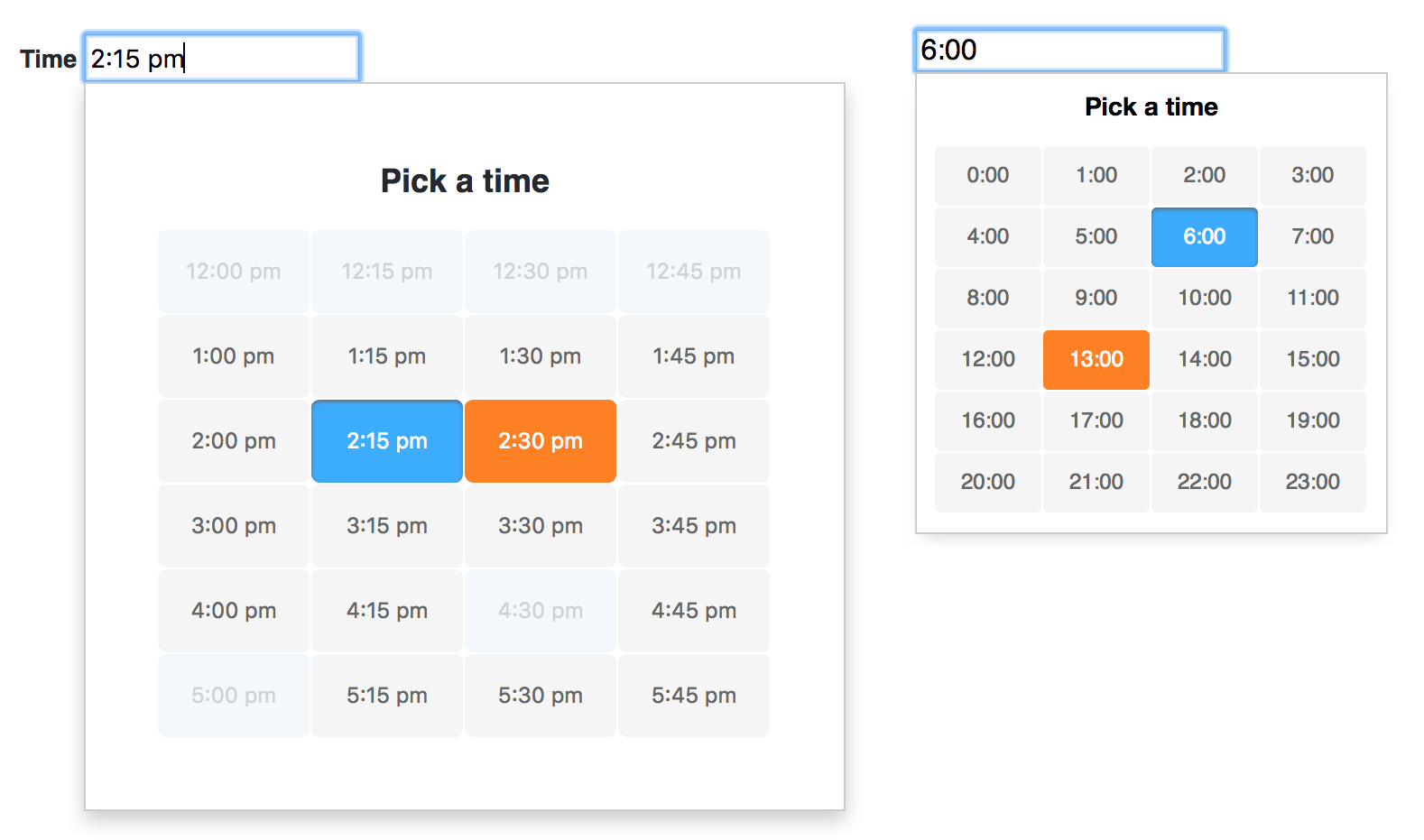
# Appointment Picker
A lightweight, accessible and customizable javascript timepicker widget. Accessibility is based on ARIA properties and keyboard support. The styling is kept simple and can be easily modified.
## Yet another timepicker? - Advantages
- no dependencies
- tiny (6KB minified, 2KB gzipped)
- can be used as jQuery plugin or standalone
- only the listed times can be picked or entered, no validation necessary
See Appointment-Picker Demo and Examples
## Installation
```
npm install --save appointment-picker
```
## Setup
Add both the stylesheet and the script
```html
```
## AMD / CommonJS wrapper
Appointment-Picker supports AMD and CommonJS import
```javascript
// CommonJS (Node, Browserify, Webpack)
const AppointmentPicker = require('appointment-picker');
// AMD (RequireJS)
require(['appointment-picker'], function(AppointmentPicker) {
new AppointmentPicker(...);
});
```
### Use as jQuery plugin
If you would like to use the appointment-picker as a jQuery plugin add following code before initializing
```javascript
// To use appointmentPicker as jQuery plugin
$.fn.appointmentPicker = function(options) {
this.appointmentPicker = new AppointmentPicker(this[0], options);
return this;
};
```
Now you can initialize the picker on any text input field
```html
```
```javascript
var $picker = $('#time-1').appointmentPicker();
```
### Use without any dependency
If you don't use jQuery, initialize the picker using `new`
```html
```
```javascript
var picker = new AppointmentPicker(document.getElementById('time-2'), {});
```
## Options
The appointment-picker can be configured with options
- `interval` sets the interval between appointments in minutes (`1-60`), if this number gets lower (more possible appointments) the picker will get longer
- `mode` the picker can be used in standard `24h` hour mode or in `12h` mode - the latter uses am/pm postfix
- `minTime` sets the minimum hour that can be picked, default is `0` what is eqivalent to 12am
- `maxTime` sets the maximum hour that can be picked, default is `24`
- `startTime` hides all appointments below this hour, default is `0`
- `endTime` hides all appointments above this hour, default is `24`
- `disabled` array of disabled appointments, i.e. `['10:30', '1:15pm', ...]` - these times cannot be selected or entered and will be skipped using the keyboard arrows
- `large` increases the size of the picker and the appointments by setting a `is-large` modifier
- `static` if true, the picker gets rendered on initialization into the dom, open/close events are not registered, the picker is always visible ([see example](https://jannicz.github.io/appointment-picker/example/render-on-init.html))
- `title` defines the picker's heading
__Note:__ with `startTime` and `endTime` appointments below and above can be visually removed. If startTime is greater than `minTime` a lower time can still be manually set via the keyboard. On the other hand the picker does not accept lower hours than `minTime` and higher than `maxTime`. Manually entered times outside of the defined bounds will be rejected by the picker, no extra validation is therefore needed ([example](https://jannicz.github.io/appointment-picker/example/form-submit.html)). Entering an empty string into the input resets the time.
Pass the options into the the AppointmentPicker call
// Standalone
```javascript
var picker = new AppointmentPicker(document.getElementById('time-2'), {
interval: 30,
mode: '12h',
minTime: 09,
maxTime: 22,
startTime: 08,
endTime: 24,
disabled: ['16:30', '17:00'],
large: true
});
// Using jQuery
$('#time-1').appointmentPicker({
interval: 15
});
```
## Methods
The appointment-picker exposes several functions to change its behaviour from outside ([example](https://jannicz.github.io/appointment-picker/example/exposed-functions.html)). You can both use it with or without jQuery. While using jQuery always remember to add `$pickerReference.appointmentPicker.functionName()` to your picker reference.
To get the current time programmatically from a picker instance use
```javascript
// Standalone
picker.getTime();
// or access the picker instance of the jQuery object
$picker.appointmentPicker.getTime(); // i.e. { h: 15, m: 30 }
```
To programmatically open a picker instance call
```javascript
picker.open();
```
To set a time of a picker instance (empty string resets the time)
```javascript
picker.setTime('10:30');
```
To close it
```javascript
picker.close();
```
To destroy the picker instance and remove both the markup and all event listeners
```javascript
picker.destroy();
```
## Events
Appointment-picker exposes events for hooking into the functionality:
- `change.appo.picker` contains a property `time` and is triggered on each successful value change ([event example](https://jannicz.github.io/appointment-picker/example/exposed-functions.html))
- `close.appo.picker` is fired each time the picker is closed
```javascript
document.body.addEventListener('change.appo.picker', function(e) { var time = e.time; }, false);
```
## Styling
All appointment-picker styles are namespaced with `.appo-picker`, i.e. `.appo-picker-list-item`. Depending on your project, you can either overwrite them using your own CSS or by modifying the provided CSS.
## Accessibility
For screen reader support add both a `aria-label` and `aria-live` properties on the input field
```html
```
## Best practices
- appointment-picker neither installs any event listeners outside of the input nor it adds any dom elements until it is opened by the user
- it can be destroyed using its the exposed destroy method that causes all event listeners and dom elements to be removed (i.e. if used in a single page application)
- there is automated testing ([Mocha](https://mochajs.org) and [Chai](http://chaijs.com/api/assert)) to assert that the exposed core functions and the date parser behave correctly ([see specs page](https://jannicz.github.io/appointment-picker/tests/tests.html))
## Browser Support (tested)
- Chrome
- Firefox
- Safari (macOS 10 & iOS 9)
- Edge
- IE11 / IE10
## Author & License
- Jan Suwart | MIT License