# angular-number-picker #
=====================
![][bower-url]
[![NPM version][npm-image]][npm-url]
![][david-url]
![][dt-url]
![][license-url]
A directive used for picking number by using -/+ button, instead of typing the number directly.
This is an `angular` directive designed in `mobile-first` concept. Which means you would have better user experience while in mobile development.
> While running on mobile device, you would increase/decrease the number continuously by long tap the -/+ button.
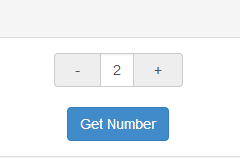
Try it: [plunker](http://plnkr.co/edit/Aww1cb785mZIPqNHgZ4v?p=preview)
## Requirement ##
- [angularjs](http://angularjs.org/) (1.4.3+)
## UI dependency(optional) ##
- [bootstrap](http://getbootstrap.com) (3.3.5+)
## Installation ##
### via bower ###
```JavaScript
bower install angular-number-picker --save
```
### via npm ###
```JavaScript
npm install angular-number-picker --save
```
### via script ###
```html
```
## Import ##
### via ES2015 ###
```javascript
import {ngNumberPicker} from 'angular-number-picker';
```
### via CommonJS ###
```javascript
var ngNumberPicker = require('angular-number-picker').ngNumberPicker;
```
### via script ###
```html
```
## Basic Usage ##
**Add `ngNumberPicker` module as your angular app's dependency**
```javascript
var demo = angular.module('demo', [ngNumberPicker]);
```
>`ngNumberPicker` is the variable you get from above "Import" stage
**Use `h-number` tag in your html**
```HTML
```
**You can use transclusion, too**
```HTML
```
**Writing `DemoController`**
```javascript
demo.controller('DemoController', ['$scope', function($scope) {
$scope.input = {
num: 0
};
$scope.getNumber = function() {
alert('The number is: [' + $scope.input.num + ']');
};
$scope.onChange = function(){
console.log('The number is Changed ', $scope.input.num);
};
}]);
```
## `h-number` configuration ##
| Attribute | Type | Required | Description |
| :------------- |:-------------| :-----:| :-----|
| value | [expression] | Yes | Expression to evaluate as the input number |
| min | Number | No | The minimal point to limit the operation. 0 by default |
| max | Number | No | The maximum point to limit the operation. 100 by default |
| step | Number | No | The step value for the operation. 1 by default|
| singular | String | No | Label to be included after value when value is 1|
| plural | String | No | Label to be included after value when value is not 1|
| unit-position | String | No | where to place the singular/plural. Available options: `left`, `right`. `right` by default. |
| change | Function | No | Function to be called while number is changed|
## build-in class ##
### `input-group` ###
The wrapper class for the `h-number` element
### `input-group-addon` ###
The wrapper class for `+-` operator
### `form-control` ###
The wrapper class for the number area at the center
### `active` ###
The `active` class will be added to the `input-group-addon` button, while touching them. So it's possible to implement your own behavior.
### `picker-unit-left` ###
The `picker-unit-left` class will be added to the left `unit` span
### `picker-unit-right` ###
The `picker-unit-right` class will be added to the right `unit` span
> It's easy to implement those classes to achieve your own UI
## run demo locally ##
### Install npm dependency ###
```bash
npm install
```
### Install bower dependency ###
```bash
bower install
```
### run demo ###
```Shell
npm start
```
>I will launch a debug server at [http://localhost:8000/](http://localhost:8000/)
## LICENSE ##
[MIT License](https://raw.githubusercontent.com/leftstick/angular-number-picker/master/LICENSE)
[expression]: https://docs.angularjs.org/guide/expression
[bower-url]: https://img.shields.io/bower/v/angular-number-picker.svg
[npm-url]: https://npmjs.org/package/angular-number-picker
[npm-image]: https://badge.fury.io/js/angular-number-picker.png
[david-url]: https://david-dm.org/leftstick/angular-number-picker.png
[dt-url]:https://img.shields.io/npm/dt/angular-number-picker.svg
[license-url]:https://img.shields.io/npm/l/angular-number-picker.svg