# Angular-Material-Datepicker
[](https://badge.fury.io/js/angular-material-datepicker)
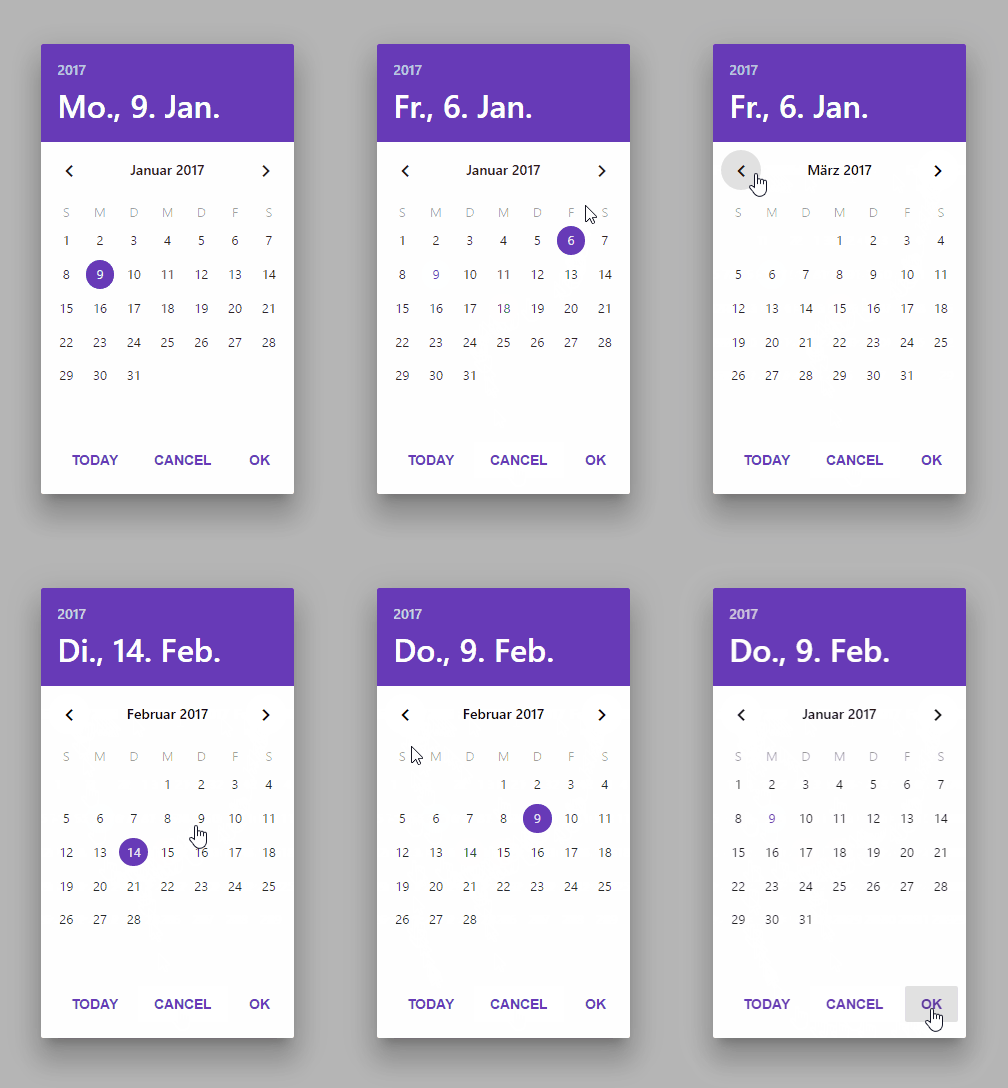
Prototype of a Material Design Datepicker Component for Angular 2 with theming support based on [Angular-2-Datepicker](https://github.com/koleary94/Angular-2-Datepicker) by Kevin O'Leary [(koleary94)](https://github.com/koleary94).
## Installation & Setup
### #1 Install DatePicker and Material packages with npm
```bash
npm install angular-material-datepicker
npm install @angular/material
```
### #2 Import DatePicker and Material modules
```typescript
import { MaterialModule } from '@angular/material';
import { DatePickerModule } from 'angular-material-datepicker';
...
@NgModule({
imports: [
MaterialModule.forRoot(),
DatePickerModule,
...
],
...
})
export class YourModule { }
```
### #3 Apply Material Theme to Datepicker
Import themes and apply them to the Calendar in your `style.scss`.
```scss
// Import a pre-built theme
@import '~@angular/material/core/theming/prebuilt/deeppurple-amber';
// Import your custom input theme file so you can call the custom-input-theme function
@import '~angular-material-datepicker/src/datepicker/calendar.component.scss';
// Using the $theme variable from the pre-built theme you can call the theming function
@include calendar-theme($theme);
```
## Usage
### #1 Add the `` element in your html template.
```html
```
### #2 Binding to selected date.
You can use two-way-binding to set and get and selected value of the Datepicker.
```html
```
## Run Demo App
You can try out the Datepicker in the demo app built with [Angular-CLI](https://github.com/angular/angular-cli).
### #1 To start the demo app clone or download the repo.
### #2 Install the latest version of Angular-CLI
```bash
npm install -g angular-cli@latest
```
### #3 Install npm packages
```bash
npm install
```
### #4 Run the app
```bash
ng serve
```
### #5 Open the app
[http://localhost:4200/](http://localhost:4200/)
## License
MIT