# Angular Icon Inputs
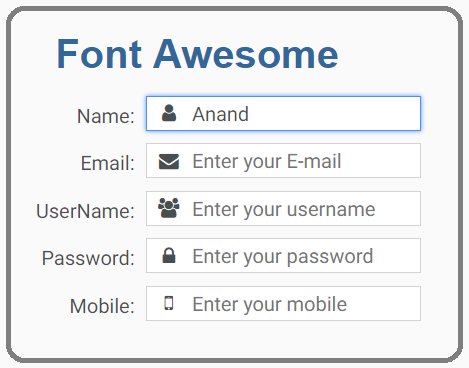
This module contains a couple of Angular Input box components that allow to add an icon inside a text input, which helps better identify common input fields like for example email, etc.
This small module contains only the HTML and CSS necessary to implement this very common HTML pattern.
The default theme of the input is designed to look just like a plain HTML input, including the focus blue border (tab and shift-tab are supported).
Any icon available on the [Font Awesome](http://fontawesome.io) Icon library can be used.
### Features:
- The components have minimum styling and are themable
- there is no need to include a component-specific external stylesheet, only the Font Awesome icons stylesheets
- As the input component takes a plain input and projects it, this means that by design the component supports all standard HTML input attributes, including custom attributes (data-), all the accessiblity properties, etc.
- This also means that these components are Compatible with Angular Forms
- This repo is based on the [angular-quickstart-lib](https://github.com/filipesilva/angular-quickstart-lib),
which is a seed repo (under development) for a library in the [Angular Package Format v4.0](https://docs.google.com/document/d/1CZC2rcpxffTDfRDs6p1cfbmKNLA6x5O-NtkJglDaBVs/edit#heading=h.k0mh3o8u5hx).
- This means for example that this module is compatible with AOT, and includes UMD bundles for use with SystemJs
# Demo
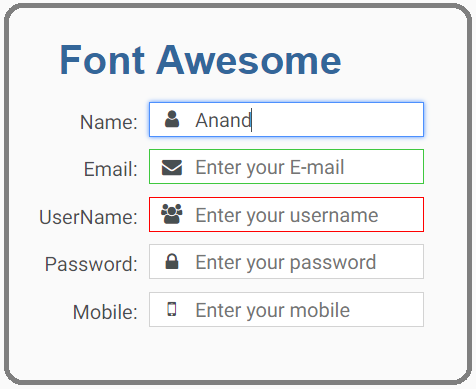
Here is what the inputs with the icons look like on screen:
##Input with default theme and no highlight
##Input highlight with green and red theme
# Installation
This is how to install the components:
```bash
npm install ag-input@1.0.1
```
or
```bash
yarn add ag-input@1.0.1
```
And on your application module:
```ts
import {AgInputModule} from 'ag-input/dist';
@NgModule({
declarations: [ ...],
imports: [
BrowserModule,
....,
AgInputModule
],
})
export class AppModule { }
```
See below for SystemJs / UMD installation.
# Using the Font Awesome Inputs
We will need to add first a version of Font Awesome to our page, for example:
```html
```
Then we can use the Font Awesome Input like this:
```html
```
If we want to apply red or green highlight on any fields, use either `ag-fa-input-green-theme` or `ag-fa-input-red-theme` in the class
```html
Font Awesome
```
The inputs receive an input property named `icon` that identifies which Font Awesome icon we want to apply.
The value `envelope` will add the email icon by adding the CSS class `fa-envelope` to the icon, etc.
The input that you pass inside the component is just a plain HTML input that will be projected inside the component, so all the standard HTML properties of an input apply.
To make sure that the focus functionality is working correctly, make sure to apply the attribute directive `agInput` like in the examples.
# Running the Demo Application
This command will build and start the demo application:
```bash
npm start
```
# Running This Module In Development
First let's build the library using this command:
```bash
npm run build
```
Then let's link it:
```bash
cd dist
npm link
```
On another folder on the same machine where we have for example a running Angular CLI, we then do:
```bash
npm link ag-input
```
# Running the Tests
The tests can be executed with the following commands:
```bash
npm test
npm integration
```
## Using SystemJs via the UMD bundle ?
Make sure to add this to your `map` configuration, if you need the module served from a CDN:
```javascript
map: {
...
'ag-input': 'https://unpkg.com/ag-input@/ag-input.umd.min.js'
}
```
Otherwise if serving from `node_modules`directly:
```javascript
map: {
...
'ag-input': 'node_modules/ag-input/bundles/ag-input.umd.min.js'
}
```
And in our packages property:
```javascript
packages: {
...
'ag-input': {
main: 'index.js',
defaultExtension: 'js'
}
}
```
### Useful Links
- [Font Awesome Icons](http://fontawesome.io/icons/)
- [Font Awesome Cheatsheet](http://fontawesome.io/cheatsheet/)
- [Font Awesome Examples](http://fontawesome.io/examples/)
- [Font Awesome Intro W3 ](https://www.w3schools.com/icons/fontawesome_icons_intro.asp)
# License
[MIT](https://opensource.org/licenses/MIT)