# react-native-google-places
iOS/Android Google Places Widgets (Autocomplete, Place Picker) and API Services for React Native Apps
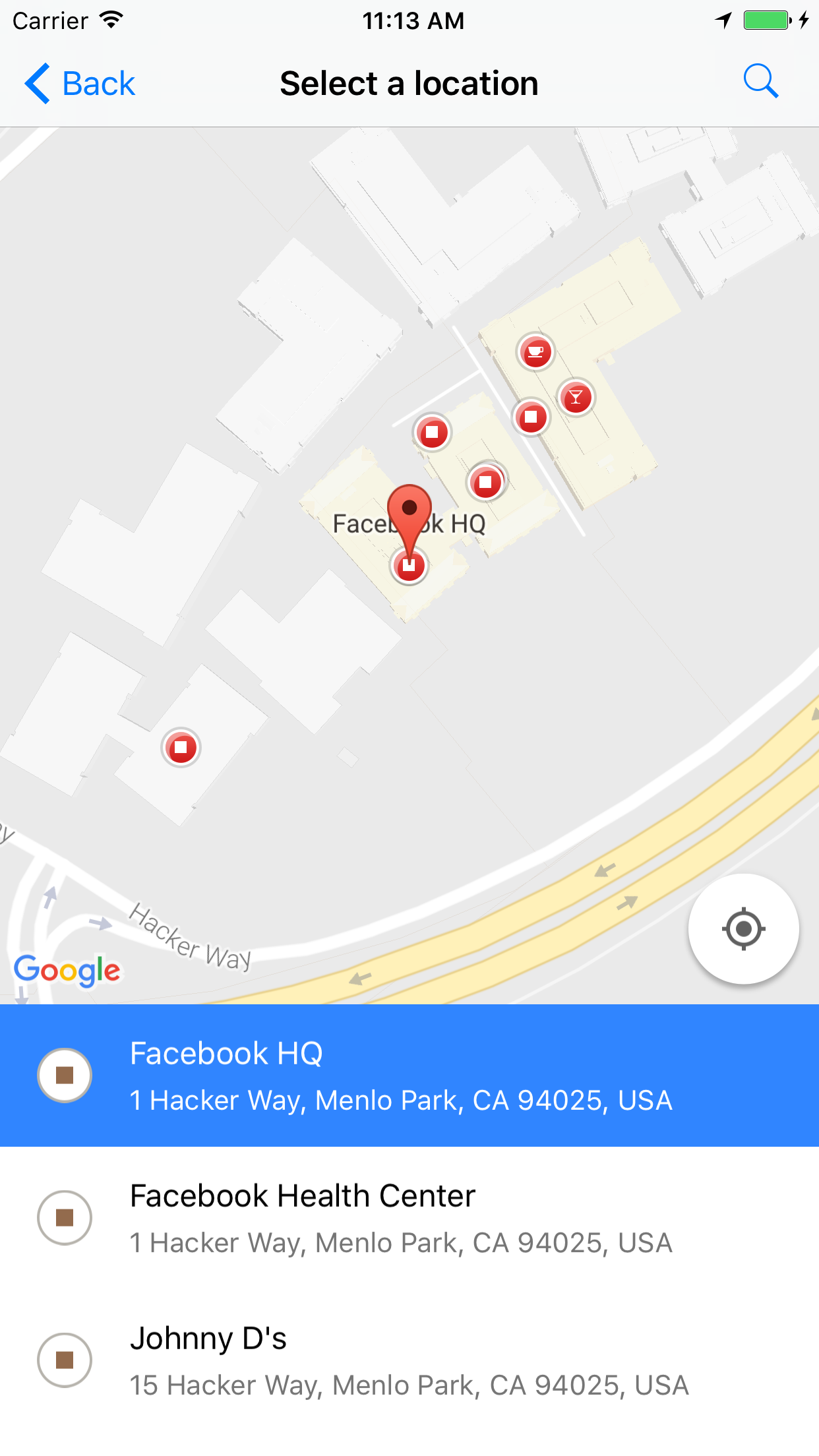
## Shots
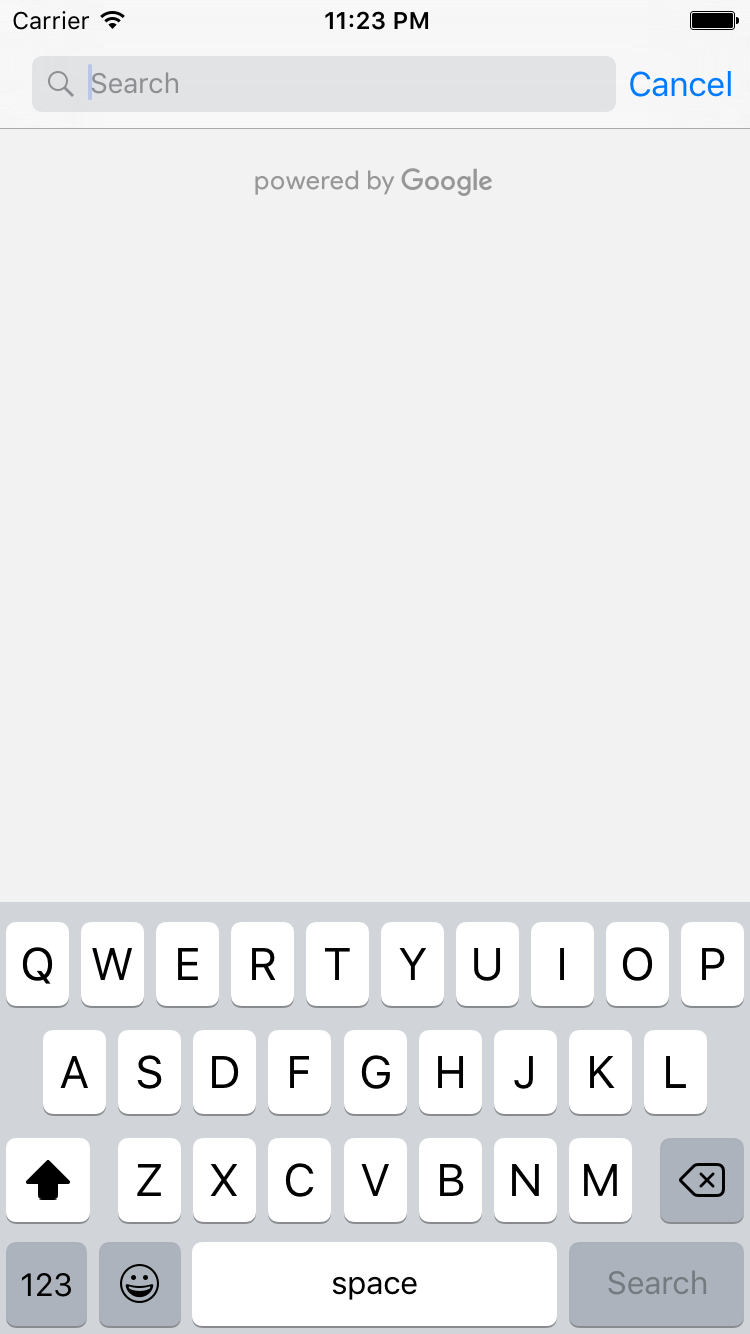

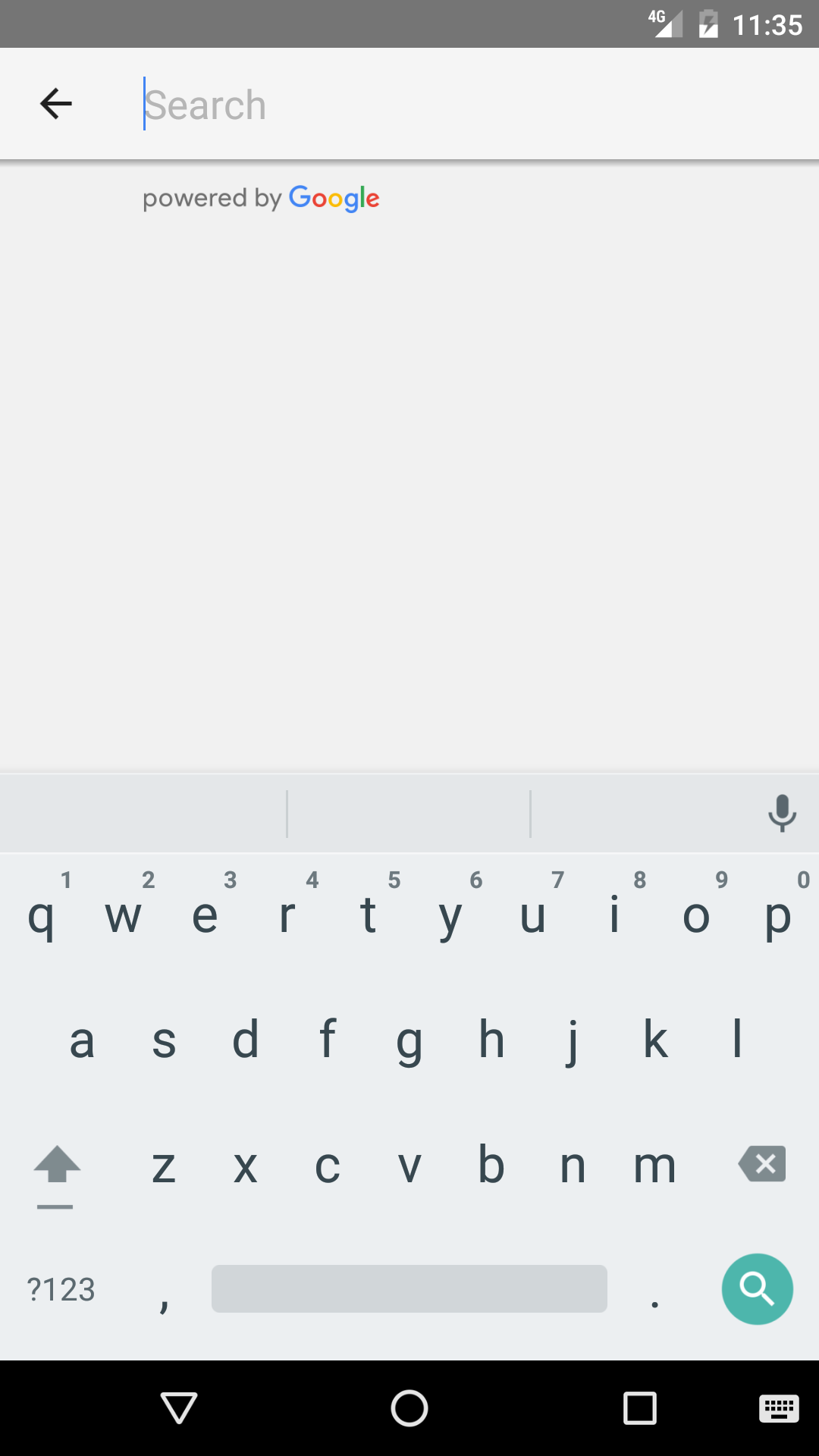
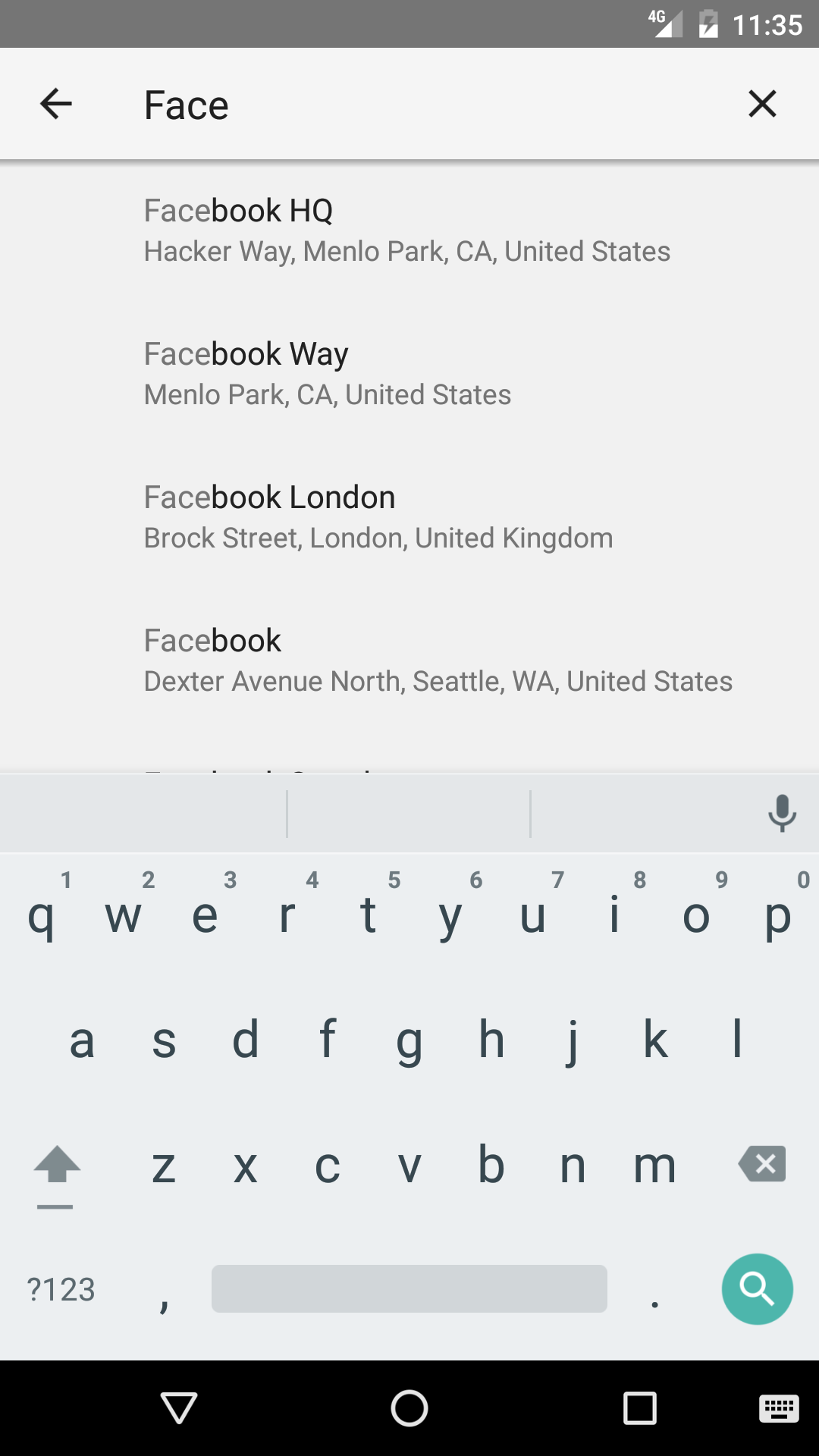
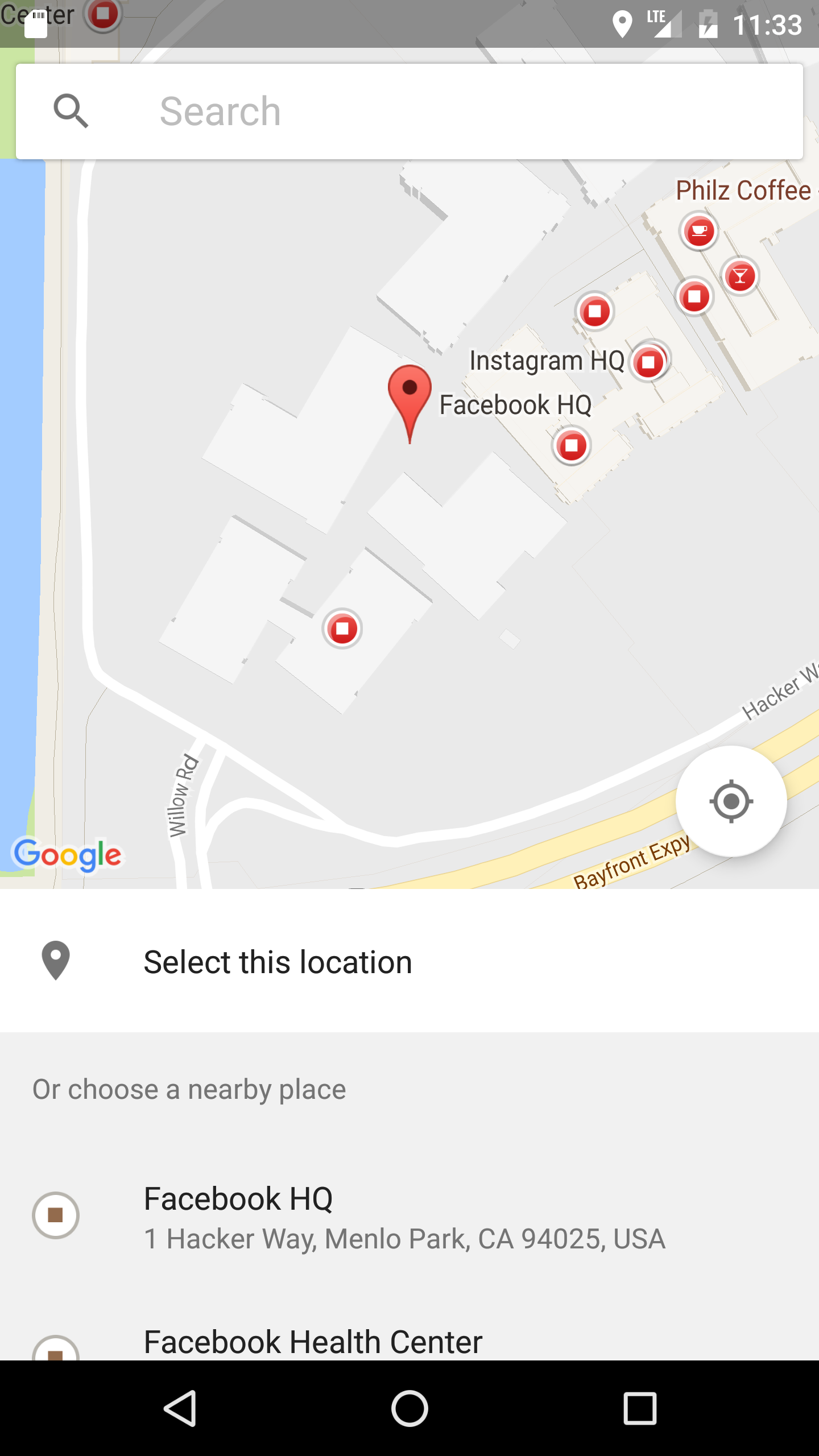
 ## Versioning:
- for RN >= 0.40.0, use v2+ (e.g. react-native-google-places@2.1.0)
- for RN (0.33.0 - 0.39.0), use v1+ or 0.8.8 (e.g. react-native-google-places@1.1.0)
## Install
```
npm i react-native-google-places --save
react-native link react-native-google-places
```
OR
```
yarn add react-native-google-places
react-native link react-native-google-places
```
#### Google Places API Set-Up
1. Sign up for [Google Places API for Android in Google API Console](https://console.developers.google.com/flows/enableapi?apiid=placesandroid&reusekey=true) to grab your Android API key (not browser key).
2. Read further API setup guides at [https://developers.google.com/places/android-api/signup](https://developers.google.com/places/android-api/signup).
3. Similarly, sign up for [Google Places API for iOS in Google API Console](https://console.developers.google.com/flows/enableapi?apiid=placesios&reusekey=true) to grab your iOS API key (not browser key).
4. Ensure you check out further guides at [https://developers.google.com/places/ios-api/start](https://developers.google.com/places/ios-api/start).
5. With both keys in place, you can proceed.
#### Post-install Steps
##### iOS (requires CocoaPods)
##### Auto Linking With Your Project (iOS & Android)
- This was done automatically for you when you ran `react-native link react-native-google-places`. Or you can run the command now if you have not already.
##### Manual Linking With Your Project (iOS)
- In XCode, in the project navigator, right click `Libraries ➜ Add Files to [your project's name]`.
- Go to `node_modules` ➜ `react-native-google-places` and add `RNGooglePlaces.xcodeproj`.
- In XCode, in the project navigator, select your project. Add `libRNGooglePlaces.a` to your project's `Build Phases` ➜ `Link Binary With Libraries`.
##### Install CocoaPods Dependencies
- If you do not have CocoaPods already installed on your machine, run `gem install cocoapods` to set it up the first time. (Hint: Go grab a cup of coffee!)
- If you are not using Cocoapods in your project already, run `cd ios && pod init` at the root directory of your project.
- Add `pod 'GooglePlaces'`, `pod 'GooglePlacePicker'` and `pod 'GoogleMaps'` to your Podfile. Otherwise just edit your Podfile to include:
```ruby
source 'https://github.com/CocoaPods/Specs.git'
target 'YOUR_APP_TARGET_NAME' do
pod 'GooglePlaces'
pod 'GoogleMaps'
pod 'GooglePlacePicker'
end
```
- In your AppDelegate.m file, import the Google Places library by adding `@import GooglePlaces;` and `@import GoogleMaps;` on top of the file.
- Within the `didFinishLaunchingWithOptions` method, instantiate the library as follows:
```Objective-C
[GMSPlacesClient provideAPIKey:@"YOUR_IOS_API_KEY_HERE"];
[GMSServices provideAPIKey:@"YOUR_IOS_API_KEY_HERE"];
```
- By now, you should be all set to install the packages from your Podfile. Run `pod install` from your `ios` directory.
- Close Xcode, and then open (double-click) your project's .xcworkspace file to launch Xcode. From this time onwards, you must use the `.xcworkspace` file to open the project. Or just use the `react-native run-ios` command as usual to run your app in the simulator.
##### Android
- In your AndroidManifest.xml file, request location permissions and add your API key in a meta-data tag (ensure you are within the `` tag as follows:
```xml
...
```
##### Manual Linking With Your Project (Android)
- The following additional setup steps are optional as they should have been taken care of, for you when you ran `react-native link react-native-google-places`. Otherwise, do the following or just ensure they are in place;
- Add the following in your `android/settings.gradle` file:
```java
include ':react-native-google-places'
project(':react-native-google-places').projectDir = new File(rootProject.projectDir, '../node_modules/react-native-google-places/android')
```
- Add the following in your `android/app/build.grade` file:
```java
dependencies {
...
compile project(':react-native-google-places')
}
```
- Add the following in your `...MainApplication.java` file:
```java
import com.arttitude360.reactnative.rngoogleplaces.RNGooglePlacesPackage;
@Override
protected List getPackages() {
return Arrays.asList(
new MainReactPackage(),
...
new RNGooglePlacesPackage() //<-- Add line
);
}
```
- Finally, we can run `react-native run-android` to get started.
## Usage
### Allows your users to enter place names and addresses - and autocompletes your users' queries as they type.
#### Import library
```javascript
import RNGooglePlaces from 'react-native-google-places';
```
#### Open Autocomplete Modal (e.g as Callback to an onPress event)
```javascript
class GPlacesDemo extends Component {
openSearchModal() {
RNGooglePlaces.openAutocompleteModal()
.then((place) => {
console.log(place);
// place represents user's selection from the
// suggestions and it is a simplified Google Place object.
})
.catch(error => console.log(error.message)); // error is a Javascript Error object
}
render() {
return (
this.openSearchModal()}
>
Pick a Place
);
}
}
```
##### **Optional Parameters**
To filter autocomplete results as listed for [Android](https://developers.google.com/places/android-api/autocomplete#restrict_autocomplete_results) and [iOS](https://developers.google.com/places/ios-api/autocomplete#call_gmsplacesclient) in the official docs, you can pass an `options` object as a parameter to the `openAutocompleteModal()` method as follows:
```javascript
RNGooglePlaces.openAutocompleteModal({
type: 'establishment',
country: 'CA',
latitude: 53.544389,
longitude: -113.490927,
radius: 10
})
.then((place) => {
console.log(place);
})
.catch(error => console.log(error.message));
```
- **`type`** _(String)_ - The type of results to return. Can be one of (`geocode`, `address`, `establishment`, `regions`, and `cities`). *(optional)*
- **`country`** _(String)_ - Limit results to a specific country using a [ISO 3166-1 Alpha-2 country code](https://en.wikipedia.org/wiki/ISO_3166-1_alpha-2) (case insensitive). If this is not set, no country filtering will take place. *(optional)*
- **`latitude`** _(Number)_ - Latitude of the point around which you wish to retrieve place information *(required if `longitude` is given)*
- **`longitude`** _(Number)_ - Longitude of the point around which you wish to retrieve place information *(required if `latitude` is given)*
- **`radius`** _(Number)_ - Radius (in kilo-meters) within which to retrieve place information. Only works if `latitude` and `longitude` are also given. Note that setting a radius biases results to the indicated area, but may not fully restrict results to the specified area. Defaults to `0.1`.
- **`useOverlay`** _(Boolean)_ [Android Only] - If true, the autocomplete modal will open as an [overlay](https://developers.google.com/places/images/acw_overlay.png). Defaults to `false`.
### Open PlacePicker Modal
```javascript
class GPlacesDemo extends Component {
openSearchModal() {
RNGooglePlaces.openPlacePickerModal()
.then((place) => {
console.log(place);
// place represents user's selection from the
// suggestions and it is a simplified Google Place object.
})
.catch(error => console.log(error.message)); // error is a Javascript Error object
}
render() {
return (
this.openSearchModal()}
>
Open Place Picker
);
}
}
```
To set the initial viewport that the place picker map should show when the picker is launched, you can pass a `latLngBounds` object as a `parameter` to the `openPlacePickerModal()` method as follows. The `latLngBounds` object takes the following optional keys:
- **`latitude`** _(Number)_ - Latitude of the point which you want the map centered on *(required if `longitude` is given)*
- **`longitude`** _(Number)_ - Longitude of the point which you want the map centered on *(required if `latitude` is given)*
- **`radius`** _(Number)_ - Radius (in kilo-meters) from the center of the map view to the edge. Use this to set the default "zoom" of the map view when it is first opened. Only works if `latitude` and `longitude` are also given. Defaults to `0.1`.
If no initial viewport is set (no argument is passed to the `openPlacePickerModal()` method), the viewport will be centered on the device's location, with the zoom at city-block level.
```javascript
RNGooglePlaces.openPlacePickerModal({
latitude: 53.544389,
longitude: -113.490927,
radius: 0.01 // 10 meters
})
.then((place) => {
console.log(place);
})
.catch(error => console.log(error.message));
```
#### Example Response from the Autocomplete & PlacePicker Modals
```javascript
{
placeID: "ChIJZa6ezJa8j4AR1p1nTSaRtuQ",
website: "https://www.facebook.com/",
phoneNumber: "+1 650-543-4800",
address: "1 Hacker Way, Menlo Park, CA 94025, USA",
name: "Facebook HQ",
types: [ 'street_address', 'geocode' ],
latitude: 37.4843428,
longitude: -122.14839939999999
}
```
- Note: The keys available from the response from the resolved `Promise` from calling `RNGooglePlaces.openAutocompleteModal()` are dependent on the selected place - as `phoneNumber, website` are not set on all `Google Place` objects.
### Using Your Own Custom UI/Views
If you have specific branding needs or you would rather build out your own custom search input and suggestions list (think `Uber`), you may profit from calling the API methods below which would get you autocomplete predictions programmatically using the underlying `iOS and Android SDKs`.
#### Get Autocomplete Predictions
```javascript
RNGooglePlaces.getAutocompletePredictions('facebook')
.then((results) => this.setState({ predictions: results }))
.catch((error) => console.log(error.message));
```
##### **Optional Parameters**
To filter autocomplete results as listed for [Android](https://developers.google.com/places/android-api/autocomplete#restrict_autocomplete_results) and [iOS](https://developers.google.com/places/ios-api/autocomplete#call_gmsplacesclient) in the official docs, you can pass an `options` object as a second parameter to the `getAutocompletePredictions()` method as follows:
```javascript
RNGooglePlaces.getAutocompletePredictions('Lagos', {
type: 'cities',
country: 'NG'
})
.then((place) => {
console.log(place);
})
.catch(error => console.log(error.message));
```
OR
```javascript
RNGooglePlaces.getAutocompletePredictions('pizza', {
type: 'establishments',
latitude: 53.544389,
longitude: -113.490927,
radius: 10
})
.then((place) => {
console.log(place);
})
.catch(error => console.log(error.message));
```
- **`type`** _(String)_ - The type of results to return. Can be one of (`geocode`, `address`, `establishment`, `regions`, and `cities`). *(optional)*
- **`country`** _(String)_ - Limit results to a specific country using a [ISO 3166-1 Alpha-2 country code](https://en.wikipedia.org/wiki/ISO_3166-1_alpha-2) (case insensitive). If this is not set, no country filtering will take place. *(optional)*
- **`latitude`** _(Number)_ - Latitude of the point around which you wish to retrieve place information *(required if `longitude` is given)*
- **`longitude`** _(Number)_ - Longitude of the point around which you wish to retrieve place information *(required if `latitude` is given)*
- **`radius`** _(Number)_ - Radius (in kilo-meters) within which to retrieve place information. Only works if `latitude` and `longitude` are also given. Note that setting a radius biases results to the indicated area, but may not fully restrict results to the specified area. Defaults to `0.1`.
#### Example Response from Calling getAutocompletePredictions()
```javascript
[ { primaryText: 'Facebook HQ',
placeID: 'ChIJZa6ezJa8j4AR1p1nTSaRtuQ',
secondaryText: 'Hacker Way, Menlo Park, CA, United States',
fullText: 'Facebook HQ, Hacker Way, Menlo Park, CA, United States' },
types: [ 'street_address', 'geocode' ],
{ primaryText: 'Facebook Way',
placeID: 'EitGYWNlYm9vayBXYXksIE1lbmxvIFBhcmssIENBLCBVbml0ZWQgU3RhdGVz',
secondaryText: 'Menlo Park, CA, United States',
fullText: 'Facebook Way, Menlo Park, CA, United States' },
types: [ 'street_address', 'geocode' ],
...
]
```
#### Look-Up A Place By ID
```javascript
RNGooglePlaces.lookUpPlaceByID('ChIJZa6ezJa8j4AR1p1nTSaRtuQ')
.then((results) => console.log(results))
.catch((error) => console.log(error.message));
```
#### Example Response from Calling lookUpPlaceByID()
```javascript
{ name: 'Facebook HQ',
website: 'https://www.facebook.com/',
longitude: -122.14835169999999,
address: '1 Hacker Way, Menlo Park, CA 94025, USA',
latitude: 37.48485,
placeID: 'ChIJZa6ezJa8j4AR1p1nTSaRtuQ',
types: [ 'street_address', 'geocode' ],
phoneNumber: '+1 650-543-4800'
}
```
#### Design Hint
The typical use flow would be to call `getAutocompletePredictions()` when the value of your search input changes to populate your suggestion listview and call `lookUpPlaceByID()` to retrieve the place details when a place on your listview is selected.
#### PS (from Google)
- Use of the `getAutocompletePredictions()` method is subject to tiered query limits. See the documentation on [Android](https://developers.google.com/places/android-api/usage) & [iOS](https://developers.google.com/places/ios-api/usage) Usage Limits.
- Also, your UI must either display a 'Powered by Google' attribution, or appear within a Google-branded map.
### Troubleshooting
#### On iOS
You have to link dependencies and re-run the build:
1. Run `react-native link`
2. Try `Manual Linking With Your Project` steps above.
3. Run `react-native run-ios`
#### On Android
1. Run "android" and make sure every packages is updated.
2. If not installed yet, you have to install the following packages:
- Extras / Google Play services
- Extras / Google Repository
- Android (API 23+) / Google APIs Intel x86 Atom System Image Rev. 13
- Check manual installation steps
- Ensure your API key has permissions for `Google Place` and `Google Android Maps`
- If you have a different version of play serivces than the one included in this library (which is currently at 10.2.0), use the following instead (switch 10.0.1 for the desired version) in your `android/app/build.grade` file:
```groovy
...
dependencies {
...
compile(project(':react-native-google-places')){
exclude group: 'com.google.android.gms', module: 'play-services-base'
exclude group: 'com.google.android.gms', module: 'play-services-places'
exclude group: 'com.google.android.gms', module: 'play-services-location'
}
compile 'com.google.android.gms:play-services-base:10.0.1'
compile 'com.google.android.gms:play-services-places:10.0.1'
compile 'com.google.android.gms:play-services-location:10.0.1'
}
```
## License
The MIT License.
## Versioning:
- for RN >= 0.40.0, use v2+ (e.g. react-native-google-places@2.1.0)
- for RN (0.33.0 - 0.39.0), use v1+ or 0.8.8 (e.g. react-native-google-places@1.1.0)
## Install
```
npm i react-native-google-places --save
react-native link react-native-google-places
```
OR
```
yarn add react-native-google-places
react-native link react-native-google-places
```
#### Google Places API Set-Up
1. Sign up for [Google Places API for Android in Google API Console](https://console.developers.google.com/flows/enableapi?apiid=placesandroid&reusekey=true) to grab your Android API key (not browser key).
2. Read further API setup guides at [https://developers.google.com/places/android-api/signup](https://developers.google.com/places/android-api/signup).
3. Similarly, sign up for [Google Places API for iOS in Google API Console](https://console.developers.google.com/flows/enableapi?apiid=placesios&reusekey=true) to grab your iOS API key (not browser key).
4. Ensure you check out further guides at [https://developers.google.com/places/ios-api/start](https://developers.google.com/places/ios-api/start).
5. With both keys in place, you can proceed.
#### Post-install Steps
##### iOS (requires CocoaPods)
##### Auto Linking With Your Project (iOS & Android)
- This was done automatically for you when you ran `react-native link react-native-google-places`. Or you can run the command now if you have not already.
##### Manual Linking With Your Project (iOS)
- In XCode, in the project navigator, right click `Libraries ➜ Add Files to [your project's name]`.
- Go to `node_modules` ➜ `react-native-google-places` and add `RNGooglePlaces.xcodeproj`.
- In XCode, in the project navigator, select your project. Add `libRNGooglePlaces.a` to your project's `Build Phases` ➜ `Link Binary With Libraries`.
##### Install CocoaPods Dependencies
- If you do not have CocoaPods already installed on your machine, run `gem install cocoapods` to set it up the first time. (Hint: Go grab a cup of coffee!)
- If you are not using Cocoapods in your project already, run `cd ios && pod init` at the root directory of your project.
- Add `pod 'GooglePlaces'`, `pod 'GooglePlacePicker'` and `pod 'GoogleMaps'` to your Podfile. Otherwise just edit your Podfile to include:
```ruby
source 'https://github.com/CocoaPods/Specs.git'
target 'YOUR_APP_TARGET_NAME' do
pod 'GooglePlaces'
pod 'GoogleMaps'
pod 'GooglePlacePicker'
end
```
- In your AppDelegate.m file, import the Google Places library by adding `@import GooglePlaces;` and `@import GoogleMaps;` on top of the file.
- Within the `didFinishLaunchingWithOptions` method, instantiate the library as follows:
```Objective-C
[GMSPlacesClient provideAPIKey:@"YOUR_IOS_API_KEY_HERE"];
[GMSServices provideAPIKey:@"YOUR_IOS_API_KEY_HERE"];
```
- By now, you should be all set to install the packages from your Podfile. Run `pod install` from your `ios` directory.
- Close Xcode, and then open (double-click) your project's .xcworkspace file to launch Xcode. From this time onwards, you must use the `.xcworkspace` file to open the project. Or just use the `react-native run-ios` command as usual to run your app in the simulator.
##### Android
- In your AndroidManifest.xml file, request location permissions and add your API key in a meta-data tag (ensure you are within the `` tag as follows:
```xml
...
```
##### Manual Linking With Your Project (Android)
- The following additional setup steps are optional as they should have been taken care of, for you when you ran `react-native link react-native-google-places`. Otherwise, do the following or just ensure they are in place;
- Add the following in your `android/settings.gradle` file:
```java
include ':react-native-google-places'
project(':react-native-google-places').projectDir = new File(rootProject.projectDir, '../node_modules/react-native-google-places/android')
```
- Add the following in your `android/app/build.grade` file:
```java
dependencies {
...
compile project(':react-native-google-places')
}
```
- Add the following in your `...MainApplication.java` file:
```java
import com.arttitude360.reactnative.rngoogleplaces.RNGooglePlacesPackage;
@Override
protected List getPackages() {
return Arrays.asList(
new MainReactPackage(),
...
new RNGooglePlacesPackage() //<-- Add line
);
}
```
- Finally, we can run `react-native run-android` to get started.
## Usage
### Allows your users to enter place names and addresses - and autocompletes your users' queries as they type.
#### Import library
```javascript
import RNGooglePlaces from 'react-native-google-places';
```
#### Open Autocomplete Modal (e.g as Callback to an onPress event)
```javascript
class GPlacesDemo extends Component {
openSearchModal() {
RNGooglePlaces.openAutocompleteModal()
.then((place) => {
console.log(place);
// place represents user's selection from the
// suggestions and it is a simplified Google Place object.
})
.catch(error => console.log(error.message)); // error is a Javascript Error object
}
render() {
return (
this.openSearchModal()}
>
Pick a Place
);
}
}
```
##### **Optional Parameters**
To filter autocomplete results as listed for [Android](https://developers.google.com/places/android-api/autocomplete#restrict_autocomplete_results) and [iOS](https://developers.google.com/places/ios-api/autocomplete#call_gmsplacesclient) in the official docs, you can pass an `options` object as a parameter to the `openAutocompleteModal()` method as follows:
```javascript
RNGooglePlaces.openAutocompleteModal({
type: 'establishment',
country: 'CA',
latitude: 53.544389,
longitude: -113.490927,
radius: 10
})
.then((place) => {
console.log(place);
})
.catch(error => console.log(error.message));
```
- **`type`** _(String)_ - The type of results to return. Can be one of (`geocode`, `address`, `establishment`, `regions`, and `cities`). *(optional)*
- **`country`** _(String)_ - Limit results to a specific country using a [ISO 3166-1 Alpha-2 country code](https://en.wikipedia.org/wiki/ISO_3166-1_alpha-2) (case insensitive). If this is not set, no country filtering will take place. *(optional)*
- **`latitude`** _(Number)_ - Latitude of the point around which you wish to retrieve place information *(required if `longitude` is given)*
- **`longitude`** _(Number)_ - Longitude of the point around which you wish to retrieve place information *(required if `latitude` is given)*
- **`radius`** _(Number)_ - Radius (in kilo-meters) within which to retrieve place information. Only works if `latitude` and `longitude` are also given. Note that setting a radius biases results to the indicated area, but may not fully restrict results to the specified area. Defaults to `0.1`.
- **`useOverlay`** _(Boolean)_ [Android Only] - If true, the autocomplete modal will open as an [overlay](https://developers.google.com/places/images/acw_overlay.png). Defaults to `false`.
### Open PlacePicker Modal
```javascript
class GPlacesDemo extends Component {
openSearchModal() {
RNGooglePlaces.openPlacePickerModal()
.then((place) => {
console.log(place);
// place represents user's selection from the
// suggestions and it is a simplified Google Place object.
})
.catch(error => console.log(error.message)); // error is a Javascript Error object
}
render() {
return (
this.openSearchModal()}
>
Open Place Picker
);
}
}
```
To set the initial viewport that the place picker map should show when the picker is launched, you can pass a `latLngBounds` object as a `parameter` to the `openPlacePickerModal()` method as follows. The `latLngBounds` object takes the following optional keys:
- **`latitude`** _(Number)_ - Latitude of the point which you want the map centered on *(required if `longitude` is given)*
- **`longitude`** _(Number)_ - Longitude of the point which you want the map centered on *(required if `latitude` is given)*
- **`radius`** _(Number)_ - Radius (in kilo-meters) from the center of the map view to the edge. Use this to set the default "zoom" of the map view when it is first opened. Only works if `latitude` and `longitude` are also given. Defaults to `0.1`.
If no initial viewport is set (no argument is passed to the `openPlacePickerModal()` method), the viewport will be centered on the device's location, with the zoom at city-block level.
```javascript
RNGooglePlaces.openPlacePickerModal({
latitude: 53.544389,
longitude: -113.490927,
radius: 0.01 // 10 meters
})
.then((place) => {
console.log(place);
})
.catch(error => console.log(error.message));
```
#### Example Response from the Autocomplete & PlacePicker Modals
```javascript
{
placeID: "ChIJZa6ezJa8j4AR1p1nTSaRtuQ",
website: "https://www.facebook.com/",
phoneNumber: "+1 650-543-4800",
address: "1 Hacker Way, Menlo Park, CA 94025, USA",
name: "Facebook HQ",
types: [ 'street_address', 'geocode' ],
latitude: 37.4843428,
longitude: -122.14839939999999
}
```
- Note: The keys available from the response from the resolved `Promise` from calling `RNGooglePlaces.openAutocompleteModal()` are dependent on the selected place - as `phoneNumber, website` are not set on all `Google Place` objects.
### Using Your Own Custom UI/Views
If you have specific branding needs or you would rather build out your own custom search input and suggestions list (think `Uber`), you may profit from calling the API methods below which would get you autocomplete predictions programmatically using the underlying `iOS and Android SDKs`.
#### Get Autocomplete Predictions
```javascript
RNGooglePlaces.getAutocompletePredictions('facebook')
.then((results) => this.setState({ predictions: results }))
.catch((error) => console.log(error.message));
```
##### **Optional Parameters**
To filter autocomplete results as listed for [Android](https://developers.google.com/places/android-api/autocomplete#restrict_autocomplete_results) and [iOS](https://developers.google.com/places/ios-api/autocomplete#call_gmsplacesclient) in the official docs, you can pass an `options` object as a second parameter to the `getAutocompletePredictions()` method as follows:
```javascript
RNGooglePlaces.getAutocompletePredictions('Lagos', {
type: 'cities',
country: 'NG'
})
.then((place) => {
console.log(place);
})
.catch(error => console.log(error.message));
```
OR
```javascript
RNGooglePlaces.getAutocompletePredictions('pizza', {
type: 'establishments',
latitude: 53.544389,
longitude: -113.490927,
radius: 10
})
.then((place) => {
console.log(place);
})
.catch(error => console.log(error.message));
```
- **`type`** _(String)_ - The type of results to return. Can be one of (`geocode`, `address`, `establishment`, `regions`, and `cities`). *(optional)*
- **`country`** _(String)_ - Limit results to a specific country using a [ISO 3166-1 Alpha-2 country code](https://en.wikipedia.org/wiki/ISO_3166-1_alpha-2) (case insensitive). If this is not set, no country filtering will take place. *(optional)*
- **`latitude`** _(Number)_ - Latitude of the point around which you wish to retrieve place information *(required if `longitude` is given)*
- **`longitude`** _(Number)_ - Longitude of the point around which you wish to retrieve place information *(required if `latitude` is given)*
- **`radius`** _(Number)_ - Radius (in kilo-meters) within which to retrieve place information. Only works if `latitude` and `longitude` are also given. Note that setting a radius biases results to the indicated area, but may not fully restrict results to the specified area. Defaults to `0.1`.
#### Example Response from Calling getAutocompletePredictions()
```javascript
[ { primaryText: 'Facebook HQ',
placeID: 'ChIJZa6ezJa8j4AR1p1nTSaRtuQ',
secondaryText: 'Hacker Way, Menlo Park, CA, United States',
fullText: 'Facebook HQ, Hacker Way, Menlo Park, CA, United States' },
types: [ 'street_address', 'geocode' ],
{ primaryText: 'Facebook Way',
placeID: 'EitGYWNlYm9vayBXYXksIE1lbmxvIFBhcmssIENBLCBVbml0ZWQgU3RhdGVz',
secondaryText: 'Menlo Park, CA, United States',
fullText: 'Facebook Way, Menlo Park, CA, United States' },
types: [ 'street_address', 'geocode' ],
...
]
```
#### Look-Up A Place By ID
```javascript
RNGooglePlaces.lookUpPlaceByID('ChIJZa6ezJa8j4AR1p1nTSaRtuQ')
.then((results) => console.log(results))
.catch((error) => console.log(error.message));
```
#### Example Response from Calling lookUpPlaceByID()
```javascript
{ name: 'Facebook HQ',
website: 'https://www.facebook.com/',
longitude: -122.14835169999999,
address: '1 Hacker Way, Menlo Park, CA 94025, USA',
latitude: 37.48485,
placeID: 'ChIJZa6ezJa8j4AR1p1nTSaRtuQ',
types: [ 'street_address', 'geocode' ],
phoneNumber: '+1 650-543-4800'
}
```
#### Design Hint
The typical use flow would be to call `getAutocompletePredictions()` when the value of your search input changes to populate your suggestion listview and call `lookUpPlaceByID()` to retrieve the place details when a place on your listview is selected.
#### PS (from Google)
- Use of the `getAutocompletePredictions()` method is subject to tiered query limits. See the documentation on [Android](https://developers.google.com/places/android-api/usage) & [iOS](https://developers.google.com/places/ios-api/usage) Usage Limits.
- Also, your UI must either display a 'Powered by Google' attribution, or appear within a Google-branded map.
### Troubleshooting
#### On iOS
You have to link dependencies and re-run the build:
1. Run `react-native link`
2. Try `Manual Linking With Your Project` steps above.
3. Run `react-native run-ios`
#### On Android
1. Run "android" and make sure every packages is updated.
2. If not installed yet, you have to install the following packages:
- Extras / Google Play services
- Extras / Google Repository
- Android (API 23+) / Google APIs Intel x86 Atom System Image Rev. 13
- Check manual installation steps
- Ensure your API key has permissions for `Google Place` and `Google Android Maps`
- If you have a different version of play serivces than the one included in this library (which is currently at 10.2.0), use the following instead (switch 10.0.1 for the desired version) in your `android/app/build.grade` file:
```groovy
...
dependencies {
...
compile(project(':react-native-google-places')){
exclude group: 'com.google.android.gms', module: 'play-services-base'
exclude group: 'com.google.android.gms', module: 'play-services-places'
exclude group: 'com.google.android.gms', module: 'play-services-location'
}
compile 'com.google.android.gms:play-services-base:10.0.1'
compile 'com.google.android.gms:play-services-places:10.0.1'
compile 'com.google.android.gms:play-services-location:10.0.1'
}
```
## License
The MIT License.