# Zoom Meeting SDK for Web
> **⚠️ Action Required:**
> We recommend that you upgrade to 5.1.4 or above if you use WebRTC video to prevent issues with future Chrome versions.
Use of this SDK is subject to our [Terms of Use](https://zoom.us/docs/en-us/zoom_api_license_and_tou.html)
The [Zoom Meeting SDK](https://developers.zoom.us/docs/meeting-sdk/web/) embeds the Zoom Meeting and Webinar experience in a website through a highly optimized WebAssembly module.
The Meeting SDK is reserved for human use cases and does not support bots or AI notetakers. To build an AI notetaker application or access realtime media, use [Zoom RTMS (Real-time media streams)](https://developers.zoom.us/docs/rtms/?ampDeviceId=b62002e7-9a1d-4d96-8e04-49ab16aec791&SessionId=1767666705978).
## 🚀 Quick Start
### Installation
In your frontend project, install the Meeting SDK:
```bash
npm install @zoom/meetingsdk --save
```
### Use UTF-8 Encoding
Add `` to your web app's entry point(`index.html`) to ensure the browser uses UTF-8. If not set, the browser might choose a different encoding, causing text or data issues.
### Integration Options
There are two views to choose from, [Client View](#-usage---client-view) and [Component View](#-usage---component-view).
- **Client View**: Full-page meeting experience identical to Zoom Web Client
- **Component View**: Flexible, embeddable meeting components for custom UI/UX
## 📱 Usage - Client View
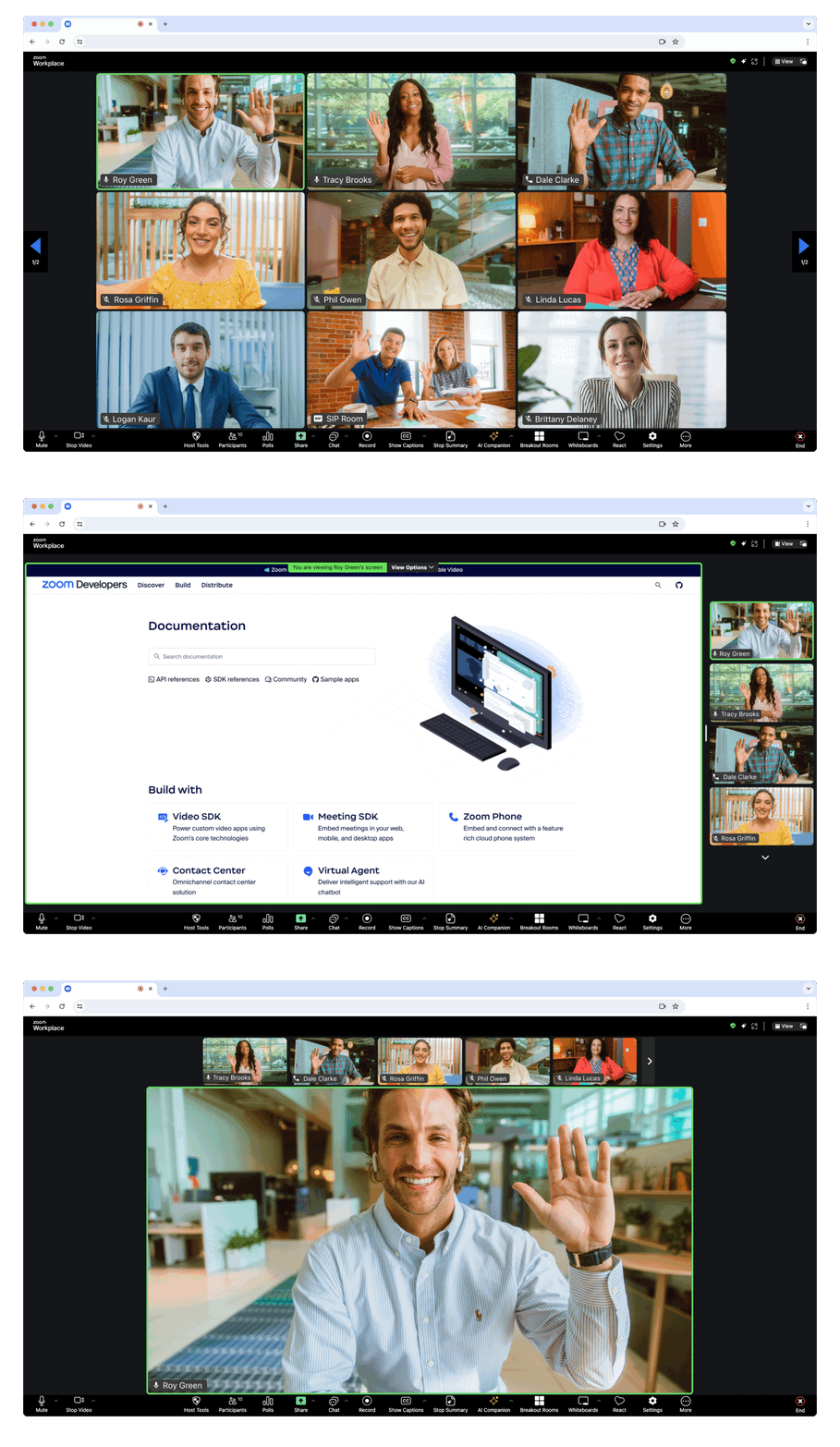
> **What is Client View?**
> The Client View provides a full-page meeting experience identical to the [Zoom Web Client](https://support.zoom.us/hc/en-us/articles/214629443-Zoom-Web-Client), seamlessly integrated into your web page.
### Step 1: Import and Initialize
Import `ZoomMtg` and prepare the SDK:
```js
import { ZoomMtg } from '@zoom/meetingsdk'
ZoomMtg.preLoadWasm()
ZoomMtg.prepareWebSDK()
```
> **Note:** The Meeting SDK adds DOM elements for overlays and accessibility. [Learn more about managing these elements](https://developers.zoom.us/docs/meeting-sdk/web/client-view/import/#appended-dom-elements).
### Step 2: Configuration Parameters
#### `ZoomMtg.init()` Parameters
| Parameter | Description |
|-----------|-------------|
| `leaveUrl` | **Required** - URL where participants are redirected when leaving the meeting |
#### `ZoomMtg.join()` Parameters
Get meeting details from the [Zoom APIs](https://developers.zoom.us/docs/meeting-sdk/web/client-view/meetings/).
| Parameter | Description |
|-----------|-------------|
| `signature` | **Required** - Your [SDK JWT](https://developers.zoom.us/docs/meeting-sdk/auth/) |
| `meetingNumber` | **Required** - The Zoom Meeting or Webinar Number |
| `userName` | **Required** - Name of the user joining the meeting |
| `passWord` | **Required** - Meeting password (empty string if only waiting room required) |
| `userEmail` | **Required for Webinars** - User email (also required for registration) |
| `tk` | **Required for Registration** - [Registrant's token](https://support.zoom.us/hc/en-us/articles/360054446052-Managing-meeting-and-webinar-registration) |
| `zak` | **Required for Starting** - Host's [Zoom Access Key (ZAK)](https://developers.zoom.us/docs/meeting-sdk/auth/#start-meetings-and-webinars-with-a-zoom-users-zak-token) |
### Step 3: Join Meeting
```js
ZoomMtg.init({
leaveUrl: 'https://yourapp.com/meeting-ended',
patchJsMedia: true,
success: (success) => {
console.log('SDK initialized successfully')
ZoomMtg.join({
signature: signature,
meetingNumber: meetingNumber,
userName: userName,
userEmail: userEmail,
passWord: passWord,
success: (success) => {
console.log('Joined meeting successfully')
},
error: (error) => {
console.error('Failed to join meeting:', error)
}
})
},
error: (error) => {
console.error('Failed to initialize SDK:', error)
}
})
```
For the full list of features and event listeners, as well as additional guides, see our [Meeting SDK docs](https://developers.zoom.us/docs/meeting-sdk/web/client-view/).
## 🧩 Usage - Component View
The [component view](https://developers.zoom.us/docs/meeting-sdk/web/component-view/) provides the option to display the Meeting SDK for web in components on your page. This allows for a more flexible design. Component view is designed specifically for desktop browser use cases, not mobile environments. For mobile use cases, use [client view](https://developers.zoom.us/docs/meeting-sdk/web/client-view/).
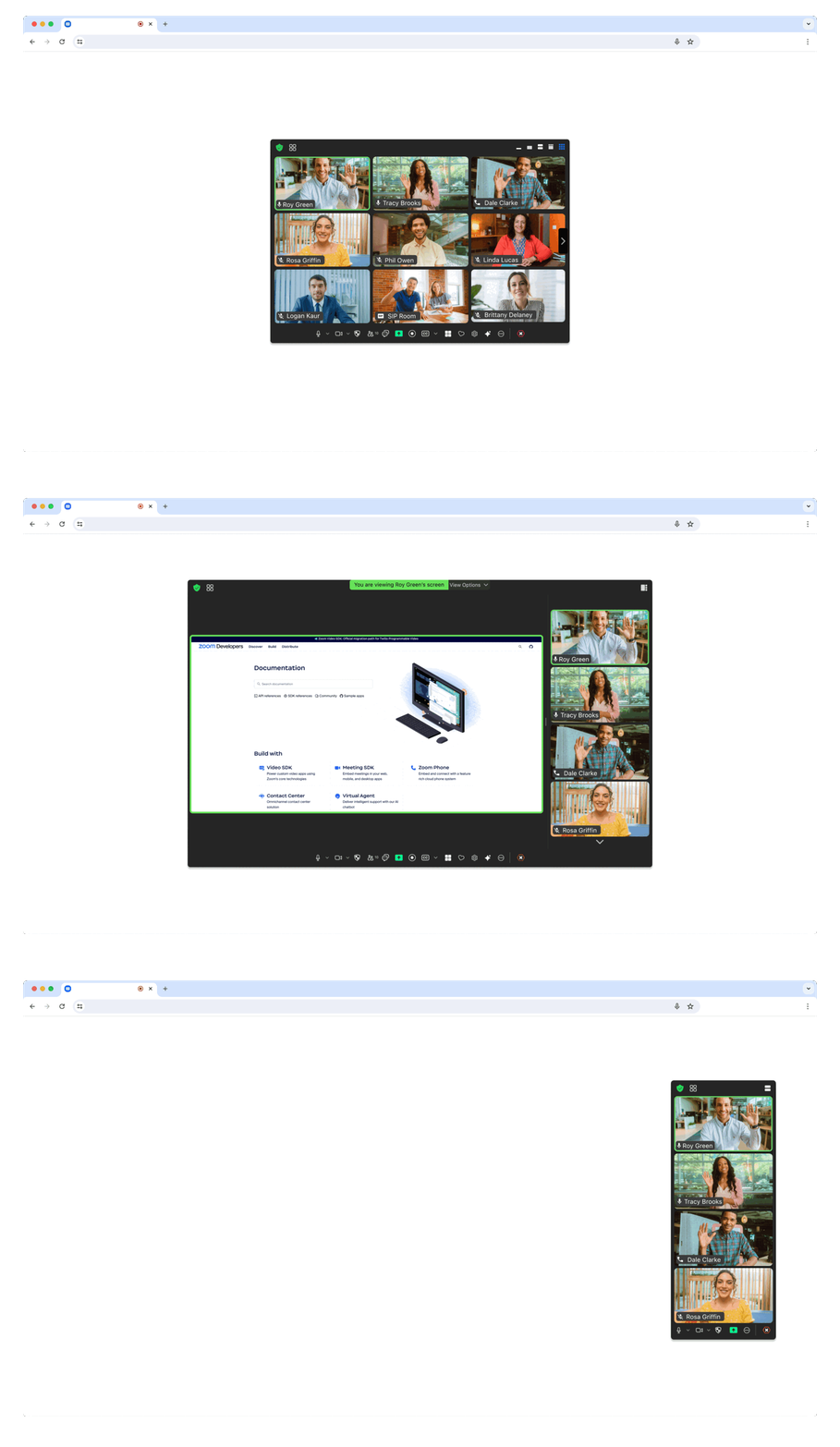
> **What is Component View?**
> The Component View provides flexible, embeddable meeting components that can be styled and positioned within your existing UI design.
### Step 1: Import and Setup
Import `ZoomMtgEmbedded` and create the client:
```js
import ZoomMtgEmbedded from "@zoom/meetingsdk/embedded"
const client = ZoomMtgEmbedded.createClient()
```
### Step 2: HTML Container
Create a container element where the Meeting SDK will render:
```html
```
> **Note:** The container remains hidden until you join a meeting or webinar.
### Step 3: Configuration Parameters
Get meeting details from the [Zoom APIs](https://developers.zoom.us/docs/meeting-sdk/web/component-view/).
| Parameter | Description |
|-----------|-------------|
| `signature` | **Required** - Your [SDK JWT](https://developers.zoom.us/docs/meeting-sdk/auth/) |
| `meetingNumber` | **Required** - The Zoom Meeting or Webinar Number |
| `userName` | **Required** - Name of the user joining the meeting |
| `password` | **Required** - Meeting password (empty string if only waiting room required) |
| `userEmail` | **Required for Webinars** - User email (also required for registration) |
| `tk` | **Required for Registration** - [Registrant's token](https://support.zoom.us/hc/en-us/articles/360054446052-Managing-meeting-and-webinar-registration) |
| `zak` | **Required for Starting** - Host's [Zoom Access Key (ZAK)](https://developers.zoom.us/docs/meeting-sdk/auth/#start-meetings-and-webinars-with-a-zoom-users-zak-token) |
### Step 4: Initialize and Join
```js
const meetingSDKElement = document.getElementById('meetingSDKElement')
client.init({
zoomAppRoot: meetingSDKElement,
language: 'en-US',
patchJsMedia: true
}).then(() => {
console.log('SDK initialized successfully')
client.join({
signature: signature,
meetingNumber: meetingNumber,
password: password,
userName: userName,
userEmail: userEmail
}).then(() => {
console.log('Joined meeting successfully')
}).catch((error) => {
console.error('Failed to join meeting:', error)
})
}).catch((error) => {
console.error('Failed to initialize SDK:', error)
})
```
For the full list of features and event listeners, as well as additional guides, see our [Meeting SDK docs](https://developers.zoom.us/docs/meeting-sdk/web/component-view/).
## 🏛️ Zoom for Government (ZFG)
To use Zoom for Government, you need to apply for a new SDK key at [ZFG Marketplace](https://marketplace.zoomgov.com/).
### Option 1: Use ZFG-Specific Version
Update your `package.json` to use the ZFG version:
```json
{
"dependencies": {
"@zoom/meetingsdk": "4.0.7-zfg"
}
}
```
### Option 2: Configure ZFG Endpoints
#### Client View
```js
ZoomMtg.setZoomJSLib("https://source.zoomgov.com/{VERSION}/lib", "/av")
ZoomMtg.init({
webEndpoint: "www.zoomgov.com",
// ... other options
})
```
#### Component View
```js
const client = ZoomMtgEmbedded.createClient()
client.init({
assetPath: 'https://source.zoomgov.com/{VERSION}/lib/av',
webEndpoint: "www.zoomgov.com",
// ... other options
})
```
📖 **Documentation**: [Client View](https://marketplacefront.zoom.us/sdk/meeting/web/functions/ZoomMtg.init.html) | [Component View](https://marketplacefront.zoom.us/sdk/meeting/web/components/interfaces/InitOptions.html#webEndpoint)
## 📚 Sample Applications
### Framework-Specific Examples
- **[Web Sample](https://github.com/zoom/meetingsdk-web-sample)** - CDN and React examples for both Client and Component views
- **[React Sample](https://github.com/zoom/meetingsdk-react-sample)** - React integration examples
- **[Angular Sample](https://github.com/zoom/meetingsdk-angular-sample)** - Angular integration examples
- **[Vue.js Sample](https://github.com/zoom/meetingsdk-vuejs-sample)** - Vue.js integration examples
- **[JavaScript Sample](https://github.com/zoom/meetingsdk-javascript-sample)** - Pure JavaScript examples
### Authentication & Backend
- **[Auth Sample (Node.js)](https://github.com/zoom/meetingsdk-auth-endpoint-sample)** - JWT signature generation
- **[Webhook Sample (Node.js)](https://github.com/zoom/webhook-sample)** - Webhook handling
## 💬 Support
### Get Help
- **[Developer Support](https://developers.zoom.us/support/)** - Technical support
- **[Developer Forum](https://devforum.zoom.us)** - Community discussions
- **[Premier Developer Support](https://www.zoom.com/en/support-plans/developer/)** - Priority support plans
### Resources
- **[Meeting SDK Documentation](https://developers.zoom.us/docs/meeting-sdk/web/)** - Complete documentation
- **[API Reference](https://developers.zoom.us/docs/api/)** - Zoom API documentation
---
**[Open Source Software Attribution](https://github.com/zoom/meetingsdk-web/blob/master/oss_attribution.txt)**