



中文 · English
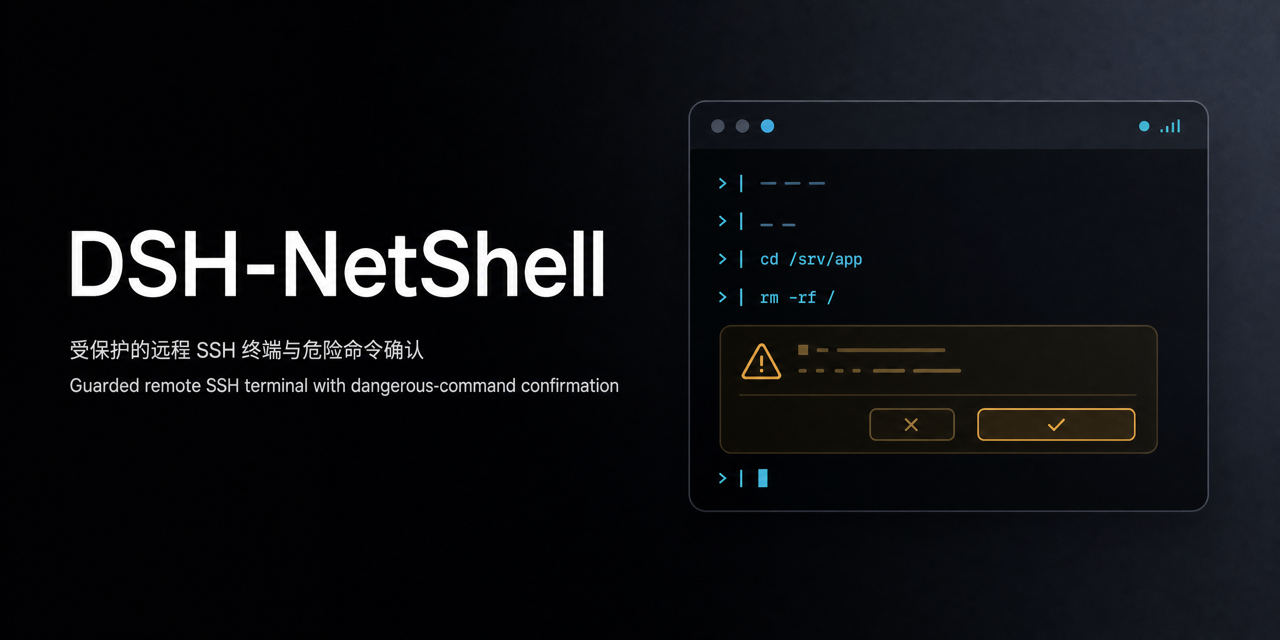
A guarded local and remote SSH terminal for DeepSeek Harness
DSH-NetShell lets you manage servers, use a live terminal, and keep a clear human checkpoint before risky commands run in DSH. Human input and AI actions share the same command guard. ## Highlights | Capability | What you get | | --- | --- | | Local terminal | Start `bash`, `sh`, PowerShell, or `cmd` on the current device without SSH setup | | Remote SSH | Manage hosts, ports, users, and authentication with multiple sessions | | Command guard | `allow` runs immediately, `ask` waits for approval, `deny` blocks | | Visible execution | Human input and AI commands appear in the same live terminal panel | | Credential isolation | SSH passwords stay in DSH's encrypted store and never enter AI messages, tool results, or logs | | Command history | Review run, blocked, and allowed counts plus every decision record | ## Install Published package: ```bash dsh plugin --profile web add @xgone/dsh-netshell ``` From a local checkout: ```bash dsh plugin --profile web add link:/path/to/dsh-netshell ``` Restart DSH Web after installation, then open **Settings → Terminal**. ## Quickstart ### Local terminal 1. Open the **Terminal** tab in the main area. 2. Click **New** on the **Local terminal** row. 3. Type commands and watch the live output. The local terminal does not read remote profiles or SSH passwords. ### Remote server 1. Open **Settings → Terminal → New**. 2. Enter a name, host, port, and username. 3. Choose password, private key, or `ssh-agent` authentication. 4. Choose a permission level; keep `guarded` for a first connection. 5. Return to the **Terminal** tab and click **Connect** on the server row. A saved password is shown only as configured status and is never displayed again. ### Risky commands Commands are checked when you press Enter: | Level | Behavior | | --- | --- | | `open` | Everyday use; hard-deny rules still apply | | `guarded` (default) | High-risk commands pause for approval | | `locked` | Only explicitly allowed commands run directly | For an `ask` command, choose **Run once**, **Always allow this command**, or **Deny**. A permanent allow applies only to the current server and exact command text. ## UI Preview  The terminal footer shows run, blocked, and allowed counts. Open **History** to review command records. Switching to another DSH tab does not disconnect a background session. ## AI Tools The plugin exposes two model tools: | Tool | Purpose | | --- | --- | | `netshell_servers` | List server profiles without passwords | | `netshell_run` | Run one command on a selected server | AI commands and human input use the same Guard. `deny` commands never run, and `ask` commands require a decision from you in the DSH confirmation UI or terminal panel. The AI cannot see passwords or forge approval results. On the first use of a server by a model session, or after the user manually disconnects that server, `netshell_run` asks for remote-connection approval before starting SSH. Approval is retained per model session and server for the current plugin lifetime; different model sessions must approve independently even when they reuse the same SSH session. A network failure, SSH exit, or connection timeout only triggers reconnection for the already-approved model session. A manually opened GUI session does not replace model approval. If the confirmation service is unavailable, the plugin fails closed and does not connect automatically. ## Security Boundary This is an operation guard, not a complete security sandbox. It protects commands entering through this plugin's terminal and `netshell_run`; SSH connections created by other plugins or generic shell tools are outside its scope. Use `locked` for sensitive environments and review actions inside interactive programs carefully. SSH host keys are stored in the plugin-private `~/.dsh/netshell/known_hosts`, separate from the user's `~/.ssh/known_hosts`. ## Documentation - [中文 README](README.md) - [Updates](UPDATES.md) - [Technical notes](TECHNICAL.md) - [Dynamic loading guide](DYNAMIC.md) - [Design and host-contract notes](DESIGN.zh.md) - [Full historical changelog](CHANGELOG.md) ## FAQ **What should I check when a connection fails?** Verify the host, port, username, and authentication method. If the host key changed, confirm the server was intentionally rebuilt before removing the stale entry from the plugin-private `known_hosts` file. **Can the AI see my password?** No. The Host reads it from DSH's encrypted credential store only while establishing SSH; profile listings, tool results, logs, and terminal output never contain the password value.