---
title: OAuth Applications
description: >-
Integrate OAuth applications with WorkOS Connect for web and mobile
authentication.
showNextPage: true
originalPath: .tmp-workos-clone/packages/docs/content/authkit/connect/oauth.mdx
---
## Overview
OAuth applications are designed for applications where the actor being authenticated is a [User](/reference/authkit/user). These include web applications, mobile, desktop, and CLI tools. OAuth applications use the underlying `authorization_code` OAuth flow which is supported by many libraries and frameworks out of the box.
> For server-to-server requests from a third-party without user interaction, use [M2M applications](/authkit/connect/m2m) instead.
## First-party vs Third-party Applications
When creating OAuth applications, you choose the level of trust: first-party or third-party.
### First-party applications
Select first-party when the application is one that your team controls, such as supporting services that are deployed separately from your main application but still need access to your users' identities. Examples include community forums or customer support portals.
### Third-party applications
Select third-party when the application is one built by your customers or partners, but you do not directly control the integrating application. For this reason, you must also associate third-party applications with an [Organization](/reference/organization) that represents the customer or partner.
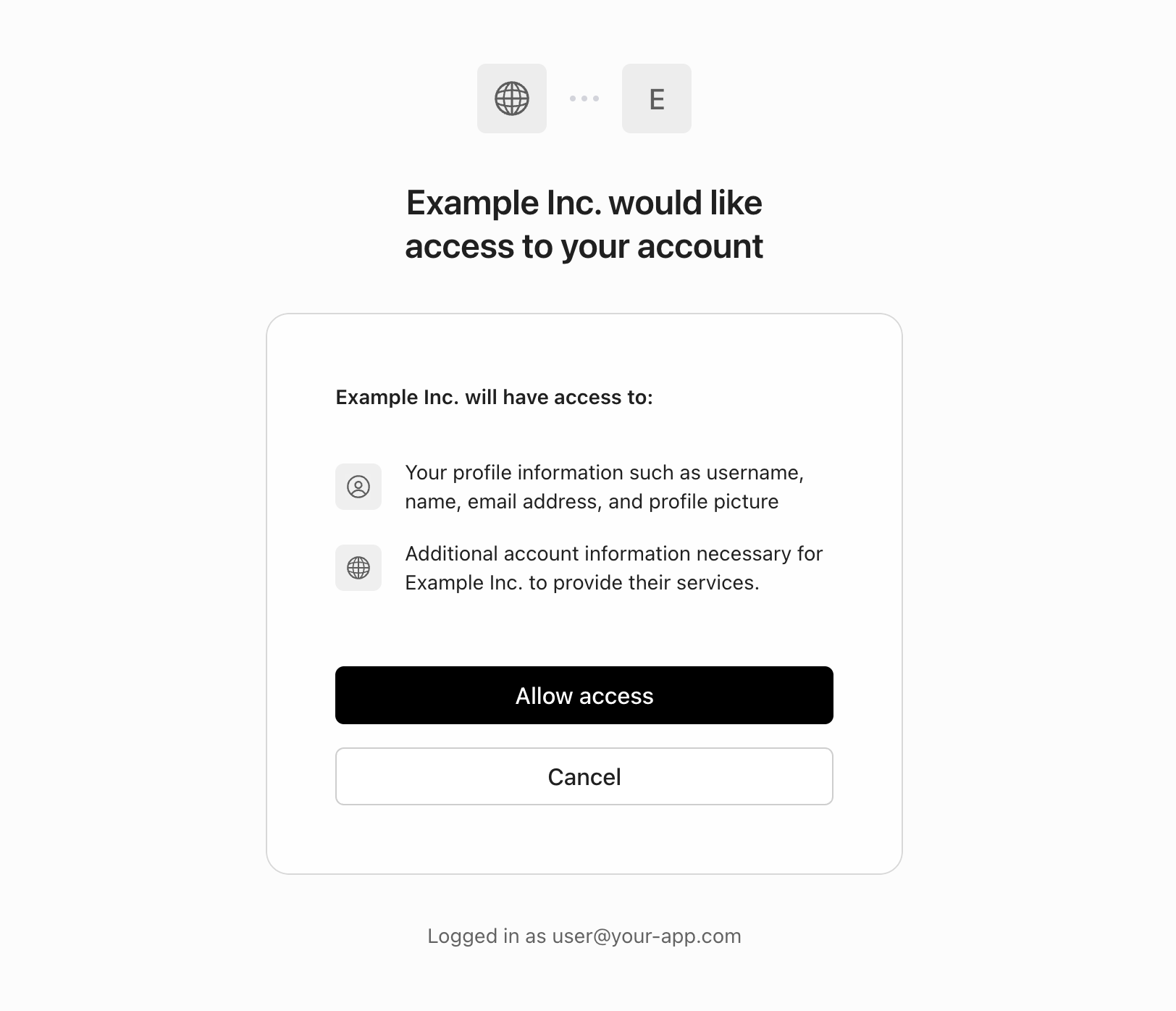
A third-party OAuth application will generally have a "Sign in with [your application]" button on their login page, in the same way many sites have a "Sign in with Google" button, allowing you to offer similar functionality to your customers or partners. Unlike first-party applications, your users will be prompted in AuthKit to explicitly authorize the application before their identity is shared.
## Receiving Tokens
After an application has been issued credentials from a Connect Application, it can receive identity and access tokens using the OAuth 2.0 `authorization_code` flow.
Many OAuth and OIDC libraries support Connect applications out of the box, needing only configuration:
## Public Applications
By default, OAuth applications are confidential and must authenticate with a client secret when exchanging authorization codes for tokens. However, certain types of applications cannot securely store client secrets, such as command-line tools or mobile applications.
For these use cases, you can configure an OAuth application as **Public**. Public applications:
- Cannot securely store client secrets
- Must use [Proof Key for Code Exchange (PKCE)](https://datatracker.ietf.org/doc/html/rfc7636) in order to authenticate with the [Token Endpoint](/reference/workos-connect/token)
OAuth applications can be set as _Public_ during creation in the WorkOS Dashboard.
## Verifying Tokens
Your application must verify the tokens sent by OAuth applications using the JWKS for your environment. User information in the token can be used to look up related resources and perform further access control checks.
In addition to fast stateless verification, you can use the [Token Introspection API](/reference/workos-connect/introspection) to synchronously check whether a token is still valid.
## Organization Access
When a user who is a member of multiple Organizations authorizes an OAuth Application, they will be prompted to select one of their Organizations to grant access to. Or, if the user only has a single Organization membership, that Organization will be automatically selected.
The selected Organization will be made available as the `org_id` claim in the issued [access token](/reference/workos-connect/token/authorization-code-grant/access-token), which your app can use to scope the access of requests made using the token.
## Configuration
OAuth applications require the following configuration:
### Redirect URI
This is the final location users will be redirected to after successful authentication. Clients should use the [Token Endpoint](/reference/workos-connect/token) to exchange the `code` for tokens at this location.
### Name and Logo
For third-party OAuth applications, the name and logo will be displayed to your users when they are prompted to authorize access. Both light and dark-mode logos are supported.
### Credentials
OAuth applications use the `client_id` and `client_secret` from a credential to authenticate to the [OAuth-based Connect APIs](/reference/workos-connect).
## Next Steps
- [Connect API Reference](/reference/workos-connect) - Complete API documentation