---
title: Custom Branding
description: Use your own logo and colors in the Admin Portal.
originalPath: .tmp-workos-clone/packages/docs/content/admin-portal/custom-branding.mdx
---
## Introduction
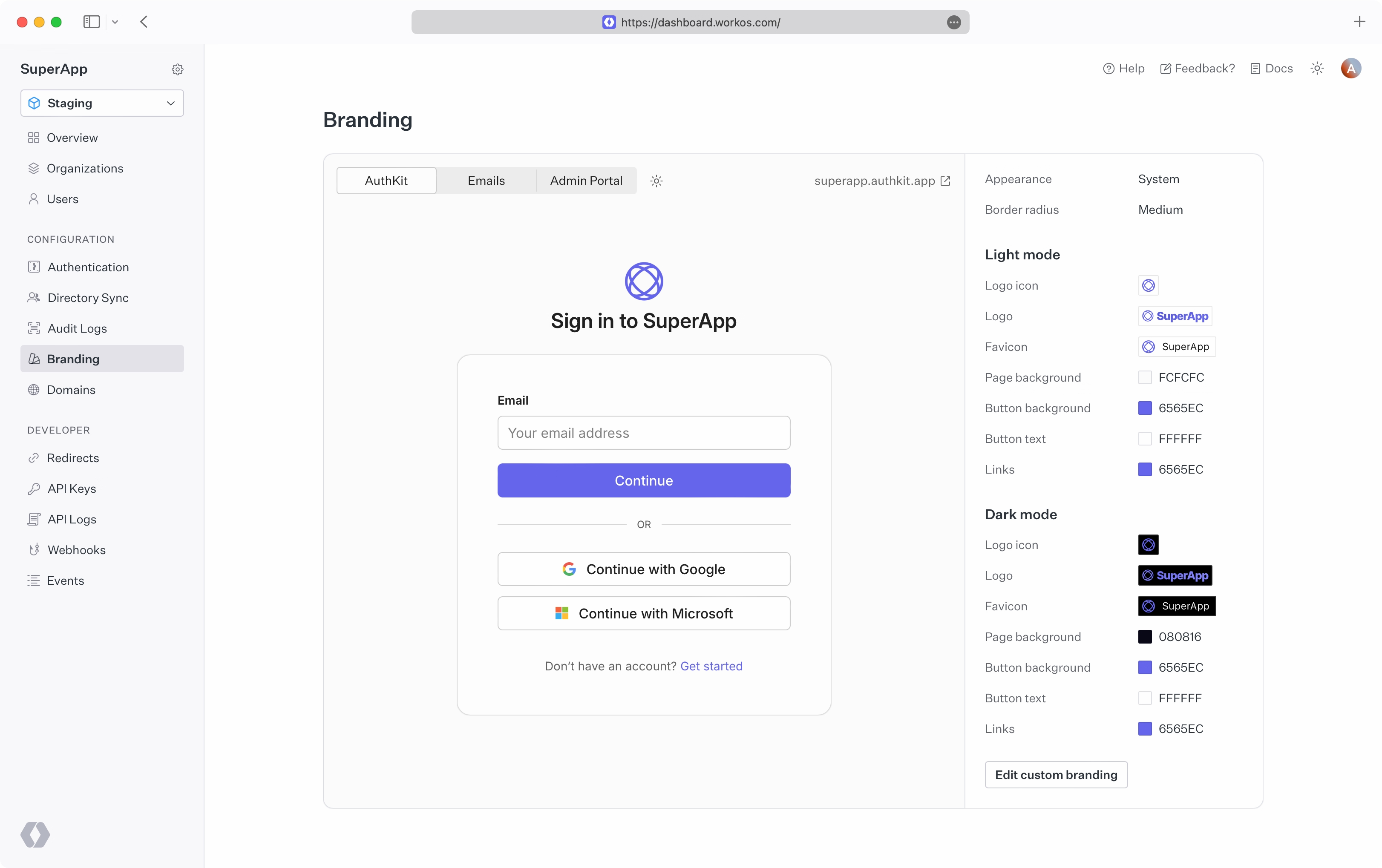
You can customize the look and feel of the Admin Portal from the WorkOS Dashboard. Go to [Branding settings](https://dashboard.workos.com/branding) where you can:
- Upload your logos
- Set your brand color
- View your custom domains
## Logos and icons
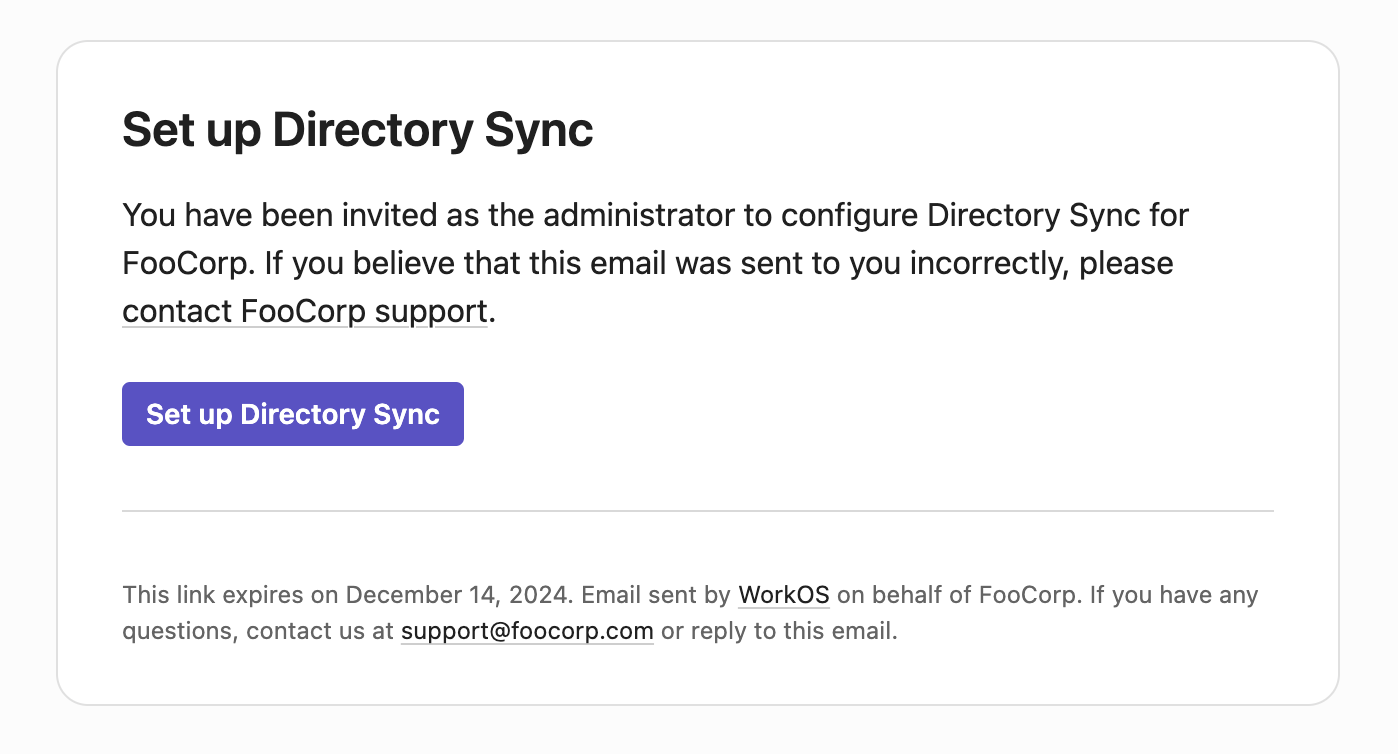
You can upload custom branding assets which will be used in the Admin Portal as well as emails.
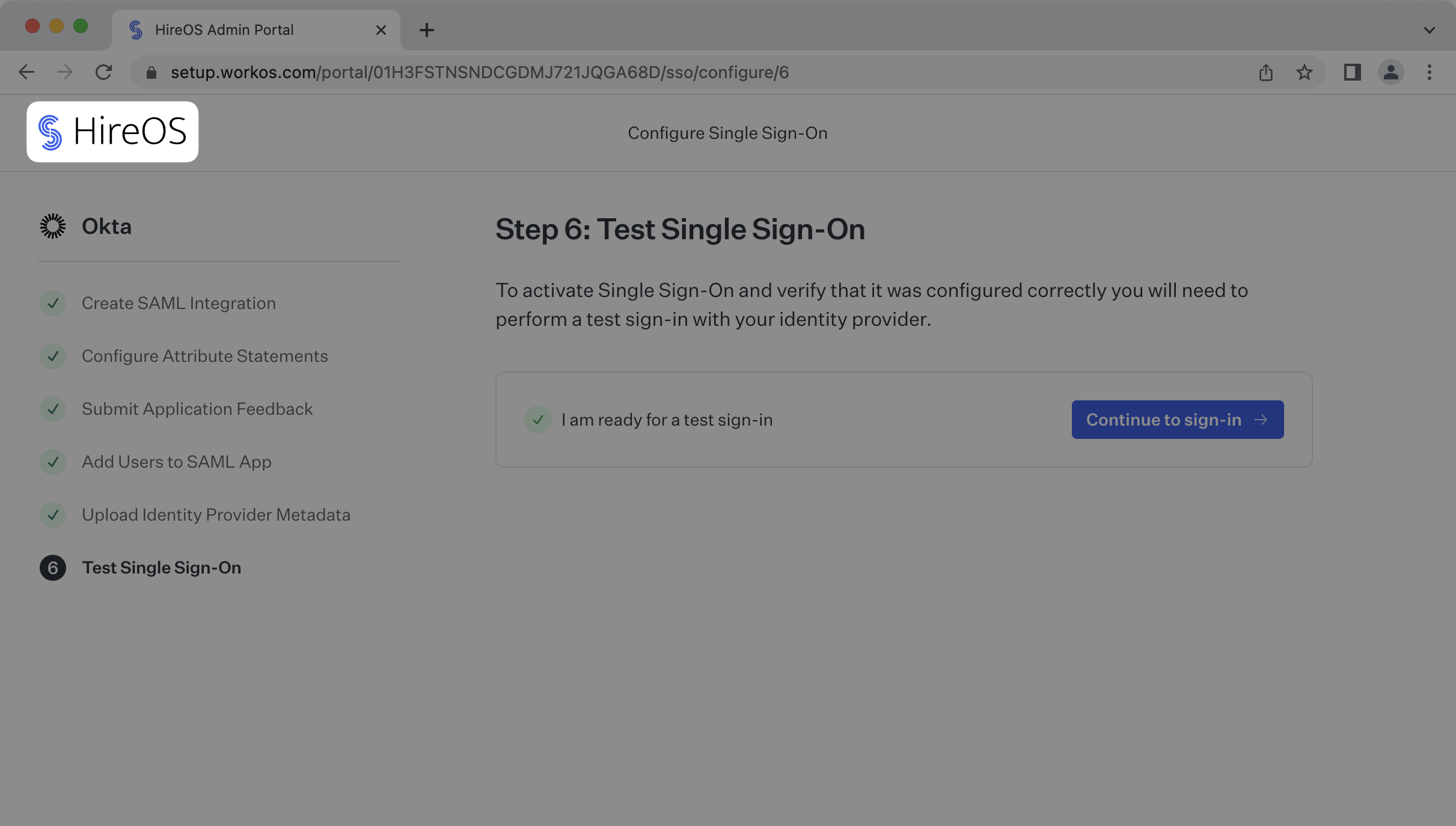
### Logo
Image with your company's logo and wordmark.
- **Usage:** Shown in the top left corner of the Admin Portal.
- **Requirements:** At least 160x160 px (JPG, PNG, or SVG. 100 KB max size)
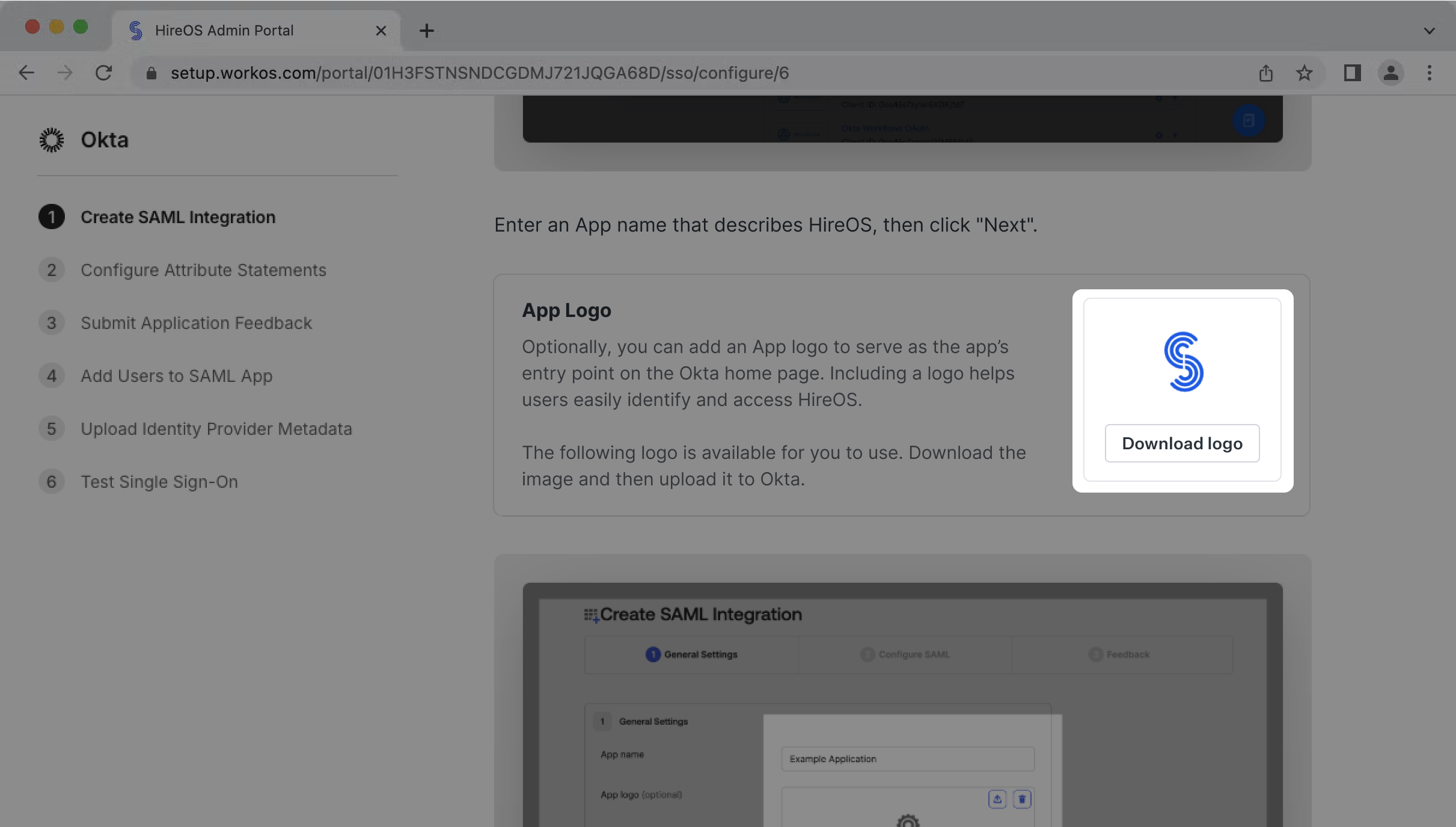
### Logo icon
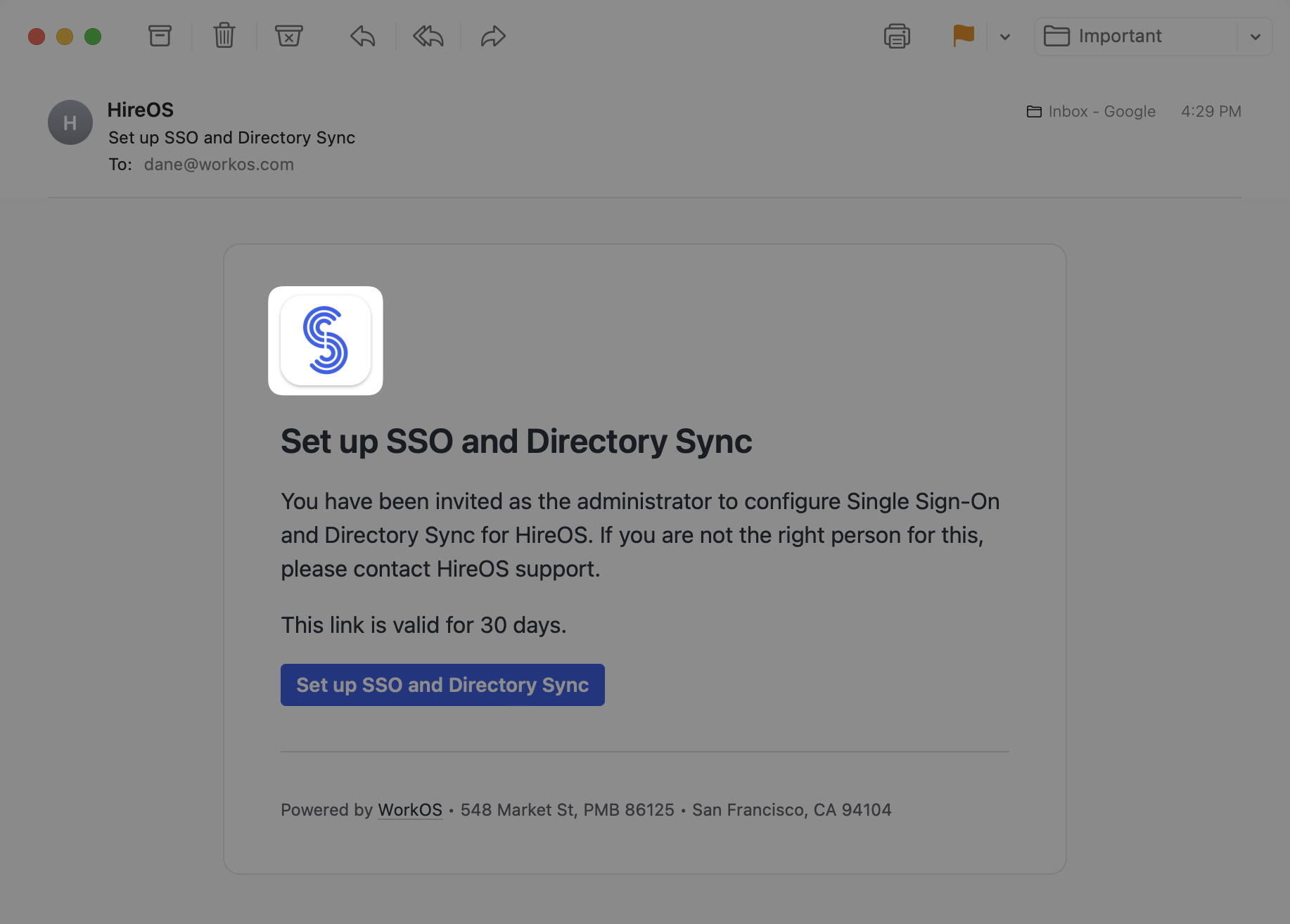
A smaller, square version of the logo. This is often simply the logomark.
- **Usage:**
- Displayed in Admin Portal emails
- Available for IT admins to
download from the Admin Portal for configuring IdP-initiated SSO in Okta,
Entra ID and Google Workspace.
- **Requirements:** At least 160x160 px with a
1:1 aspect ratio (JPG, PNG, or SVG. 100 KB max size)
### Favicon
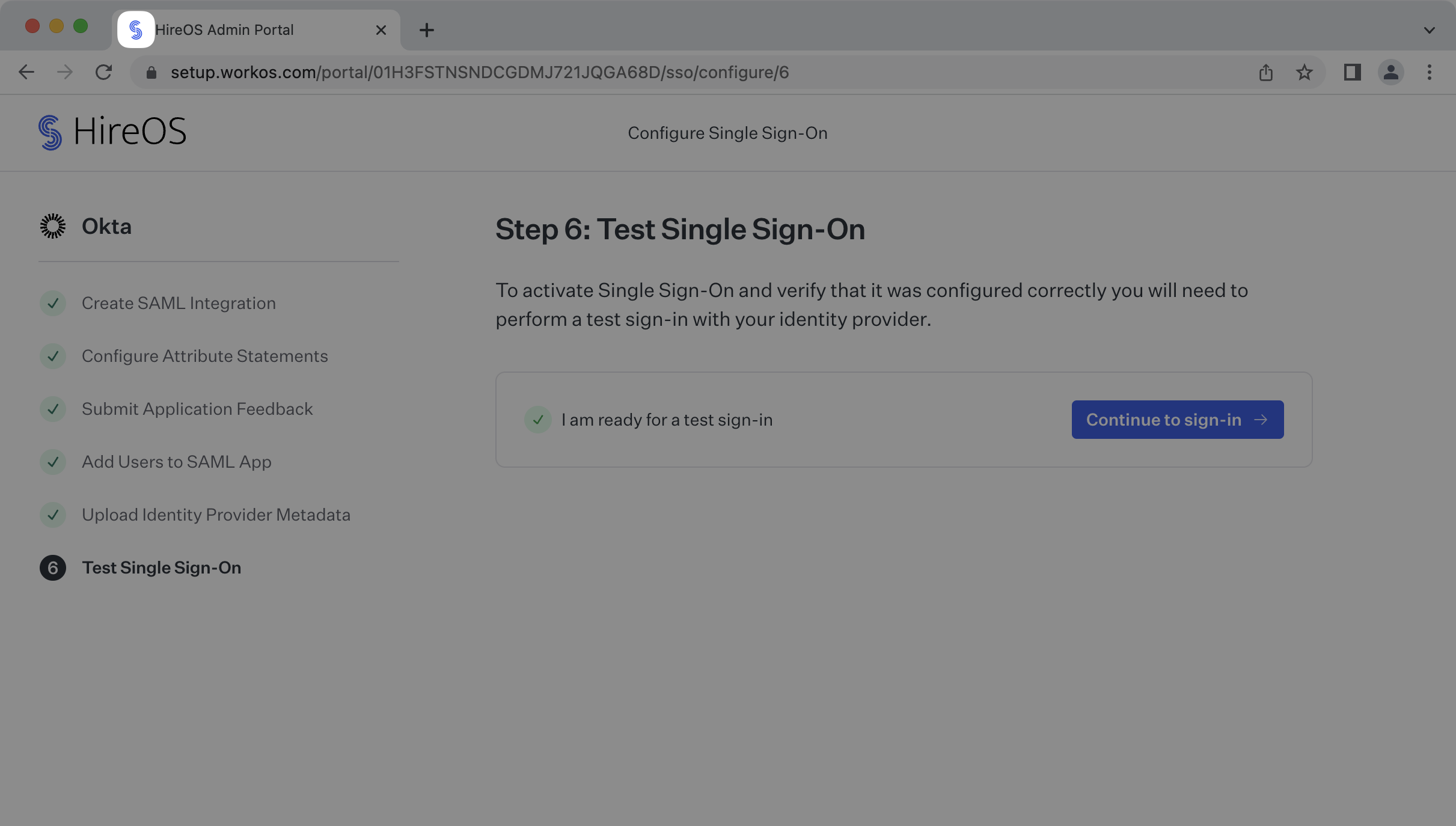
A small icon that serves as branding for your website.
- **Usage:** Displayed in the address bar of the Admin Portal website.
- **Requirements:** At least 32x32 px with a 1:1 aspect ratio (JPG, PNG, GIF, SVG, WebP, AVIF, or ICO. 100 KB max size)
### Brand color
Hex value used as the background color for buttons in the Admin Portal and emails.


## Custom domains
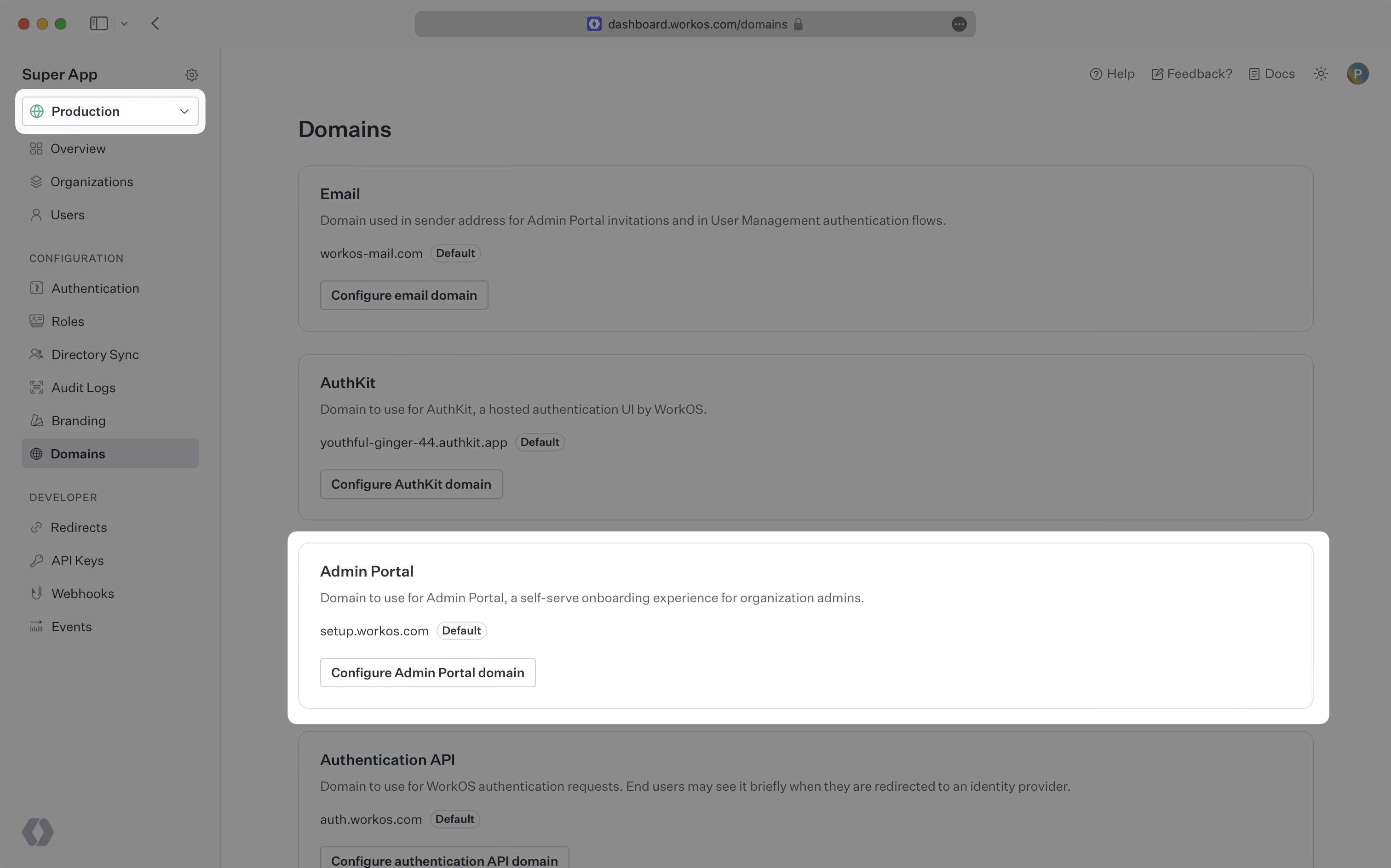
WorkOS allows you to customize the domain you send API calls to, the domain used by the Admin Portal, and the from address used in emails sent to your customer's IT admin.
### Auth link domain
Controls the domain you send API calls to and the domain used in URL’s that face your customer’s IT admin such as ACS URL and SP Entity ID.
### Admin Portal domain
Controls the domain of Admin Portal setup links and Admin Portal sessions opened by your customer’s IT admin.
### Email domain
Controls the from address for emails sent to your customer's IT admin.
To configure custom domains, please reach out to [customer support](mailto:support@workos.com) for assistance.
## Team name
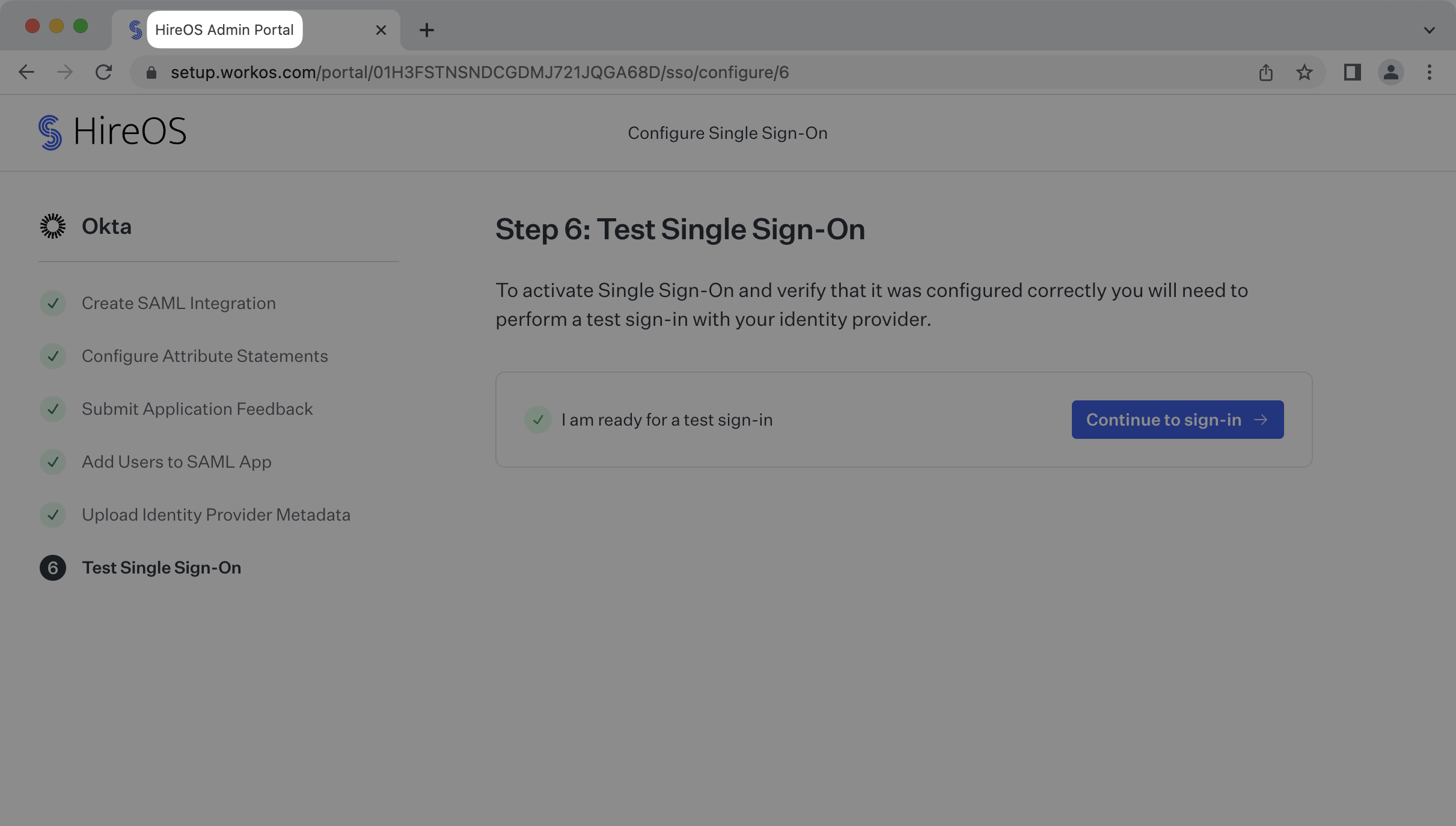
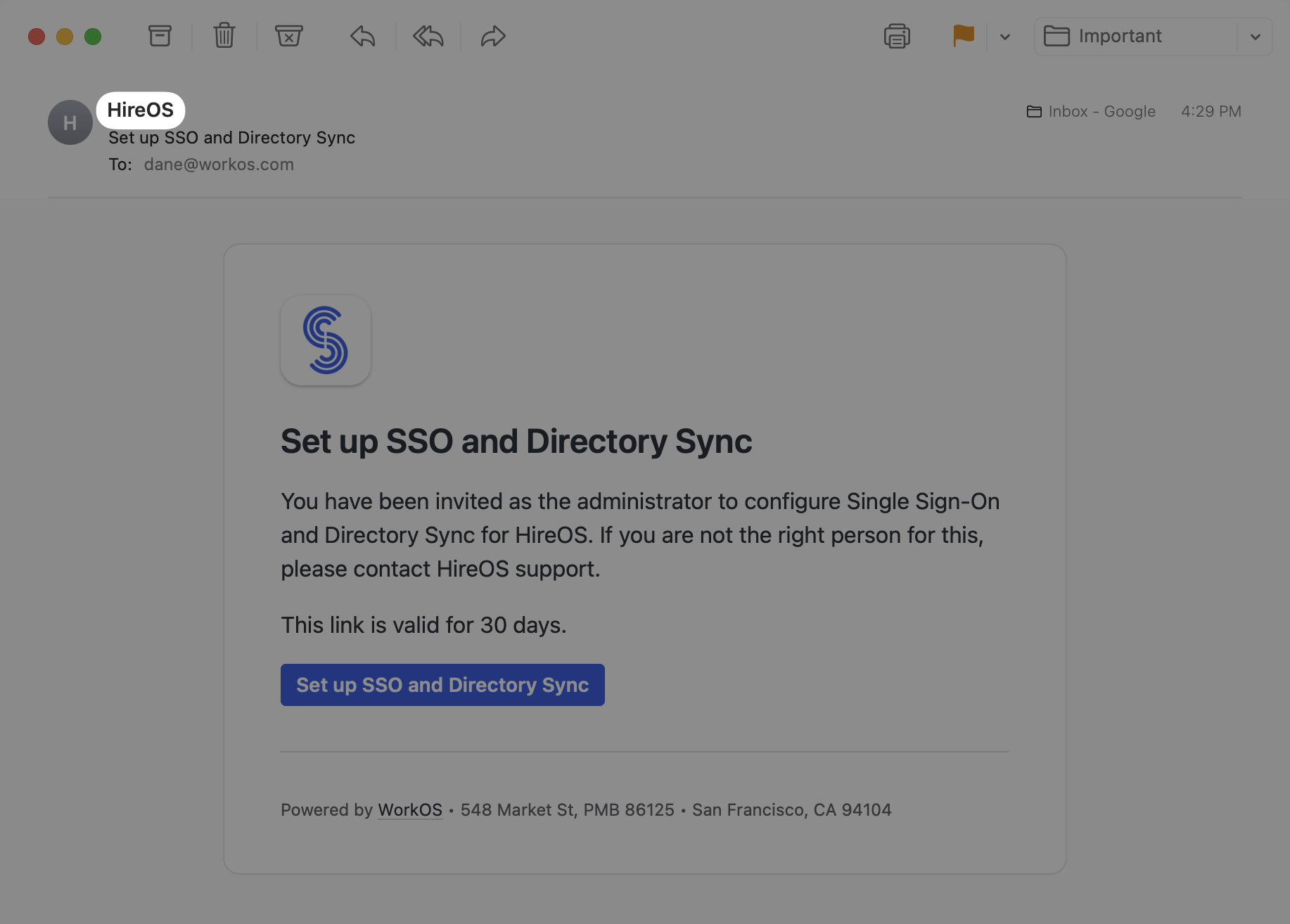
Your team name is visible in the Admin Portal and in the emails received by your customers’ organization admins.
## Support email address
Add a support email in the Dashboard to streamline communication with your customers’ organization admins. This email will be included in the footer of messages sent to them and set as the reply-to address, making it easy for admins to reach out with any questions.