
Docs • Demo • CodeSandbox • Video tutorial
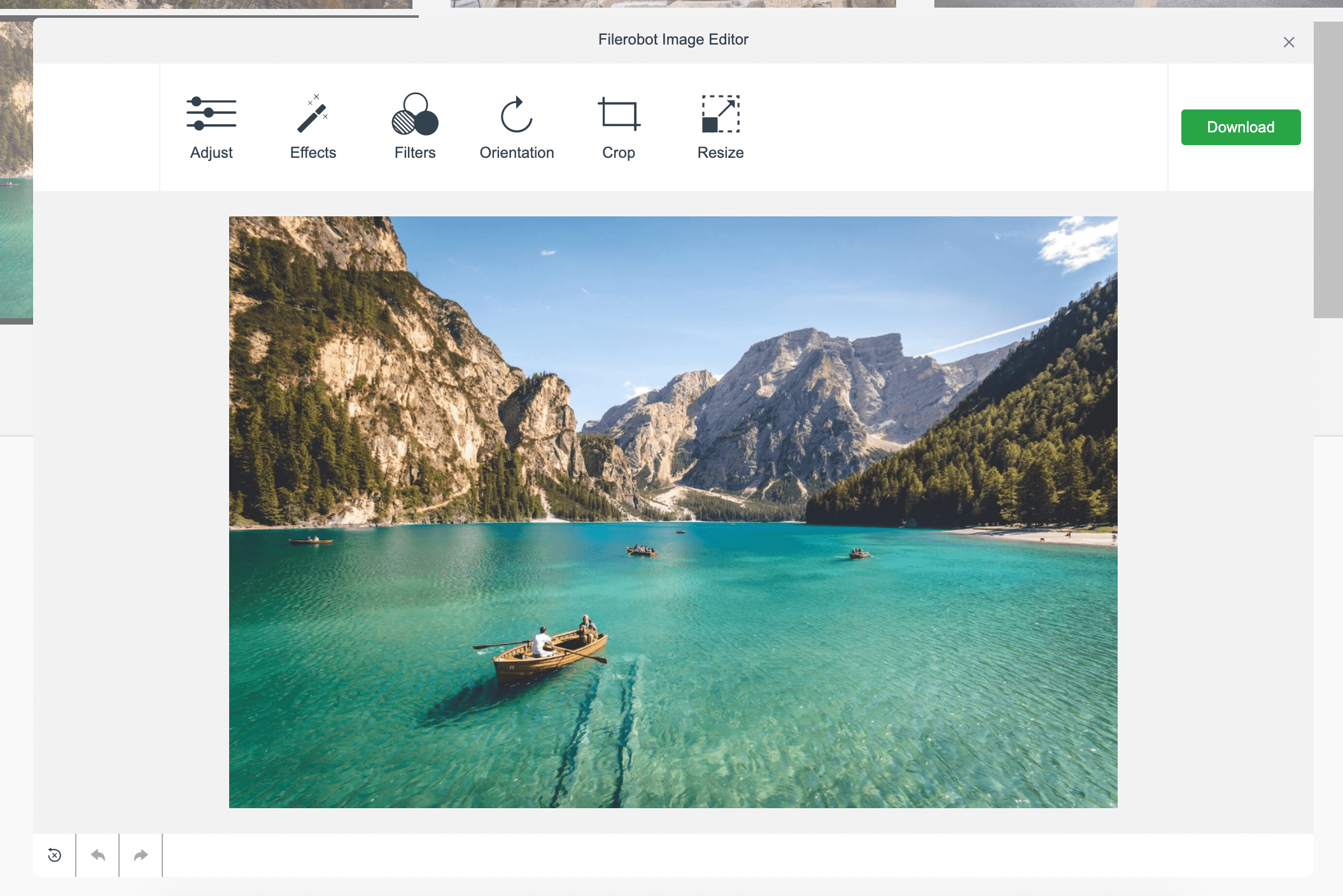
The Filerobot Image Editor is the easiest way to integrate an easy-to-use image editor in your web application. Integrated with few lines of code, your users will be able to apply basic transformations like resize, crop, rotate and various filters to any image.
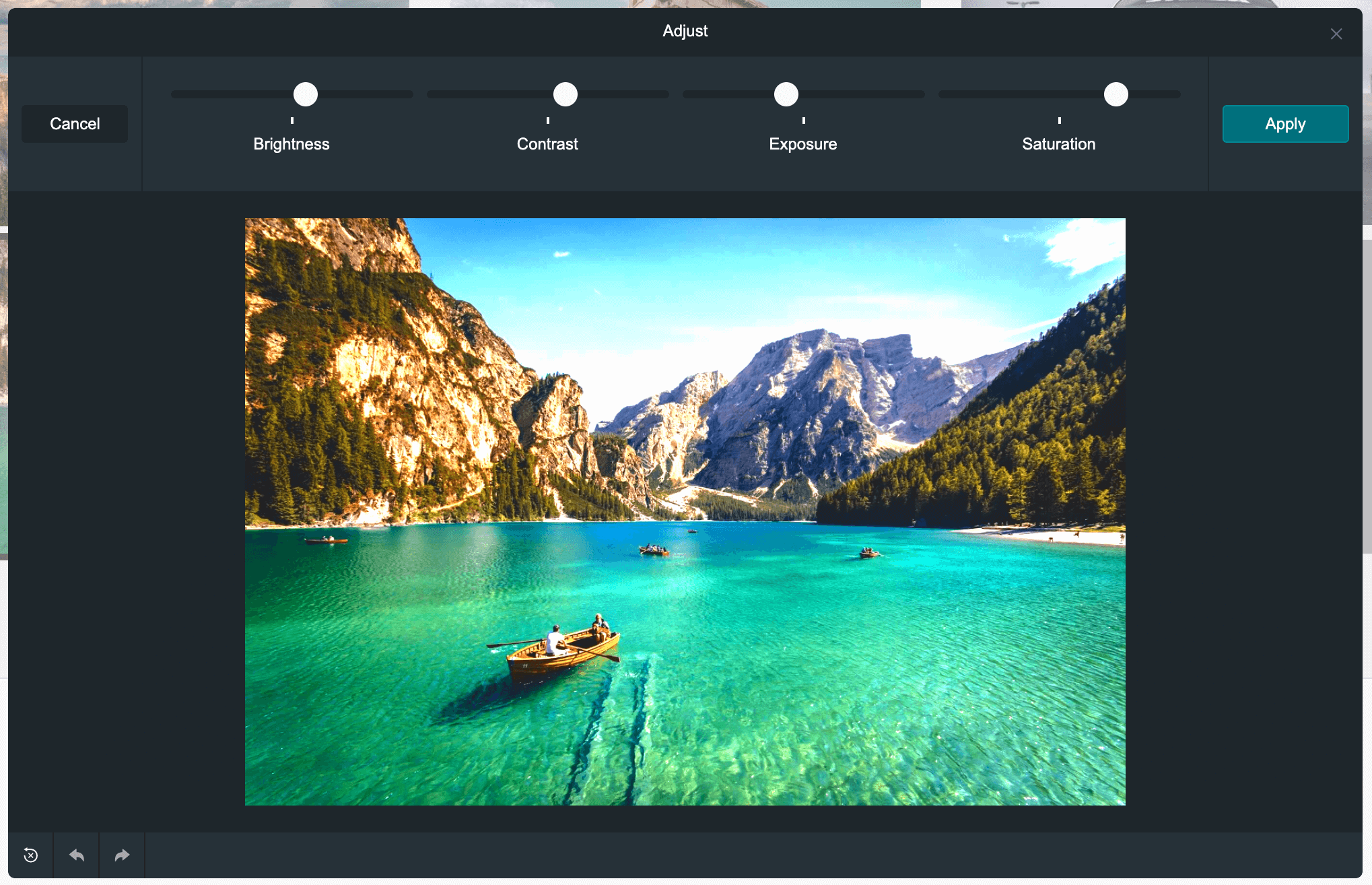 ### Effects
`edge enhance`, `emboss`, `grungy`, `hazy`, `lomo`, `radial blur`, `sin city`, `tilt shift`
### Effects
`edge enhance`, `emboss`, `grungy`, `hazy`, `lomo`, `radial blur`, `sin city`, `tilt shift`
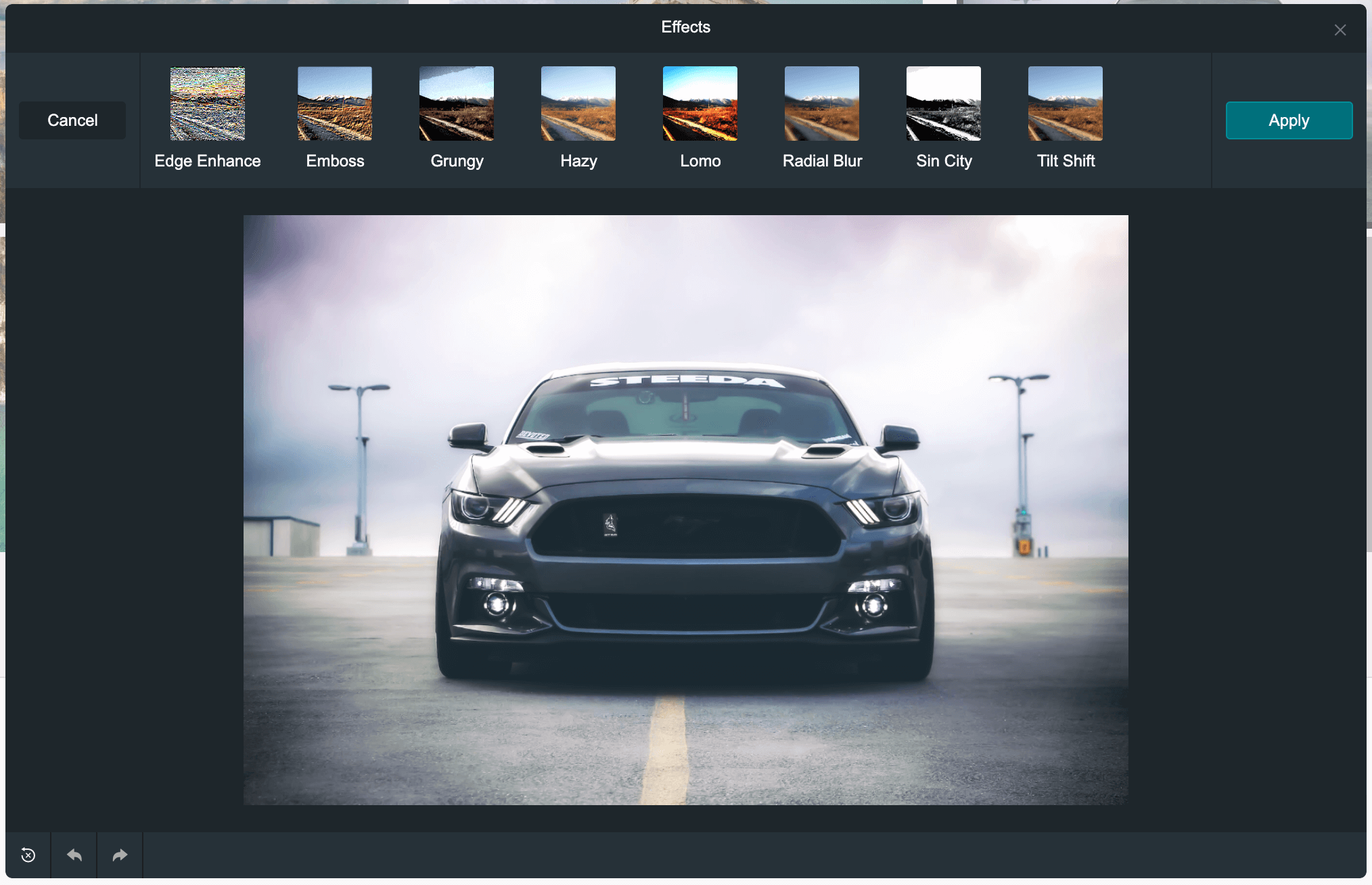 ### Filters
`cross process`, `glow sun`, `jarques`, `love`, `old boot`, `orange peel`, `pin hole`, `sepia`, `sun rise`, `vintage`
### Filters
`cross process`, `glow sun`, `jarques`, `love`, `old boot`, `orange peel`, `pin hole`, `sepia`, `sun rise`, `vintage`
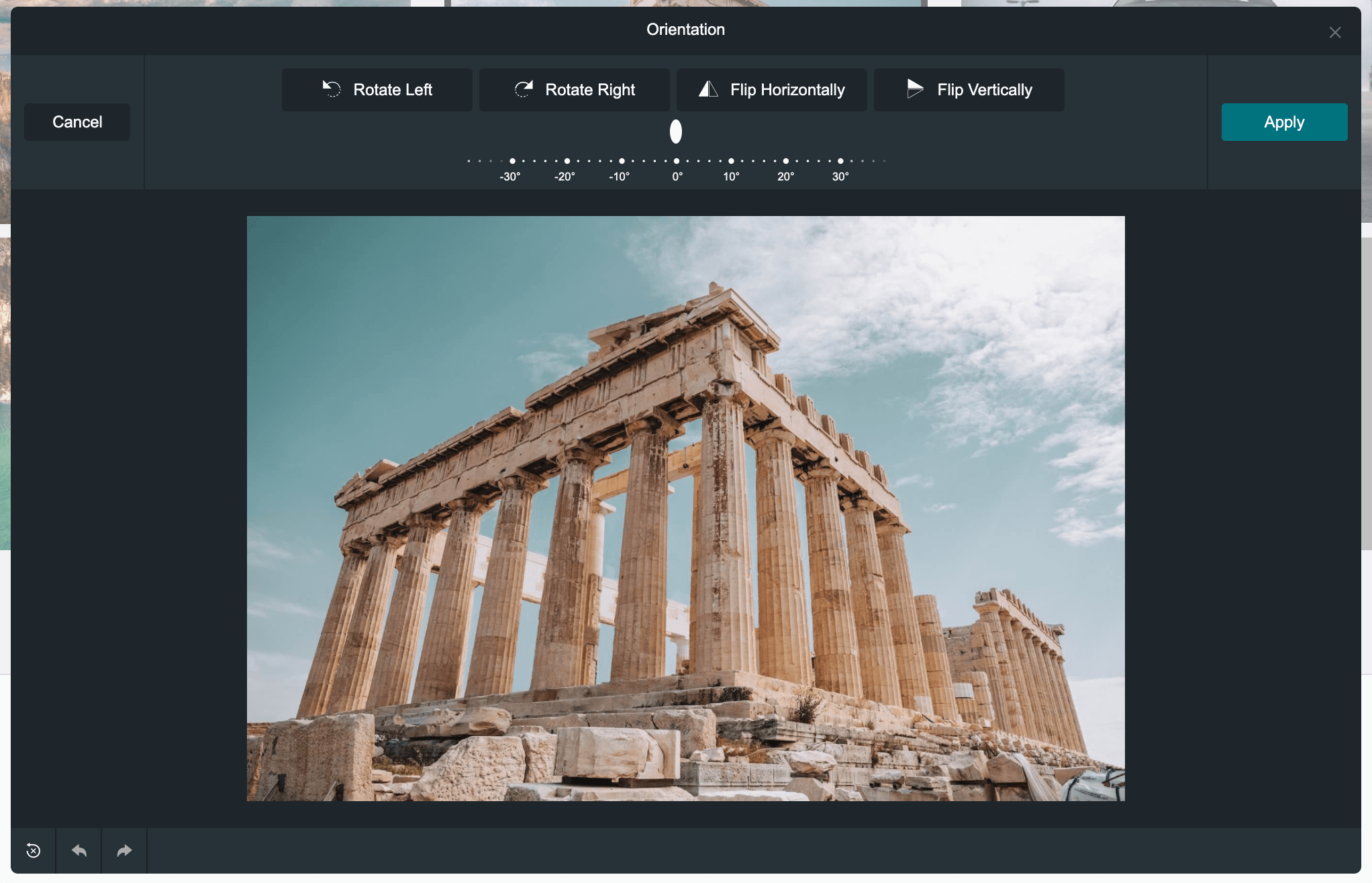
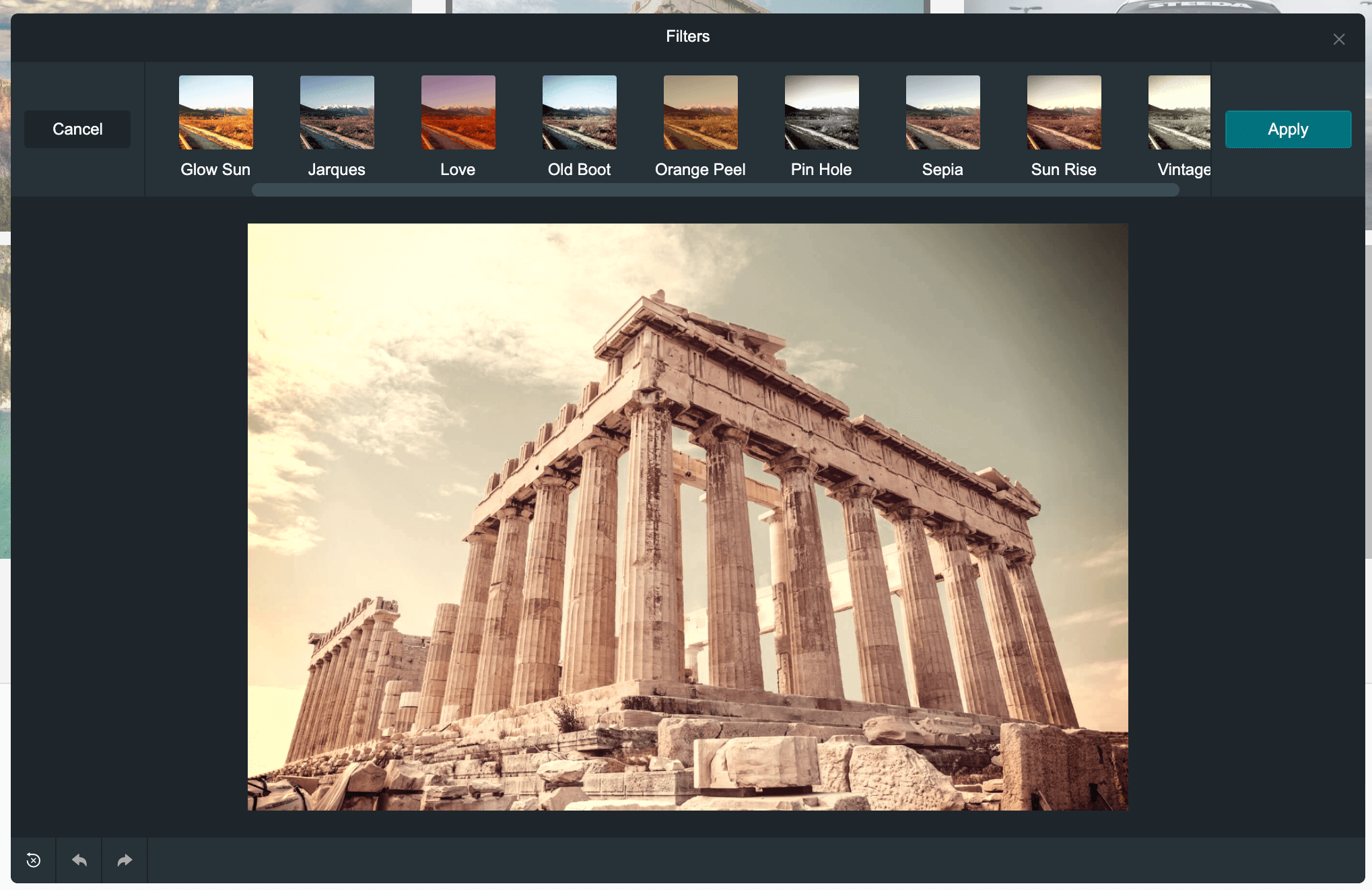 ### Orientation
`rotate` and `flip` (mirror effect)
### Orientation
`rotate` and `flip` (mirror effect)
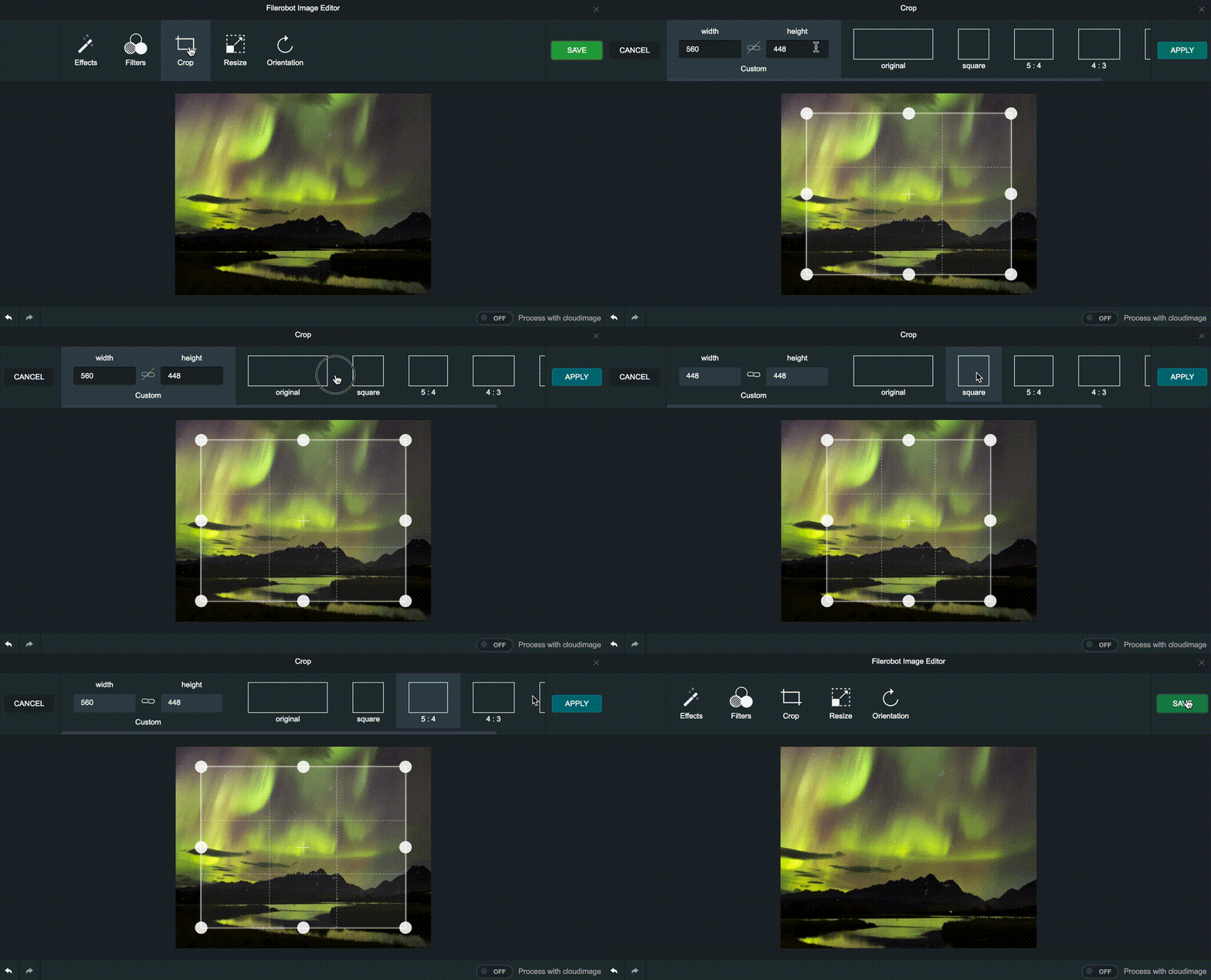
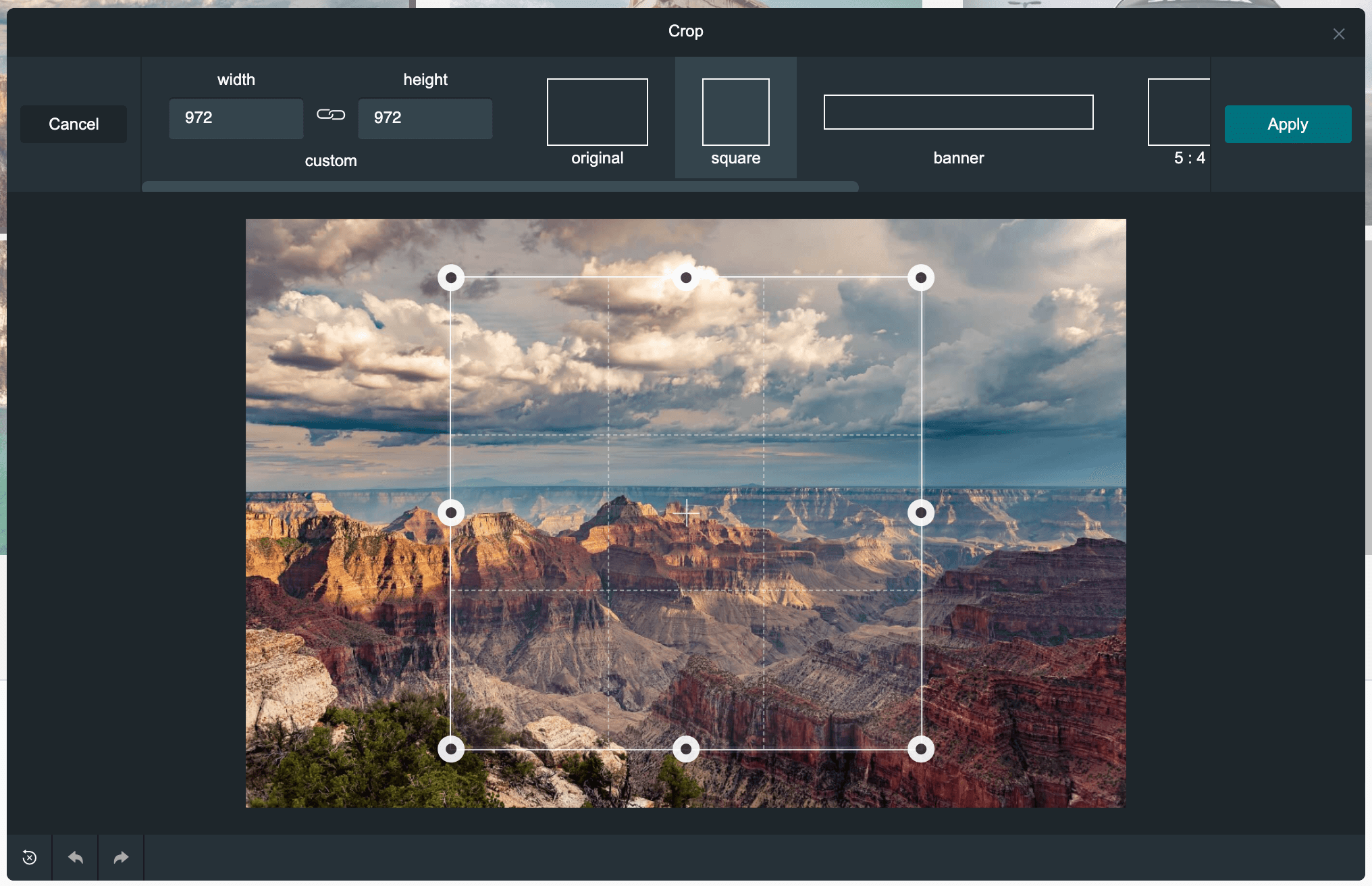
 ### Crop
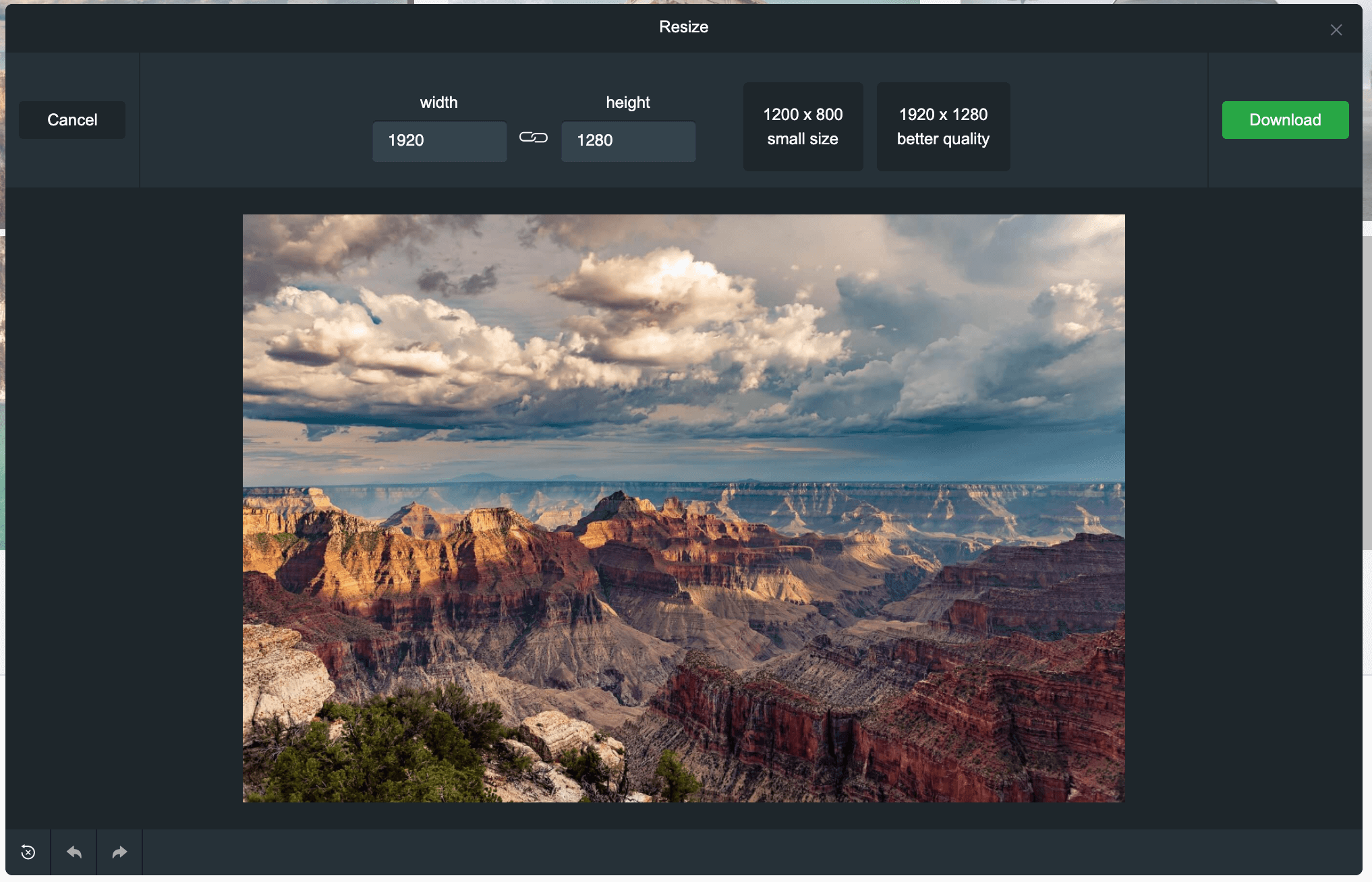
 ### Resize
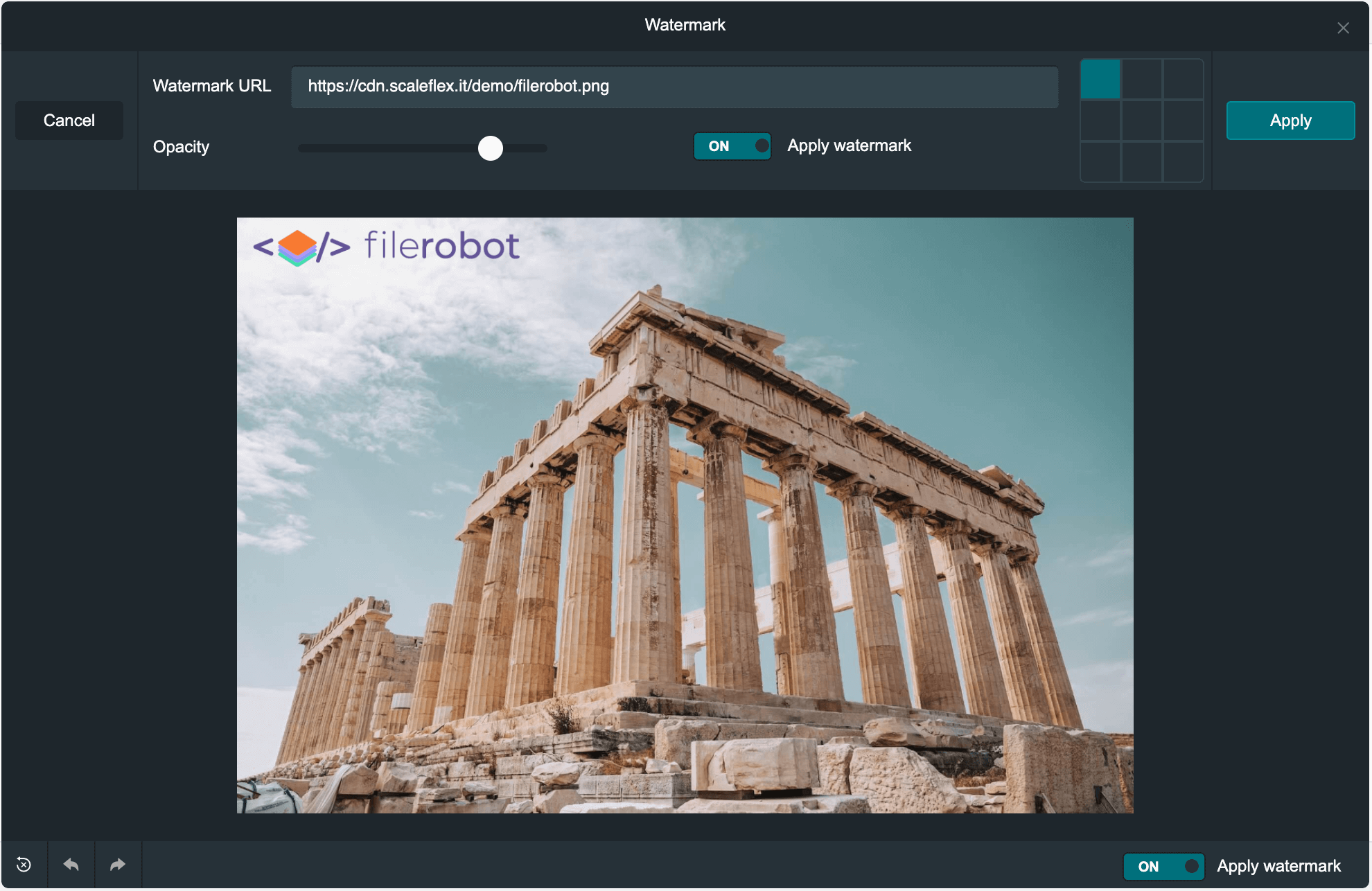
 ### Watermark
 ### Light theme
or use your custom color scheme
### Light theme
or use your custom color scheme
 ## Standalone usage
### Installation
Use the latest CDNized plugin version:
```html
```
### Quick start
We provide an easy way to integrate the image editor in your applications:
```html
```
## Standalone usage
### Installation
Use the latest CDNized plugin version:
```html
```
### Quick start
We provide an easy way to integrate the image editor in your applications:
```html
```
 ### Methods
#### `FilerobotImageEditor(config: {}, callbacks: {})`: function
Initialization of Filerobot Image Editor plugin.
**`callbacks.onOpen(src: string/blob)`**: function - triggered when modal is opened
**`callbacks.onBeforeComplete({ status: string, imageName: string, imageMime: string, canvas: canvas element })`**: function - triggered before onComplete; if it returns `false`, it cancels the default behaviour and you can use canvas element to upload to a 3rd-party service
**`callbacks.onComplete(url: string, file: object)`**: function - triggered on completion and returnes the URL of the edited image
**`callbacks.onError(errorResponse: object)`**: function - triggered on having an error while uploading an image through filerobot or cloudimage.
**callbacks.onClose({ status })**: function - is triggered when modal is closed
##### status: the behavior/way the modal closed through
one of the following values would be returned depending on the case,
'close-button-clicked' => When modal is closed through clicking over the close button.
'toolbar-cancel-button-clicked' => When modal is closed through clicking over cancel button of toolbar (if shown).
'esc-key-pressed' => When modal is closed through pressing escape key.
'modal-overlay-clicked' => When modal is closed through clicking over the modal's overlay.
'image-edits-completed' => When modal is closed after finishing the edits of the image and not downloaded or uploaded.
'image-downloaded' => When modal is closed after the image is downloaded.
'image-uploaded-filerobot' => When modal is closed after uploading the image to Filerobot.
'image-uploaded-cloudimage'=> When modal is closed after uploading the image to Cloudimage.
'image-uploading-fail-filerobot' => When modal is closed after failing the uploading to Filerobot.
#### `ImageEditor.open(url)`: function
Open editor modal.
* **`url`**: string (required) - the URL of the image to be edited
#### `ImageEditor.close()`: function
Close editor modal.
#### `ImageEditor.unmount()`: function
Destroy the editor
## React component usage
### Installation
```
$ npm install --save filerobot-image-editor
```
### Quick start
We provide an easy way to integrate the image editor in your applications:
```javascript
import React, { useState } from 'react';
import { render } from 'react-dom';
import FilerobotImageEditor from 'filerobot-image-editor';
const App = () => {
const src = 'https://scaleflex.airstore.io/demo/stephen-walker-unsplash.jpg';
const [show, toggle] = useState(false);
return (
### Methods/Properties
#### `show`: bool (required)
**default**: false
Trigger, to display the image editor widget.
#### `config`: object
Image editor config.
#### `onClose()`: function (required)
Callback, triggers on closing the image editor widget.
#### `onOpen()`: function (optional)
Callback, triggers on opening the image editor widget.
#### `onComplete()`: function (required)
Callback, triggers on completing processing an image.
#### `onError()`: function (required)
Callback, triggers on having an error while uploading an image through filerobot or cloudimage.
## Configuration
### `tools`: [string]
**default**: ['adjust', 'effects', 'filters', 'rotate', 'crop', 'resize', 'watermark', 'shapes', 'image', 'text']
Filerobot Image Editor tools.
```
config.tools = ['adjust', 'effects', 'filters', 'rotate'];
```
### `isLowQualityPreview`: bool
**default**: true
Helps to improve performance of the Image Editor by applying transformations to a low-quality preview.
```
config.isLowQualityPreview = true;
```
### `language`: string
**default**: 'en'
Language of interface
available languages: en (fr, de, ru are in progress), you can add translations [by yourself](#translations-object)
```
config.language = 'en';
```
### `translations`: object
Key/translation pairs for i18n
```
config.translations = {
en: {
'toolbar.save': 'Save',
'toolbar.apply': 'Apply',
...
}
};
```
[See all translation keys here](https://github.com/scaleflex/filerobot-image-editor/blob/master/src/assets/i18n/en.js)
### `reduceBeforeEdit`: object
In order to improve performance when editing your images, you can reduce the image size before editing.
**default**: mode: 'manual', widthLimit: 2000px, heightLimit: 2000px
```
config.reduceBeforeEdit = {
mode: 'manual',
widthLimit: 2000,
heightLimit: 2000
};
```
##### `reduceBeforeEdit.mode`: string | 'manual', 'auto' - Manual mode will show a modal before editing where you can reduce size of the image. Auto mode will reduce the image in the background (saving image proportion).
##### `reduceBeforeEdit.widthLimit`: number - Limit of the image width
##### `reduceBeforeEdit.heightLimit`: number - Limit of the image height
### `watermark`: object
Add watermark on the image after applying image transformations.
**default**: null
##### `watermark.url`: string - url of the logo/image
##### `watermark.urls`: [url|{ url, label }] - list of url of the logo/image preset to select from in editor
##### `watermark.position`: string | default: 'right-top'; 'right-top', 'left-top', 'center-top', 'right-top', 'left-center', 'center', 'right-center', 'left-bottom', 'center-bottom', 'right-bottom' - position of the watermark
##### `watermark.opacity`: number | [0-1] - opacity of the watermark
##### `watermark.applyByDefault`: bool - apply by default
##### `watermark.activePositions`: string - 'corners', 'star', 'center', 'top-row', 'center-row', 'bottom-row' - select a preset or apply an array with 9 positons [1,1,1,1,1,1,1,1,1]
##### `watermark.handleOpacity`: boolean - default is true, hide or show the opacity range
##### `watermark.imageFilter`: function - default is null, pass a function that gets the image resource before draw and return a manipulated image (pass some fancy filter on the watermark)
##### `watermark.defaultText`: string - the default text that would be added as a text watermark
##### `watermark.fonts`: array - the fonts that would be shown & used in text watermark
##### `watermark.lockScaleToPercentage`: number | [0, 50, 100...etc] - default is 0 (don't scale the image & don't prevent user scaling), A percentage value to use in auto scaling the watermark's image width & height with preventing the ability to resize/scale the watermark's image for the user.
example: [{ label: 'Arial', value: 'Arial' }]
```
config.watermark = {
url: 'https://jolipage002-global.api.airstore.io/v1/get/_/04e725a5-8605-57d5-bf9b-b161745e7720/6d3f41ddc2c1271cb4fede2b7cc8323bec97a3c69f89fd1dd881c5bb9460d9c6.png',
position: 'center',
opacity: 0.7,
defaultText: 'Filerobot.....'
};
```
### `colorScheme`: string | 'dark', 'light'
**default**: 'dark'
Color schemes; currently two themes are available: 'dark', 'light'. There is a possibility to create your custom theme [here](https://github.com/scaleflex/filerobot-image-editor#theme-object).
### `theme`: object
Possibility to make your custom theme [See the example here](https://github.com/scaleflex/filerobot-image-editor/blob/master/src/assets/theme/dark.js).
example:
```
config.theme = {
colors: {
primaryBg: '#ffffff',
primaryBgHover: '#f2f2f2',
secondaryBg: '#F8FAFB',
secondaryBgHover: '#DFE7ED',
secondaryBgOpacity: 'rgba(255,255,255, 0.75)',
text: '#5D6D7E',
textHover: '#1a2329',
textMute: '#aaa',
textWarn: '#f7931e',
accent: '#D5D8DC',
button: {
primary: '#6879EB',
secondary: '#ffffff',
border: 'transparent',
hover: '#5064ea',
active: '#3c4ec7'
},
border: '#DFE7ED',
borderLight: '#e1e1e1',
disabledBg: 'rgba(255, 0, 0, 0.1)',
},
fonts: [
{ label: 'Arial', value: 'Arial' },
{ label: 'Tahoma', value: 'Tahoma' },
{ label: 'Times New Roman', value: 'Times New Roman'},
{ label: 'Courier', value: 'Courier' },
{ label: 'Courier New', value: 'Courier New' },
{ label: 'Verdana', value: 'Verdana' }
]
};
```
### `cropPresets`: object
Add custom crop templates. [See the example here](https://github.com/scaleflex/filerobot-image-editor/blob/master/src/assets/templates/cropPresets.js)
### `resizePresets`: object
Add custom resize templates. [See the example here](https://github.com/scaleflex/filerobot-image-editor/blob/master/src/assets/templates/resizePresets.js)
### `beginCropArea`: number | [0-1] - default: 1 (image size)
The crop area size shown/used automatically on starting crop.
### `minCropAreaWidth`: number | default: undefined (no minimum)
The minimum size in pixels for crop area's width custom resizing, the user won't be able to resize the crop area width less than that size unless the crop area is resized through some crop preset.
### `minCropAreaHeight`: number | default: undefined (no minimum)
The minimum size in pixels for crop area's height custom resizing, the user won't be able to resize the crop area height less than that size unless the crop area is resized through some crop preset.
### `showInModal`: bool
**default**: true
Show the editor in modal `true`,
or in an element of the page if the value is `false` in that case for `JS version` the value of `elementId` prop would be used to show the editor inside that element if the element isn't found it would be created and appended at the end of the page's body, For `React version` the editor would be shown in the place where the component is called.
### `elementId`: string (JS version)
**default**: filerobot-image-editor (|-cloudimage (in case of using cloudimage) |-uploader (in case of using filerobot uploader)
The id used for the editor's wrapper element whether it's inside a modal or an element if it's not found on the page it's created and appended to body, please note the appending of -[cloudimage/uploader] string to filerobot-image-editor if you are using any of the services without assigning your own elementId.
### `noCapitalStrs`: bool
**default**: false
Disabling the auto capitalizing of first letter of strings using (text-transform) css property
### `replaceCloseWithBackButton`: boolean
**default**: false
Removes the iconed close button on the top right & replaces it with an iconed back button on the top left.
### `finishButtonLabel`: string
**default**: download for default mode - save for other modes
The label shown in the finish button that triggers the completition methods & finish editing.
## Filerobot Integration
Upload the image in your Filerobot storage container, edit it in the Image Editor and upload the result.
Deliver lightning fast over CDN.
The example of Image Editor configuration using Filerobot service can be found
[here](https://github.com/scaleflex/filerobot-image-editor/tree/master/examples/js-with-filerobot).
[Learn more about Filerobot](https://www.filerobot.com/en/home)
## Cloudimage Integration
Point the Image Editor to your origin image URL, edit it and deliver the result lightning fast over the Cloudimage image CDN.
Limited to the Cloudimage inline transformation features.
The example of Image Editor configuration using the Cloudimage service can be found
[here](https://github.com/scaleflex/filerobot-image-editor/tree/master/examples/js-with-cloudimage).
[Learn more about Cloudimage](https://www.cloudimage.io/en/home)
## Cloudimage URL params sealing
When using Cloudimage along with the Filerobot Image Editor (config.processWithCloudimage: true), additional capabilities are available. One such example is the URL parameter sealing.
URL parameter sealing offers you a mechanism of encoding some or all of the URL parameters (watermarks, resizing, filters, etc.). This way, you are protecting your origin images so they cannot be delivered without the respective transformations.
When sealing is configured, you will see two extra URL parameters: ci_seal (calculated hash of the protected query string) and ci_eqs (encrypted data).
### Configuration for sealing:
### `filerobot.token`: string
**default**: ''
The token for which URL sealing is configured and activated.
### `filerobot.version`: string
**default**: ''
URL sealing is available from v7.
### `imageSealing.enabled`: bool
**default**: false
### `imageSealing.salt`: string
**default**: ''
The salt string is set upon configuration and is used for the encryption.
### `imageSealing.char_count`: number
**default**: 10
Calculated hash (URL ci_seal parameter) length.
### `imageSealing.include_params`: string[] | null
**default**: null
URL parameters to be sealed. By default (when it's null), all parameters will be sealed. Alternatively, you can set a list of parameters, for example: ['wat_url']. This way, you can freely append additional transformations to the URL (the sealed parameters cannot be overwritten).
### Example:
```
config = {
filerobot: {
token: 'your-sealing-token',
version: 'v7',
},
imageSealing: {
enabled: true,
salt: 'some-salt-str',
char_count: 10,
include_params: ['wat', 'wat_url', 'wat_opacity', 'wat_scale', 'wat_pad', 'wat_gravity'],
},
}
```
## What's on the Roadmap for the near future
Features
* Control image brightness, contrast, exposure, and saturation _(done in v3.0.0)_
* Bright theme, plus possibility to make your custom theme _(done in v3.0.0)_
* Rounds the corners of images
* Mirror images effect _(done in v3.0.0)_
* New filters and effects
* Load file objects and dataURLs
* Transform input images to other image formats
* Easily integrate with third party libraries
* Compress JPEG images via Optipress
* Set to preview mode to render on top of an existing image
* Watermarking _(done in v3.0.0)_
* Configurable resize/crop templates _(done in v3.0.0)_
* Correct degree of an image _(done in v3.0.0)_
Adapters
* Vanilla JS _(done)_
* React _(done)_
* Angular
* Vue
* Web Component
## Filerobot UI Familiy
* [Image Uploader](https://github.com/scaleflex/filerobot-uploader)
* [JS Cloudimage Responsive](https://github.com/scaleflex/js-cloudimage-responsive)
* [JS Cloudimage 360 view](https://github.com/scaleflex/js-cloudimage-360-view)
* [React Cloudimage Responsive](https://github.com/scaleflex/react-cloudimage-responsive)
* [Angular Cloudimage Responsive](https://github.com/scaleflex/ng-cloudimage-responsive)
## Contributing!
All contributions are super welcome!
## License
Filerobot Image Editor is provided under the [MIT License](https://opensource.org/licenses/MIT)
### Methods
#### `FilerobotImageEditor(config: {}, callbacks: {})`: function
Initialization of Filerobot Image Editor plugin.
**`callbacks.onOpen(src: string/blob)`**: function - triggered when modal is opened
**`callbacks.onBeforeComplete({ status: string, imageName: string, imageMime: string, canvas: canvas element })`**: function - triggered before onComplete; if it returns `false`, it cancels the default behaviour and you can use canvas element to upload to a 3rd-party service
**`callbacks.onComplete(url: string, file: object)`**: function - triggered on completion and returnes the URL of the edited image
**`callbacks.onError(errorResponse: object)`**: function - triggered on having an error while uploading an image through filerobot or cloudimage.
**callbacks.onClose({ status })**: function - is triggered when modal is closed
##### status: the behavior/way the modal closed through
one of the following values would be returned depending on the case,
'close-button-clicked' => When modal is closed through clicking over the close button.
'toolbar-cancel-button-clicked' => When modal is closed through clicking over cancel button of toolbar (if shown).
'esc-key-pressed' => When modal is closed through pressing escape key.
'modal-overlay-clicked' => When modal is closed through clicking over the modal's overlay.
'image-edits-completed' => When modal is closed after finishing the edits of the image and not downloaded or uploaded.
'image-downloaded' => When modal is closed after the image is downloaded.
'image-uploaded-filerobot' => When modal is closed after uploading the image to Filerobot.
'image-uploaded-cloudimage'=> When modal is closed after uploading the image to Cloudimage.
'image-uploading-fail-filerobot' => When modal is closed after failing the uploading to Filerobot.
#### `ImageEditor.open(url)`: function
Open editor modal.
* **`url`**: string (required) - the URL of the image to be edited
#### `ImageEditor.close()`: function
Close editor modal.
#### `ImageEditor.unmount()`: function
Destroy the editor
## React component usage
### Installation
```
$ npm install --save filerobot-image-editor
```
### Quick start
We provide an easy way to integrate the image editor in your applications:
```javascript
import React, { useState } from 'react';
import { render } from 'react-dom';
import FilerobotImageEditor from 'filerobot-image-editor';
const App = () => {
const src = 'https://scaleflex.airstore.io/demo/stephen-walker-unsplash.jpg';
const [show, toggle] = useState(false);
return (
### Methods/Properties
#### `show`: bool (required)
**default**: false
Trigger, to display the image editor widget.
#### `config`: object
Image editor config.
#### `onClose()`: function (required)
Callback, triggers on closing the image editor widget.
#### `onOpen()`: function (optional)
Callback, triggers on opening the image editor widget.
#### `onComplete()`: function (required)
Callback, triggers on completing processing an image.
#### `onError()`: function (required)
Callback, triggers on having an error while uploading an image through filerobot or cloudimage.
## Configuration
### `tools`: [string]
**default**: ['adjust', 'effects', 'filters', 'rotate', 'crop', 'resize', 'watermark', 'shapes', 'image', 'text']
Filerobot Image Editor tools.
```
config.tools = ['adjust', 'effects', 'filters', 'rotate'];
```
### `isLowQualityPreview`: bool
**default**: true
Helps to improve performance of the Image Editor by applying transformations to a low-quality preview.
```
config.isLowQualityPreview = true;
```
### `language`: string
**default**: 'en'
Language of interface
available languages: en (fr, de, ru are in progress), you can add translations [by yourself](#translations-object)
```
config.language = 'en';
```
### `translations`: object
Key/translation pairs for i18n
```
config.translations = {
en: {
'toolbar.save': 'Save',
'toolbar.apply': 'Apply',
...
}
};
```
[See all translation keys here](https://github.com/scaleflex/filerobot-image-editor/blob/master/src/assets/i18n/en.js)
### `reduceBeforeEdit`: object
In order to improve performance when editing your images, you can reduce the image size before editing.
**default**: mode: 'manual', widthLimit: 2000px, heightLimit: 2000px
```
config.reduceBeforeEdit = {
mode: 'manual',
widthLimit: 2000,
heightLimit: 2000
};
```
##### `reduceBeforeEdit.mode`: string | 'manual', 'auto' - Manual mode will show a modal before editing where you can reduce size of the image. Auto mode will reduce the image in the background (saving image proportion).
##### `reduceBeforeEdit.widthLimit`: number - Limit of the image width
##### `reduceBeforeEdit.heightLimit`: number - Limit of the image height
### `watermark`: object
Add watermark on the image after applying image transformations.
**default**: null
##### `watermark.url`: string - url of the logo/image
##### `watermark.urls`: [url|{ url, label }] - list of url of the logo/image preset to select from in editor
##### `watermark.position`: string | default: 'right-top'; 'right-top', 'left-top', 'center-top', 'right-top', 'left-center', 'center', 'right-center', 'left-bottom', 'center-bottom', 'right-bottom' - position of the watermark
##### `watermark.opacity`: number | [0-1] - opacity of the watermark
##### `watermark.applyByDefault`: bool - apply by default
##### `watermark.activePositions`: string - 'corners', 'star', 'center', 'top-row', 'center-row', 'bottom-row' - select a preset or apply an array with 9 positons [1,1,1,1,1,1,1,1,1]
##### `watermark.handleOpacity`: boolean - default is true, hide or show the opacity range
##### `watermark.imageFilter`: function - default is null, pass a function that gets the image resource before draw and return a manipulated image (pass some fancy filter on the watermark)
##### `watermark.defaultText`: string - the default text that would be added as a text watermark
##### `watermark.fonts`: array - the fonts that would be shown & used in text watermark
##### `watermark.lockScaleToPercentage`: number | [0, 50, 100...etc] - default is 0 (don't scale the image & don't prevent user scaling), A percentage value to use in auto scaling the watermark's image width & height with preventing the ability to resize/scale the watermark's image for the user.
example: [{ label: 'Arial', value: 'Arial' }]
```
config.watermark = {
url: 'https://jolipage002-global.api.airstore.io/v1/get/_/04e725a5-8605-57d5-bf9b-b161745e7720/6d3f41ddc2c1271cb4fede2b7cc8323bec97a3c69f89fd1dd881c5bb9460d9c6.png',
position: 'center',
opacity: 0.7,
defaultText: 'Filerobot.....'
};
```
### `colorScheme`: string | 'dark', 'light'
**default**: 'dark'
Color schemes; currently two themes are available: 'dark', 'light'. There is a possibility to create your custom theme [here](https://github.com/scaleflex/filerobot-image-editor#theme-object).
### `theme`: object
Possibility to make your custom theme [See the example here](https://github.com/scaleflex/filerobot-image-editor/blob/master/src/assets/theme/dark.js).
example:
```
config.theme = {
colors: {
primaryBg: '#ffffff',
primaryBgHover: '#f2f2f2',
secondaryBg: '#F8FAFB',
secondaryBgHover: '#DFE7ED',
secondaryBgOpacity: 'rgba(255,255,255, 0.75)',
text: '#5D6D7E',
textHover: '#1a2329',
textMute: '#aaa',
textWarn: '#f7931e',
accent: '#D5D8DC',
button: {
primary: '#6879EB',
secondary: '#ffffff',
border: 'transparent',
hover: '#5064ea',
active: '#3c4ec7'
},
border: '#DFE7ED',
borderLight: '#e1e1e1',
disabledBg: 'rgba(255, 0, 0, 0.1)',
},
fonts: [
{ label: 'Arial', value: 'Arial' },
{ label: 'Tahoma', value: 'Tahoma' },
{ label: 'Times New Roman', value: 'Times New Roman'},
{ label: 'Courier', value: 'Courier' },
{ label: 'Courier New', value: 'Courier New' },
{ label: 'Verdana', value: 'Verdana' }
]
};
```
### `cropPresets`: object
Add custom crop templates. [See the example here](https://github.com/scaleflex/filerobot-image-editor/blob/master/src/assets/templates/cropPresets.js)
### `resizePresets`: object
Add custom resize templates. [See the example here](https://github.com/scaleflex/filerobot-image-editor/blob/master/src/assets/templates/resizePresets.js)
### `beginCropArea`: number | [0-1] - default: 1 (image size)
The crop area size shown/used automatically on starting crop.
### `minCropAreaWidth`: number | default: undefined (no minimum)
The minimum size in pixels for crop area's width custom resizing, the user won't be able to resize the crop area width less than that size unless the crop area is resized through some crop preset.
### `minCropAreaHeight`: number | default: undefined (no minimum)
The minimum size in pixels for crop area's height custom resizing, the user won't be able to resize the crop area height less than that size unless the crop area is resized through some crop preset.
### `showInModal`: bool
**default**: true
Show the editor in modal `true`,
or in an element of the page if the value is `false` in that case for `JS version` the value of `elementId` prop would be used to show the editor inside that element if the element isn't found it would be created and appended at the end of the page's body, For `React version` the editor would be shown in the place where the component is called.
### `elementId`: string (JS version)
**default**: filerobot-image-editor (|-cloudimage (in case of using cloudimage) |-uploader (in case of using filerobot uploader)
The id used for the editor's wrapper element whether it's inside a modal or an element if it's not found on the page it's created and appended to body, please note the appending of -[cloudimage/uploader] string to filerobot-image-editor if you are using any of the services without assigning your own elementId.
### `noCapitalStrs`: bool
**default**: false
Disabling the auto capitalizing of first letter of strings using (text-transform) css property
### `replaceCloseWithBackButton`: boolean
**default**: false
Removes the iconed close button on the top right & replaces it with an iconed back button on the top left.
### `finishButtonLabel`: string
**default**: download for default mode - save for other modes
The label shown in the finish button that triggers the completition methods & finish editing.
## Filerobot Integration
Upload the image in your Filerobot storage container, edit it in the Image Editor and upload the result.
Deliver lightning fast over CDN.
The example of Image Editor configuration using Filerobot service can be found
[here](https://github.com/scaleflex/filerobot-image-editor/tree/master/examples/js-with-filerobot).
[Learn more about Filerobot](https://www.filerobot.com/en/home)
## Cloudimage Integration
Point the Image Editor to your origin image URL, edit it and deliver the result lightning fast over the Cloudimage image CDN.
Limited to the Cloudimage inline transformation features.
The example of Image Editor configuration using the Cloudimage service can be found
[here](https://github.com/scaleflex/filerobot-image-editor/tree/master/examples/js-with-cloudimage).
[Learn more about Cloudimage](https://www.cloudimage.io/en/home)
## Cloudimage URL params sealing
When using Cloudimage along with the Filerobot Image Editor (config.processWithCloudimage: true), additional capabilities are available. One such example is the URL parameter sealing.
URL parameter sealing offers you a mechanism of encoding some or all of the URL parameters (watermarks, resizing, filters, etc.). This way, you are protecting your origin images so they cannot be delivered without the respective transformations.
When sealing is configured, you will see two extra URL parameters: ci_seal (calculated hash of the protected query string) and ci_eqs (encrypted data).
### Configuration for sealing:
### `filerobot.token`: string
**default**: ''
The token for which URL sealing is configured and activated.
### `filerobot.version`: string
**default**: ''
URL sealing is available from v7.
### `imageSealing.enabled`: bool
**default**: false
### `imageSealing.salt`: string
**default**: ''
The salt string is set upon configuration and is used for the encryption.
### `imageSealing.char_count`: number
**default**: 10
Calculated hash (URL ci_seal parameter) length.
### `imageSealing.include_params`: string[] | null
**default**: null
URL parameters to be sealed. By default (when it's null), all parameters will be sealed. Alternatively, you can set a list of parameters, for example: ['wat_url']. This way, you can freely append additional transformations to the URL (the sealed parameters cannot be overwritten).
### Example:
```
config = {
filerobot: {
token: 'your-sealing-token',
version: 'v7',
},
imageSealing: {
enabled: true,
salt: 'some-salt-str',
char_count: 10,
include_params: ['wat', 'wat_url', 'wat_opacity', 'wat_scale', 'wat_pad', 'wat_gravity'],
},
}
```
## What's on the Roadmap for the near future
Features
* Control image brightness, contrast, exposure, and saturation _(done in v3.0.0)_
* Bright theme, plus possibility to make your custom theme _(done in v3.0.0)_
* Rounds the corners of images
* Mirror images effect _(done in v3.0.0)_
* New filters and effects
* Load file objects and dataURLs
* Transform input images to other image formats
* Easily integrate with third party libraries
* Compress JPEG images via Optipress
* Set to preview mode to render on top of an existing image
* Watermarking _(done in v3.0.0)_
* Configurable resize/crop templates _(done in v3.0.0)_
* Correct degree of an image _(done in v3.0.0)_
Adapters
* Vanilla JS _(done)_
* React _(done)_
* Angular
* Vue
* Web Component
## Filerobot UI Familiy
* [Image Uploader](https://github.com/scaleflex/filerobot-uploader)
* [JS Cloudimage Responsive](https://github.com/scaleflex/js-cloudimage-responsive)
* [JS Cloudimage 360 view](https://github.com/scaleflex/js-cloudimage-360-view)
* [React Cloudimage Responsive](https://github.com/scaleflex/react-cloudimage-responsive)
* [Angular Cloudimage Responsive](https://github.com/scaleflex/ng-cloudimage-responsive)
## Contributing!
All contributions are super welcome!
## License
Filerobot Image Editor is provided under the [MIT License](https://opensource.org/licenses/MIT)