# General description
Library is a set of easy to use, customizable components (based on [react-native-paper](https://reactnativepaper.com/)) which can help with building autocomplete/dropdown components.
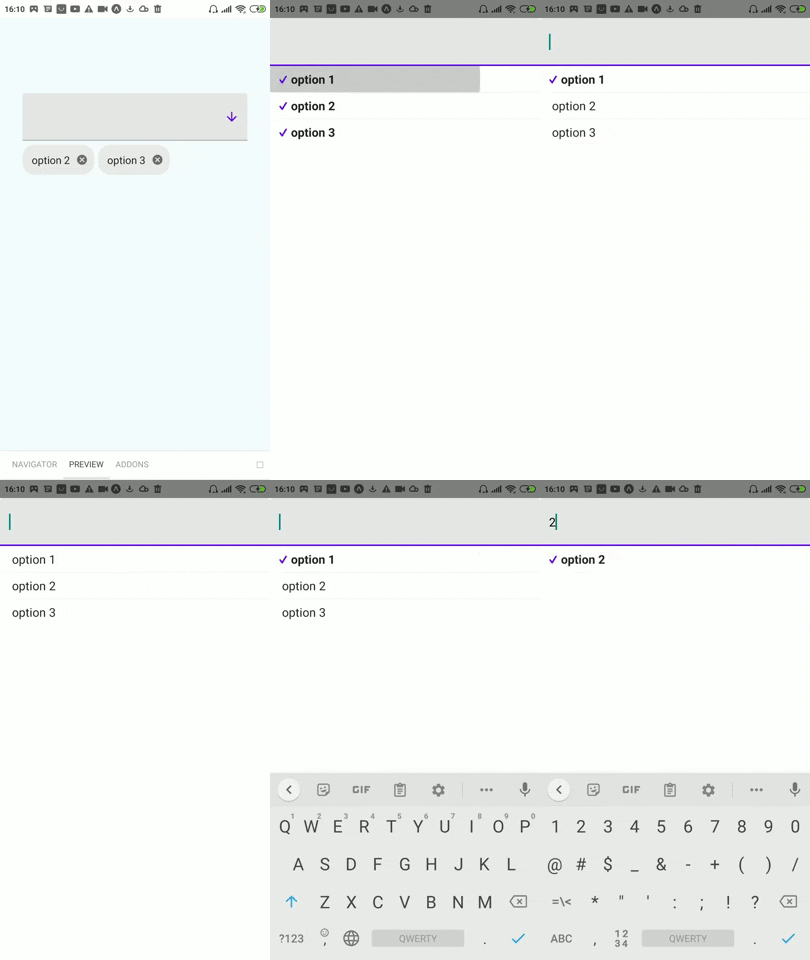
# Getting started
1. Install library
```
npm install @telenko/react-native-paper-autocomplete --save
```
2. Import components
```tsx
import {
Autocomplete,
FlatDropdown,
ModalDropdown,
} from "@telenko/react-native-paper-autocomplete";
```
3. Using Autocomplete with multiple mode
```tsx
const SomeForm: React.FC = () => {
const [selectedIds, setIds] = useState([]);
const options = useMemo(
() => [
{ label: "option 1", value: "1" },
{ label: "option 2", value: "2" },
{ label: "option 3", value: "3" },
],
[]
);
return (
);
};
```
4. Using Autocomplete with single mode
```tsx
const SomeForm: React.FC = () => {
const [id, setId] = useState("");
const options = useMemo(
() => [
{ label: "option 1", value: "1" },
{ label: "option 2", value: "2" },
{ label: "option 3", value: "3" },
],
[]
);
return ;
};
```
5. For more examples go to [showcase](#Showcase) section or checkout [stories of storybook](https://github.com/telenko/react-native-paper-autocomplete/tree/main/storybook/storybook/stories)
**!Note, to run storybook follow such steps:**
1. Go to /storybook folder
2. Run: `npm run ` (f.e. `npm run android`)
3. [Expo](https://expo.io/) application of storybook should run
# API
1. ## Autocomplete
```ts
import { Autocomplete } from "@telenko/react-native-paper-autocomplete";
```
### Autocomplete props:
### multiple
- **Type**: boolean
- **Required**: false
- **Default**: false
- **Description**: Sets whether component will work in **multiple** or **single** mode
### value
- **Type**: string _(single mode)_ | string[] _(multiple mode)_
- **Required**: true
- **Default**: "" _(single mode)_ | [] _(multiple mode)_
- **Description**: Sets value of autocomplete
### onChange
- **Type**: (v: string) => void _(single mode)_ | (v: string[]) => void _(multiple mode)_
- **Required**: true
- **Default**: -
- **Description**: Sets value of autocomplete
### renderHelper
- **Type**: () => React.ReactElement
- **Required**: false
- **Default**: -
- **Description**: Element will be rendered between host/trigger input and chips (can be useful for validation)
### renderDropdown
- **Type**: (props: [DropdownProps](#Dropdown)) => React.ReactElement
- **Required**: false
- **Default**: _uses FlatDropdown for single mode_ | _uses ModalDropdown for multiple mode_
- **Description**: Renders dropdown component
### renderOption
- **Type**: ({ value, label, selected, onSelect }, optionItem) => React.ReactElement
- **Required**: false
- **Default**: _uses inner widget_
- **Description**: Renders single option inside dropdown
### filterOptions
- **Type**: (options: any[], inputV: string) => any[]
- **Required**: false
- **Default**: _local implementation, checks that option label includes query input string_
- **Description**: Filters options list depending on text input value
### labelExtractor
- **Type**: (item: any) => string
- **Required**: false
- **Default**: item => item.label
- **Description**: Gets option view text from option item
### [...Inherits all other common dropdown props](#Dropdown)
## Multiple mode specific props
### renderSelectedItem
- **Type**: ({ value, label, style, onDelete }, optionItem: any) => React.ReactElement
- **Required**: false
- **Default**: _Renders Chip component_
- **Description**: Renders single selected item (below dropdown)
2. ## Dropdown
```ts
import {
FlatDropdown, // used as default dropdown for single mode
ModalDropdown, // used as default dropdown for multiple mode
} from "@telenko/react-native-paper-autocomplete";
```
### Dropdown props:
### inputValue
- **Type**: string
- **Required**: true
- **Description**: Value for text input inside dropdown
### options
- **Type**: any[]
- **Required**: true
- **Description**: options list
### renderOption
- **Type**: ({ item: any, index: number }) => React.ReactElement
- **Required**: false
- **Default**: _uses Menu.Item component of react-native-paper_
- **Description**: Renders single option
### renderHost
- **Type**: (props: [TextInputProps](https://callstack.github.io/react-native-paper/text-input.html)) => React.ReactElement
- **Required**: false
- **Default**: _uses TextInput of react-native-paper_
- **Description**: Renders main trigger element
### renderNoItems
- **Type**: () => React.ReactElement
- **Required**: false
- **Default**: _uses internal layout_
- **Description**: Renders when no items available in dropdown
### noItemsLabel
- **Type**: string
- **Required**: false (will be used only if _renderNoItems_ is not specified)
- **Default**: "No items"
- **Description**: Sets string value of noItems default widget
### onPress
- **Type**: () => void
- **Required**: false
- **Default**: -
- **Description**: Triggered when user presses on dropdown
### keyExtractor
- **Type**: (item: any) => string
- **Required**: false
- **Default**: item => item.value
- **Description**: Used to generate uniq key for each option
### openOnMount
- **Type**: boolean
- **Required**: false
- **Default**: false
- **Description**: Will open dropdown options after initial render
### [...Inherits all TextInput props](https://callstack.github.io/react-native-paper/text-input.html)
All TextInput props will be applied to host and search inputs
## FlatDropdown specific props
### menuOffset
- **Type**: number
- **Required**: false
- **Default**: 65
- **Description**: Offset of menu from trigger (host) element
## ModalDropdown specific props
### renderSearchInput
- **Type**: (props: [TextInputProps](https://callstack.github.io/react-native-paper/text-input.html)) => React.ReactElement
- **Required**: false
- **Default**: _uses TextInput of react-native-paper_
- **Description**: Renders search input inside modal (by default looks same as trigger/host input)
# Showcase
1. Default modal mode
```tsx
```

2. Flat mode
```tsx
}
value={value}
onChange={setValue}
style={{ width: 300 }}
options={[
{ value: "1", label: "option 1" },
{ value: "2", label: "option 2" },
{ value: "3", label: "option 3" },
]}
/>
```

3. Custom option
```tsx
{
return (
}
right={
selected
? (props) =>
: undefined
}
/>
);
}}
/>
```

4. Custom option + flat mode + custom filter
```tsx
{
if (!input) {
return options;
}
const includesIgnoreNoWhiteSpaceCase = (a: string, b: string): boolean => {
const optionQuery = (a || "").replace(/\s/g, "").toUpperCase();
const inputQuery = (b || "").replace(/\s/g, "").toUpperCase();
return (
optionQuery.includes(inputQuery) || inputQuery.includes(optionQuery)
);
};
return options.filter((option) => {
return (
includesIgnoreNoWhiteSpaceCase(option.label, input) ||
includesIgnoreNoWhiteSpaceCase(option.description, input)
);
});
}}
renderDropdown={(props) => }
renderOption={({ selected, onSelect, label }, { description }) => {
return (
}
right={
selected
? (props) =>
: undefined
}
/>
);
}}
/>
```
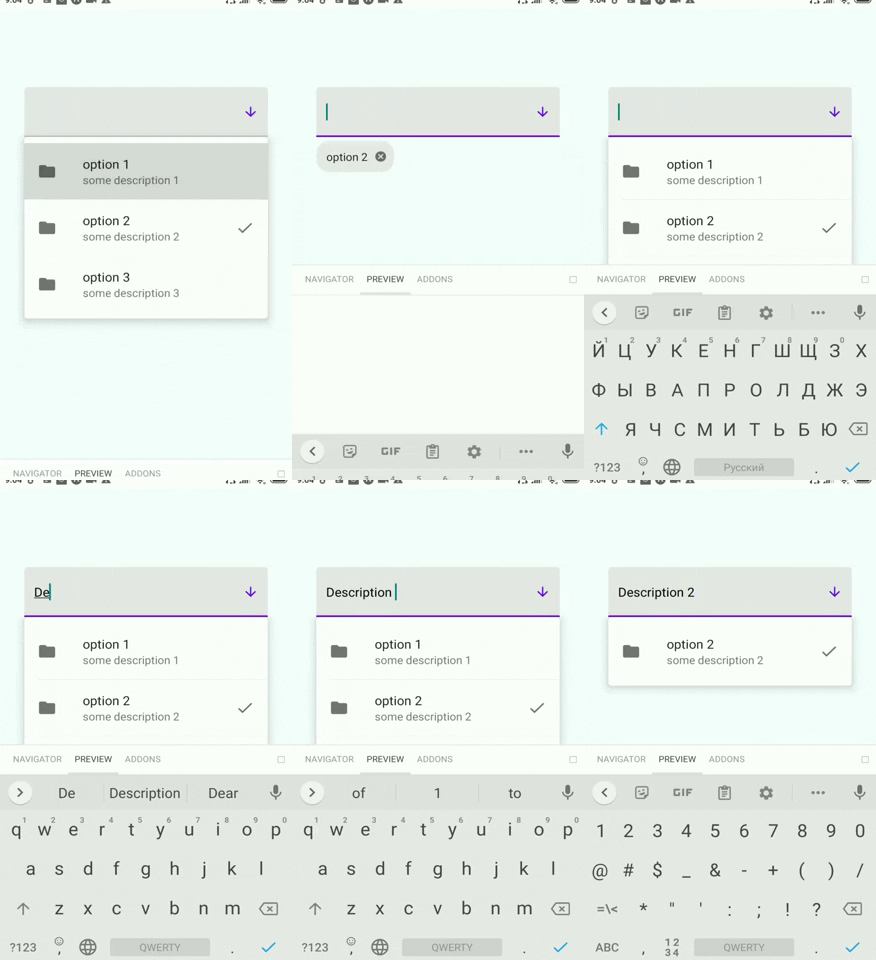
5. Custom search input for modal mode
```tsx
(
(
}
/>
)}
/>
)}
value={value}
onChange={setValue}
style={{ width: 300 }}
options={[
{ value: "1", label: "option 1" },
{ value: "2", label: "option 2" },
{ value: "3", label: "option 3" },
]}
/>
```

6. Custom chips
```tsx
(
{label}
)}
value={value}
onChange={setValue}
style={{ width: 300 }}
options={[
{ value: "1", label: "option 1" },
{ value: "2", label: "option 2" },
{ value: "3", label: "option 3" },
]}
/>
```

7. Validation
```tsx
{}}
onClose={() => {}}
value={value}
error={value.length !== 2}
renderHelper={
value.length !== 2
? () => (
You should select 2 items
)
: null
}
onChange={setValue}
style={{ width: 300 }}
options={[
{ value: "1", label: "option 1" },
{ value: "2", label: "option 2" },
{ value: "3", label: "option 3" },
]}
/>
```
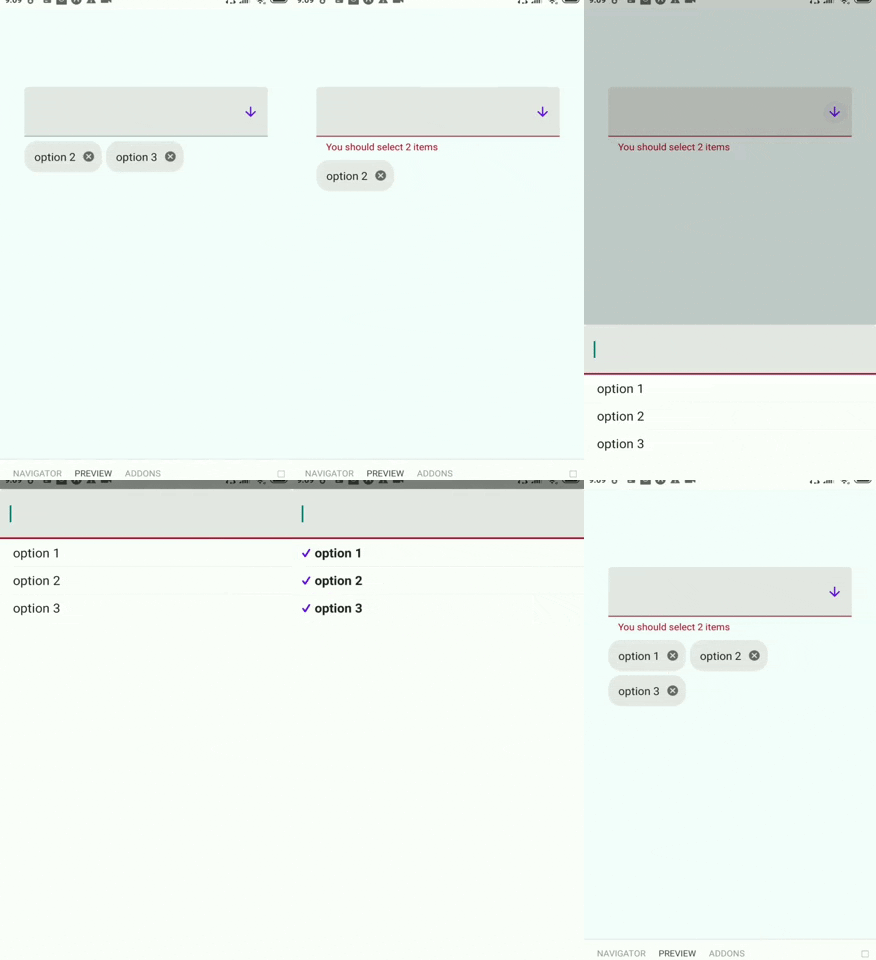
8. Single selection autocomplete
```tsx
```

9. Custom host element
```tsx
(
)}
filterOptions={(options) => options}
onOpen={() => {}}
onClose={() => {}}
value={value}
onChange={setValue}
style={{ width: 300 }}
options={options}
/>
```

10. Plain Dropdown Component (Modal)
```tsx
{}}
onClose={() => {}}
onChangeText={setInput}
style={{ width: 300 }}
inputValue={input}
options={[
{ value: "1", label: "option 1" },
{ value: "2", label: "option 2" },
{ value: "3", label: "option 3" },
]}
renderOption={({ item }) => (
{}} title={item.label} />
)}
/>
```

11. Plain Dropdown Component (Flat)
```tsx
{}}
onClose={() => {}}
onChangeText={setInput}
menuOffset={40}
style={{ width: 300 }}
inputValue={input}
options={[
{ value: "1", label: "option 1" },
{ value: "2", label: "option 2" },
{ value: "3", label: "option 3" },
]}
renderOption={({ item }) => (
{}} title={item.label} />
)}
/>
```

12. Writing Autocomplete which works in mixed mode (flat+modal)
```tsx
import {
FlatDropdown,
ModalDropdown,
Autocomplete,
AutocompleteProps,
} from "@telenko/react-native-paper-autocomplete";
import React, { useState } from "react";
const AutocompleteMixed: React.FC = (props) => {
const [modal, setModal] = useState(false);
const [currentOpen, setCurrentOpen] = useState(props.openOnMount);
return (
modal ? (
) : (
)
}
onClose={() => {
setCurrentOpen(false);
setModal(false);
}}
onChangeText={(v) => {
setCurrentOpen(true);
setModal(v.length > 0);
}}
{...props}
/>
);
};
```