# Google Sheets Reporter
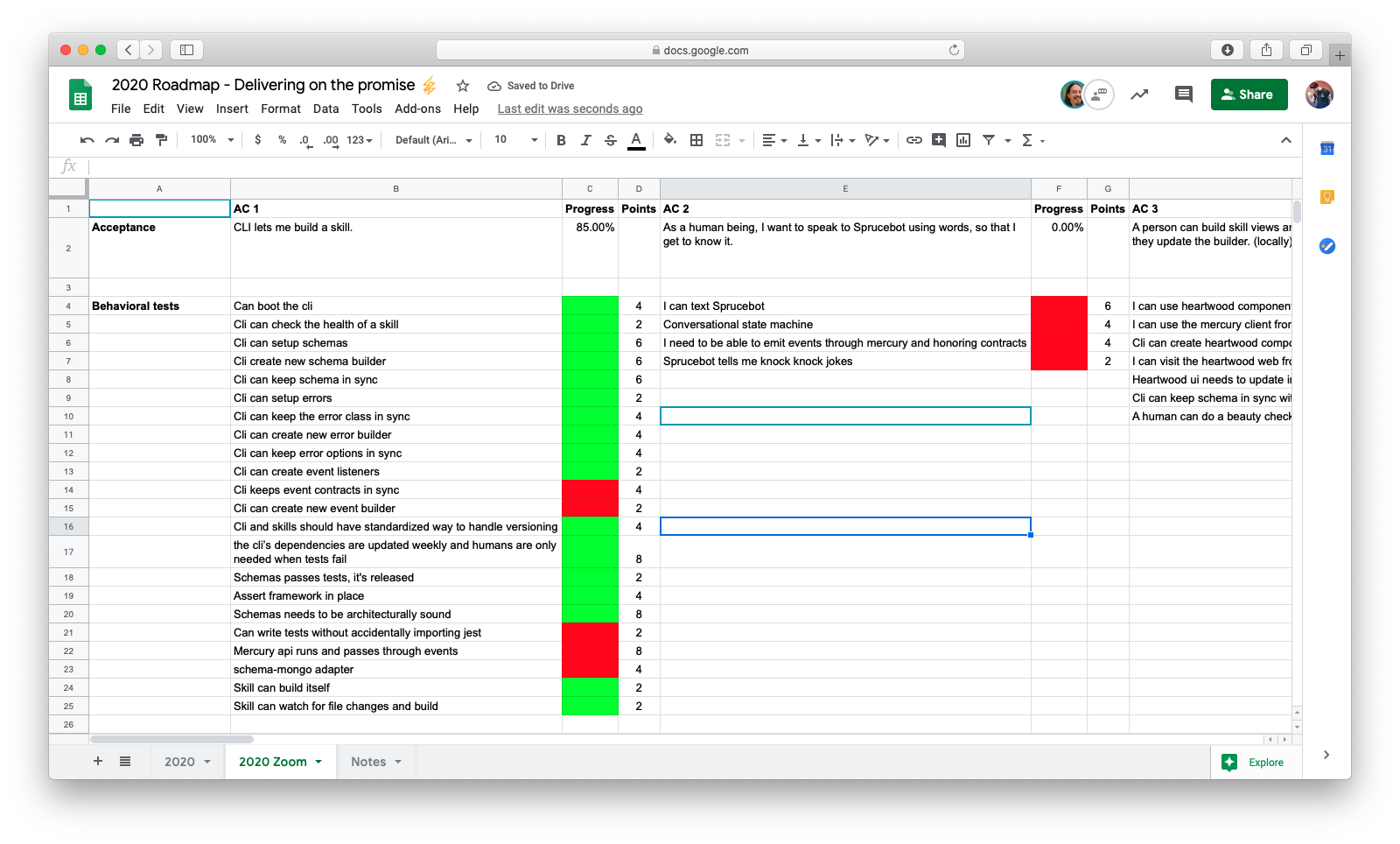
Update a Google Sheet when your tests pass or fail.
 ## Installing
```bash
yarn add -D @sprucelabs/jest-sheets-reporter
```
```bash
npm install --dev @sprucelabs/jest-sheets-reporter
```
## Example Jest config
Inside your `package.json` there is a `jest` block.
Add the following configuration:
```json
"jest": {
"reporters": [
"default",
[
"@sprucelabs/jest-sheets-reporter",
{
"sheetId": "{{spreadsheetId}}",
"worksheetId": 0,
"testMap": {
"testName": "destinationCell",
"getsGoodHealthCheckAndNothingElse": "C5",
"canGetLatestVersionBasedOnDir": "C16",
"canBuildSkill": "C24",
"canWatchAndBuild": "C25"
}
}
]
]
},
```
## How does it work
This simple reporter matches the name of your test against what is in your `jest` config and updates the cell whose name matches.
If a test passes, the cell is set to 1.
If a test fails, the cell is set to 0.
## Making it pretty
You can change the look of a cell by using conditional formatting:
## Installing
```bash
yarn add -D @sprucelabs/jest-sheets-reporter
```
```bash
npm install --dev @sprucelabs/jest-sheets-reporter
```
## Example Jest config
Inside your `package.json` there is a `jest` block.
Add the following configuration:
```json
"jest": {
"reporters": [
"default",
[
"@sprucelabs/jest-sheets-reporter",
{
"sheetId": "{{spreadsheetId}}",
"worksheetId": 0,
"testMap": {
"testName": "destinationCell",
"getsGoodHealthCheckAndNothingElse": "C5",
"canGetLatestVersionBasedOnDir": "C16",
"canBuildSkill": "C24",
"canWatchAndBuild": "C25"
}
}
]
]
},
```
## How does it work
This simple reporter matches the name of your test against what is in your `jest` config and updates the cell whose name matches.
If a test passes, the cell is set to 1.
If a test fails, the cell is set to 0.
## Making it pretty
You can change the look of a cell by using conditional formatting:
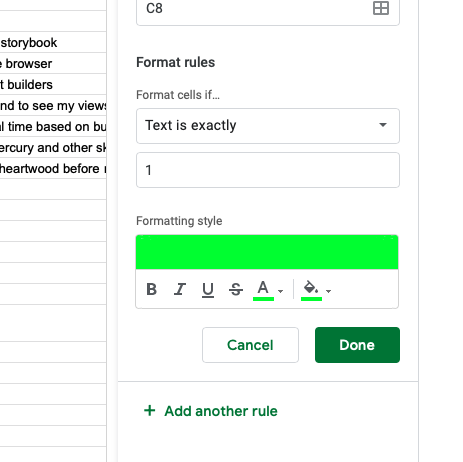
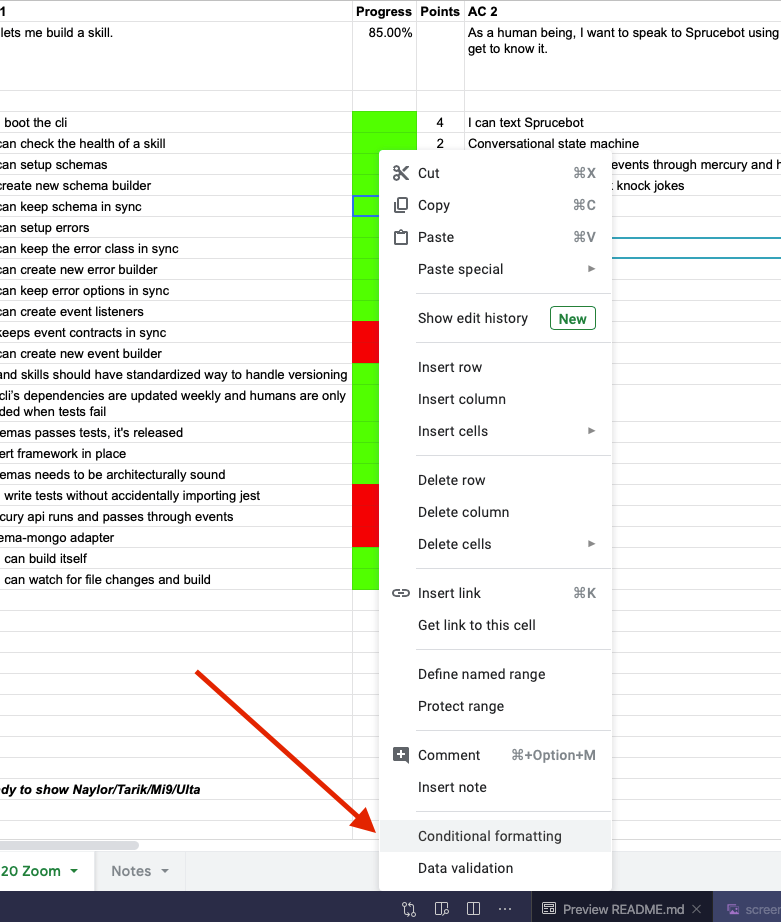 Then we set the background and the text color based on the value being exactly `1` or `0`.
 ## Getting your account credentials
1. Visit the [Google Console](https://console.developers.google.com/)
2. Create a new project, call it Test Integrations
3. After creation, go to the project dashboard and in the left meno go "API's & Services" -> "Enabled API's & Services"
4. Click "+ Enable API's and Services"
5. Find sheets and enable it.
6. After save, click "Create Credentials" in the upper right.
7. Give it a name, leave everything else blank and save
8. After save, click "Credentials" in the left menu
8. Then click on your service account's name
9. On the service account details page, click "KEYS" tab
10. Click Add Key -> JSON
11. Take the download private key and open it
12. client_email -> GOOGLE_SERVICE_EMAIL
13. private_key -> GOOGLE_SERVICE_PRIVATE_KEY
14. Remember to invite the service email to any spreadsheet you want it to update!
## Getting your account credentials
1. Visit the [Google Console](https://console.developers.google.com/)
2. Create a new project, call it Test Integrations
3. After creation, go to the project dashboard and in the left meno go "API's & Services" -> "Enabled API's & Services"
4. Click "+ Enable API's and Services"
5. Find sheets and enable it.
6. After save, click "Create Credentials" in the upper right.
7. Give it a name, leave everything else blank and save
8. After save, click "Credentials" in the left menu
8. Then click on your service account's name
9. On the service account details page, click "KEYS" tab
10. Click Add Key -> JSON
11. Take the download private key and open it
12. client_email -> GOOGLE_SERVICE_EMAIL
13. private_key -> GOOGLE_SERVICE_PRIVATE_KEY
14. Remember to invite the service email to any spreadsheet you want it to update!