# [Sourcegraph](https://sourcegraph.com) CLI [](https://github.com/sourcegraph/src-cli/actions?query=workflow%3A%22Go+CI%22) [](https://goreportcard.com/report/sourcegraph/src-cli)
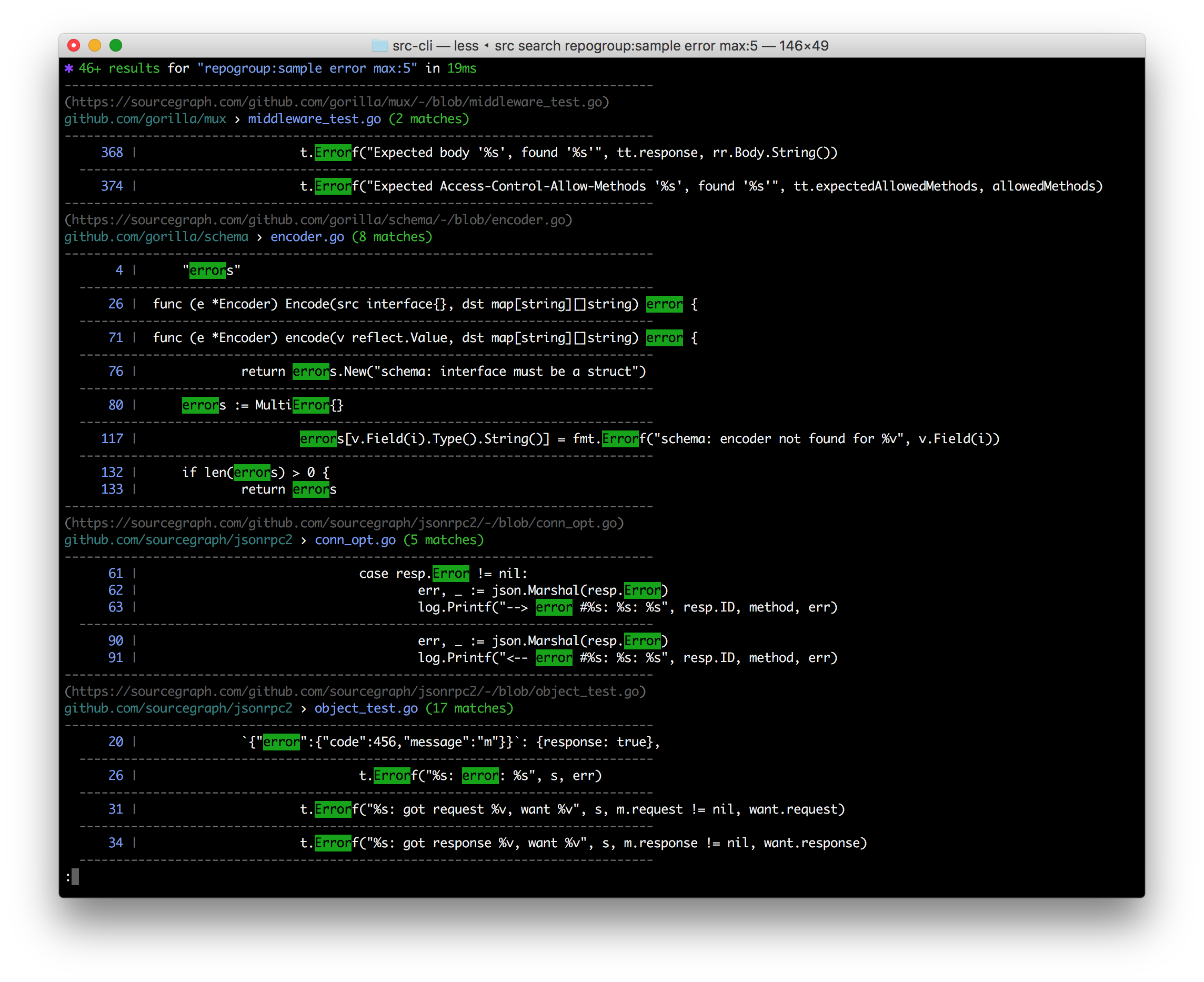 `src` is a command line interface to Sourcegraph:
- **Search & get results in your terminal**
- **Search & get JSON** for programmatic consumption
- Make **GraphQL API requests** with auth easily & get JSON back fast
- Execute **[batch changes](https://docs.sourcegraph.com/batch_changes)**
- **Manage & administrate** repositories, users, and more
- **Easily convert src-CLI commands to equivalent curl commands**, just add --get-curl!
**Note:** Using Sourcegraph 3.12 or earlier? [See the older README](https://github.com/sourcegraph/src-cli/tree/3.11.2).
## Installation
Binary downloads are available on the [releases tab](https://github.com/sourcegraph/src-cli/releases), and through Sourcegraph.com. _If the latest version does not work for you,_ consider using the version compatible with your Sourcegraph instance instead.
### Installation: Mac OS
#### Latest version
```bash
curl -L https://sourcegraph.com/.api/src-cli/src_darwin_amd64 -o /usr/local/bin/src
chmod +x /usr/local/bin/src
```
or with Homebrew:
```bash
brew install sourcegraph/src-cli/src-cli
```
or with npm:
```bash
npm install -g @sourcegraph/src
```
#### Version compatible with your Sourcegraph instance
Replace `sourcegraph.example.com` with your Sourcegraph instance URL:
```bash
curl -L https://sourcegraph.example.com/.api/src-cli/src_darwin_amd64 -o /usr/local/bin/src
chmod +x /usr/local/bin/src
```
or, if you know the specific version to target, for example 3.43.2:
```bash
brew install sourcegraph/src-cli/src-cli@3.43.2
```
or with npm/npx:
```bash
npx @sourcegraph/src@3.43.2 version
```
> Note: Versioned formulas are available on Homebrew for Sourcegraph versions 3.43.2 and later.
### Installation: Linux
#### Latest version
```bash
curl -L https://sourcegraph.com/.api/src-cli/src_linux_amd64 -o /usr/local/bin/src
chmod +x /usr/local/bin/src
```
or with npm:
```bash
npm install -g @sourcegraph/src
```
#### Version compatible with your Sourcegraph instance
Replace `sourcegraph.example.com` with your Sourcegraph instance URL:
```bash
curl -L https://sourcegraph.example.com/.api/src-cli/src_linux_amd64 -o /usr/local/bin/src
chmod +x /usr/local/bin/src
```
or, with npm/npx, if you know the specific version to target, for example 3.43.2:
```bash
npx @sourcegraph/src@3.43.2 version
```
### Installation: Windows
See [Sourcegraph CLI for Windows](WINDOWS.md).
### Installation: Docker
`sourcegraph/src-cli` is published to Docker Hub. You can use the `latest` tag or a specific version such as `3.43`. To see all versions view [sourcegraph/src-cli tags](https://hub.docker.com/r/sourcegraph/src-cli/tags).
```bash
docker run --rm=true sourcegraph/src-cli:latest search 'hello world'
```
## Connect to your Sourcegraph instance
`src` needs the URL of your Sourcegraph instance. Set `SRC_ENDPOINT` in your shell environment, replacing `https://sourcegraph.example.com` with your instance URL:
```sh
export SRC_ENDPOINT=https://sourcegraph.example.com
```
For PowerShell on Windows:
```powershell
$env:SRC_ENDPOINT = 'https://sourcegraph.example.com'
```
For convenience, add this environment variable to your terminal profile or system environment variables. On Mac OS and Linux, the terminal profile is typically `~/.bash_profile` for Bash or `~/.zprofile` for Zsh. On Windows, you can add it through the *System Properties* window. See [these instructions](https://www.computerhope.com/issues/ch000549.htm) for details.
If `SRC_ENDPOINT` is not set, `src` defaults to `https://sourcegraph.com`.
### OAuth login
Run `src login` to authenticate interactively with OAuth:
```sh
src login
```
OAuth does not require you to create or export `SRC_ACCESS_TOKEN`. The OAuth credential is stored in your operating system's native keyring. Keep `SRC_ENDPOINT` set when running subsequent commands because `src` uses the endpoint to load the matching OAuth credential.
You can also pass the instance URL directly to `src login`, but this only selects the endpoint for that login command. You must still set `SRC_ENDPOINT` when running subsequent commands:
```sh
src login https://sourcegraph.example.com
```
To use the active credential in another command, `src auth token` prints the raw token and `src auth token --header` prints a complete `Authorization` header for the active authentication mode.
### Personal access token login
For non-interactive authentication, such as in CI or scripts, create an access token on your Sourcegraph instance under **Settings > Access tokens**, then set both `SRC_ENDPOINT` and `SRC_ACCESS_TOKEN`:
```sh
export SRC_ENDPOINT=https://sourcegraph.example.com
export SRC_ACCESS_TOKEN=my-token
```
For PowerShell on Windows:
```powershell
$env:SRC_ENDPOINT = 'https://sourcegraph.example.com'
$env:SRC_ACCESS_TOKEN = 'my-token'
```
When `SRC_ACCESS_TOKEN` is set, `src` uses it instead of an OAuth credential and running `src login` is not necessary. You can also set both variables for a single command:
```sh
SRC_ENDPOINT=https://sourcegraph.example.com SRC_ACCESS_TOKEN=my-token src search 'foo'
```
Is your Sourcegraph instance behind a custom auth proxy? See [auth proxy configuration](./AUTH_PROXY.md) docs.
## Usage
`src` provides different subcommands to interact with different parts of Sourcegraph:
- `src login` - authenticate to a Sourcegraph instance with your user credentials
- `src auth` - print the active authentication token or authorization header
- `src search` - perform searches and get results in your terminal or as JSON
- `src api` - run Sourcegraph GraphQL API requests
- `src batch` - execute and manage [batch changes](https://docs.sourcegraph.com/batch_changes)
- `src repos` - manage repositories
- `src users` - manage users
- `src orgs` - manages organization
- `src config` - manage global, org, and user settings
- `src extsvc` - manage external services (repository configuration)
- `src extensions` - manage extensions
- `src code-intel` - manages Code Intelligence data
- `src serve-git` - serves your local git repositories over HTTP for Sourcegraph to pull
- `src version` - check version and guaranteed-compatible version for your Sourcegraph instance
Run `src -h` and `src -h` for more detailed usage information.
You can also read the [usage docs for the latest version of `src-cli`](https://docs.sourcegraph.com/cli/references) online.
#### Optional: Renaming `src`
If you have a naming conflict with the `src` command, such as a Bash alias, you can rename the static binary. For example, on Linux / Mac OS:
```sh
mv /usr/local/bin/src /usr/local/bin/src-cli
```
You can then invoke it via `src-cli`.
## Telemetry
`src` includes the operating system and architecture in the `User-Agent` header sent to Sourcegraph. For example, running `src` version 3.21.10 on an x86-64 Linux host will result in this header:
```
src-cli/3.21.10 linux amd64
```
To disable this and _only_ send the version, you can set `-user-agent-telemetry=false` for a single command, or set the `SRC_DISABLE_USER_AGENT_TELEMETRY` environment variable to any non-blank string.
As with [other Sourcegraph telemetry](https://docs.sourcegraph.com/dev/background-information/telemetry), any collected data is only sent to Sourcegraph.com in aggregate form.
## Development
Some useful notes on developing `src` can be found in [DEVELOPMENT.md](DEVELOPMENT.md).