# Themes
Qwen Code supports a variety of themes to customize its color scheme and appearance. You can change the theme to suit your preferences via the `/theme` command or `"theme":` configuration setting.
## Available Themes
Qwen Code comes with a selection of pre-defined themes, which you can list using the `/theme` command within the CLI:
- **Dark Themes:**
- `ANSI`
- `Atom One`
- `Ayu`
- `Default`
- `Dracula`
- `GitHub`
- **Light Themes:**
- `ANSI Light`
- `Ayu Light`
- `Default Light`
- `GitHub Light`
- `Google Code`
- `Xcode`
### Changing Themes
1. Enter `/theme` into Qwen Code.
2. A dialog or selection prompt appears, listing the available themes.
3. Using the arrow keys, select a theme. Some interfaces might offer a live preview or highlight as you select.
4. Confirm your selection to apply the theme.
**Note:** If a theme is defined in your `settings.json` file (either by name or by a file path), you must remove the `"theme"` setting from the file before you can change the theme using the `/theme` command.
### Theme Persistence
Selected themes are saved in Qwen Code's [configuration](../configuration/settings) so your preference is remembered across sessions.
---
## Custom Color Themes
Qwen Code allows you to create your own custom color themes by specifying them in your `settings.json` file. This gives you full control over the color palette used in the CLI.
### How to Define a Custom Theme
Add a `customThemes` block to your user, project, or system `settings.json` file. Each custom theme is defined as an object with a unique name and a set of color keys. For example:
```json
{
"ui": {
"customThemes": {
"MyCustomTheme": {
"name": "MyCustomTheme",
"type": "custom",
"Background": "#181818",
...
}
}
}
}
```
**Color keys:**
- `Background`
- `Foreground`
- `LightBlue`
- `AccentBlue`
- `AccentPurple`
- `AccentCyan`
- `AccentGreen`
- `AccentYellow`
- `AccentRed`
- `Comment`
- `Gray`
- `DiffAdded` (optional, for added lines in diffs)
- `DiffRemoved` (optional, for removed lines in diffs)
- `DiffModified` (optional, for modified lines in diffs)
**Required Properties:**
- `name` (must match the key in the `customThemes` object and be a string)
- `type` (must be the string `"custom"`)
- `Background`
- `Foreground`
- `LightBlue`
- `AccentBlue`
- `AccentPurple`
- `AccentCyan`
- `AccentGreen`
- `AccentYellow`
- `AccentRed`
- `Comment`
- `Gray`
You can use either hex codes (e.g., `#FF0000`) **or** standard CSS color names (e.g., `coral`, `teal`, `blue`) for any color value. See [CSS color names](https://developer.mozilla.org/en-US/docs/Web/CSS/color_value#color_keywords) for a full list of supported names.
You can define multiple custom themes by adding more entries to the `customThemes` object.
### Loading Themes from a File
In addition to defining custom themes in `settings.json`, you can also load a theme directly from a JSON file by specifying the file path in your `settings.json`. This is useful for sharing themes or keeping them separate from your main configuration.
To load a theme from a file, set the `theme` property in your `settings.json` to the path of your theme file:
```json
{
"ui": {
"theme": "/path/to/your/theme.json"
}
}
```
The theme file must be a valid JSON file that follows the same structure as a custom theme defined in `settings.json`.
**Example `my-theme.json`:**
```json
{
"name": "My File Theme",
"type": "custom",
"Background": "#282A36",
"Foreground": "#F8F8F2",
"LightBlue": "#82AAFF",
"AccentBlue": "#61AFEF",
"AccentPurple": "#BD93F9",
"AccentCyan": "#8BE9FD",
"AccentGreen": "#50FA7B",
"AccentYellow": "#F1FA8C",
"AccentRed": "#FF5555",
"Comment": "#6272A4",
"Gray": "#ABB2BF",
"DiffAdded": "#A6E3A1",
"DiffRemoved": "#F38BA8",
"DiffModified": "#89B4FA",
"GradientColors": ["#4796E4", "#847ACE", "#C3677F"]
}
```
**Security Note:** For your safety, Gemini CLI will only load theme files that are located within your home directory. If you attempt to load a theme from outside your home directory, a warning will be displayed and the theme will not be loaded. This is to prevent loading potentially malicious theme files from untrusted sources.
### Example Custom Theme
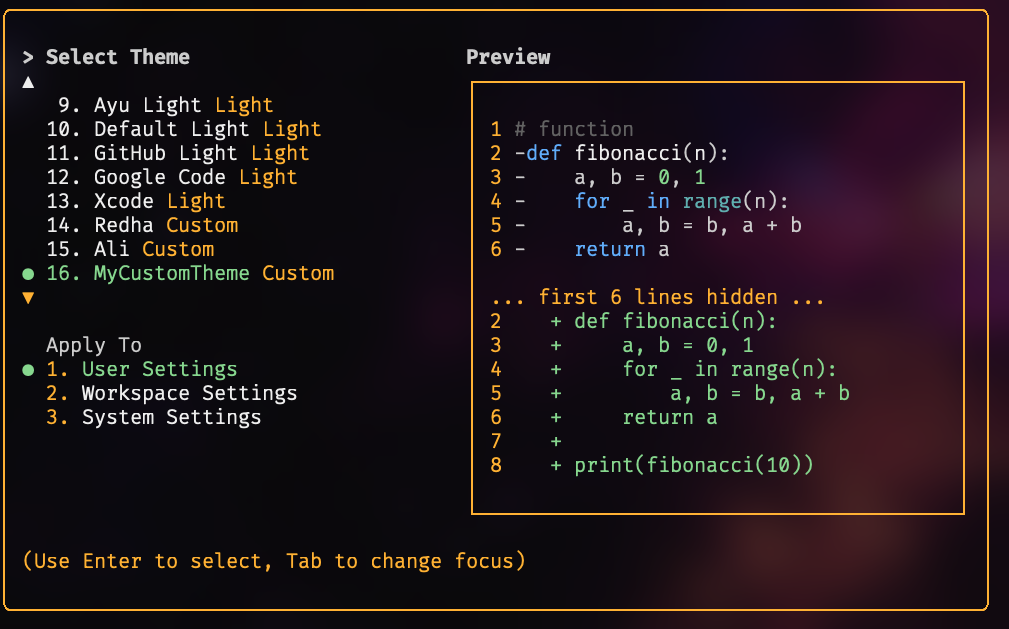 ### Using Your Custom Theme
- Select your custom theme using the `/theme` command in Qwen Code. Your custom theme will appear in the theme selection dialog.
- Or, set it as the default by adding `"theme": "MyCustomTheme"` to the `ui` object in your `settings.json`.
- Custom themes can be set at the user, project, or system level, and follow the same [configuration precedence](../configuration/settings) as other settings.
## Themes Preview
| Dark Theme | Preview | Light Theme | Preview |
| :----------: | :-------------------------------------------------------------------------------------------------------------------------------------------------------------------: | :-----------: | :-------------------------------------------------------------------------------------------------------------------------------------------------------------------: |
| ANSI |
### Using Your Custom Theme
- Select your custom theme using the `/theme` command in Qwen Code. Your custom theme will appear in the theme selection dialog.
- Or, set it as the default by adding `"theme": "MyCustomTheme"` to the `ui` object in your `settings.json`.
- Custom themes can be set at the user, project, or system level, and follow the same [configuration precedence](../configuration/settings) as other settings.
## Themes Preview
| Dark Theme | Preview | Light Theme | Preview |
| :----------: | :-------------------------------------------------------------------------------------------------------------------------------------------------------------------: | :-----------: | :-------------------------------------------------------------------------------------------------------------------------------------------------------------------: |
| ANSI | 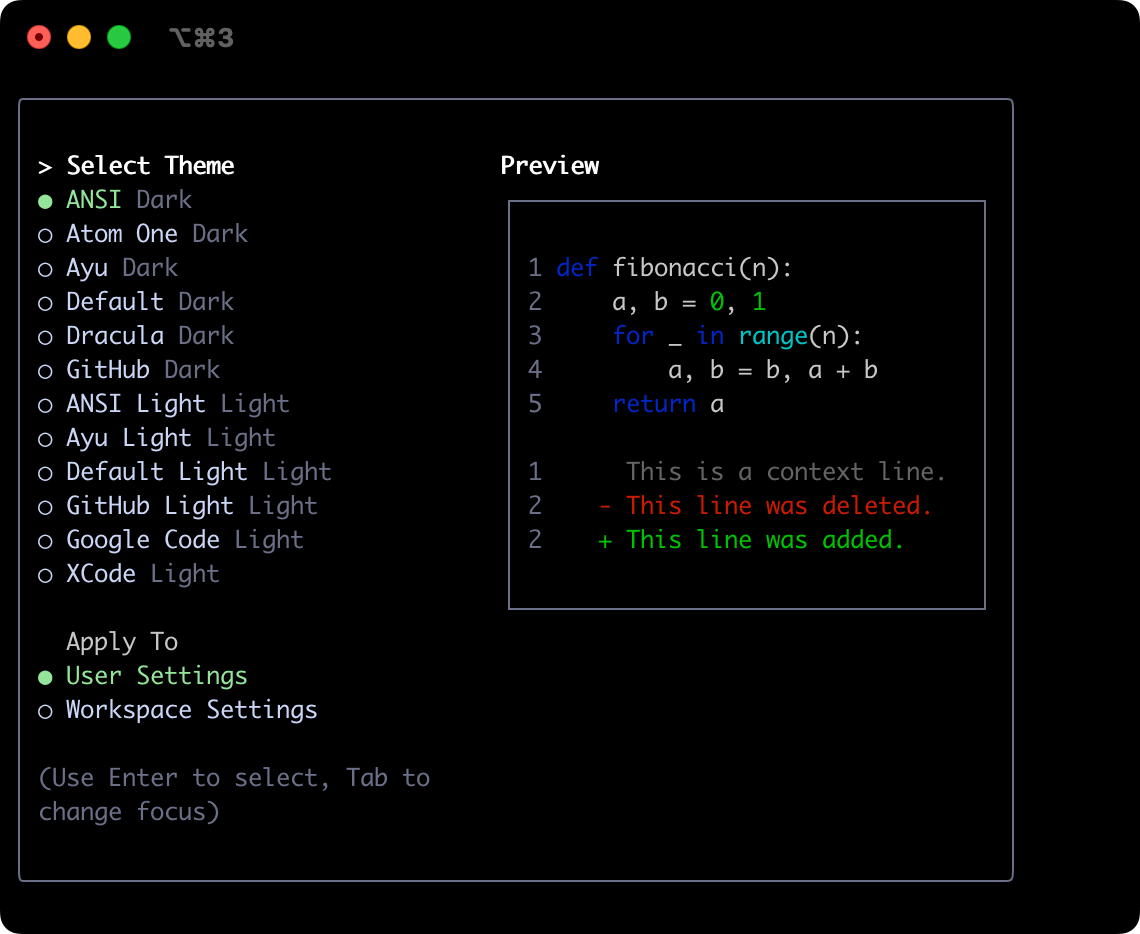 | ANSI Light |
 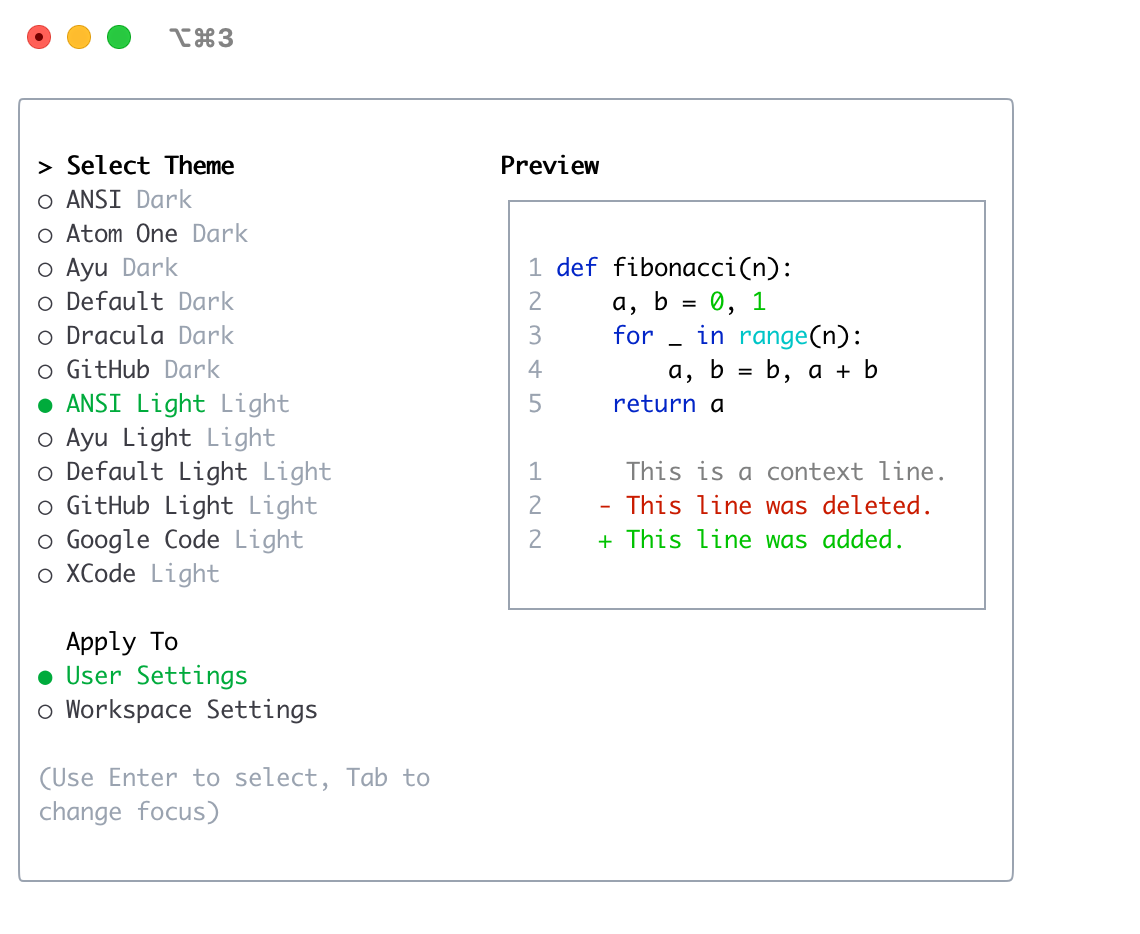 |
| Atom OneDark |
|
| Atom OneDark | 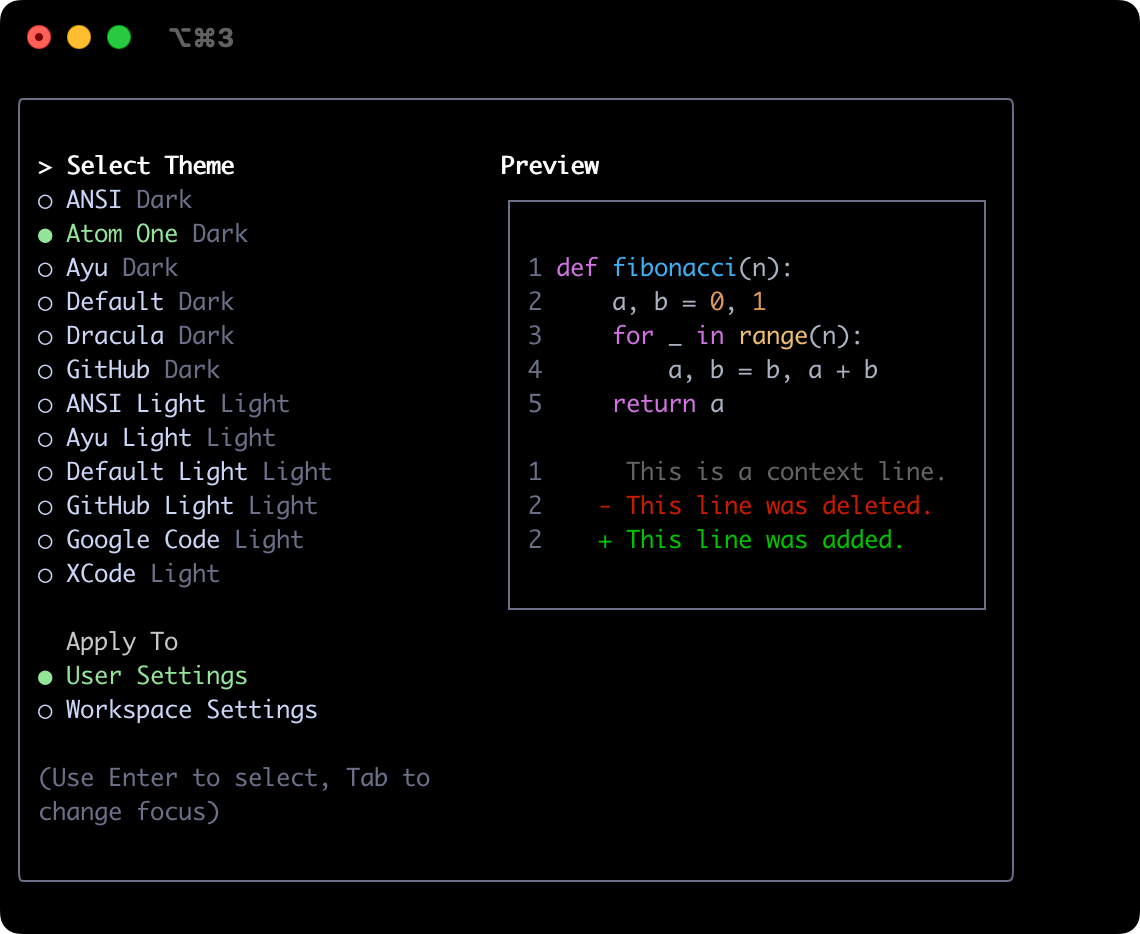 | Ayu Light |
 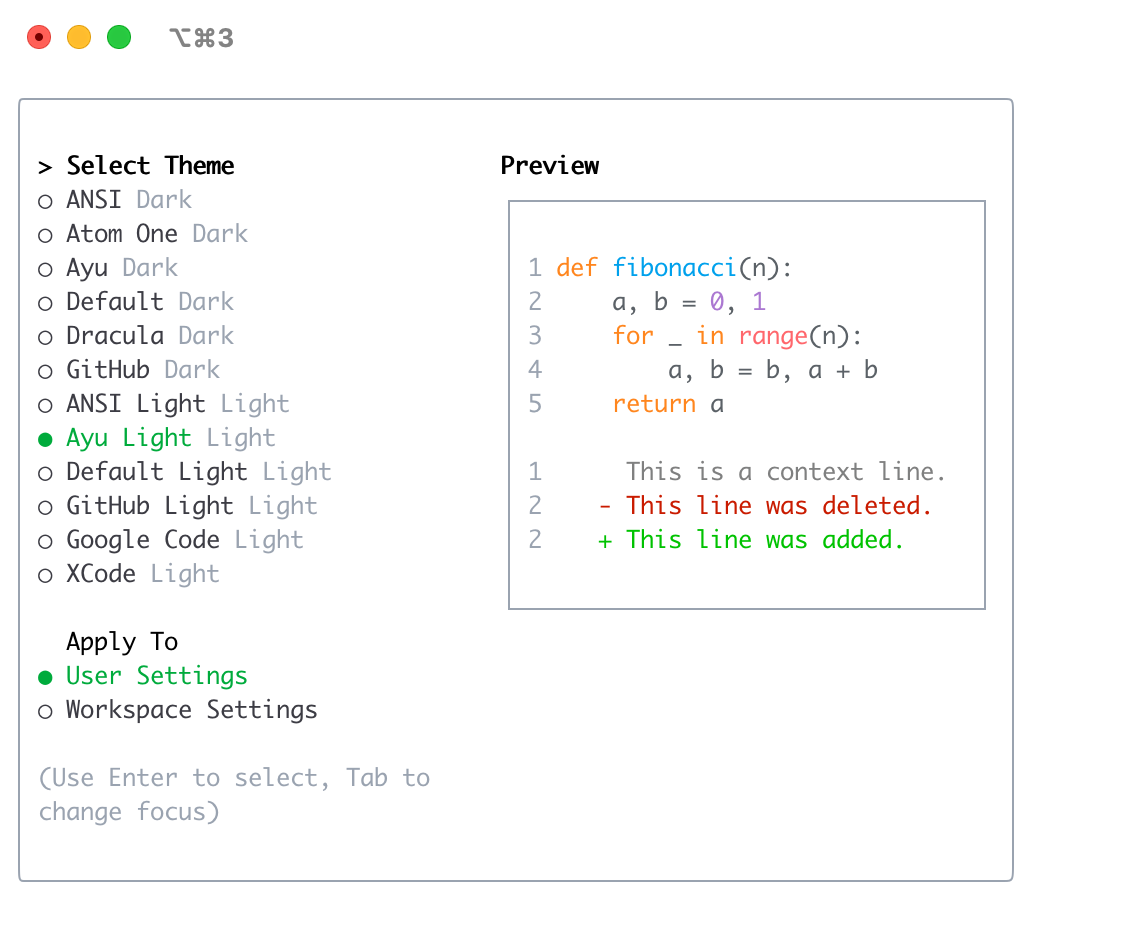 |
| Ayu |
|
| Ayu | 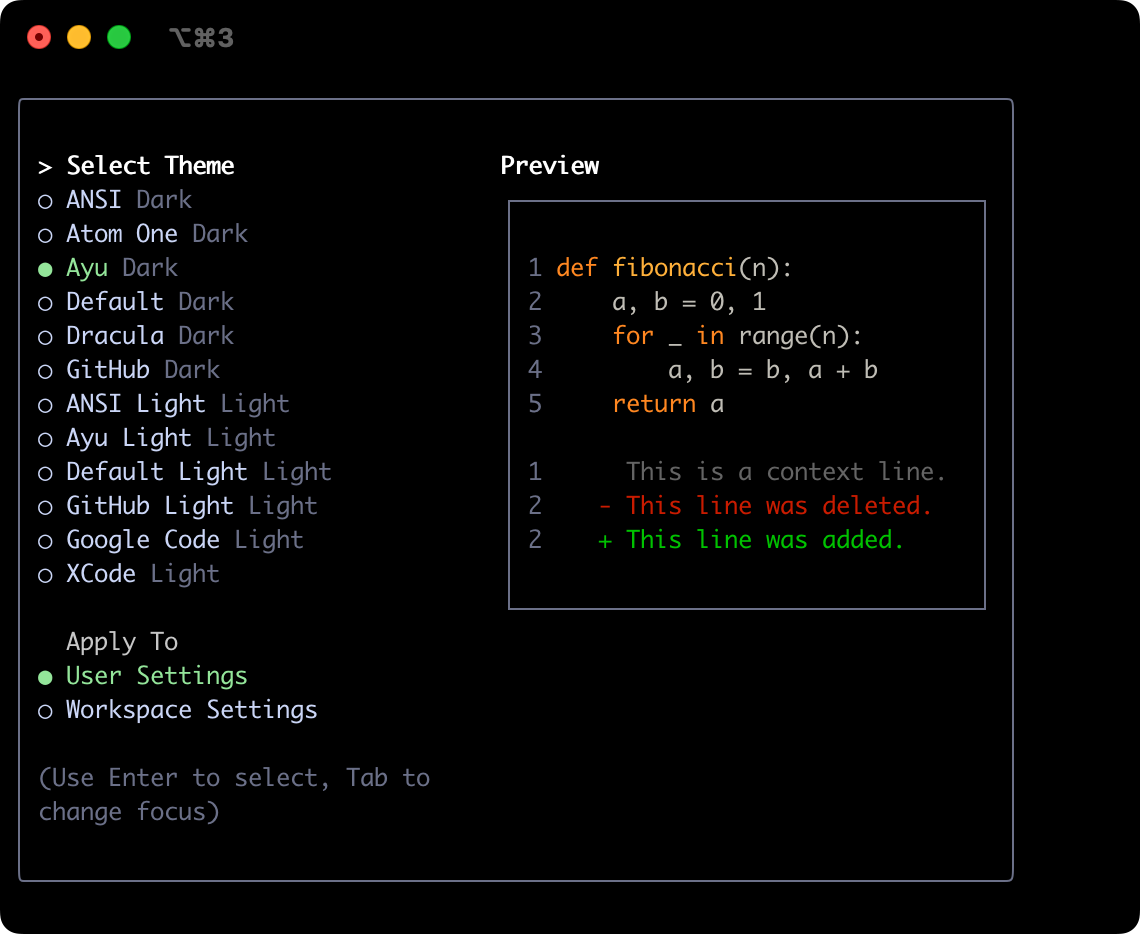 | Default Light |
 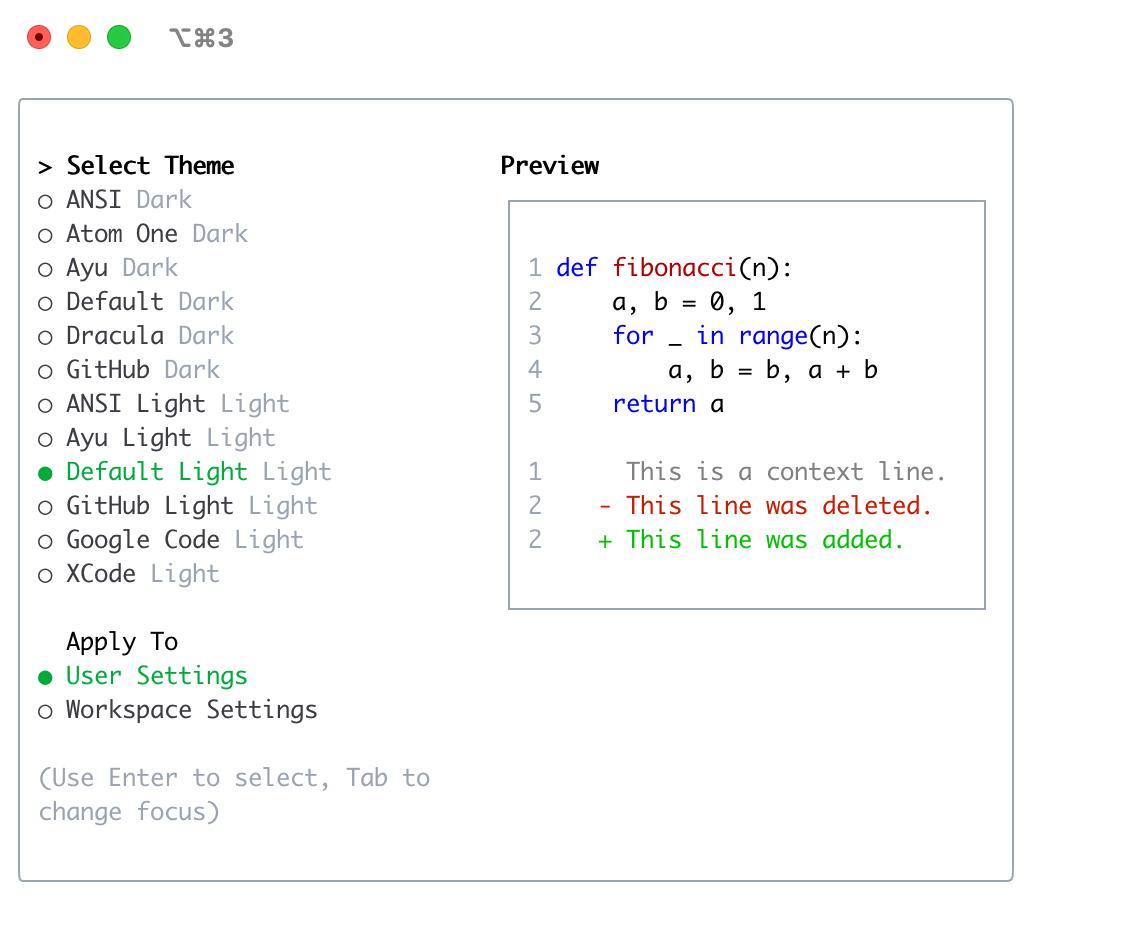 |
| Default |
|
| Default | 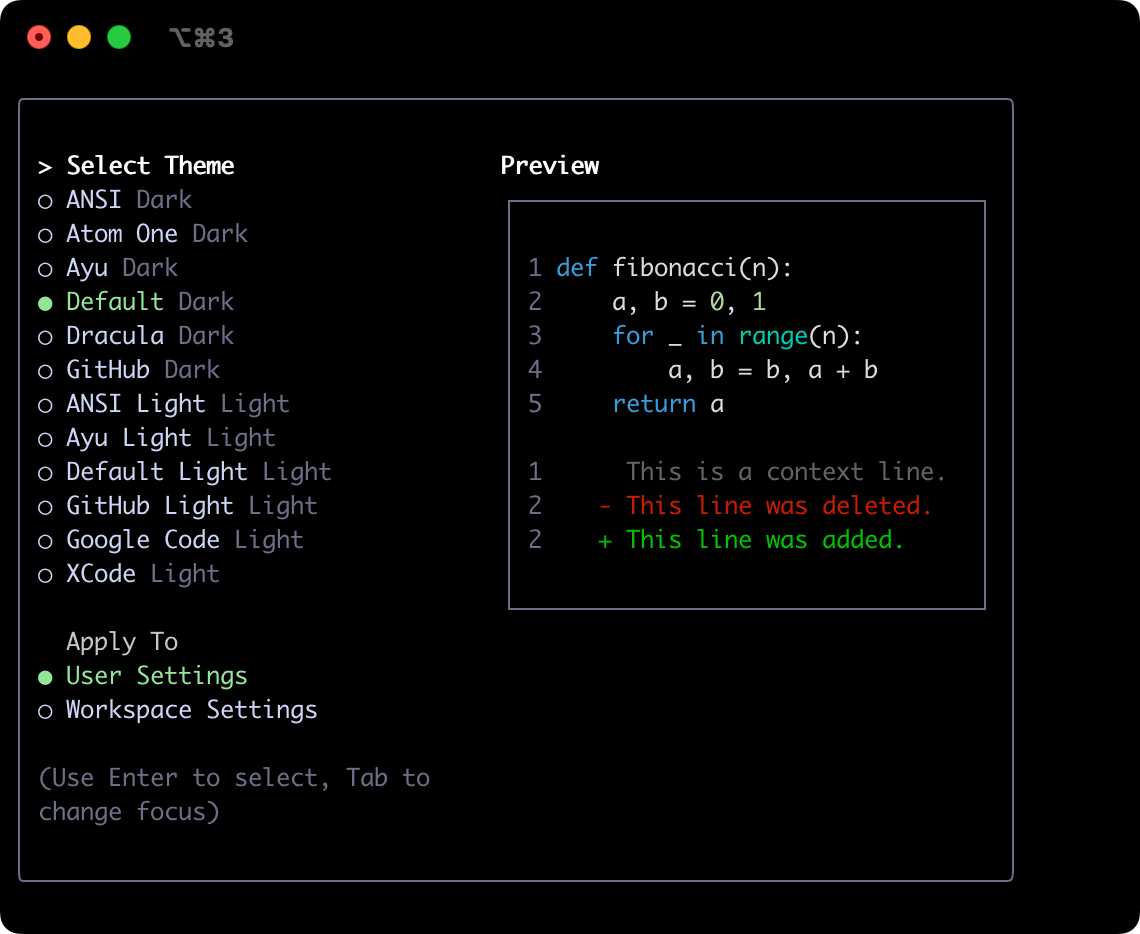 | GitHub Light |
 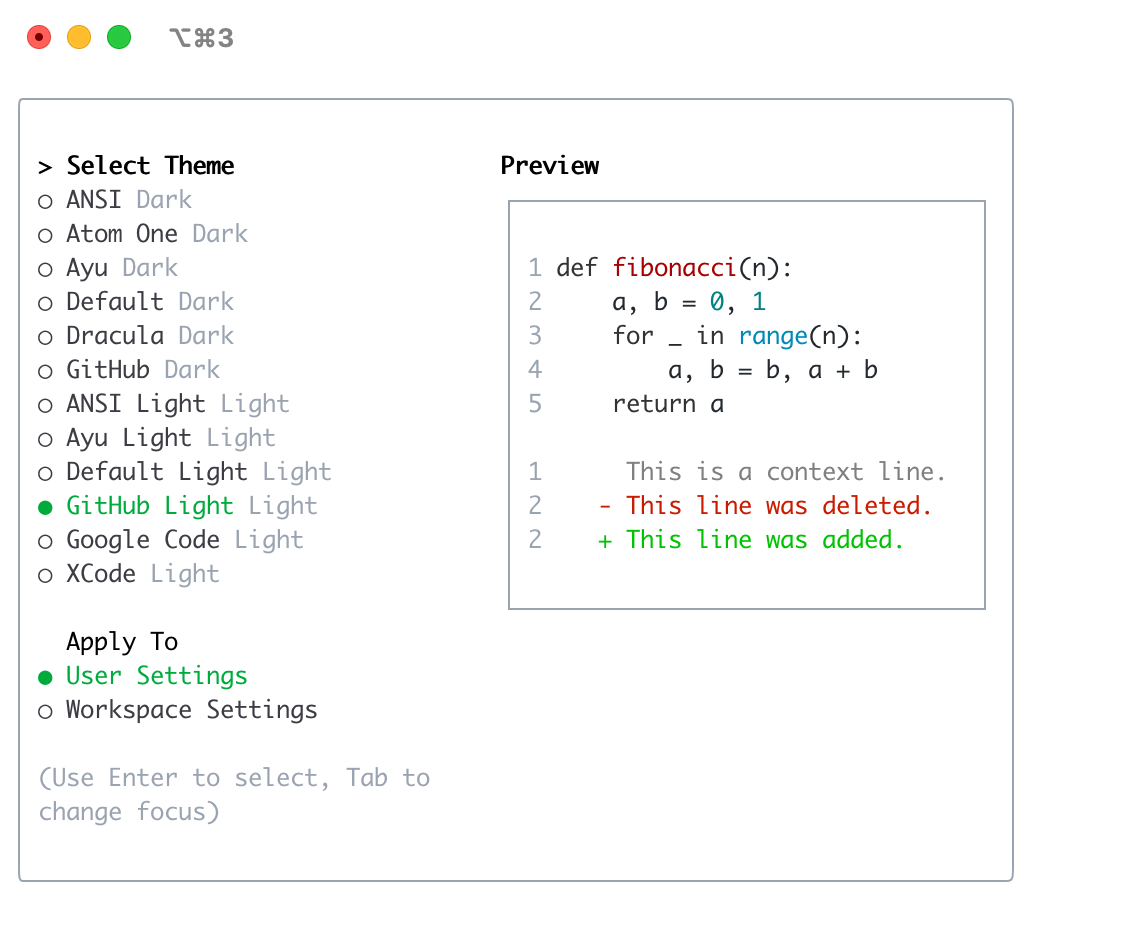 |
| Dracula |
|
| Dracula | 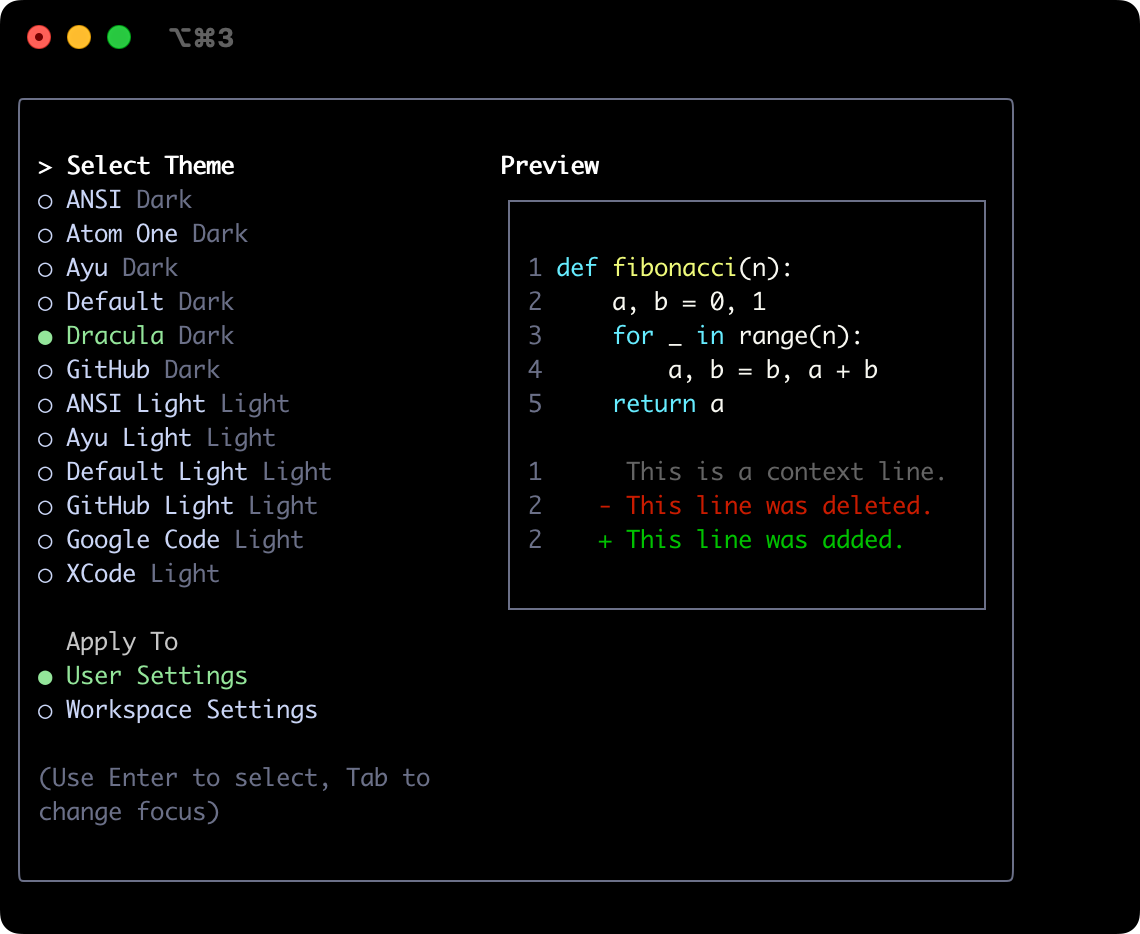 | Google Code |
 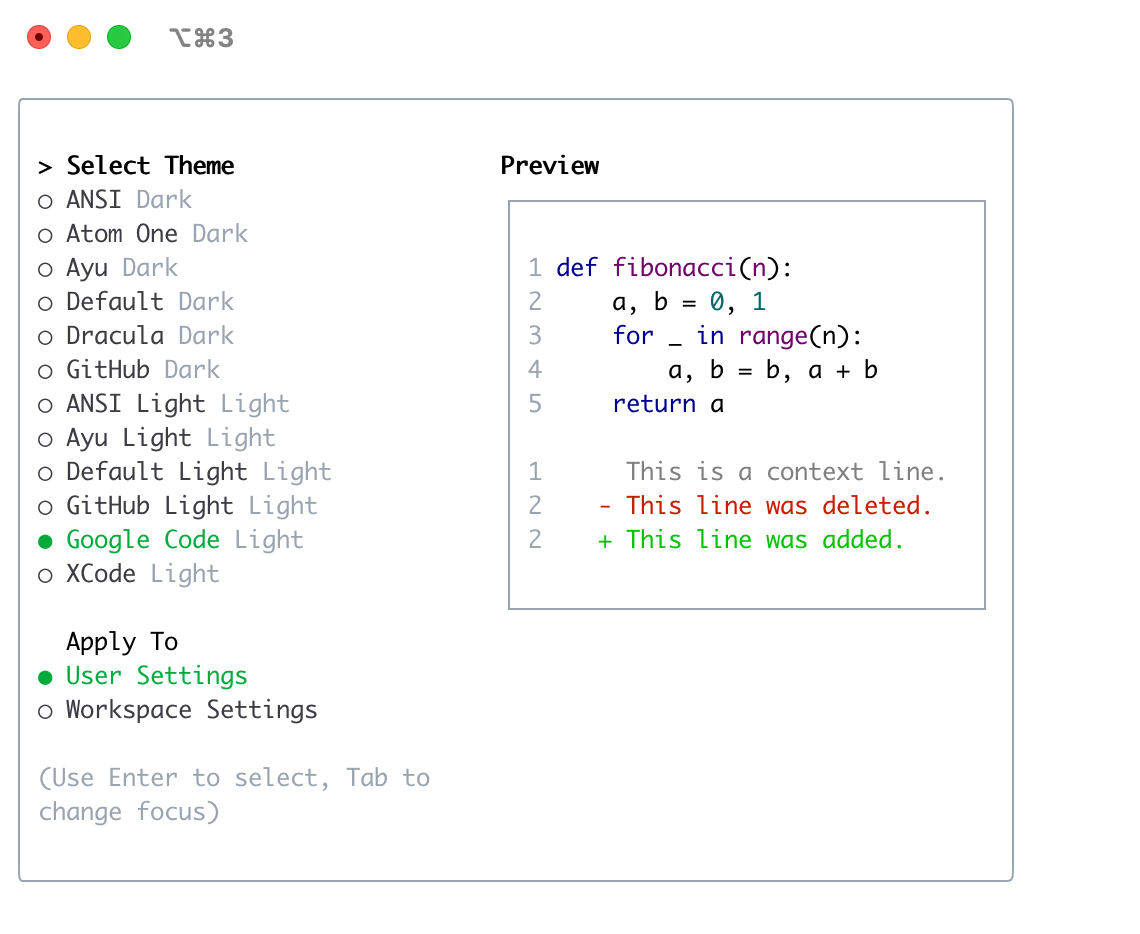 |
| GitHub |
|
| GitHub | 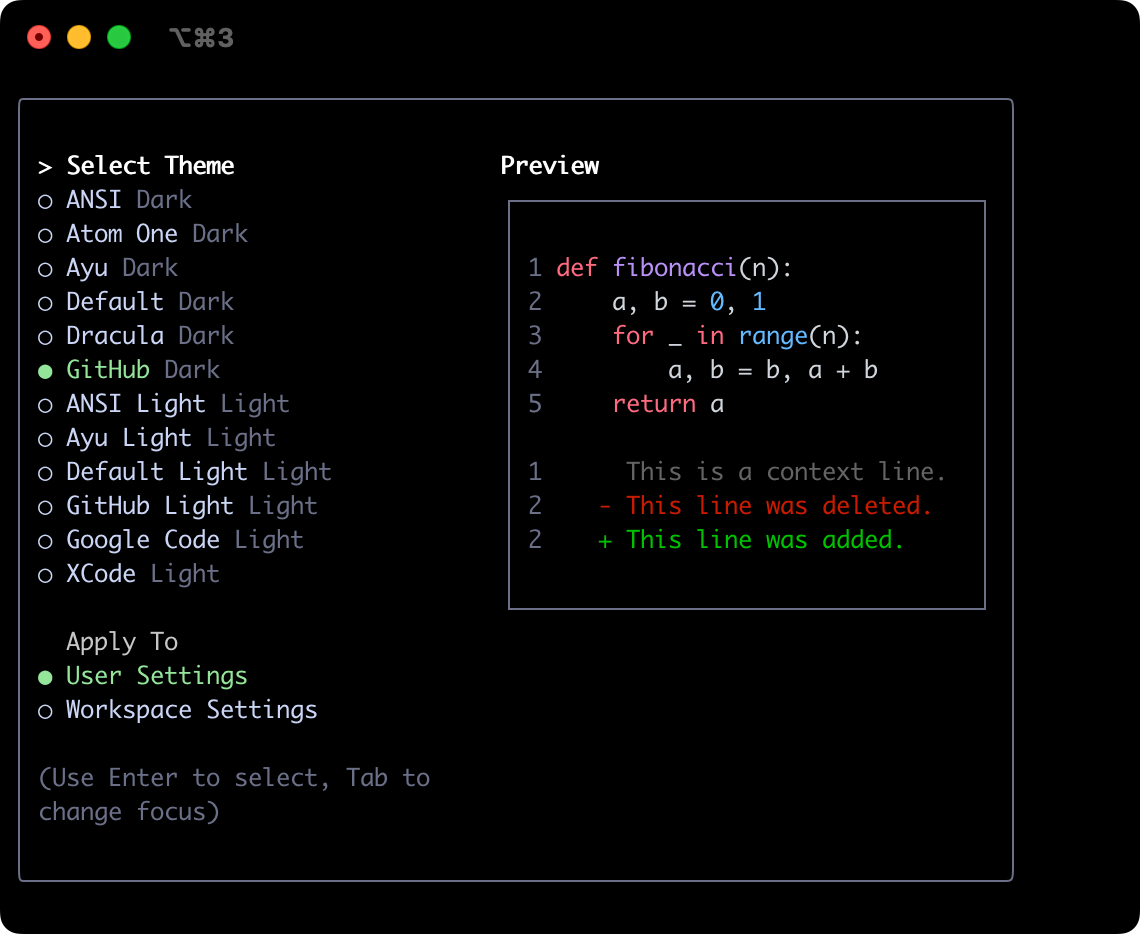 | Xcode |
 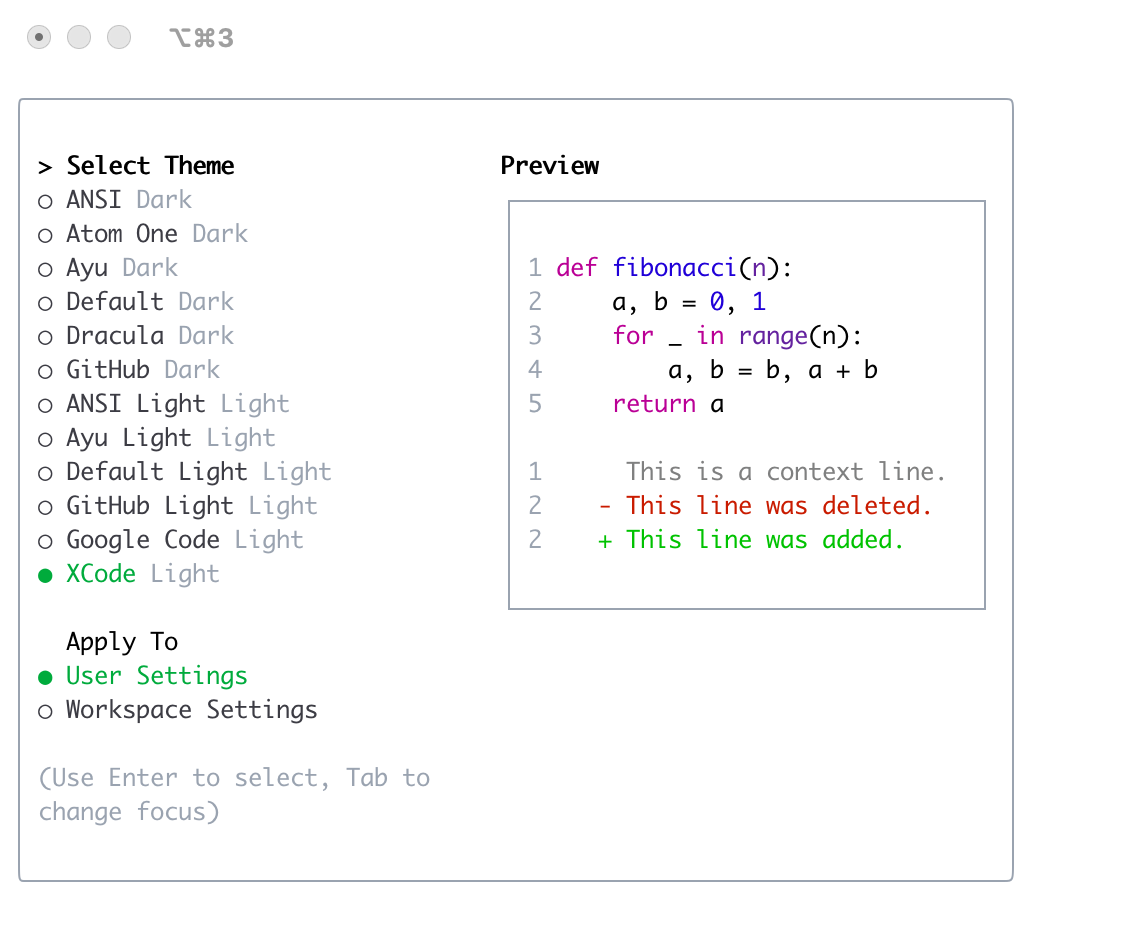 |
|