## kbar
kbar is a simple plug-n-play React component to add a fast, portable, and extensible command+k interface to your site.
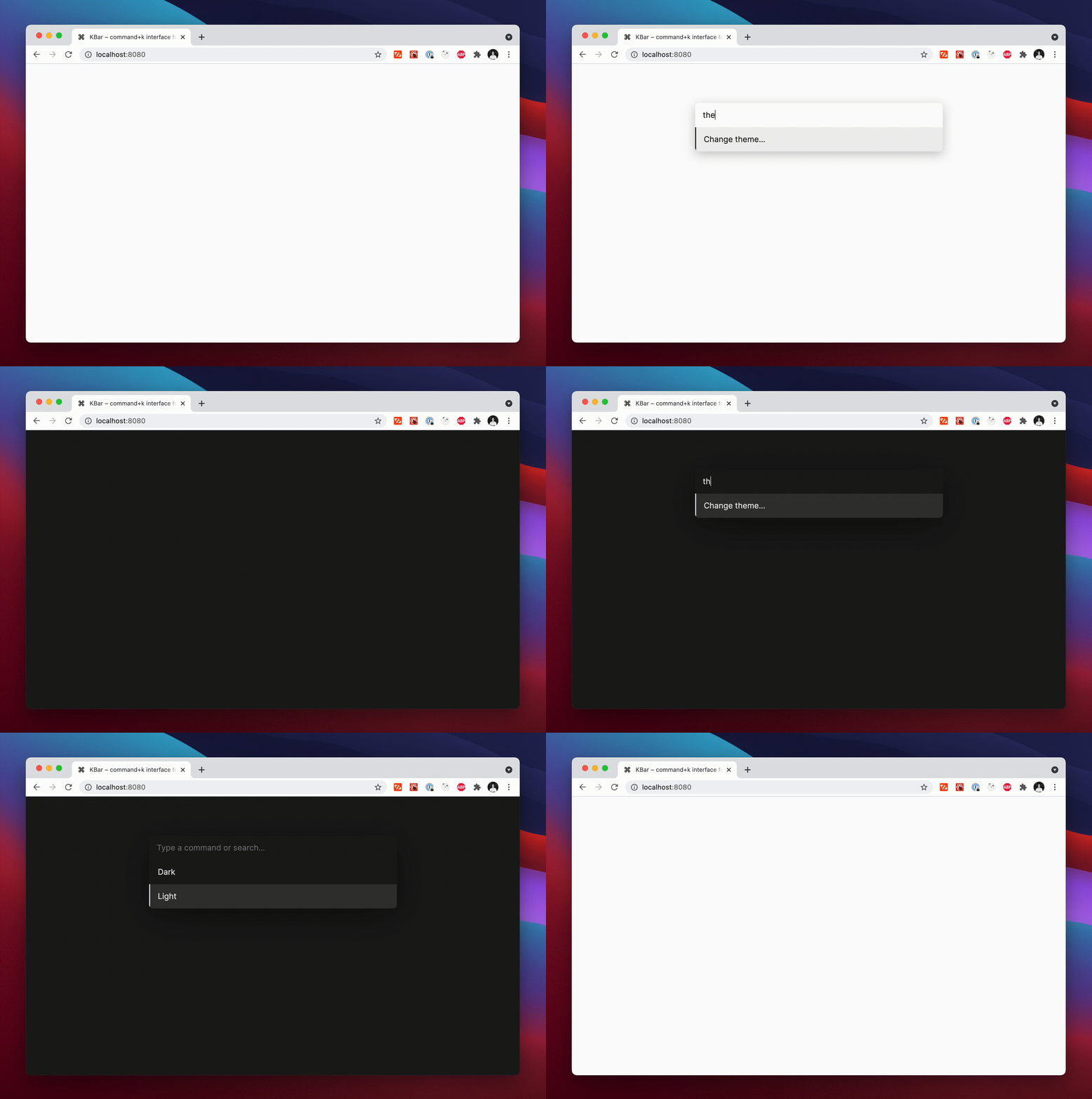
### Background
Command+k interfaces are used to create a web experience where any type of action users would be able to do via clicking can be done through a command menu.
With macOS's Spotlight and Linear's command+k experience in mind, kbar aims to be a simple
abstraction to add a fast and extensible command+k menu to your site.
### Features
- Built in animations and fully customizable components
- Keyboard navigation support; e.g. ctrl n / ctrl p for the navigation wizards
- Keyboard shortcuts support for registering keystrokes to specific actions; e.g. hit t for Twitter
- Nested actions enable creation of rich navigation experiences; e.g. hit backspace to navigate to
the previous action
- A simple data structure which enables anyone to easily build their own custom components
### Usage
Have a fully functioning command menu for your site in minutes. First, install kbar.
```
npm install kbar
```
At the root of your site, import and wrap the site with a KBarProvider.
```tsx
// app.tsx
import { KBarProvider } from "kbar";
return (
);
```
kbar is built on top of `actions`. Actions define what to execute when a user selects it. Actions can have children which are just other actions.
We'll create a few static actions first. Static actions are actions with no external dependencies. Our example below sets the `window.location.pathname`, which does not rely on any
external hook, for instance.
```tsx
const actions = [
{
id: "blog",
name: "Blog",
shortcut: ["b"],
keywords: "writing words",
perform: () => (window.location.pathname = "blog"),
},
{
id: "contact",
name: "Contact",
shortcut: ["c"],
keywords: "email",
perform: () => (window.location.pathname = "contact"),
},
];
return (
);
```
kbar exposes a few components which handle animations, keyboard events, default styles, etc. You can use them together like so:
```tsx
import {
KBarProvider,
KBarPortal,
KBarPositioner,
KBarAnimator,
KBarSearch,
KBarResults
} from "kbar";
// Renders the content outside the root node
// Centers the content
// Handles the show/hide and height animations
// Search input
// Results renderer
;
```
Hit cmd+k (or ctrl+k) and you should see a primitive command menu. kbar allows you to have full control over all
aspects of your command menu – refer to the docs to get
an understanding of further capabilities. Excited to see what you build.
### Contributing to kbar
Contributions are welcome!
#### New features
Please [open a new issue](https://github.com/timc1/kbar/issues) so we can discuss prior to moving
forward.
#### Bug fixes
Please [open a new Pull Request](https://github.com/timc1/kbar/pulls) for the given bug fix.
#### Nits and spelling mistakes
Please [open a new issue](https://github.com/timc1/kbar/issues) for things like spelling mistakes
and README tweaks – we will group the issues together and tackle them as a group. Please do not
create a PR for it!