import { Meta, Story, Canvas, ArgsTable } from '@storybook/addon-docs';
import { CssGridItem, CssGridContainer } from './CssGrid.tsx';
# Grid based on CSS Grid
Use this component when you need a two-dimensional layout model that handles both columns and rows at the same time.
Consists of 2 subcomponents:
- Container
- Item
## CssGrid.Container props
## CssGrid.Item props
## Areas
CSS Grid can be implemented in several ways but to make it work in all browsers we had to limit ourselves to using the `grid-template-areas` way of defining the grid.
Think of it as visually writing down where you would like your grid items to be placed out and over how many columns they should span.
```javascript
templateColumns={['50px', '50px', '50px', '50px']}
areas={[
['header', 'header', 'header', 'header'],
['main', 'main', 'empty', 'sidebar'],
['footer', 'footer', 'footer', 'footer'],
]}
```
Now the code above will resolve into the following
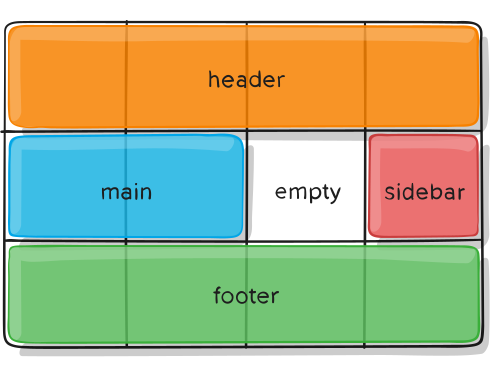
But for the example above to work we need to asign each template area to a grid item. These area names needs to be unique in the same grid.
```jsx
Header
Main
Sidebar
Footer
Empty
```
## TemplateColumns
TemplateColumns takes an array of either numbers or strings. If provided a number then that would be treated as a fraction of a 12 column based grid. So in the example below the middle column would be twice as big as the left and right column.
```javascript
templateColumns={[3, 6, 3]}
```
We could aslo pass in pure CSS values and units like so:
```javascript
templateColumns={['100px', '2fr', '1fr']}
```
This would resolve in the first column always being resolved to `100px` and the other two columns takes the rest of the available space while still keeping the ratio of middle column being twice the big as the right column.
## TemplateRows
TemplateRows does not have to specified in most cases but if you want to have custom rows then the use it as you're using templateColumns. Default value would be `1fr` times number of rows you have in your grid. However, be careful ⚠️ IE11 doesn't like default value, if you have some extra space hanging around - try 'auto' times number of rows instead.
Example (for 3 rows):
```javascript
templateRows={['auto', 'auto', 'auto']}
```
## Gutter
Gutter or the grid gap as it's also called is unit based. This means that whatever number passed into the gutter will be a multiplier for our 4px unit.
```javascript
gutter={4} // 4 * 4px = 16px;
```
If you dont specifiy a gutter it will automatically be set to the default `5`.
The gutter can also be different between columns and rows.
```javascript
gutter={{ row: 6, col: 4 }}
```
Having a grid without any gutter is also possible by passing it a simple 0.
```javascript
gutter={0}
```