# Onboarding
>*Note:* Before completing this guide, make sure you have completed the _general_ onboarding guide in the [base mojaloop repository](https://github.com/mojaloop/mojaloop/blob/main/onboarding.md#mojaloop-onboarding).
## Contents
1. [Prerequisites](#Prerequisites)
2. [Installing and Building](#InstallingandBuilding)
3. [Running Locally](#RunningLocally)
4. [Running Inside Docker](#RunningInsideDocker)
5. [Testing](#Testing)
6. [Common Errors/FAQs](#CommonErrorsFAQs)
# 1. Prerequisites
If you have followed the [general onboarding guide](https://github.com/mojaloop/mojaloop/blob/main/onboarding.md#mojaloop-onboarding), you should already have the following cli tools installed:
* `brew` (macOS), [todo: windows package manager]
* `curl`, `wget`
* `docker` + `docker-compose`
* `node`, `npm` and (optionally) `nvm`
In addition to the above cli tools, you will need to install the following to build and run the `central-ledger`:
## 2. Installing and Building
Firstly, clone your fork of the `central-ledger` onto your local machine:
```bash
git clone https://github.com//central-ledger.git
```
Then `cd` into the directory and install the node modules:
```bash
cd central-ledger
npm install
```
> If you run into problems running `npm install`, make sure to check out the [Common Errors/FAQs](#CommonErrorsFAQs) below.
## 3. Running Locally (dependencies inside of docker)
In this method, we will run all of the core dependencies (`kafka`, `mysql` and `mockserver`) inside of docker containers, while running the `central-ledger` server on your local machine.
> Alternatively, you can run the `central-ledger` inside of `docker-compose` with the rest of the dependencies to make the setup a little easier: [Running Inside Docker](#RunningInsideDocker).
### 3.1 Run all back-end dependencies as part of the Docker Compose
> Note: You can remove the `objstore` from the below command if you disable MongoDB (`MONGODB.DISABLED=true` is disabled in the `./config/default.json` or set environment var `export CLEDG_MONGODB__DISABLED=true`).
> Note: mockserver below is optional. Include it if you require its use.
```bash
# start all back-end dependencies in Docker
docker-compose up -d mysql kafka temp_curl objstore simulator mockserver ml-api-adapter
```
This will do the following:
* `docker pull` down any dependencies defined in the `docker-compose.yml` file, and the services (mysql, kafka, etc) specified in the above command
* run all of the containers together
* ensure that all dependencies (i.e. mysql, kafka) have started for each services.
### 3.2 Configure the DB environment variable and run the server
> Note: If you do disable Mongodb (i.e. `CLEDG_MONGODB__DISABLED=true`), please ensure that you comment out the following line `sh /opt/wait-for/wait-for-objstore.sh` from the following file: `docker/wait-for/wait-for-central-ledger.sh`.
```bash
# Disable the MongoDB (optional)
export CLEDG_MONGODB__DISABLED=true
# set the CLEDG_DATABASE_URI* environment variable (required):
export CLEDG_DATABASE_URI=mysql://central_ledger:password@localhost:3306/central_ledger
# start the server
npm run start
```
Upon running `npm run start`, your output should look similar to:
```bash
> @mojaloop/ml-api-adapter@4.4.1 start /fullpath/to/ml-api-adapter
> run-p start:api
> @mojaloop/ml-api-adapter@4.4.1 start:api /fullpath/to/ml-api-adapter
> node src/api/index.js
http://hostname.local:4000
GET / Metadata
GET /documentation
GET /health Status of adapter
GET /metrics Prometheus metrics endpoint
GET /swagger.json
GET /swaggerui/{path*}
GET /swaggerui/extend.js
POST /transfers Transfer API.
GET /transfers/{id} Get a transfer by Id
PUT /transfers/{id} Fulfil a transfer
2019-02-01T13:30:30.454Z - info: participantEndpointCache::initializeCache::start
2019-02-01T13:30:30.456Z - info: participantEndpointCache::initializeCache::Cache initialized successfully
2019-02-01T13:30:30.457Z - info: Notification::startConsumer
2019-02-01T13:30:30.458Z - info: Notification::startConsumer - starting Consumer for topicNames: [topic-notification-event]
```
### 3.3 Follow logs of the back-end dependencies
```bash
docker-compose logs -f
```
## 4. Running Inside Docker
We use `docker-compose` to manage and run the `central-ledger` along with its dependencies with one command.
### 4.1 Run Central-Ledger and all dependencies as part of the Docker Compose
```bash
# start all services in Docker
docker-compose up -d
```
This will do the following:
* `docker pull` down any dependencies defined in the `docker-compose.yml` file
* `docker build` the `central-ledger` image based on the `Dockerfile` defined in this repo
* run all of the containers together
* ensure that all dependencies (i.e. mysql, kafka) have started for each services.
### 4.2 Follow the logs
```bash
docker-compose logs -f
```
## 5. Handy Docker Compose Tips
You can run `docker-compose` in 'detached' mode as follows:
```bash
npm run docker:up -- -d
```
And then attach to the logs with:
```bash
docker-compose logs -f
```
When you're done, don't forget to stop your containers however:
```bash
npm run docker:stop
```
If you need to clean up everything in your docker environment:
```bash
# Bring stop and remove all containers and volumes
docker-compose down -v
```
## 6. (Optional) Connecting MySQLWorkbench to MySQL inside Docker
If you installed MySQLWorkbench from the [general onboarding guide](https://github.com/mojaloop/mojaloop/blob/main/onboarding.md#5-mysqlworkbench-optional), follow these instructions to get MySQLWorkbench connected to the `mysql` container running in docker.
Please follow the below instructions:
1. Click the add (+) icon
 2. Enter the following details:
* **Connection Name:** `central_ledger@localhost`
* **Username:** `central_ledger`
And Click "Test Connection"
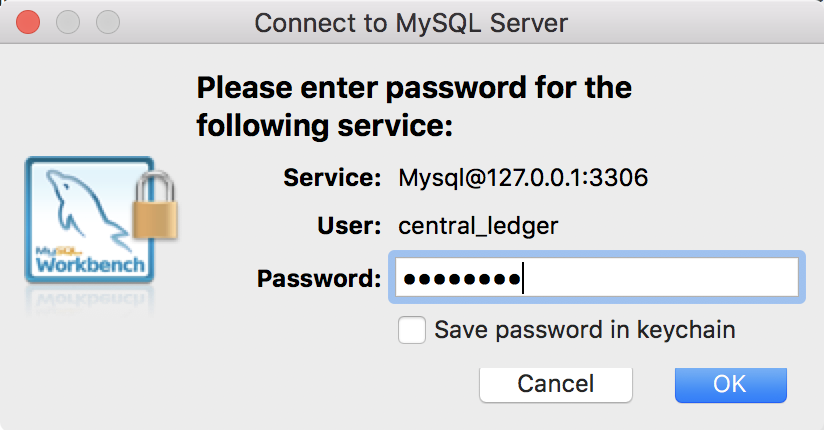
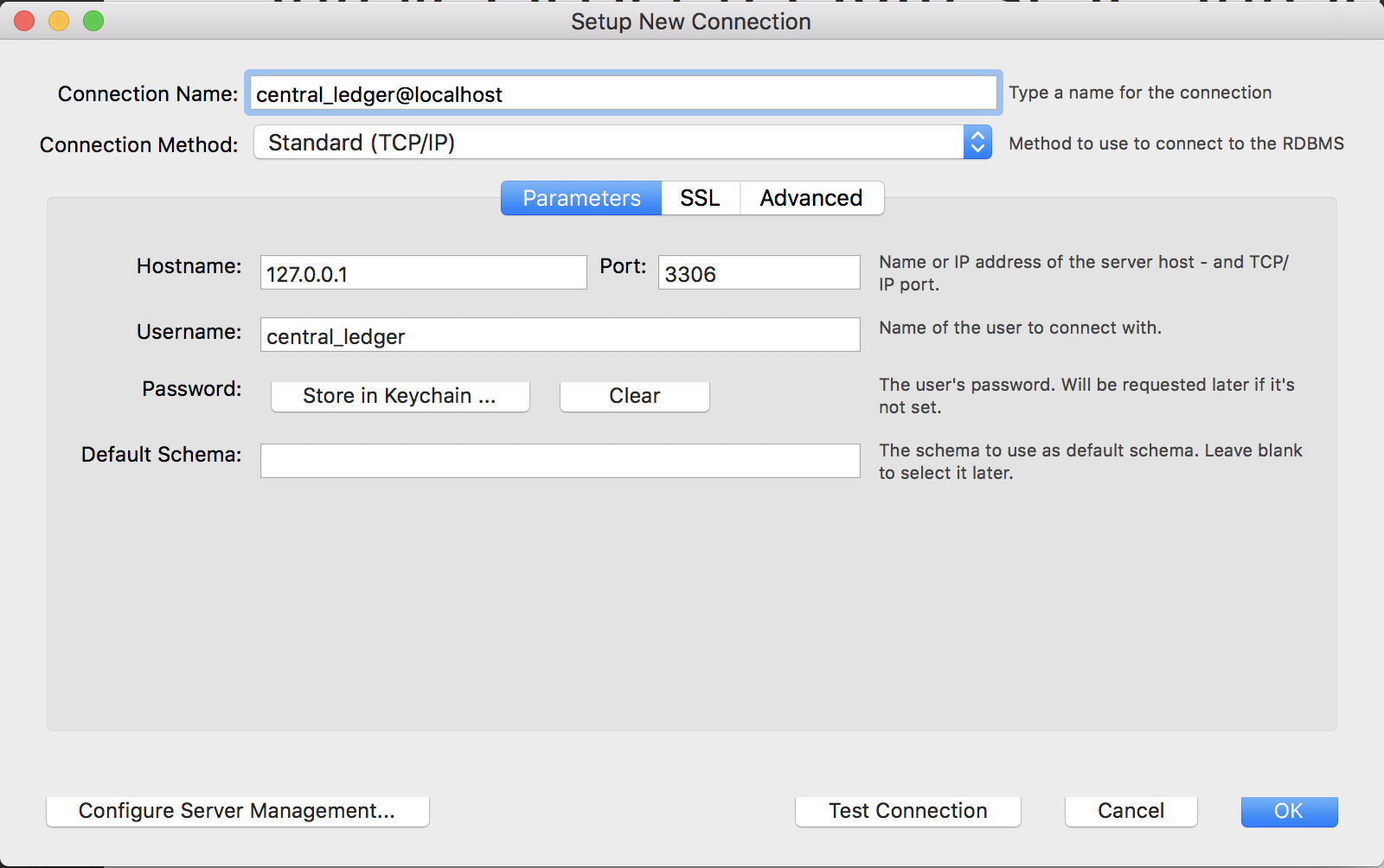 3. Enter the Password: 'password' > click "OK"
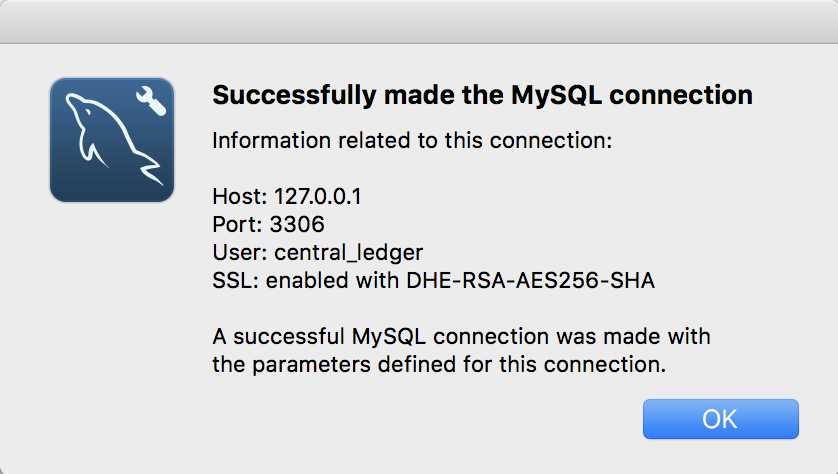
 4. If successful, you will see the following dialogue:
* click "OK" to dismiss the dialogue
* click "OK" once more to confirm the database connection
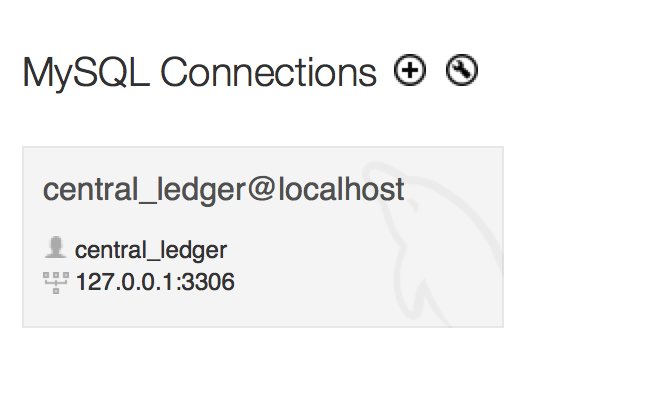
 5. This should now be shown on you MySQLWorkbench dashboard
* click on the connection to open the database
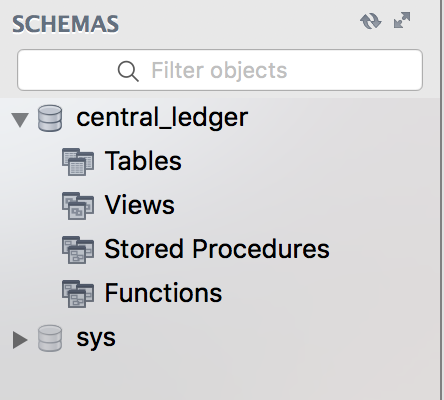
 6. In the top left, click the **schema** tab > and expand **central_ledger** section
* You should see the `central_ledger` database underneath
* if you haven't yet started your server, no tables will be present, but they will be populated when you start your server
 ## 7. Testing
We use `npm` scripts as a common entrypoint for running the tests.
> Note: Ensure that you stop all Docker services (`docker-compose stop`) prior to running the below commands.
```bash
# unit tests:
npm run test:unit
# check test coverage
npm run test:coverage
# integration tests
npm run test:integration
```
### 8. Testing the `central-ledger` API with Postman
#### 8.1 Prerequisites:
1. Follow the steps as described in [`5.2. Verifying Mojaloop Deployment` from the Deployment Guide](https://github.com/mojaloop/documentation/tree/main/deployment-guide#52-verifying-mojaloop-deployment).
2. Clone the [Postman Collection repo](https://github.com/mojaloop/postman):
```bash
# Clone Mojaloop Postman repo
git clone https://github.com/mojaloop/postman.git
# Switch to postman directory
cd ./postman
```
3. Refer to [4. Support Scripts for Docker-compose](https://github.com/mojaloop/postman#4-support-scripts-for-docker-compose) of the readme for additional prerequisites.
#### 8.2 Pre-loading Test Data
Refer to section [4. Support Scripts for Docker-compose](https://github.com/mojaloop/postman#42-pre-loading-test-data) of the readme.
#### 8.3 Running Example Requests
Refer to section [4. Support Scripts for Docker-compose](https://github.com/mojaloop/postman43-running-example-requests) of the readme.
## 9. Common Errors/FAQs
### 9.1 `sodium v1.2.3` can't compile during npm install
Resolved by installing v2.0.3 `npm install sodium@2.0.3`
### 9.2 `./src/argon2_node.cpp:6:10: fatal error: 'tuple' file not found`
Resolved by running `CXX='clang++ -std=c++11 -stdlib=libc++' npm rebuild`
### 9.3 On macOS, `npm install` fails with the following error
```
Undefined symbols for architecture x86_64:
"_CRYPTO_cleanup_all_ex_data", referenced from:
_rd_kafka_transport_ssl_term in rdkafka_transport.o
"_CRYPTO_num_locks", referenced from:
........
ld: symbol(s) not found for architecture x86_64
clang: error: linker command failed with exit code 1 (use -v to see invocation)
```
Resolved by installing openssl `brew install openssl` and then running:
```bash
export CFLAGS=-I/usr/local/opt/openssl/include
export LDFLAGS=-L/usr/local/opt/openssl/lib
npm install
```
### 9.4 Docker-Compose Issues
#### 9.4.1 On Linux, ML-API-Adapter is unable to retrieve the callback end-points from Central-Ledger
Shutdown all docker images, and modify the following project configuration: `docker/ml-api-adapter/default.json`
```json
{
"PORT": 3000,
"HOSTNAME": "http://ml-api-adapter",
"ENDPOINT_SOURCE_URL": "http://host.docker.internal:3001",
"ENDPOINT_HEALTH_URL": "http://host.docker.internal:3001/health",
...
```
Replace `host.docker.internal` with `172.17.0.1` as per the following example:
```json
{
"PORT": 3000,
"HOSTNAME": "http://ml-api-adapter",
"ENDPOINT_SOURCE_URL": "http://172.17.0.1:3001",
"ENDPOINT_HEALTH_URL": "http://172.17.0.1:3001/health",
...
```
> Note: This will ensure that ml-api-adapter can send requests to the host machine. Refer to the following issue for more information or if the above ip-address is not working for you: https://github.com/docker/for-linux/issues/264.
Restart all docker images.
#### 9.4.2 When running all services, central-ledger is unable to connect to MongoDB on startup
If you do disable Mongodb (i.e. `CLEDG_MONGODB__DISABLED=true`), please ensure that you comment out the following line `sh /opt/wait-for/wait-for-objstore.sh` from the following file: `docker/wait-for/wait-for-central-ledger.sh`.
Alternatively make sure that it is uncommented if you do NOT wish to disable the object store.