---
sidebar_position: 5
---
# 开发模块文档
本章介绍如何为模块项目快速搭建一个静态文档站点。
## 开始之前
### 为什么我们需要为模块搭建一个文档站点
1. 文档站点可以帮助我们更好地组织文档的结构。
2. 文档站点具有更好的表现形式,例如可以在页面中执行函数,渲染组件等。
3. 可以更好地利用 AI 搜索的能力。
### 前置准备
1. 通过[微生成器](/guide/basic/use-micro-generator)开启文档功能。
2. 阅读[Rspress 介绍](https://rspress.rs/zh/guide/start/introduction.html)。
完成准备工作之后,接下来我们会基于 Rspress 为模块项目搭建一个文档站点。
## 站点基本结构
站点整体布局由三部分组成:导航栏、侧边栏以及正文部分,其中正文还包括了 TOC(Table of contents found at the beginning of a book or document)。
Rspress 使用的是[文件系统路由](https://rspress.rs/zh/guide/basic/conventional-route.html),模块文档基于此实现了侧边栏的自动生成。
例如,如果你有以下的文件结构:
```bash
docs
├── foo
│ └── bar.md
│ └── index.md
└── foo.md
└── index.md
```
那么 `foo/bar.md` 的路由路径会是 `/foo/bar`,`foo.md` 的路由路径会是 `/foo`,`index.md` 的路由路径会是 `/`。
具体映射规则如下:
| 文件路径 | 路由路径 |
| --------------- | ---------- |
| `index.md` | `/` |
| `/foo.md` | `/foo` |
| `/foo/index.md` | `/foo/` |
| `/foo/bar.md` | `/foo/bar` |
与上述文件路径和路由路径依次对应的侧边栏如下所示:
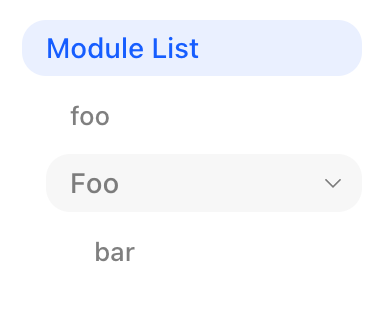 ### 配置侧边栏
如上图所示,模块文档已经为文件系统路由自动生成了侧边栏,其中侧边栏每一栏的文本是由文件的一级标题或者目录名决定。
如果你需要自定义侧边栏,请使用 [\_meta.json](https://rspress.rs/zh/guide/basic/auto-nav-sidebar.html) 或者直接配置 [sidebar](https://rspress.rs/zh/api/config/config-theme.html#sidebar)。
:::info
如果你的文档目录结构是符合国际化的,例如:
```bash
docs
├── en
│ ├── button.mdx
│ ├── index.mdx
└── zh
├── button.mdx
├── index.mdx
```
你需要按照[国际化](https://rspress.rs/zh/guide/default-theme/i18n.html)章节,同时配置 `lang` 和 `locales`,否则模块自动生成的侧边栏不会处理 `zh` 和 `en` 这两个目录。
:::
## 编写文档
接下来我们可以专注于文档内容的编写了。除了最基本的编写 markdown 以外,你可能还需要了解以下进阶内容:
- [使用 MDX](https://rspress.rs/zh/guide/basic/use-mdx.html)
- [使用静态资源](https://rspress.rs/zh/guide/basic/static-assets.html)
## 组件预览
模块文档为组件库提供了预览能力,`jsx`和`tsx`的代码块里的内容将会被解析为 React 组件。
### 示例
假设我们的项目名是`demo`,并导出了一个 Button 组件。
1. 首先新增 `docs/Button.mdx` 文件:
````mdx title="Button.mdx"
# Button
## 基本用法
按钮分为: 小、中、大四种尺寸
```tsx
import React from 'react';
import { Button } from 'demo';
export default () => {
return ;
};
```
````
2. 在`tsconfig.json`里配置别名,将包名指向当前项目目录,使得文档开发者和用户使用组件方式一致:
```json title="tsconfig.json"
{
"compilerOptions": {
"paths": {
"demo": ["."]
}
}
}
```
3. 在 `.gitignore` 文件下添加 `doc_build/`,文档产物将会生成在此目录下:
```bash title=".gitignore"
doc_build/
```
恭喜你,已经完成了一个组件文档的编写,执行`pnpm run dev`看看效果吧,记得先构建一下组件库,确保组件产物存在。
### 移动端预览
同时,我们也支持了移动端预览的方式,即使用 iframe 渲染移动端组件,并可以通过 `iframePosition` 设置 iframe 的位置,支持扫码预览以及新页面打开。
```ts title="modern.config.ts"
import { moduleTools, defineConfig } from '@modern-js/module-tools';
import { modulePluginDoc } from '@modern-js/plugin-rspress';
export default defineConfig({
plugins: [
moduleTools(),
modulePluginDoc({
/**
* 选择预览方式
* @default internal
*/
previewMode: 'iframe',
/**
* 设置 iframe 的位置
* @default 'follow'
*/
iframePosition: 'fixed',
}),
],
});
```
:::tip
如果只想要改变某一个 `jsx` 和 `tsx` 代码块的预览方式,可以使用不同的修饰符进行标识:
````mdx
```jsx pure
// 这里的内容不会被渲染
```
```jsx internal
// 内置在文档内容里渲染
```
```jsx iframe
// 使用 iframe 渲染
```
````
:::
### 使用外部 demo
如果我们的 demo 非常复杂,那么建议单独编写 demo,然后在 MDX 中使用 `code` 标签:
```mdx
### 配置侧边栏
如上图所示,模块文档已经为文件系统路由自动生成了侧边栏,其中侧边栏每一栏的文本是由文件的一级标题或者目录名决定。
如果你需要自定义侧边栏,请使用 [\_meta.json](https://rspress.rs/zh/guide/basic/auto-nav-sidebar.html) 或者直接配置 [sidebar](https://rspress.rs/zh/api/config/config-theme.html#sidebar)。
:::info
如果你的文档目录结构是符合国际化的,例如:
```bash
docs
├── en
│ ├── button.mdx
│ ├── index.mdx
└── zh
├── button.mdx
├── index.mdx
```
你需要按照[国际化](https://rspress.rs/zh/guide/default-theme/i18n.html)章节,同时配置 `lang` 和 `locales`,否则模块自动生成的侧边栏不会处理 `zh` 和 `en` 这两个目录。
:::
## 编写文档
接下来我们可以专注于文档内容的编写了。除了最基本的编写 markdown 以外,你可能还需要了解以下进阶内容:
- [使用 MDX](https://rspress.rs/zh/guide/basic/use-mdx.html)
- [使用静态资源](https://rspress.rs/zh/guide/basic/static-assets.html)
## 组件预览
模块文档为组件库提供了预览能力,`jsx`和`tsx`的代码块里的内容将会被解析为 React 组件。
### 示例
假设我们的项目名是`demo`,并导出了一个 Button 组件。
1. 首先新增 `docs/Button.mdx` 文件:
````mdx title="Button.mdx"
# Button
## 基本用法
按钮分为: 小、中、大四种尺寸
```tsx
import React from 'react';
import { Button } from 'demo';
export default () => {
return ;
};
```
````
2. 在`tsconfig.json`里配置别名,将包名指向当前项目目录,使得文档开发者和用户使用组件方式一致:
```json title="tsconfig.json"
{
"compilerOptions": {
"paths": {
"demo": ["."]
}
}
}
```
3. 在 `.gitignore` 文件下添加 `doc_build/`,文档产物将会生成在此目录下:
```bash title=".gitignore"
doc_build/
```
恭喜你,已经完成了一个组件文档的编写,执行`pnpm run dev`看看效果吧,记得先构建一下组件库,确保组件产物存在。
### 移动端预览
同时,我们也支持了移动端预览的方式,即使用 iframe 渲染移动端组件,并可以通过 `iframePosition` 设置 iframe 的位置,支持扫码预览以及新页面打开。
```ts title="modern.config.ts"
import { moduleTools, defineConfig } from '@modern-js/module-tools';
import { modulePluginDoc } from '@modern-js/plugin-rspress';
export default defineConfig({
plugins: [
moduleTools(),
modulePluginDoc({
/**
* 选择预览方式
* @default internal
*/
previewMode: 'iframe',
/**
* 设置 iframe 的位置
* @default 'follow'
*/
iframePosition: 'fixed',
}),
],
});
```
:::tip
如果只想要改变某一个 `jsx` 和 `tsx` 代码块的预览方式,可以使用不同的修饰符进行标识:
````mdx
```jsx pure
// 这里的内容不会被渲染
```
```jsx internal
// 内置在文档内容里渲染
```
```jsx iframe
// 使用 iframe 渲染
```
````
:::
### 使用外部 demo
如果我们的 demo 非常复杂,那么建议单独编写 demo,然后在 MDX 中使用 `code` 标签:
```mdx