Welcome to Mockoon's official CLI, a lightweight and fast NPM package to deploy your mock APIs anywhere.
Feed it with a Mockoon's [data file](https://mockoon.com/docs/latest/mockoon-data-files/data-files-location/), or OpenAPI specification file (JSON or YAML), and you are good to go.
The CLI supports the same features as the main application: [templating system](https://mockoon.com/docs/latest/templating/overview/), [proxy mode](https://mockoon.com/docs/latest/server-configuration/proxy-mode/), [route response rules](https://mockoon.com/docs/latest/route-responses/dynamic-rules/), etc.
- [Installation](#installation)
- [Run a mock API with the CLI](#run-a-mock-api-with-the-cli)
- [Use your Mockoon environment file](#use-your-mockoon-environment-file)
- [Use an OpenAPI specification file](#use-an-openapi-specification-file)
- [Compatibility](#compatibility)
- [Commands](#commands)
- [Start command](#start-command)
- [Dockerize command](#dockerize-command)
- [Import command](#import-command)
- [Export command](#export-command)
- [MCP command](#mcp-command)
- [Help command](#help-command)
- [Use the GitHub Action](#use-the-github-action)
- [Docker image](#docker-image)
- [Using the generic Docker image](#using-the-generic-docker-image)
- [Using the `dockerize` command](#using-the-dockerize-command)
- [Logs](#logs)
- [Mockoon's documentation](#mockoons-documentation)
- [Sponsors](#sponsors)
- [Support/feedback](#supportfeedback)
- [Contributing](#contributing)
- [Roadmap](#roadmap)
## Installation
```sh-session
$ npm install -g @mockoon/cli
```
Usage:
```sh-session
$ mockoon-cli COMMAND
```
## Changelogs
You will find Mockoon applications [changelogs](https://mockoon.com/releases/) on the official website.
## Run a mock API with the CLI
### Use your Mockoon environment file
The CLI can import and migrate data from older versions of Mockoon. However, it doesn't alter the file you provide and only migrates a copy. If you created your mock with a more recent version of the application, you need to update your CLI with the following command: `npm install -g @mockoon/cli`.
You can run your mock in one single step using the [start command](#mockoon-cli-start) and replacing `~/path/to/your-environment-file.json` by the actual location of your Mockoon environment file:
```sh-sessions
$ mockoon-cli start --data ~/path/to/your-environment-file.json
```
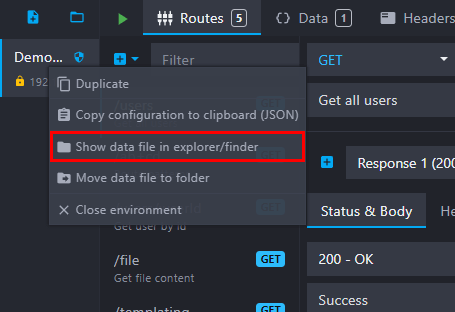
> To locate your environment file from the main application, right-click on a environment and select "Show in folder" in the context menu:
> 
You can also directly load Mockoon's environment file from a URL. To do so, provide the URL as the `data` parameter instead of a local path:
```sh-sessions
$ mockoon-cli start --data https://domain.com/your-environment-file.json
```
### Run a cloud-hosted Mockoon environment
Since v9.5.0, you can also run a cloud-hosted Mockoon environment directly from the CLI by providing the cloud URL as the `data` parameter:
```sh-sessions
$ mockoon-cli start --data cloud://{UUID} --token {TOKEN}
```
Where `{UUID}` is your environment's UUID and `{TOKEN}` is your Mockoon Cloud [access token](https://mockoon.com/cloud/docs/access-tokens/).
The application will provide you with the necessary **commands and instructions** to set up and run the mock on your own servers in the environment dropdown menu:
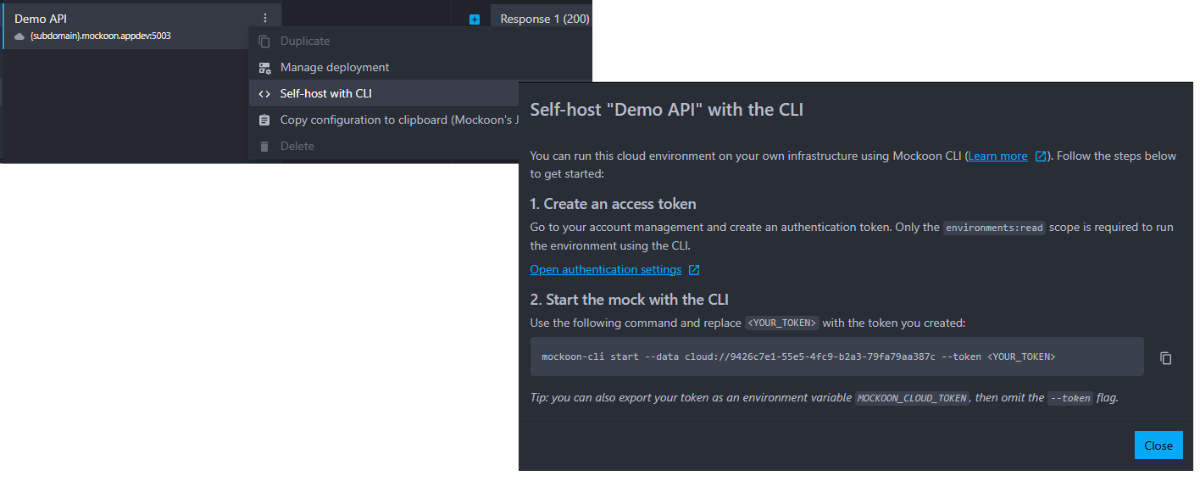
Learn more about self-hosting cloud environments in the [official Mockoon Cloud documentation](https://mockoon.com/cloud/docs/api-mock-cloud-deployments/#self-host-with-the-cli).
### Use an OpenAPI specification file
Another option is to directly pass an OpenAPI specification file as the `data` parameter. Mockoon supports both JSON and YAML formats in versions 2.0.0 and 3.0.0.
> ⚠️ There is currently no equivalent between all the OpenAPI specifications and Mockoon's features ([more info](https://mockoon.com/docs/latest/openapi/openapi-specification-compatibility/)). If you want to run your Mockoon mock APIs with the CLI with all the features (templating, rules, etc.), you must use Mockoon's data files ([see above](#use-your-mockoon-environment-file)) directly, or you may lose part of your mock's behavior.
You can provide a path to a local OpenAPI specification file or directly the file's URL:
```sh-sessions
$ mockoon-cli start --data ~/path/to/your-opeanapi-file.yaml
```
Or,
```sh-sessions
$ mockoon-cli start --data https://domain.com/your-opeanapi-file.yaml
```
## Compatibility
Mockoon's CLI has been tested on Node.js versions 18, 20, 22 and 24.
## Commands
- [`start`](#start-command)
- [`dockerize`](#dockerize-command)
- [`import`](#import-command)
- [`export`](#export-command)
- [`validate`](#validate-command)
- [`mcp`](#mcp-command)
- [`help`](#help-command)
### `start` command
Starts one (or more) mock API from Mockoon's environment file(s) as a foreground process.
The mocks will run by default on the ports and hostnames specified in the files. You can override these values by using the `--port` and `--hostname` flags.
`--data`, `--port`, `--hostname`, and `--public-base-url` flags support multiple entries to run multiple mock APIs at once (see examples below).
> 💡 To run the CLI as a background process, add an `&` at the end of the command: `mockoon-cli start -d ./data-file.json &`.
**Usage**:
`$ mockoon-cli start`
**Options**:
|Flag|Description|
|-|-|
|-d, --data |[required] Path(s) or URL(s) to your Mockoon file(s). Supports cloud URLs (e.g. `cloud://`, [see above](#run-a-cloud-hosted-mockoon-environment)).|
|-p, --port |Override environment(s) port(s)|
|-l, --hostname |Override default listening hostname(s)|
|-c, --faker-locale | Faker locale (e.g. 'en', 'en_GB', etc. For supported locales, see below.)|
|-s, --faker-seed | Number for the Faker.js seed (e.g. 1234)|
|-t, --log-transaction | Log the full HTTP transaction (request and response)|
|-X, --disable-log-to-file | Disable logging to file|
|-e, --disable-routes | Disable route(s) by UUID or keyword present in the route's path (do not include a leading slash) or keyword present in a folder name. Use '\*' to disable all routes.|
|-r, --repair | If the data file seems too old, or an invalid Mockoon file, migrate/repair without prompting|
|-x, --env-vars-prefix | Prefix for environment variables (default: 'MOCKOON\_')|
|-w, --watch | Watch local data file(s) for changes and restart the server when a change is detected (watch is using polling, see `--polling-interval` flag below)|
|--polling-interval | Local files watch polling interval in milliseconds (default: 2000)|
|--disable-admin-api | Disable the admin API, enabled by default (more info: https://mockoon.com/docs/latest/admin-api/overview/)|
|--admin-api-token | Admin API bearer token(s). Provide once to reuse for all environments, or multiple times (or comma-separated) to set one token per environment. Can also be set with `MOCKOON_ADMIN_API_TOKEN`.|
|--admin-api-cors-origin | Allowed CORS origin(s) for the admin API (e.g. 'https://app.example.com'). Provide multiple times or comma-separated for multiple origins. Use '\*' to explicitly opt into wildcard CORS. When omitted, no CORS headers are emitted on admin API responses. Can also be set with `MOCKOON_ADMIN_API_CORS_ORIGIN`.|
|--disable-tls | Disable TLS for all environments. TLS configuration is part of the environment configuration (more info: https://mockoon.com/docs/latest/server-configuration/serving-over-tls/)|
|--max-transaction-logs | Maximum number of transaction logs to keep in memory for retrieval via the admin API (default: 100)|
|--max-request-body-size | Maximum request body size for all content types (default: 100MB). Set to 0 to disable the limit. You can use either a raw byte count or a human-readable string (e.g. 104857600, 100MB, 10 GB, or 1.5kb).|
|--enable-random-latency | Randomize global and responses latencies between 0 and the specified value (default: false)|
|--proxy | Override the environment's proxy settings (options: 'enabled' or 'disabled')|
|--public-base-url | Public base URL used to resolve [relative callback URLs](https://mockoon.com/docs/latest/callbacks/overview/#configure-a-callback) and for the [`baseUrl` templating helper](https://mockoon.com/docs/latest/templating/mockoon-request-helpers/#baseurl) (e.g. https://api.example.com or http://localhost:3000). Must include the protocol and port if non-standard.|
|-k, --token | Access token used to fetch cloud-hosted Mockoon environments (see [access token documentation](https://mockoon.com/cloud/docs/access-tokens/))|
|--max-callback-depth | Maximum call stack depth for route responses with callbacks (default: 100)|
|--enable-route-metadata-headers | Add [route metadata headers](https://mockoon.com/docs/latest/response-configuration/response-headers/#mockoon-response-headers) to responses (UUID and response metadata) (default: false)|
|-h, --help | Show CLI help|
**Examples**:
```bash
$ mockoon-cli start --data ~/data.json
$ mockoon-cli start --data ~/data.json --watch
$ mockoon-cli start --data ~/data1.json ~/data2.json --port 3000 3001 --hostname 127.0.0.1 192.168.1.1
$ mockoon-cli start --data https://file-server/data.json
$ mockoon-cli start --data ~/data.json --log-transaction
$ mockoon-cli start --data ~/data.json --disable-routes route1 route2 folder1
$ mockoon-cli start --data ~/data.json --disable-routes=*
$ mockoon-cli start --data ~/data.json --disable-routes "*"
$ mockoon-cli start --data ~/data.json --public-base-url https://api.example.com
$ mockoon-cli start --data ~/data.json --max-request-body-size 100MB
$ mockoon-cli start --data cloud://def01727-aeb7-4cf1-9172-e0c38f22b224 --token mkn_sk_1234567890abcdef
```
#### Admin API
Each running mock API has an admin API enabled by default and available at `/mockoon-admin/`. This API allows you to interact with the running mock API, retrieve logs, and more. You can disable it with the `--disable-admin-api` flag.
When the admin API is enabled, bearer authentication is always enabled.
You can provide the admin API token with `--admin-api-token` (or `MOCKOON_ADMIN_API_TOKEN`). If no token is provided, a secure token is auto-generated at startup and printed in the logs.
- Provide one token to reuse it for all environments.
- Provide one token per environment when starting multiple environments in one command.
- Send the token with the `Authorization: Bearer ` header.
By default, the admin API does not emit CORS headers, which prevents browser-based cross-origin requests. To allow specific origins (e.g. a frontend served from another domain), use `--admin-api-cors-origin` (or `MOCKOON_ADMIN_API_CORS_ORIGIN`):
```bash
$ mockoon-cli start --data ~/data.json --admin-api-cors-origin https://app.example.com
$ mockoon-cli start --data ~/data.json --admin-api-cors-origin https://app.example.com https://admin.example.com
```
Only requests whose `Origin` header matches one of the allowed values receive CORS headers. Use `--admin-api-cors-origin "*"` to explicitly opt into wildcard CORS (not recommended for exposed instances).
Transaction logs returned by the admin API (`GET /mockoon-admin/logs` and the SSE event stream) have known-sensitive headers redacted (`authorization`, `proxy-authorization`, `cookie`, `set-cookie`, `x-api-key`, `api-key`, `x-auth-token`). For `authorization` / `proxy-authorization`, the auth scheme is preserved (e.g. `Bearer [REDACTED]`). Request and response bodies are not modified.
> 💡 To learn more about the admin API, check the [documentation](https://mockoon.com/docs/latest/admin-api/overview/).
#### Faker.js options
- **Locale**: You can set up Faker.js locale with the `--faker-locale` flag. If not provided, Faker.js will use the default locale: `en`. For a list of currently supported locales, you can check the [supported locales list](https://github.com/mockoon/mockoon/blob/main/packages/commons/src/models/faker.model.ts#L1) in Mockoon's commons library. You can also check [Faker.js locales list](https://fakerjs.dev/guide/localization.html#available-locales) for more information (⚠️ Some locales may not yet be implemented in Mockoon).
- **Seed**: You can set up Faker.js seed with the `--faker-seed` flag. If not provided, Faker.js will not use a seed. By providing a seed value, you can generate repeatable sequences of fake data. Using seeding will not always generate the same value but rather a predictable sequence.
#### Customize the environment variables prefix
You can access environment variables in your routes' responses by using the [`{{getEnvVar 'VARIABLE_NAME'}}` templating helper](https://mockoon.com/docs/latest/variables/environment-variables/). By default, only the environment variables prefixed with `MOCKOON_` are available, for example, `MOCKOON_MY_VARIABLE`.
You can customize the prefix with the `--env-vars-prefix` flag. For example, if you set `--env-vars-prefix CUSTOM_PREFIX_`, you will be able to access the environment variable `CUSTOM_PREFIX_MY_VARIABLE` in your routes' responses. To disable the prefix, set it to an empty string: `--env-vars-prefix ''` or `--env-vars-prefix=`.
The prefix is also enforced when writing environment variables through the admin API: keys that do not start with the prefix are automatically prepended with it. When the prefix is empty, writes through the admin API are rejected to prevent arbitrary environment variable modifications (e.g. `PATH`, `NODE_OPTIONS`).
#### Disabling routes
You can disable routes at runtime by providing their UUIDs or a keyword present in the route's path (do not include a leading slash). You can also disable all the routes present in a folder (including subfolders) by adding a keyword present in a folder name.
This is the counterpart of the "Toggle route" feature in the desktop application (right-click on a route -> "Toggle route").
For example, to disable all routes in a folder named `folder1`, and all routes having "users" in their paths, you can use `--disable-routes folder1 users`.
To disable all routes, use `--disable-routes=*` or `--disable-routes "*"`.
### `dockerize` command
Generates a Dockerfile used to build a self-contained image of one or more mock API. After building the image, no additional parameters will be needed when running the container.
This command takes similar flags as the [`start` command](#mockoon-start).
The `--disable-log-to-file` flag will be enabled by default in the resulting Dockerfile.
Please note that this command will copy your Mockoon environments files you provide with the `--data` flag and put them side by side with the generated Dockerfile.
For more information on how to build the image: [Using the dockerize command](#using-the-dockerize-command)
**Usage**:
`$ mockoon-cli dockerize`
**Options**:
|Flag|Description|
|-|-|
|-d, --data | [required] Path or URL to your Mockoon file|
|-p, --port | [required] Ports to expose in the Docker container. It should match the number of environment data files you provide with the --data flag.|
|-o, --output | [required] Generated Dockerfile path and name (e.g. `./folder/Dockerfile`)|
|-t, --log-transaction | Log the full HTTP transaction (request and response)|
|-h, --help | Show CLI help|
**Examples**:
```bash
$ mockoon-cli dockerize --data ~/data.json --output ./Dockerfile
$ mockoon-cli dockerize --data ~/data1.json ~/data2.json --output ./Dockerfile
$ mockoon-cli dockerize --data https://file-server/data.json --output ./Dockerfile
```
### `import` command
Import a Swagger v2/OpenAPI v3 specification file (YAML or JSON).
The output file will not be prettified by default. You can prettify it using the `--prettify` flag described below.
Note: This command is similar to the app's import feature, but it will not import directly to your desktop app. If you need to import and open in your desktop app, use the app's import feature instead.
**Usage**:
`$ mockoon-cli import`
**Options**:
|Flag|Description|
|-|-|
|-i, --input [required] |Path or URL to your Swagger v2/OpenAPI v3 file|
|-o, --output [required] |Generated Mockoon path and name (e.g. `./environment.json`)|
|-p, --prettify |Prettify output|
|-h, --help |Show CLI help|
**Examples**:
```bash
$ mockoon-cli import --input ~/input.json --output ./output.json
$ mockoon-cli import --input ~/input.yaml --output ./output.json
$ mockoon-cli import --input ~/input.json --output ./output.json --prettify
```
### `export` command
Export a mock API to an OpenAPI v3 specification file (JSON or YAML).
The output file will not be prettified by default for JSON. You can prettify it using the `--prettify` flag described below.
**Usage**:
`$ mockoon-cli export`
**Options**:
|Flag|Description|
|-|-|
|-i, --input [required] |Path or URL to your Mockoon data file|
|-o, --output [required] |Generated OpenApi v3 path and name (e.g. `./output.json`)|
|-f, --format |Output format, "json" or "yaml" (default: "json")|
|-p, --prettify |Prettify output (JSON only)|
|-h, --help |Show CLI help|
**Examples**:
```bash
$ mockoon-cli export --input ~/input.json --output ./output.json
$ mockoon-cli export --input ~/input.json --output ./output.json --prettify
$ mockoon-cli export --input ~/input.json --output ./output.yaml --format yaml
```
### `validate` command
Validate a Mockoon [environment JSON file](https://mockoon.com/docs/latest/mockoon-data-files/data-files-location/#data-files-schema) against the schema:
```sh-session
$ mockoon-cli validate --data ~/data1.json ~/data2.json
$ mockoon-cli validate --data https://file-server/data.json
```
> 💡 The `--data` flag behaves like the `--data` flag in the `start` command, meaning you can provide multiple paths or URLs to validate multiple files at once.
If the files are valid, you will see:
```
✓ Valid environment: ~/data1.json
✓ Valid environment: ~/data2.json
✓ All environments are valid
```
If one or more files are invalid, you will see validation errors:
```
Invalid environment: ~/data1.json
- "name" is required
- "port" must be a number
Invalid environment: ~/data2.json
- "routes" must be an array
» Error: Environments validation failed
```
> ⚠️ This command does not validate the OpenAPI specification files. OpenAPI files are validated by the [start command](#start-command) when you run it with an OpenAPI file as the `--data` parameter.
### `mcp` command
Starts a [Model Context Protocol (MCP)](https://modelcontextprotocol.io/) server that exposes Mockoon mocks to AI assistants (Claude, GitHub Copilot, Cursor, etc.).
**Usage**:
`$ mockoon-cli mcp`
Running the command in a terminal will print the configuration snippet to add to your MCP client.
**Available MCP tools**:
| Tool | Description |
| --------------------- | -------------------------------------------------------------- |
| `list_mocks` | List all local Mockoon mock files |
| `start_mock` | Start a Mockoon mock server from a local mock file |
| `stop_mock` | Stop a running mock server by UUID |
| `list_running_mocks` | List all mock servers currently running in the MCP session |
**Extra mock directories**:
By default, the MCP server looks for Mockoon mock files in the default desktop app storage directory (`%APPDATA%\mockoon\storage` on Windows, `~/Library/Application Support/mockoon/storage` on macOS, `~/.config/mockoon/storage` on Linux).
To include mock files from additional directories, set the `MOCKOON_DATA_DIRS` environment variable to a semicolon-separated list of paths in your MCP client configuration:
```json
{
"servers": {
"mockoon": {
"command": "mockoon-cli",
"args": ["mcp"],
"env": {
"MOCKOON_DATA_DIRS": "/path/to/dir1;/path/to/dir2"
}
}
}
}
```
Mocks with the same UUID found in multiple directories are only listed once (the first occurrence wins).
**Examples**:
```bash
$ mockoon-cli mcp
```
### `help` command
Returns information about a command.
**Usage**:
`$ mockoon-cli help [COMMAND]`
**Arguments and options**:
|Flag|Description|
|-|-|
|COMMAND |command to show help for|
|--all |see all commands in CLI|
## Use the GitHub Action
We maintain a [GitHub Action](https://github.com/marketplace/actions/mockoon-cli) that allows you to run your Mockoon CLI in your CI/CD pipelines.
You can find a [sample workflow](https://github.com/marketplace/actions/mockoon-cli#github-action-usage) in the GitHub Action's documentation.
Here is an example of a workflow that will run your mock API on every push to the `main` branch:
```yaml
name: Mockoon CLI demo
on:
push:
branches:
- main
jobs:
mockoon-cli-demo:
runs-on: ubuntu-latest
steps:
- uses: actions/checkout@v4
- name: Run Mockoon CLI
uses: mockoon/cli-action@v2
with:
# Mockoon CLI version, default to 'latest'
version: 'latest'
# Mockoon local data file or URL
data-file: './mockoon-data.json'
# port, default to 3000
port: 3000
- name: Make test call
run: curl -X GET http://localhost:3000/endpoint`
```
> 💡 If you are building your own actions with the CLI, do not forget to add an `&` at the end of the command to run it in the background and avoid blocking the workflow: `mockoon-cli start -d ./data-file.json &`.
## Docker image
### Using the generic Docker image
A generic Docker image is published on the [Docker Hub Mockoon CLI repository](https://hub.docker.com/r/mockoon/cli). It uses `node:26-alpine` and installs the latest version of Mockoon CLI.
All of `mockoon-cli start` flags (`--port`, etc.) must be provided when running the container.
To load the Mockoon data, you can either mount a local data file and pass `mockoon-cli start` flags at the end of the command:
`docker run -d --mount type=bind,source=/home/your-data-file.json,target=/home/mockoon/data/your-data-file.json,readonly -p 3000:3000 mockoon/cli:latest --data /home/mockoon/data/your-data-file.json --port 3000`
Or directly pass a URL to the `mockoon-cli start` command, without mounting a local data file:
`docker run -d -p 3000:3000 mockoon/cli:latest -d https://raw.githubusercontent.com/mockoon/mock-samples/main/samples/generate-mock-data.json --port 3000`
Mockoon CLI's logs will be sent to stdout/stderr (console). File logging is disabled by default in the Docker image.
#### Docker compose
You can also use `docker-compose` with a `docker-compose.yml` file:
```
mock-server:
image: mockoon/cli:latest
command: ["--data", "/home/mockoon/data/your-data-file.json", "--port", "3000"]
healthcheck:
test: ["CMD-SHELL", "curl -f http://localhost:3000/your-healthcheck-route || exit 1"]
interval: 30s
timeout: 5s
retries: 2
start_period: 10s
volumes:
- /home/your-data-file.json:/home/mockoon/data/your-data-file.json:readonly
```
> Please note that our [Docker image includes an `ENTRYPOINT`](https://github.com/mockoon/mockoon/blob/main/packages/cli/docker/Dockerfile#L16) that you may override or not. If you don't override it, and use Docker compose `command`, do not include `mockoon-cli start` as it is already included in the `ENTRYPOINT`.
This snippet also provides an optional healthcheck, which means you can block until the server is able to handle responses when bring it up by running `docker compose up --detach --wait`.
> This example requires a `your-healthcheck-route` route configured to return a 200 status code without latency.
### Using the `dockerize` command
You can use the [`dockerize` command](#mockoon-cli-dockerize) to generate a new Dockerfile that will allow you to build a self-contained image. Thus, no Mockoon CLI specific parameters will be needed when running the container.
- Run the `dockerize` command:
`mockoon-cli dockerize --data ./sample-data.json --port 3000 --output ./tmp/Dockerfile`
- navigate to the `tmp` folder, where the Dockerfile has been generated and the environment file(s) copied:
`cd tmp`
- Build the image:
`docker build -t mockoon-image .`
- Run the container:
`docker run -d -p :3000 mockoon-image`
## Logs
Logs are located in `~/.mockoon-cli/logs/{mock-name}.log`. This file contains all the log entries (all levels) produced by the running mock server. Most of the errors occurring in Mockoon CLI (or the main application) are not critical and therefore considered as normal output. As an example, if the JSON body from an entering request is erroneous, Mockoon will log a JSON parsing error, but it won't block the normal execution of the application.
As the CLI is running in the foreground, logs are also sent to stdout (console).
### Transaction logging
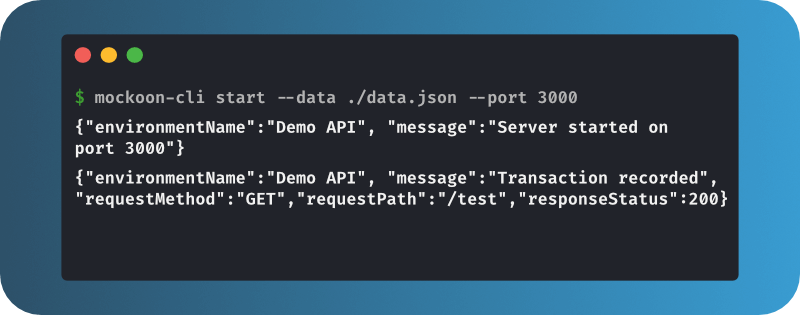
When using the `--log-transaction` flag, logs will contain the full transaction (request and response) with the same information you can see in the desktop application "Logs" tab.
Known-sensitive header values (`authorization`, `proxy-authorization`, `cookie`, `set-cookie`, `x-api-key`, `api-key`, `x-auth-token`) are replaced with `[REDACTED]` in both the CLI transaction logs and the admin API responses. For `authorization` / `proxy-authorization`, the auth scheme is preserved (e.g. `Bearer [REDACTED]`). Request and response bodies are not modified.
Example:
```json
{
"app": "mockoon-server",
"level": "info",
"message": "Transaction recorded",
"timestamp": "YYYY-MM-DDTHH:mm:ss.sssZ",
"environmentName": "Demo API",
"environmentUUID": "xxxxxxxx-xxxx-xxxx-xxxx-xxxxxxxxxxxx",
"requestMethod": "GET",
"requestPath": "/test",
"requestProxied": false,
"responseStatus": 200,
"transaction": {
"proxied": false,
"request": {
"body": "{}",
"headers": [{ "key": "accept", "value": "*/*" }],
"method": "GET",
"params": [],
"query": "",
"queryParams": {},
"route": "/test",
"urlPath": "/test"
},
"response": {
"body": "{}",
"headers": [
{ "key": "content-type", "value": "application/json; charset=utf-8" }
],
"statusCode": 200,
"statusMessage": "OK"
},
"routeResponseUUID": "xxxxxxxx-xxxx-xxxx-xxxx-xxxxxxxxxxxx",
"routeUUID": "xxxxxxxx-xxxx-xxxx-xxxx-xxxxxxxxxxxx"
}
}
```
The `transaction` model can be found [here](https://github.com/mockoon/mockoon/blob/main/packages/commons/src/models/server.model.ts#L27-L47).
### Disable logging
You can disable the logging to the console by redirecting the stdout and stderr outputs:
- Unix:
```sh-sessions
mockoon-cli start --data ./data.json > /dev/null 2>&1
```
or:
```sh-sessions
mockoon-cli start --data ./data.json &> /dev/null
```
- Windows (cmd):
```sh-sessions
mockoon-cli start --data ./data.json 2> NUL
```
or:
```sh-sessions
mockoon-cli start --data ./data.json > NUL 2>&1
```
- Windows (PowerShell):
```sh-sessions
mockoon-cli start --data ./data.json 2> $null
```
or:
```sh-sessions
mockoon-cli start --data ./data.json > $null 2>&1
```
- Cross platform: use `dev-null-cli` package
```sh-sessions
mockoon-cli start --data ./data.json | npx dev-null
```
You can also disable file logging by using th `--disable-log-to-file` flag. This is enabled by default in the Docker image.
## Mockoon's documentation
You will find Mockoon's [documentation](https://mockoon.com/docs/latest/about/) on the official website.
## Support us!
Mockoon is proudly **independent** and **open-source**, maintained without external funding. We rely on both **sponsorships** and **Mockoon Cloud subscriptions** to keep improving the project and building new features. A **big thank you** to the companies below for supporting our work and helping us grow (and all the [sponsors](https://github.com/mockoon/mockoon/blob/main/backers.md) who helped this project over time!):
### Platinum
### Gold
### Silver
If you'd like to **support Mockoon** as well, you can **become a sponsor** or **subscribe to Mockoon Cloud**, every contribution helps keep the project alive and evolving. Thank you!
## Subscribe to Mockoon Cloud
With advanced features for solo developers and teams, Mockoon Cloud supercharges your API development:
- ☁️ [cloud deployments](https://mockoon.com/cloud/docs/api-mock-cloud-deployments/)
- 🔄️ [data synchronization and real-time collaboration](https://mockoon.com/cloud/docs/data-synchronization-team-collaboration/)
- 🤖 [AI powered API mocking](https://mockoon.com/ai-powered-api-mocking/)
- 📃 Access to dozens of [ready-to-use JSON templates](https://mockoon.com/templates/).
- 💬 Priority support and training.
Upgrade today and take your API development to the next level.
## Support/feedback
You can discuss all things related to Mockoon's CLI, and ask for help, on the [official community](https://github.com/mockoon/mockoon/discussions). It's also a good place to discuss bugs and feature requests before opening an issue on this repository.
## Contributing
If you are interested in contributing to Mockoon, please take a look at the [contributing guidelines](https://github.com/mockoon/mockoon/blob/main/CONTRIBUTING.md).
Please also take a look at our [Code of Conduct](https://github.com/mockoon/.github/blob/main/CODE_OF_CONDUCT.md).
## Roadmap
If you want to know what will be coming in the next release you can check the global [Roadmap](https://mockoon.com/public-roadmap/) or [subscribe to our newsletter](https://mockoon.com/newsletter/).