# AWS Icons for PlantUML
PlantUML images, sprites, macros, and other includes for Amazon Web Services (AWS) services and resources. Used to create PlantUML diagrams with AWS components. All elements are generated from the official [AWS Architecture Icons](https://aws.amazon.com/architecture/icons/) and when combined with [PlantUML](http://plantuml.com/) and the [C4 model](https://c4model.com/), are a great way to communicate your design, deployment, and topology as code.
Besides usage as custom sprites on PlantUML components, different types of diagrams can quickly and easily be created with the icons (including experimental support for "dark mode").
## Table of Contents
- [Getting Started](#getting-started)
- [Hello World](#hello-world)
- [Examples](#examples)
- [Basic Usage](#basic-usage)
- [Raw Images](#raw-images)
- [Simplified View](#simplified-view)
- [Sequence Diagrams](#sequence-diagrams)
- [Distribution "Dist" Details](#distribution-dist-details)
- [Advanced Examples](#advanced-examples)
- [Customized Builds](#customized-builds)
- [Contributing](#contributing)
- [License Summary](#license-summary)
- [Acknowledgements](#acknowledgements)
## Getting Started
In order to incorporate and use the _AWS Icons for PlantUML_ resources, `!include` statements are added to your diagrams. A common include file/URL defines the base colors, styles, and characteristics for the diagram. Then additional configuration files can be added to further customize the diagram, followed by the elements used in the diagram.
To get started, include the `AWSCommon.puml` file from the `dist` directory in each `.puml` file or PlantUML diagram. This can be referenced by a URL directly to this repository, or by including the file locally. To use this repository, use the following:
!include https://raw.githubusercontent.com/awslabs/aws-icons-for-plantuml/v19.0/dist/AWSCommon.puml
or this if defining the URL:
!define AWSPuml https://raw.githubusercontent.com/awslabs/aws-icons-for-plantuml/v19.0/dist
This references the latest _GitHub release_ version of the referenced file from GitHub when an Internet connection is available. It is recommended _not_ to use the `main` branch, but instead a specific release version. The examples below reference the current _v19.0_ release.
All examples reference _main_ and are designed with the most recent files. For consistency of UML diagrams when referencing the files directly via GitHub and not generated locally, it is recommended to use a specific release version.
```
!include path/to/AWSCommon.puml
```
:exclamation: Earlier version of PlantUML required `!includeurl` for URLs. Now `!include` can be used with local file paths _or_ URLs. Please see the [Preprocessing](http://plantuml.com/preprocessing) notes for usage.
:exclamation: Syntax of `!include ` uses the embedded [plantuml-stdlib](https://github.com/plantuml/plantuml-stdlib). As of the PlantUML version 1.2022.14 [update](https://github.com/plantuml/plantuml/commit/8cc6471ad3a5f8fd9aa69adbaa2be4784439c54e), this includes the Release 14-2022.07.31 icon set.
After inclusion of the `AWSCommon.puml` file, there are two different ways to reference resources:
1. **Use individual include files** - Use one file per service or setting. For example:
`!include AWSPuml/Storage/SimpleStorageService.puml`
1. **Use category include file** - Single include that contains all services and resources for that category. For example:
`!include AWSPuml/BusinessApplications/all.puml`
All of the services can be found in the `dist/` directory, which includes the service or product categories and the corresponding `puml` files.
For example, including these files from the repository (URL), the includes would look like this:
```
' Define the main location (URL or local file path)
!define AWSPuml https://raw.githubusercontent.com/awslabs/aws-icons-for-plantuml/v19.0/dist
' Include main AWSCommon and then resource files
!include AWSPuml/AWSCommon.puml
!include AWSPuml/BusinessApplications/all.puml
!include AWSPuml/Storage/SimpleStorageService.puml
```
This defines the macro `AWSPuml` to point to the root of the `dist/` directory, which reduces the size of the include statements. Next the `AWSCommon.puml` file is loaded, and then the actual resource files. In this example, all of the entities in the _BusinessApplications_ directory are added, and then only the _SimpleStorageService_ entity from the _Storage_ directory.
:exclamation: All examples reference the main _branch_ of this repository. It is recommended that one of the release tags be used for documents. New releases will be created when AWS updates the AWS Architecture Icons. The release tag will be similar to the release date from AWS.
### Hello World
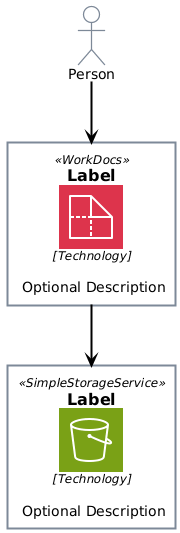
This is the [`examples/HelloWorld.puml`](examples/HelloWorld.puml) diagram code:
```
@startuml Hello World
' Uncomment the line below for "dark mode" styling
'!$AWS_DARK = true
!define AWSPuml https://raw.githubusercontent.com/awslabs/aws-icons-for-plantuml/v19.0/dist
!include AWSPuml/AWSCommon.puml
!include AWSPuml/BusinessApplications/all.puml
!include AWSPuml/Storage/SimpleStorageService.puml
actor "Person" as personAlias
WorkDocs(desktopAlias, "Label", "Technology", "Optional Description")
SimpleStorageService(storageAlias, "Label", "Technology", "Optional Description")
personAlias --> desktopAlias
desktopAlias --> storageAlias
@enduml
```
This code generates the following diagram:
## Examples
Below are some sample diagrams that demonstrate the uses of this repository by using different styles. The images are generated from the source diagram in the `examples` directory, which reference the PUML files in the `dist` directory of the main branch of this repository..
Consider these as starting points for how to use the resources in your own documents and diagrams. You may wish to use the icon images in your UML diagrams, use the rectangle entities, or create large and complex C4 model diagrams.
These examples all support the experimental "dark mode", which is enabled by setting `'!$AWS_DARK = true` before you `!include AWSPuml/AWSCommon.puml`.
### Basic Usage
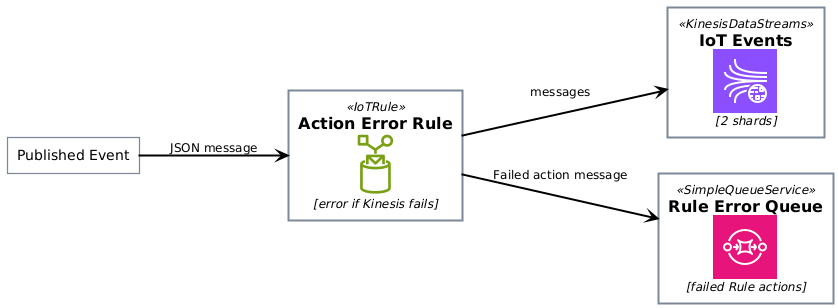
This example shows AWS IoT processing of messages via the Rules Engine with an error action. It utilizes AWS service entities to show a simple architecture workflow. Each entity has a unique entity name and icon (`<>`), name of function, and additional details or constraints.
```
@startuml Basic Usage - AWS IoT Rules Engine
' Uncomment the line below for "dark mode" styling
'!$AWS_DARK = true
!define AWSPuml https://raw.githubusercontent.com/awslabs/aws-icons-for-plantuml/v19.0/dist
!include AWSPuml/AWSCommon.puml
!include AWSPuml/InternetOfThings/IoTRule.puml
!include AWSPuml/Analytics/KinesisDataStreams.puml
!include AWSPuml/ApplicationIntegration/SimpleQueueService.puml
left to right direction
agent "Published Event" as event
IoTRule(iotRule, "Action Error Rule", "error if Kinesis fails")
KinesisDataStreams(eventStream, "IoT Events", "2 shards")
SimpleQueueService(errorQueue, "Rule Error Queue", "failed Rule actions")
event --> iotRule : JSON message
iotRule --> eventStream : messages
iotRule --> errorQueue : Failed action message
@enduml
```
This code generates the following diagram:
### Raw Images
The individual icon images (complete list [here](AWSSymbols.md)) can be included in all diagrams. Here are few examples showing image usage on different entities (component, database, and AWS PlantUML).
```
@startuml Raw usage - Images
' Uncomment the line below for "dark mode" styling
'!$AWS_DARK = true
!define AWSPuml https://raw.githubusercontent.com/awslabs/aws-icons-for-plantuml/v19.0/dist
!include AWSPuml/AWSCommon.puml
!include AWSPuml/ArtificialIntelligence/SageMakerModel.puml
!include AWSPuml/Robotics/RoboMaker.puml
component "$SageMakerModelIMG()" as myMLModel
database "$RoboMakerIMG()" as myRoboticService
RoboMaker(mySecondFunction, "Reinforcement Learning", "Gazebo")
rectangle "$SageMakerModelIMG()" as mySecondML
myMLModel --> myRoboticService
mySecondFunction --> mySecondML
@enduml
```
This code generates the following diagram:

### Simplified View
In some cases, PlantUML diagrams may contain too much information, but are still usable for executive or higher level conversations. Using the `AWSSimplified.puml` file filters out a lot of the technical details, while keeping the interactions between entities. Here is an example of a technical view and simplified view. To generate the simplified view, uncomment the `!include` statement and regenerate the image.
```
@startuml Two Modes - Technical View
' Uncomment the line below for "dark mode" styling
'!$AWS_DARK = true
!define AWSPuml https://raw.githubusercontent.com/awslabs/aws-icons-for-plantuml/v19.0/dist
!include AWSPuml/AWSCommon.puml
' Uncomment the following line to create simplified view
' !include AWSPuml/AWSSimplified.puml
!include AWSPuml/General/Users.puml
!include AWSPuml/NetworkingContentDelivery/APIGateway.puml
!include AWSPuml/SecurityIdentityCompliance/Cognito.puml
!include AWSPuml/Compute/Lambda.puml
!include AWSPuml/Database/DynamoDB.puml
left to right direction
Users(sources, "Events", "millions of users")
APIGateway(votingAPI, "Voting API", "user votes")
Cognito(userAuth, "User Authentication", "jwt to submit votes")
Lambda(generateToken, "User Credentials", "return jwt")
Lambda(recordVote, "Record Vote", "enter or update vote per user")
DynamoDB(voteDb, "Vote Database", "one entry per user")
sources --> userAuth
sources --> votingAPI
userAuth <--> generateToken
votingAPI --> recordVote
recordVote --> voteDb
@enduml
```
This code generates the following diagram:

And if the `!include AWSPuml/AWSSimplified.puml`is uncommented, this simplified view is created:

### Sequence Diagrams
Icons can also be used in UML sequence diagrams, either with Participant macros or by just using images and formatting via `participant` description. Here are examples of both.
```
@startuml Sequence Diagram - Technical
' Uncomment the line below for "dark mode" styling
'!$AWS_DARK = true
!define AWSPuml https://raw.githubusercontent.com/awslabs/aws-icons-for-plantuml/v19.0/dist
!include AWSPuml/AWSCommon.puml
!include AWSPuml/Compute/all.puml
!include AWSPuml/NetworkingContentDelivery/APIGateway.puml
!include AWSPuml/General/Internetalt1.puml
!include AWSPuml/Database/DynamoDB.puml
actor User as user
APIGatewayParticipant(api, Credit Card System, All methods are POST)
LambdaParticipant(lambda,AuthorizeCard,)
DynamoDBParticipant(db, PaymentTransactions, sortkey=transaction_id+token)
Internetalt1Participant(processor, Authorizer, Returns status and token)
user -> api: Process transaction\nPOST /prod/process
api -> lambda: Invokes lambda with cardholder details
lambda -> processor: Submit via API token\ncard number, expiry, CID
processor -> processor: Validate and create token
processor -> lambda: Returns status code and token
lambda -> db: PUT transaction id, token
lambda -> api: Returns\nstatus code, transaction id
api -> user: Returns status code
@enduml
```
The code above generates the fully detailed diagram with stereotypes.

```
@startuml Sequence Diagram - Images
' Uncomment the line below for "dark mode" styling
'!$AWS_DARK = true
!define AWSPuml https://raw.githubusercontent.com/awslabs/aws-icons-for-plantuml/v19.0/dist
!include AWSPuml/AWSCommon.puml
!include AWSPuml/AWSExperimental.puml
!include AWSPuml/Compute/Lambda.puml
!include AWSPuml/NetworkingContentDelivery/APIGateway.puml
!include AWSPuml/General/Internetalt1.puml
!include AWSPuml/General/User.puml
!include AWSPuml/Database/DynamoDB.puml
'Hide the bottom boxes / Use filled triangle arrowheads
hide footbox
skinparam style strictuml
skinparam MaxMessageSize 200
participant "$UserIMG()\nUser" as user
box AWS Cloud
'Instead of using ...Participant(), native creole img tags can be used
participant "$APIGatewayIMG()\nCredit Card System\nAll methods are POST" as api << REST API >>
participant "$LambdaIMG()\nAuthorizeCard\nReturns status" as lambda << python3.9 >>
participant "PaymentTransactions\n$DynamoDBIMG()\nsortkey=transaction_id+token" as db << on-demand >>
endbox
participant "Authorizer\nReturns status and token\n$Internetalt1IMG()" as processor
'Use shortcut syntax for activation with colored lifelines and return keyword
user -> api++ $AWSColor(ApplicationIntegration): <$Callout_1> Process transaction\l<$Callout_SP> ""POST /prod/process""
api -> lambda++ $AWSColor(Compute): <$Callout_2> Invokes lambda with\l<$Callout_SP> cardholder details
lambda -> processor++ $AWS_COLOR_SQUID: <$Callout_3> Submit via API token\l<$Callout_SP> card number, expiry, CID
processor -> processor: Validate and\lcreate token
return status code, token
lambda ->> db: PUT transaction id, token
return status code,\rtransaction id
return status code
@enduml
```
The code above generates the same sequence diagram demonstrating how colors, text positioning, and stereotypes can be modified.

### Groups
Groups are a system element which shows the connection between multiple services or resources. Diagrams that required Groups which overlap across other groups are not possible using PlantUML. Here is an example of a VPC with multiple Availability Zones and subnets.
```
@startuml VPC
' Uncomment the line below for "dark mode" styling
'!$AWS_DARK = true
!define AWSPuml https://raw.githubusercontent.com/awslabs/aws-icons-for-plantuml/v19.0/dist
!include AWSPuml/AWSCommon.puml
!include AWSPuml/AWSSimplified.puml
!include AWSPuml/Compute/EC2.puml
!include AWSPuml/Compute/EC2Instance.puml
!include AWSPuml/Groups/AWSCloud.puml
!include AWSPuml/Groups/VPC.puml
!include AWSPuml/Groups/AvailabilityZone.puml
!include AWSPuml/Groups/PublicSubnet.puml
!include AWSPuml/Groups/PrivateSubnet.puml
!include AWSPuml/NetworkingContentDelivery/VPCNATGateway.puml
!include AWSPuml/NetworkingContentDelivery/VPCInternetGateway.puml
hide stereotype
skinparam linetype ortho
AWSCloudGroup(cloud) {
VPCGroup(vpc) {
VPCInternetGateway(internet_gateway, "Internet gateway", "")
AvailabilityZoneGroup(az_1, "\tAvailability Zone 1\t") {
PublicSubnetGroup(az_1_public, "Public subnet") {
VPCNATGateway(az_1_nat_gateway, "NAT gateway", "") #Transparent
}
PrivateSubnetGroup(az_1_private, "Private subnet") {
EC2Instance(az_1_ec2_1, "Instance", "") #Transparent
}
az_1_ec2_1 .u.> az_1_nat_gateway
}
AvailabilityZoneGroup(az_2, "\tAvailability Zone 2\t") {
PublicSubnetGroup(az_2_public, "Public subnet") {
VPCNATGateway(az_2_nat_gateway, "NAT gateway", "") #Transparent
}
PrivateSubnetGroup(az_2_private, "Private subnet") {
EC2Instance(az_2_ec2_1, "Instance", "") #Transparent
}
az_2_ec2_1 .u.> az_2_nat_gateway
}
az_2_nat_gateway .[hidden]u.> internet_gateway
az_1_nat_gateway .[hidden]u.> internet_gateway
}
}
@enduml
```
This code generates the following diagram:

Custom groups can also be constructed using the `$AWSDefineGroup` macro. Here is an AWS CodePipeline human approval workflow example defining a custom group for AWS CodePipeline.
```
@startuml AWS CodePipeline - Human Approval Step
' based on https://catalog.us-east-1.prod.workshops.aws/workshops/752fd04a-f7c3-49a0-a9a0-c9b5ed40061b/en-US/codepipeline-extend
' Uncomment the line below for "dark mode" styling
'!$AWS_DARK = true
!define AWSPuml https://raw.githubusercontent.com/awslabs/aws-icons-for-plantuml/v19.0/dist
!include AWSPuml/AWSCommon.puml
!include AWSPuml/AWSExperimental.puml
!include AWSPuml/ApplicationIntegration/SimpleNotificationService.puml
!include AWSPuml/Compute/EC2.puml
!include AWSPuml/DeveloperTools/CodeBuild.puml
!include AWSPuml/DeveloperTools/CodeDeploy.puml
!include AWSPuml/DeveloperTools/CodePipeline.puml
!include AWSPuml/General/GitRepository.puml
!include AWSPuml/General/User.puml
!include AWSPuml/Storage/SimpleStorageService.puml
$AWSGroupColoring(CodePipelineGroup, $AWSColor(DeveloperTools))
!define CodePipelineGroup(g_alias, g_label="AWS CodePipeline") $AWSDefineGroup(g_alias, g_label, CodePipeline, CodePipelineGroup)
' Groups are rectangles with a custom style using stereotype - need to hide
hide stereotype
skinparam linetype ortho
skinparam rectangle {
BackgroundColor $AWS_BG_COLOR
BorderColor transparent
}
' define custom procedure for AWS Service icon and two lines of text
!procedure $AWSIcon($service, $line1, $line2="")
rectangle "$AWSImg($service)\n$line1\n$line2"
!endprocedure
CodePipelineGroup(pipeline){
$AWSIcon(GitRepository, "Git Repository") as gr
$AWSIcon(CodeBuild, "AWS CodeBuild") as cb
$AWSIcon(SimpleStorageService, "Amazon S3", "(artifact store)") as s3
gr -r-> cb: \n<$Callout_1>
cb -d-> s3: <$Callout_2><$Callout_SP>
$AWSIcon(CodeDeploy, "AWS CodeDeploy") as cd1
$AWSIcon(EC2, "Amazon EC2", "(dev)") as ec2dev
cb -r-> cd1: \n<$Callout_3>
cd1 -d-> ec2dev: <$Callout_4><$Callout_SP>
$AWSIcon(User, "Human", "Approval") as user
cd1 -r-> user: \n<$Callout_5>
$AWSIcon(CodeDeploy, "AWS CodeDeploy") as cd2
$AWSIcon(EC2, "Amazon EC2", "(prod)") as ec2prod
user -r-> cd2: \n<$Callout_6>
cd2 -d-> ec2prod: <$Callout_7><$Callout_SP>
$AWSIcon(SimpleNotificationService, "SNS Notification") as sns
cd2 -r-> sns: \n<$Callout_8>
}
@enduml
```

## Distribution "Dist" Details
All images, filenames, and content are provided from Amazon Web Services (AWS).
To reduce the length of the filename and ultimately the PUML file details, the leading _Amazon_ or _AWS_ have been removed from the product or service icon.
Beyond that, starting with the _v11.1_ release, all filenames now follow the original icon names provided by AWS. While this makes the [AWS Symbols](AWSSymbols.md) more difficult to view, this will reduce curation of new releases. It is recommended to use a versions release tag when referencing this repository instead of the `main` branch.
## Advanced Examples
The [examples](examples) folder includes additional examples, including some that map [AWS References Architectures](https://aws.amazon.com/architecture/#AWS_reference_architectures) from the [AWS Architecture Center](https://aws.amazon.com/architecture/).
A set of diagrams in [examples/s3-upload-workflow](examples/s3-upload-workflow) show the architecture for an "S3 Upload Workflow" represented across multiple examples, including using [C4-PlantUML](https://github.com/plantuml-stdlib/C4-PlantUML), the [Structurizr DSL](https://github.com/structurizr/dsl) (using experimental `dist/aws-icons-structurizr-theme.json`), and Mermaid [Architecture](https://mermaid.js.org/syntax/architecture.html) diagrams (using experimental `dist/aws-icons-mermaid.json`).
## Customized Builds
It is also possible to customize the creation of the `dist/` PUML and PNG files. All details can be found in the [Generating the _PlantUML Icons for AWS_ distribution documentation](scripts/README.md).
## Contributing
Please see the `CONTRIBUTING.md` file for details on how to contribute.
The following, in alphabetical order by name or GitHub username, have contributed to this repository:
- [jack-burridge-tp](https://github.com/jack-burridge-tp) - Added support for Sequence Diagrams
- [mcwarman](https://github.com/mcwarman) - Added support for Groups
## License Summary
The icons provided in this package are made available to you under the terms of the CC-BY-ND 2.0 license, available in the `LICENSE` file. Code is made available under the MIT license in `LICENSE-CODE`.
## Acknowledgements
- [PlantUML](http://plantuml.com/index) - Thank you for the ability to create technical diagrams by writing lines of code/text.
- [Standard Library for PlantUML](https://github.com/plantuml/plantuml-stdlib) - Thank you for including a version in the official release of PlantUML.
- [AWS-PlantUML](https://github.com/milo-minderbinder/AWS-PlantUML) - Thank you for the base structure and understanding how to incorporate new sprites into Plant-UML.
- [Azure-PlantUML](https://github.com/RicardoNiepel/Azure-PlantUML) - Thank you Ricardo for the elegant look and feel of the repository, diagrams, and the C4 Model.
- [C4 Model](https://c4model.com/) - Thanks you for an approach to document solutions without the specificity of UML.