# Using Lowcoder Component Plugin

## Prerequisites
Before you start, ensure you have a running Lowcoder installation. Alternatively, you can use it online at [https://app.lowcoder.cloud](https://app.lowcoder.cloud).

## Steps to Use the Plugin
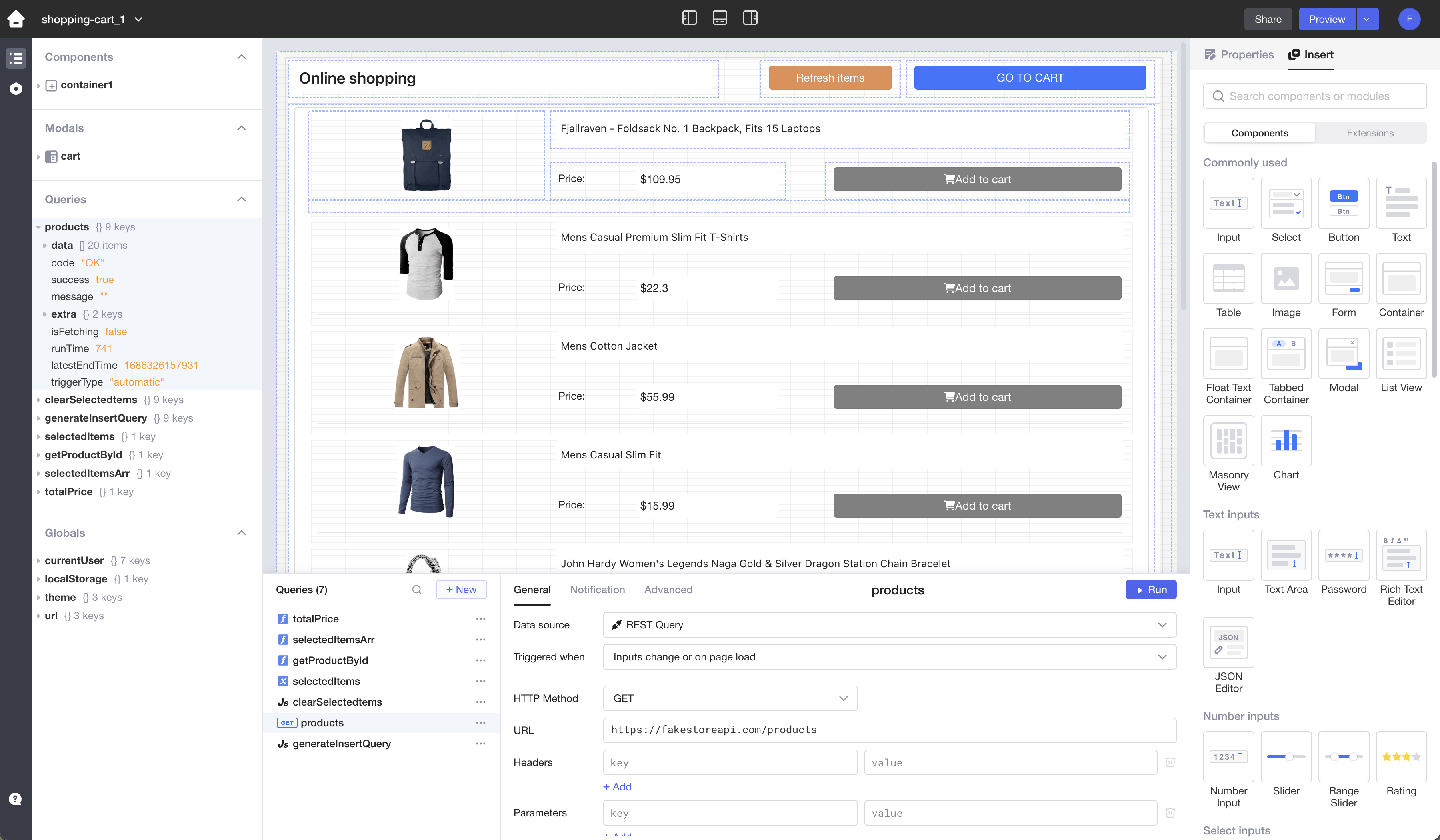
1. **Open the App Editor**: Navigate to the App Editor within your Lowcoder application.
<p align="center">
  <img src="https://raw.githubusercontent.com/lowcoder-org/lowcoder-media-assets/main/images/App%20Editor%20%7C%20Main%20Screeen%20clean.png" alt="Lowcoder App Editor">
</p>

1. **Access Components Panel**: In the App Editor, locate the right panel where components are listed.

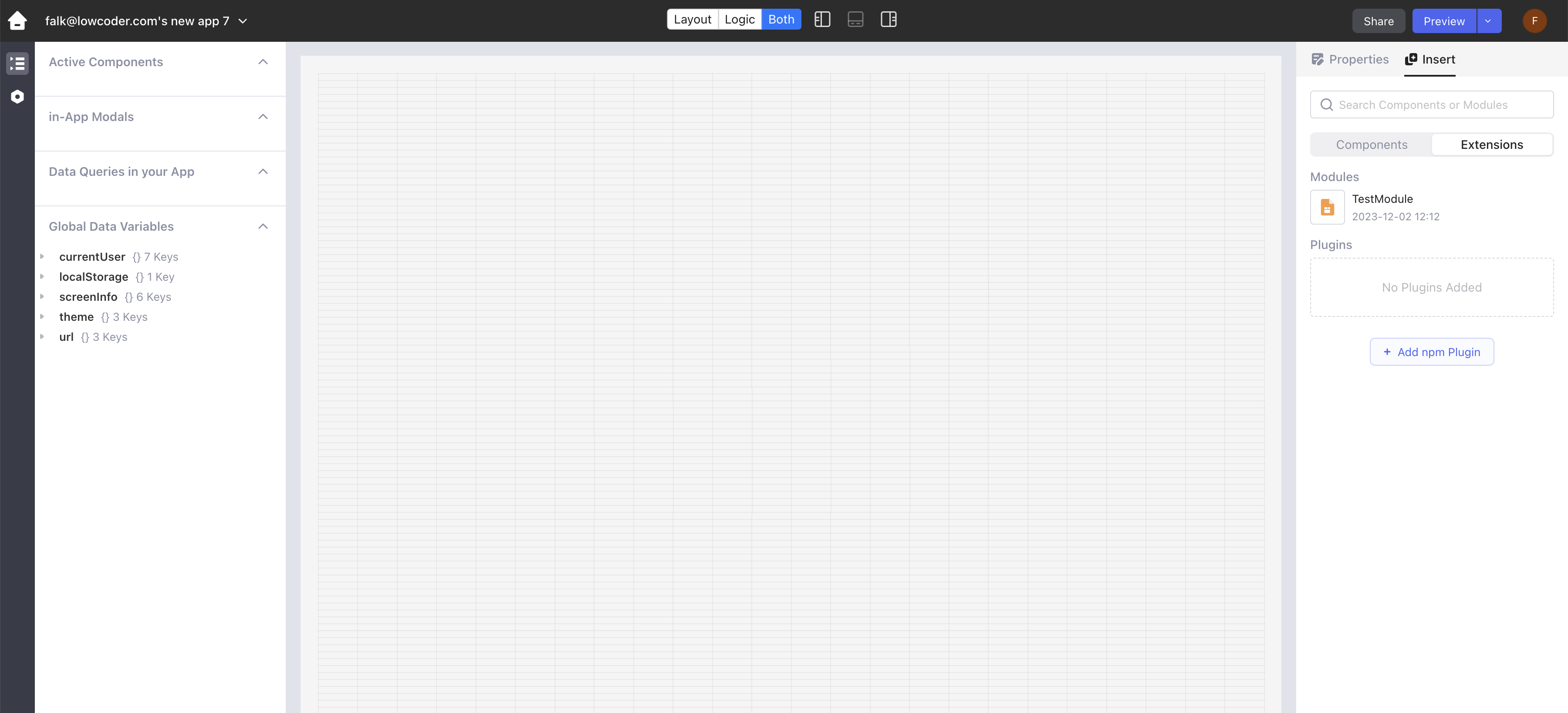
2. **Switch to Extensions**: Find and switch on the "Extensions" toggle. This option allows you to add additional components to your project.
<p align="center">
  <img src="https://raw.githubusercontent.com/lowcoder-org/lowcoder-media-assets/main/images/App%20Editor%20%7C%20Import%20Component%20Plugin%201.png" alt="Lowcoder App Editor">
</p>

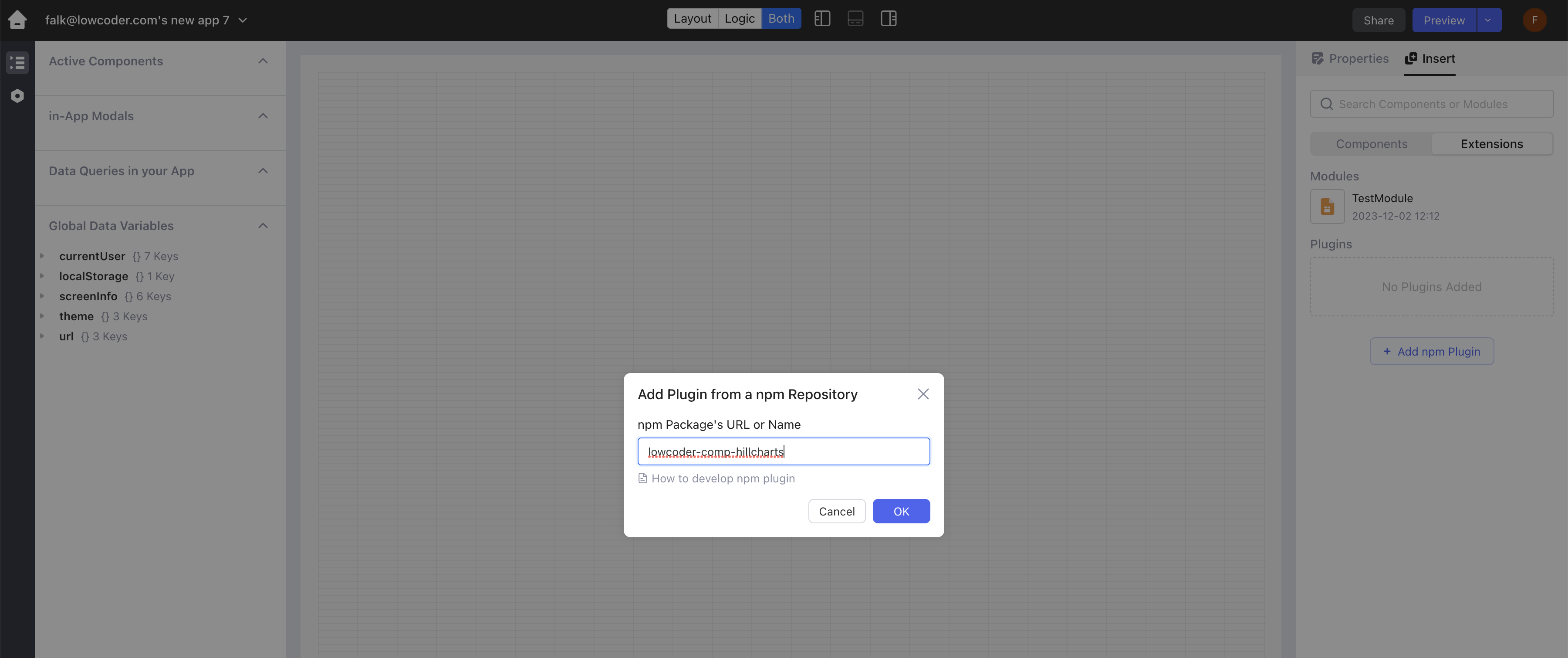
3. **Load the Plugin**: Here you have the option to load a Lowcoder Component Plugin from NPM. For example, to load the "hill charts" plugin, type `lowcoder-comp-hillcharts` in the provided field.
<p align="center">
  <img src="https://raw.githubusercontent.com/lowcoder-org/lowcoder-media-assets/main/images/App%20Editor%20%7C%20Import%20Component%20Plugin%202.png" alt="Lowcoder App Editor">
</p>

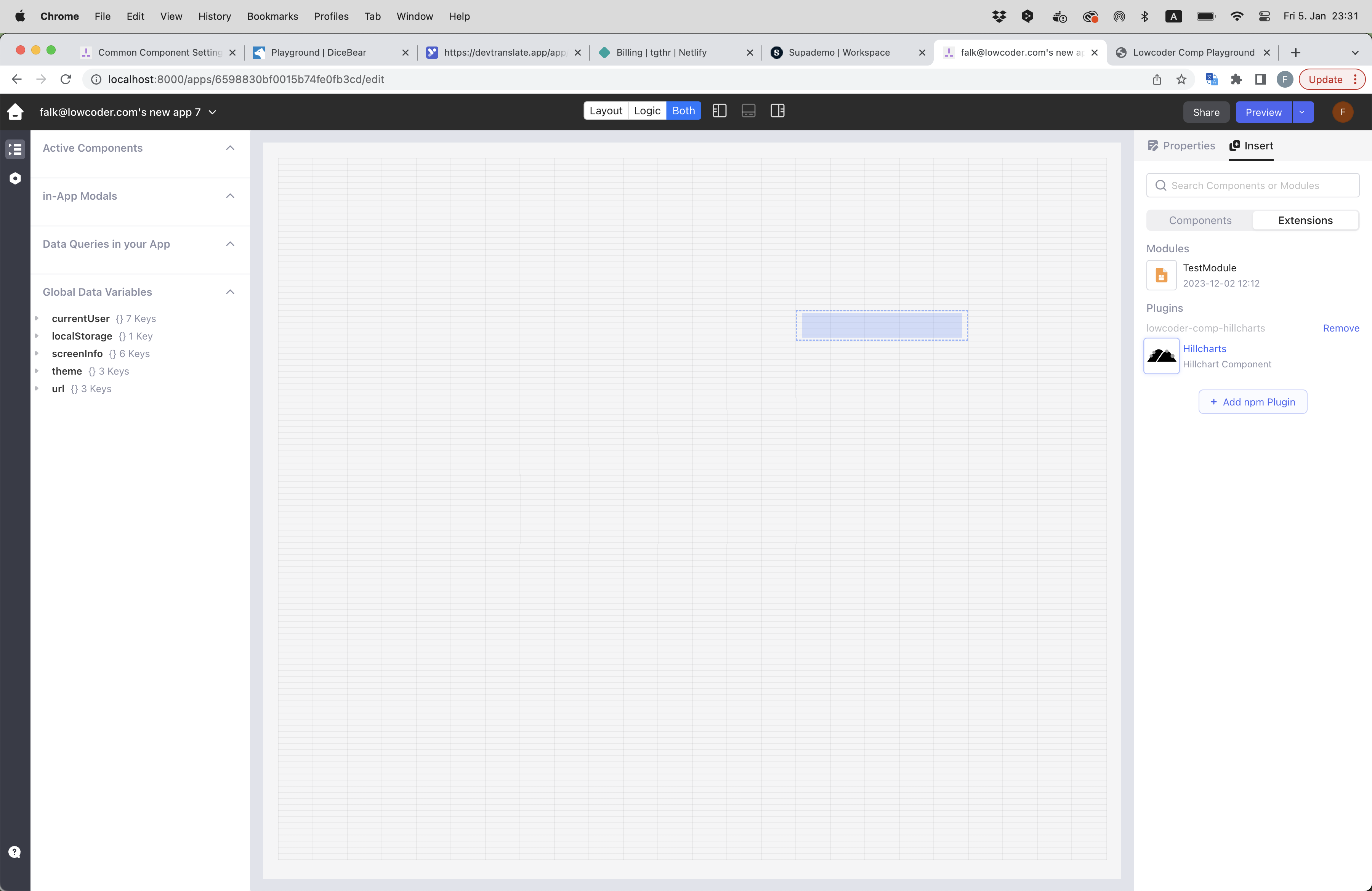
4. **Start Using the Plugin**: After loading the plugin, it will be available for use within your Lowcoder project. You can now integrate and customize the component as per your application's needs.
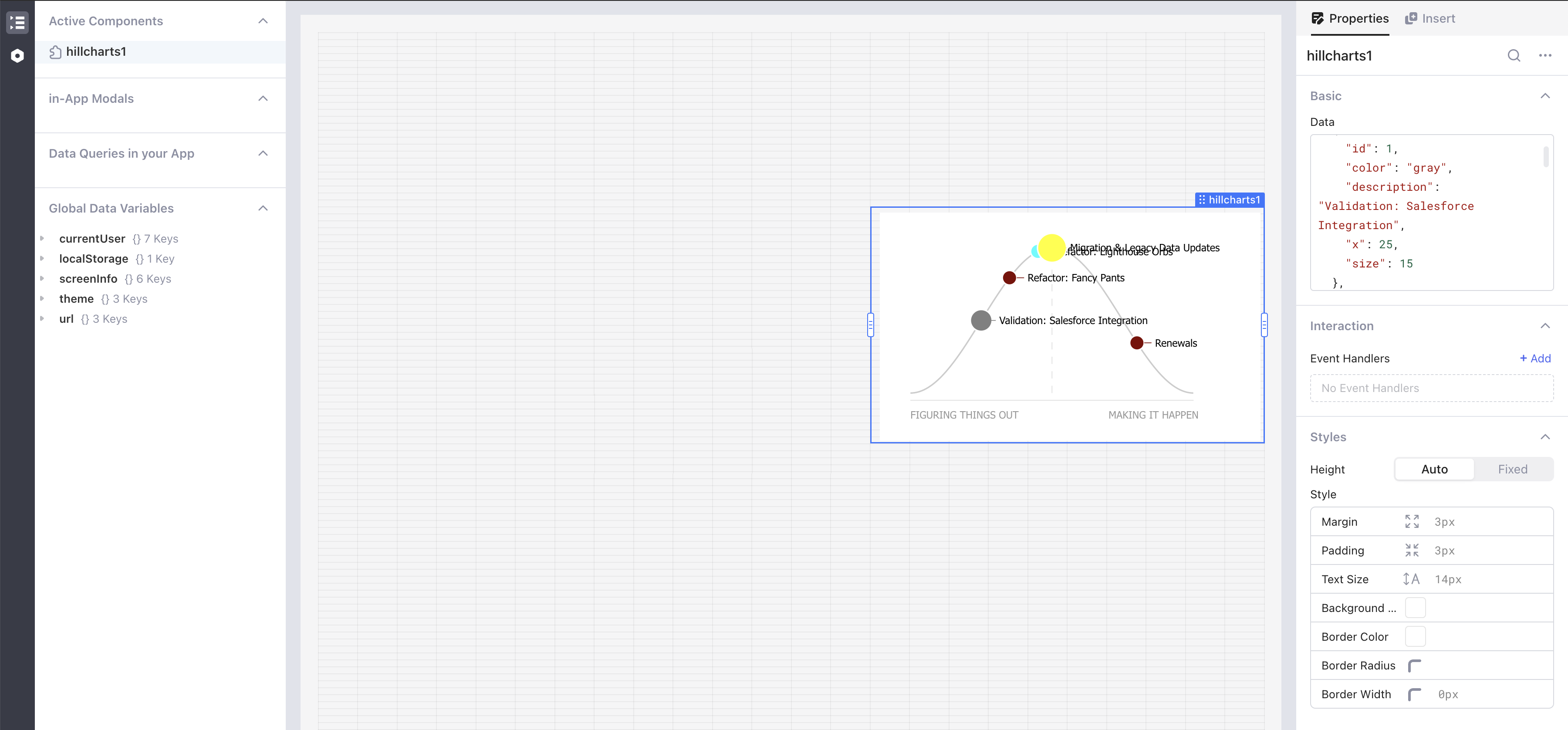
<p align="center">
  <img src="https://raw.githubusercontent.com/lowcoder-org/lowcoder-media-assets/main/images/App%20Editor%20%7C%20Import%20Component%20Plugin%203.png" alt="Lowcoder App Editor">
</p>

<p align="center">
  <img src="https://raw.githubusercontent.com/lowcoder-org/lowcoder-media-assets/main/images/App%20Editor%20%7C%20Import%20Component%20Plugin%204.png" alt="Lowcoder App Editor">
</p>