[](https://travis-ci.org/hyperjumptech/react-native-confetti)
[](https://dev.azure.com/hyperjumptech/react-native-confetti/_build/latest?definitionId=1&branchName=master)
[](https://opensource.org/licenses/Apache-2.0)
# Introduction
React native component to show [confetti](https://en.wikipedia.org/wiki/Confetti). It can be used as raining snow effect animation, with option to use unicode, emoji, or image as the flying pieces.
This is some example
## snow effect

 (the animation is not lagging. it's because you need to wait for the gif asset to load)
## shake effect
(the animation is not lagging. it's because you need to wait for the gif asset to load)
## shake effect
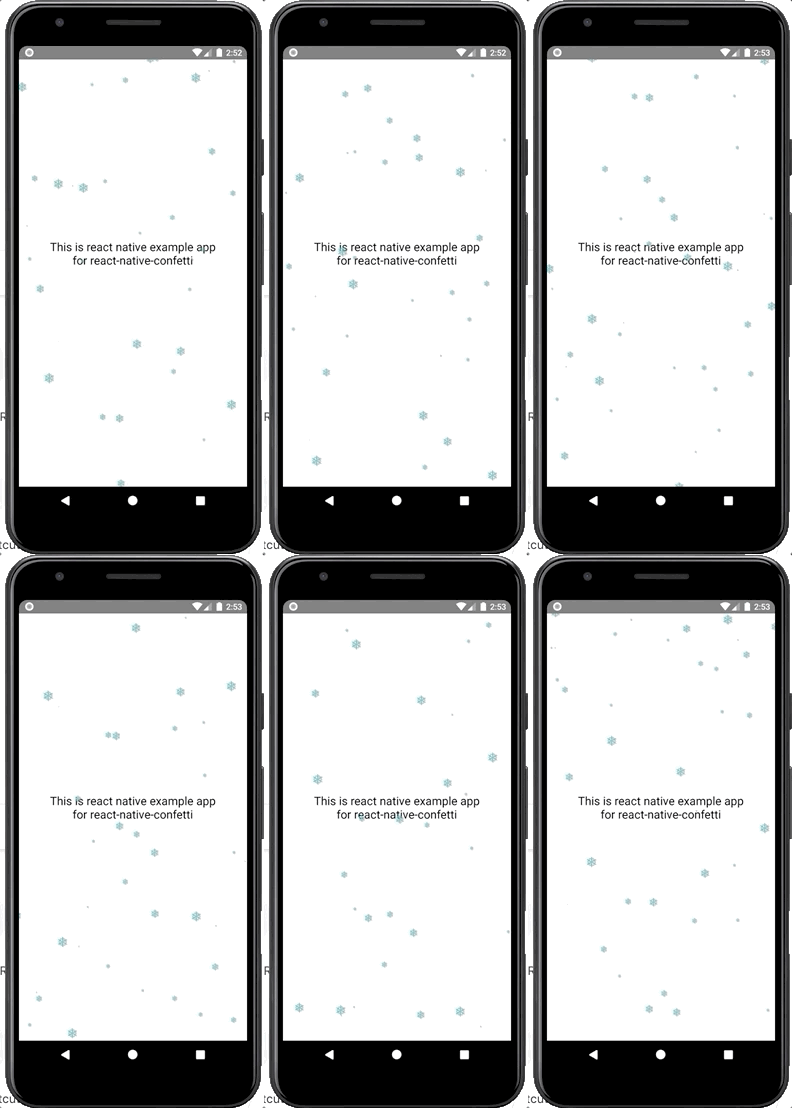
 (the animation is not lagging. it's because you need to wait for the gif asset to load)
# Getting Started
## Dependencies
To be able to dynamically enable confetti or to change the character, your react native app must:
1. Install [react-native-firebase](https://rnfirebase.io/) (the Core module and Remote Config module)
2. Set up your app to use Firebase
3. Create 5 parameters with value of string in your project's remote config:
| parameter | example value | description |
| --------------------- | ------------- | ----------------------------------------------------------------------------------------------------------------------------------------------------------------------------------------------------------------------------------------------------- |
| `confetti_enabled` | 1 | set `1` to enable, set `0` to disable |
| `confetti_image_name` | snowflake | if it has value, the flying piece of the Confetti will use this parameter instead of `confetti_character`. if you want to use character instead, set this parameter to empty string. Further explanation in using image will be given in next section |
| `confetti_character` | ❅ | set this value with any character or unicode / emoji. eg: ❅, ❤️, 🏮. if parameter `confetti_image_name` is not empty string, this parameter is not being used |
| `confetti_type` | shake | set the value `shake` or `snow`. With `snow`, you just use vertical falling animation. With `shake` you get additional horizontal shake animation. |
| `confetti_color` | #6FC4C7 | hexadecimal value string |
## Installation process
Using npm:
```
npm i @hyperjumptech/react-native-confetti --save
```
or using yarn:
```
yarn add @hyperjumptech/react-native-confetti
```
## Usage
### Minimal usage
import package
```javascript
import {Confetti} from '@hyperjumptech/react-native-confetti';
```
then put the component inside render
```javascript
```
### With firebase remote config usage
import package
```javascript
import {
Confetti,
fetchConfettiFromFirebase,
} from '@hyperjumptech/react-native-confetti';
```
define state to hold the parameters
```javascript
state = {
confetti: {
confetti_type: 'snow',
confetti_color: '',
confetti_character: '',
confetti_image_name: '',
confetti_enabled: false,
},
};
```
define the parameters and call function to get data from firebase remote config
```javascript
const keys = [
'confetti_type',
'confetti_color',
'confetti_character',
'confetti_enabled',
'confetti_image_name',
];
fetchConfetti(keys).then((data) => {
const confetti = {
confetti_type: data.confetti_type,
confetti_color: data.confetti_color,
confetti_character: data.confetti_character,
confetti_enabled: data.confetti_enabled === '1' ? true : false,
confetti_image_name: data.confetti_image_name,
};
this.setState({confetti});
});
```
then put component inside render
```javascript
const {confetti} = this.state;
return (
);
```
### Usage with image instead of character
If you wish to use image, you can use image from predefined asset (not a dynamic url). So the step is same as above with additional step to define image path and size:
```javascript
const images = {
snowflake: {
path: require('../../path_to_snowflake_image_asset.png'),
size: 24,
},
heart: {
path: require('../../path_to_heart_image_asset.jpeg'),
size: 24,
},
};
```
then add the `imageComponent` props
```javascript
) : (
undefined
)
}
/>
```
## API references
Props:
| props | type | required | description |
| -------------- | ----------------------- | -------- | ----------------------------------------------------------------------------------------------------------------------------------------------------------------------------------- |
| isEnabled | boolean | yes | to enable or disable the confetti |
| color | string | yes | define color of character. If you use emoji or image, the color will have no effect even if it has value |
| character | string | no | the flying pieces. default character is snowflake `❅`. you can use any unicode character or emoji. if there is `imageComponent` this props will have no effect even if it has value |
| imageComponent | ReactNode | no | the flying pieces (will override `character` props) in form of react component for example: `Image` |
| effect | enum: [`snow`, `shake`] | yes | `snow` to get only vertical falling animation , `shake` to get additional horizontal shaking animation |
# Build and Test
To build, run `npm run build` or `yarn build`
To test, run `npm run test` or `yarn test`
# Demo
To see the running demo, you can run the example app with these steps:
1. change directory to `example`
```
cd example
```
3. install packages
```
yarn
```
or
```
npm install
```
4. run android
```
react-native run-android
```
or run ios
```
react-native run-ios
```
(the animation is not lagging. it's because you need to wait for the gif asset to load)
# Getting Started
## Dependencies
To be able to dynamically enable confetti or to change the character, your react native app must:
1. Install [react-native-firebase](https://rnfirebase.io/) (the Core module and Remote Config module)
2. Set up your app to use Firebase
3. Create 5 parameters with value of string in your project's remote config:
| parameter | example value | description |
| --------------------- | ------------- | ----------------------------------------------------------------------------------------------------------------------------------------------------------------------------------------------------------------------------------------------------- |
| `confetti_enabled` | 1 | set `1` to enable, set `0` to disable |
| `confetti_image_name` | snowflake | if it has value, the flying piece of the Confetti will use this parameter instead of `confetti_character`. if you want to use character instead, set this parameter to empty string. Further explanation in using image will be given in next section |
| `confetti_character` | ❅ | set this value with any character or unicode / emoji. eg: ❅, ❤️, 🏮. if parameter `confetti_image_name` is not empty string, this parameter is not being used |
| `confetti_type` | shake | set the value `shake` or `snow`. With `snow`, you just use vertical falling animation. With `shake` you get additional horizontal shake animation. |
| `confetti_color` | #6FC4C7 | hexadecimal value string |
## Installation process
Using npm:
```
npm i @hyperjumptech/react-native-confetti --save
```
or using yarn:
```
yarn add @hyperjumptech/react-native-confetti
```
## Usage
### Minimal usage
import package
```javascript
import {Confetti} from '@hyperjumptech/react-native-confetti';
```
then put the component inside render
```javascript
```
### With firebase remote config usage
import package
```javascript
import {
Confetti,
fetchConfettiFromFirebase,
} from '@hyperjumptech/react-native-confetti';
```
define state to hold the parameters
```javascript
state = {
confetti: {
confetti_type: 'snow',
confetti_color: '',
confetti_character: '',
confetti_image_name: '',
confetti_enabled: false,
},
};
```
define the parameters and call function to get data from firebase remote config
```javascript
const keys = [
'confetti_type',
'confetti_color',
'confetti_character',
'confetti_enabled',
'confetti_image_name',
];
fetchConfetti(keys).then((data) => {
const confetti = {
confetti_type: data.confetti_type,
confetti_color: data.confetti_color,
confetti_character: data.confetti_character,
confetti_enabled: data.confetti_enabled === '1' ? true : false,
confetti_image_name: data.confetti_image_name,
};
this.setState({confetti});
});
```
then put component inside render
```javascript
const {confetti} = this.state;
return (
);
```
### Usage with image instead of character
If you wish to use image, you can use image from predefined asset (not a dynamic url). So the step is same as above with additional step to define image path and size:
```javascript
const images = {
snowflake: {
path: require('../../path_to_snowflake_image_asset.png'),
size: 24,
},
heart: {
path: require('../../path_to_heart_image_asset.jpeg'),
size: 24,
},
};
```
then add the `imageComponent` props
```javascript
) : (
undefined
)
}
/>
```
## API references
Props:
| props | type | required | description |
| -------------- | ----------------------- | -------- | ----------------------------------------------------------------------------------------------------------------------------------------------------------------------------------- |
| isEnabled | boolean | yes | to enable or disable the confetti |
| color | string | yes | define color of character. If you use emoji or image, the color will have no effect even if it has value |
| character | string | no | the flying pieces. default character is snowflake `❅`. you can use any unicode character or emoji. if there is `imageComponent` this props will have no effect even if it has value |
| imageComponent | ReactNode | no | the flying pieces (will override `character` props) in form of react component for example: `Image` |
| effect | enum: [`snow`, `shake`] | yes | `snow` to get only vertical falling animation , `shake` to get additional horizontal shaking animation |
# Build and Test
To build, run `npm run build` or `yarn build`
To test, run `npm run test` or `yarn test`
# Demo
To see the running demo, you can run the example app with these steps:
1. change directory to `example`
```
cd example
```
3. install packages
```
yarn
```
or
```
npm install
```
4. run android
```
react-native run-android
```
or run ios
```
react-native run-ios
```