#  Visual Image Tool
Zero-dependency vanilla JS tool to pick focal points and crop zones on images. Returns pixel coordinates you can feed straight into your image pipeline.
Visual Image Tool
Zero-dependency vanilla JS tool to pick focal points and crop zones on images. Returns pixel coordinates you can feed straight into your image pipeline.


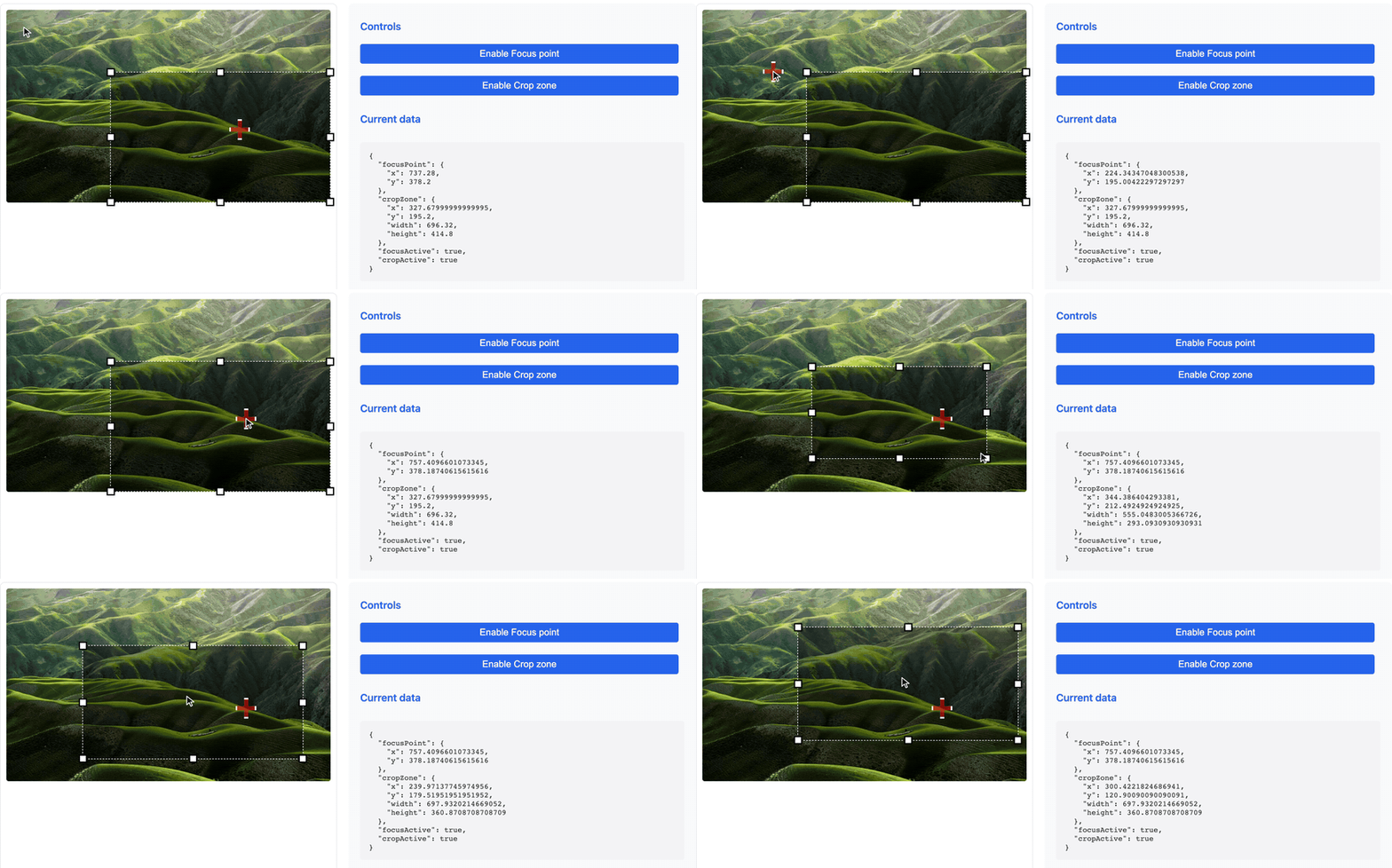
Live demo
·
JSFiddle
## Features
- **Focus point**: Set a point of interest on the image with a visual marker
- **Crop zone**: Define a crop zone with resize handles
- **No dependencies**: 3.6 kB gzipped, nothing else to install
- **Typed**: TypeScript declarations ship with the package
- **Framework-agnostic**: plain DOM, so it drops into anything
- **Customizable**: Flexible configuration options
- **Responsive**: Adapts to screen resizing
## Is this the right tool?
**Yes, if** you need a person to mark _where_ the subject of an image is, and
you want those positions back as numbers — to store on a record, or hand to an
image pipeline. The coordinates are in the image's original pixels, so they stay
valid at any display size:
| What you get | Where it tends to go |
| ------------------------ | ------------------------------------------------------------------------ |
| `focusPoint: {x, y}` | CSS `object-position`, imgix `fp-x`/`fp-y`, Cloudinary gravity |
| `cropZone: {x, y, w, h}` | a server-side crop with sharp or ImageMagick, or a stored crop rectangle |
**No, if** you need the browser to actually produce the cropped image — rotation,
zoom, canvas export, file output. This library never touches pixels; it only
reports coordinates. A full cropper such as Cropper.js is built for that job.
## Installation
```bash
npm install @h4md1/visual-image-tool
```
Or skip the install entirely and load it from a CDN — this is what the
[live demo](https://h4md1.fr/visual-image-tool/) does:
```html
```
Pin the exact version rather than the major in production. There is a runnable
[JSFiddle](https://jsfiddle.net/zuadgm4p/7/) if you would rather poke at it first.
## Quick Start Guide
### 1. Import
```javascript
// ES modules import (recommended)
import { VisualImageTool } from "@h4md1/visual-image-tool";
// OR CommonJS import
const { VisualImageTool } = require("@h4md1/visual-image-tool");
```
Or load the UMD build directly with a script tag:
```html
```
The UMD build exposes a global `VisualImageTool` object holding the named
export, so the class is `VisualImageTool.VisualImageTool`. With an `import` or
`require` you already have the class itself.
### 2. Initialization
```javascript
// Create an instance with an image
const imageTool = new VisualImageTool({
imageElement: document.getElementById("myImage"),
debug: true, // Enable debug logs for overlay positioning (optional)
onChange: (data) => {
console.log("Focus point:", data.focusPoint);
console.log("Crop zone:", data.cropZone);
},
});
```
Via the script tag above, the same call reads:
```javascript
const imageTool = new VisualImageTool.VisualImageTool({
imageElement: document.getElementById("myImage"),
});
```
### 3. Using the Features
```javascript
// Enable the focus point
imageTool.toggleFocusPoint(true);
// Enable the crop zone
imageTool.toggleCropZone(true);
// Manually set a focus point
imageTool.setFocusPoint(x, y);
// Manually set a crop zone
imageTool.setCropZone(x, y, width, height);
// Get current values
const focusPoint = imageTool.getFocusPoint();
const cropZone = imageTool.getCropZone();
```
## Configuration Options
```javascript
const imageTool = new VisualImageTool({
// Image element (required) - can be a CSS selector or a DOM element
imageElement: "#myImage",
// Enable debug logs for overlay positioning (optional)
debug: true, // Set to true to see overlay positioning logs in the console
// Focus point configuration (optional)
focusPoint: {
enabled: true, // Enable/disable the feature
style: {
width: "30px",
height: "30px",
border: "3px solid white",
boxShadow: "0 0 0 2px black, 0 0 5px rgba(0,0,0,0.5)",
backgroundColor: "rgba(255, 0, 0, 0.5)",
},
},
// Crop zone configuration (optional)
cropZone: {
enabled: true, // Enable/disable the feature
style: {
border: "1px dashed #fff",
backgroundColor: "rgba(0, 0, 0, 0.4)",
},
handleStyle: {
width: "14px",
height: "14px",
backgroundColor: "white",
border: "2px solid black",
boxShadow: "0 0 3px rgba(0,0,0,0.5)",
},
},
// Callback called on changes (optional)
onChange: function (data) {
// data contains focusPoint, cropZone, focusActive, cropActive
},
});
```
## TypeScript
Type declarations ship with the package — there is nothing extra to install.
```typescript
import {
VisualImageTool,
type ChangeData,
type CropZone,
type FocusPoint,
} from "@h4md1/visual-image-tool";
const tool = new VisualImageTool({
imageElement: document.querySelector("#myImage")!,
onChange: (data: ChangeData) => {
const { x, y }: FocusPoint = data.focusPoint;
const crop: CropZone = data.cropZone;
},
});
```
Exported types: `VisualImageToolOptions`, `ChangeData`, `FocusPoint`, `CropZone`,
`ImageDimensions`, `FocusPointOptions`, `CropZoneOptions`, and the style interfaces.
## Full API
### Methods
#### `toggleFocusPoint(active)`
Enables or disables the focus point.
- `active` (boolean, optional): If set, forces the state to this value. If omitted, toggles the current state.
- Returns: The VisualImageTool instance for chaining.
#### `toggleCropZone(active)`
Enables or disables the crop zone.
- `active` (boolean, optional): If set, forces the state to this value. If omitted, toggles the current state.
- Returns: The VisualImageTool instance for chaining.
#### `setFocusPoint(x, y)`
Sets the position of the focus point.
- `x` (number): X coordinate in original pixels.
- `y` (number): Y coordinate in original pixels.
- Returns: The VisualImageTool instance for chaining.
#### `setCropZone(x, y, width, height)`
Sets the position and dimensions of the crop zone.
- `x` (number): X coordinate in original pixels.
- `y` (number): Y coordinate in original pixels.
- `width` (number): Width in original pixels.
- `height` (number): Height in original pixels.
- Returns: The VisualImageTool instance for chaining.
#### `getFocusPoint()`
Gets the current position of the focus point.
- Returns: An object `{x, y}` with coordinates in original pixels.
The focus point starts at `{x: 0, y: 0}`, and `getFocusPoint()` returns that
until the feature is first enabled. The first `toggleFocusPoint(true)` moves a
still-unset point to the center of the image, so read it back after enabling
the feature — or call `setFocusPoint(x, y)` yourself to place it explicitly.
#### `getCropZone()`
Gets the current position and dimensions of the crop zone.
- Returns: An object `{x, y, width, height}` with values in original pixels.
#### `getImageDimensions()`
Gets the original dimensions of the image.
- Returns: An object `{width, height}` with dimensions in original pixels.
#### `destroy()`
Destroys the instance and cleans up resources.
### Events
The tool uses the `onChange` callback to notify about changes. This callback receives an object with the following properties:
```javascript
{
focusPoint: {x, y}, // Position of the focus point
cropZone: {x, y, width, height}, // Position and dimensions of the crop zone
focusActive: true|false, // Activation state of the focus point
cropActive: true|false // Activation state of the crop zone
}
```
## Integration Examples with Frameworks
### React
```jsx
import React, { useEffect, useRef } from "react";
import { VisualImageTool } from "@h4md1/visual-image-tool";
function ImageEditor() {
const imageRef = useRef(null);
const toolRef = useRef(null);
useEffect(() => {
if (imageRef.current && !toolRef.current) {
toolRef.current = new VisualImageTool({
imageElement: imageRef.current,
onChange: (data) => {
console.log("Updated data:", data);
},
});
// Enable features
toolRef.current.toggleFocusPoint(true);
toolRef.current.toggleCropZone(true);
}
// Cleanup
return () => {
if (toolRef.current) {
toolRef.current.destroy();
toolRef.current = null;
}
};
}, []);
return (
);
}
```
### Vue.js
```vue
```
## Demos
Run them with `npm run demo`, or browse the published copy at
[h4md1.fr/visual-image-tool](https://h4md1.fr/visual-image-tool/).
| Demo | What it shows |
| ---------------------------- | ---------------------------------------------------- |
| `index.html` | Landing page — live tool plus the full API reference |
| `basic-usage.html` | Smallest working setup |
| `custom-config.html` | Custom styling with live controls |
| `demo-esm.html` | Loading the ESM build |
| `demo-umd.html` | Loading the UMD build from a script tag |
| `preact-importmap-demo.html` | Preact integration, no build step |
| `react-importmap-demo.html` | React 18 integration, no build step |
| `vue-importmap-demo.html` | Vue 3 integration, no build step |
| `index-local.html` | Same as the landing page, against your local `dist/` |
Every demo except `index-local.html` loads the published package from the
jsDelivr CDN, so they exercise the released version. Use `index-local.html`
to check changes you have not published yet — run `npm run build` first. It is
local-only and is not published to the demo site, because the local `dist/` it
points at does not exist there.
## Browser Compatibility
- Chrome (latest versions)
- Firefox (latest versions)
- Safari (latest versions)
- Edge (latest versions)
## Code Formatting
This project uses a combination of tools for code formatting and linting to ensure consistency:
- **[Biome](https://biomejs.dev/)**: Handles formatting and linting for JavaScript (`.js`, `.jsx`), TypeScript (`.ts`, `.tsx`), and JSON (`.json`) files.
- Check: `npm run lint:check` (`biome check .`)
- Fix: `npm run lint:fix` (`biome check --write .`)
- **[Prettier](https://prettier.io/)**: Handles formatting for other file types like HTML, CSS, Markdown, etc.
- Check: `npm run format:check` (`prettier --check --ignore-unknown .`)
- Fix: `npm run format:fix` (`prettier --write --ignore-unknown .`)
These formatting checks are automatically enforced in the CI pipeline (see `.github/workflows/code-quality.yml`) to maintain code quality.
## Tests
This project uses [Vitest](https://vitest.dev/) and [JSDOM](https://github.com/jsdom/jsdom) for unit tests. They cover the main public API.
```bash
npm test
```
Watch mode:
```bash
npm run test:watch
```
Tests also run in GitHub Actions on pushes and pull requests to `main`.
## License
MIT
