# Pretty Markdown PDF
Easy to use tool to convert a markdown file to a pretty looking PDF.
The majority of the code is based on the [vscode-markdown-pdf](https://github.com/yzane/vscode-markdown-pdf) Visual Studio Code extension, which provides the pretty styles and extra markdown features.
## Features
Supports the following features
* Supports export from MD to PDF, HTML, PNG and JPEG
* [Syntax highlighting](https://highlightjs.org/static/demo/)
* [emoji](http://www.webpagefx.com/tools/emoji-cheat-sheet/)
* [markdown-it-checkbox](https://github.com/mcecot/markdown-it-checkbox)
* [markdown-it-container](https://github.com/markdown-it/markdown-it-container)
* [PlantUML](http://plantuml.com/)
* [markdown-it-plantuml](https://github.com/gmunguia/markdown-it-plantuml)
* [Sample pdf file](sample/README.pdf)
* [Sample html file](sample/README.html)
* [Sample png file](sample/README.png)
* [Sample jpeg file](sample/README.jpeg)
### markdown-it-container
INPUT
```
::: warning
*here be dragons*
:::
```
OUTPUT
``` html
```
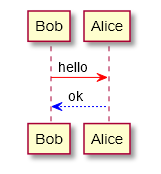
### markdown-it-plantuml
INPUT
```
@startuml
Bob -[#red]> Alice : hello
Alice -[#0000FF]->Bob : ok
@enduml
```
OUTPUT
## Usage
Install this project from the NPM package repository:
```bash
npm install -g pretty-markdown-pdf
```
### Command Line
To convert a markdown file to PDF, simply run:
```bash
pretty-md-pdf -i my-doc.md
```
*Run with `--help` to see all the options available.*
This will output a file `my-doc.pdf` in the directory where `my-doc.md` resides.
To specify an output path as `my-exported-doc.pdf`, run:
```bash
pretty-md-pdf -i my-doc.md -o my-exported-doc.pdf
```
#### Other Export Types
To specify an output type other than PDF, run:
```bash
pretty-md-pdf -i my-doc.md -t png
```
### Javascript
You can programmatically call this package, example:
```javascript
const prettyMdPdf = require("pretty-markdown-pdf")
// output to `my-doc.pdf`
prettyMdPdf.convertMd({ markdownFilePath: "my-doc.md" })
// specify an output file path
prettyMdPdf.convertMd({ markdownFilePath: "my-doc.md", outputFilePath: "output.pdf" })
// specify an output file type, outputs to `my-doc.html`
prettyMdPdf.convertMd({ markdownFilePath: "my-doc.md", outputFileType: "html" })
```
## Configuration
Advanced configuration is done using a JSON file. By default the tools uses the one shipped with this package, which has defaults set.
To specify a config file when running the tool:
```
pretty-md-pdf -i my-doc.md -c /tmp/config.json
```
From JavaScript you can do:
```javascript
prettyMdPdf.convertMd({ markdownFilePath: "my-doc.md", configFilePath: "/tmp/config.json")
```
### Example
Below is the default config JSON file as an example:
```json
{
"type": [
"pdf"
],
"outputDirectory": "",
"outputDirectoryRelativePathFile": false,
"styles": [],
"stylesRelativePathFile": false,
"includeDefaultStyles": true,
"highlight": true,
"highlightStyle": "",
"breaks": false,
"emoji": true,
"markdown-it-include": true,
"executablePath": "",
"scale": 1,
"displayHeaderFooter": true,
"headerTemplate": "
",
"footerTemplate": " /
",
"printBackground": true,
"orientation": "portrait",
"pageRanges": "",
"format": "A4",
"width": "",
"height": "",
"margin": "1cm",
"quality": 100,
"clip": {
"height": null
},
"omitBackground": false
}
```
### Options
|Category| Option name|
|:---|:---|
|[Save options](#save-options)|[type](#pretty-pdf-type)|
||[outputDirectory](#pretty-pdf-outputdirectory)|
||[outputDirectoryRelativePathFile](#pretty-pdf-outputdirectoryrelativepathfile)|
|[Styles options](#styles-options)|[styles](#pretty-pdf-styles)|
||[stylesRelativePathFile](#pretty-pdf-stylesrelativepathfile)|
||[includeDefaultStyles](#pretty-pdf-includedefaultstyles)|
|[Syntax highlight options](#syntax-highlight-options)|[highlight](#pretty-pdf-highlight)|
||[highlightStyle](#pretty-pdf-highlightstyle)|
|[Markdown options](#markdown-options)|[breaks](#pretty-pdf-breaks)|
|[Emoji options](#emoji-options)|[emoji](#pretty-pdf-emoji)|
|[Configuration options](#configuration-options)|[executablePath](#pretty-pdf-executablepath)|
|[Common Options](#common-options)|[scale](#pretty-pdf-scale)|
|[PDF options](#pdf-options)|[displayHeaderFooter](#pretty-pdf-displayheaderfooter)|
||[headerTemplate](#pretty-pdf-headertemplate)|
||[footerTemplate](#pretty-pdf-footertemplate)|
||[printBackground](#pretty-pdf-printbackground)|
||[orientation](#pretty-pdf-orientation)|
||[pageRanges](#pretty-pdf-pageranges)|
||[format](#pretty-pdf-format)|
||[width](#pretty-pdf-width)|
||[height](#pretty-pdf-height)|
||[margin.top](#pretty-pdf-margintop)|
||[margin.bottom](#pretty-pdf-marginbottom)|
||[margin.right](#pretty-pdf-marginright)|
||[margin.left](#pretty-pdf-marginleft)|
|[PNG JPEG options](#png-jpeg-options)|[quality](#pretty-pdf-quality)|
||[clip.x](#pretty-pdf-clipx)|
||[clip.y](#pretty-pdf-clipy)|
||[clip.width](#pretty-pdf-clipwidth)|
||[clip.height](#pretty-pdf-clipheight)|
||[omitBackground](#pretty-pdf-omitbackground)|
### Save options
#### `type`
- Output format: pdf, html, png, jpeg
- Multiple output formats supported
- Default: pdf
```javascript
"type": [
"pdf",
"html",
"png",
"jpeg"
],
```
#### `outputDirectory`
- Output Directory
- All `\` need to be written as `\\` (Windows)
```javascript
"outputDirectory": "C:\\work\\output",
```
*Relative Paths*
```javascript
"outputDirectory": "~/output",
```
- If you set a directory with a `relative path`, it will be created if the directory does not exist
- If you set a directory with an `absolute path`, an error occurs if the directory does not exist
#### `outputDirectoryRelativePathFile`
- If `outputDirectoryRelativePathFile` option is set to `true`, the relative path set with [outputDirectory](#pretty-pdf-outputDirectory) is interpreted as relative from the file
- boolean. Default: false
### Styles options
#### `styles`
- A list of local paths to the stylesheets to use from pretty-markdown-pdf
- If the file does not exist, it will be skipped
- All `\` need to be written as `\\` (Windows)
```javascript
"styles": [
"C:\\Users\\\\Documents\\css",
"/home//settings/css",
],
```
```javascript
"styles": [
"css",
],
```
```javascript
"styles": [
"~/.config/Code/User/css"
],
```
- Remote CSS (https://xxx/xxx.css) is applied correctly for JPG and PNG, but problems occur with PDF
```javascript
"styles": [
"https://xxx/css"
],
```
#### `stylesRelativePathFile`
- If `stylesRelativePathFile` option is set to `true`, the relative path set with [styles](#pretty-pdf-styles) is interpreted as relative from the file
- boolean. Default: false
#### `includeDefaultStyles`
- Enable the inclusion of default Markdown styles
- boolean. Default: true
### Syntax highlight options
#### `highlight`
- Enable Syntax highlighting
- boolean. Default: true
#### `highlightStyle`
- Set the style name, this is a builtin Highlight JS css file without the file extension. For example: `github`, `monokai`... Default: `github`
- [style list](https://github.com/isagalaev/highlight.js/tree/master/src/styles)
- demo site : https://highlightjs.org/static/demo/
```javascript
"highlightStyle": "github",
```
*Note: You can specify a path to a css file here, ensure your path ends with `.css`*
```javascript
"highlightStyle": "styles/custom.css",
```
### Markdown options
#### `breaks`
- Enable line breaks
- boolean. Default: false
### Emoji options
#### `emoji`
- Enable emoji. [EMOJI CHEAT SHEET](https://www.webpagefx.com/tools/emoji-cheat-sheet/)
- boolean. Default: true
### Configuration options
#### `executablePath`
- Path to a Chromium or Chrome executable to run instead of the bundled Chromium
- All `\` need to be written as `\\` (Windows)
```javascript
"executablePath": "C:\\Program Files (x86)\\Google\\Chrome\\Application\\chrome.exe"
```
### Common Options
#### `scale`
- Scale of the page rendering
- number. default: 1
```javascript
"scale": 1
```
### PDF options
- pdf only. [puppeteer page.pdf options](https://github.com/GoogleChrome/puppeteer/blob/master/docs/api.md#pagepdfoptions)
#### `displayHeaderFooter`
- Enable display header and footer
- boolean. Default: true
#### `headerTemplate`
#### `footerTemplate`
- HTML template for the print header and footer
- `` : formatted print date
- `` : markdown file name
- `` : markdown full path name
- `` : current page number
- `` : total pages in the document
```javascript
"headerTemplate": "
",
```
```javascript
"footerTemplate": " /
",
```
#### `printBackground`
- Print background graphics
- boolean. Default: true
#### `orientation`
- Paper orientation
- portrait or landscape
- Default: portrait
#### `pageRanges`
- Paper ranges to print, e.g., '1-5, 8, 11-13'
- Default: all pages
```javascript
"pageRanges": "1,4-",
```
#### `format`
- Paper format
- Letter, Legal, Tabloid, Ledger, A0, A1, A2, A3, A4, A5, A6
- Default: A4
```javascript
"format": "A4",
```
#### `width`
#### `height`
- Paper width / height, accepts values labeled with units(mm, cm, in, px)
- If it is set, it overrides the format option
```javascript
"width": "10cm",
"height": "20cm",
```
#### `margin.top`
#### `margin.bottom`
#### `margin.right`
#### `margin.left`
- Paper margins.units(mm, cm, in, px)
```javascript
"margin.top": "1.5cm",
"margin.bottom": "1cm",
"margin.right": "1cm",
"margin.left": "1cm",
```
### PNG JPEG options
- png and jpeg only. [puppeteer page.screenshot options](https://github.com/GoogleChrome/puppeteer/blob/master/docs/api.md#pagescreenshotoptions)
#### `quality`
- jpeg only. The quality of the image, between 0-100. Not applicable to png images
```javascript
"quality": 100,
```
#### `clip.x`
#### `clip.y`
#### `clip.width`
#### `clip.height`
- An object which specifies clipping region of the page
- number
```javascript
// x-coordinate of top-left corner of clip area
"clip.x": 0,
// y-coordinate of top-left corner of clip area
"clip.y": 0,
// width of clipping area
"clip.width": 1000,
// height of clipping area
"clip.height": 1000,
```
#### `omitBackground`
- Hides default white background and allows capturing screenshots with transparency
- boolean. Default: false
## FAQ
### How can I change emoji size ?
1. Add the following to your stylesheet, which you can specified in the styles field
```css
.emoji {
height: 2em;
}
```
### Output directory
If you want to always output to a directory path relative from the Markdown file.
For example, to output to the "output" directory in the same directory as the Markdown file, set it as follows.
```javascript
"outputDirectory" : "output",
"outputDirectoryRelativePathFile": true,
```
### Page Break
Please use the following to insert a page break.
``` html
```
## Note on Chromium
Chromium download starts automatically before the first conversion; this is a one time operation, only if your reinstall this package will it be downloaded again.
This is a time-consuming task depending on the environment because of its large size (~ 170Mb Mac, ~ 282Mb Linux, ~ 280Mb Win).
During the Chromuim download, the message `Installing Chromium` will be displayed in the console.