[ ](https://frameright.io)
[](https://www.npmjs.com/package/@frameright/image-display-control-web-component)
[](https://www.webcomponents.org/element/@frameright/image-display-control-web-component)
# `
](https://frameright.io)
[](https://www.npmjs.com/package/@frameright/image-display-control-web-component)
[](https://www.webcomponents.org/element/@frameright/image-display-control-web-component)
# `![]() `
## Image Display Control Web Component
> **➡️ See this document rendered at [docs.frameright.io/web-component](https://docs.frameright.io/web-component)**
An easy way to do [Image Display Control](https://frameright.io) in your HTML
page. Made with :heart: by [Frameright](https://frameright.io). Power to the
pictures!
:sparkles: [Live demo](https://webc.frameright.io)
💻 [CodeSandbox](https://codesandbox.io/s/image-display-control-web-component-6hzmq5)
:bulb: [GitHub Discussions](https://github.com/Frameright/image-display-control-web-component/discussions)
> **NOTE**: if you are using React, you may want to have a look at the
> [Image Display Control React component](https://github.com/Frameright/react-image-display-control)
> instead.
### Table of Contents
- [Overview](#overview)
* [Without this web component](#without-this-web-component)
* [Basic usage](#basic-usage)
* [Why a custom `img` element?](#why-a-custom-img-element)
- [Image Display Control metadata](#image-display-control-metadata)
- [Installation](#installation)
- [Usage](#usage)
- [Dependency tree / credits](#dependency-tree--credits)
- [Browser support](#browser-support)
### Overview
#### Without this web component
When an image is too big for its `
`
## Image Display Control Web Component
> **➡️ See this document rendered at [docs.frameright.io/web-component](https://docs.frameright.io/web-component)**
An easy way to do [Image Display Control](https://frameright.io) in your HTML
page. Made with :heart: by [Frameright](https://frameright.io). Power to the
pictures!
:sparkles: [Live demo](https://webc.frameright.io)
💻 [CodeSandbox](https://codesandbox.io/s/image-display-control-web-component-6hzmq5)
:bulb: [GitHub Discussions](https://github.com/Frameright/image-display-control-web-component/discussions)
> **NOTE**: if you are using React, you may want to have a look at the
> [Image Display Control React component](https://github.com/Frameright/react-image-display-control)
> instead.
### Table of Contents
- [Overview](#overview)
* [Without this web component](#without-this-web-component)
* [Basic usage](#basic-usage)
* [Why a custom `img` element?](#why-a-custom-img-element)
- [Image Display Control metadata](#image-display-control-metadata)
- [Installation](#installation)
- [Usage](#usage)
- [Dependency tree / credits](#dependency-tree--credits)
- [Browser support](#browser-support)
### Overview
#### Without this web component
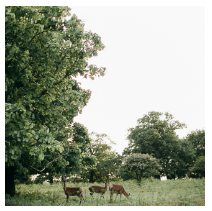
When an image is too big for its `![]() ` HTML element, the best option browsers
offer nowadays is to use the
[`object-fit: cover;`](https://developer.mozilla.org/en-US/docs/Web/CSS/object-fit)
CSS property in order to scale and middle-crop it:
` HTML element, the best option browsers
offer nowadays is to use the
[`object-fit: cover;`](https://developer.mozilla.org/en-US/docs/Web/CSS/object-fit)
CSS property in order to scale and middle-crop it:
 ```html
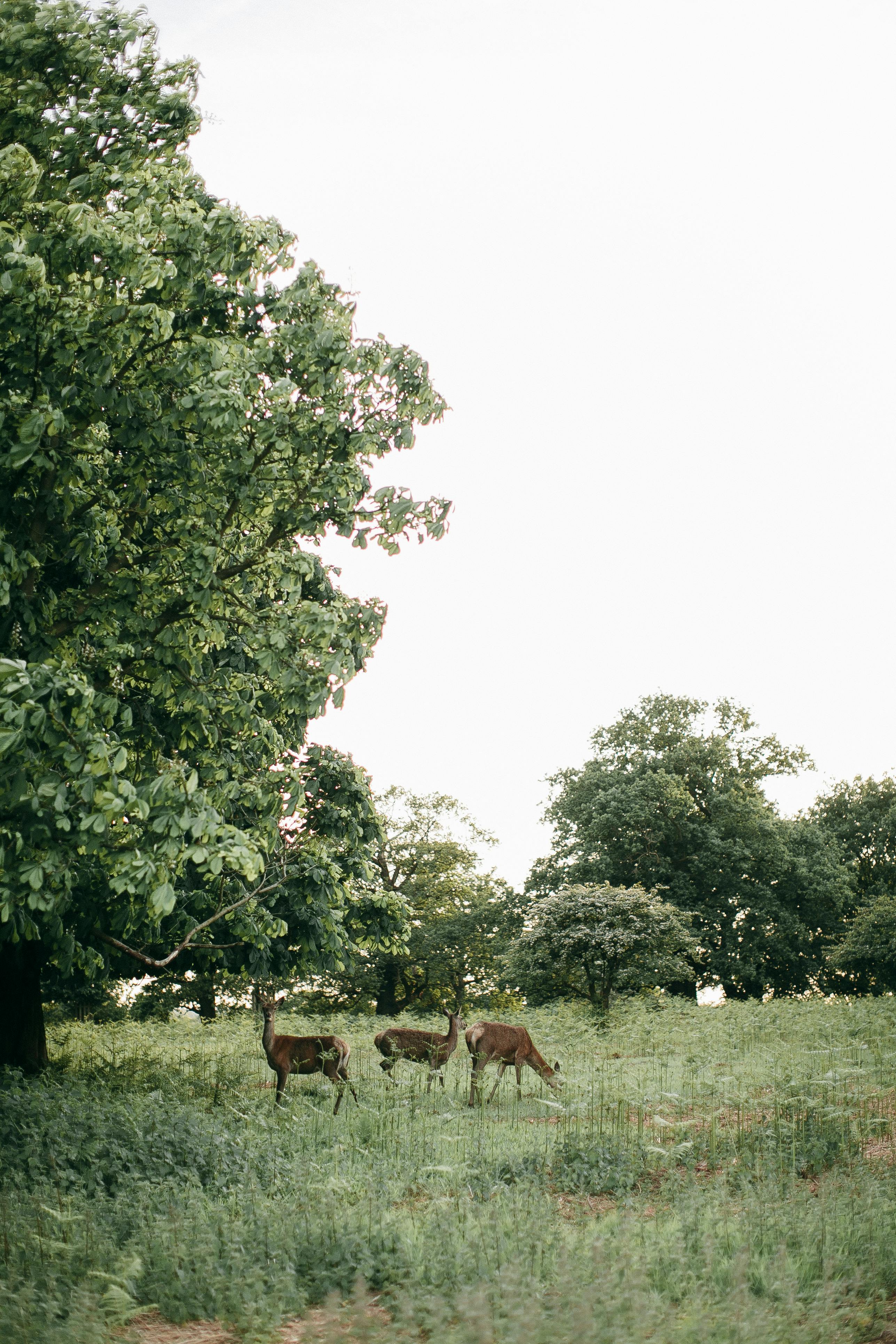 ```
This is less than optimal, as there might be, in the example above, a better
square-ish region in the image that could be displayed instead of the
middle-crop.
#### Basic usage
This web component extends the `
```
This is less than optimal, as there might be, in the example above, a better
square-ish region in the image that could be displayed instead of the
middle-crop.
#### Basic usage
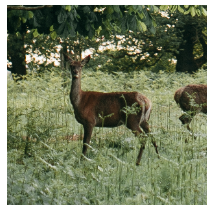
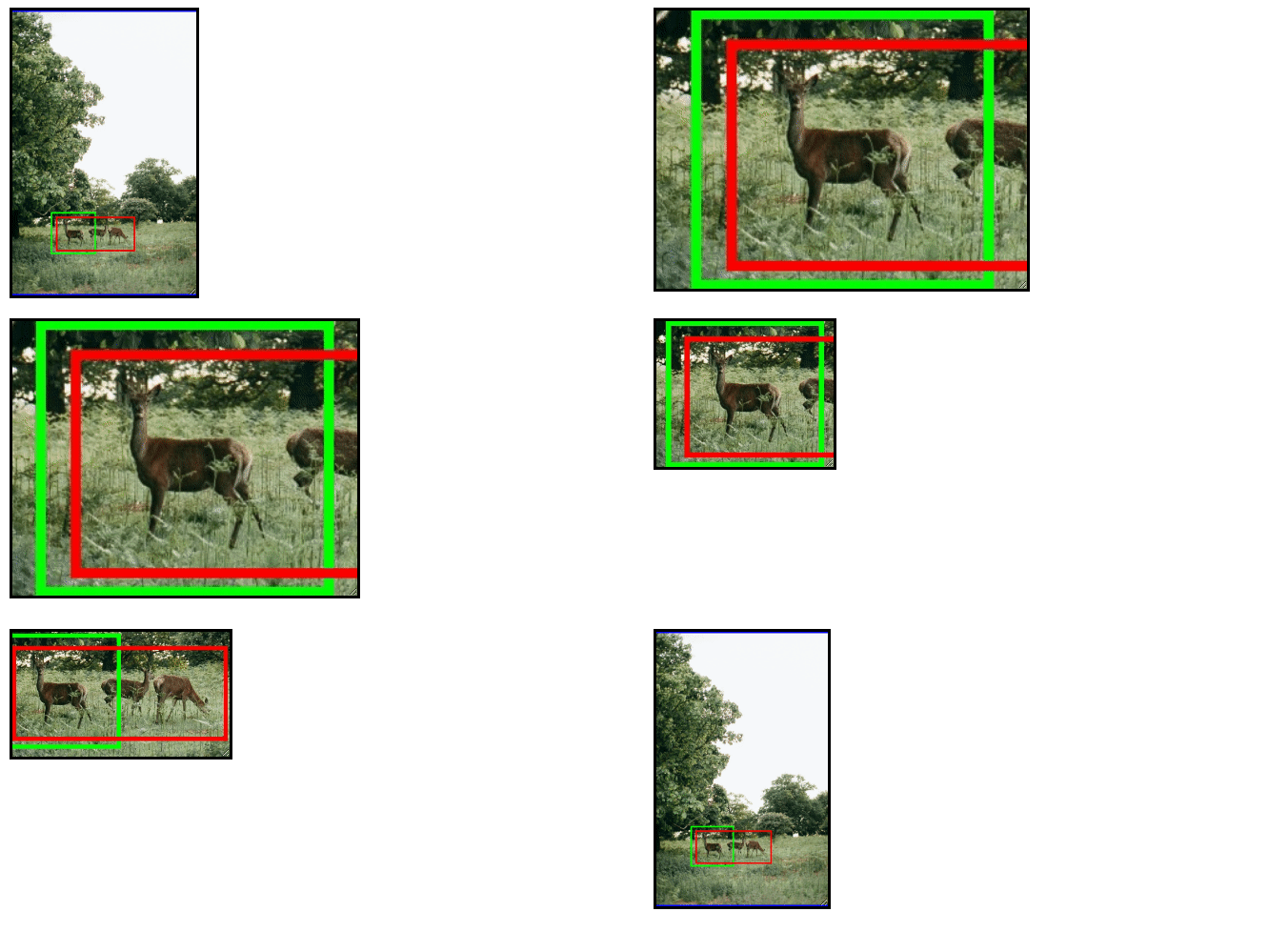
This web component extends the `![]() ` tag with the ability to accept a list of
image regions, and to zoom in on the best one for the current element size:
` tag with the ability to accept a list of
image regions, and to zoom in on the best one for the current element size:
 ```html
```
The resulting HTML element is responsive and will automatically reassess the
best region to zoom in on when it gets resized, e.g. when the user turns their
phone from portrait to landscape.
:sparkles: [Live demo](https://webc.frameright.io)
💻 [CodeSandbox](https://codesandbox.io/s/image-display-control-web-component-6hzmq5)
:bulb: [GitHub Discussions](https://github.com/Frameright/image-display-control-web-component/discussions)
#### Why a custom `img` element?
In order to have existing CSS rules in a project able to target indifferently
classic `
```html
```
The resulting HTML element is responsive and will automatically reassess the
best region to zoom in on when it gets resized, e.g. when the user turns their
phone from portrait to landscape.
:sparkles: [Live demo](https://webc.frameright.io)
💻 [CodeSandbox](https://codesandbox.io/s/image-display-control-web-component-6hzmq5)
:bulb: [GitHub Discussions](https://github.com/Frameright/image-display-control-web-component/discussions)
#### Why a custom `img` element?
In order to have existing CSS rules in a project able to target indifferently
classic `![]() ` elements and our web component, two options exist:
1. Invent a custom `
` elements and our web component, two options exist:
1. Invent a custom ` ` element implementing
[HTMLImageElement](https://developer.mozilla.org/en-US/docs/Web/API/HTMLImageElement),
or
2. Invent a custom
`` element
based on an
[HTML template with a `` element](https://developer.mozilla.org/en-US/docs/Web/API/Web_Components/Using_templates_and_slots).
The problem with the second option is that it puts the `
` element implementing
[HTMLImageElement](https://developer.mozilla.org/en-US/docs/Web/API/HTMLImageElement),
or
2. Invent a custom
`` element
based on an
[HTML template with a `` element](https://developer.mozilla.org/en-US/docs/Web/API/Web_Components/Using_templates_and_slots).
The problem with the second option is that it puts the `![]() ` tag inside a new
parent element `` and CSS rules such as
```css
img {
/* fill the parent element */
width: 100%;
height: 100%;
}
```
won't have the intended results, because the parent element hasn't been
instructed to fill its own parent. This would force developers to adapt their
CSS rules to also target the new parent, which is not ideal.
This is why we went with the first option, which doesn't require any CSS changes
in existing projects.
### Image Display Control metadata
Nowadays an image file (e.g. JPEG, PNG) can contain this type of image regions
in their metadata according to
[the IPTC standard](https://iptc.org/std/photometadata/specification/IPTC-PhotoMetadata#image-region).
The back-end would typically be responsible for extracting them from the image
file and placing them in the front-end's `
` tag inside a new
parent element `` and CSS rules such as
```css
img {
/* fill the parent element */
width: 100%;
height: 100%;
}
```
won't have the intended results, because the parent element hasn't been
instructed to fill its own parent. This would force developers to adapt their
CSS rules to also target the new parent, which is not ideal.
This is why we went with the first option, which doesn't require any CSS changes
in existing projects.
### Image Display Control metadata
Nowadays an image file (e.g. JPEG, PNG) can contain this type of image regions
in their metadata according to
[the IPTC standard](https://iptc.org/std/photometadata/specification/IPTC-PhotoMetadata#image-region).
The back-end would typically be responsible for extracting them from the image
file and placing them in the front-end's ` ```
:floppy_disk:
[Importing in your project](https://docs.frameright.io/web-component/importing)
### Usage
```html
```
:airplane:
[Advanced usage](https://docs.frameright.io/web-component/usage)
:sparkles: [Local demo](https://docs.frameright.io/web-component/demo)
:wrench: [Contributing](https://docs.frameright.io/web-component/contributing)
📝 [Changelog](https://docs.frameright.io/web-component/changelog)
:bulb: [GitHub Discussions](https://github.com/Frameright/image-display-control-web-component/discussions)
:sparkles: [Live demo](https://webc.frameright.io)
### Dependency tree / credits
- [ungap/custom-elements](https://github.com/ungap/custom-elements), a polyfill
for web components on Safari. Many thanks to
[WebReflection](https://github.com/WebReflection)!
### Browser support
From scratch the web component should work on:
* Chrome 64+ (2018 or newer)
* Firefox 69+ (2019 or newer)
* Safari 15.4+ (2022 or newer)
More support can be achieved with a few tweaks:
:mag: [Browser support](https://docs.frameright.io/web-component/browsers)
```
:floppy_disk:
[Importing in your project](https://docs.frameright.io/web-component/importing)
### Usage
```html
```

:airplane:
[Advanced usage](https://docs.frameright.io/web-component/usage)
:sparkles: [Local demo](https://docs.frameright.io/web-component/demo)
:wrench: [Contributing](https://docs.frameright.io/web-component/contributing)
📝 [Changelog](https://docs.frameright.io/web-component/changelog)
:bulb: [GitHub Discussions](https://github.com/Frameright/image-display-control-web-component/discussions)
:sparkles: [Live demo](https://webc.frameright.io)
### Dependency tree / credits
- [ungap/custom-elements](https://github.com/ungap/custom-elements), a polyfill
for web components on Safari. Many thanks to
[WebReflection](https://github.com/WebReflection)!
### Browser support
From scratch the web component should work on:
* Chrome 64+ (2018 or newer)
* Firefox 69+ (2019 or newer)
* Safari 15.4+ (2022 or newer)
More support can be achieved with a few tweaks:
:mag: [Browser support](https://docs.frameright.io/web-component/browsers)