dsh-git
在 DeepSeek Harness 里完成日常 Git 操作,不离开当前会话。
查看改动 · 逐文件暂存 · 提交与推送 · 切换分支 · 浏览历史




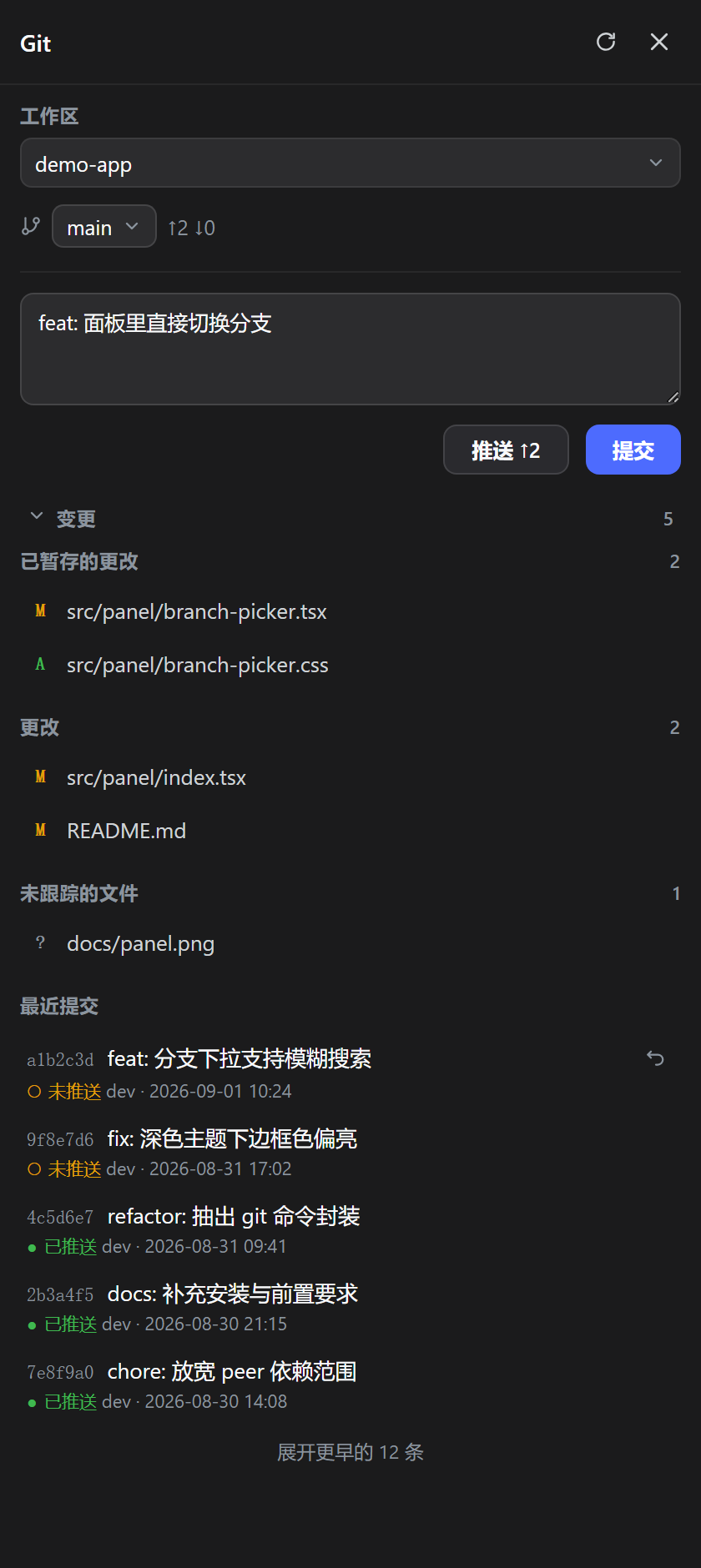
> Visual Git panel for [DeepSeek Harness](https://github.com/deepseek-ai/deepseek-harness): stage, commit, push, switch branches and inspect history without leaving your session.
中文
## 前置要求
- dsh `>= 0.1.1-rc.2`:0.1.x 与 0.2.x 两条线都兼容(已适配 0.2.0-rc.2,最低 0.1.1-rc.2)
- 机器上装了 `git` 且在 `PATH` 里
- `pnpm` 可用(`dsh plugin` 底层转发给 pnpm)
## 安装
最省事的办法是用[插件市场](https://github.com/EasyTZ/dsh-market):打开「发现」,搜 `dsh-git`,点「安装」。
命令行:
```sh
dsh plugin --profile add @easytz/dsh-git
```
`` 是**必填**的 profile 名,不能省略——桌面版通常是 `web`,TUI 是 `tui`;不确定就看 `$DSH_HOME/profiles/` 下的目录名。想钉死版本就写 `@easytz/dsh-git@0.5.7`。
插件自带 `dsh.bundle` 层(`cordis.patch.yml`),`dsh plugin add` 会同时完成「装进去」和「注册激活」,**不需要手写 patch**。
装完重启 dsh,侧边栏底部出现 Git 按钮。
## 升级
CLI 升级到最新版(不带版本号即可,会解析 npm 的 `latest`):
```sh
dsh plugin --profile add @easytz/dsh-git
```
- 已经装过旧版时,这条命令会把包替换成最新版;想钉死版本就写 `@easytz/dsh-git@0.5.8`。
- 桌面版插件市场:市场里看到新版本直接点「更新」。
- 升级后**重启 dsh 才生效**——换了新的插件代码,进程需要重新加载。
- 刚发版后立刻升级可能仍解析到旧版本:那是 registry 元数据缓存(npm / pnpm 各自缓存,约几分钟),过一会儿重试,或直接钉新版本号绕过 `latest` 解析。
## 用法
点侧边栏底部的 **Git** 按钮打开面板。
**选仓库.** 有多个工作区时,顶部「工作区」下拉切换。工作区根目录自己不是仓库、但下面的子目录各自是仓库时,会多出一个「仓库」下拉(见下面「一个工作区装了多个仓库?」)。面板默认停在上次用过的工作区;有会话打开时会跟着当前会话所在的工作区走。
**提交.** 提交框就在分支行下面,是面板里最顺手的位置:
1. 在「变更」里点文件右边的 **+** 把要提交的文件暂存;已暂存的点 **−** 撤回。
2. 在框里写提交信息。
3. 点 **提交**。
未跟踪的新文件**不会**被自动带上,必须逐个点 **+** 明确选择——这是刻意设计,避免误提交。
**推送.** 点 **推送 ↑n**,`n` 是本地领先远端的提交数。没有待推送的提交时这个按钮是灰的。
**切分支.** 分支行的下拉,选一个就切过去。旁边的 `↑n ↓n` 是相对上游的领先 / 落后数。
**看历史.** 「最近提交」按时间倒序列出提交,每条标着 ○ 未推送 / ● 已推送。点任意一条弹出**提交详情**:完整提交信息、改动了哪些文件、每个文件各增删多少行。底部「展开更早的 n 条」看更多。
**撤销最近一次提交.** 只有最新那一条右侧有撤销按钮。点一下变红进入二次确认,三秒内再点才真的执行:未推送走 `reset --mixed`(改动退回工作区,不会丢),已推送走 `revert`(生成一条反向提交,别忘了推送)。
**刷新.** 标题栏的刷新图标重新读一遍仓库状态。
## 卸载
```sh
dsh plugin --profile remove @easytz/dsh-git
```
`` 与安装时一致。`remove` 会把包从 profile 依赖里移除,dsh 随后会把它从激活清单(`dsh.profile.bundles`)里撤掉。重启 dsh 后按钮消失。
> 如果你按旧版 README 手动往 `$DSH_HOME/profiles//cordis.patch.yml` 或 `$DSH_HOME/cordis.patch.yml` 里加过 `- insert:` 条目,卸载时把那段 YAML 一起删掉。
## 一个工作区装了多个仓库?
工作区根目录自己不是仓库、但下面的子目录各自是独立仓库(比如一个 `projects/` 下并排放着好几个 repo)时,面板会**往下扫一层**,把找到的仓库列在一个「仓库」下拉里,选中哪个就操作哪个。选择按工作区记住,下次打开还停在上次那个。
- 工作区根自己在某个仓库里(是仓库根,或者是仓库的子目录)时不显示这个下拉,行为跟单仓库完全一样。
- 只扫一层,且跳过 `node_modules`、`dist`、`build` 与点开头的目录 —— 否则 vendored 依赖里自带的 `.git` 会把列表淹掉。
- 默认停在 `.git` 最近被动过的那个仓库。
## 已知限制
- 撤销提交只支持最新一条(未推送走 `reset --mixed` 保留改动,已推送走 `revert` 生成反向提交)。
- 推送被远端拒绝(需要先 pull)时面板不代劳,会提示去终端执行 `git pull`。
- 未跟踪的新文件不会被「提交」按钮自动暂存——必须逐个点「+」明确选择,这是刻意设计。
## 平台支持
已在 Windows 与 macOS 上验证;插件代码没有平台分支,Linux 使用同一套 Git 命令接口。
English
A third-party plugin for [DeepSeek Harness](https://github.com/deepseek-ai/deepseek-harness) (dsh) that adds a **visual Git panel** to the sidebar — everyday Git without leaving dsh and without memorising commands.
### Requirements
- dsh `>= 0.1.1-rc.2`: both the 0.1.x and 0.2.x lines are supported (adapted for 0.2.0-rc.2; 0.1.1-rc.2 is the floor)
- `git` installed and on `PATH`
- `pnpm` available (`dsh plugin` shells out to pnpm)
### Install
Easiest path is the [plugin market](https://github.com/EasyTZ/dsh-market): open **Discover**, search `dsh-git`, hit **Install**.
From the command line:
```sh
dsh plugin --profile add @easytz/dsh-git
```
`` is **required** — your dsh profile (usually `web` for the desktop/web UI, `tui` for the TUI). Pin a version with `@easytz/dsh-git@0.5.7` if you want reproducibility. The package ships its own `dsh.bundle` layer, so `dsh plugin add` both installs **and** activates it; no hand-written patch needed.
Restart dsh — a **Git** button appears at the bottom of the sidebar.
### Upgrading
Update to the latest release from the CLI (omitting the version resolves npm's `latest` tag):
```sh
dsh plugin --profile add @easytz/dsh-git
```
- If an older version is already installed, this replaces it with the latest; pin a version with `@easytz/dsh-git@0.5.8` if you want a specific one.
- Desktop plugin market: an update entry appears in the market when a new version is out.
- **Restart dsh** after upgrading — the plugin code has changed and the process must reload it.
- Right after a release, an upgrade may still resolve to the previous version: npm/pnpm cache registry metadata for a few minutes, so retry shortly, or pin the exact new version to bypass `latest` resolution.
### Usage
Click the **Git** button to open the panel.
- **Pick a repository.** A workspace dropdown appears when you have more than one workspace. If the workspace root isn't a repo but its immediate subdirectories are, a second "repository" dropdown lists them. The panel defaults to your last-used workspace, and follows the current session's workspace when one is open.
- **Commit.** Stage files with the **+** next to each entry under *Changes* (**−** unstages), type a message, hit **Commit**. Untracked files are never staged for you — that is deliberate.
- **Push.** Hit **Push ↑n**, where `n` is how far ahead of the remote you are.
- **Switch branch.** Use the branch dropdown on the branch row; `↑n ↓n` next to it is ahead/behind.
- **History.** *Recent commits* lists commits newest-first, each marked ○ unpushed or ● pushed. Click any row for the full message, the changed files, and per-file insertions/deletions.
- **Undo the last commit.** Only the newest commit offers it. Click once to arm (turns red), click again within three seconds to run: `reset --mixed` when unpushed (changes come back to the working tree), `revert` when already pushed.
### Uninstall
```sh
dsh plugin --profile remove @easytz/dsh-git
```
### Limitations
- Undo only applies to the most recent commit.
- Rejected pushes (remote ahead) are reported, not auto-resolved — run `git pull` in a terminal.
- Untracked files must be staged explicitly.
- Verified on Windows only; the code has no platform-specific branches, so macOS/Linux should work. Feedback welcome.
## 许可证 / License
[MIT](LICENSE)