🖥️ shellwright
Playwright for the shell. AI-driven terminal automation, screenshots and video recording.
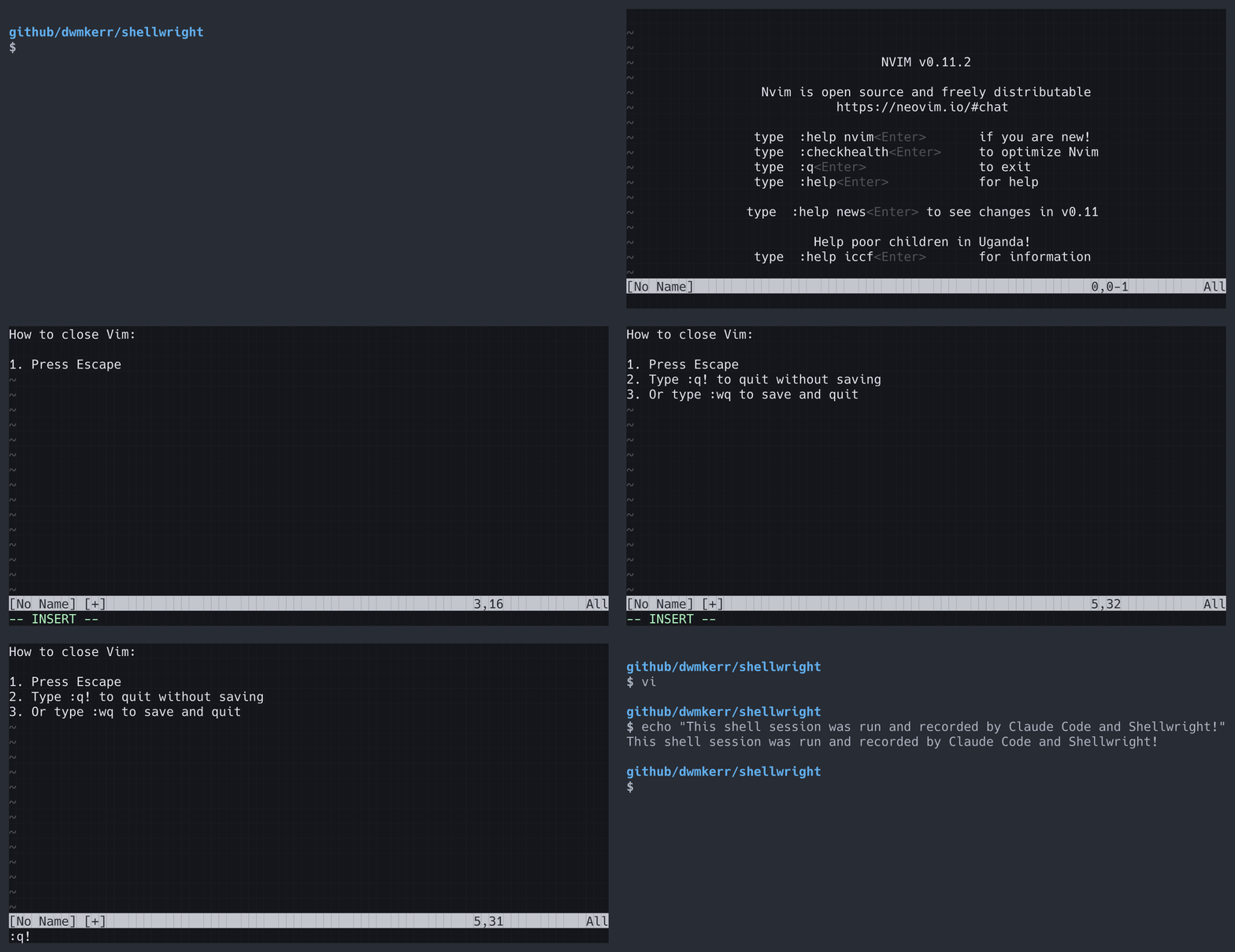
Finally. Your AI agents can close Vim
User: Open Vim. Tell me how to close it. Close it. Record this as a video.
Quickstart |
Examples |
Installation |
Configuration |
MCP Tools |
Developer Guide



## Quickstart
Configure your LLM, [Claude Code](#claude-code), [Cursor](#installation) or whatever to use the Shellwright MCP server:
```json
{
"mcpServers": {
"shellwright": {
"command": "npx",
"args": ["-y", "@dwmkerr/shellwright"]
}
}
}
```
Use a prompt such as:
> Using shellwright, open Vim. Write a message saying how to close Vim. Close Vim. Give me a screenshot of each step and a GIF recording, save the screenshots and videos to './output'".
>
A video recording will be saved, as well as screenshots in multiple formats.
Check the [Examples](#examples) or [Installation](#installation) guide for more details. I also use this to create rich recordings for my book [Effective Shell](https://effective-shell.com).
**Running Locally**
Run the MCP server in HTTP mode for local development:
```bash
npm install
npm run dev:http
# Or add parameters if needed...
npm run dev:http -- --font-size 32
```
The server runs at `http://localhost:7498/mcp`.
**Testing with the MCP Inspector**
Open the [MCP Inspector](https://github.com/modelcontextprotocol/inspector) in another terminal and connect to `http://localhost:7498/mcp` to list and test tools:
```bash
# Open MCP inspector in another terminal.
npx @modelcontextprotocol/inspector
# Now connect to:
# http://localhost:7498/mcp
```
**Testing with an Agent**
Run the [`demo.py`](./demo/demo.py) program to chat to an agent that has the Shellwright tool. Note that you must have the Shellwright MCP sever running in HTTP mode (e.g. `npm run dev:http`):
```bash
# Optionally setup your .env to specify configuration.
# cp ./demo/.env.sample .env && vi .env
# Install requirements and run the agent.
pip install -r ./demo/requirements.txt
python ./demo/demo.py
# Output:
# User (enter message): Show me what the htop tool looks like showing me my resources.
# ...or provide a message directly.
python ./demo/demo.py -- "Run a shell command to show me the names \
of the folders in this directory and take a screenshot and give me its path"
```
You will see logs from the MCP server and the demo agent:
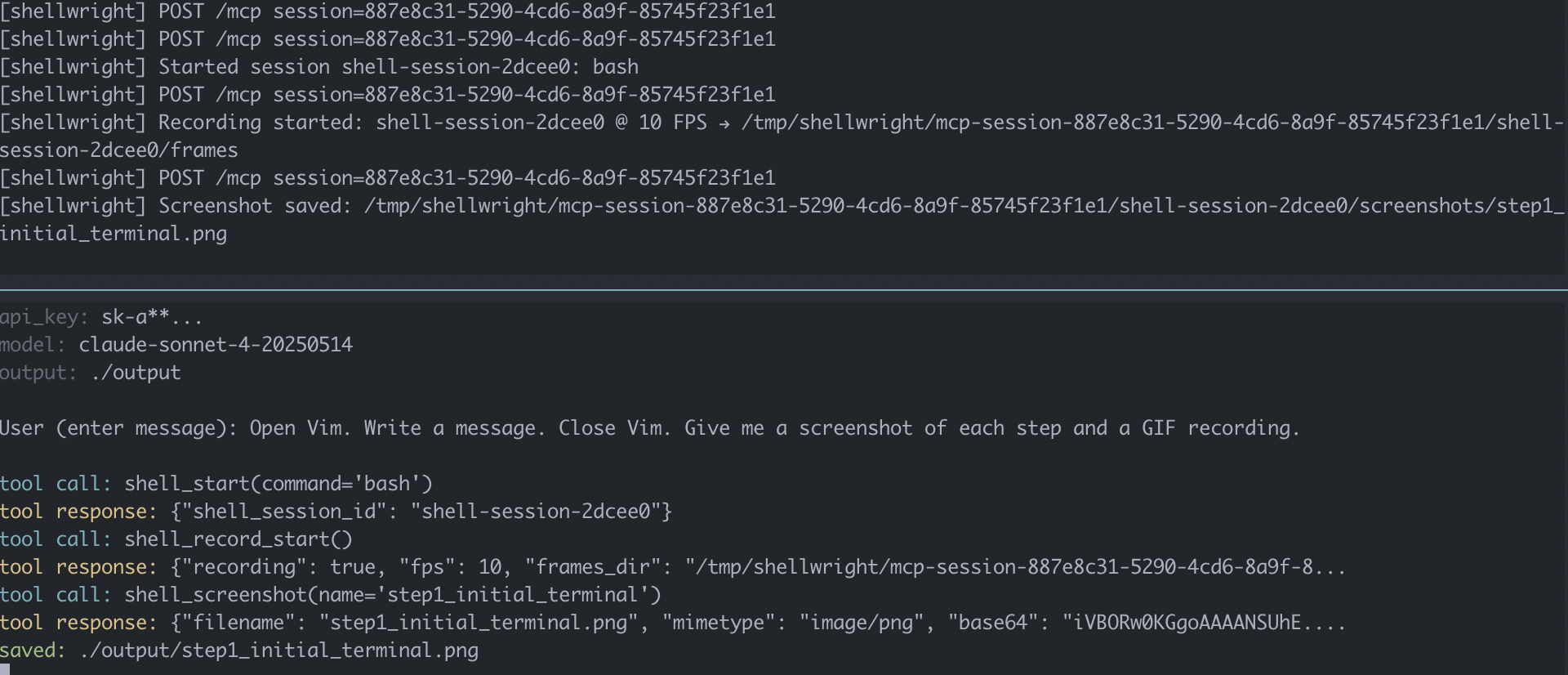
Screenshots and videos by default will be written to `./output`.
## Examples
Have fun with some prompts.
Do some Vim stuff:
> Open Vim. Write a message saying how to close Vim. Close Vim. Give me a screenshot of each step and a GIF recording.

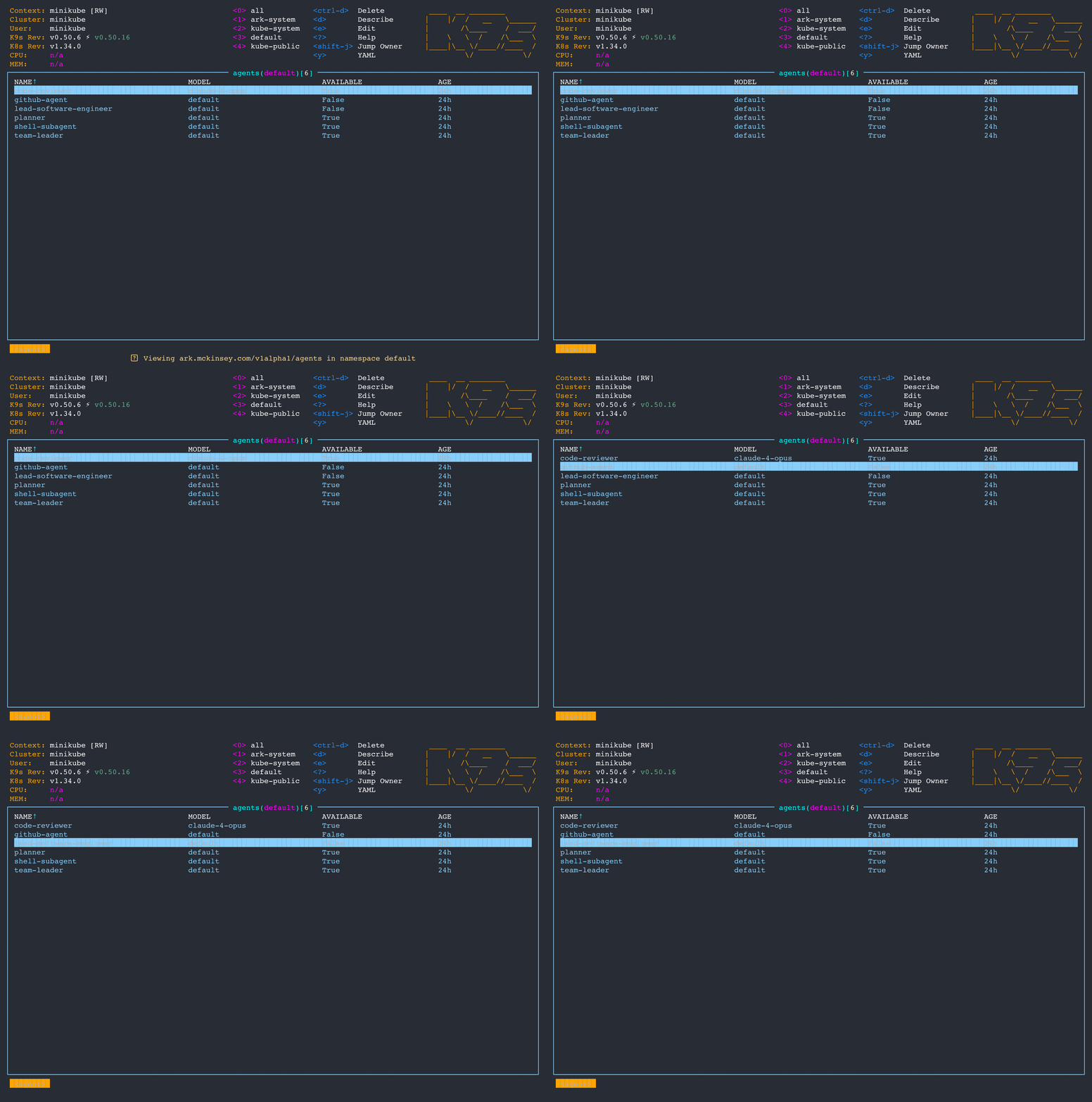
Open [`k9s`](https://k9scli.io/) and show [Ark](https://github.com/mckinsey/agents-at-scale-ark) agents:
> Open K9S. Check for resources of type 'agents'. Give me a GIF recording and take screenshots along the way.
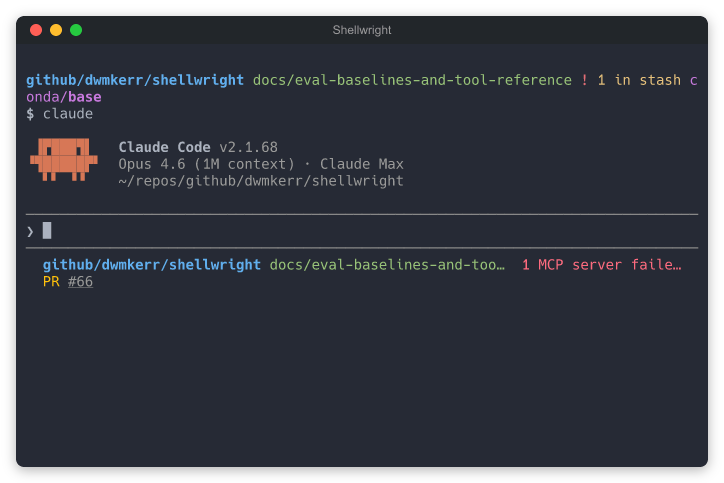
Take a bordered screenshot:
> Open Claude Code. Take a screenshot with a macOS window border titled "Shellwright".
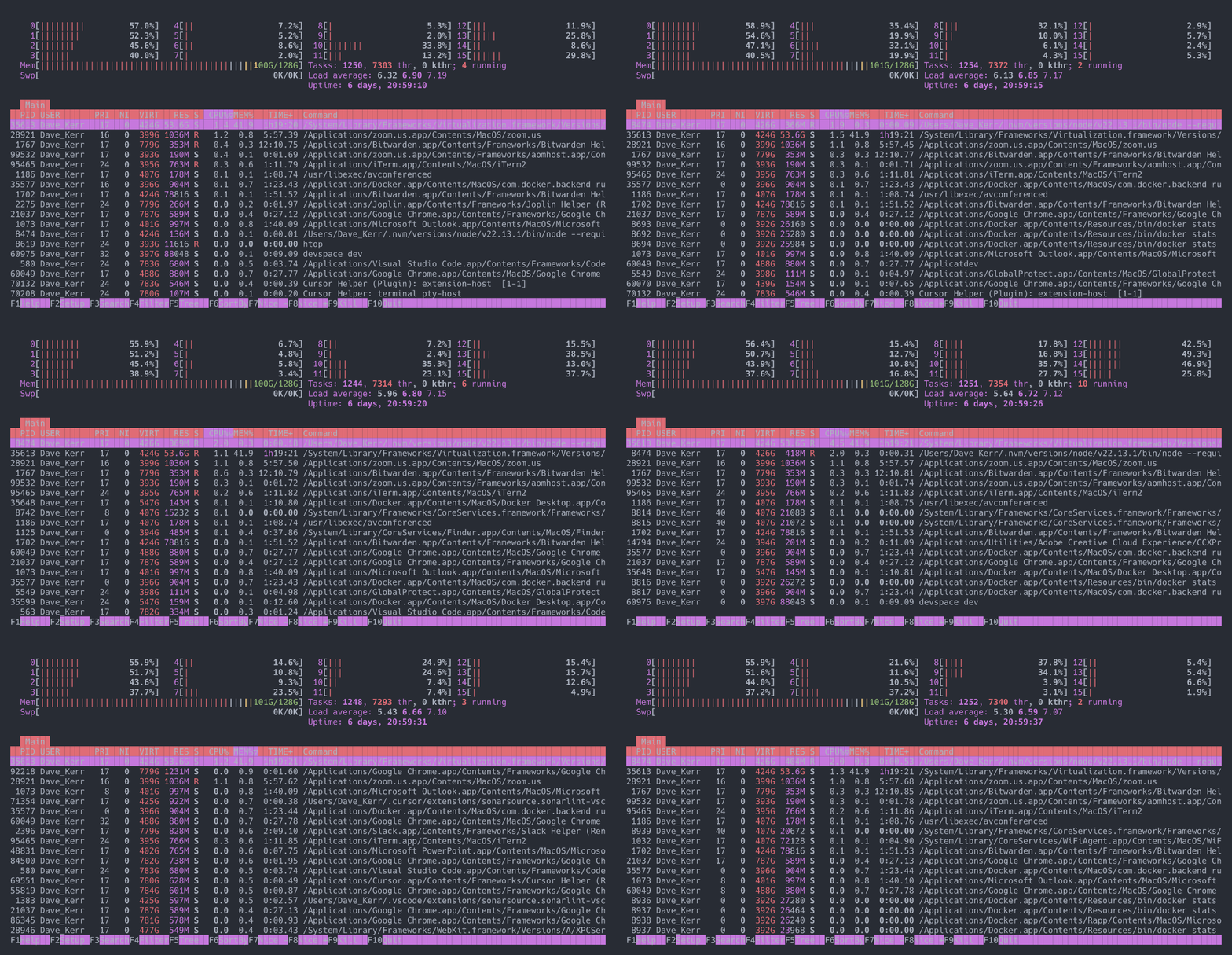
Use [`htop`](https://github.com/htop-dev/htop):
> Open htop and show the most resource intensive process.
> Open vim, create validate.py that checks if arguments are UK postcodes. Print ✓ or ✗ for each. Then run: python3 validate.py on a set of UK postcodes (valid and invalid) such as "SW1A 1AA" "INVALID" "M1 1AA". Record as a video. Take 2-3 screenshots along the way.

## Installation
### Claude Code
```bash
# Install for current project. Use '--scope user' for for user-wide.
claude mcp add --scope project shellwright -- npx -y @dwmkerr/shellwright
# Configure via command line parameters (or env vars) if needed.
claude mcp add --scope project shellwright -- npx -y @dwmkerr/shellwright \
--log-path /tmp/shellwright/log.jsonl
# Uninstall. Same comment on 'scope'.
claude mcp remove --scope project shellwright
```
### Cursor / VS Code / Other MCP Clients
Add to your MCP configuration file:
```json
{
"mcpServers": {
"shellwright": {
"command": "npx",
"args": ["-y", "@dwmkerr/shellwright"]
}
}
}
```
## Configuration
| Variable | Parameter | Default | Description |
|----------|-----------|---------|-------------|
| `PORT` | `--port`, `-p` | `7498` | Server port ("SWRT" on a phone keypad) |
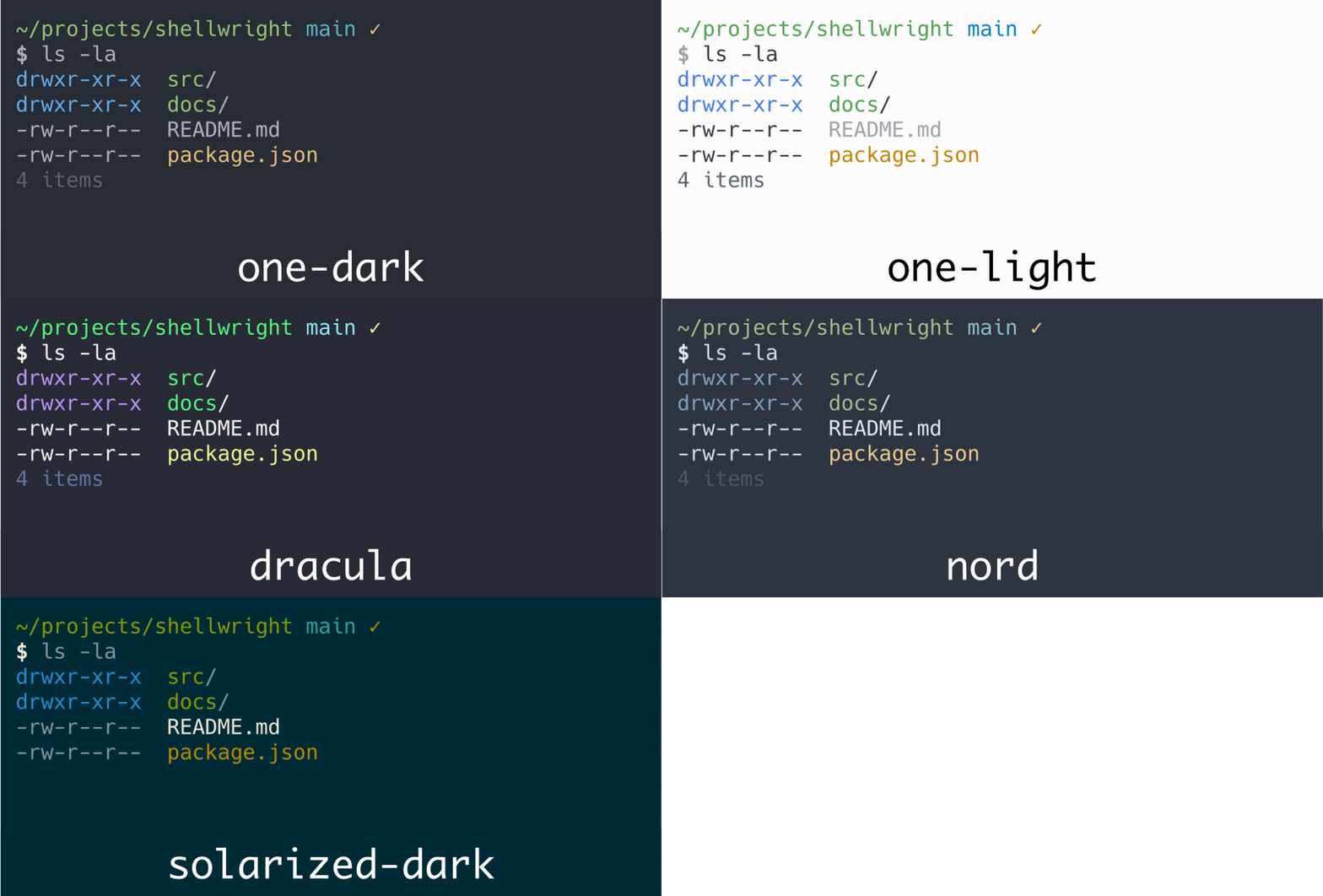
| `THEME` | `--theme`, `-t` | `one-dark` | Color theme (`one-dark`, `one-light`, `dracula`, `solarized-dark`, `nord`, [etc...](./docs/themes.md) |
| `TEMP_DIR` | `--temp-dir` | `/tmp/shellwright` | Directory for recording frames |
| `FONT_SIZE` | `--font-size` | `14` | Font size in pixels for screenshots/recordings |
| `FONT_FAMILY` | `--font-family` | `Hack, Monaco, Courier, monospace` | Font family for screenshots/recordings (use a font with bold variant for bold text support) |
| - | `--cols` | `120` | Default terminal columns |
| - | `--rows` | `40` | Default terminal rows |
| - | `--http` | `false` | Use HTTP transport instead of stdio |
| - | `--log-path` | - | Log tool calls to JSONL file (one JSON object per line) |
Some configuration can also be provided by the LLM, simply prompt for it:
- Terminal Dimensions: e.g: "Use a terminal that is 80x24 for the recording"
- Theme: e.g: "Use the dracula theme for this recording"
## MCP Tools
| Tool | Description |
|------|-------------|
| [`shell_start`](#shell_start) | Start a new PTY session |
| [`shell_send`](#shell_send) | Send input to a session |
| [`shell_read`](#shell_read) | Read the terminal buffer |
| [`shell_screenshot`](#shell_screenshot) | Capture terminal as PNG |
| [`shell_record_start`](#shell_record_start) | Start recording for GIF export |
| [`shell_record_stop`](#shell_record_stop) | Stop recording and save GIF |
| [`shell_stop`](#shell_stop) | Stop a PTY session |
### **shell_start**
Start a new PTY session with a command. Columns, rows, and theme are optional and the defaults can be set in the [Configuration](#Configuration):
Start a shell session running `bash`:
```json
{
"command": "bash",
"cols": 80,
"rows": 24
}
```
Start a session with an login mode shell and a specific theme:
```json
{
"command": "bash",
"args": ["--login", "-i"],
"theme": "dracula"
}
```
Available themes (see [Theme Guide](./docs/themes.md) for previews):
| Theme | Type | Description |
|-------|------|-------------|
| `one-dark` | Dark | Muted, balanced colors (default) |
| `one-light` | Light | Clean, readable colors |
| [`dracula`](https://draculatheme.com) | Dark | Vibrant purple theme |
| [`solarized-dark`](https://ethanschoonover.com/solarized) | Dark | Blue-green, easy on eyes |
| [`nord`](https://nordtheme.com) | Dark | Arctic-inspired, cool blue tones |
The response contains the shell session ID (as multiple shell sessions can be run) and theme:
```json
{
"shell_session_id": "shell-session-a1b2c3",
"theme": "dracula"
}
```
### **shell_send**
Send input to a PTY session. Returns the full terminal buffer (plain text, no ANSI codes) before and after sending input, so the LLM can see exactly what changed on screen:
```json
{
"session_id": "shell-session-a1b2c3",
"input": "ls -la\n",
"delay_ms": 100
}
```
The `delay_ms` parameter controls how long to wait after sending input before capturing `bufferAfter` (default: 100ms). Increase for slow commands.
The response includes the terminal buffer before and after the input was sent:
```json
{
"success": true,
"bufferBefore": "$ _",
"bufferAfter": "$ ls -la\ntotal 24\ndrwxr-xr-x 5 user staff ...\n$ _"
}
```
### **shell_read**
Read the current terminal buffer. Use `raw: true` to include ANSI escape codes:
```json
{
"session_id": "shell-session-a1b2c3",
"raw": false
}
```
The response is the terminal content as plain text (truncated to 8KB to avoid context overflow):
```
total 24
drwxr-xr-x 5 user staff 160 Dec 18 10:00 .
drwxr-xr-x 10 user staff 320 Dec 18 09:00 ..
-rw-r--r-- 1 user staff 1234 Dec 18 10:00 README.md
```
### **shell_screenshot**
Capture terminal as PNG. Also saves SVG, ANSI, and plain text versions. Pass `name` without extension (`.png` is added automatically). Optionally add a macOS-style window border (off by default):
```json
{
"session_id": "shell-session-a1b2c3",
"name": "my-screenshot",
"border": { "style": "macos", "title": "Terminal" }
}
```
The response contains a `download_url` for curl to save the file locally:
```json
{
"filename": "my-screenshot.png",
"download_url": "http://localhost:7498/files/mcp-.../screenshots/my-screenshot.png",
"hint": "Use curl -o to save the file"
}
```
### **shell_record_start**
Start recording frames for GIF export. Frames are captured at the specified FPS (default 10, max 30, compression occurs by deduplicating identical frames). The optional `border` parameter (same as [`shell_screenshot`](#shell_screenshot)) applies window chrome to every frame:
```json
{
"session_id": "shell-session-a1b2c3",
"fps": 10,
"border": { "style": "macos", "title": "Terminal" }
}
```
The response confirms recording has started:
```json
{
"recording": true,
"fps": 10,
"frames_dir": "/tmp/shellwright/.../frames"
}
```
### **shell_record_stop**
Stop recording and render frames to GIF:
```json
{
"session_id": "shell-session-a1b2c3",
"name": "my-recording"
}
```
The response contains a `download_url` for curl to save the file locally:
```json
{
"filename": "my-recording.gif",
"download_url": "http://localhost:7498/files/mcp-.../recordings/my-recording.gif",
"hint": "Use curl -o to save the file",
"frame_count": 42,
"duration_ms": 4200
}
```
### **shell_stop**
Stop a PTY session and clean up resources:
```json
{
"session_id": "shell-session-a1b2c3"
}
```
The response confirms the session was stopped:
```json
{
"success": true
}
```
[MCP Prompts](https://modelcontextprotocol.io/docs/concepts/prompts) are also available for common workflows like vim editing and recording sessions. See [`src/prompts.ts`](./src/prompts.ts).
## Troubleshooting
The MCP server by default will write screenshots, video frames and the GIF (if requested) to a temporary location. This location includes the MCP session ID and the Shell session ID (one MCP session can have many shell sessions):
```bash
# Show the contents of an MCP and shell session.
tree /tmp/shellwright/mcp-session-16281bdf-7881-458a-8bee-475b02d000d2/shell-session-c66b8a
# Output:
# .
# ├── frames # Frames for the GIF recording. These are
# │ └── frame000000.png # cleaned up at the end of the session.
# ├── recordings
# │ └── vim_tutorial_complete.gif # The GIF recording (if requested).
# └── screenshots
# ├── step1_initial_terminal.ansi # Individual screenshot w/ ansi color etc.
# ├── step1_initial_terminal.png # Screenshot as PNG (ANSI->SVG->PNG).
# └── step1_initial_terminal.svg # The SVG intermediate.
# └── step1_initial_terminal.txt # Screenshot as plain text.
```
You can check raw `txt` files to troubleshoot the contents of screenshots. You can see the `ansi` content which contains formatting and color codes. Finally, you can open the `png` files - these are generated by converting the `ansi` to SVG (using themes defined in code) and then SVG is converted PNG. Check the plain text contents of a buffer, or raw ansi, or formatted like so:
```bash
# Show plain text. Make sure you are in the shell session temp directory.
cat ./k9s_initial_view.txt
# Show formatted ANSI. Good for troubleshooting color codes.
cat ./k9s_initial_view.ansi
```
## Developer Guide
To test local changes with Cursor, VS Code, or other MCP clients, first build the project then configure them to use your local build:
```bash
npm run build
```
```json
{
"mcpServers": {
"shellwright-dev": {
"command": "node",
"args": ["/path/to/shellwright/dist/index.js"]
}
}
}
```
Run `npm run build` after making changes, then restart your MCP client.
For HTTP mode development with hot-reload:
```bash
npm run dev:http
```
**Claude Code**
To test local development changes with Claude Code, add the local build as an MCP server:
```bash
# From the shellwright repo root - build first!
npm run build
claude mcp add shellwright-dev --scope project -- node "${PWD}/dist/index.js"
```
This registers your local build so you can test changes before publishing.
## Contributors
Thanks to all contributors!
This project follows the [all-contributors](https://github.com/all-contributors/all-contributors) specification. Contributions of any kind welcome!
## License
MIT
