# @dojo/cli-build-app
[](https://travis-ci.org/dojo/cli-build-app)
[](https://ci.appveyor.com/project/Dojo/cli-build-app/branch/master)
[](https://codecov.io/gh/dojo/cli-build-app)
[](https://badge.fury.io/js/%40dojo%2Fcli-build-app)
The official CLI command for building optimized Dojo applications.
- [Usage](#usage)
- [Features](#features)
- [Building](#building)
- [Asset Management](#asset-management)
- [Code Splitting By Route](#code-splitting-by-route)
- [Serving](#serving-the-application)
- [Watching](#watching)
- [Eject](#eject)
- [Configuration](#configuration)
- [How do I contribute?](#how-do-i-contribute)
- [Installation](#installation)
- [Testing](#testing)
- [Licensing information](#licensing-information)
## Usage
To use `@dojo/cli-build-app` in a single project, install the package:
```bash
npm install @dojo/cli-build-app
```
## Features
`@dojo/cli-build-app` is a command for the [`@dojo/cli`](https://github.com/dojo/cli).
### Building
There are four modes available to build a Dojo application, `dist`, `dev`, `unit`, and `functional`. The mode required can be passed using the `--mode` flag:
```bash
dojo build app --mode dist
```
The built application files are written to the `output/{dist/dev}` directory. The built test files are written to the `output/test/{unit|functionl}` directory.
Note: `dist` is the default mode and so can be run without any arguments, `dojo build app`.
#### Dist Mode (default)
The `dist` mode creates a production-ready build.
##### Bundle Analyzer
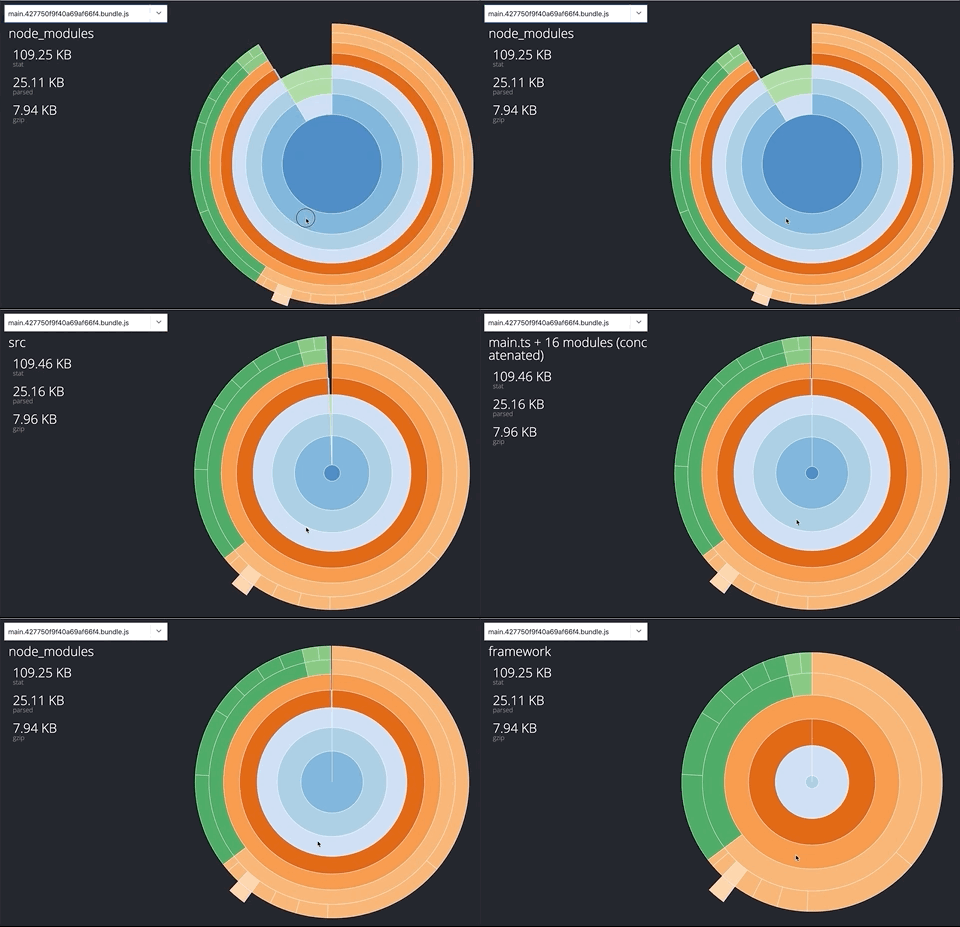
When building your application in `dist` mode, the build process will generate a webpack bundle analyzer that can be used to inspect the content of your application's bundles. The webpack bundle analyzer is outputted to the `output/info/analyzer` directory of your project. To view the analyzer, open the `index.html` file contained in this directory.
#### Dev mode
The `dev` mode creates an application build that has been optimized for debugging and development.
#### Unit mode
The `unit` mode creates bundles that can be used to run the unit tests of the application.
#### Functional mode
The `functional` mode creates bundles that can be used to run the functional tests of the application.
### Polyfills
The build command conditionally loads polyfills from `@dojo/framework/shim` based on your application's usage and the user's browser capabilities.
#### Legacy Browser Support
By default, the build will support the last two versions of the latest browsers. To support IE 11, run the build with the `--legacy` (`-l`) flag.
### Asset Management
While most assets will be `import`ed by modules in the `src/` directory and therefore handled by the main build pipeline, it is often necessary to serve static assets or include assets in the HTML file itself (e.g., the favicon).
Static assets can be added to an `assets/` directory at the project root. At build time, these assets are copied as-is without file hashing to `output/{mode}/assets`, and can be accessed using the absolute `/assets/` path. For example, if users need access to a static terms of service document named `terms.pdf`, that file would added to `assets/terms.pdf` and accessed via the URL `/assets/terms.pdf`.
The build also parses `src/index.html` for CSS, JavaScript, and image assets, hashing them and including them in the `output/{mode}/` directory. For example, it is common for applications to display a favicon in the URL bar. If the favicon is named `favicon.ico`, it can be added to the `src/` directory and included in `src/index.html` with ``. The build will then hash the file and copy it to `output/{mode}/favicon.[hash].ico`.
### Code Splitting By Route
The build command will automatically code split your application based on its dojo routing configuration.
To enable the code automatic splitting by route:
1) The dojo routing configuration needs to be the default export from a `routes.ts` module in the `src` directory.
2) Widgets must by the default export of their module.
3) When defining the `Outlet`, the `renderer` function must be defined inline.
```ts
// routes.ts
export default [
{
path: 'foo',
outlet: 'foo',
children: [
{
path: 'bar',
outlet: 'bar'
}
]
},
{
path: 'bar',
outlet: 'bar'
}
];
```
```ts
// widget
import WidgetBase from '@dojo/framework/widget-core/WidgetBase';
import { v, w } from '@dojo/framework/widget-core/d';
import Outlet from '@dojo/framework/routing/Outlet';
import FooWidget from './FooWidget';
import BarWidget from './BarWidget';
export default class App extends WidgetBase {
protected render() {
return v('div', [
w(Outlet, { id: 'foo', renderer: () => w(FooWidget, {})}),
w(Outlet, { id: 'bar', renderer: () => w(BarWidget, {})})
]);
}
}
```
The output will result in a separate bundle for each of the application's top level routes. In this example, there will be a main application bundle and two further bundles for `src/FooWidget` and `src/BarWidget`.
**Note:** The configuration can be further refined using the bundle configuration in the `.dojorc`, see [bundles configuration](#bundles:-object).
### Serving the Application
A web server can be started with the `--serve` flag while running in `dev` or `dist` modes. By default, the application is served on port 9999, but this can be changed with the `--port` (`-p`) flag:
```bash
# build once and then serve the app on port 3000
dojo build -s -p 3000
```
By default, the files will be served via HTTP. HTTPS can be enabled by placing `server.crt` and `server.key` files in a `.cert` directory in the root of your project:
```text
|-- my-project
|-- .cert
|-- .server.crt
|-- .server.key
```
When these files are detected, `dojo build -s` will automatically serve files via HTTPS.
#### Proxy Configuration
The development server can be configured to act as a simple proxy. Add a `proxy` section to your `.dojorc` containing the paths you want to proxy. The key of the object is the path you want to proxy and the value of the object is the proxy configuration.
```json
{
"build-app": {
"proxy": {
"/api": {
"target": "http://example.com",
"changeOrigin": true,
"pathRewrite": {
"^/api": "/api/v1"
}
},
"/simple": "http://example.com"
}
}
}
```
Proxy configuration can take the following options:
| Property | Description |
| -------------- | ------------------------------------------------------------ |
| `target` | The source URL to proxy from |
| `changeOrigin` | `true` to rewrite the origin header (required for named based virtual hosts) |
| `ws` | `true` to proxy WebSockets |
| `pathRewrite` | key/value pairs of paths that will get rewritten during the proxy. The key is a regular expression to be matched, the value is the replacement. |
Note: Setting the proxy configuration as a string is equivelant to `{ target: "string" }`.
### Watching
Building with the `--watch` option observes the file system for changes and when with the development server (`--serve`) will automatically reload you browser.
```bash
# start a build with watch
dojo build --mode=dev --watch
# start a build using the development server and live reload
dojo build --mode=dev --serve --watch
```
### Eject
Ejecting `@dojo/cli-build-app` will produce the following files under the `config/build-app` directory:
- `build-options.json`: the build-specific config options removed from the `.dojorc`
- `ejected.config.js`: the root webpack config that passes the build options to the appropriate mode-specific config based on the `--env.mode` flag's value.
- `base.config.js`: a common configuration used by the mode-specific configs.
- `base.test.config.js`: a common configuration used by the unit and functional modes.
- `dev.config.js`: the configuration used during development.
- `dist.config.js`: the production configuration.
- `unit.config.js`: the configuration used when running unit tests.
- `functional.config.js`: the configuration used when running functional tests.
As already noted, the dojorc's `build-app` options are moved to `config/build-app/build-options.json` after ejecting. Further, the modes are specified using webpack's `env` flag (e.g., `--env.mode=dev`), defaulting to `dist`. You can run a build using webpack with:
```bash
node_modules/.bin/webpack --config=config/build-app/ejected.config.js --env.mode={dev|dist|unit|functional}
```
### Configuration
Applications use a `.dojorc` file at the project root to control various aspects of development such as testing and building. This file, if provided, MUST be valid JSON, and the following options can be used beneath the `"build-app"` key:
#### `bundles`: object
Useful for breaking an application into smaller bundles, the `bundles` option is a map of webpack bundle names to arrays of modules that should be bundled together. For example, with the following configuration, both `src/Foo` and `src/Bar` will be grouped in the `foo.[hash].js` bundle.
Widget modules defined used with `w()` will be automatically converted to a lazily imported, local registry item in the parent widget. This provides a mechanism for declarative code splitting in your application.
```json
{
"build-app": {
"bundles": {
"foo": [
"src/Foo",
"src/Bar"
]
}
}
}
```
The bundles configuration supports globs for matching against modules, this can be useful for scenarios such as grouping all nls internationalization modules by locale:
```json
{
"build-app": {
"bundles": {
"fr": [
"src/**/nls/fr/**"
],
"de": [
"src/**/nls/de/**"
]
}
}
}
```
**Note:** The precedence for bundle configuration is 1) An exact match wins against a glob match 2) Order based with the last config winning.
#### `cldrPaths`: string[]
An array of paths to [CLDR JSON](https://github.com/dojo/i18n#loading-cldr-data) files. Used in conjunction with the `locale` and `supportedLocales` options (see below). If a path contains the string `{locale}`, that file will be loaded for each locale listed in the `locale` and `supportedLocales` properties. For example, with the following configuration the `numbers.json` file will be loaded for the "en", "es", and "fr" locales:
```json
{
"build-app": {
"locale": "en",
"supportedLocales": [ "es", "fr" ]
"cldrPaths": [
"cldr-data/main/{locale}/numbers.json"
]
}
}
```
#### `compression`: Array<'gzip' | 'brotli'>
Options for compression when running in `dist` mode. Each array value represents a different algorithm, allowing both gzip and brotli builds to be output side-by-side. When used in conjunction with the `--serve` flag (in `dist` mode _without_ memory watch), the compressed files will be served, with brotli preferred over gzip when available.
#### `imageOptimization`: boolean | object
If this is set to `true`, image optimization will be performed when running in `dist` mode using default settings. This uses several different libraries depending
on the type of image being optimized. `imageOptimization` can be an object with individual configuration for these libraries in nested objects. They can also be individually disabled by passing `{ enabled: false }`. `Webp` optimization is disabled
by default and can be enabled by passing `webp: { enabled true }`. The options available for each library can be found at the links below:
* [mozjpeg](https://github.com/imagemin/imagemin-mozjpeg#options)
* [optipng](https://github.com/imagemin/imagemin-optipng#api)
* [pngquant](https://github.com/imagemin/imagemin-pngquant#options)
* [svgo](https://github.com/imagemin/imagemin-svgo#options)
* [gifsicle](https://github.com/imagemin/imagemin-gifsicle#options)
* [webp](https://github.com/imagemin/imagemin-webp#options)
### `externals`: object
Non-modular libraries or standalone applications that cannot be bundled normally can be included in a Dojo application by providing an implementation of `require` or `define` when needed, and some configuration in the project's `.dojorc` file.
Configuration for external dependencies can be provided under the `externals` property of the `build-app` config. `externals` is an object with two allowed properties:
* `outputPath`: An optional property specifying an output path to which files should be copied.
* `dependencies`: A required array that defines which modules should be loaded via the external loader, and what files should be included in the build. Each entry can be one of two types:
* A string that indicates that this path, and any children of this path, should be loaded via the external loader.
* An object that provides additional configuration for dependencies that need to be copied into the built application. This object has the following properties:
| Property | Type | optional | Description |
| -------- | ---- | -------- | ----------- |
| `from` | `string` | false | A path relative to the root of the project specifying the location of the files or folders to copy into the build application. |
| `to` | `string` | true | A path that replaces `from` as the location to copy this dependency to. By default, dependencies will be copied to `${externalsOutputPath}/${to}` or `${externalsOutputPath}/${from}` if `to` is not specified. If there are any `.` characters in the path and it is a directory, it needs to end with a forward slash. |
| `name` | `string` | true | Either the module id or the name of the global variable referenced in the application source. |
| `inject` | `string, string[], or boolean` | true | This property indicates that this dependency defines, or includes, scripts or stylesheets that should be loaded on the page. If `inject` is set to `true`, then the file at the location specified by `to` or `from` will be loaded on the page. If this dependency is a folder, then `inject` can be set to a string or array of strings to define one or more files to inject. Each path in `inject` should be relative to `${externalsOutputPath}/${to}` or `${externalsOutputPath}/${from}` depending on whether `to` was provided. |
| `type` | `'root' or 'umd' or 'amd' or 'commonjs' or 'commonjs2'` | true | Force this module to a specific method of resolution. For AMD style require use `umd` or `amd`. For node style require use `commonjs`, and to access the object as a global use `root` |
As an example the following configuration will inject `src/legacy/layer.js` into the application page, inject the file that defines the `MyGlobal` global variable, declare that modules `a` and `b` are external and should be delegated to the external layer, and then copy the folder `node_modules/legacy-dep`, from which several files are injected. All of these files will be copied into the `externals` folder, which could be overridden by specifying the `outputPath` property in the `externals` configuration.
```json
"externals": {
"dependencies": [
"a",
"b",
{ "from": "node_modules/GlobalLibrary.js", "to": "GlobalLibrary.js", "name": "MyGlobal", "inject": true },
{ "from": "src/legacy/layer.js", "to": "legacy/layer.js", "inject": true },
{
"from": "node_modules/legacy-dep",
"to": "legacy-dep/",
"inject": [ "moduleA/layer.js", "moduleA/layer.css", "moduleB/layer.js" ]
}
]
}
```
Types for any dependencies included in `externals` can be installed in `node_modules/@types`, like any other dependency.
Because these files are external to the main build, no versioning or hashing will be performed on files in a production build, with the exception
of the links to any `inject`ed assets. The `to` property can be used to specify a versioned directory to copy dependencies to in order to avoid different
versions of files being cached.
#### `features`: object
A map of [`has`](https://github.com/dojo/has/) features to boolean flags that can be used when building in `dist` mode to remove unneeded imports or conditional branches. See the [`static-build-loader`](https://github.com/dojo/webpack-contrib/#static-build-loader) documentation for more information.
#### `locale`: string
The default locale for the application. When the application loads, the root locale is set to the user's locale if it supported (see below), or to the default `locale` as a fallback.
#### `pwa`: object
A parent map that houses settings specific to creating progressive web applications.
#### `pwa.manifest`: object
Specifies information for a [web app manifest](https://developer.mozilla.org/en-US/docs/Web/Manifest). If provided, the following `` tags are injected into the application's `index.html`:
- `mobile-web-app-capable="yes"`: indicates to Chrome on Android that the application can be added to the user's homescreen.
- `apple-mobile-web-app-capable="yes"`: indicates to iOS devices that the application can be added to the user's homescreen.
- `apple-mobile-web-app-status-bar-style="default"`: indicates to iOS devices that the status bar should use the default appearance.
- `apple-touch-icon="{{icon}}"`: the equivalent of the manifests' `icons` since iOS does not currently read icons from the manifest. A separate meta tag is injected for each entry in the `icons` array.
For example:
```json
{
"build-app": {
"pwa": {
"manifest": {
"name": "Todo MVC",
"description": "A simple to-do application created with Dojo",
"icons": [
{ "src": "./favicon-16x16.png", "sizes": "16x16", "type": "image/png" },
{ "src": "./favicon-32x32.png", "sizes": "32x32", "type": "image/png" },
{ "src": "./favicon-48x48.png", "sizes": "48x48", "type": "image/png" },
{ "src": "./favicon-256x256.png", "sizes": "256x256", "type": "image/png" }
]
}
}
}
}
```
#### `pwa.serviceWorker`: object
Generates a fully-functional service worker that is activated on startup, complete with precaching and custom route handling. Alternatively, you can create your own service worker file and `@dojo/cli-build-app` will ensure it is copied to the correct output directory. Under the hood, the `ServicerWorkerPlugin` from `@dojo/webpack-contrib` is used to generate the service worker, and [all of its options](https://github.com/dojo/webpack-contrib/#service-worker-plugin) are valid `pwa.serviceWorker` properties. Note that if `pwa.serviceWorker.cachePrefix` is not included, it defaults to the `name` property from the application's `package.json`.
```js
{
"build-app": {
"pwa": {
"serviceWorker": {
"cachePrefix": "my-app",
// exclude the "admin" bundle from caching
"excludeBundles": [ "admin" ],
"routes": [
// Use the cache-first strategy for loading images, adding them to the "my-app-images" cache.
// Only the first ten images should be cached, and for one week.
{
"urlPattern": ".*\\.(png|jpg|gif|svg)",
"strategy": "cacheFirst",
"cacheName": "my-app-images",
"expiration": { "maxEntries": 10, "maxAgeSeconds": 604800 }
},
// Use the cache-first strategy to cache up to 25 articles that expire after one day.
{
"urlPattern": "http://my-app-url.com/api/articles",
"strategy": "cacheFirst",
"expiration": { "maxEntries": 25, "maxAgeSeconds": 86400 }
}
]
}
}
}
}
```
#### `build-time-render`(BTR): object
Renders the application to HTML during the build and in-lines the critical CSS. This allows the application to effectively render static HTML pages and provide some advantages of SSR (server side rendering) such as performance, SEO etc without the complexities of running a server to support full SSR.
* root (required) : The `id` of the root DOM node that application `merge` onto.
* paths (optional): An array of routes for rendering the application during the build; for more complex routes an object can be provided with a basic "matcher" (regular expression) that gets used to match against the application's route on page load.
Build time rendering supports applications that use either the `@dojo/framework/routing/history/HashHistory` or `@dojo/framework/routing/history/StateHistory` history managers. If your application uses the `HashHistory`, ensure that all `paths` are prefixed with a `#` character.
```json
{
"build-app": {
"build-time-render": {
"root": "app",
"paths": [
"#home",
{
"path": "#comments/9999",
"match": [ "#comments\/.*" ]
}
]
}
}
}
```
BTR generates a screenshot for each of the paths rendered during the build in the `output/info/screenshots` directory of your project.
Build time rendering exposes a `has` flag `build-time-render` that can be used to skip functionality that cannot be executed at build time, for example fetching external data.
```ts
if (!has('build-time-render')) {
fetch( /* ... */ );
}
```
**Note:** The `index.html` of your application needs to contain a DOM node with the `id` specified as the `root` in the configuration. This DOM node needs to be used when mounting the `renderer` for application:
```ts
const r = renderer(() => w(YourAppWidget, {}));
r.mount({ domNode: document.getElementById('app')! });
```
#### `supportedLocales`: string[]
An array of supported locales beyond the default. When the application loads, the user's locale is checked against the list of supported locales. If the user's locale is compatible with the supported locales, then the user's locale is used throughout the application. Otherwise, the default `locale` is used. For example, with the following configuration, the application locale will be set to Pashto or Arabic if either is listed as the user's locale, with Farsi used as the default.
Example:
```json
{
"build-app": {
"locale": "fa",
"supportedLocales": [ "ps", "ar" ],
"compression": "gzip",
"bundles": {
"widgets": [
"src/widgets/Header",
"src/widgets/Footer"
]
}
}
}
```
## How do I contribute?
We appreciate your interest! Please see the [Dojo Meta Repository](https://github.com/dojo/meta#readme) for the Contributing Guidelines. This repository uses [prettier](https://prettier.io/) for code style and is configured with a pre-commit hook to automatically fix formatting issues on staged `.ts` files before performing the commit. If you are changing the `.dojorc` configuration behaviour for `build-app`, please make sure to update the `schema.json` (a [JSON Schema](https://json-schema.org/) description which is used to validate the `build-app` configuration) to match the changes.
### Installation
To start working with this package, clone the repository and run:
```
npm install
```
In order to build the project, you can run all the build steps via:
```
npm run build
```
### Scripts
#### watch
Will run a watcher process which looks for changes in the source code TypeScript files and runs the build scripts to update the contents of the built files in dist with latest changes made.
#### clean
Runs the clean up script which removes any built files like output, dist, coverage which get created on build and testing steps.
#### lint
Runs the [ts-lint](https://palantir.github.io/tslint/) and [prettier](https://prettier.io/) on all `.ts` files in the `src` and `tests` directories. ts-lint will ensure that all linting rules have been abided by and prettier will fix any detected code style violations in the code.
### Testing
Test cases MUST be written using [Intern](https://theintern.github.io) using the BDD test interface and Assert assertion interface.
90% branch coverage MUST be provided for all code submitted to this repository, as reported by istanbul’s combined coverage results for all supported platforms.
The command is tested by running via the Dojo CLI and asserting the build output against known fixtures. To do this, a test artifact needs to be built and installed into the `test-app`:
```
npm test
```
## Licensing information
© 2018 [JS Foundation](https://js.foundation/). [New BSD](http://opensource.org/licenses/BSD-3-Clause) license.