
# @chart-sg/node-red-ros2

A Node-RED package providing ROS2 integration with seamless multi-plugin compatibility through the Chart SharedManager architecture.

## ⚠️ IMPORTANT: Terminal Installation Required

**Cannot be installed via Node-RED Palette Manager.** This package requires terminal installation with ROS2 environment sourced because rclnodejs needs access to ROS2 libraries during installation.

## Key Improvements

- **Manager Integration**: Built-in `@chart-sg/node-red-ros2-manager` for seamless multi-plugin compatibility
- **Async Initialization**: Robust async patterns with proper error handling  
- **Hot Redeployment**: Proper cleanup and re-initialization support
- **Multi-Plugin Compatible**: Works alongside `@chart-sg/node-red-rmf` and other Chart ROS2 plugins
- **ActionClient Reliability**: No spinning conflicts or nullptr errors

## Installation

```bash
# 1. Source ROS2 environment
source /opt/ros/jazzy/setup.bash        # (or your ROS2 distro)

# 2. Install in Node-RED directory
cd ~/.node-red
npm install rclnodejs
npm install @chart-sg/node-red-ros2
```

The `@chart-sg/node-red-ros2-manager` dependency is automatically installed.

## Architecture

This package uses the **Chart SharedManager** architecture:

```
┌─────────────────────────────────────────────────────────────┐
│                @chart-sg/node-red-ros2-manager              │
│              (Shared ROS2 Context Manager)                 │
└─────────────────────┬───────────────────────────────────────┘
                      │
          ┌───────────┴──────────┐
          │                      │
┌─────────▼──────────┐  ┌────────▼─────────┐
│ @chart-sg/node-    │  │ @chart-sg/node-  │
│ red-ros2           │  │ red-rmf          │
└────────────────────┘  └──────────────────┘
```

### Benefits:
- **No ROS2 context conflicts** between plugins
- **Shared spinning coordination** - efficient resource usage  
- **ActionClient reliability** - no spinning conflicts or nullptr errors
- **Automatic lifecycle management** - proper cleanup during redeployments

## Usage

All nodes automatically use the SharedManager for reliable ROS2 operations:

```javascript
// Nodes automatically use SharedManager (always available)
const manager = require('@chart-sg/node-red-ros2-manager');
await manager.initialize();
const {node, nodeId} = await manager.createNode('my_node');
```

## Compatibility

- **SharedManager Integration**: Guaranteed multi-plugin compatibility with shared ROS2 context
- **Node-RED**: Hot deployment, proper cleanup, lifecycle management
- **Multi-Plugin**: Works seamlessly with `@chart-sg/node-red-rmf` and other Chart ROS2 plugins

## Available Nodes

- **Publisher** - Publish ROS2 messages
- **Subscriber** - Subscribe to ROS2 topics  
- **Service Client** - Call ROS2 services
- **Action Client** - Execute ROS2 actions
- **ROS2 Types** - Message type definitions
- **DDS Settings** - Configure DDS parameters

## 🔗 Related Packages

- [`@chart-sg/node-red-ros2-manager`](https://github.com/chart-sg/ros2-node-red-bridge) - Shared ROS2 context manager
- [`@chart-sg/node-red-rmf`](https://github.com/chart-sg/node-red-rmf) - RMF integration for Node-RED

### Node-RED palette

The main concepts associated with Node-RED operation are explained [here](https://nodered.org/docs/user-guide/concepts).
The plugin nodes are displayed on the Node-RED palette as shown in the image. From there, they can be dragged into the
flow workspace.

![Palette layout](./docs/ros-palette.png)

These palette represents the basic ROS client features like publishing and subscribing to a ROS topic, requesting an ROS service or performing a ROS action. With this features it should be possible to control existing ROS system like a robot and to use higher level application like the [Nav2 (Navigation Stack)](https://navigation.ros.org/).

> **_Note_** : the text that labels the node, changes from palette to workspace, and may change depending on the node
configuration.

### Publishing and Subscribing to an ROS Topic

In order the publish or subscribe data we need first to specify the associated type. The topic type is represented by the node **ROS2 Type**. It is required that the **ROS2 Type** is connected to the **Publisher** or **Subscriber** Node.

#### Choosing a ROS2 type

<table>
    <tr>
        <td width="250"><img name="ROS2 Type" src="./docs/ros2-type.png" height="auto"></td>
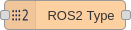
        <td> This node represents a specific ROS2 Types installed on the system. Once in the workspace, its set up dialog can be opened by double clicking over it.
        </td>
    </tr>
    <tr>
        <td><img name="ROS2 packages" src="./docs/ros2-type-edit-dialog.png" height="auto"/></td>
        <td> The dialog provides a Package drop-down control where all ROS2 msg packages are listed. </br>
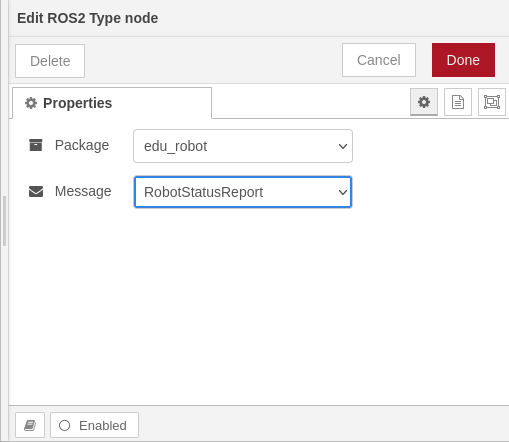
             Once a package is selected the Message drop-down control allows selection of a package specific message.
             In this example the package selected is <tt>edu_robot</tt>.
             From this package the <tt>RobotStatusReport</tt> message is selected.
        </td>
    </tr>
    <td><img name="ROS2 Type label" src="./docs/ros2-type-selected.png" height="auto"></td>
    <td> Once the dialog set up is saved, the node label changes to highlight the selected type in a <tt>package/message</tt> pattern.
    </td>
</table>


#### Injecting a type instance into the pipeline

Node-RED pipelines start in *source nodes*. The most popular one is the [inject
node](https://nodered.org/docs/user-guide/nodes#inject) which requires the user to manually defined each field
associated to the type. In order to simplify this a specific node is introduced:

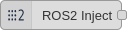
<img name="ROS2 Inject node" src="./docs/ros-inject.png" width="136" height="auto">

This node mimics the inject node behaviour but automatically populates the input dialog with the fields associated with
any *type node* linked to it. For example, if we wire together a **ROS2 Inject** and a **ROS2 Type** as
shown in the figure:

![ros2-inject-example](docs/ros-inject-type-example.png)

The associated dialogs are populated with the linked type fields and types. For example the twist message is populated as:
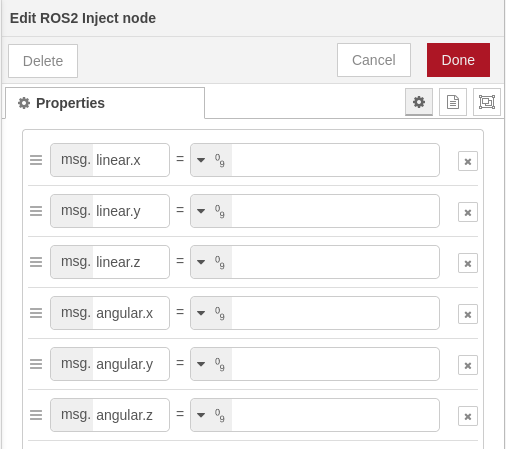
![ros2-inject-dialog](docs/ros-inject-edit-dialog.png)

#### ROS2 nodes: General Settings

In order to interact with a ROS2 environment we must specify the same [domain id](https://docs.ros.org/en/jazzy/Concepts/Intermediate/About-Domain-ID.html)
in use for that environment.

The *domain id* is a number in the range `[0, 166]` that provides isolation for ROS2 nodes.
It defaults to 0 and its main advantage is reduce the incomming traffic for each ROS2 node, discharging them and
speeding things up.

Another key concepts in the ROS2 environment are:

- [topic](https://docs.ros.org/en/jazzy/Tutorials/Beginner-CLI-Tools/Understanding-ROS2-Topics/Understanding-ROS2-Topics.html)
one. A *topic* is a text string ROS2 nodes use to notify all other nodes in which data they are interested.
When a ROS2 node wants to send or receive data it must specify:
 + Which type is the data they want receive. For example the `edu_robot/RobotStatusReport` we introduced [above](#choosing-a-predefined-ros2-type).
 + Topic associated with the data. For example `/status_report`, but in ROS2 topics are often *decorated* using
namespaces to simplify identification, as in `/eduard/red/status_report`.

- [Quality of Service (QoS)](https://docs.ros.org/en/jazzy/Concepts/Intermediate/About-Quality-of-Service-Settings.html). Those are
  policies that allow fine tunning of the communication between nodes. For example:
  + *History QoS* allows to discard messages if only the most recent one is meaningful for our purposes.
  + *Reliable QoS* enforces message reception by resending it until the receiver acknowledges it.
  + *Durability QoS* assures messages published before the receiver node creation would be delivered.

> **_Note:_** ROS2 nodes can only communicate if their respective QoS are compatible. Information on QoS compatibility
  is available [here](https://docs.ros.org/en/jazzy/Concepts/Intermediate/About-Quality-of-Service-Settings.html).

#### ROS2 Subscriber
<table>
    <tr>
        <td width="250"><img name="ROS2 Subscriber" src="./docs/subscriber.png" height="auto"></td>
        <td>This node represents a ROS2 subscriber. It is able to subscribe on a specific topic and receive all messages
        published for it.</td>
    </tr>
    <tr>
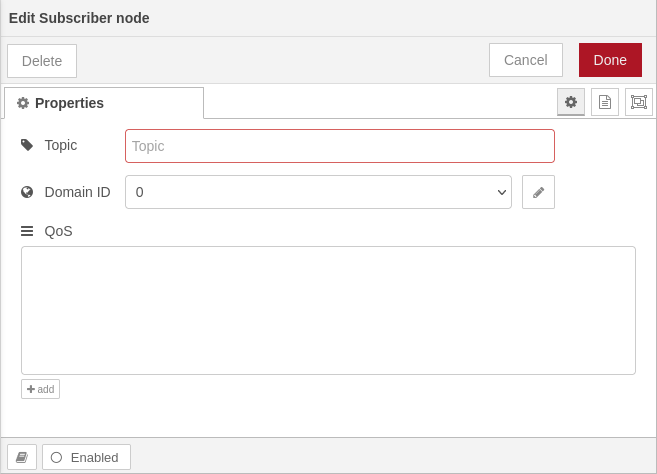
        <td><img name="ROS2 Subscriber Dialog" src="./docs/subscriber-edit-dialog.png" height="auto"/></td>
        <td>The dialog provides controls to configure:
            <dl>
                <dt>Topic</dt><dd>Note that the backslash <tt>/</tt> typical of ROS2 topics is not necessary</dd>
                <dt>Domain ID</dt><dd>Selected globally via the configuration node explained
                <a href="#ros2-configuration-node">above</a></dd>
                <dt>QoS</dt><dd>The <tt>+add</tt> button at the bottom adds new combo-boxes to the control where the
                available options for each policy can be selected</dd>
            </dl>
        </td>
    </tr>
</table>

##### Example

This example shows how to subscribe to an topic and display it using the **debug** node. It is based on the available topics of an EduArt's robot like Eduard.

![Subscription Example](docs/ros-subscription.gif)


#### ROS2 Publisher

<table>
    <tr>
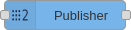
        <td width="250"><img name="ROS2 Publisher" src="./docs/publisher.png" height="auto"></td>
        <td>This node represents a ROS2 publisher. It is able to publish messages on a specific topic with specific QoS</td>
    </tr>
    <tr>
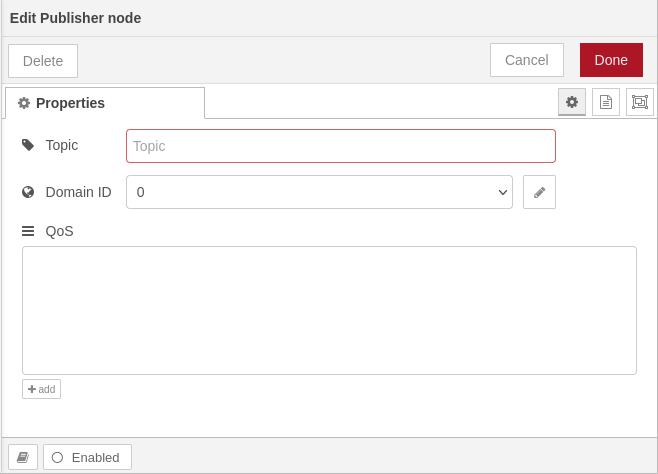
        <td><img name="ROS2 Publisher Dialog" src="./docs/publisher-edit-dialog.png" height="auto"/></td>
        <td>The dialog provides controls to configure:
            <dl>
                <dt>Topic</dt><dd>Note that the backslash <tt>/</tt> typical of ROS2 topics is not necessary</dd>
                <dt>Domain ID</dt><dd>Selected globally via the configuration node explained
                <a href="#ros2-configuration-node">above</a></dd>
                <dt>QoS</dt><dd>The <tt>+add</tt> button at the bottom adds new combo-boxes to the control where the
                available options for each policy can be selected</dd>
            </dl>
        </td>
    </tr>
</table>

##### Example

This example shows how to publish to an topic and display the published message using the **debug** node. It is based on the available topics of an EduArt's robot like Eduard.

![Publisher Example](docs/ros-publishing.gif)

### ROS2 Service Client

In order to call or request an ROS service we need first to specify the associated type. The service type is represented by the node **ROS2 Service Type**. It is required that the **ROS2 Service Type** is connected to the **Service Client** node.

<table>
    <tr>
        <td width="250"><img name="ROS2 Publisher" src="./docs/service-client.png" height="auto"></td>
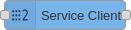
        <td>This node represents a ROS2 service client. It is able to call a specific service with specific QoS. The connected injection injects the service request only. After a successful service call the service response is output.</td>
    </tr>
    <tr>
        <td><img name="ROS2 Publisher Dialog" src="./docs/publisher-edit-dialog.png" height="auto"/></td>
        <td>The dialog provides controls to configure:
            <dl>
                <dt>Service</dt><dd>Note that the backslash <tt>/</tt> typical of ROS2 services is not necessary</dd>
                <dt>Domain ID</dt><dd>Selected globally via the configuration node explained
                <a href="#ros2-configuration-node">above</a></dd>
                <dt>QoS</dt><dd>The <tt>+add</tt> button at the bottom adds new combo-boxes to the control where the
                available options for each policy can be selected</dd>
            </dl>
        </td>
    </tr>
</table>

#### Example

This example shows how to call a service and displays the response using a **debug** node. It is based on the available topics of an EduArt's robot like Eduard. In this example the robot is switched in mode **autonomous drive**.

![Service Client Example](docs/ros-service-client.gif)


### ROS2 Action Client

In order to perform a ROS action we need first to specify the associated type. The action type is represented by the node **ROS2 Action Type**. It is required that the **ROS2 Action Type** is connected to the **Action Client** node.

<table>
    <tr>
        <td width="250"><img name="ROS2 Action Client" src="./docs/action-client.png" height="auto"></td>
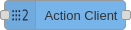
        <td>This node represents a ROS2 action client. It is able to perform a specific action with specific QoS. The connected injection injects the action goal request only. After a accepted action goal the action feedback and the final result is outputted.</td>
    </tr>
    <tr>
        <td><img name="ROS2 Action Client Dialog" src="./docs/action-client-edit-dialog.png" height="auto"/></td>
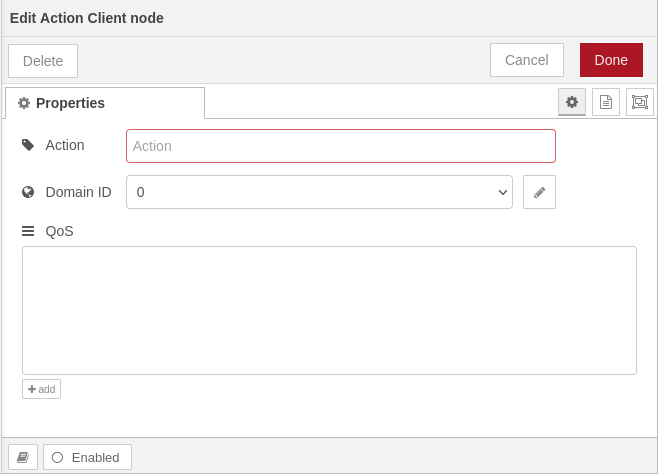
        <td>The dialog provides controls to configure:
            <dl>
                <dt>Action</dt><dd>Note that the backslash <tt>/</tt> typical of ROS2 topics is not necessary</dd>
                <dt>Domain ID</dt><dd>Selected globally via the configuration node explained
                <a href="#ros2-configuration-node">above</a></dd>
                <dt>QoS</dt><dd>The <tt>+add</tt> button at the bottom adds new combo-boxes to the control where the
                available options for each policy can be selected</dd>
            </dl>
        </td>
    </tr>
</table>

## Original Project

This fork is based on [edu-nodered-ros2-plugin](https://github.com/EduArt-Robotik/edu_nodered_ros2_plugin) by EduArt Robotik.

## 📄 License

ISC License - see [LICENSE](LICENSE) file for details.