[English](README.md) | [简体中文](README.zh.md)
# @cerbur/clutch-dsh-worktree
`@cerbur/clutch-dsh-worktree` adds a Git Worktree view to the DSH Web UI. It groups
Sessions as Workspace → Worktree → Session while keeping DSH as the source of truth for
Workspace identity, Session metadata, native lists, messages, and conversation history.
The plugin stores Worktree relationships, acquisition facts, and shared Worktree instructions in
its own sidecar. Managed Worktrees also expose a read-only Git & Changes dashboard where users can
choose a local branch baseline; the plugin does not copy transcripts or rewrite DSH Sessions.
> **Preview:** Worktree Dashboard is an early, plugin-only MVP preview. Worktree navigation,
> lifecycle actions, Session actions, instructions, and the managed Worktree Git & Changes view
> are connected. Derived Worktrees, Settings, and other unfinished actions remain marked
> **Coming soon**.
## Installation
### Install from npm
With an installed DSH CLI:
```bash
dsh plugin --profile web add @cerbur/clutch-dsh-worktree
dsh web
```
When using a DeepSeek Harness source checkout without a standalone `dsh` command, use the
equivalent `pnpm dsh` form.
### Install from a local checkout
Build this package, build the DSH source checkout, and add the package by absolute path:
```bash
cd /absolute/path/to/clutch-dsh
pnpm install
pnpm --filter @cerbur/clutch-dsh-worktree build
cd /absolute/path/to/deepseek-harness
pnpm install
pnpm run build
pnpm dsh plugin --profile web add /absolute/path/to/clutch-dsh/packages/clutch-dsh-worktree
pnpm dsh web
```
The DSH Web profile must be able to start before this plugin is added. Re-run the absolute-path
install command after changing `package.json` or `cordis.patch.yml`.
### Install from GitHub source (optional)
The package also supports the source dependency form used by the DSH plugin market:
```bash
dsh plugin --profile web add "github:Cerbur/clutch-dsh#path:/packages/clutch-dsh-worktree"
```
This form builds the package during installation. For pnpm build-script authorization and local
development details, see [docs/DEVELOPMENT.md](docs/DEVELOPMENT.md).
## Features
| Feature | Preview | What it does |
| --- | --- | --- |
| **Worktree navigation** | 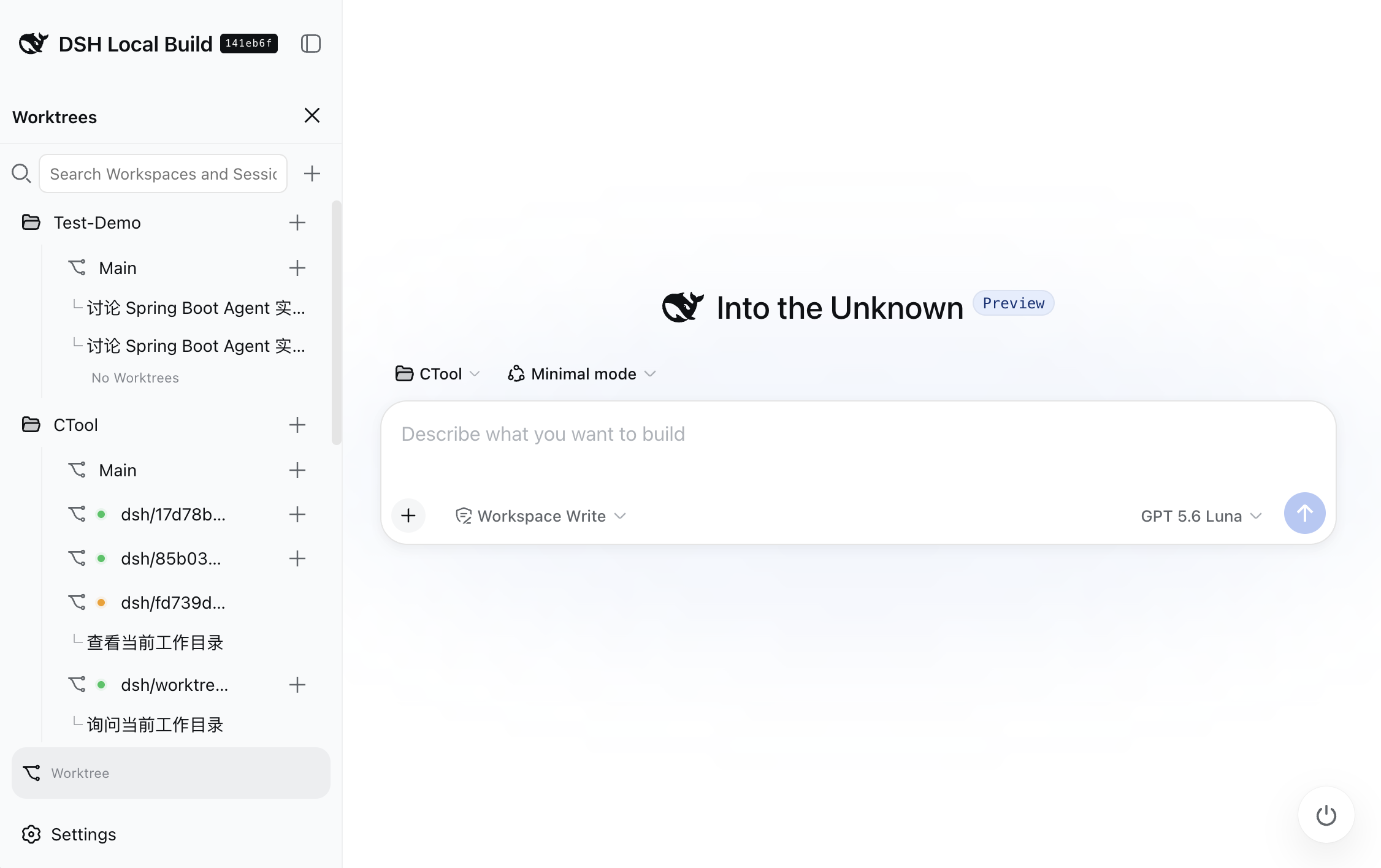 | Adds a Worktree mode to the Sidebar. Browse each Workspace through Local/Main and Git Worktree rows, then open the Sessions bound to each row. |
| **Create and import Worktrees** |
| Adds a Worktree mode to the Sidebar. Browse each Workspace through Local/Main and Git Worktree rows, then open the Sessions bound to each row. |
| **Create and import Worktrees** | 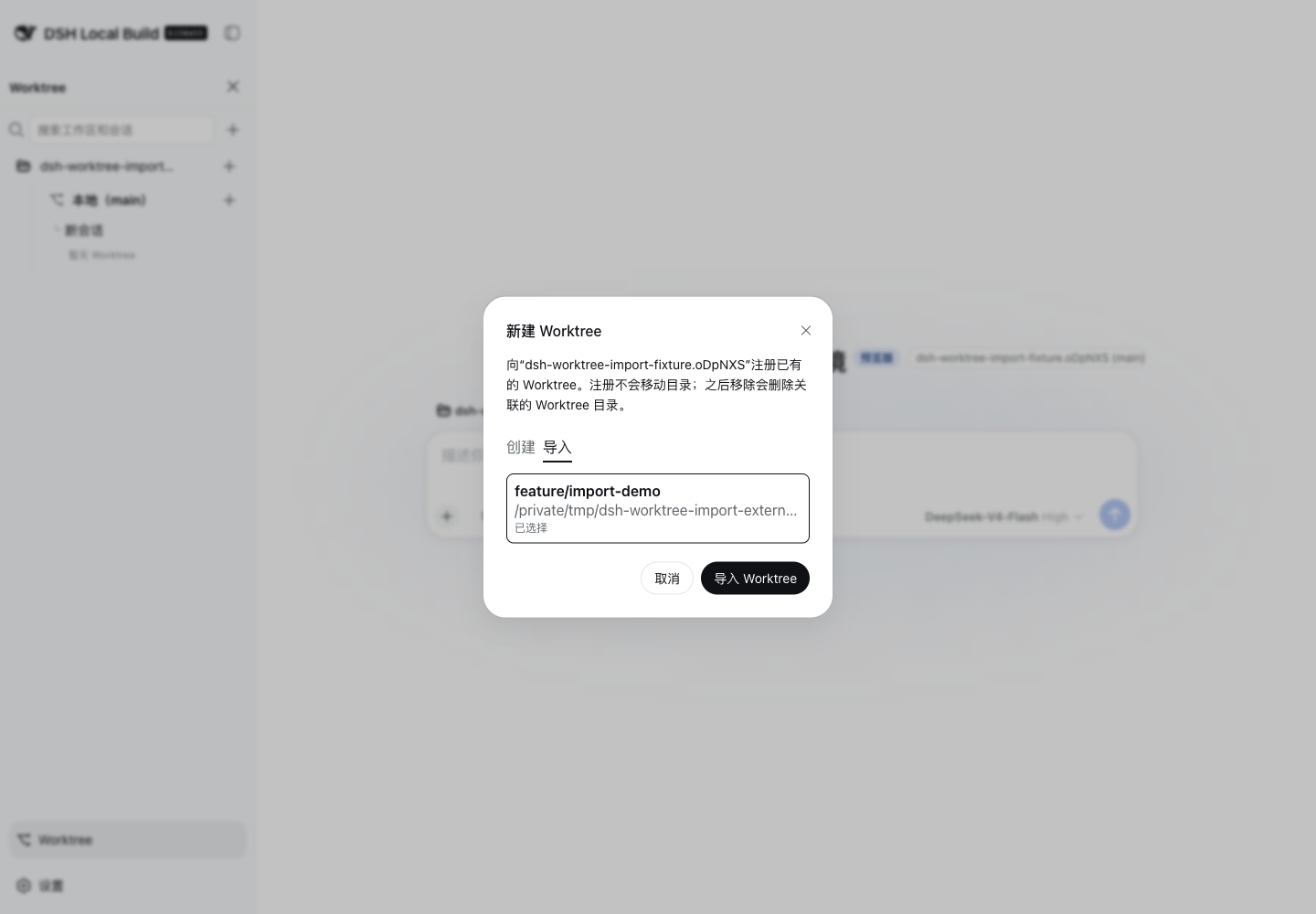 | Create a Worktree from a local branch, or register an existing branch-attached Worktree in place. Import does not move, copy, or edit the existing directory. |
| **Worktree Dashboard** |
| Create a Worktree from a local branch, or register an existing branch-attached Worktree in place. Import does not move, copy, or edit the existing directory. |
| **Worktree Dashboard** | 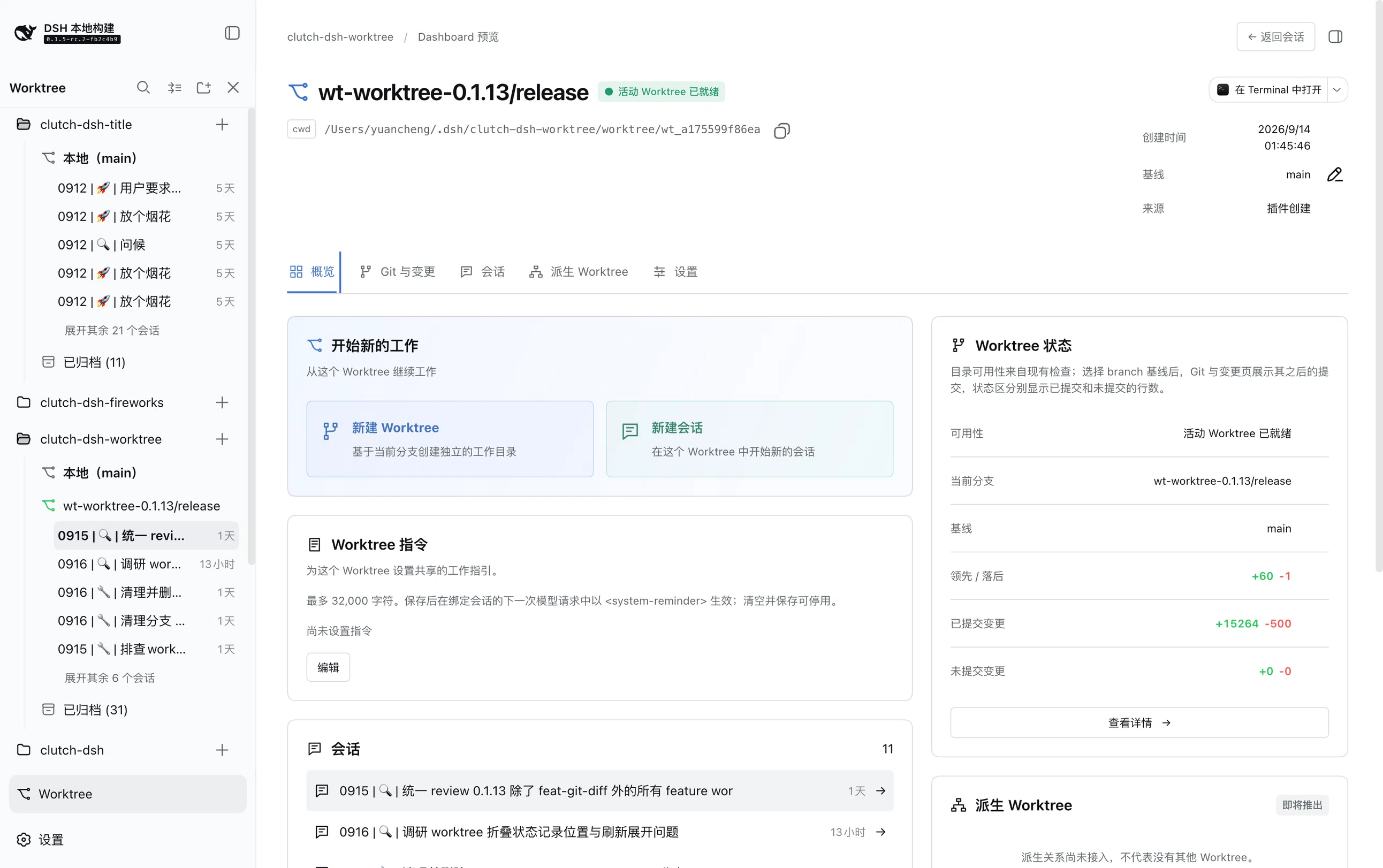 | The preview Dashboard shows Worktree identity, path, Sessions, instructions, connected actions, and the read-only Git & Changes view for eligible managed Worktrees. Derived Worktrees, Settings, and other unfinished cards remain **Coming soon**. |
## Usage
### Open Worktree mode
1. Start DSH Web and select **Worktree** from the DSH Sidebar footer.
2. Search or expand a Workspace in the Worktree tree.
3. Select Local/Main or a Worktree to browse its Sessions. The view is additive; DSH's native
Workspace and Session navigation remains available. Each group initially shows five rows;
use **Expand more** and **Collapse** for additional rows.
4. Use **Collapse All** in the header to collapse other unrelated Workspaces and Worktrees;
the Workspace and Worktree containing the current Session remain expanded.
### Create a Worktree
1. Open the options menu for Local/Main or an active Worktree and choose **Create Worktree**.
2. Choose the local base branch. You can also provide a new branch name.
3. Confirm the dialog. The plugin creates the Git Worktree, records its acquisition facts, and
continues through the normal Session and binding flow when you open a Session from that Worktree.
Git must have a usable repository, local branch, and initial commit. If setup is incomplete, DSH
shows the relevant readiness message and copyable setup guidance.
### Import an existing Worktree
1. Select a Workspace, open its `+` action, and switch to **Import**.
2. Choose a candidate from the branch-and-path list.
3. Select **Import Worktree**. The plugin registers the existing directory without moving,
copying, or changing its files, then uses the same Session flow as a created Worktree.
The first version lists only ready, branch-attached, non-root Git Worktrees that are not already
managed by the plugin. Detached, bare, prunable, missing, and invalid entries are omitted. Imported
Worktrees can still use Git & Changes after you choose a local baseline branch.
### Create and open Sessions
- Use **+** on Local/Main for a normal DSH Session whose runtime directory is the Workspace root.
- Use **+** on a Worktree for a Session whose runtime directory is that Worktree.
- When possible, the plugin reuses an unarchived blank Session with the exact target directory.
- Use native DSH fork actions from a Session list, Worktree Session menu, or conversation. A
child of a Worktree-bound Session is bound to the same Worktree and opens in that view.
If DSH creates a Session but binding fails, the Session is kept. The Worktree view exposes retry
or open recovery actions; the plugin does not delete or rewrite the DSH Session.
### Open the Worktree Dashboard
Open **Dashboard** from a Local/Main or Worktree row menu, its hover action, or the Dashboard icon
beside the native Session-header actions. The Dashboard is a peer page to the native Session content: it
occupies the center area beside the Sidebar while leaving an already-open right sidebar visible for a
session-bound target. When the target Worktree has Sessions, opening its Dashboard waits for an initial pending
Session list to become ready, then keeps the current Session if it belongs to that Worktree; otherwise it
switches to the retained head Session so both views stay aligned. A ready
empty Session list opens a page-level Dashboard without changing the current Session, collapses any currently
open native right sidebar because there is no target Session, and does not create a Session automatically. The
Dashboard header keeps the native right-sidebar button available whenever a current Session can host it and the
sidebar is collapsed; once opened, the button is hidden following native behavior.
Use **Back to session**, Escape, a Sidebar Session, or Worktree mode exit to close it. For a Worktree with no
Sessions, the top-right action becomes **New Session** and starts one in that Worktree. The connected MVP surface
can show Overview and Sessions, create a Session or Worktree, archive a Worktree, edit instructions, copy a
path, open the recorded directory in VS Code, and inspect Git & Changes.
Derived Worktrees, Settings, and other marked quick actions remain placeholders. VS Code must be
installed on the browser's machine and able to access the recorded path; the link does not verify
launch success.
### Use Git & Changes
Open the **Git & Changes** tab from a managed Worktree Dashboard. For a managed Worktree with a
persisted `baseBranch` that differs from the current branch, or with a captured acquisition commit that
supplies the implicit baseline, the Overview performs one compact, on-demand Git status read through the
existing `/api` Connection. It shows ahead/behind commit counts plus separate
committed (baseline-to-HEAD) and uncommitted (live working-tree) line totals; this is an ephemeral
projection, not a watcher or a Worktree-record field. Main,
unavailable, or baseline-unselected views honestly remain **Not connected**. Opening Overview does not
load the branch list; the first Git tab activation loads local branches and, once a baseline is resolved,
commit history. To replace that baseline, click the pencil icon beside the Base fact to open the branch
picker: its search field sits permanently above a bounded branch list that shows roughly seven rows and
scrolls internally, so the dialog keeps one size while you filter. Choose any local branch except the
current Worktree branch and save.
The save replaces the persisted `baseBranch` in the plugin sidecar; the saved value becomes the default for
the Git selector. Once the Git tab is open, changing its selector remains a transient view choice and reloads
history, changed files, and diffs without another Worktree-record write. If no usable saved baseline exists
(absent or equal to the current Worktree branch), the Git tab and the Overview read against the Worktree's
immutable captured acquisition commit and show that resolved commit as the Base fact; only a Worktree with
neither a usable saved baseline nor a captured commit stays baseline-unselected and prompts you to choose
one. When the selected branch has diverged, Git resolves the two heads' common ancestor. The
Git & Changes view reports Worktree commits after that ancestor as `+N` ahead and base-branch commits after it
as `-N` behind; history and file reads remain available. If the two heads have no common ancestor, the
committed summary falls back to the full tree diff between the base branch tip and Worktree `HEAD`, while
history uses the Worktree commits not reachable from that base tip.
With a valid baseline loaded, the Git & Changes tab initially selects **Baseline summary** rather than the
first commit; changing the baseline branch also returns to that summary. Choose a commit or **Uncommitted
changes** when you need a narrower target.
The selected local branch is resolved again for each read. The browser can choose only a plain local branch
name, not a raw commit SHA or arbitrary Git ref: a full ref path, tag, or remote-tracking ref is rejected
outright, while a selected branch that no longer exists shows the honest unavailable state instead of a
generic Git failure. `baseCommit` is immutable acquisition metadata, is never user-selectable directly, and
is the implicit baseline whenever no saved branch baseline is usable; creation recovery never overwrites
it. When the Worktree has staged, unstaged, or untracked
files, the list prepends an **Uncommitted changes** entry; selecting it compares the live working tree with
`HEAD` and uses the same changed-file and diff views.
The **Baseline summary** is a separate target that shows the net committed tree diff from the resolved
common ancestor to the request's captured `HEAD` (or the two branch tips when no common ancestor exists);
it excludes working-tree changes by default. Turn on **Include working tree** to replace that target with
one net diff from the same comparison boundary to the current working tree, including committed, staged,
unstaged, untracked, deleted, and renamed changes. This is a
fresh on-demand projection rather than a concatenation of two diffs. Clicking a commit shows that
commit's own diff. Turn on **Multi-select commits** in the commits header to pick several committed rows
and view the exact union of their first-parent deltas; the switch is off by default, and turning it off
collapses the selection back to the focused commit. The changed-file list
records the contributing commits, and each selected commit is rendered as its own diff segment; this is
not an implicit range and does not include unselected commits. The changed-files column header shows the
aggregate green `+N` and red `-N` totals for the current target, including the Baseline summary, selected
commits, or Uncommitted changes; binary-only totals show Unknown. The working-tree entry remains mutually
exclusive with committed multi-selection. The **Open in Sidebar** action in the summary diff toolbar
reveals the current file in the native right sidebar using the current Session, only when that Session
belongs to the Dashboard Worktree. An empty Worktree
or an unrelated current Session cannot open a file through this action.
The history is capped at 200 commits and marks longer histories as truncated. A changed-file list larger
than the Git adapter's output bound reports an explicit truncated state instead of a generic error.
Commit details use
first-parent comparisons; root commits compare against the empty tree; rename and copy rows retain
both paths; binary or oversized diffs show an explicit display-safe state. Changed-file rows show text
line counts as green `+N` additions and red `-N` deletions; binary files omit those counts. File names use
green for additions, red for deletions, and blue for other changes, and each row's title and accessible
label spells the status out. Folder icons indicate whether each folder is
expanded or collapsed. The **Uncommitted changes** entry is an on-demand snapshot, is not persisted, and is not a
Git watcher; refresh it to see later edits.
Git & Changes uses a viewport-bounded, fixed-size surface. Wide layouts show two columns: commits and
changed files stack in the narrower left column around a draggable divider, while the diff keeps the full
height on the right. Narrow layouts keep two rows: commits and changed files side by side on the first row,
with the summary diff underneath. Both dividers stay draggable in either layout — the vertical one trades
width between the columns, or between commits and changed files inside the first row, and the horizontal one
trades height between the commits and changed-file panes, or between the first row and the diff. Drag a
divider, or focus it and press the arrow keys, to move it, and double-click it to restore the default split.
Long commit and changed-file lists scroll inside their panes instead of expanding the Dashboard. The
changed-file pane also scrolls horizontally when paths are wider than the pane, keeping file and folder
names untruncated. Changed files are grouped by folders; folders start expanded and can be opened or
collapsed independently. Diff content also scrolls inside its bounded pane, while the read-only selection
and refresh behavior remains unchanged.
The view is read-only and does not provide commit or staging controls. The plugin validates committed
entries against the selected branch-to-`HEAD` projection and re-reads working-tree paths against a fresh
status projection, so these endpoints are not generic Git object or file readers. Refresh keeps ready
content visible while replacement data loads, and late responses for an older commit or file selection
are ignored.
### Add Worktree instructions
In the Dashboard, use **Edit** on the instructions card to save or clear shared guidance, up to
32,000 UTF-16 code units. For an active binding, the next model request receives the text as a
separate `` context entry through DSH's pre-step hook.
Instructions stay in the plugin's own data. They are not written to the project directory or an
`AGENTS.md` file. Clearing, detaching, archiving, cleaning, or forgetting a Worktree stops future
injection; unchanged instruction text is not repeatedly added while its message remains visible.
### Archive or remove a Worktree
- **Archive Worktree** is non-destructive. It keeps the directory, bindings, instructions, and
runtime Worktree context. An archived Worktree can be unarchived while its Git registration is
intact.
- **Clean Up Disk** is a separate action. It requires a second confirmation and runs the normal
non-forced `git worktree remove`. The plugin does not check whether Sessions or subagents are
still using the directory; stop those tasks before confirming. Successful cleanup detaches the
bindings while keeping the recorded history until it is forgotten.
- **Remove from Management** deletes only the plugin's Worktree and binding records. It preserves
the disk files and native DSH Sessions, and does not require a Session activity check.
## Requirements
| Component | Requirement |
| --- | --- |
| DSH Client | `>=0.1.5-rc.1`, including the Session and Workspace Controllers and Client Store |
| DSH Host | `>=0.1.5-rc.1`, including the Typert Gateway `/api` connection and subprocess capability |
| Git | `>=2.20.0`, installed and available on `PATH` |
| Node.js | `>=20.0.0` for the DSH host runtime |
## Behavior and limitations
- DSH owns Workspace identity and root paths, Session identity and metadata, native lists,
messages, prompts, transcripts, and history. The plugin never copies or rewrites those values.
- The plugin's external index stores Worktree paths, branches, sources, lifecycle state, bindings,
ordering, instructions, acquisition facts, and related metadata. For managed Worktrees, the
Dashboard Base fact is the persisted `baseBranch`; users can replace it with a local branch other
than the current Worktree branch, and the saved value becomes the Git-tab selector default. The
immutable acquisition `baseCommit` remains separate and is not rewritten by that edit. The index is
kept in the DSH host plugin data directory, not in a project directory or DSH's raw data store. It
does not store Session content or a copy of the Workspace root.
- Runtime `cwd` is derived for each execution. No binding, Main, or detached binding uses the
Workspace root; an active Worktree binding uses that Worktree path. The cwd is never persisted
into DSH Session metadata.
- One Session can have at most one active Worktree binding, while a Worktree can have many Sessions.
Removing or cleaning a Worktree never deletes a DSH Session. A broken active binding reports a
repair state instead of silently falling back to another Worktree.
- Git is read on relevant refreshes, when relevant menus open, and on Git Dashboard activation;
the plugin does not watch Git continuously. An external branch change is shown as branch drift
and requires explicit **Adopt current branch** before disk cleanup. Detached HEAD and
recovery-needed states remain visible and retryable.
- Worktree health is shown by tinting the branch icon: ready uses the success (green) color, branch drift uses the warning color, and repair/recovery-needed uses the error color. The localized health label remains available to assistive technology even when hover replaces the icon with the disclosure control.
- Newly created or imported Worktrees are inserted at the head of their Workspace's Worktree list; existing Worktree order is preserved and Main remains fixed first.
- Persist Workspace, Main, and Worktree expansion choices in browser-local storage; the five-row Session overflow state remains transient and resets after refresh or parent collapse. **Collapse All** collapses unrelated nodes while keeping the current Session's Workspace and Worktree expanded.
- When the current Session is outside the visible tree, the matching row is highlighted and temporarily revealed; positioning keeps the navigation scroll unchanged when the row is already visible and moves only enough to expose it otherwise. This does not change persisted expansion choices.
- Git Dashboard reads run on the Host through the existing DSH `/api` transport. The browser does
not execute Git, read sidecar files or `.git`, or expose working-tree mutation controls. File
diffs disable external diff and text conversion and are bounded for safe display.
- The Git Dashboard is intentionally limited to committed history, a read-only **Baseline summary**
(optionally including one fresh baseline-to-working-tree projection), one **Uncommitted changes**
snapshot, changed files, and one unified diff at a time. These projections combine staged, unstaged,
and untracked files when requested but are never written back to Git. The Dashboard does not provide
commit, staging, reset, revert, cherry-pick, fetch, push, pull, pull requests, graph lanes, pagination,
or syntax highlighting.
- Session rows use DSH's native status and relative-time presentation. Collapsed Workspace, Main,
and Worktree groups derive one aggregate `StateDot` from their complete eligible membership (after native blank/archive filtering): waiting
approval (and other pending-interaction warnings) takes priority over running, and running
takes priority over completed. Idle Sessions do not contribute a group dot; Worktree health
remains a separate leading indicator. Visual Session ordering initially follows the newest `updatedAt` values and
remains browser-local; Main remains fixed first, Worktree drag updates only this local order projection,
and Main drag updates native Workspace order only after DSH accepts it.
- Active Worktree Sessions may request the named `worktree-full-access` preset after an explicit
confirmation. It combines DSH `danger-full-access` with `ask`, keeps approval prompts enabled,
and does not change network or process policy. If unavailable, the plugin falls back to
`workspace-write + ask` when possible or reports an unverified, retryable state. It cannot
exceed the sandbox imposed by the host running DSH.
- Git must be installed and available on `PATH`. A missing Git executable shows install guidance
and no command block; the plugin does not run setup or installation commands.
- If the plugin's external index is unavailable or corrupt, native DSH Workspace and Session views
remain readable and the plugin enters a degraded read-only state. It never replaces native data
with an empty index.
## Language behavior
Worktree mode follows DSH's current interface language. The entry point, tree, menus, dialogs,
statuses, Dashboard labels, and retry messages are localized in English and Chinese. Workspace
names, Session titles, branch names, paths, and raw DSH or Git errors keep their original values.
## Development
For architecture, local DSH integration, testing, and contribution details, see:
- [docs/ARCHITECTURE.md](docs/ARCHITECTURE.md)
- [docs/DEVELOPMENT.md](docs/DEVELOPMENT.md)
- [docs/RELEASING.md](docs/RELEASING.md)
- [AGENTS.md](AGENTS.md)
- [src/client/README.md](src/client/README.md)
The focused package commands are:
```bash
pnpm --filter @cerbur/clutch-dsh-worktree typecheck
pnpm --filter @cerbur/clutch-dsh-worktree build
pnpm --filter @cerbur/clutch-dsh-worktree test
```
The bilingual README structure is checked with:
```bash
node --test test/readme-parity.test.mjs
```
## Uninstall
With the DSH CLI:
```bash
dsh plugin --profile web remove @cerbur/clutch-dsh-worktree
```
From a DeepSeek Harness checkout, use `pnpm dsh plugin --profile web remove` with the same package
name.
## Friendly Links
- [LINUX DO](https://linux.do/) — A new ideal community.
| The preview Dashboard shows Worktree identity, path, Sessions, instructions, connected actions, and the read-only Git & Changes view for eligible managed Worktrees. Derived Worktrees, Settings, and other unfinished cards remain **Coming soon**. |
## Usage
### Open Worktree mode
1. Start DSH Web and select **Worktree** from the DSH Sidebar footer.
2. Search or expand a Workspace in the Worktree tree.
3. Select Local/Main or a Worktree to browse its Sessions. The view is additive; DSH's native
Workspace and Session navigation remains available. Each group initially shows five rows;
use **Expand more** and **Collapse** for additional rows.
4. Use **Collapse All** in the header to collapse other unrelated Workspaces and Worktrees;
the Workspace and Worktree containing the current Session remain expanded.
### Create a Worktree
1. Open the options menu for Local/Main or an active Worktree and choose **Create Worktree**.
2. Choose the local base branch. You can also provide a new branch name.
3. Confirm the dialog. The plugin creates the Git Worktree, records its acquisition facts, and
continues through the normal Session and binding flow when you open a Session from that Worktree.
Git must have a usable repository, local branch, and initial commit. If setup is incomplete, DSH
shows the relevant readiness message and copyable setup guidance.
### Import an existing Worktree
1. Select a Workspace, open its `+` action, and switch to **Import**.
2. Choose a candidate from the branch-and-path list.
3. Select **Import Worktree**. The plugin registers the existing directory without moving,
copying, or changing its files, then uses the same Session flow as a created Worktree.
The first version lists only ready, branch-attached, non-root Git Worktrees that are not already
managed by the plugin. Detached, bare, prunable, missing, and invalid entries are omitted. Imported
Worktrees can still use Git & Changes after you choose a local baseline branch.
### Create and open Sessions
- Use **+** on Local/Main for a normal DSH Session whose runtime directory is the Workspace root.
- Use **+** on a Worktree for a Session whose runtime directory is that Worktree.
- When possible, the plugin reuses an unarchived blank Session with the exact target directory.
- Use native DSH fork actions from a Session list, Worktree Session menu, or conversation. A
child of a Worktree-bound Session is bound to the same Worktree and opens in that view.
If DSH creates a Session but binding fails, the Session is kept. The Worktree view exposes retry
or open recovery actions; the plugin does not delete or rewrite the DSH Session.
### Open the Worktree Dashboard
Open **Dashboard** from a Local/Main or Worktree row menu, its hover action, or the Dashboard icon
beside the native Session-header actions. The Dashboard is a peer page to the native Session content: it
occupies the center area beside the Sidebar while leaving an already-open right sidebar visible for a
session-bound target. When the target Worktree has Sessions, opening its Dashboard waits for an initial pending
Session list to become ready, then keeps the current Session if it belongs to that Worktree; otherwise it
switches to the retained head Session so both views stay aligned. A ready
empty Session list opens a page-level Dashboard without changing the current Session, collapses any currently
open native right sidebar because there is no target Session, and does not create a Session automatically. The
Dashboard header keeps the native right-sidebar button available whenever a current Session can host it and the
sidebar is collapsed; once opened, the button is hidden following native behavior.
Use **Back to session**, Escape, a Sidebar Session, or Worktree mode exit to close it. For a Worktree with no
Sessions, the top-right action becomes **New Session** and starts one in that Worktree. The connected MVP surface
can show Overview and Sessions, create a Session or Worktree, archive a Worktree, edit instructions, copy a
path, open the recorded directory in VS Code, and inspect Git & Changes.
Derived Worktrees, Settings, and other marked quick actions remain placeholders. VS Code must be
installed on the browser's machine and able to access the recorded path; the link does not verify
launch success.
### Use Git & Changes
Open the **Git & Changes** tab from a managed Worktree Dashboard. For a managed Worktree with a
persisted `baseBranch` that differs from the current branch, or with a captured acquisition commit that
supplies the implicit baseline, the Overview performs one compact, on-demand Git status read through the
existing `/api` Connection. It shows ahead/behind commit counts plus separate
committed (baseline-to-HEAD) and uncommitted (live working-tree) line totals; this is an ephemeral
projection, not a watcher or a Worktree-record field. Main,
unavailable, or baseline-unselected views honestly remain **Not connected**. Opening Overview does not
load the branch list; the first Git tab activation loads local branches and, once a baseline is resolved,
commit history. To replace that baseline, click the pencil icon beside the Base fact to open the branch
picker: its search field sits permanently above a bounded branch list that shows roughly seven rows and
scrolls internally, so the dialog keeps one size while you filter. Choose any local branch except the
current Worktree branch and save.
The save replaces the persisted `baseBranch` in the plugin sidecar; the saved value becomes the default for
the Git selector. Once the Git tab is open, changing its selector remains a transient view choice and reloads
history, changed files, and diffs without another Worktree-record write. If no usable saved baseline exists
(absent or equal to the current Worktree branch), the Git tab and the Overview read against the Worktree's
immutable captured acquisition commit and show that resolved commit as the Base fact; only a Worktree with
neither a usable saved baseline nor a captured commit stays baseline-unselected and prompts you to choose
one. When the selected branch has diverged, Git resolves the two heads' common ancestor. The
Git & Changes view reports Worktree commits after that ancestor as `+N` ahead and base-branch commits after it
as `-N` behind; history and file reads remain available. If the two heads have no common ancestor, the
committed summary falls back to the full tree diff between the base branch tip and Worktree `HEAD`, while
history uses the Worktree commits not reachable from that base tip.
With a valid baseline loaded, the Git & Changes tab initially selects **Baseline summary** rather than the
first commit; changing the baseline branch also returns to that summary. Choose a commit or **Uncommitted
changes** when you need a narrower target.
The selected local branch is resolved again for each read. The browser can choose only a plain local branch
name, not a raw commit SHA or arbitrary Git ref: a full ref path, tag, or remote-tracking ref is rejected
outright, while a selected branch that no longer exists shows the honest unavailable state instead of a
generic Git failure. `baseCommit` is immutable acquisition metadata, is never user-selectable directly, and
is the implicit baseline whenever no saved branch baseline is usable; creation recovery never overwrites
it. When the Worktree has staged, unstaged, or untracked
files, the list prepends an **Uncommitted changes** entry; selecting it compares the live working tree with
`HEAD` and uses the same changed-file and diff views.
The **Baseline summary** is a separate target that shows the net committed tree diff from the resolved
common ancestor to the request's captured `HEAD` (or the two branch tips when no common ancestor exists);
it excludes working-tree changes by default. Turn on **Include working tree** to replace that target with
one net diff from the same comparison boundary to the current working tree, including committed, staged,
unstaged, untracked, deleted, and renamed changes. This is a
fresh on-demand projection rather than a concatenation of two diffs. Clicking a commit shows that
commit's own diff. Turn on **Multi-select commits** in the commits header to pick several committed rows
and view the exact union of their first-parent deltas; the switch is off by default, and turning it off
collapses the selection back to the focused commit. The changed-file list
records the contributing commits, and each selected commit is rendered as its own diff segment; this is
not an implicit range and does not include unselected commits. The changed-files column header shows the
aggregate green `+N` and red `-N` totals for the current target, including the Baseline summary, selected
commits, or Uncommitted changes; binary-only totals show Unknown. The working-tree entry remains mutually
exclusive with committed multi-selection. The **Open in Sidebar** action in the summary diff toolbar
reveals the current file in the native right sidebar using the current Session, only when that Session
belongs to the Dashboard Worktree. An empty Worktree
or an unrelated current Session cannot open a file through this action.
The history is capped at 200 commits and marks longer histories as truncated. A changed-file list larger
than the Git adapter's output bound reports an explicit truncated state instead of a generic error.
Commit details use
first-parent comparisons; root commits compare against the empty tree; rename and copy rows retain
both paths; binary or oversized diffs show an explicit display-safe state. Changed-file rows show text
line counts as green `+N` additions and red `-N` deletions; binary files omit those counts. File names use
green for additions, red for deletions, and blue for other changes, and each row's title and accessible
label spells the status out. Folder icons indicate whether each folder is
expanded or collapsed. The **Uncommitted changes** entry is an on-demand snapshot, is not persisted, and is not a
Git watcher; refresh it to see later edits.
Git & Changes uses a viewport-bounded, fixed-size surface. Wide layouts show two columns: commits and
changed files stack in the narrower left column around a draggable divider, while the diff keeps the full
height on the right. Narrow layouts keep two rows: commits and changed files side by side on the first row,
with the summary diff underneath. Both dividers stay draggable in either layout — the vertical one trades
width between the columns, or between commits and changed files inside the first row, and the horizontal one
trades height between the commits and changed-file panes, or between the first row and the diff. Drag a
divider, or focus it and press the arrow keys, to move it, and double-click it to restore the default split.
Long commit and changed-file lists scroll inside their panes instead of expanding the Dashboard. The
changed-file pane also scrolls horizontally when paths are wider than the pane, keeping file and folder
names untruncated. Changed files are grouped by folders; folders start expanded and can be opened or
collapsed independently. Diff content also scrolls inside its bounded pane, while the read-only selection
and refresh behavior remains unchanged.
The view is read-only and does not provide commit or staging controls. The plugin validates committed
entries against the selected branch-to-`HEAD` projection and re-reads working-tree paths against a fresh
status projection, so these endpoints are not generic Git object or file readers. Refresh keeps ready
content visible while replacement data loads, and late responses for an older commit or file selection
are ignored.
### Add Worktree instructions
In the Dashboard, use **Edit** on the instructions card to save or clear shared guidance, up to
32,000 UTF-16 code units. For an active binding, the next model request receives the text as a
separate `` context entry through DSH's pre-step hook.
Instructions stay in the plugin's own data. They are not written to the project directory or an
`AGENTS.md` file. Clearing, detaching, archiving, cleaning, or forgetting a Worktree stops future
injection; unchanged instruction text is not repeatedly added while its message remains visible.
### Archive or remove a Worktree
- **Archive Worktree** is non-destructive. It keeps the directory, bindings, instructions, and
runtime Worktree context. An archived Worktree can be unarchived while its Git registration is
intact.
- **Clean Up Disk** is a separate action. It requires a second confirmation and runs the normal
non-forced `git worktree remove`. The plugin does not check whether Sessions or subagents are
still using the directory; stop those tasks before confirming. Successful cleanup detaches the
bindings while keeping the recorded history until it is forgotten.
- **Remove from Management** deletes only the plugin's Worktree and binding records. It preserves
the disk files and native DSH Sessions, and does not require a Session activity check.
## Requirements
| Component | Requirement |
| --- | --- |
| DSH Client | `>=0.1.5-rc.1`, including the Session and Workspace Controllers and Client Store |
| DSH Host | `>=0.1.5-rc.1`, including the Typert Gateway `/api` connection and subprocess capability |
| Git | `>=2.20.0`, installed and available on `PATH` |
| Node.js | `>=20.0.0` for the DSH host runtime |
## Behavior and limitations
- DSH owns Workspace identity and root paths, Session identity and metadata, native lists,
messages, prompts, transcripts, and history. The plugin never copies or rewrites those values.
- The plugin's external index stores Worktree paths, branches, sources, lifecycle state, bindings,
ordering, instructions, acquisition facts, and related metadata. For managed Worktrees, the
Dashboard Base fact is the persisted `baseBranch`; users can replace it with a local branch other
than the current Worktree branch, and the saved value becomes the Git-tab selector default. The
immutable acquisition `baseCommit` remains separate and is not rewritten by that edit. The index is
kept in the DSH host plugin data directory, not in a project directory or DSH's raw data store. It
does not store Session content or a copy of the Workspace root.
- Runtime `cwd` is derived for each execution. No binding, Main, or detached binding uses the
Workspace root; an active Worktree binding uses that Worktree path. The cwd is never persisted
into DSH Session metadata.
- One Session can have at most one active Worktree binding, while a Worktree can have many Sessions.
Removing or cleaning a Worktree never deletes a DSH Session. A broken active binding reports a
repair state instead of silently falling back to another Worktree.
- Git is read on relevant refreshes, when relevant menus open, and on Git Dashboard activation;
the plugin does not watch Git continuously. An external branch change is shown as branch drift
and requires explicit **Adopt current branch** before disk cleanup. Detached HEAD and
recovery-needed states remain visible and retryable.
- Worktree health is shown by tinting the branch icon: ready uses the success (green) color, branch drift uses the warning color, and repair/recovery-needed uses the error color. The localized health label remains available to assistive technology even when hover replaces the icon with the disclosure control.
- Newly created or imported Worktrees are inserted at the head of their Workspace's Worktree list; existing Worktree order is preserved and Main remains fixed first.
- Persist Workspace, Main, and Worktree expansion choices in browser-local storage; the five-row Session overflow state remains transient and resets after refresh or parent collapse. **Collapse All** collapses unrelated nodes while keeping the current Session's Workspace and Worktree expanded.
- When the current Session is outside the visible tree, the matching row is highlighted and temporarily revealed; positioning keeps the navigation scroll unchanged when the row is already visible and moves only enough to expose it otherwise. This does not change persisted expansion choices.
- Git Dashboard reads run on the Host through the existing DSH `/api` transport. The browser does
not execute Git, read sidecar files or `.git`, or expose working-tree mutation controls. File
diffs disable external diff and text conversion and are bounded for safe display.
- The Git Dashboard is intentionally limited to committed history, a read-only **Baseline summary**
(optionally including one fresh baseline-to-working-tree projection), one **Uncommitted changes**
snapshot, changed files, and one unified diff at a time. These projections combine staged, unstaged,
and untracked files when requested but are never written back to Git. The Dashboard does not provide
commit, staging, reset, revert, cherry-pick, fetch, push, pull, pull requests, graph lanes, pagination,
or syntax highlighting.
- Session rows use DSH's native status and relative-time presentation. Collapsed Workspace, Main,
and Worktree groups derive one aggregate `StateDot` from their complete eligible membership (after native blank/archive filtering): waiting
approval (and other pending-interaction warnings) takes priority over running, and running
takes priority over completed. Idle Sessions do not contribute a group dot; Worktree health
remains a separate leading indicator. Visual Session ordering initially follows the newest `updatedAt` values and
remains browser-local; Main remains fixed first, Worktree drag updates only this local order projection,
and Main drag updates native Workspace order only after DSH accepts it.
- Active Worktree Sessions may request the named `worktree-full-access` preset after an explicit
confirmation. It combines DSH `danger-full-access` with `ask`, keeps approval prompts enabled,
and does not change network or process policy. If unavailable, the plugin falls back to
`workspace-write + ask` when possible or reports an unverified, retryable state. It cannot
exceed the sandbox imposed by the host running DSH.
- Git must be installed and available on `PATH`. A missing Git executable shows install guidance
and no command block; the plugin does not run setup or installation commands.
- If the plugin's external index is unavailable or corrupt, native DSH Workspace and Session views
remain readable and the plugin enters a degraded read-only state. It never replaces native data
with an empty index.
## Language behavior
Worktree mode follows DSH's current interface language. The entry point, tree, menus, dialogs,
statuses, Dashboard labels, and retry messages are localized in English and Chinese. Workspace
names, Session titles, branch names, paths, and raw DSH or Git errors keep their original values.
## Development
For architecture, local DSH integration, testing, and contribution details, see:
- [docs/ARCHITECTURE.md](docs/ARCHITECTURE.md)
- [docs/DEVELOPMENT.md](docs/DEVELOPMENT.md)
- [docs/RELEASING.md](docs/RELEASING.md)
- [AGENTS.md](AGENTS.md)
- [src/client/README.md](src/client/README.md)
The focused package commands are:
```bash
pnpm --filter @cerbur/clutch-dsh-worktree typecheck
pnpm --filter @cerbur/clutch-dsh-worktree build
pnpm --filter @cerbur/clutch-dsh-worktree test
```
The bilingual README structure is checked with:
```bash
node --test test/readme-parity.test.mjs
```
## Uninstall
With the DSH CLI:
```bash
dsh plugin --profile web remove @cerbur/clutch-dsh-worktree
```
From a DeepSeek Harness checkout, use `pnpm dsh plugin --profile web remove` with the same package
name.
## Friendly Links
- [LINUX DO](https://linux.do/) — A new ideal community.