## Installation
Install via NPM:
```shell
npm install @bytescale/upload-widget-react
```
Or via YARN:
```shell
yarn add @bytescale/upload-widget-react
```
Or via a `
```
## Usage
### UploadButton — [Try on CodePen](https://codepen.io/bytescale/pen/popWJpX?editors=0010)
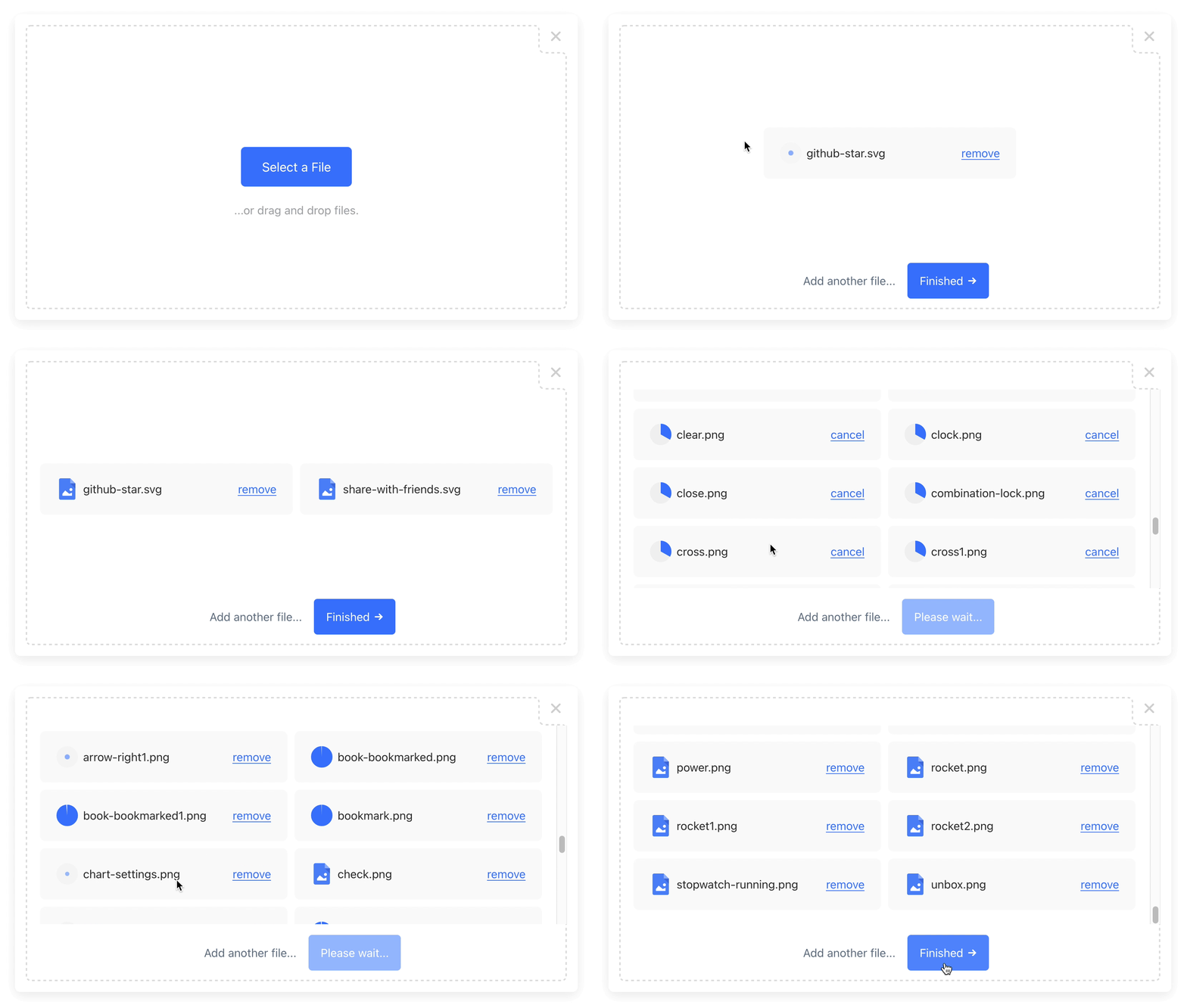
The `UploadButton` component uses a [render prop](https://reactjs.org/docs/render-props.html) to provide an `onClick` callback to your button element.
When clicked, a file upload modal will appear:
```javascript
import { UploadButton } from "@bytescale/upload-widget-react";
// Full Configuration:
// https://www.bytescale.com/docs/upload-widget#configuration
const options = {
apiKey: "free", // Get API keys from: www.bytescale.com
maxFileCount: 10
};
const MyApp = () => (
alert(files.map(x => x.fileUrl).join("\n"))}>
{({onClick}) =>
}
);
```
Required props:
- `options`
- `children`
Optional props:
- `onComplete`
- `onUpdate`
### UploadDropzone — [Try on CodePen](https://codepen.io/bytescale/pen/LYrMzaB?editors=0010)
The `UploadDropzone` component renders an inline drag-and-drop file upload dropzone:
```javascript
import { UploadDropzone } from "@bytescale/upload-widget-react";
// Full Configuration:
// https://www.bytescale.com/docs/upload-widget#configuration
const options = {
apiKey: "free", // Get API keys from: www.bytescale.com
maxFileCount: 10
};
const MyApp = () => (
{
console.log(uploadedFiles.map(x => x.fileUrl).join("\n"))
}}
width="600px"
height="375px" />
);
```
> **Special behaviour for dropzones:**
>
> `onComplete` only fires if `showFinishButton = true` (when the user clicks "Finish").
>
> `onUpdate` must be used when `showFinishButton = false`.
>
> Default value: `showFinishButton = false`
Required props:
- `options`
Optional props:
- `onComplete`
- `onUpdate`
- `width`
- `height`
## Result
The callbacks receive a `Array`:
```javascript
{
fileUrl: "https://upcdn.io/FW25...", // URL to use when serving this file.
filePath: "/uploads/example.jpg", // File path (we recommend saving this to your database).
accountId: "FW251aX", // Bytescale account the file was uploaded to.
editedFile: undefined, // Edited file (for image crops). Same structure as below.
originalFile: {
fileUrl: "https://upcdn.io/FW25...", // Uploaded file URL.
filePath: "/uploads/example.jpg", // Uploaded file path (relative to your raw file directory).
accountId: "FW251aX", // Bytescale account the file was uploaded to.
originalFileName: "example.jpg", // Original file name from the user's machine.
file: { ... }, // Original DOM file object from the element.
size: 12345, // File size in bytes.
lastModified: 1663410542397, // Epoch timestamp of when the file was uploaded or updated.
mime: "image/jpeg", // File MIME type.
metadata: {
... // User-provided JSON object.
},
tags: [
"tag1", // User-provided & auto-generated tags.
"tag2",
...
]
}
}
```
## ⚙️ Configuration
All configuration is optional (except for the `apiKey` field, which is required).
```javascript
const options = {
apiKey: "free", // Get API keys from: www.bytescale.com
locale: myCustomLocale, // EN_US by default. (See "Localization" section below.)
maxFileCount: 5, // Unlimited by default (or 1 if multi: false).
maxFileSizeBytes: 1024 ** 2, // Unlimited by default.
mimeTypes: ["image/*"], // Unrestricted by default. Supports * wildcard suffix.
multi: false, // False by default.
onInit: ({ // Exposes lifecycle methods for the component.
close, // Closes the widget when called.
reset, // Resets the widget when called.
updateConfig // Updates the widget's config by passing a new config
}) => {}, // object to the method's first parameter.
onUpdate: (event) => { // Called each time the Upload Widget's list of files change.
// event.pendingFiles // Array of files that are preprocessing, uploading, or awaiting user input.
// event.pendingFiles[0].progress // Factor (0 to 1).
// event.pendingFiles[0].status // "Preprocessing" | "Uploading" | "AwaitingUserInput"
// event.failedFiles // Array of files that failed to upload (due to network or validation reasons).
// event.uploadedFiles // Array of files that have been uploaded and not removed.
},
onPreUpload: async file => ({
errorMessage: "Uh oh!", // Displays this validation error to the user (if set).
transformedFile: file // Uploads 'transformedFile' instead of 'file' (if set).
}),
showFinishButton: true, // Show/hide the "finish" button in the widget.
showRemoveButton: true, // Show/hide the "remove" button next to each file.
styles: {
breakpoints: {
fullScreenWidth: 750, // Full-screen mode activates when the screen is at or below this width.
fullScreenHeight: 420 // Full-screen mode activates when the screen is at or below this height.
},
colors: {
primary: "#377dff", // Primary buttons & links
active: "#528fff", // Primary buttons & links (hover). Inferred if undefined.
error: "#d23f4d", // Error messages
shade100: "#333", // Standard text
shade200: "#7a7a7a", // Secondary button text
shade300: "#999", // Secondary button text (hover)
shade400: "#a5a6a8", // Welcome text
shade500: "#d3d3d3", // Modal close button
shade600: "#dddddd", // Border
shade700: "#f0f0f0", // Progress indicator background
shade800: "#f8f8f8", // File item background
shade900: "#fff" // Various (draggable crop buttons, etc.)
},
fontFamilies: {
base: "arial, sans-serif" // Base font family (comma-delimited).
},
fontSizes: {
base: 16 // Base font size (px).
}
},
path: { // Optional: a string (full file path) or object like so:
fileName: "Example.jpg", // Supports path variables (e.g. {ORIGINAL_FILE_EXT}).
folderPath: "/uploads" // Please refer to docs for all path variables.
},
metadata: {
hello: "world" // Arbitrary JSON metadata (saved against the file).
},
tags: ["profile_picture"], // Requires a Bytescale account.
editor: {
images: {
allowResizeOnMove: true, // True by default. If false, prevents cropper from resizing when moved.
preview: true, // True by default if cropping is enabled. Previews PDFs and videos too.
crop: true, // True by default.
cropFilePath: image => { // Choose the file path used for JSON image crop files.
const {filePath} = image // In: https://www.bytescale.com/docs/types/UploadedFile
return `${filePath}.crop` // Out: https://www.bytescale.com/docs/types/FilePathDefinition
},
cropRatio: 4 / 3, // Width / Height. Undefined enables freeform (default).
cropShape: "rect" // "rect" (default) or "circ".
}
},
}
```
### 🏳️ Localization
Default is [EN_US](https://github.com/bytescale/bytescale-upload-widget/blob/main/lib/src/modules/locales/EN_US.ts):
```javascript
const myCustomLocale = {
addAnotherFileBtn: "Add another file...",
addAnotherImageBtn: "Add another image...",
cancelBtn: "cancel",
cancelBtnClicked: "cancelled",
cancelPreviewBtn: "Cancel",
continueBtn: "Continue",
cropBtn: "Crop",
customValidationFailed: "Failed to validate file.",
doneBtn: "Done",
fileSizeLimitPrefix: "File size limit:",
finishBtn: "Finished",
finishBtnIcon: true,
imageCropNumberPrefix: "Image",
maxFilesReachedPrefix: "Maximum number of files:",
maxImagesReachedPrefix: "Maximum number of images:",
orDragDropFile: "...or drag and drop a file.",
orDragDropFileMulti: "...or drag and drop files.",
orDragDropImage: "...or drag and drop an image.",
orDragDropImageMulti: "...or drag and drop images.",
processingFile: "Processing file...",
removeBtn: "remove",
removeBtnClicked: "removed",
submitBtnError: "Error!",
submitBtnLoading: "Please wait...",
unsupportedFileType: "File type not supported.",
uploadFileBtn: "Upload a File",
uploadFileMultiBtn: "Upload Files",
uploadImageBtn: "Upload an Image",
uploadImageMultiBtn: "Upload Images",
xOfY: "of"
}
```
# 🌐 API Support
## 🌐 File Management APIs
Bytescale provides a wide range of [File Management APIs](https://www.bytescale.com/docs/apis):
- **[File Listing](https://www.bytescale.com/docs/folder-api/ListFolder)**
- **[File Deleting](https://www.bytescale.com/docs/file-api/DeleteFile)**
- **[File Copying](https://www.bytescale.com/docs/file-api/CopyFile)**
- [And more...](https://www.bytescale.com/docs/apis)
## 🌐 Media Processing APIs (Image/Video/Audio)
Bytescale also provides real-time [Media Processing APIs](https://www.bytescale.com/docs/media-processing-apis):
- **[Image Processing APIs](https://www.bytescale.com/docs/image-processing-api)** ([resize](https://www.bytescale.com/docs/image-processing-api#image-resizing-api), [crop](https://www.bytescale.com/docs/image-processing-api#image-cropping-api), [convert](https://www.bytescale.com/docs/image-processing-api#f), [compress](https://www.bytescale.com/docs/image-processing-api#image-compression-api) & [watermark](https://www.bytescale.com/docs/image-processing-api#Text-layering-api))
- **[Video Processing APIs](https://www.bytescale.com/docs/video-processing-api)** ([transcode](https://www.bytescale.com/docs/video-processing-api#video-transcoding-api), [optimize](https://www.bytescale.com/docs/video-processing-api#video-compression-api), [resize](https://www.bytescale.com/docs/video-processing-api#video-resizing-api) & [extract metadata](https://www.bytescale.com/docs/video-processing-api#video-metadata-api))
- **[Audio Processing APIs](https://www.bytescale.com/docs/audio-processing-api)** ([transcode](https://www.bytescale.com/docs/audio-processing-api#audio-transcoding-api), [optimize](https://www.bytescale.com/docs/audio-processing-api#audio-compression-api), [trim](https://www.bytescale.com/docs/audio-processing-api#audio-trimming-api) & [extract metadata](https://www.bytescale.com/docs/audio-processing-api#audio-metadata-api))
### Image Processing API (Original Image)
Here's an example using [a photo of Chicago](https://upcdn.io/W142hJk/raw/example/city-landscape.jpg):
```
https://upcdn.io/W142hJk/raw/example/city-landscape.jpg
```
### Image Processing API (Transformed Image)
Using the [Image Processing API](https://www.bytescale.com/docs/image-processing-api), you can produce [this image](https://upcdn.io/W142hJk/image/example/city-landscape.jpg?w=900&h=600&fit=crop&f=webp&q=80&blur=4&text=WATERMARK&layer-opacity=80&blend=overlay&layer-rotate=315&font-size=100&padding=10&font-weight=900&color=ffffff&repeat=true&text=Chicago&gravity=bottom&padding-x=50&padding-bottom=20&font=/example/fonts/Lobster.ttf&color=ffe400):
```
https://upcdn.io/W142hJk/image/example/city-landscape.jpg
?w=900
&h=600
&fit=crop
&f=webp
&q=80
&blur=4
&text=WATERMARK
&layer-opacity=80
&blend=overlay
&layer-rotate=315
&font-size=100
&padding=10
&font-weight=900
&color=ffffff
&repeat=true
&text=Chicago
&gravity=bottom
&padding-x=50
&padding-bottom=20
&font=/example/fonts/Lobster.ttf
&color=ffe400
```
## Authentication
Bytescale supports two types of authentication:
### API Keys
The Bytescale Upload Widget uses the `apiKey` parameter to authenticate with [Bytescale](https://www.bytescale.com/).
With API key auth, the requester has access to the resources available to the API key:
- Secret API keys (`secret_***`) can perform all API operations (see: [Bytescale JavaScript SDK](https://www.bytescale.com/docs/sdks/javascript)).
- Public API keys (`public_***`) can perform file uploads and file downloads only. File overwrites, file deletes, and all other destructive operations cannot be performed using public API keys.
You must always use **public API keys** (e.g. `public_***`) in your client-side code.
Each API key can have its read/write access limited to a subset of files/folders.
### JWTs
JWTs are optional.
With JWTs, users can download private files directly via the URL, as authentication is performed implicitly via a session cookie _or_ via an `authorization` header if service workers are enabled (see the `serviceWorkerScript` param on the `AuthManager.beginAuthSession` method). This allows the browser to display private files in ``, `








 ```
https://upcdn.io/W142hJk/raw/example/city-landscape.jpg
```
### Image Processing API (Transformed Image)
Using the [Image Processing API](https://www.bytescale.com/docs/image-processing-api), you can produce [this image](https://upcdn.io/W142hJk/image/example/city-landscape.jpg?w=900&h=600&fit=crop&f=webp&q=80&blur=4&text=WATERMARK&layer-opacity=80&blend=overlay&layer-rotate=315&font-size=100&padding=10&font-weight=900&color=ffffff&repeat=true&text=Chicago&gravity=bottom&padding-x=50&padding-bottom=20&font=/example/fonts/Lobster.ttf&color=ffe400):
```
https://upcdn.io/W142hJk/raw/example/city-landscape.jpg
```
### Image Processing API (Transformed Image)
Using the [Image Processing API](https://www.bytescale.com/docs/image-processing-api), you can produce [this image](https://upcdn.io/W142hJk/image/example/city-landscape.jpg?w=900&h=600&fit=crop&f=webp&q=80&blur=4&text=WATERMARK&layer-opacity=80&blend=overlay&layer-rotate=315&font-size=100&padding=10&font-weight=900&color=ffffff&repeat=true&text=Chicago&gravity=bottom&padding-x=50&padding-bottom=20&font=/example/fonts/Lobster.ttf&color=ffe400):
 ```
https://upcdn.io/W142hJk/image/example/city-landscape.jpg
?w=900
&h=600
&fit=crop
&f=webp
&q=80
&blur=4
&text=WATERMARK
&layer-opacity=80
&blend=overlay
&layer-rotate=315
&font-size=100
&padding=10
&font-weight=900
&color=ffffff
&repeat=true
&text=Chicago
&gravity=bottom
&padding-x=50
&padding-bottom=20
&font=/example/fonts/Lobster.ttf
&color=ffe400
```
## Authentication
Bytescale supports two types of authentication:
### API Keys
The Bytescale Upload Widget uses the `apiKey` parameter to authenticate with [Bytescale](https://www.bytescale.com/).
With API key auth, the requester has access to the resources available to the API key:
- Secret API keys (`secret_***`) can perform all API operations (see: [Bytescale JavaScript SDK](https://www.bytescale.com/docs/sdks/javascript)).
- Public API keys (`public_***`) can perform file uploads and file downloads only. File overwrites, file deletes, and all other destructive operations cannot be performed using public API keys.
You must always use **public API keys** (e.g. `public_***`) in your client-side code.
Each API key can have its read/write access limited to a subset of files/folders.
### JWTs
JWTs are optional.
With JWTs, users can download private files directly via the URL, as authentication is performed implicitly via a session cookie _or_ via an `authorization` header if service workers are enabled (see the `serviceWorkerScript` param on the `AuthManager.beginAuthSession` method). This allows the browser to display private files in `
```
https://upcdn.io/W142hJk/image/example/city-landscape.jpg
?w=900
&h=600
&fit=crop
&f=webp
&q=80
&blur=4
&text=WATERMARK
&layer-opacity=80
&blend=overlay
&layer-rotate=315
&font-size=100
&padding=10
&font-weight=900
&color=ffffff
&repeat=true
&text=Chicago
&gravity=bottom
&padding-x=50
&padding-bottom=20
&font=/example/fonts/Lobster.ttf
&color=ffe400
```
## Authentication
Bytescale supports two types of authentication:
### API Keys
The Bytescale Upload Widget uses the `apiKey` parameter to authenticate with [Bytescale](https://www.bytescale.com/).
With API key auth, the requester has access to the resources available to the API key:
- Secret API keys (`secret_***`) can perform all API operations (see: [Bytescale JavaScript SDK](https://www.bytescale.com/docs/sdks/javascript)).
- Public API keys (`public_***`) can perform file uploads and file downloads only. File overwrites, file deletes, and all other destructive operations cannot be performed using public API keys.
You must always use **public API keys** (e.g. `public_***`) in your client-side code.
Each API key can have its read/write access limited to a subset of files/folders.
### JWTs
JWTs are optional.
With JWTs, users can download private files directly via the URL, as authentication is performed implicitly via a session cookie _or_ via an `authorization` header if service workers are enabled (see the `serviceWorkerScript` param on the `AuthManager.beginAuthSession` method). This allows the browser to display private files in `