# Strapi Plugin Import Export Entries
Import/Export data from and to your database in just few clicks.

## Features
### Import
- Import data directly from the Content Manager
- Import data from JSON file or from typing raw text according to user permissions
- Import contents to collection type/single type (components, dynamic zones and media are supported)
- Control which roles can import data from the admin UI.
### Export
- Export data directly from the Content Manager
- Export JSON contents according to user permissions
- Download files or copy exported data to clipboard
- Filter & sort data using Content Manager filters & sorting
- Export plugins content types
- Control which roles can export data from the admin UI.
### Known Limitations
At the moment, dynamic zones and media are not unit tested. Tests will be implemented in a near future to improve quality and development speed.
## Screenshots
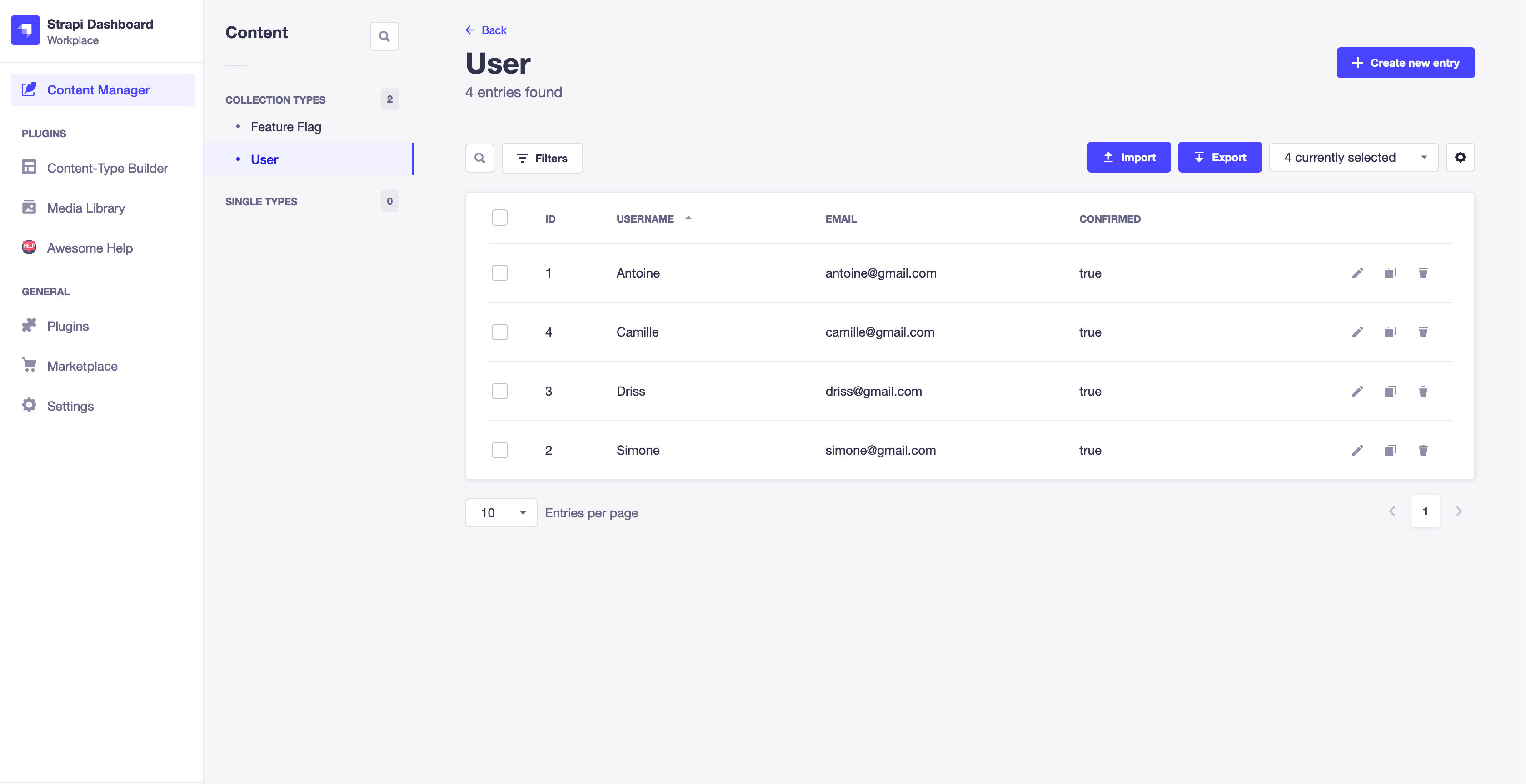
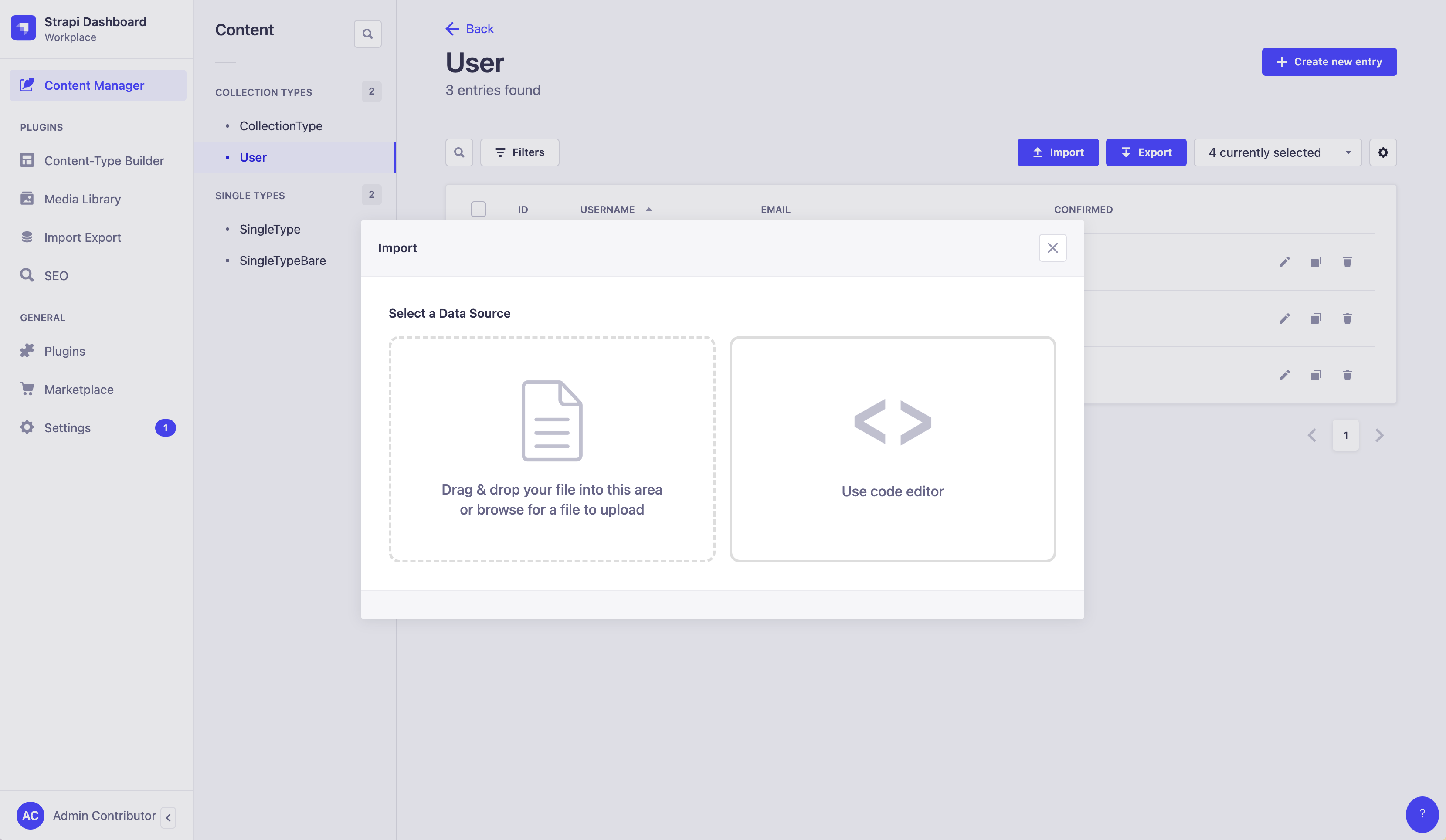
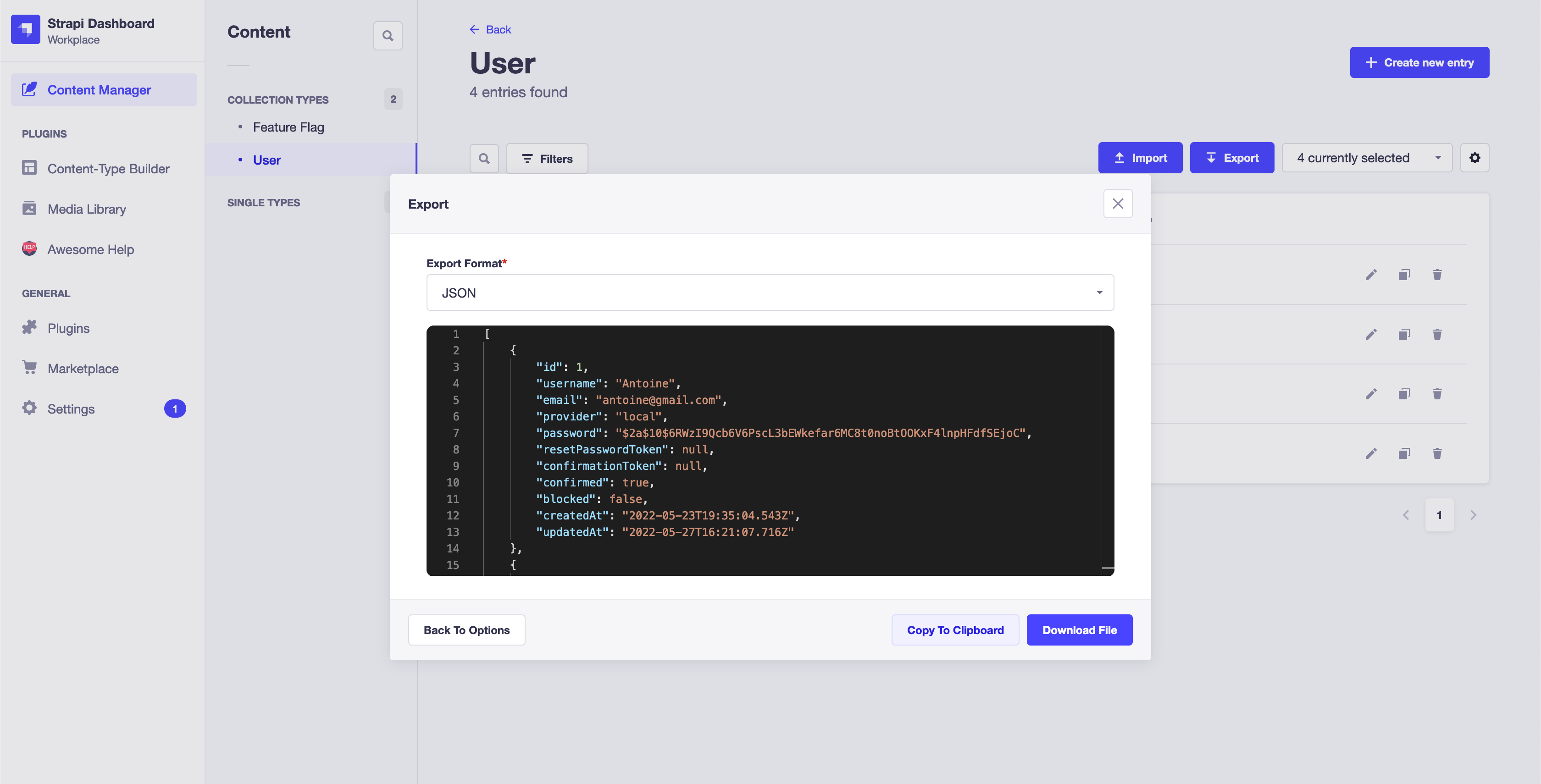
## Table Of Content
- [Requirements](#requirements)
- [Feedback](#feedback)
- [Contribute](#contribute)
- [Installation](#installation)
- [Rebuild The Admin Panel](#rebuild-the-admin-panel)
- [Usage](#usage)
- [Access Control](#access-control)
- [Preferences](#preferences)
- [Config](#config)
- [Available Options](#available-options)
- [`idField` Per Collection](#idfield-per-collection)
- [Importing Large Files](#importing-large-files)
- [Filtering & Sorting](#filtering-and-sorting)
- [Services](#services)
- [Content API](#content-api)
- [Webhook](#webhook)
- [Importing Data](#importing-data)
- [JSON v2](#json-v2)
- [JSON v1 (deprecated)](#json-v1-deprecated)
- [Related Plugins](#related-plugins)
- [Author](#author)
- [Acknowledgments](#acknowledgments)
## Requirements
Strapi v4 is required.
## Feedback

Access the [publicly available product roadmap](https://strapi-import-export-entries.canny.io) and suggest features, report bugs or upvote other people suggestions.

Join the [Discord Community](https://discord.gg/dcqCAFFdP8) to give your feedback 📣 and get some help from the community ⛑️
## Contribute
See the repo [Strapi Contribute](https://github.com/Baboo7/strapi-contribute#readme).
## Installation
1. Download
```
yarn add strapi-plugin-import-export-entries
```
or
```
npm i strapi-plugin-import-export-entries
```
2. Enable the plugin
Add in the file `config/plugins.js`:
```js
module.exports = ({ env }) => ({
//...
'import-export-entries': {
enabled: true,
config: {
// See `Config` section.
},
},
//...
});
```
## Rebuild The Admin Panel
New releases can introduce changes to the administration panel that require a rebuild. Rebuild the admin panel with one of the following commands:
```
yarn build --clean
```
or
```
npm run build --clean
```
# Usage
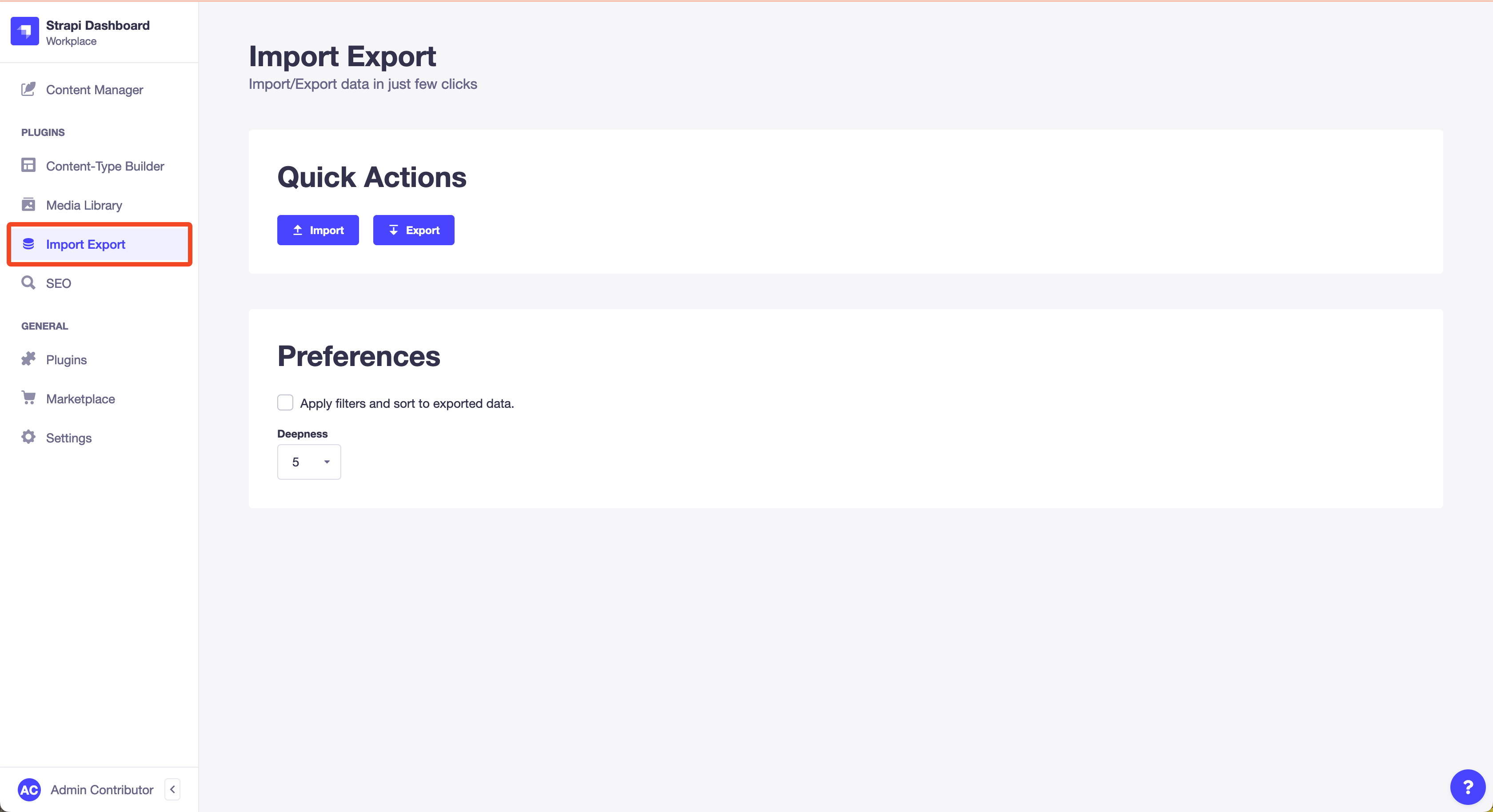
Once the plugin is installed and setup, the functionnalities for a collection are accessible on its content management page.
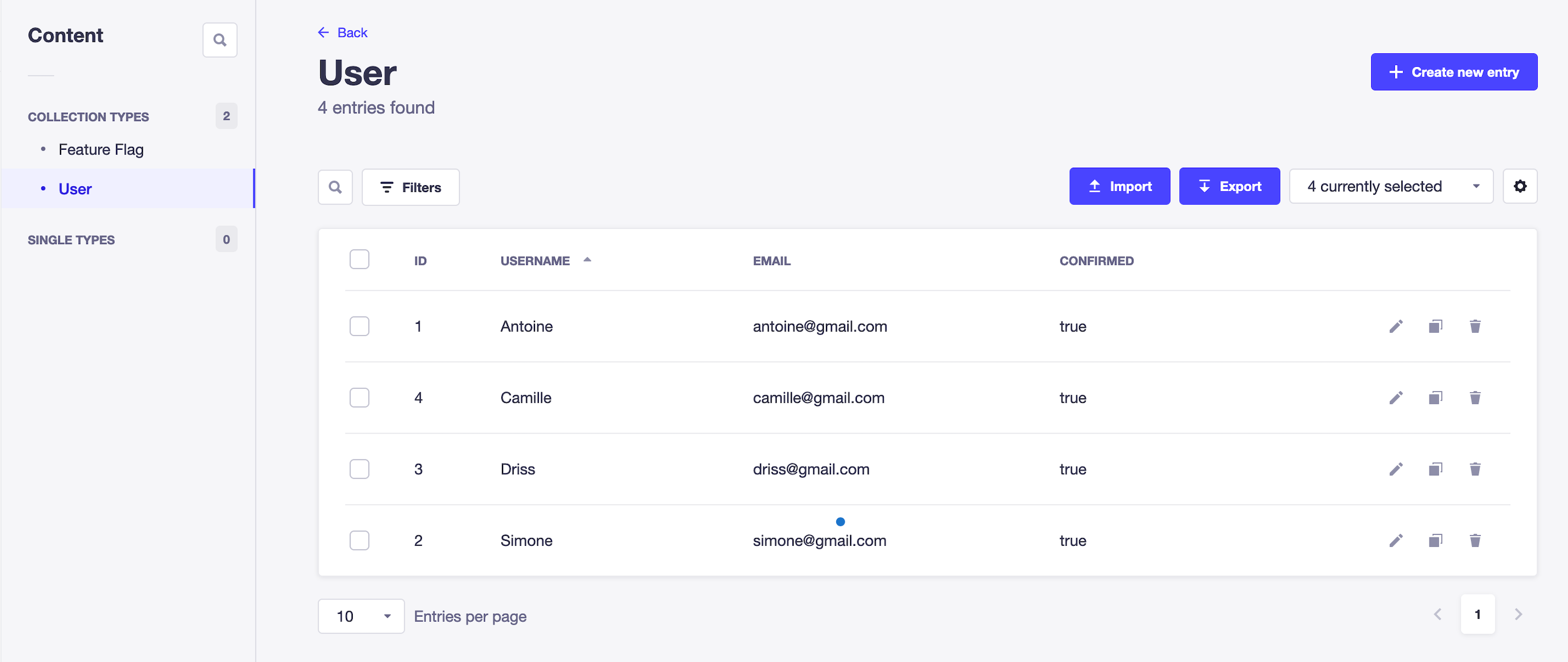
You can also export the whole database from the home page of the plugin.
## Access Control
You can define which roles can import and/or export data from the admin UI.
Go to `Settings > Roles (under Administration Panel) > Plugins > Import-export-entries`.
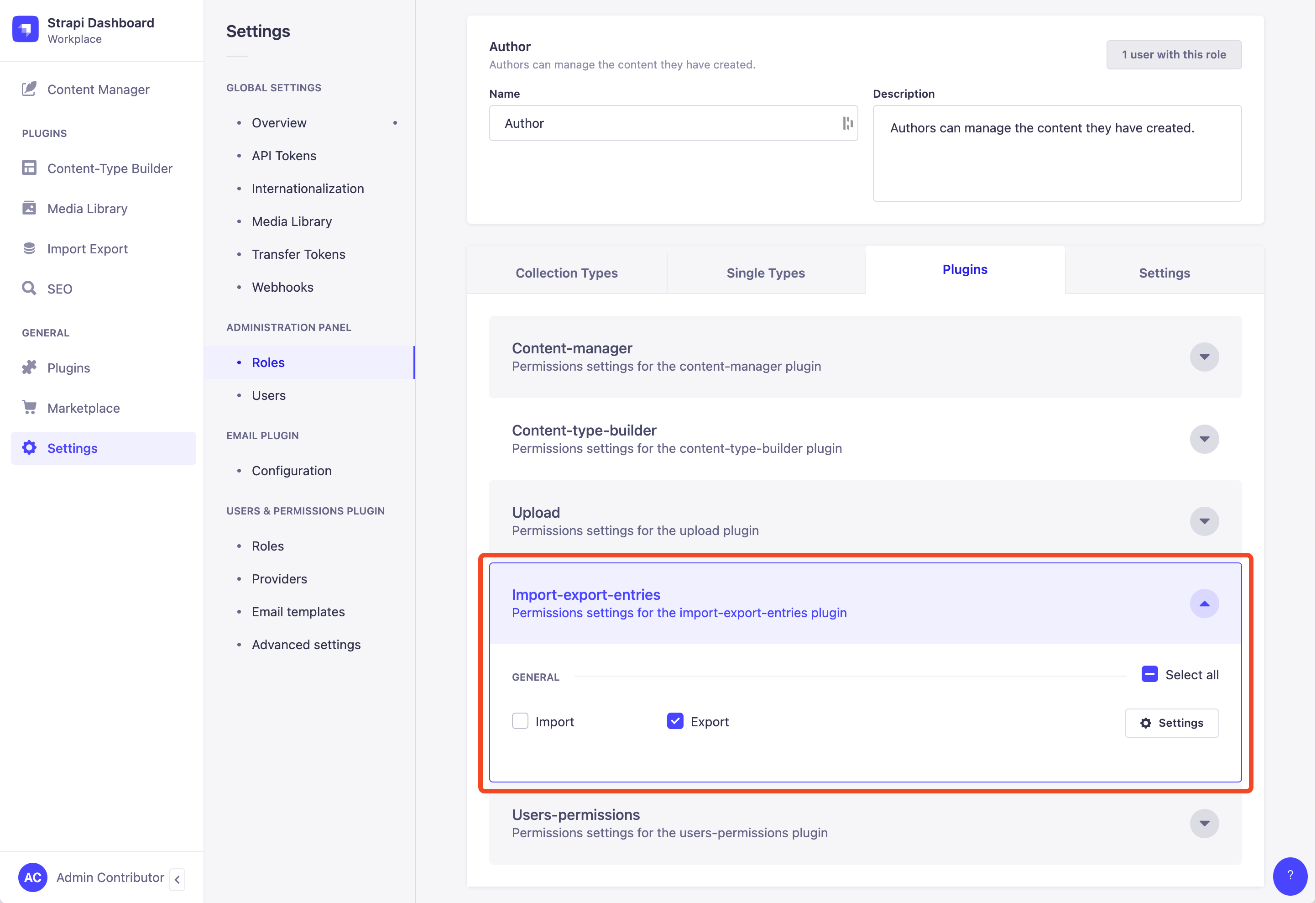
Admin view.
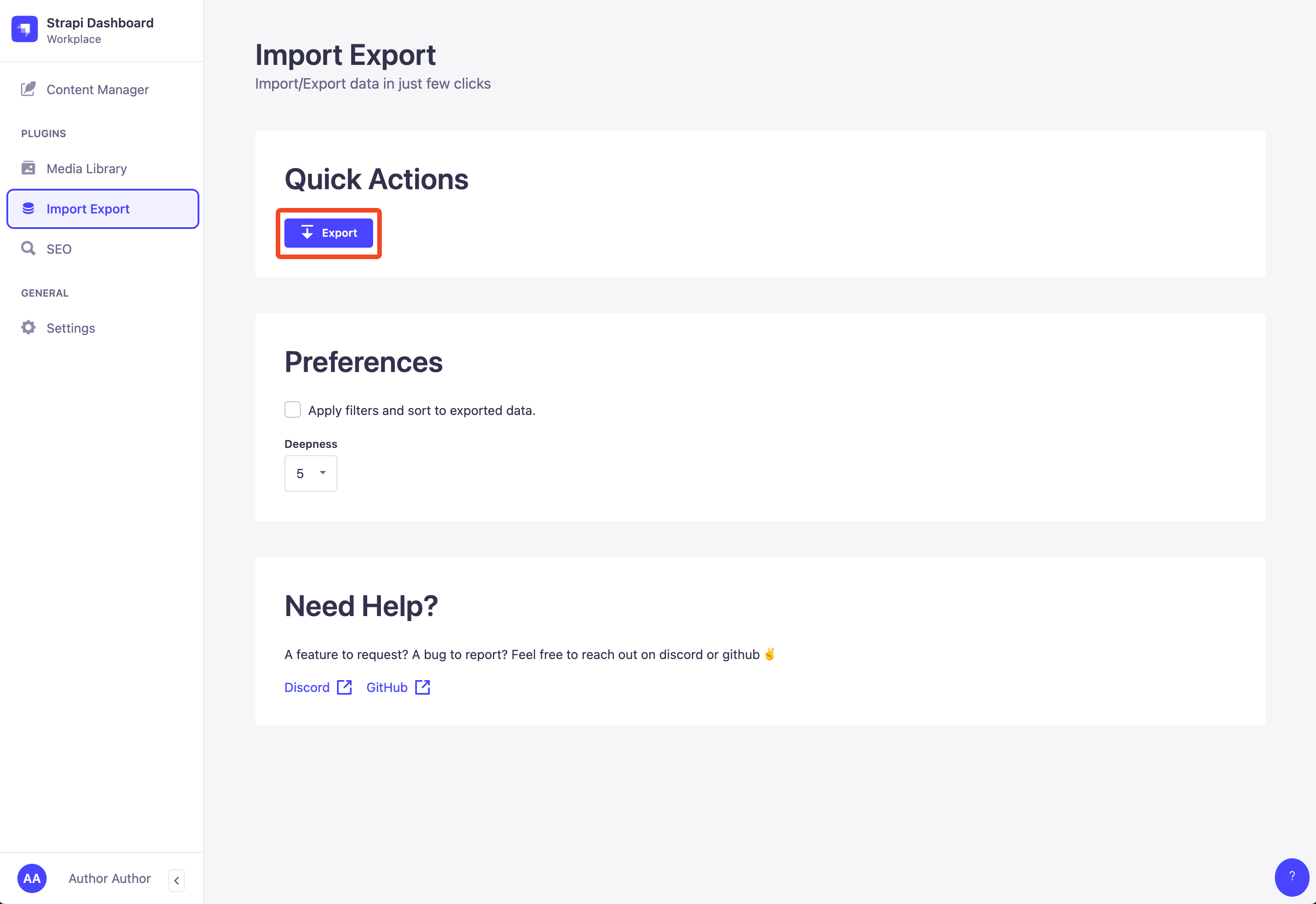
User view of the plugin home page that can only export data.
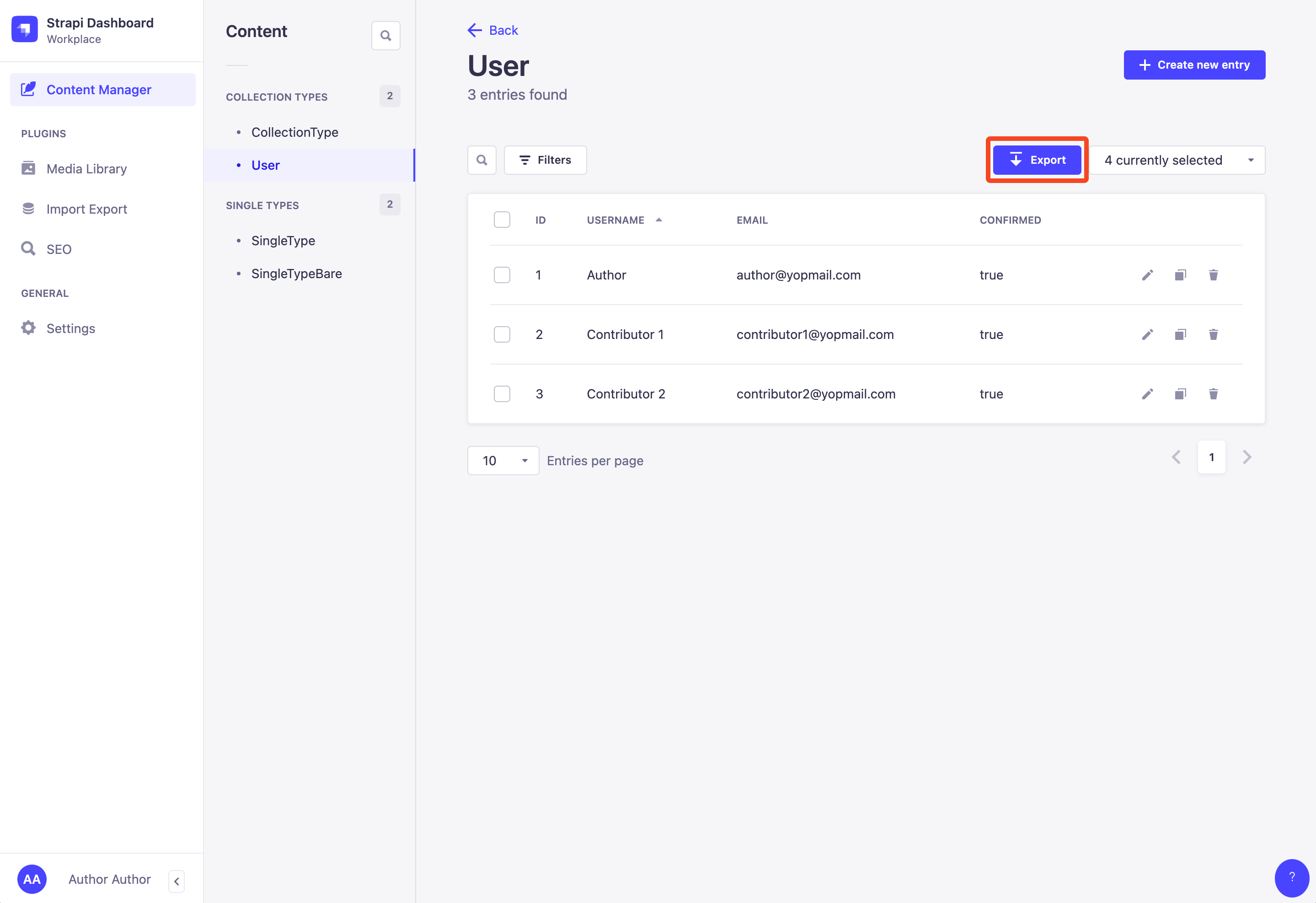
User view of the content management page that can only export data.
## Preferences
For a quick and convenient use, you can set your preferences from the home page of the plugin.
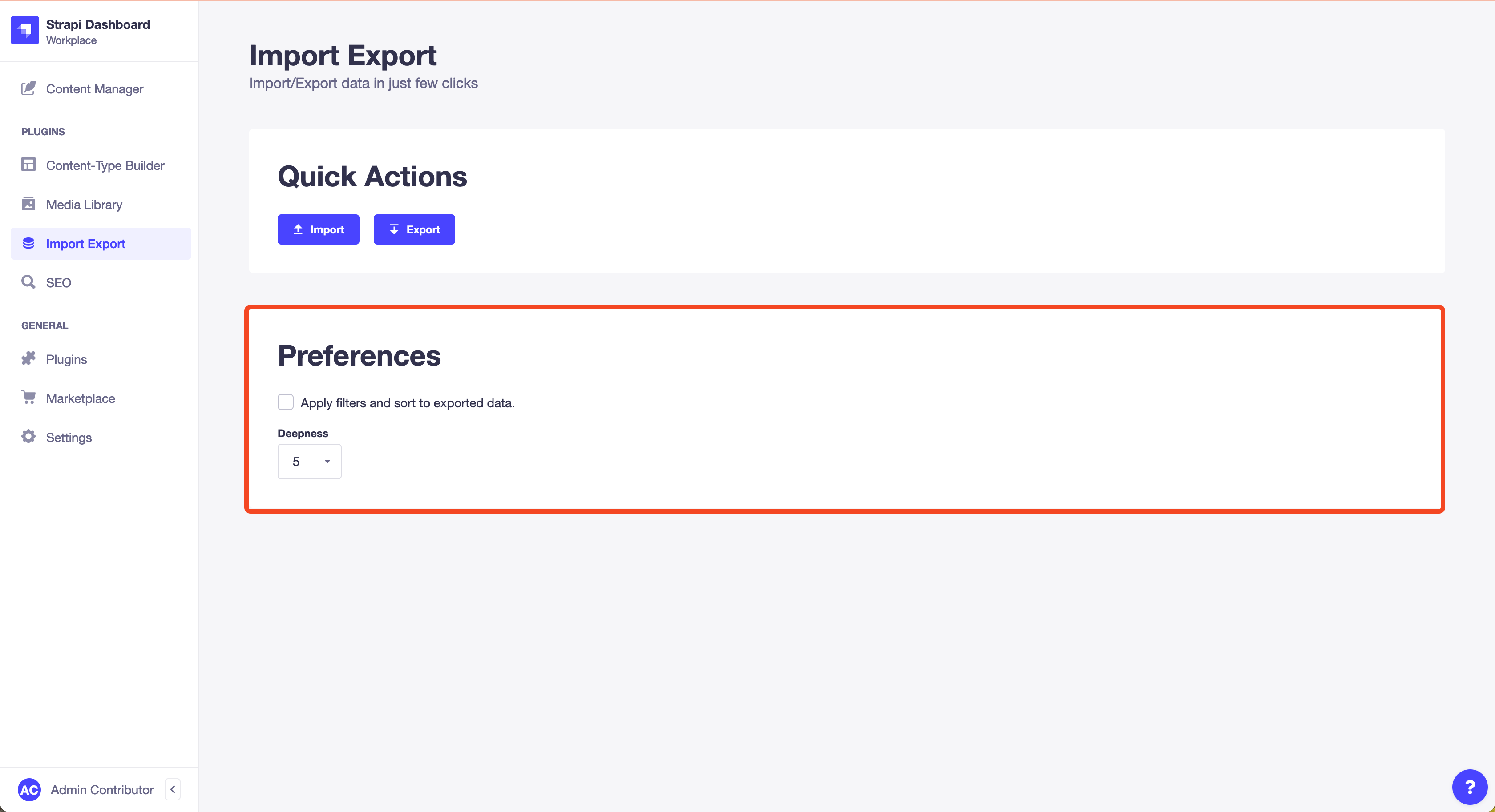
Once set, they will be used each time you import/export data.
## Config
### Available Options
In `config/plugins.js`:
```ts
module.exports = ({ env }) => ({
//...
'import-export-entries': {
enabled: true,
config: {
/**
* Public hostname of the server.
*
* If you use the local provider to persist medias,
* `serverPublicHostname` should be set to properly export media urls.
*/
serverPublicHostname: 'https://yoga.com', // default: "".
},
},
//...
});
```
In any collection schema `schema.json`:
```ts
{
"collectionName": "my-awesome-collection",
"info": {
"displayName": "My Awesome Collection",
},
"pluginOptions": {
"import-export-entries": {
/**
* Define the `idField` used to find an entry of the collection
* when importing data.
*
* `idField` must match the name of an attribute.
* See section _Specifying `idField` Per Collection_ for more details
*/
"idField": "name"
}
},
"attributes": {
/**
* In this example, `name` will be used to find an entry
* of this collection when importing data.
*/
"name": {
"type": "string",
"unique": true
},
}
}
```
### Specifying `idField` Per Collection
Importing data will either create entries if they don't exist, or update them otherwise.
When transfering data from a database to another, relying on the `id` of an entry is not reliable. For example, if you are transfering data on hospitals with this schema:
```ts
interface Hospital {
id: number;
name: string;
employees: Employee[];
patients: Patient[];
}
```
You will have something similar in your source and target databases:
```ts
// data in source database
{
id: 1,
name: "Pitié Salpêtrière",
employees: [2, 3],
patients: [4, 5],
}
// data in target database
{
id: 11,
name: "Pitié Salpêtrière",
employees: [12, 13],
patients: [14, 15],
}
```
_Different databases, different `id`s._ 🫠
That's why we need a way to define the field used to find an entry in a collection. This field is called an `idField`.
To define the `idField` of a collection, add it in the `pluginOptions` of the collection, under the property `import-export-entries`. Using the example above, this is how we would define the `idField` of the collection `hospital`:
```ts
{
"collectionName": "hospitals",
"info": {
"displayName": "Hospital",
},
"options": {},
/**
* In the property `pluginOptions`, define the `idField` under the property `import-export-entries`.
*
* `idField` must match the name of an attribute.
*/
"pluginOptions": {
"import-export-entries": {
"idField": "name"
}
},
"attributes": {
"name": { // 👈 `name` will be used to find a hospital when importing data.
"type": "string",
"unique": true
},
"employees": {
"type": "relation",
"relation": "oneToMany",
"target": "api::employees.employees"
},
"patients": {
"type": "relation",
"relation": "oneToMany",
"target": "api::patients.patients"
},
}
}
```
For each collection of your application, you can define a different `idField`. For example, you can set the `name` attribute as the `idField` of the collection `hospital`, and for the collection `patients` use the attribute `ssn` (I really hope you're not storing uncyphered SSNs in your database 😬).
> How does the search behave if I don't define explicitly the `idField` of a collection?
By default, the `idField` of a collection is the `id` attribute. We can imagine in a near future to automatically detect unique scalar fields of a collection and use them by default, but it's not the case at the moment.
> How does the search behave when I specify the `idField` from the strapi admin UI?
The `idField` specified from the import modal of the admin UI takes precedence over the one defined in the `pluginOptions` of the collection.
This default behavior could change in the future if user feedback shows it's cumbersome to set it manually on each import. You tell me.
### Importing Large Files
When importing data, imported file size may exceed the file size limit of the server. To lift up the limit, configure the [Strapi middleware `body`](https://docs.strapi.io/developer-docs/latest/setup-deployment-guides/configurations/required/middlewares.html#body):
```js
// ./config/middlewares.js
module.exports = {
// ...
{
name: 'strapi::body',
config: {
jsonLimit: '10mb',
},
},
// ...
}
```
## Filtering and Sorting
The filtering and sorting mechanism relies on Strapi filtering and sorting feature:
1. Connect to the content manager page of the model you want to export, and filter and sort the data as you want it to be exported.

2. Open the export modal and check the option _Apply filters and sort to exported data_.

3. Click on _Fetch Data_.
The exported data is filtered and sorted as expected.
## Services
```ts
/*****************************
* Service "import".
****************************/
/**
* Get the service.
*/
const service = strapi.plugin("import-export-entries").service("import");
/**
* Method importData.
*/
await service.importData(
/**
* Data to import.
* Expected type depends on the specified format:
* - csv: string
* - jso: object | object[]
* - json: string
*/
dataRaw: object | object[] | string,
options: {
/**
* Slug of the imported model.
* - "media" is a custom slug to specifically import media. See section Importing Data > Media below.
*/
slug: "media" | string;
/**
* Format of the imported data.
* - csv
* - jso: javascript object
* - json: javascript object notation
*/
format: "csv" | "jso" | "json";
/** User importing data. */
user: object;
}
) : Promise<{
failures: {
/** Error raised. */
error: Error;
/** Data for which import failed. */
data: object;
}[]
}>;
```
```ts
/*****************************
* Service "export".
****************************/
/**
* Get the service.
*/
const service = strapi.plugin("import-export-entries").service("export");
/**
* Method exportData.
*/
await service.exportData(
options: {
/**
* Slug of the model to export.
* - "media" is a custom slug to specifically export media.
*/
slug: "media" | string;
/**
* Export format.
* - csv
* - json
* - json-v2: json in the new json file format (see section `Importing Data`)
*/
exportFormat: "csv" | "json" | "json-v2";
/** Search query used to select the entries to export. The package `qs` is used to parse the query. */
search?: string;
/** Whether to apply the search query. */
applySearch?: boolean;
/** Whether to export relations as id instead of plain objects. */
relationsAsId?: boolean;
/** Deepness of the exported data. */
deepness?: number;
}
) : Promise;
```
## Content API
Data can be imported/exported through the content api. Endpoints have to be enabled in _Settings > Users & Permissions plugin > Roles_.
```ts
/*****************************
* Import data
*
* POST /api/import-export-entries/content/import
****************************/
type RouteParams = {
/** Slug of the model to export. */
slug: string;
/**
* Data to import.
* if `format` is "csv", data must be a string.
* if `format` is "json", data must be an object or an array of objects.
* */
data: string | Object | Object[];
/** Format of the passed data to import. */
format: 'csv' | 'json';
/** Name of the field to use as a unique identifier for entries. Default: "id" */
idField?: string;
};
type RouteReturn = {
/** Array of failed imports. */
failures: {
/** Error raised during import. */
error: string;
/** Data for which the import failed. */
data: Object;
}[];
};
```
```ts
/*****************************
* Export data
*
* POST /api/import-export-entries/content/export/contentTypes
****************************/
type RouteParams = {
/** Slug of the model to export. */
slug: string;
/** Format to use to export the data. */
exportFormat: 'csv' | 'json';
/** Search query used to select the entries to export. The package `qs` is used to parse the query. Default: "" */
search?: string;
/** Whether to apply the search query. Default: false */
applySearch?: boolean;
/** Whether to export relations as id instead of plain objects. Default: false */
relationsAsId?: boolean;
/** Deepness of the exported data. Default: 5 */
deepness?: number;
};
type RouteReturn = {
/** Exported data. */
data: string;
};
```
## Webhook
At the moment, the webhook is triggered only for media creation, update and deletion. It is not triggered for other data.
# Importing Data
## JSON v2
JSON v2 introduces a new supported file structure. Data is flattened and dependencies only relies on `id`s (`object`s are not supported in this new version). Collection types, single types, media and components are all treated the same for ease of use.
Here is an example:
```js
{
"version": 2, // required for the import to work properly.
"data": {
// Each collection has a dedicated key in the `data` property.
"api::collection-name.collection-name": {
// Sub keys are `id`s of imported entries and values hold the data of the entries to import.
"1": {
"id": 1
//...
},
"2": {
"id": 2
//...
}
},
"api::other-collection-name.other-collection-name": {
"1": {
"id": 1,
// Relations are specified by `id`s.
"collectionAbove": [1]
//...
},
"2": {
"id": 2,
"collectionAbove": [1, 2]
//...
}
},
// Import medias.
"plugin::upload.file": {
"1": {
"id": 1
//...
},
"2": {
"id": 2
//...
}
},
// Import components.
"my.component": {
"1": {
"id": 1
//...
},
"2": {
"id": 2
//...
}
}
}
}
```
## JSON v1 (deprecated)
The expected import data structure:
## Relation:
### `object`
the relation is searched in db by `id`. If an entry is found, it is updated with the provided data. Otherwise, it is created.
### `number`
The relation is treated as an id.
## Media:
### `object`
the media must have an `id`, `hash`, `name` or `url` property. First the media is searched by `id`, then by `hash`, then by `name` and finally imported from `url` if not found previously.
When imported by `url`, the `hash` and `name` of the file are deduced from the `url` (the `hash` is also deduced because Strapi exports files with their `hash` in the `url` instead of the `name`). The `hash` and `name` are used to find the media in db. First the media is searched by `hash`, then by `name` and used if found. Otherwise, the media is uploaded to the db by downloading the file from the `url`.
> ⚠️ Check the server has access to the `url`.
When imported by `url`, extra data can be provided to enhance the created file:
- `id` (_defaults to an auto generated `id`_)
- `name` (_defaults to the `name` deduced from the url_)
- `caption` (_defaults to `""`_)
- `alternativeText` (_defaults to `""`_)
### Examples
- `{ id: 1 }`
- `{ hash: "alpaga.jpg" }`
- `{ name: "alpaga.jpg" }`
- `{ url: "https://www.thetimes.co.uk/imageserver/image/alpaga.jpg" }` (Deduced file `hash` is `alpaga` and deduced `name` is `imageserver-image-alpaga.jpg`)
- `{ url: "http://localhost:1337/alpaga.jpg" }` (Deduced file `hash` is `alpaga` and deduced `name` is `alpaga.jpg`)
- `{ id: 734, url: "http://localhost:1337/alpaga.jpg", name: "Alpacool", caption: "Alpacool In Da Hood", alternativeText: "Alpacool in da hood" }`
### `string`
Same as above, except the media provided is treated as a `url`.
- `"https://www.thetimes.co.uk/imageserver/image/alpaga.jpg"` (Deduced file `hash` is `alpaga` and deduced `name` is `imageserver-image-alpaga.jpg`)
- `"http://localhost:1337/alpaga.jpg"` (Deduced file `hash` is `alpaga` and deduced `name` is `alpaga.jpg`)
### `number`
The media is treated as an id.
- `7`
## Related Plugins
- [Strapi Plugin Request Id](https://github.com/Baboo7/strapi-plugin-request-id): Add a unique id to each request made to your server and track your users' activity in the logs
## Author
Baboo - [@Baboo7](https://github.com/Baboo7)
## Acknowledgments
This plugin (and especially this README) took strong inspiration from the [strapi-plugin-import-export-content](https://github.com/EdisonPeM/strapi-plugin-import-export-content#readme) from [EdisonPeM](https://github.com/EdisonPeM).