---
title: "Interactive use"
description: "Interactive mode, slash commands, the message queue, sessions, and context files."
---
# Using Atomic
This page collects day-to-day usage details that do not fit on the quickstart page.
## On this page and its reference
This page covers interactive use: the interactive loop, slash commands, the message queue, sessions, context files, and the design principles behind them. Every command, flag, argument, and environment variable now lives in the [CLI reference](/reference/cli).
## Interactive Mode
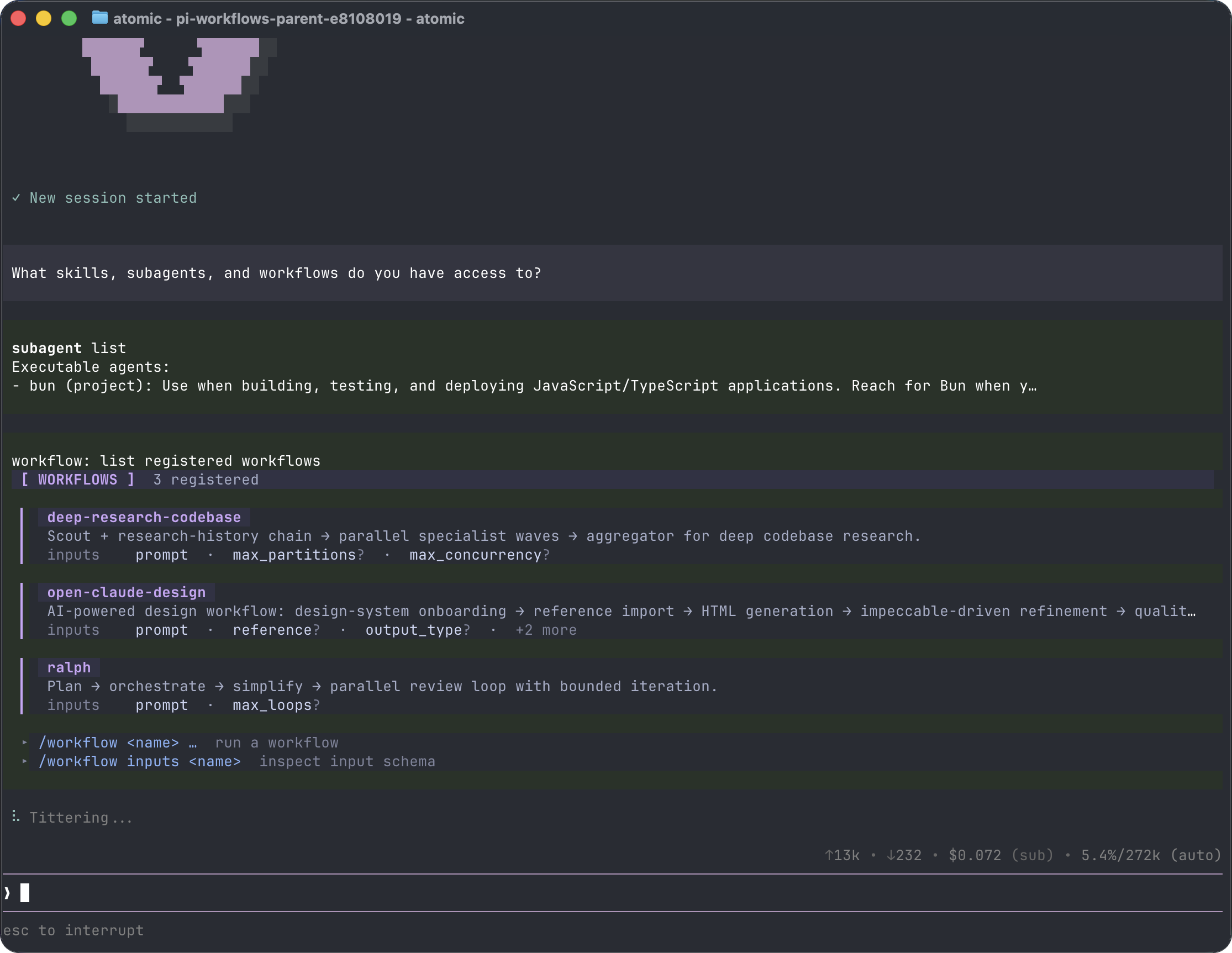
The interface has four main areas:
- **Startup header** - shortcuts plus named lists of loaded context files, prompt templates, skills, and extensions; use the expand-tools shortcut (Ctrl+O by default) to switch those lists to source paths
- **Messages** - user messages, assistant responses, tool calls, tool results, notifications, errors, and extension UI
- **Editor** - where you type; border color indicates the current thinking level
- **Footer** - working directory, session name, token/cache usage, cost, context usage, and current model
The editor can be replaced temporarily by built-in UI such as `/settings` or by custom extension UI.
### Startup and Working Identity
The startup animation shows Atomic's identity. Press any key, including Ctrl+C, to finish it immediately and continue normal input. Setting `quietStartup` to `true` suppresses it, while `"header"` keeps it; non-TTY sessions and `ATOMIC_REDUCED_MOTION=1` show the settled identity without animation. `NO_COLOR` removes foreground colors while retaining weight emphasis.
Startup lists loaded context files, skills, prompts, and extensions by name. Custom themes are not listed; choose them in `/settings`. Duplicate local extension names include path information. Expand the startup disclosure to see source paths.
While the agent works, `∀` pulses beside a working message. Retry, fallback, compaction, cancellation, and error messages take precedence; approval prompts hide ordinary activity. Set `ATOMIC_REDUCED_MOTION=1` for a static indicator or `NO_COLOR` for activity without foreground colors. Extensions can [customize the indicator](/tui#pattern-4b-working-indicator-customization).
### Editor Features
| Feature | How |
|---------|-----|
| File reference | Type `@` to fuzzy-search project files |
| Path completion | Press Tab to complete paths |
| Multi-line input | SHIFT+Enter, or CTRL+Enter on Windows Terminal |
| Images | Paste with CTRL+V, ALT+V on Windows, or drag into the terminal |
| Shell command | `!command` runs and sends output to the model |
| Hidden shell command | `!!command` runs without sending output to the model |
| External editor | CTRL+G opens `$VISUAL` or `$EDITOR` |
See [Keybindings](/keybindings) for all shortcuts and customization.
On native Windows, `!` and `!!` execute PowerShell (preferring PowerShell 7 `pwsh.exe`, then Windows PowerShell `powershell.exe`; see [Windows](/windows) for the locations checked). Linux, macOS, and WSL use Bash. Extension-provided execution operations still take precedence. `shellCommandPrefix` is still prepended, so use syntax matching the selected shell; `shellPath` configures Bash, not Windows interactive PowerShell. Escape or Ctrl+C cancels a running command. `!!` output remains excluded from model context.
On Windows, ALT+Z lends the terminal to an interactive PowerShell subshell. Type `exit` to return to the same Atomic session; owned background tasks keep running. CTRL+Z remains editor undo. On POSIX systems, CTRL+Z suspends Atomic and `fg` resumes it.
## Startup typing
On normal interactive TTY startup, Atomic captures raw keyboard input before deferred resources finish loading and until the TUI input handler mounts. It replays text typed before the prompt box is ready into the editor.
- Enter-submitted ordinary prompts wait for the prompt loop to become ready.
- Command-like submissions such as `/settings` or `!pwd` replay as standalone editor submissions through normal command routing.
- Later submissions wait behind a captured command and replay in input order. Ordinary prompts cannot overtake commands, and commands are not merged with following prompts.
Startup work that can affect correctness stays synchronous and does not use this capture. This includes project trust prompts, resume/session selectors, cross-project session confirmations, explicit resource flags, metadata commands, non-TTY input, and explicit provider/model selection.
## Slash Commands
Type `/` in the editor to open command completion. Extensions can register custom commands, skills are available as `/skill:name`, and prompt templates expand via `/templatename`.
| Command | Description |
|---------|-------------|
| `/login`, `/logout` | Manage OAuth or API-key credentials |
| `/model` | Switch models and automatically save the startup default |
| `/thinking` | Switch thinking level and automatically save the startup default |
| `/scoped-models` | Enable/disable models for CTRL+P cycling |
| `/workflow` | List/run workflows; manage runs (connect/inspect/pause/quit/resume); reload workflow resources |
| `/settings` | Theme, message delivery, transport, and other preferences |
| `/resume` | Pick from previous sessions |
| `/new` | Start a new session |
| `/name ` | Set session display name |
| `/session` | Show session file, ID, messages, tokens, and cost |
| `/tools` | Show active tools, why other tools are off, and selected tool names that nothing registered |
| `/tree` | Jump to any point in the session and continue from there |
| `/fork` | Create a new session from a previous user message |
| `/clone` | Duplicate the current active branch into a new session |
| `/compact` | Run Verbatim Compaction with transcript-bound deletion tools |
| `/copy` | Copy last assistant message to clipboard |
| `/export [file]` | Export session to HTML |
| `/share` | Upload as private GitHub gist with shareable HTML link |
| `/reload` | Reload keybindings, extensions, skills, prompts, and context files |
| `/hotkeys` | Show all keyboard shortcuts |
| `/changelog` | Display the full version history |
| `/exit` | Exit Atomic |
| `/quit` | Quit Atomic |
## Message Queue
You can submit messages while the agent is still working:
- **Enter** queues a steering message, delivered after the current assistant turn finishes executing its tool calls.
- **ALT+Enter** queues a follow-up message, delivered after the agent finishes all work.
- **Escape** aborts active/queued work and restores queued steering/follow-up messages to the editor. The session remains paused until you submit the next ordinary chat message; that submission releases any held queue before starting the new turn. A later Escape while the queue is paused restores any newly queued steering/follow-up text without releasing the pause.
- **Ctrl+C** aborts active/queued work and pauses queued messages in place. They remain queued, in their original per-queue order, until you submit the next ordinary chat message; that submission resumes the chat and makes each queued item eligible once. After the abort settles, a later idle Ctrl+C clears the editor without releasing the hold, and a second quick idle press exits.
- **ALT+Up** explicitly retrieves queued messages back to the editor without aborting active work or resuming a paused session. Even when retrieval empties the queue, the pause remains active until the next ordinary submission.
Each queue preserves submission order, and steering messages take priority over follow-ups. Messages submitted during compaction keep their queue type and join that queue when compaction finishes or is cancelled, even if the agent is still working.
Messages you submit while Atomic is still preparing a prompt, while it waits to retry a failed request, or while extensions finish handling the end of a run are queued the same way. They show as queued at once and join the run at its next turn boundary, in the order you submitted them. If the agent refuses one, Atomic returns the text to the editor, or keeps it queued, and shows the error.
If the first message sent after compaction fails, it stays queued with the messages after it, in the order you typed them, and Atomic shows the error. Anything you submit next is queued behind them, and your next submission sends them again in order. **ALT+Up** retrieves them to the editor in that same order.
Both interrupts hold a queued message only while it is still waiting in the queue. A message the agent has already picked up is written into the transcript, and an interrupt that cancels its reply before any output appears no longer strands it: Atomic answers it instead of returning it to the editor. A reply that had already started printing is left as-is and is not restarted. Sending a message while that recovered reply is still streaming is safe — it is delivered as soon as the reply finishes.
Both abort routes ask the agent to stop cooperatively. Escape waits as long as the agent needs, and neither route terminates the engine during normal cancellation.
Ctrl+C also provides a recovery path. It reaches Atomic even when an extension's custom UI owns the screen, closing that UI if it does not handle the key. If the engine stops answering, a queue clear or cancellation remains unanswered for over one second, or either operation fails, Ctrl+C replaces the engine. This includes cancelling chat, shell commands, compaction, and retries, even while engine heartbeats continue. It also covers a replacement that hangs during startup or fails to start. Recovery is explicit: a stalled control does not restart the engine on its own. Replacing the engine interrupts its running workflows and tools; inspect workflow status before resuming work.
If a message could not be sent, Atomic restores it to the editor exactly as typed, including pasted content. It appears above anything typed while the send was pending, separated by a blank line, together with later queued messages in their original order. Atomic does not also show a red error. See [Keybindings](/keybindings#application).
On Windows Terminal, ALT+Enter is fullscreen by default. Remap it as described in [Terminal setup](/terminal-setup) if you want Atomic to receive the shortcut.
Configure delivery in [Settings](/settings) with `steeringMode` and `followUpMode`.
## Sessions
Sessions are saved automatically to `~/.atomic/agent/sessions/`, organized by working directory.
```bash
atomic -c # Continue most recent session
atomic -r # Browse and select a session
atomic --no-session # Ephemeral mode; do not save
atomic --session # Use an exact ID or unique 8-hex UUID prefix
atomic --import # Import a format-4 JSONL export into session storage
atomic --session-id # Use/create an exact project-local session ID
atomic --name "Refactor" # Set the session display name
atomic --fork # Fork an exact ID or unique 8-hex UUID prefix
```
When `--session-id` does not match an exact session in the current project, Atomic warns that no session was found and then creates the requested new session. Reusing an existing exact ID opens it without that warning.
`--session` and `--fork` resolve exact custom IDs first within each search scope. UUID-backed sessions also support a unique, exactly 8-character hexadecimal prefix; ambiguous prefixes list their matching full UUIDs, while other UUID truncations are rejected after checking for exact custom IDs, including global IDs such as `cafe`. Current-project matches retain priority over the global session store. Repeated catalog entries for the same UUID count as one match.
Useful session commands:
- `/session` shows the current session file and ID.
- `/tree` navigates the in-file session tree and can summarize abandoned branches.
- `/fork` creates a new session from an earlier user message.
- `/clone` duplicates the current active branch into a new session file.
- `/compact` uses verbatim line compaction: the model selects one-based numbered ranges to delete, Atomic validates them, and retained text is reconstructed mechanically with `(filtered N lines)` markers. Exactly the configured number of newest context-visible messages remains ordinary; the default is two and zero preserves none.
See [Sessions](/sessions) and [Compaction](/compaction) for details.
## Context Files
Atomic loads `AGENTS.override.md`, `AGENTS.md`, or `CLAUDE.md` at startup from:
- `~/.atomic/agent/` for global instructions (legacy `~/.pi/agent/` also works)
- parent directories, walking up from the current working directory
- the current directory
If a directory contains `AGENTS.override.md`, Atomic uses it instead of that directory's `AGENTS.md` or `CLAUDE.md`. Context files from other directories still layer normally.
Use context files for project conventions, commands, safety rules, and preferences. Disable loading with `--no-context-files` or `-nc`.
### System Prompt Files
Replace the default system prompt with:
- `.atomic/SYSTEM.md` for a project
- `~/.atomic/agent/SYSTEM.md` globally
Append to the default prompt without replacing it with `APPEND_SYSTEM.md` in either location.
The default prompt asks the agent to write self-describing code and not add code comments unless you ask for them or the task calls for them. To get comments, request them in your prompt (for example "add JSDoc to the exported functions"), or make it a standing rule in a context file or `APPEND_SYSTEM.md` (for example "Document every exported function with a JSDoc block"). The default guideline explicitly defers to those instructions, so no other configuration is needed.
When a shell tool is available, the default prompt also asks the agent to record how each task ran in the commits, PRs, issues, and comments it writes, so later sessions can learn from your history:
```text
Assistant-workflow: ralph (run 1a2b3c4d)
Assistant-duration: 42m converged, estimated 30m
Assistant-verification: vitest unit passed: npm run test:unit
Assistant-verification: herdr terminal E2E passed: /tasks lists running tasks first at 80x24
User-preference: keep PRs under 500 changed lines
Co-authored-by: Ada Lovelace
```
Tasks done without a workflow record `Assistant-workflow: inline`. Each `Assistant-verification` line names one check that ran or was attempted, such as unit or E2E tests, agent-browser, Cua Driver, Herdr terminal automation, or the qlty CLI, with its outcome (`passed`, `failed`, or `unavailable`). Each preference carries a `Co-authored-by` line naming the user who expressed it. Before choosing between a workflow and inline work, deciding how to verify a change, or estimating how long a task will take, the agent looks up comparable records with your version control system and its hosting CLI (for example `git log` and `gh` on GitHub) and uses them as a guide alongside your request. A lack of workflow history, or a history of mostly inline tasks, does not make the agent default to inline work: it still judges from the task itself whether a workflow would help unless you have stated or recorded a preference. For verification, it starts from the checks that proved similar changes and skips setups previously recorded as unavailable unless something has changed, while still running the project's required checks. It applies your own recorded preferences first and falls back to other contributors' preferences as repository conventions only when yours don't cover the situation, so you can always override a convention by stating your preference. To turn off any of these records, such as only preferences or all of them, say so in your request, a context file, or `APPEND_SYSTEM.md`.
## Exporting and Sharing Sessions
Use `/export [file]` to write a session to HTML. In the exported page, press `T` to toggle thinking, `O` to toggle tool output, and `H` to show custom messages that are hidden in the terminal. Hidden messages stay hidden until you toggle them, and selecting one in the sidebar reveals them.
Use `/share` to upload a private GitHub gist with a shareable HTML link.
Treat exported and shared sessions as sensitive: transcripts can contain source code, file paths, credentials, and other private data from your session. Review a session before sharing it, and only upload transcripts you are comfortable making accessible to anyone with the link.
## CLI Reference
Moved to [CLI reference](/reference/cli#cli-reference).
### Package Commands
Moved to [CLI reference](/reference/cli#package-commands).
### Credential Commands
Moved to [CLI reference](/reference/cli#credential-commands).
### Modes
Moved to [CLI reference](/reference/cli#modes).
### Model Options
Moved to [CLI reference](/reference/cli#model-options).
### Session Options
Moved to [CLI reference](/reference/cli#session-options).
### Tool Options
Moved to [CLI reference](/reference/cli#tool-options).
### Project Trust Options
Moved to [CLI reference](/reference/cli#project-trust-options).
### Resource Options
Moved to [CLI reference](/reference/cli#resource-options).
### Other Options
Moved to [CLI reference](/reference/cli#other-options).
### File Arguments
Moved to [CLI reference](/reference/cli#file-arguments).
### Examples
Moved to [CLI reference](/reference/cli#examples).
### Environment Variables
Moved to [CLI reference](/reference/cli#environment-variables).
## Design Principles
Atomic keeps the core CLI small, while this distribution bundles first-party package extensions for workflows, subagents, MCP, web access, and [intercom](/intercom). Other workflows can still be installed as extensions or packages, or handled externally with tools such as containers and tmux.
For the full rationale, read the [blog post](https://mariozechner.at/posts/2025-11-30-pi-coding-agent/).